.png)
 简体中文
简体中文 
You’ve likely heard the saying: audiences will forgive grainy video, but they will click away immediately if the audio is bad. But how do you know if your audio is “good” without waiting until you are back in the editing suite? The answer lies in understanding what audio meters are and how to monitor audio levels in video production.
A time comes in every creator’s journey where they trust manual control of audio settings rather than simply kicking the “Auto” levels. Of course, you can’t just do it without knowing what decibels, peaks, and waveforms are.
Here’s a detailed guide to help you read those green and red bouncing bars so everything starts to make sense. Going through each section will bring you closer to recording a professional and clean sound for your documentaries, filmmaking, and all kinds of video projects.
What is an Audio Meter and Why Does It Matter?

Definition: An audio meter is a graphical display used in video production to visualize the loudness of an audio signal, typically measured in Decibels (dB). It helps creators prevent “clipping” (distortion) and maintain consistent volume levels throughout a recording.
During video production, your ears adjust to the volume without you noticing because that’s how human hearing works. So no wonder you can’t always trust them. Digital meters, on the other hand, give you the real, exact levels.
The Balancing Act: Signal vs. Noise
The main reason to use an audio meter is to keep your sound just right, not too soft and not too loud.
- The Noise Floor (Too Quiet): Every piece of electronic gear produces a low-level hiss known as the “noise floor.” If your recording levels are too low, your voice gets buried in this hiss. Later, when you try to increase the volume while editing, the hiss eventually gets louder. As a result, it makes your audio sound noisy and unprofessional.
- Clipping (Too Loud): This is the worst-case scenario. If the audio signal exceeds the maximum limit (0dB in digital systems), the top of the sound wave is chopped off. This is called clipping. Unlike a slightly dark video image that can be brightened, clipped audio is permanently distorted and usually cannot be fixed.
By monitoring your meters, you ensure your audio sits comfortably above the noise floor but safely below the clipping point.
Understanding the Scale: dBFS Explained

When you look at the audio meter on your camera, receiver, or editing software, you are looking at a dBFS (Decibels relative to Full Scale) meter.
Remember, digital audio meters are quite different from a speedometer. They go backward with negative numbers since 0dBFS is the absolute ceiling. Whereas in a speedometer, the level starts at 0 and increases.
Think of 0dB as the top rim of a glass:
- Negative numbers (e.g., -20dB): This represents how much “headroom” or empty space is left in the glass before it spills over.
- 0dB: The glass is completely full.
- Above 0dB: The water spills. In digital audio, this results in clipping.
Back in the analog days, you could push audio past 0 for a warm sound. In digital, 0dB is a hard limit. If your audio signal hits it, the waveform tops get cut off, causing sharp, unpleasant distortion.
The “Traffic Light” System
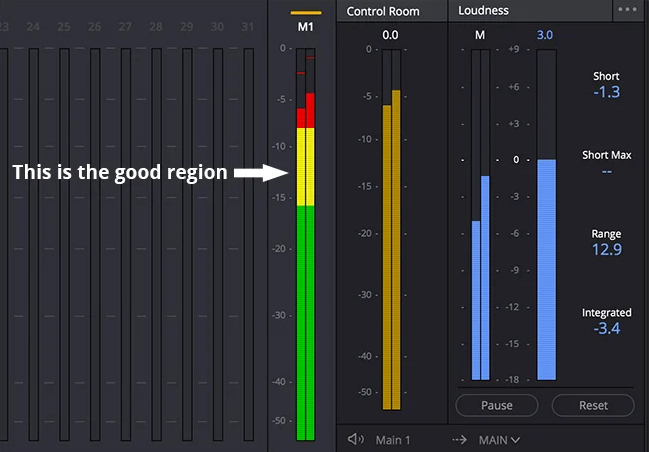
To make monitoring easier, most meters use a color-coded system similar to a traffic light. Understanding these zones is the fastest way to diagnose your audio health at a glance.
| Zone | Level Range (dB) | What It Means | Action Required |
|---|---|---|---|
| Red Zone | >-3dB to 0dB | DANGER. You’re about to clip. Don’t let the meter go all the way up. If it does, your audio will get ruined. | Turn Down Gain. Lower your input levels immediately to prevent distortion. |
| Yellow Zone | -12dB to -6dB | Target Range. This is the “sweet spot” for spoken word and dialogue on YouTube and the web. | Maintain. Keep your loudest peaks bouncing in this area. |
| Green Zone | -20dB to -12dB | Safe Range. Good for dynamic range and background sounds, but potentially too quiet for the main dialogue. | Monitor. If dialogue stays here, you may need to boost it in post-production. |
| The Floor | -60dB to -∞ | Noise Floor. This is silence or room tone (hiss). | Check Noise. If this meter is moving while no one is speaking, your environment is too noisy. |
Pro Tip: Do not aim for 0dB. Many beginners try to get the meter as high as possible, but this leaves no room for error. If your subject laughs or shouts unexpectedly, you will clip. Always leave “headroom” by aiming for the Yellow Zone (-12dB to -6dB).
How to Monitor Audio Levels During Recording (Production)
Now that you understand the zones, how do you practically set them before hitting record? Monitoring audio isn’t just about watching bars bounce; it is about Gain Staging. This makes sure your sound stays clean and strong all the way from the mic to your camera.
Here is the step-by-step workflow to ensure pristine audio levels on set.
Step 1: Set Your Pre-amp and Camera Gain
The most common cause of “hiss” in video audio is the camera’s internal pre-amp. Most DSLR and mirrorless cameras have low-quality pre-amps that introduce noise if you turn them up too high.
- The Rule: Keep your camera’s audio input level low (usually around setting 1 or -20dB on the camera menu).
- The Adjustment: Use your external mic or receiver for the volume boost. This keeps the noisy camera out of the way and gives you a cleaner “signal-to-noise ratio.”
Step 2: Check the Source Meter
Once your camera is set, you need to adjust the output volume on your microphone receiver. Your goal is to get the meters bouncing in the Yellow Zone (-12dB to -6dB) when the subject is speaking at a normal volume.
However, monitoring these levels on a tiny camera screen can be difficult, especially if you are filming yourself or moving around.
The Hardware Solution:
Using a system with built-in visual metering is a game-changer for solo creators. Professional wireless systems, like the Hollyland LARK MAX 2, come with a clear touchscreen display on the receiver unit.

Hollyland LARK MAX 2 - Premium Wireless Microphone System
A premium wireless microphone for videographers, podcasters, and content creators to capture broadcast-quality sound.
Key Features: Wireless Audio Monitoring | 32-bit Float | Timecode
It lets you adjust gain, activate timecode, or switch to channel modes without a sweat. But what makes it top-notch is wireless audio monitoring via OWS earphones. As a result, your subject is safely in the “Yellow Zone” with a single glance at the receiver and listening to live audio feed.
Step 3: The “Safety Track” Method
Even with perfect gain staging, unexpected loud noises (like a laugh or a shout) can cause your audio to spike into the Red Zone and clip. This is where a Safety Track acts as your insurance policy.
A Safety Track records the audio twice simultaneously:
- Track A: Recorded at your standard level.
- Track B: Recorded at a lower volume (typically -6dB lower).
If your main audio clips during a loud moment, you can simply swap them out for the clean, unclipped audio from the Safety Track during editing. It effectively eliminates the fear of ruining a take due to bad levels.
How to Monitor Audio Levels During Editing (Post-Production)

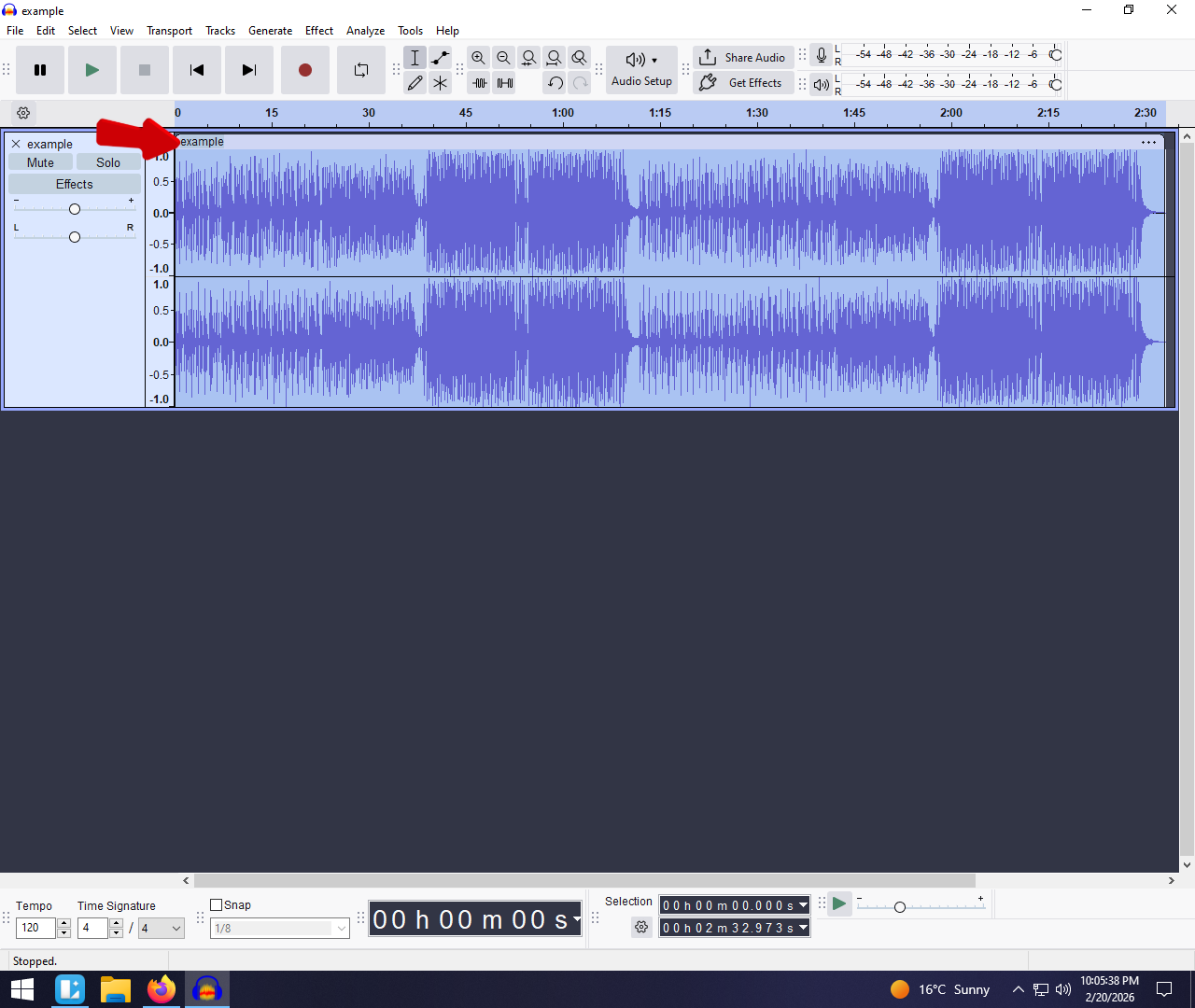
Got clean audio? Awesome! But hold off on the victory dance. In editors like DaVinci Resolve, Final Cut, or Premiere Pro, your focus shifts from avoiding distortion to keeping your sound consistent.
While your camera meters helped you avoid clipping during the shoot, your editing meters help you balance dialogue against music and ensure your video meets the loudness standards of streaming platforms.
True Peak vs. LUFS: Understanding the Difference
You will notice two different ways to measure sound during post-production.
- True Peak Metering (Instant Volume): This is what you monitored while recording. It tracks the loudest, flashiest moments in your audio to identify potential distortion spikes. However, it does not tell you how loud the video actually sounds to a human ear.
- LUFS (Perceived Loudness): Standing for Loudness Units Full Scale, this measures the average volume over time. It shows how loud your video actually sounds to the audience.
The Golden Rule: Use Peak Meters to catch technical errors (clipping), but use LUFS to set your final volume levels.
Target Levels for Delivery
Different platforms have different “Loudness Standards.” If you upload a video that is too loud, the platform will forcibly turn it down (normalization). If it is too quiet, your viewers will struggle to hear it on mobile devices.
Here are the industry targets you should aim for in your final export:
1. The Internet Standard (YouTube, Spotify, Podcast)
- Target: -14 LUFS
- True Peak Max: -1.0 dBTP
Most online streaming platforms optimize for -14 LUFS. If you mix your dialogue to hit this average, your video will play at the same volume as major YouTubers and music videos. Always leave 1dB of headroom (-1.0 dBTP) to ensure conversion to MP3 or AAC doesn’t cause distortion.
2. The Broadcast Standard (TV & Netflix)
- Target: -23 LUFS (EU) or -24 LUFS (US)
- True Peak Max: -2.0 dBTP
Television standards are much stricter and generally quieter than the internet to allow for massive dynamic range (explosions vs. whispers).
Pro Tip: If you are creating content for YouTube, do not mix to broadcast standards (-24 LUFS). Otherwise, when viewers watch your video, it will sound quieter than other content on their feed. Stick to -14 LUFS for the web.
Visual Meters vs. Ears: Why You Need Both

Looking at your camera’s LCD or timeline isn’t enough to judge audio. Great shots can still have bad sound if you’re not careful. While audio meters provide objective data, they lack context.
Think of it this way: Meters measure quantity (Volume); your ears measure quality (Fidelity).
The Deception of the Meter
A visual meter is technically “blind.” It simply measures the electrical voltage of the signal coming in. It doesn’t know what a voice is and what a noisy air conditioner is. Therefore, it treats both sources in the same way.
You might look at your camera and see the levels bouncing perfectly in the -12dB to -6dB range. Visually, the audio looks safe. However, without headphones, you are missing important issues that the meter interprets as “healthy volume,” such as:
- RF Interference: That subtle buzzing from a nearby phone often registers at a low volume, but it ruins the recording.
- Wind Noise: Low-frequency wind rumble can push meters into the “safe zone” while drowning out the dialogue.
- Lavalier Rustle: If a shirt rubs against the mic, the spike in volume looks like speech on a meter, but sounds like scratching on playback.
- Reverb/Echo: A meter cannot tell you if the microphone is too far away, resulting in a “hollow” sound.
The “Trust but Verify” Workflow
To capture professional audio, you must synchronize your eyes and your ears. Use the following workflow to ensure your audio is both loud enough and clear enough:
- Eyes on the Meter: Use the visual display to set your Gain Staging. Also, watch your peaks so they don’t hit the red zone (0dB) or drop too low into the noise floor.
- Ears on the Monitor: Use closed-back headphones to isolate the sound. Listen specifically for background noise, distortion, and clarity.
3 Common Audio Metering Mistakes to Avoid

Avoid these pitfalls to ensure clean, usable sound every time.
1. “Riding the Red” (Zero Headroom)
It’s common for beginners to think louder is better and push levels toward 0dB. Here’s what really happens. 0 dB is the limit in digital video, and once you hit it, the audio clips and is permanently distorted.
- The Fix: Always leave headroom. Aim for your peaks to hit between -12dB and -6dB. This safety buffer ensures that if your subject suddenly laughs or shouts, the signal has space to expand without hitting the digital ceiling.
2. Recording Too Low (The Noise Floor Trap)
On the flip side, some creators are so terrified of clipping that they record everything at extremely low levels, hovering around -40dB or -30dB. While this prevents distortion, it introduces a different problem: Hiss.
If your recorded signal is too close to the noise floor (a poor Signal-to-Noise Ratio), you will have to boost the volume significantly in editing. Every time you raise the voice level, the static increases with it, leading to an unpolished, amateur, and noisy sound.
- The Fix: Be brave with your gain. Get your levels up to the “Yellow Zone” (around -18dB to -12dB minimum), so your voice sits far above the noise floor.
3. Ignoring Dynamic Range
Sound checks can be misleading. You ask someone to say a few words, they speak calmly, and the levels look fine. But here’s the plot twist! When the recording starts, speakers get excited, laugh, or talk louder, and the audio clips right away. That happens because the levels were set for average volume, not the dynamic peaks.
- The Fix: When sound checking, ask the talent to perform the loudest part of their script or to laugh loudly. Set your gain so that the moment hits -6dB. With the Hollyland LARK MAX 2, you can use 32-bit Float recording to capture audio internally. What’s great about this is that it keeps the sound free of distortion, even when there’s loud noise like shouting or screaming.
Frequently Asked Questions (FAQ)
What is the ideal audio level for YouTube videos?
For YouTube, you need to balance two different measurements: Peak (the loudest instant) and Loudness (the average volume over time).
- Dialogue Peaks: Your dialogue should generally peak between -12dB and -6dB. This ensures it is loud enough to be clear on mobile devices but leaves enough “headroom” so you don’t clip if the speaker laughs or shouts.
- Overall Loudness (LUFS): YouTube normalizes audio to -14 LUFS. If your video is quieter than this, YouTube won’t boost it much, making your video sound weak compared to others. If it is louder, YouTube will turn it down. Aiming for -14 LUFS gives you the best consistency across the platform.
What happens if my audio meter hits red?
The “Red Zone” (specifically hitting 0dBFS) indicates clipping.
Analog tape can be pushed and still sound pleasant, but digital audio has a strict ceiling. When your signal hits 0dB, the top of the audio waveform is sliced off flat. This results in harsh, robotic distortion that is permanently baked into your footage. In 99% of cases, clipped audio cannot be fixed in post-production.
What is the difference between VU meters and Peak meters?
The difference lies in how they measure sound:
- VU (Volume Unit) Meters: These measure the average loudness of the sound, similar to how human ears perceive volume. They are slower to react. You often see these as “needles” on older analog gear.
- Peak Meters: These measure the instantaneous volume of the signal. They react instantly to sudden spikes (transients)