.png)
 简体中文

Plugging your mic into your system’s audio port isn’t enough to get Discord to pick the correct source. It often selects the wrong device through system audio settings. Wireless microphones also require successful pairing before software adjustments. This guide explains the complete setup using the Hollyland LARK MAX 2. You will learn everything from powering on both the TX and RX. It also covers adjusting sensitivity for clear Discord voice transmission.
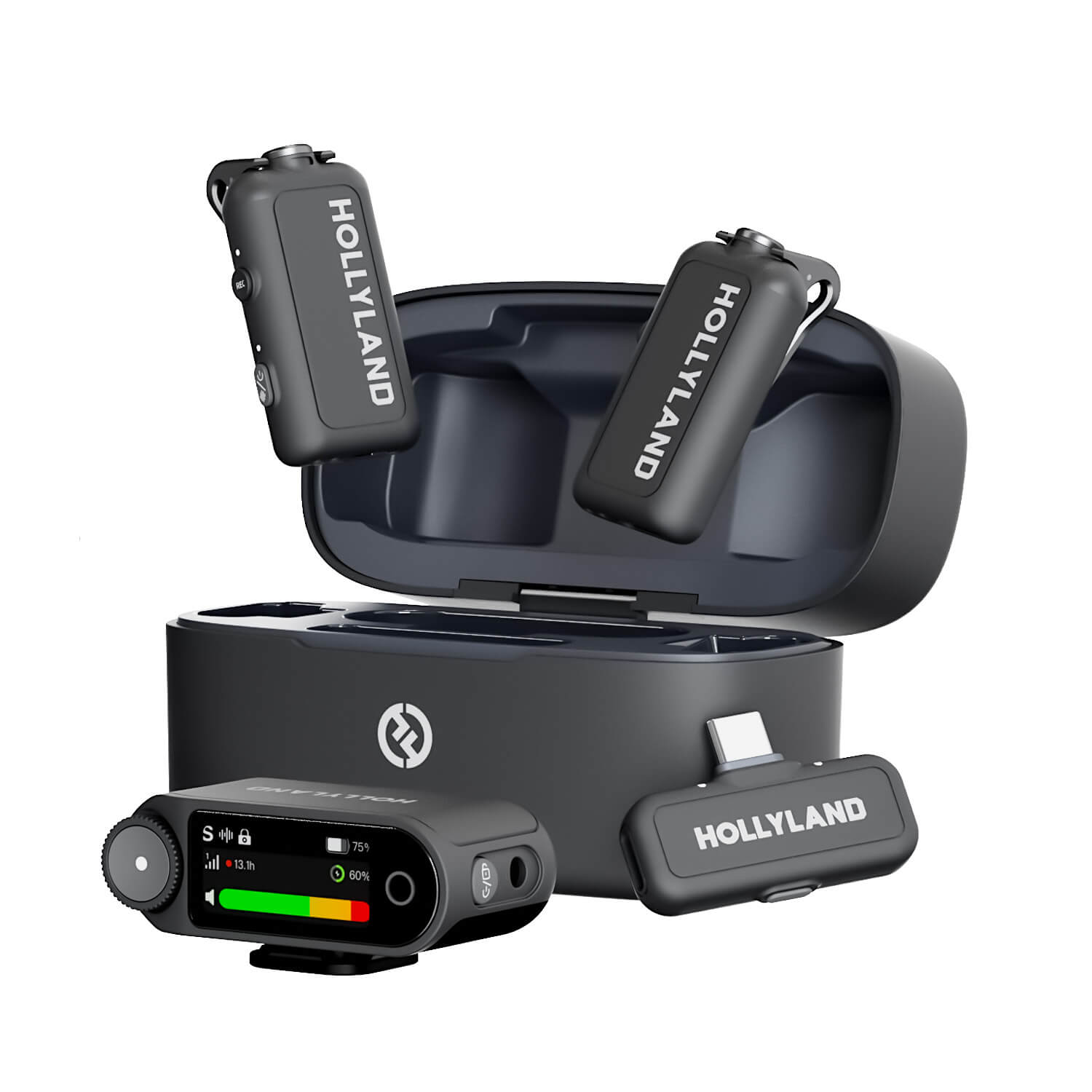
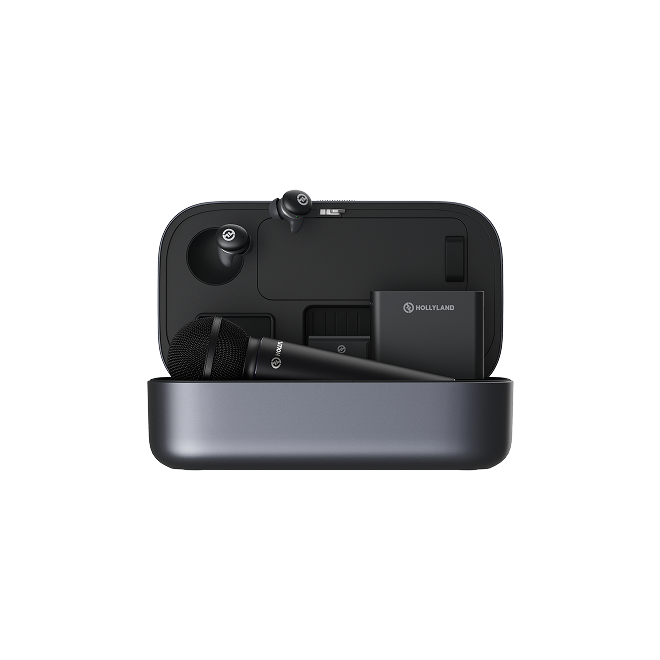
Hollyland LARK MAX 2 - Premium Wireless Microphone System
A premium wireless microphone for videographers, podcasters, and content creators to capture broadcast-quality sound.
Key Features: Wireless Audio Monitoring | 32-bit Float | Timecode

What You Need Before You Start
Before changing Discord settings, make sure everything mentioned below is ready:
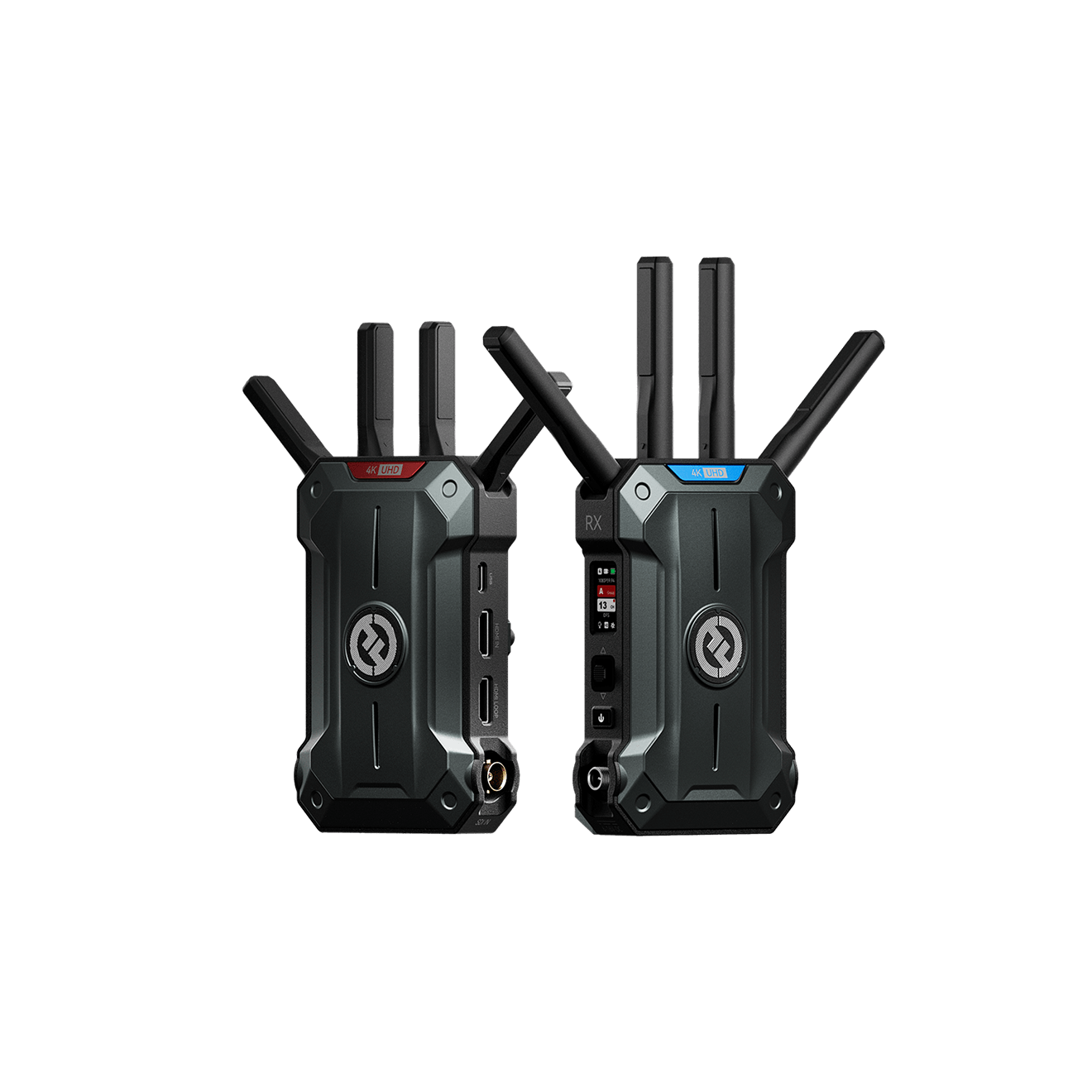
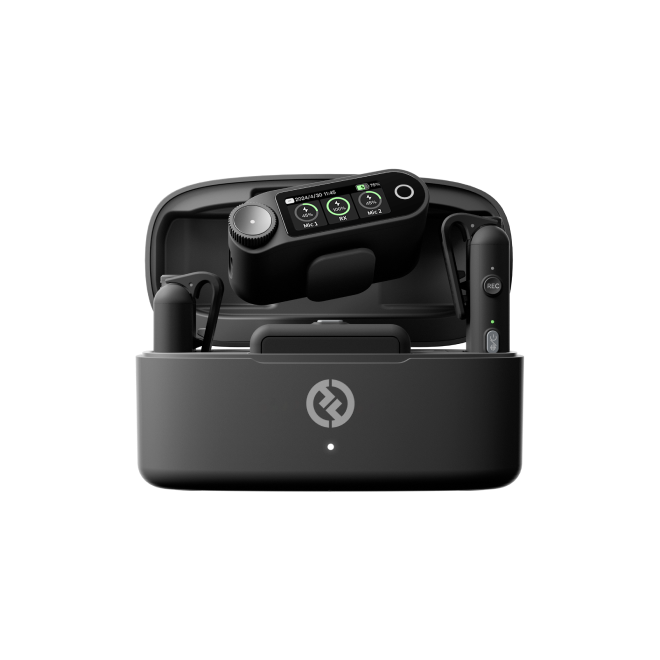
- Hollyland LARK MAX 2 kit: TX clip-on transmitter, Camera receiver (RX) unit, OWS monitoring earphones, and the included USB-C data cable
Note: The Hollyland LARK MAX 2 also comes with the USB-C RX, which is primarily made for smartphone users. You can also connect it to your Windows or Mac USB-C ports. But we used the Camera RX to demonstrate the steps in this guide, since it offers quick adjustment options and an on-screen menu.
- PC or Mac with Discord installed: The desktop app is recommended; the browser version limits access to some audio subsystem controls
- USB-C port or adapter: Older desktops may require a USB-C to USB-A adapter
- OS microphone permission for Discord: Enabled in Windows Privacy and Security settings or Mac System Settings before starting
- HollyAudio App (optional): Download on your mobile device for AI Noise Cancellation control and remote gain adjustments
Note: The RX receiver is the unit that connects to your computer. The TX transmitter stays clipped to the speaker. Do not attempt to plug the TX into the PC.
Step 1: Power On and Pair the Hollyland LARK MAX 2
First things first! You must pair the LARK MAX 2 TX and RX units and ensure a wireless connection. Without that, the receiver cannot send audio. This happens even when Discord settings are correctly configured.
- Remove both units from the charging case. The TX and RX units charge automatically when docked; removing them prepares them for power-on.

- Confirm successful pairing (Or manually pair the TX and RX). The LARK MAX 2 transmitter and Camera RX normally establish a connection automatically after being taken out of the charging case. If they remain disconnected, use the manual pairing method:
- Turn off the transmitter and receiver by pressing their power buttons for 3 seconds.
- With the LARK MAX 2 mic/transmitter (TX) off, press and hold its power/multifunction button for 6 seconds. Its LED will activate when pairing mode starts.

- While the Camera RX remains powered off, press and hold its power button for 6 seconds to activate its pairing mode.

- Wait for the two units to pair. The Camera RX touchscreen display will show a message indicating successful pairing. You can also check the signal indicators for the connected TXs on the display screen.

- The TX will display a solid blue LED once it has successfully connected to the RX.

- Verify the TX is unmuted. The TX LED should show solid blue, indicating an active transmit state. A red indicator means the TX is muted. Double-press the power button/multifunction button to mute or unmute the TX. An accidentally muted TX often causes most reports of missing audio. This even occurs when every other setting is correct..

Step 2: Connect the Receiver to Your PC or Mac
With the TX–RX link confirmed, connect the RX receiver to your computer.
Note: Use the USB-C cable included in the LARK MAX 2 kit. Charge-only USB-C cables will power the RX unit but will not pass audio data to the computer. If the OS does not detect the device after connection, a charge-only cable is typically the cause.
- Locate the USB-C audio output port on the RX unit. Plug one end of the cable into the RX and the other into your computer’s USB-C port, or into a USB-A port via adapter.

- Verify the device appears in your OS audio settings using the steps for your platform below.
Windows
- Right-click the speaker icon in the system tray and select Sound Settings, or navigate to Settings > System > Sound.

- Scroll down to Advanced, then select More sound settings. This opens the classic Sound control panel.

- Select the Recording tab and look for “USB Audio Device” or “Hollyland LARK MAX 2” in the device list.

- Right-click the entry and confirm it is enabled. If it shows as disabled, right-click and select Enable.
- Speak into the TX. The green level bar next to the device should animate, confirming the audio signal is reaching the computer.
Mac
- Open System Settings > Sound and select the Input tab.


- Look for “USB Audio Device” or “Hollyland LARK MAX 2” in the source list and click to select it.
- Speak into the TX transmitter and watch the Input level bar respond.

- If the device does not appear, unplug the cable, wait five seconds, confirm the RX is powered on, and reconnect.
Step 3: Select Your Microphone as the Input Device in Discord
Discord does not automatically refresh its selected input device when new hardware is connected. You must manually assign the RX receiver as the audio source inside Discord.
- Connect the RX to your computer. Then check whether your operating system detects it.
- Open Discord and click the gear icon (User Settings) in the lower-left corner next to your username and avatar.

- Select Voice & Video from the left sidebar under the Experience section.

- Find the Microphone dropdown under the Voice heading.
- Open the dropdown and choose your specific microphone or RX receiver. Select Hollyland LARK MAX 2 or its USB audio endpoint.

- Do not leave the setting on “Default.” The Default option mirrors your OS system input, which can change automatically when other devices are connected. Manually selecting the device prevents Discord from silently switching away from your microphone during an active call.
Note: If the LARK MAX 2 does not appear in the Input Device dropdown, Discord was most likely launched before the RX unit was connected. Close Discord completely (Quit from the tray icon, do not just minimize the window), confirm the RX is plugged in and powered on, then reopen Discord and check the dropdown.
Step 4: Set Input Sensitivity and Run the Microphone Test
A microphone that Discord detects but does not transmit is the most common post-connection failure. This typically occurs because the input sensitivity threshold is set too high or the TX is still muted.
- Scroll down in Voice & Video settings to the Input Sensitivity section.
- Disable automatic sensitivity. Toggle off “Automatically Adjust Input Sensitivity” to take manual control of the threshold.
- Adjust the slider. Drag it left to lower the activation threshold. When you speak normally, the green level bar should rise clearly above the yellow threshold line. Ambient room noise should fall below the line when you are silent.

- Choose your transmission mode:
Voice Activity vs. Push to Talk
Voice Activity transmits audio automatically whenever your voice crosses the sensitivity threshold. This is the practical choice for gaming, streaming, and calls where you need both hands free.
Push to Talk transmits only while you hold a designated keybind. Use this in high-noise environments or professional calls where you want precise control over when other participants can hear you.
For most LARK MAX 2 users, Voice Activity works reliably because the microphone’s omnidirectional pickup and AI Noise Cancellation reduce ambient noise before it reaches the Discord threshold.

- Run the Discord mic test. Click “Mic Test” below the Microphone dropdown section to open the built-in test. Speak at normal volume into the TX transmitter. Your voice should play back within two to three seconds, and the level bar should show a consistent mid-range reading without clipping at the top of the scale.

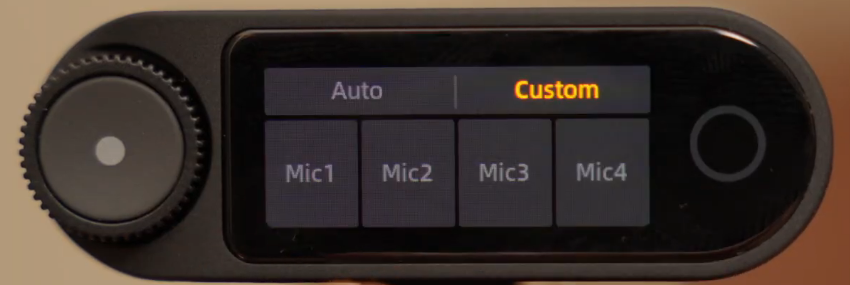
- Adjust gain if the signal is too low or too high. If you need to change microphone gain, start with the camera RX. Its OLED touchscreen provides access to the necessary controls.
- Press the physical dial on the camera receiver to bring up its main options.

- Use the dial to scroll through the available options until you reach Mic Settings. Tap this option on the OLED touchscreen display.

- Tap Mic Gain to access the gain adjustment methods. Select either of the following:

- Auto: Automatically adjusts the microphone sensitivity and input levels dynamically in real time.
- Custom: Control the gain intensity yourself by adjusting each connected Hollyland LARK MAX 2 TX individually.
- Final mute check. Before finishing, confirm the TX LED shows active state (solid blue, not red). If the Discord mic test returns silence at this stage, a muted TX is almost always the reason.
Optimize Call Quality by Combining Hollyland and Discord Audio Settings
The LARK MAX 2 captures audio at 48kHz / 32-bit float, giving your voice significantly more clarity and headroom than most USB headset microphones. Preserving that quality on Discord calls means using the platform’s processing tools thoughtfully, not aggressively.

The primary risk is over-filtering. Running Hollyland’s AI Noise Cancellation at its highest setting while Discord’s Krispy Noise Suppression is also set to High creates layered processing that makes your voice sound muffled, hollow, or robotic to other callers. The two systems are designed to work independently; stacking both at maximum forces competing algorithms onto the same audio signal and degrades the vocal output.
Recommended settings combination for Discord calls with the LARK MAX 2:
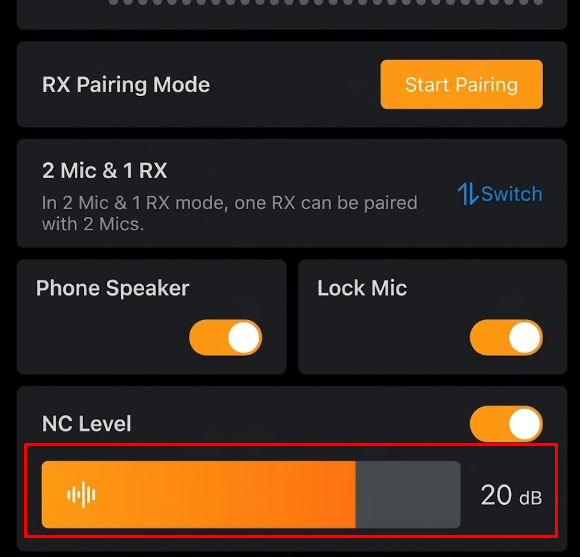
- HollyAudio App AI Noise Cancellation: Open the HollyAudio app. On the main settings page of the LARK MAX 2, toggle on the NC Level option. Then adjust the slider to set the noise cancellation intensity.

- Discord, Echo Cancellation: Enabled. Handles acoustic echo from speakers reflecting back into the mic, which is especially important if you are not wearing headphones during calls.

- Discord, Noise Suppression (Krispy): Standard, not High, when Hollyland ANC is already active. Standard clears residual noise that passes the hardware stage without introducing the robotic artifacts that High creates when stacked with hardware noise cancellation.

- Discord, Automatic Gain Control: Enabled. Normalizes output level if you shift position relative to the TX transmitter during longer sessions.

This combination preserves the natural character of the LARK MAX 2’s audio without overcorrecting it into sounding processed.
Frequently Asked Questions
Why doesn’t Discord detect my microphone even though it’s plugged in?
Common causes include Discord selecting the wrong microphone input. Your computer may also block Discord’s microphone permissions. Outdated audio drivers may also need updating. Close Discord fully, confirm the RX is connected and powered on, check OS permissions, then relaunch. If the device still does not appear, try switching Discord’s Audio Subsystem to Legacy under Voice and Video settings.
Should I use Voice Activity or Push to Talk in Discord?
Voice Activity suits gaming, streaming, and casual calls where you need both hands free. Push to Talk is better for professional calls or high-noise environments where background sound might cause accidental transmission. With the LARK MAX 2’s AI Noise Cancellation active, Voice Activity typically performs well without requiring frequent manual sensitivity adjustments.
Can I use a wireless microphone like the Hollyland LARK MAX 2 with Discord?
Yes. The LARK MAX 2 Camera receiver connects to a PC or Mac via USB-C cable and registers as a standard USB audio input device. Discord, Windows, and macOS treat it identically to a wired USB microphone once connected. No special configuration beyond selecting it in the Input Device dropdown is required.
Does the Hollyland LARK MAX 2 work with Discord on Mac?
Yes. The Camera RX unit connects via USB-C cable and appears under Sound > Input in Mac System Settings. Select it there and then in Discord’s Voice and Video Input Device dropdown. Gain control via the HollyAudio App and AI Noise Cancellation work identically on both Mac and Windows.
Why does my microphone sound muffled or robotic on Discord calls?
This is almost always caused by double-processing. If Hollyland’s AI Noise Cancellation is set to High and Discord’s Krispy Noise Suppression is also set to High at the same time, the competing filters degrade vocal clarity. Set Hollyland ANC to Medium and Discord Noise Suppression to Standard for natural, artifact-free audio.
Do I need to install drivers for the LARK MAX 2 to work with Discord?
No. The LARK MAX 2 is a USB class-compliant audio device, meaning Windows and macOS recognize it automatically upon connection without any third-party drivers. The HollyAudio App is optional and provides access to advanced controls like gain adjustment and AI Noise Cancellation, but it is not required for basic Discord use.
Conclusion
The complete workflow runs in five stages. Pair the TX and Camera RX units, connect the RX to your computer via a USB-C cable, select the correct input in Discord’s Voice and Video settings, calibrate sensitivity with the built-in mic test, then layer Hollyland’s AI Noise Cancellation with Discord’s Echo Cancellation for clean, professional-grade call audio. The Hollyland LARK MAX 2 eliminates cable clutter while delivering studio-quality audio to every Discord session.