.png)
 简体中文

If your Discord webcam looks backward or upside down, the fix depends on who sees it that way. Discord mirrors your local preview to make it feel natural. Other people usually see your video in its normal orientation. Since Discord lacks a built-in “Mirror My Video” toggle, you’ll need another option. Apps like OBS Studio can adjust the feed before sending it to Discord.

What “Invert Webcam” Actually Means in Discord
The word “invert” covers two distinct problems, and each requires a different method:
- Horizontal mirror: The image appears reversed left-to-right (text reads backward, your right hand appears on the left side of the screen).
- Vertical flip: The camera is physically mounted upside-down, so the image is flipped top-to-bottom.
What You Need Before You Start
Confirm the following before working through either method:
- Discord desktop app installed (the browser version may not expose all Voice & Video controls)
- Webcam physically connected and powered on
- OS camera permission already granted to Discord
Connecting the Hollyland Lyra:
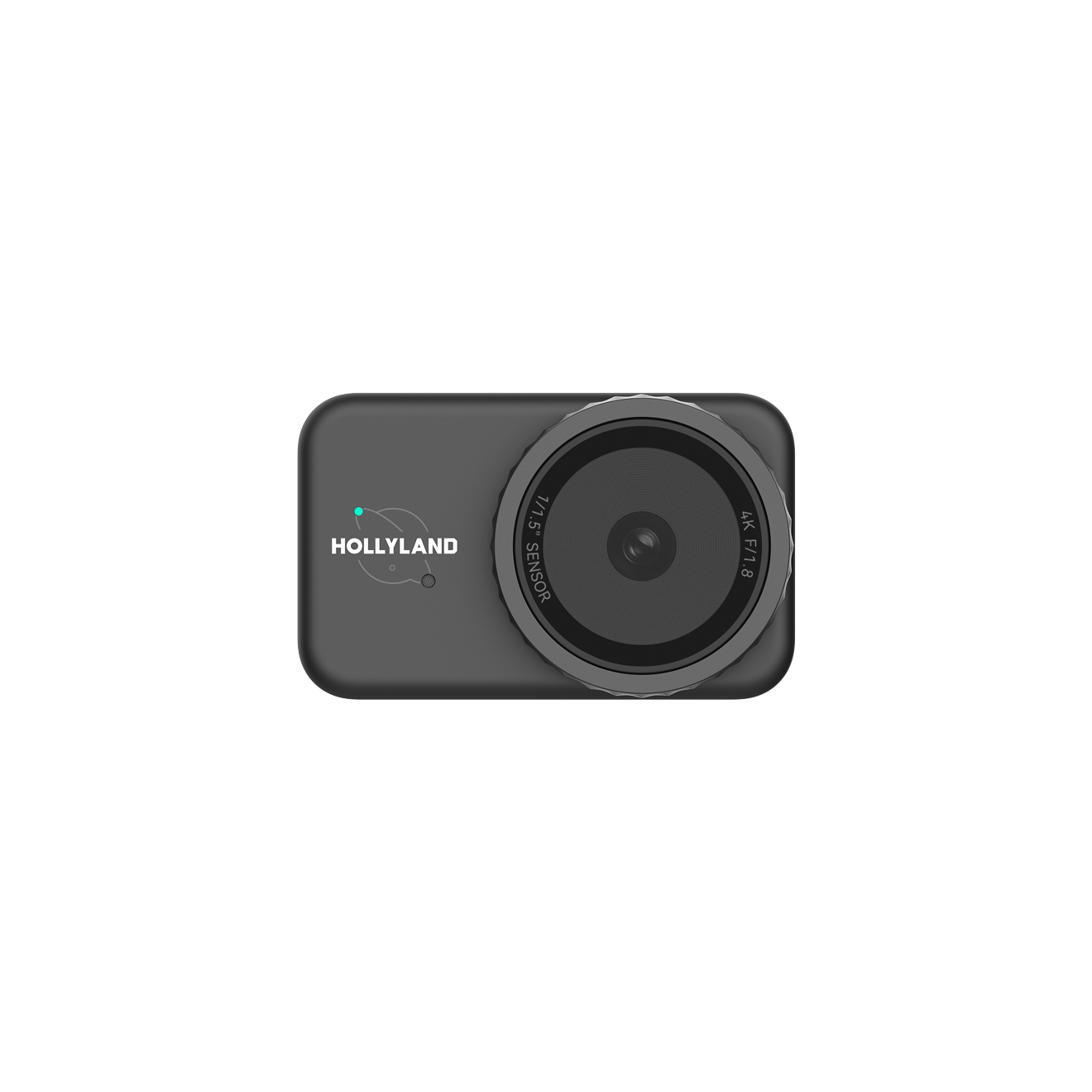
Hollyland Lyra - 4K AI Webcam
A flagship 4K AI webcam featuring a large 1/1.5″ CMOS sensor, smart auto-framing, and studio-grade 48 kHz/24-bit audio for effortless streaming and conferencing.
Key Features: 1/1.5″ CMOS & 4K30 | AI Tracking & Auto Framing | 48 kHz/24-bit Audio
- Insert the USB-C cable into the port on the rear of the Lyra, then connect the other end to your computer using a USB-C or USB-A adapter as needed


- No driver installation is required; the Lyra is a plug-and-play UVC device recognized automatically by Windows and macOS
- Confirm the Lyra’s LED indicator is solid and active, which means the camera is receiving power and has been detected

- Open Discord, click the gear icon (User Settings, bottom-left) and go to Voice & Video; under Video Settings, the Camera dropdown should show Hollyland Lyra with a live preview visible in the test window


How to Flip Your Webcam Vertically (Upside-Down Fix) Using OBS Studio
When a camera is physically mounted upside-down, or you need a vertical flip or 180-degree rotation, Discord’s Mirror My Video toggle will not help. OBS Studio (free) lets you apply any orientation transform and then send the corrected feed into Discord as a virtual camera.
In OBS:
- Open OBS Studio. In the Sources panel, click + and select Video Capture Device.


- Name the source (for example, “Lyra Flipped”) and click OK.

- In the Properties window, open the Device dropdown and select Hollyland Lyra. Set the resolution to 1920×1080 and the frame rate to 30 fps (USB 2.0 port) or 60 fps (USB 3.0 port), then click OK.

- Right-click the source in the Sources list, hover over Transform, and choose the appropriate option:
- Flip Vertical for a top-to-bottom flip
- Flip Horizontal for a left-to-right mirror via OBS
- Rotate 180 Degrees if the camera is fully upside-down (or apply Flip Vertical and Flip Horizontal together for the same result)

- Go to Tools in the top menu bar and click Start Virtual Camera.
In Discord:
- Open Discord, go to User Settings, then Voice & Video. Open the Camera dropdown and select OBS Virtual Camera.
- Confirm the Discord test preview now shows Lyra’s feed in the correct orientation.
Note: The Hollyland Lyra’s orientation must be similar to the orientation set in OBS or any other software.
Troubleshooting: Webcam Still Appears Inverted in Discord
Work through this checklist if either method is not producing the expected result:
- Discord test preview is blank — Check OS camera permissions. On Windows: Settings → Privacy & Security → Camera, and confirm Discord is toggled on. On macOS: System Settings → Privacy & Security → Camera, and confirm Discord has a checkmark.
- OBS Virtual Camera does not appear in Discord’s camera list — Verify OBS Virtual Camera is active (the button in OBS should read “Stop Virtual Camera”). Restart Discord after starting the virtual camera so Discord can detect the new source.
- “Hollyland Lyra” not appearing in Discord or OBS — Check that the USB-C cable is a data-capable cable and not a charge-only cable. Confirm the Lyra’s LED is active. Try a USB 3.0 port. On Windows, verify the Lyra appears under Device Manager → Cameras; on macOS, check System Information → USB.
- Image is still upside-down after applying Flip Vertical in OBS — Use Rotate 180 Degrees from the Transform menu instead of, or in addition to, Flip Vertical.
FAQs
Why does my webcam appear upside-down in Discord?
The camera is most likely physically mounted in an inverted position, such as clipped below a monitor with the lens facing upward. Discord has no native correction for this. Route the feed through OBS Studio using a Flip Vertical or Rotate 180 Degrees transform, then select OBS Virtual Camera in Discord’s Voice & Video settings, as shown in the workaround.
Does the Hollyland Lyra need drivers to work with Discord?
No. The Lyra is a plug-and-play UVC device that connects via USB-C. Windows and macOS recognize it automatically without any driver installation. Once the LED indicator is active, Discord will list the Lyra by name in the Camera dropdown under Voice & Video settings.
Conclusion
Discord mirrors your camera preview and lacks a built-in mirror toggle. Any flips or orientation changes must happen through an external app. For an upside-down camera, use OBS Studio’s Transform tools with OBS Virtual Camera. Select the virtual camera as your Discord video device before going live. Then check Voice & Video’s preview or start a private call. Confirm the image looks correct before others see your feed.