.png)
 简体中文

You finish a recording session, open the file, and your game audio or application sounds are clearly out of sync with the video. This problem almost always has a fixable root cause. Desktop audio delay in OBS recordings typically comes down to a sample rate mismatch, a misconfigured sync offset, an audio buffering issue, or a Windows driver conflict. This guide walks through each fix in order from most to least likely.
OBS Desktop Audio Delayed After Recording: Causes and Fixes
Why Is Desktop Audio Delayed in OBS Recordings?
Before changing any settings, identify which symptom pattern you have. The two types point to different root causes.

Why Is Desktop Audio Delayed in OBS Recordings?
Constant, fixed offset: The audio is consistently early or late throughout the entire recording by roughly the same amount. This is the most common pattern and usually indicates a sample rate mismatch or an incorrectly configured sync offset.
Gradual drift: The audio starts close to sync but slowly moves further out of alignment over 20 to 30 minutes or more. This indicates a clock mismatch between your audio and video capture devices, and it requires a different fix.
Common root causes mapped to each symptom:
- Sample rate mismatch — OBS and Windows are set to different sample rates (e.g., 44.1 kHz vs. 48 kHz), causing OBS to resample desktop audio in real time and introducing a consistent delay.
- Incorrect Audio Sync Offset — The sync offset value in OBS Advanced Audio Properties is set to a non-zero number, either accidentally or from a previous session.
- Audio buffer misconfiguration — OBS’s audio buffer is too low or too high relative to your system’s current CPU load, causing inconsistent timing.
- Windows audio driver conflict — A recent OS or driver update changed how your audio device communicates with OBS through WASAPI (Windows Audio Session API).
Fix 1 — Match Sample Rates Between OBS and Windows (Most Common Cause)
When OBS is configured to record at 44.1 kHz but your Windows audio device outputs at 48 kHz, OBS resamples the incoming desktop audio on the fly. That conversion consistently introduces a small but noticeable delay. Aligning both values removes it entirely.
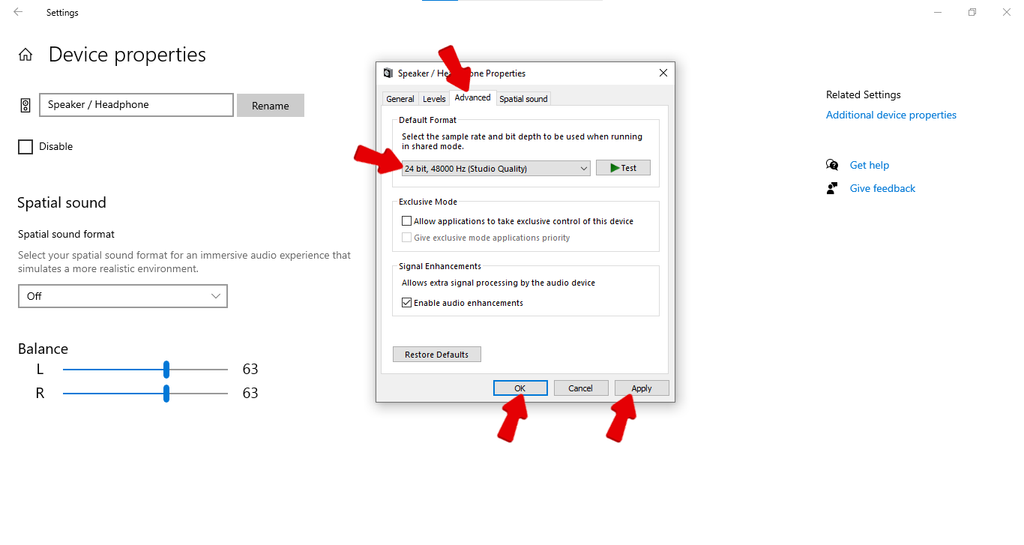
Step 1: Check your Windows audio device sample rate
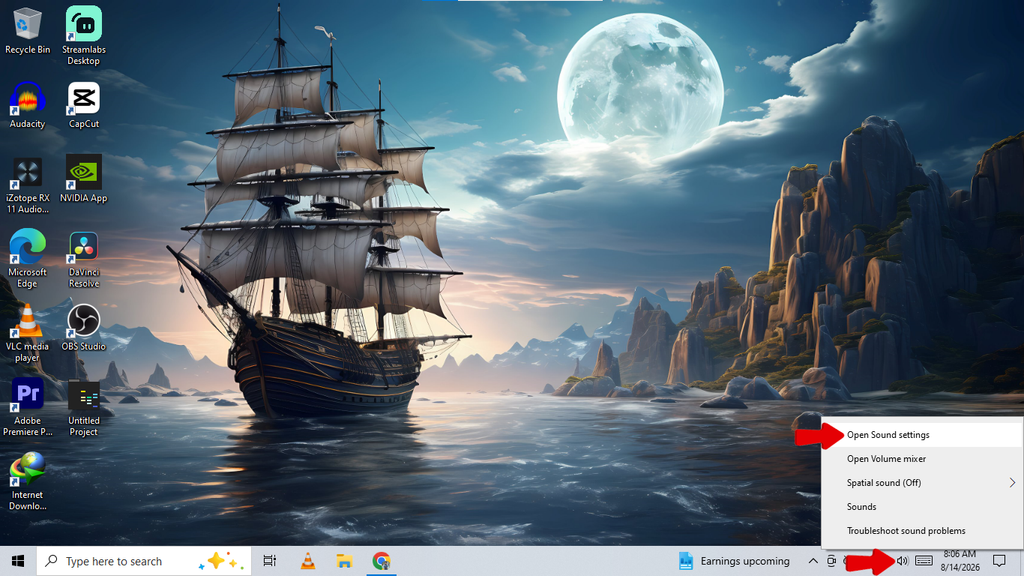
- Right-click the speaker icon in the Windows taskbar and select Open Sound settings.
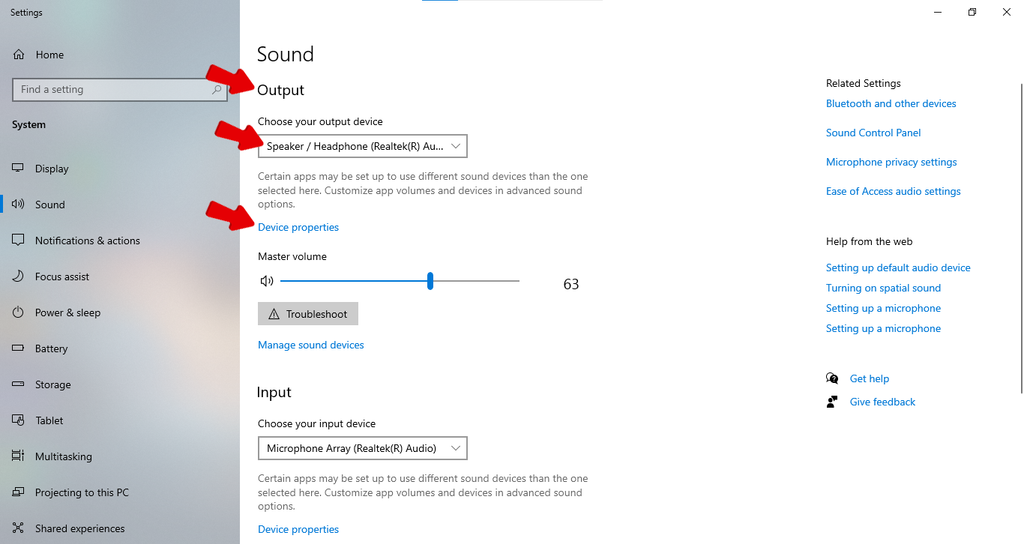
- Under Output, click your active playback device, then click Device properties.
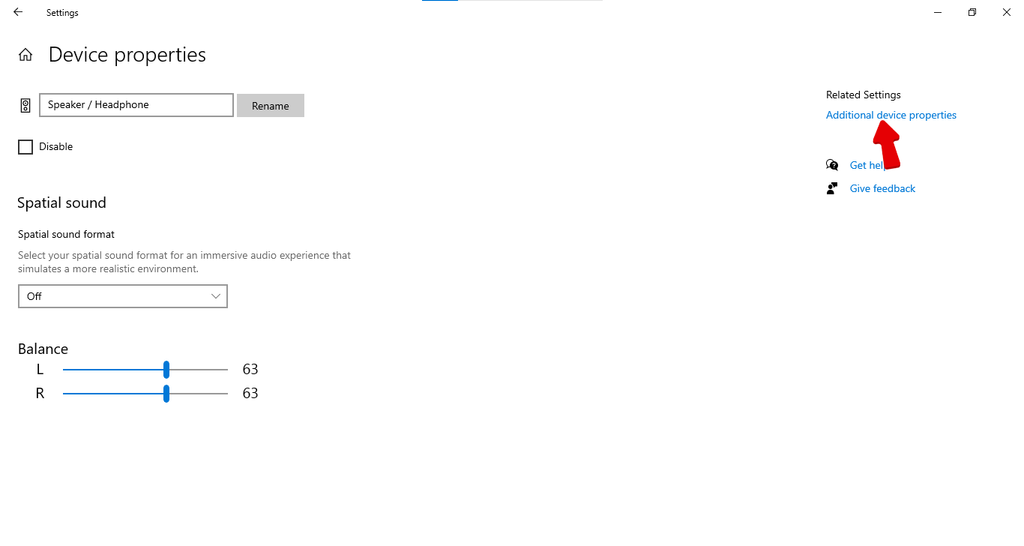
- click Additional device properties.
- Open the Advanced tab.
- Note the value shown in the Default Format dropdown — for example, 16 bit, 48000 Hz (DVD Quality) or 24 bit, 44100 Hz (Studio Quality).
Step 2: Set OBS to match that sample rate
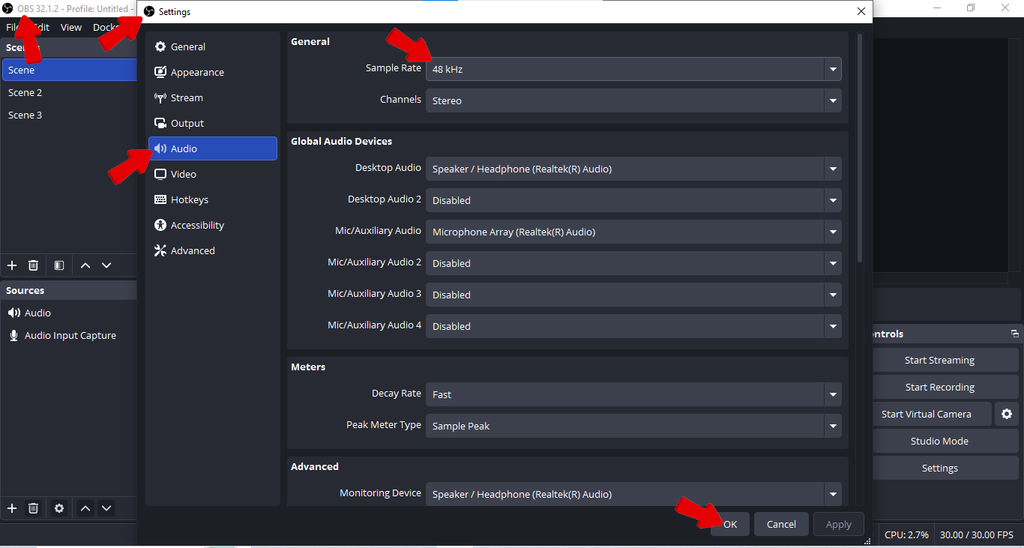
- Open OBS and go to Settings > Audio.
- Find the Sample Rate dropdown.
- Set it to match the value from Windows — 48 kHz for most consumer audio hardware.
- Click Apply, then OK.
- Restart OBS to confirm the change takes effect.
Note: 48 kHz is the standard for video content. If your Windows device is already at 44.1 kHz, you can update it to 48 kHz and match OBS, or leave both at 44.1 kHz. Consistency between the two is what eliminates the delay.
Fix 2 — Use OBS Audio Sync Offset to Correct Remaining Delay
After fixing the sample rate, run a short test recording. If a small, consistent offset remains, OBS’s built-in Audio Sync Offset control lets you compensate for it at the source level.
How to measure the offset:
Record a 10 to 15 second clip and make a sharp, identifiable sound, such as a hand clap directly in front of your monitor speakers. Play the clip back in a media player and note how many milliseconds the desktop audio is early or late relative to the visual event.
How to apply the sync offset in OBS:
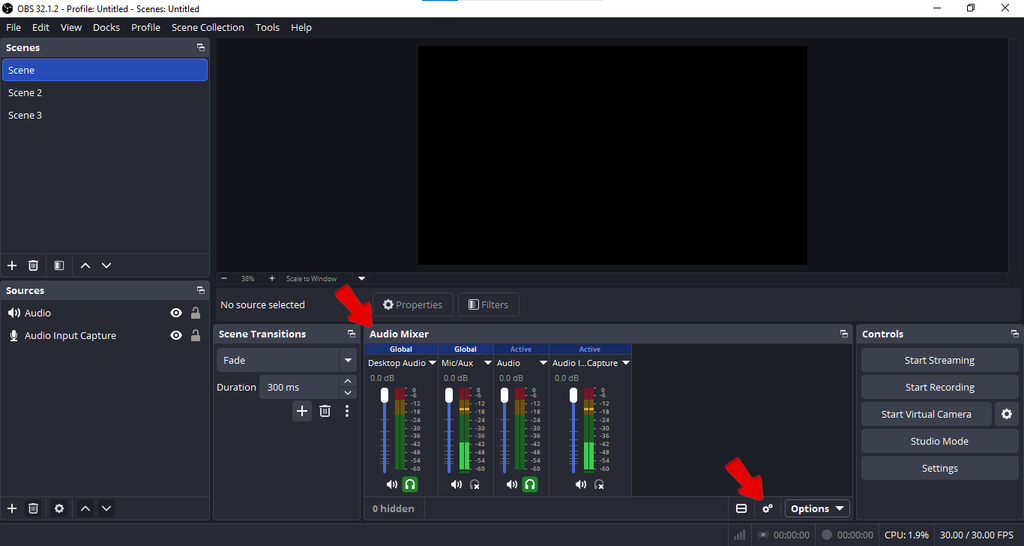
- In the OBS Audio Mixer, locate the Desktop Audio source.
- Click the gear icon next to it and select Advanced Audio Properties.
- Find the Sync Offset (ms) column next to the Desktop Audio row.
- Enter the measured value:
- If desktop audio is behind the video (late), enter a negative value, such as -80, to pull it earlier.
- If desktop audio is ahead of the video (early), enter a positive value, such as +80, to push it later.
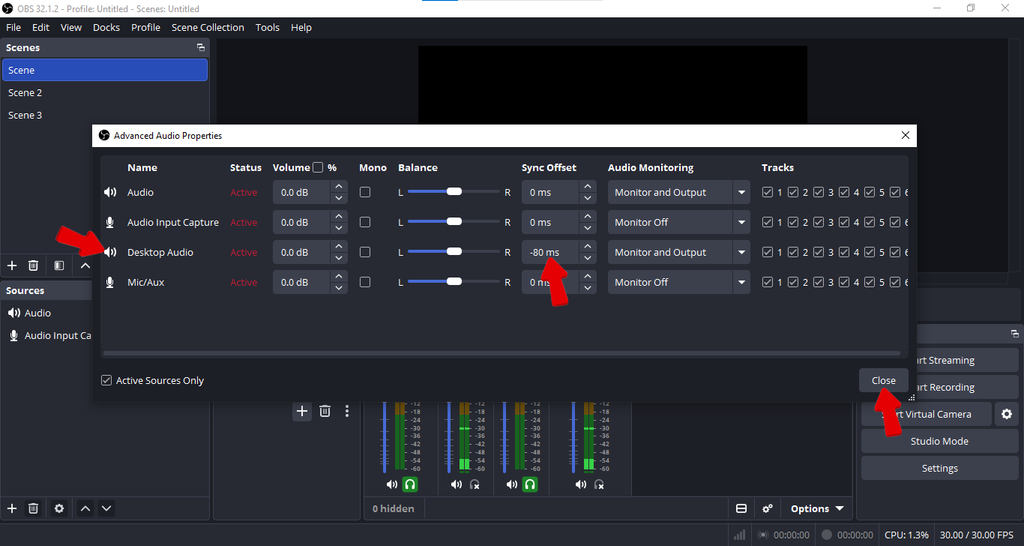
- Close the window and record another short test clip to verify.
Note: Audio Sync Offset is a compensation tool, not a root fix. If the underlying sample rate mismatch is not addressed first, this value may need to be recalibrated whenever your system configuration changes.
Fix 3 — Adjust OBS Audio Buffering Time
If your desktop audio delay is inconsistent rather than constant, or if the previous fixes did not fully resolve it, the issue may be OBS’s audio buffer setting. The buffer controls how much audio OBS holds in memory before writing it to the recording file. On high CPU-load sessions, an undersized buffer can cause audio data to arrive out of order relative to the video frames.
Go to OBS Settings > Advanced and locate the Audio Buffering field under the Audio section.
| Setting | Default Value | Recommended Range |
|---|---|---|
| Audio Buffering | 100 ms | 100–200 ms |
Increasing the buffer to 150 or 200 ms can stabilize audio during demanding recording sessions. Setting it below 50 ms risks audio dropouts. Setting it above 500 ms introduces a new fixed delay. Start at the default 100 ms and only increase it if you continue experiencing inconsistent desync under heavy CPU load.
Fix 4 — Update or Reinstall Windows Audio Drivers
Driver-related audio delay often appears after a Windows update silently installs a replacement audio driver or resets audio device settings. OBS uses WASAPI to capture desktop audio, and driver inconsistencies can disrupt how reliably audio samples are delivered and timestamped.
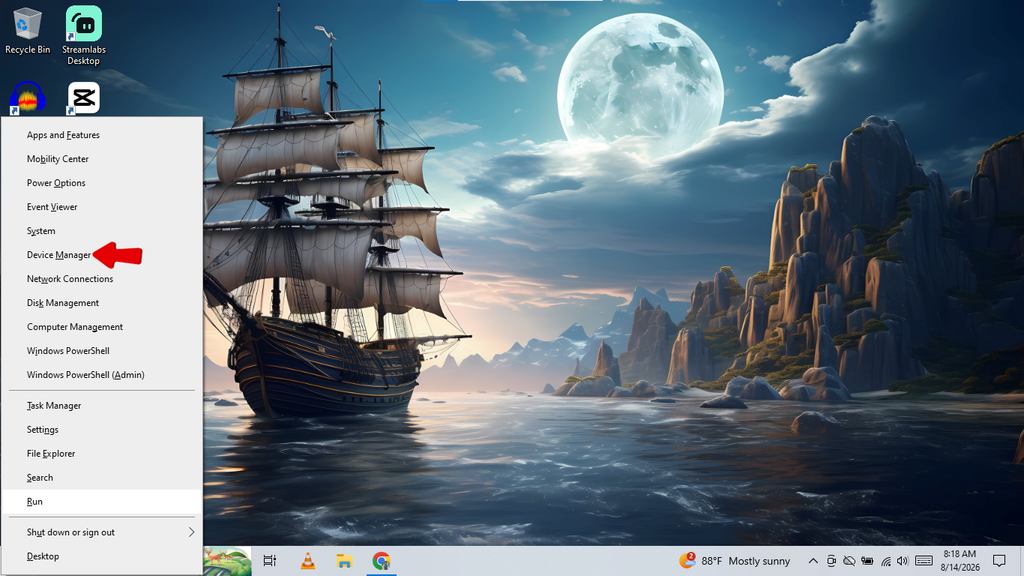
- Press Windows + X and open Device Manager.
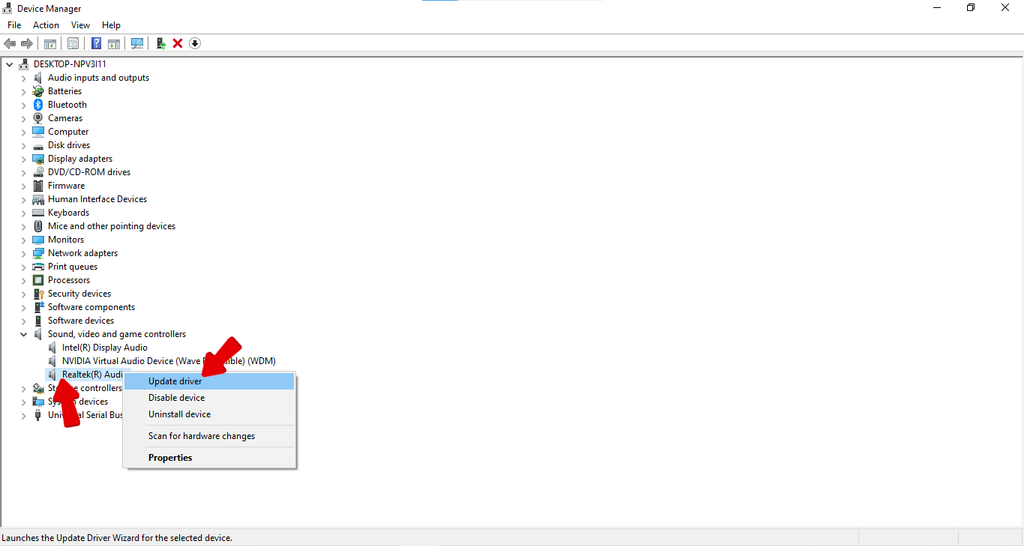
- Expand Sound, video and game controllers.
- Right-click your primary audio device (typically Realtek High Definition Audio or Intel HD Audio) and select Update driver.
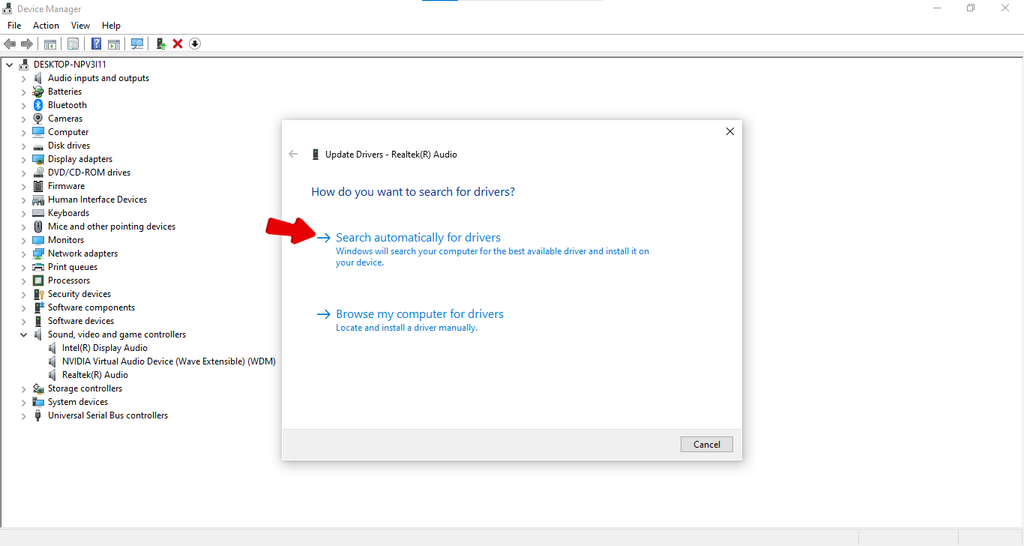
- Choose Search automatically for drivers and follow the prompts.
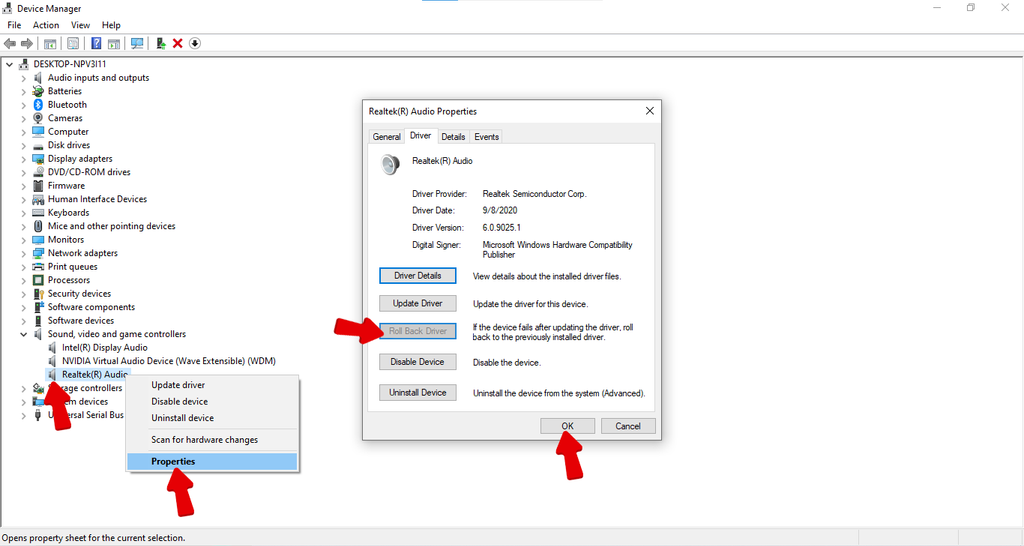
- If the delay appeared immediately after a Windows update, select Properties > Driver > Roll Back Driver instead to restore the previous working version.
- Restart your PC and test a short recording.
If you use an external audio interface, visit the manufacturer’s website for the latest driver package rather than relying on Windows Update, as vendor-specific WASAPI or ASIO drivers are often more current.
Fix 5 — Check for Audio Drift on Long Recordings (Gradual Desync)
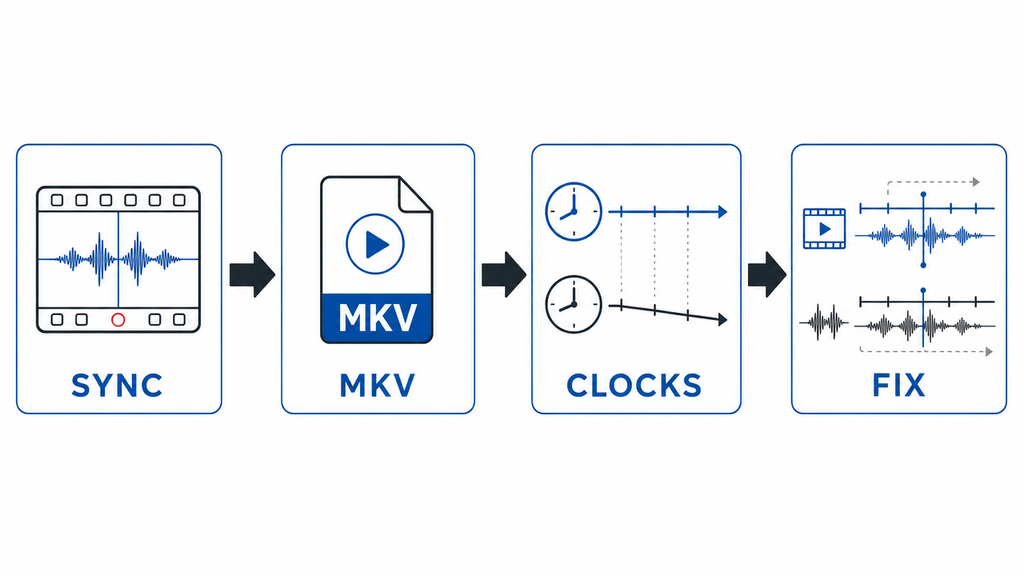
Gradual drift is distinct from a fixed offset. The recording may start perfectly in sync, but by the 20 to 30 minute mark, the desktop audio has drifted noticeably behind or ahead of the video. The cause is that your audio capture and video capture are referencing slightly different internal hardware clocks, and that small discrepancy accumulates over time.
Fix 5 — Check for Audio Drift on Long Recordings (Gradual Desync)
Resolution steps:
- Confirm all audio sources in OBS use the same sample rate (covered in Fix 1) — inconsistency is the most common driver of drift.
- In OBS Settings > Output, use a container format such as MKV for recording. MKV handles clock synchronization more consistently than some fragmented formats.
- Avoid combining capture sources that pull from different hardware clocks, such as an HDMI capture card and onboard audio, without verifying they share a clock reference.
- If drift persists and you need to salvage an existing recording, import it into DaVinci Resolve, Premiere Pro, or a similar editor. Find a visual reference point at the start and end, measure the total drift, and shift the audio track proportionally to realign it.
Quick Diagnostic Checklist Before You Record Again
Run through this list before your next session:
- Sample rate is set to 48 kHz in both OBS (Settings > Audio) and Windows (Sound Settings > Device Properties > Advanced tab).
- Sync Offset in Advanced Audio Properties is set to 0 ms unless you have intentionally calibrated a correction value.
- Audio Buffering (OBS Settings > Advanced) is at the default 100 ms.
- Windows audio drivers are current, or a recent driver rollback has been applied if an update caused the issue.
- A 30-second test recording has been reviewed for sync at both the start and end of the clip.
FAQ
Q: Why does only my desktop audio have a delay but not my microphone?
Microphone and desktop audio are captured through different mechanisms. Your microphone comes in as a direct hardware input, while desktop audio uses WASAPI loopback capture. Sample rate mismatches and buffer settings affect each source independently, which means one source can drift while the other stays in sync. Check the Sync Offset value for each source separately within OBS Advanced Audio Properties.
Q: Does OBS audio sync offset fix drift during long recordings?
No. Sync offset corrects a fixed, constant delay by the same number of milliseconds across the entire recording. Gradual drift means the gap grows over time, which indicates a clock mismatch between capture devices. The sync offset control applies a uniform shift and cannot compensate for an accumulating difference. Address the clock source alignment or correct the drift in post-production editing.
Q: My audio was fine before a Windows update — what changed?
Windows updates frequently reset audio device sample rates to a different default or install new audio drivers that alter buffering behavior. After any major update, reopen Windows Sound Settings and confirm your device sample rate is still set to your intended value, then verify that OBS matches it. If needed, use Device Manager to roll back the audio driver to the previous working version.
Q: Can I fix the audio delay in a recording I’ve already made?
Yes. Open the recording in a video editor such as DaVinci Resolve, Premiere Pro, or Audacity. Identify the offset by locating a clear visual reference point, measure the gap in milliseconds, then shift the desktop audio track forward or backward to align it. Most editors support precise millisecond-level adjustments to the audio track position.
Conclusion
Start with sample rate alignment in OBS and Windows — it resolves the majority of desktop audio delay cases. If a residual gap remains, dial it in with the Audio Sync Offset control. Buffer adjustments and driver updates handle the remaining edge cases.
Before your next full session:
- Record a 30-second test clip and check sync at both the start and end.
- If both points match, your setup is ready.
- For related issues, see the guides on OBS audio cutting out mid-recording and fixing OBS microphone delay.


