.png)
 简体中文
简体中文 
When you see the “Error opening sound device” pop-up, it rarely means your microphone is broken. Instead, think of it as a communication breakdown.
Audacity is trying to “shake hands” with your microphone or interface to start recording, but your operating system ,usually Windows is blocking the connection. Learning how to fix “Error Opening Sound Device” in Audacity usually comes down to resolving one of three conflicts:
- Privacy Settings: Windows has “locked” the microphone to prevent apps from using it.
- Sample Rate Mismatch: Audacity wants to record at one frequency (like 44100 Hz), but your hardware is forced to another (like 48000 Hz).
- Driver Conflict: Another app, like Zoom or Discord, is currently “hogging” the audio driver.
You might also see specific codes like Error -9999 (Unanticipated Host Error) or Error -9996 (Invalid Device). Don’t let the technical jargon scare you—if your microphone works in other apps, your gear is fine. You just need to adjust a few settings.
Here is how to get your audio back on track.
Method 1: Check Microphone Privacy Settings (Most Common Fix)
Before you update drivers or mess with complex audio settings, start here. This is the single most common cause of the error on Windows 10 and 11.
Modern Windows updates include strict security protocols that act as a global “kill switch” for your microphone. If Windows blocks access, Audacity can “see” your microphone in the list but is forbidden from actually using it.
Follow these steps to give Audacity permission:
- Click the Start button and go to Settings (the gear icon).
- Select Privacy (Windows 10) or Privacy & security (Windows 11.
- In the sidebar (for W11, simply scroll down), look under App permissions and click Microphone.
- Switch “Allow apps to access your microphone” to ON.

- Scroll down to the section labeled “Allow desktop apps to access your microphone”.
- Make sure this switch is also ON. You should see Audacity listed here.
Why this works:
Audacity is considered a “Desktop App” (legacy program). If this specific permission is off, the operating system mutes Audacity entirely, regardless of how well your microphone is plugged in. Restart Audacity and try recording again.
Method 2: Match Project Sample Rate with Windows Settings
If privacy settings weren’t the issue, you likely have a “Sample Rate” conflict.
For Audacity to record, it must speak the exact same language as your computer’s audio driver. If Audacity is set to 44100 Hz (CD quality) but your microphone is locked to 48000 Hz (Video standard) in Windows, the handshake fails, and the device refuses to open.
You need to manually force both the OS and the software to agree.
Step 1: Check Your Windows Sample Rate
First, see what your hardware is forcing Windows to use.
- Right-click the Speaker icon in your system tray (bottom right) and select Sounds (or go to Control Panel > Sound). (Right-click the Speaker icon in your system tray (bottom right) and scroll down to Advanced > More sound settings)


- Click the Recording tab.
- Right-click your active microphone (look for the green checkmark) and select Properties.

- Go to the Advanced tab.
- Look at the Default Format dropdown. Note the number listed (usually 44100 Hz or 48000 Hz).
Step 2: Match the Rate in Audacity
Now, update Audacity to match that number exactly.
- Open Audacity.
- Click the Audio Setup button in the top toolbar and select Audio Settings.
- Find Project Sample Rate.
- Change the value to match the number you found in Windows.
- Example: If Windows showed 48000 Hz, set Audacity to 48000 Hz.

- Restart Audacity.
Pro Tip: If your hardware supports it, try to standardize everything to 48kHz. This is the modern standard for video production. Using 48kHz everywhere prevents sync issues if you plan to use your audio in video editors like Premiere Pro or DaVinci Resolve later.
Method 3: Enable the Recording Device in Windows
Sometimes your microphone is plugged in, but Windows has “soft disabled” it. This often happens after a major Windows update or if a USB device was unplugged abruptly while software was using it.
If Windows thinks the device is “Disabled,” it hides it from applications. Audacity panics because it can’t find the hardware it expects.
How to find and reactivate hidden devices:
- Open the Sound Control Panel:
- Windows 10: Right-click the Speaker icon and select Sounds.
- Windows 11: Right-click the Speaker icon, select Sound Settings, scroll down to “Advanced,” and click More sound settings.
- Go to the Recording Tab: Click the Recording tab to see your inputs.
- Reveal Hidden Devices: If your mic isn’t there, right-click anywhere in the empty white space of the list.
- Check the Boxes: Ensure “Show Disabled Devices” and “Show Disconnected Devices” are both checked.

- Enable: If your microphone appears (it might look greyed out), right-click it and select Enable.
Once enabled, right-click it again and select Set as Default Device. This tells Audacity exactly which hardware to prioritize.
Method 4: Adjust Audio Host and Rescan Audio Devices
If the settings above are correct, the issue might be how Audacity is “talking” to your hardware. Audacity defaults to older driver protocols that sometimes conflict with modern USB microphones.
Step 1: Rescan Your Audio Devices
Audacity does not automatically detect devices plugged in after you launch the program. If you plugged in your mic after opening Audacity, the software doesn’t know it exists yet.
- Click on Transport in the top menu bar.
- Select Rescan Audio Devices.
- Wait for the menu to refresh, then check if your microphone is selectable.
Step 2: Change the Audio Host
The “Audio Host” is the bridge between Audacity and Windows.
- Click the Audio Setup button.
- Hover over Host.
- Change the selection from MME to Windows WASAPI.
Why switch to WASAPI?
MME is the default because it is compatible with almost everything, but it is old and slow. Windows WASAPI is newer and allows Audacity to communicate more directly with your audio device. This direct line is often more stable and can bypass the “Error Opening Sound Device” glitches.
If WASAPI doesn’t work, try Windows DirectSound as a backup.
Avoiding Hardware Conflicts: Upgrading Your Input Source
If you have tried every software fix—privacy settings, sample rates, and audio hosts—and you still get the error, the problem may be your hardware.
Constant driver errors and “device not found” glitches are common symptoms of unstable generic USB microphones or older audio interfaces. Budget hardware often relies on generic drivers that struggle to maintain a steady connection with Windows. If the driver “drops” for even a millisecond, Audacity loses the signal and throws an error.
If you are tired of troubleshooting, the most effective fix is often upgrading to a professional input source designed for stability.
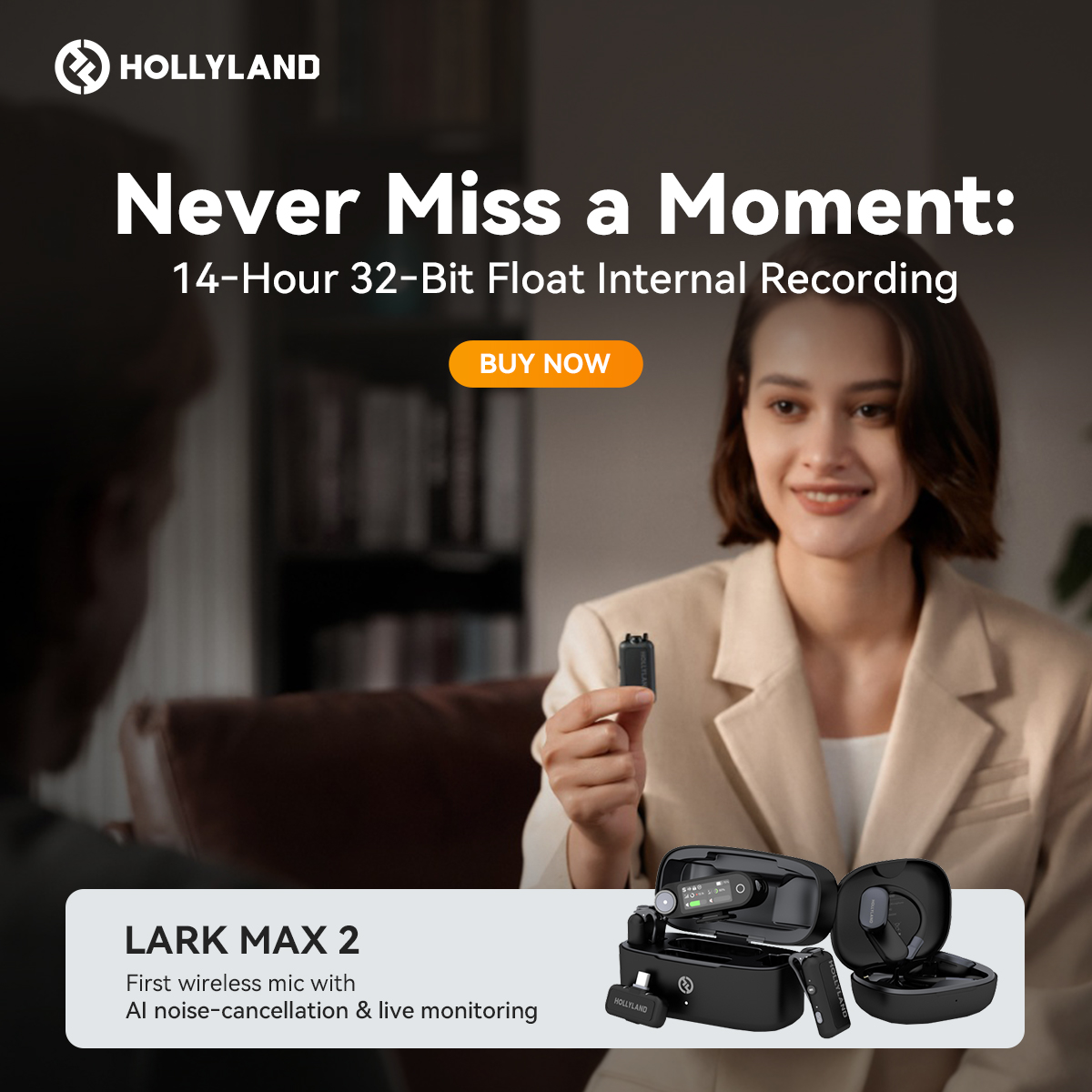
The Professional Solution: Hollyland LARK MAX 2
For creators who want a “plug-and-play” experience without the technical headaches, the Hollyland LARK MAX 2 is a massive upgrade in reliability. Unlike budget USB mics that drift between sample rates, the LARK MAX 2 is engineered for stability.

Why this solves the Audacity error:
- Native 48kHz/24-bit Quality: The LARK MAX 2 records natively at 48kHz, the industry standard. Because this matches the preferred default settings of both Windows and Audacity, it eliminates the sample rate mismatches that trigger the error.
- 32-bit Float Recording: The LARK MAX 2 supports 32-bit float recording, which captures a huge dynamic range. This means your audio won’t distort even if you scream into the mic, and you won’t have to constantly fiddle with gain settings in Windows.
- Driver Stability: As a professional wireless system, it bypasses the flakiness of cheaper gear. Windows recognizes it instantly as a high-fidelity source, allowing you to focus on creating content rather than fighting with drivers.
Frequently Asked Questions
Q: What does “Error opening sound device. Try changing the audio host” mean?
This error means Audacity can’t connect to your sound driver. The Audio Host is the software bridge. MME is old and compatible; WASAPI is modern and fast. If you see this error, simply toggle the Host setting in Audio Setup to whichever one you aren’t currently using.
Q: Why does Audacity stop recording when I plug in headphones?
Windows often treats “Speakers” and “Headphones” as two different devices. When you plug headphones in, Windows switches the default output. Audacity loses the connection to the old output and stops. To fix this, plug your headphones in before you open Audacity, or use Transport > Rescan Audio Devices after plugging them in.
Q: Can I use 32-bit float recording in Audacity?
Yes, Audacity fully supports it. This format allows you to recover audio that sounds distorted or too quiet without adding noise. However, your hardware must also support it. Using a tool like the Hollyland LARK MAX 2 allows you to record in 32-bit float internally, ensuring you never ruin a take with bad levels.
Conclusion
Getting hit with the “Error opening sound device” message is frustrating, but it’s usually fixable in minutes. In 90% of cases, the culprit is simply Privacy Settings blocking access or a Sample Rate mismatch 44.1kHz vs 48kHz.
Before you uninstall Audacity, always open your Windows Sound Panel. Most “unsolvable” glitches are fixed by enabling a disabled device or aligning the Hz settings in the Advanced tab.
Reliable recording starts with reliable settings. But if you find yourself constantly battling driver conflicts, it might be time to look at your hardware. Tools like the Hollyland LARK MAX 2 provide stable, studio-quality audio natively, helping you bypass these technical headaches so you can get back to recording.