.png)
 简体中文
简体中文 
Learning how to convert WAV to MP3 using Audacity is a rite of passage for every podcaster, musician, and content creator.
The decision usually comes down to one factor: File Size vs. Audio Quality.
WAV files are uncompressed and lossless. They retain 100% of the original audio data, making them the industry standard for recording and editing. However, they are massive—a single 5-minute WAV file can easily exceed 50MB.
MP3 files are compressed. To shrink the file size (often by 90%), the format discards audio data that the human ear struggles to hear anyway. This makes MP3s the standard for distribution on Spotify, Apple Podcasts, and email.
The “LAME Encoder” Check
Before you start, check which version of Audacity you are running.
- Audacity v3.2 and newer: The LAME MP3 encoder is built directly into the software. You can export immediately.
- Older Versions: If you are on a legacy version, you might see a “missing lame_enc.dll” error. You will either need to manually install the LAME library or, more simply, update your software to the latest version to bypass this issue entirely.
What You Need
- Audacity Software: Ideally version 3.2 or higher.
- Source Audio: A high-quality WAV or AIFF file.
- Metadata Info: Track title, artist name, and album year.
Step 1: Importing Your WAV File into Audacity
First, get your source audio into the timeline. Audacity handles high-fidelity uncompressed formats like WAV easily.
You can import your file using one of two methods:
- The Menu Method: Go to File > Import > Audio, find your WAV file, and click Open.
- Drag-and-Drop: Locate the file on your computer and drag it directly into the dark gray workspace in Audacity.
Once the file loads, you will see blue waveforms appear in the track view.
Pro Tip: Check Your Project Rate (Hz)
Before moving on, look at the Project Rate (Hz) in the bottom-left corner (it is now in the bottom-right corner, and is only shown when the audio is playing) of the window. This determines the sample rate of your export.
- 44100 Hz: The standard for music and podcasts (CD quality).
- 48000 Hz: The standard for video production.

Ensure this number matches your original recording. If your source file is 48kHz but the project rate is set to 44.1kHz, you risk introducing digital artifacts or slight timing shifts.
Step 2: Exporting as MP3 (The Critical Step)
Once your WAV file is imported and edited, you are ready to convert it. Note that Audacity distinguishes between “Saving” and “Exporting.” Saving creates an Audacity Project file (.aup3), while Exporting creates the actual playable audio file.
Follow these steps to convert your WAV to MP3:
- Click File in the top menu bar.
- Select Export.
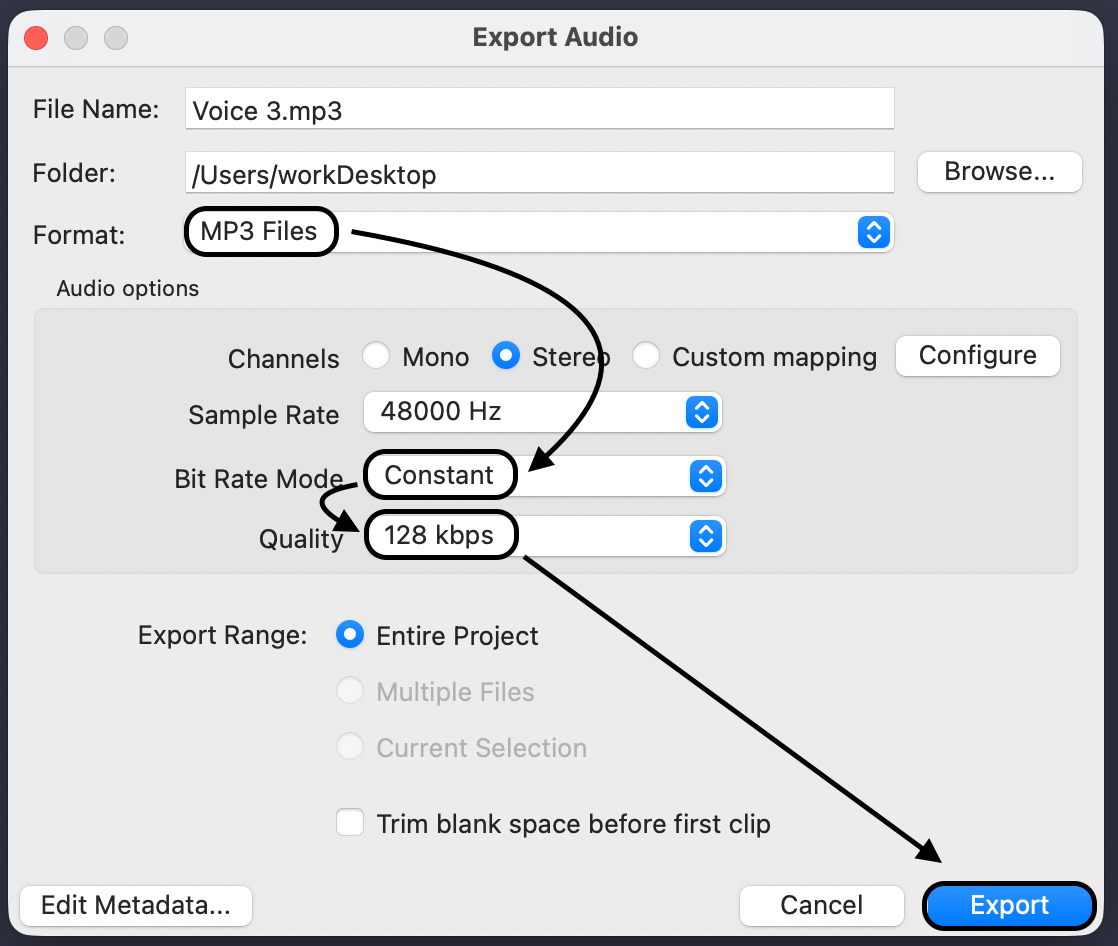
- Choose Export as MP3 (only Export Audio now) from the dropdown menu.
- In the dialog box, name your file and choose where to save it.
Understanding MP3 Export Settings (Quality Control)
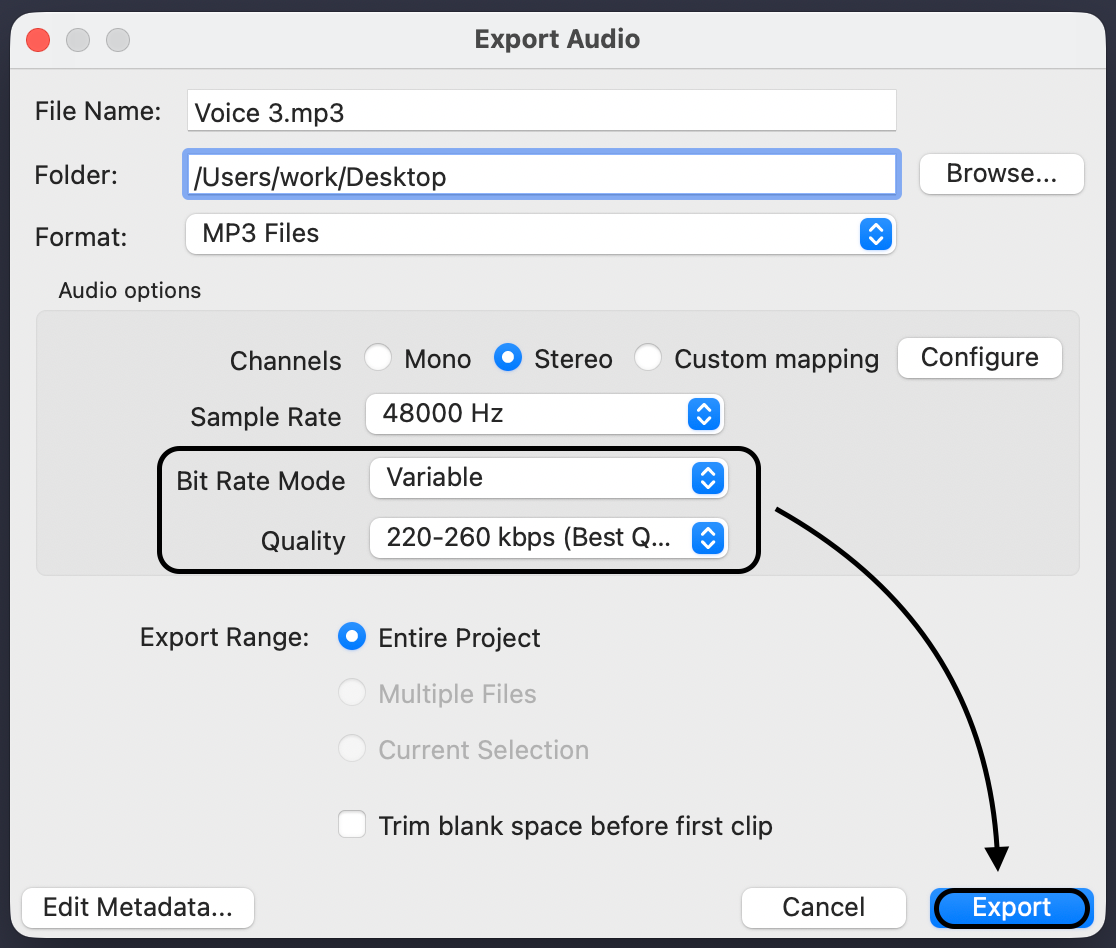
Before you click “Save,” look at the Format Options at the bottom of the export window. These settings control the balance between quality and file size. Do not ignore these. The default settings often result in lower-quality audio.
Bitrate Mode
This determines how the data is compressed.
- Preset: Uses standard quality tiers (Standard, Extreme, Insane). Good for beginners.
- Variable (VBR): The encoder changes the bitrate dynamically—lowering quality during silence to save space and raising it for complex sounds. This is efficient but can occasionally cause playback issues on older devices.
- Constant (CBR): The bitrate stays the same throughout the track. The file size is slightly larger, but it ensures maximum compatibility. CBR is generally safer for podcasts.
Quality (kbps)
This is the most important setting for fidelity.
- Recommendation: Select 320 kbps (sometimes labeled “Insane”).
- Why: 320 kbps is the gold standard for MP3s. While the file is larger than a 128 kbps file, the audio artifacts (swirling sounds or metallic distortion) are virtually impossible to hear.
Channel Mode
- Joint Stereo: The default setting. It saves data by combining frequencies that are identical in both the Left and Right channels. It is efficient and safe for most projects.
- Stereo: Forces the encoder to process Left and Right channels independently. Only use this if you have very complex stereo imaging you need to preserve perfectly.
Step 3: Adding Metadata Tags
After you click Save, Audacity will open the Edit Metadata Tags window. (you can open this window from the Export Audio window)
Don’t just click “OK” and skip this.
This window lets you edit the ID3 tags embedded in the file. These tags are what players like iTunes, Spotify, or car stereos display to the listener. Without them, your audio will just show the filename, often looking unprofessional or categorized as “Unknown Artist.”

Essential Fields
You don’t need to fill out every row. Focus on these:
- Artist Name: Your name or the host’s name.
- Track Title: The specific name of the episode or song.
- Album Title: The name of your Podcast Series or Album.
- Track Number: Helps files play in the correct order.
- Year: The release year.
Saving Templates
If you produce a weekly podcast, re-typing the Artist and Album name every time is a waste of time.
- Fill out the static info (Artist, Album, Genre).
- Click Save… on the right side.

- Name your template (e.g., “Podcast Metadata”).
- Next time, click Load… to instantly fill in the blanks.
How to Batch Convert WAV to MP3 (Multiple Files)
If you have an entire album or a season’s worth of podcast episodes, converting them one by one is tedious. Audacity has a feature called Macros that can process hundreds of files in a few clicks.
1. Create the Macro
- Go to Tools > Macro Manager.
- Click New, name it “Batch MP3 Convert,” and click OK.
- Click Insert.
- Search for Export as MP3, select it, and click OK.

- Close the Macro Manager.
2. Run the Batch Process
- Go to Tools > Apply Macro > Files…
- Select your “Batch MP3 Convert” macro.
- Select all the WAV files you want to convert.
- Click Open.
Audacity will flash through the files. It won’t overwrite your originals; instead, it creates a new folder named “macro-output” in the same directory where your new MP3s will wait for you.
Pro Tip: Ensuring High-Quality Audio Before Conversion
When converting from WAV to MP3, you are performing lossy compression. You are permanently removing audio data.
Follow the golden rule of audio engineering: “Garbage in, garbage out.”
If your original WAV file has background hiss, clipping, or distortion, the MP3 conversion will often make those problems sound worse. No amount of tweaking bitrate settings in Audacity can fix a bad recording.
Start with Professional Hardware
To get the best results in Audacity, your workflow should start before you even hit “Record.”
We recommend using the Hollyland LARK MAX 2 for your source audio.

Hollyland LARK MAX 2 - Premium Wireless Microphone System
A premium wireless microphone for videographers, podcasters, and content creators to capture broadcast-quality sound.
Key Features: Wireless Audio Monitoring | 32-bit Float | Timecode
Why? The LARK MAX 2 features 32-bit Float Recording. Unlike standard recorders, 32-bit float captures a massive dynamic range. This means your source WAV file never clips or distorts, even if the speaker suddenly screams or whispers.
By recording with the LARK MAX 2, you hand Audacity a pristine, studio-grade WAV file. This gives the software the best possible foundation to work with, ensuring your final MP3 sounds rich and professional, even after compression.
Troubleshooting: “LAME MP3 Encoder Missing”
If you try to export and get an error saying “Audacity does not export MP3 files directly” or asking for lame_enc.dll, you are likely running an old version of the software.
For years, software patents prevented Audacity from bundling MP3 tools. Those patents have expired, but legacy versions still need a manual fix.
Method 1: Update Audacity (Recommended)
The fastest fix is to update. Audacity version 3.2 and later has the LAME encoder built-in.
- Go to Help > Check for Updates.
- Install the latest version.
- Restart and export.
Method 2: Manually Locate lame_enc.dll (Legacy Only)
If you must use an old version (v2.x):
- Download: Go to the external download site (usually Buanzo) linked from the Audacity Wiki and download the LAME for Audacity installer.
- Install: Run the installer file.
- Link: Go to Edit > Preferences > Libraries. Click Locate next to “MP3 Library” and browse to the installation folder to select lame_enc.dll.
Frequently Asked Questions (FAQ)
Is Audacity safe to download?
Yes, it is safe and open-source. However, always download it from the official website, audacityteam.org. Avoid third-party mirror sites, which might bundle malware with the installer.
Does converting WAV to MP3 lose quality?
Yes. WAV is lossless; MP3 is lossy. The encoder throws away data to save space. To minimize this, always select 320kbps or the “Insane” preset in your export settings.
Can I convert MP3 back to WAV?
Technically, yes, but you cannot restore the audio quality. Once data is removed during MP3 compression, it is gone forever. Converting back to WAV just gives you a huge file that sounds exactly the same as the low-quality MP3.
What is the best bitrate for podcasts?
For spoken-word podcasts, 128kbps (Stereo) is the industry standard. It offers clear vocals and a small file size for mobile downloads. If your show has complex sound design or music, bump it up to 192kbps.
Conclusion
Mastering the workflow from WAV to MP3 is a fundamental skill. While Audacity is a powerful free tool for this, the quality of your final file depends on your settings and your source material.
Remember, MP3 conversion is destructive—it removes data. To keep your audio sounding professional:
- Keep Audacity Updated: Run version 3.2 or later to avoid headaches with the LAME encoder.
- Prioritize Your Source: Start with a pristine file. Using gear like the Hollyland LARK MAX 2 with 32-bit float recording ensures your source WAV is distortion-free, giving you the best possible starting point before you compress down to MP3.