.png)
 简体中文
简体中文 
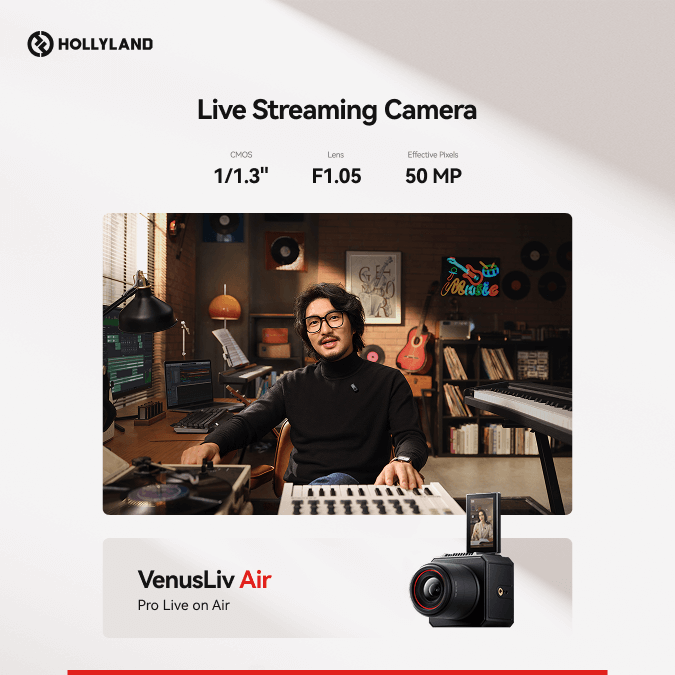
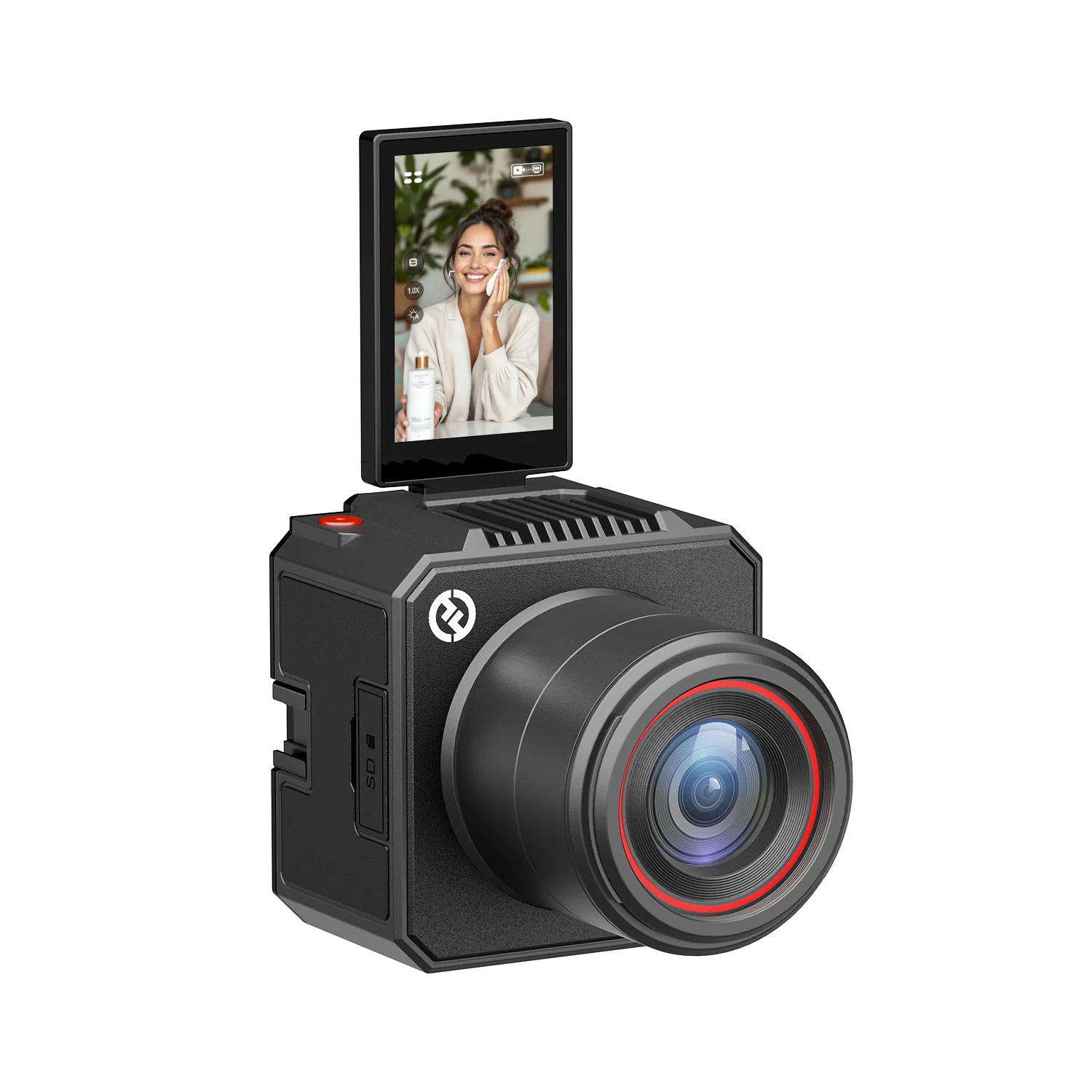
Imagine letting viewers step into your VR world, seeing exactly what you see, in real time. It sounds incredible, but many beginners hit the same roadblocks: laggy video, desynced audio, and software that’s harder to manage than expected. The fix isn’t endless troubleshooting; it’s knowing the right setup. With tools like the Hollyland VenusLiv Air, which supports 24/7 live streaming ability and uses AI tuning for clear output, you can keep your stream smooth and stable.

In this guide, you’ll learn how to stream VR smoothly with clear, step-by-step instructions, no stress, no confusion.
Best VR Tools for Streaming and How to Set Them Up
If you want your VR streams to shine, the first step is picking the right headset. Here’s a look at the best VR tools that’ll make your stream pop.
#1: Oculus Quest 2
A beginner-friendly VR headset delivering wireless freedom and smooth performance for immersive streaming experiences.
Step 1: Set Up The Oculus Quest 2 VR
The first step is to properly set up your Oculus Quest 2 so that it connects smoothly with your PC and streaming software.
- Turn on your Oculus Quest 2 and make sure it’s running the latest software update.

- Go to the browser on your computer, then go to oculus.com/casting.

- Click the LOG IN button.

- Log in to your Oculus account, or sign up using your email.

- Once you’re logged in, these instructions will appear on screen.

- From your Oculus Quest 2, press the Oculus button on the right controller to open the Universal Menu.

- Click on the Camera icon.

- Then select Cast.

- Select Computer and then click the Next button.

- And your Oculus Quest 2 is now casting to your computer.
Note: For lower latency and better visuals, prefer Oculus Link (USB-C cable) or Air Link (wireless to PC). If using Air Link: enable Air Link in Quick Settings and pair the headset with your PC (both on the same Wi-Fi 5GHz network).

- As you can see, the default aspect ratio is 1:1.

- To change the aspect ratio, click the settings icon at the bottom-right corner.

- Then click this toggle on to Widescreen (crop).

- And now it will switch to widescreen mode.

- You can also expand the window up to full screen, mute or unmute the audio, and turn on/off the Oculus Quest 2 microphone.

Step 2: Set Up and Customize The Broadcasting Software (OBS Studio)
Now that your Oculus Quest 2 is ready, the next step is preparing the broadcasting software that will deliver your VR experience to viewers.
- Open OBS Studio from your computer

- Click the ‘+’ on the Sources section > Select Game Capture > Capture Specific Window > Select your VR Window (Oculus Mirror) > OK.

- You can include an additional source, such as Audio Output or Audio Input Capture.

- To make your stream more engaging, you can also add overlays (like a webcam or logo). Simply click “+” > Image for logos/picture, or Video Capture Device for a webcam.

- Add live chat (optional): Simply click “+” > Browser > Copy the pop-out chat link from Twitch or YouTube, then add it to the URL and resize it as you prefer.

- Go to Settings > Output > Output Mode (Simple) > Streaming :
- Bitrate = 3500–6000 kbps (adjust based on your upload speed).
- Audio Bitrate = 192 kbps (recommended)
- Video Encoder = NVENC (GPU) or x264 (CPU).

- Go to Settings > Video > General :
- Base Canvas Resolution = 1920×1080.
- Output (Scaled) Resolution = 1920×1080.
- Common FPS Values = 60 (recommended)

- Then click Apply and OK to confirm.

- Now that OBS Studio is fully set up, you’re ready for the final step: going live.
Step 3: Go Live Using OBS Studio
With your Oculus Quest 2 connected and OBS Studio customized with sources, audio, overlays, and bitrate settings, the final step is to go live.
- From OBS Studio, go to Settings > Stream > choose your platform (e.g., Twitch, YouTube – HLS, or Facebook Live) as the Service.

- Paste the copied stream key into the Stream Key field.

- Click Apply, then OK to confirm.

- If everything is ready, click Start Streaming. And now your Oculus Quest 2 stream will broadcast in real time.

#2: Meta Quest 3
If you’re looking for better graphics and smoother gameplay, the Meta Quest 3 is a step up from the Oculus Quest 2 for any VR streamer.
- Press the button that is located on the left side for about 3 seconds. Make sure it’s running the latest software update.

- The setup process for the Meta Quest 3 is the same as for the Oculus Quest 2. With the Meta Quest 3, you can slightly increase the bitrate or output resolution up to 2K for sharper visuals. All other steps stay the same.

#3: Valve Index
Now, let’s move on to setting up the Valve Index, which offers superior refresh rates and low-latency performance for a high-quality VR stream.
- Turn on the headset and connect it to your PC via DisplayPort and USB. Ensure all firmware updates are installed.

- Open a browser on your computer, go to Steam, and launch StreamVR.

- Click on the 3-dot menu on Standing by > Devices > Pair Controller.

- Press and hold both the Menu button and System button until the light on the controller begins blinking blue.

- The blue light on the VR controller will turn green, indicating that it is connected. You can pair it with another controller, then click Done.

- Click on the 3-dot menu on Standing by > Room Setup.

- Select Room Scale.

- Make sure your area is cleared, then click NEXT.

- Wait until all controllers and headsets are ready (green), then NEXT.

- Select NEXT

- Place both controllers on the floor and click the Calibrate Floor button, then click NEXT.

- Press and hold your controller trigger while tracing a boundary around your room, then hit NEXT.

- Click NEXT

- Now the setup is complete and ready to go. Click DONE.

- Once your Valve Index is connected and calibrated, the OBS setup process is the same as for the Oculus Quest 2.
#4: HP Reverb G2
For VR streamers seeking ultra-sharp visuals and comfort, the HP Reverb G2 is an excellent choice.
- Turn on your HP Reverb G2 and connect it to your PC via the included DisplayPort and USB cables.

- Once connected, launch Windows Mixed Reality on your computer. Click the Get Started button.

- Click I Agree.

- Check the compatibility and NEXT.

- Click NEXT.

- Select NEXT to confirm.

- Press and hold the Windows button until the controller lights up.

- Now the controllers are connected, click NEXT.

- Click Exit.

- Select the recommended setup option on the left.

- Click NEXT.

- Now, hold your headset in a centered position and point it toward your computer. Then, click the Center button.

- Then click the Trace button to trace your boundary.

- Once you’re done with your boundary, click Accept.

- You can skip this.

- Select Don’t use speech.

- Now the setup is done.

- Once you have completed the setup for your HP Reverb G2, the process for setting up OBS is the same as for the Oculus Quest 2.
Conclusion
Streaming VR unlocks creativity, connection, and unforgettable experiences. By mastering setup, optimizing settings, and experimenting with your streams, you’ll engage viewers like never before. Every step builds confidence, hones skills, and enhances immersion. Take the leap, explore your virtual world, and share it boldly with the world.
FAQs
- Can I stream VR wirelessly without losing quality?
Streaming VR wirelessly is possible using Wi-Fi 5GHz or dedicated VR streaming tools. To minimize lag, ensure both headset and PC are on a strong network, reduce interference, and limit other devices using bandwidth. Lowering stream resolution slightly can also stabilize performance while keeping visuals smooth and immersive.
- How do I prevent motion sickness for viewers during VR streams?
Motion sickness occurs when the camera movement is too fast or jittery. To reduce it, use smooth locomotion techniques in VR, stabilize the camera in software, and avoid rapid scene changes. Adding visual cues like a fixed horizon or reducing sudden accelerations can also help viewers enjoy your stream comfortably.
- What’s the best way to capture VR audio clearly?
Use a dedicated microphone for your voice, separate from the VR headset. Position it close to your mouth and enable noise suppression in your software. For in-game audio, capture it directly from the PC output instead of the headset mic to avoid echo or environmental noise, ensuring clean, immersive sound for viewers.
- Can I stream multiplayer VR games with friends simultaneously?
Yes, multiplayer VR streaming works, but each player’s movement and voice need separate capture sources if you want full visibility. Use virtual audio mixing and separate OBS scenes for each participant. High network speed and stable PC hardware are crucial to keep the stream synchronized and lag-free for all viewers.
- How do I add overlays or alerts without blocking the VR view?
Place overlays like chat boxes, alerts, or webcams in the peripheral areas of the VR feed to avoid obstructing gameplay. Use semi-transparent graphics or scale them down. OBS allows layering and resizing, so you can maintain a clean stream interface while keeping important visuals fully visible for viewers.