.png)
 简体中文
简体中文 
Want to stream on one of the world’s largest platforms? With over 2 billion monthly users, Facebook Live is perfect for gaming, webinars, and business events.
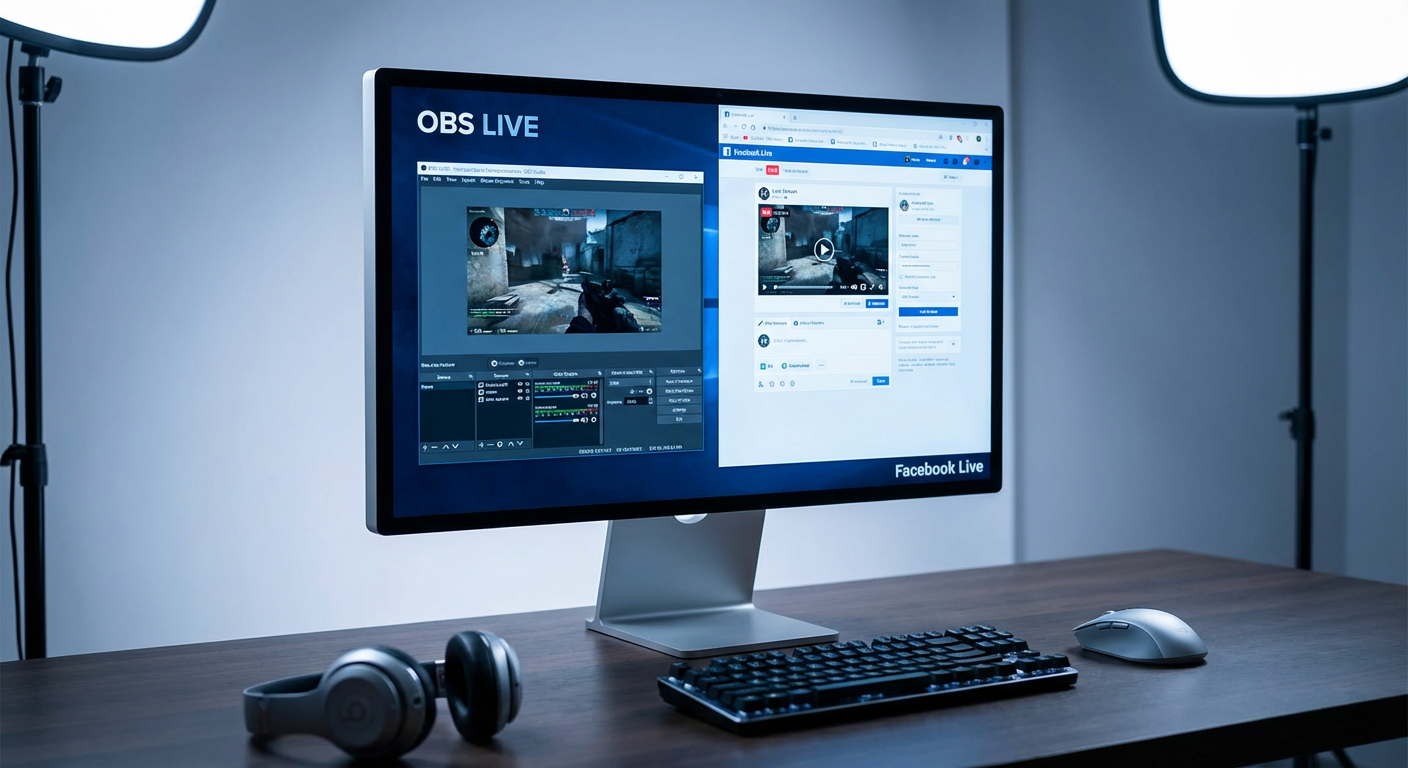
While you can go live directly from Facebook, using OBS gives you full creative control, from custom overlays and multiple camera angles to smoother production quality. To connect OBS with Facebook, you’ll need a Stream key, which links your Facebook account to your streaming software.
In this guide, you’ll learn how to get your Facebook Stream key, connect it with OBS, and start streaming like a pro.
What are the Requirements for Streaming on Facebook with OBS?
Before going live, make sure your Facebook account and system meet the platform’s requirements. Preparing in advance helps prevent stream errors, lag, or connection issues.
Account Requirements
- Your Facebook account should be at least 60 days old to access live features.
- Pages or professional mode profiles typically need at least 100 followers to stream publicly.
- Make sure you have the proper Facebook access or task permissions to create or manage Live videos.
Software Requirements
Use an encoder, such as OBS Studio or Streamlabs, to connect your Stream key with Facebook Live Producer.
Technical Setup Tips
- Use a stable wired internet connection (6 Mbps upload or higher) for consistent quality.
- Close background applications to free up system resources for streaming.
- Run a private test stream to check your camera, microphone, and audio sync before going live.
How to Stream on Facebook with OBS
Now let’s go through the full process of getting your Stream key and setting up OBS Studio. OBS is one of the most popular free streaming tools, and once you have your key ready, connecting it to Facebook is straightforward.
Steps to Get Your Facebook Stream Key
Here’s how you can get your Stream key using your desktop in easy steps :
- Open Facebook on your browser and log in with the account you want to use for streaming. You can choose your personal profile, a page, or a group.
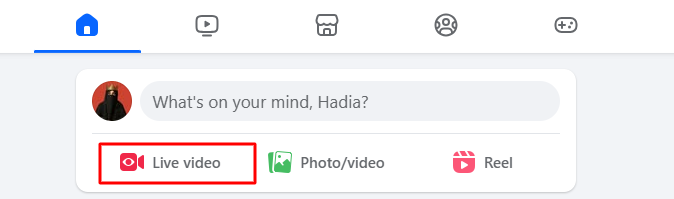
- Click “Live Video” from your homepage to open Live Producer, Facebook’s streaming dashboard.
- You will see two options: Streaming Software or Webcam.
- Select “Use Streaming Software” to connect OBS Studio, Streamlabs, or other tools. Suppose you’re not using the built-in streaming option and want higher quality. In that case, you can add an external camera like the Hollyland VenusLiv Air, which offers 4K 30fps streaming quality with AI tuning that automatically adjusts lighting and color, plus 24/7 continuous streaming for extended broadcasts.

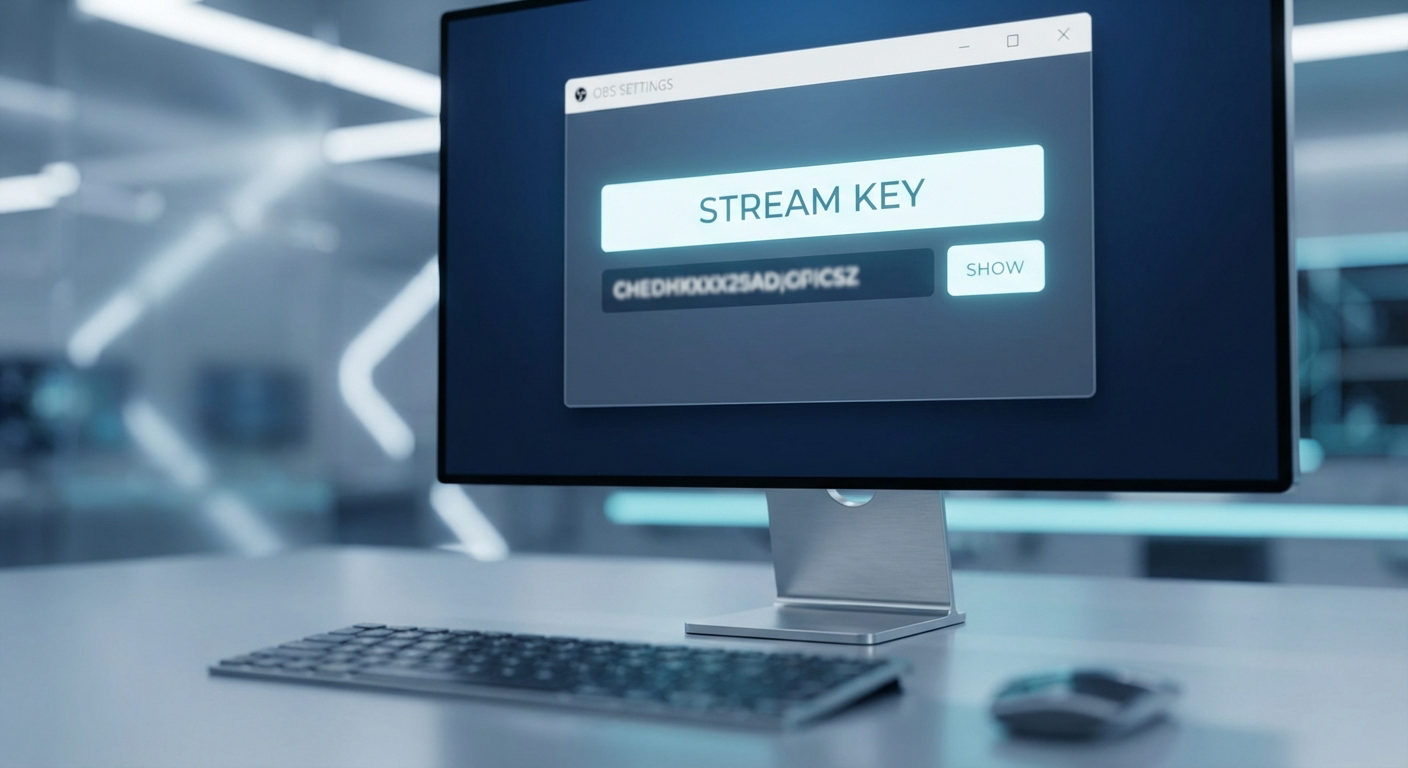
- After selecting the streaming software, you will see the Stream key option under Stream Setup.
- Copy the Stream key and keep it secure. Do not share it with others because it grants access to your live stream.

Steps to Connect OBS to Facebook and Go Live
Once you have your Stream key, the next step is to connect it to OBS. This will allow OBS to send your video feed directly to Facebook. Follow these simple instructions to set up the connection:
- Open OBS Studio and click on Settings in the bottom-right corner.

- In the Settings window, select the Stream tab from the menu on the left.

- Click the dropdown menu next to Service and choose Facebook Live.


- In the Stream Key field, paste the code you copied earlier from Facebook Live Producer.

- Click ok and then apply to save your settings.

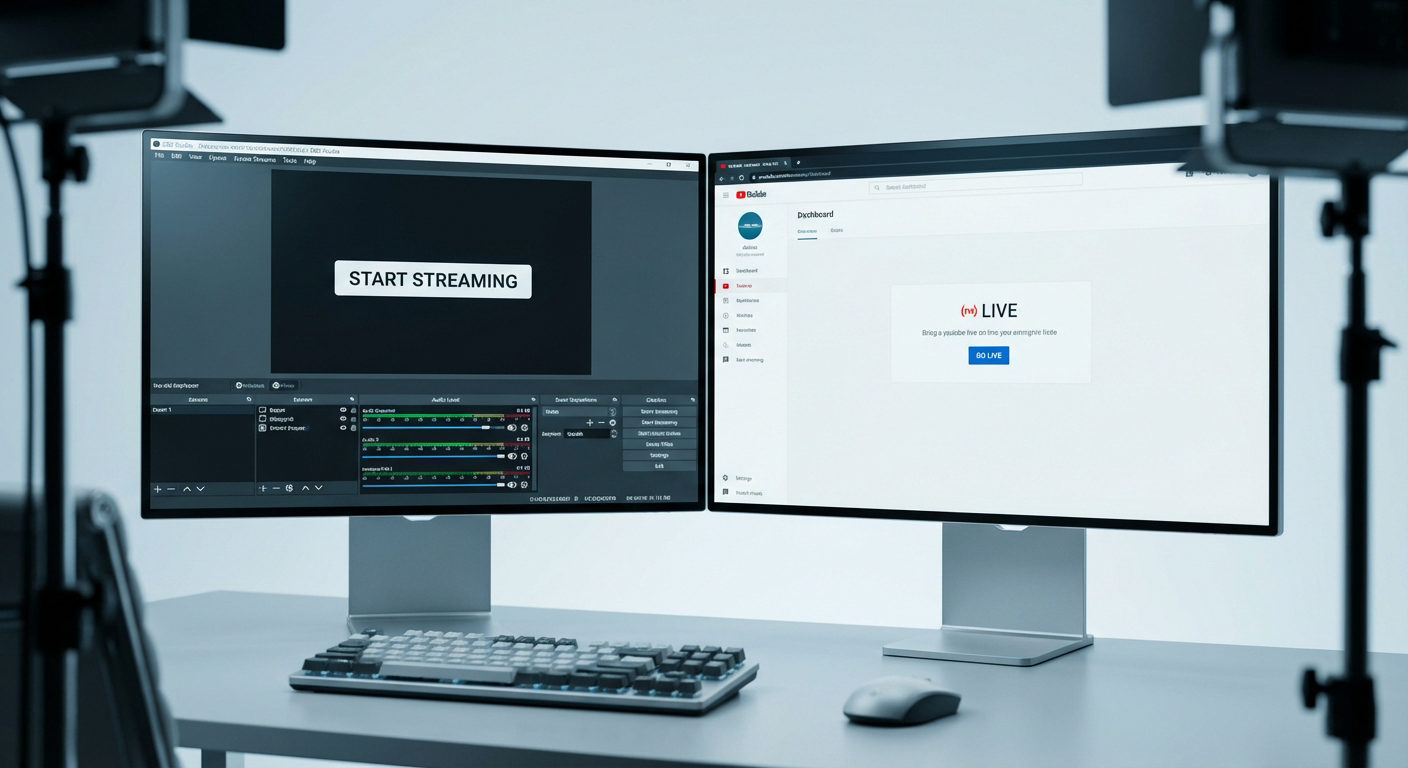
- Return to the main OBS dashboard and click Start Streaming in the bottom-right corner.

- Your video will automatically connect to Facebook. Go back to Live Producer, where you’ll see your stream preview appear on the screen.
- When you’re ready, click Go Live in the bottom-left corner of Live Producer to begin broadcasting to your audience.

Conclusion
Streaming on Facebook with OBS unlocks professional features that basic webcam broadcasting can’t match. Once you have your stream key connected, you control everything: graphics, audio, multiple cameras, and more. Test your setup, engage your viewers, and deliver content that keeps them coming back.
FAQs
Can I reuse my Facebook Stream Key for future streams?
Yes, Facebook allows you to reuse your Stream Key unless you choose to reset it. Using a persistent Stream Key makes it easier to set up recurring live streams without generating a new one each time.
Why does my Facebook Live stream lag or buffer?
Lag usually comes from slow or unstable internet, high bitrate settings, or overworked system resources. Use a wired connection, close unnecessary apps, and adjust your OBS bitrate and resolution to match your internet speed for smoother performance.
Is it safe to share my Facebook Stream Key?
No. Your Stream Key gives full access to your Facebook Live stream. If someone else has it, they can broadcast on your behalf. Always keep it secure and never share it publicly or with untrusted parties.
Do I need a Facebook Page to stream with OBS?
No, you can stream to your personal profile, a Facebook Page, or a Group using OBS. However, there are different requirements for each. Personal accounts must be 60 days old, while Pages need at least 100 followers. For Pages, you also need admin or editor permissions to access Live Producer and generate stream keys.
Can I stream to multiple Facebook destinations with one stream key?
No, each stream key is tied to one specific destination you select in Live Producer, either your profile, a Page, a Group, or an Event. If you want to broadcast to multiple Facebook locations, you’ll need separate stream keys and multiple streaming options running at the same time.