



































.png)
 简体中文
简体中文 
OBS Studio is free, powerful, and capable of capturing broadcast-quality recordings on almost any hardware. The problem is that it ships with conservative defaults designed for broad compatibility, not peak quality. If your recordings look blurry, sound flat, or generate files you cannot use, the settings are almost certainly the cause. This guide walks through every panel that matters — Output, Video, Audio, and Advanced — with exact recommended values for gaming, screen recording, and webcam content.

Best OBS Settings for Recording: Exact Configuration for Any Setup
Why OBS Default Settings Are Not Good Enough
OBS ships with settings tuned for the widest possible hardware compatibility, not optimal quality. Out of the box, the encoder preset is cautious, the recording bitrate is capped at levels more appropriate for streaming, and the audio sample rate may not match what your microphone or video workflow expects.

Why OBS Default Settings Are Not Good Enough
The visible cost is noticeable: recordings often look softer than the actual screen, audio can sound compressed, and fast-motion scenes break up. None of this reflects OBS’s actual capability — it reflects conservative defaults.
The good news is that only four panels need attention: Output, Video, Audio, and Advanced. Everything else can remain at default for most recording workflows.
Output Settings — The Single Biggest Quality Driver
Output settings control how OBS compresses and saves your video. Getting these right will have a larger impact on quality than any other change you make.
To access them, open OBS and click File > Settings > Output. At the top of the Output panel you will see an “Output Mode” dropdown set to “Simple” by default. This is where the first decision happens.
Simple Output Mode (Quick-Start Defaults)
Simple mode is the fastest path to usable settings. It reduces encoder choices to a single dropdown and lets you set a recording quality preset without exposing the full encoder configuration.
Recommended Simple Mode settings:
- Navigate to Settings > Output > Output Mode: Simple
- Set Recording Quality to Indistinguishable Quality, Large File Size (this uses a CRF-equivalent setting internally)
- Set Recording Format to MKV (see the format section below for why)
- Set Encoder to whichever hardware option is available: NVIDIA NVENC H.264, AMD HW H.264, or Apple VT H264 — fall back to Software (x264) only if no hardware option appears

Note: Simple mode does not expose CRF or CQP controls directly. If you want full control over rate control modes and encoder presets, switch to Advanced Output Mode.
Advanced Output Mode (Full Control)
Advanced Output Mode unlocks the settings that actually determine recording quality. Most users who have spent more than a few sessions in OBS should use this mode.
How to switch:
- Go to Settings > Output
- Change Output Mode to Advanced
- Click the Recording tab (not Streaming)


Key settings to configure:
| Setting | Recommended Value | Notes |
|---|---|---|
| Recording Path | Your preferred folder | Use a fast drive; SSD preferred |
| Recording Format | MKV | Safest choice; remux to MP4 after |
| Encoder | NVENC H.264 / AMF H.264 / x264 | See encoder section below |
| Rate Control | CRF (x264) or CQP (NVENC/AMF) | Quality-based encoding outperforms CBR for local recording |
| CRF / CQP Value | 18–23 | Lower value = higher quality, larger file |
| Keyframe Interval | 0 (auto) | Let OBS decide |
| Preset (x264) | slow or medium | Slower = better quality, higher CPU load |
| Preset (NVENC) | P4 or P5 (Quality) | Balances quality and GPU load |
Why CRF/CQP instead of CBR?
CBR (Constant Bitrate) locks your encoder to a fixed data rate at all times. This is essential for streaming because a network connection requires a predictable bandwidth load. For local recording, there is no network involved. Using CRF or CQP instead lets the encoder allocate more data to complex scenes and less to static ones.
The result is better quality at the same average file size, or smaller files with equivalent quality. A CRF value of 18 is visually near-lossless for most content. Values of 20–23 offer an excellent quality-to-size trade-off. Values above 28 begin to introduce visible compression.
Best Encoder for OBS Recording
The encoder determines which hardware or software compresses your video. Choosing the right one is the second most impactful decision in this guide.
| Encoder | Best For | Pros | Cons |
|---|---|---|---|
| x264 (Software) | Maximum compatibility; no dedicated GPU | Excellent quality at slow/medium presets; universally supported | High CPU load; can cause dropped frames on weaker systems |
| NVENC H.264 | Gaming and any NVIDIA GPU system | Very low CPU overhead; excellent quality with CQP | Requires NVIDIA GPU (GTX 900 series or newer recommended) |
| NVENC HEVC / H.265 | High-res recording (1440p/4K) on NVIDIA hardware | Smaller files than H.264 at equal quality | Less universal playback compatibility on older devices |
| NVENC AV1 | Future-proof high-quality recording on new hardware | Best quality-to-size ratio currently available | Requires RTX 4000 series GPU; limited editing software support |
| AMD AMF H.264/HEVC | Gaming and content creation on AMD GPU systems | Low CPU overhead similar to NVENC | Quality slightly behind NVENC at equivalent settings |
| Apple VideoToolbox | Mac users on M-series hardware | Efficient on Apple Silicon; integrates with macOS | Only available on macOS |
How to choose:
Use hardware encoding in almost every situation. Modern hardware encoders produce quality that is indistinguishable from x264 at equivalent CQP values while using a fraction of the CPU. This keeps your game, application, or browser running smoothly alongside OBS without competition for processor resources.
Choose x264 only when your GPU is entry-level or uses integrated graphics, you need recordings that play back on every device without transcoding, or you are recording on a dedicated machine with no simultaneous game or display load.
For codec selection, H.264 is the standard compatibility choice. Switch to H.265/HEVC if you record at 1440p or 4K and need smaller files. Use AV1 only if you have an RTX 4000-series GPU and your editing software already supports the format.
Video Settings — Resolution and Frame Rate
Video settings control what gets captured and how it is scaled before being written to disk. Navigate to Settings > Video to configure these.
Base (Canvas) Resolution
This should match your monitor’s native resolution exactly. If your monitor runs at 1920×1080, set Base Resolution to 1920×1080. If you use a 1440p monitor, set it to 2560×1440. Mismatching this value creates letterboxed or cropped output.
Output (Scaled) Resolution
This is the resolution written to your recording file. For local recordings, there is almost never a reason to downscale. Set Output Resolution to match your Base Canvas Resolution. Downscaling is primarily useful for streaming to reduce upload bandwidth, which is not a constraint for local files.
The one exception: if you are recording at 4K but your editing software or upload target is 1080p, you can downscale here rather than in post to save processing time later.

Frame Rate
- 60fps: Recommended for any gaming content, fast-motion footage, or video you plan to upload as a high-frame-rate YouTube video. 60fps captures smooth motion and leaves room to slow footage down in post-production.
- 30fps: Suitable for screen tutorials, presentations, webcam-only recordings, or any content where motion is minimal. File sizes will be roughly half those of 60fps recordings at the same quality setting.
Downscale Filter
If you do choose to scale the output resolution downward, set the downscale filter to Lanczos (32 samples). This produces the sharpest result. Bilinear is faster but noticeably softer on detail-heavy screen content.
Recommended configurations:
- 1080p Gaming: Base 1920×1080, Output 1920×1080, 60fps
- 1440p Gaming: Base 2560×1440, Output 2560×1440, 60fps
- Screen Tutorial / Education: Base matches monitor native, Output matches monitor native, 30fps
- Webcam / Talking Head: Base 1920×1080, Output 1920×1080, 30fps
Best Recording Format — MKV, MP4, or MOV?
The recording format controls the container that wraps your compressed video and audio. This is a separate decision from the codec.
| Format | Crash Safe | Editing Compatible | Recommended Use |
|---|---|---|---|
| MKV | Yes | Yes (most NLEs) | Primary recording format; remux to MP4 after |
| MP4 | No | Yes (universal) | Final delivery and sharing; do not record directly to MP4 |
| MOV | No | Yes (Final Cut, DaVinci) | Mac users in Final Cut Pro workflows only |
| FLV | Partial | Limited | Legacy format; avoid for new recordings |
The recommended workflow:
Record in MKV, then use OBS’s built-in remux tool (File > Remux Recordings) to convert to MP4 after the session ends. This takes about ten seconds and gives you the best of both formats: crash-safe capture during recording and universally compatible output for sharing and editing.
MP4 files use a structure where the index is written at the very end of the file. If OBS crashes or your system loses power mid-recording, the entire file becomes unreadable. MKV writes its index continuously, so even an interrupted recording is fully recoverable up to the point of the crash. For any recording session longer than a few minutes, this distinction matters.
MOV is the right choice only if you are recording on a Mac and editing exclusively in Final Cut Pro.
Audio Settings for the Cleanest Recording
Clean audio is the factor most likely to make a recording feel professional or amateur regardless of video quality. OBS gives you three primary audio levers: sample rate, per-track audio bitrate, and multi-track routing.

Audio Settings for the Cleanest Recording
Step-by-step audio configuration:
- Go to Settings > Audio
- Set Sample Rate to 48 kHz — this is the standard for video production and aligns with most video editors, cameras, and delivery platforms
- Set Channels to Stereo for most setups; use Mono for a single microphone if you prefer a smaller file

- Go to Settings > Output > Recording (in Advanced mode)
- For each active audio track, set Audio Bitrate to 320 kbps
- Enable multiple audio tracks if you want to separate microphone audio from desktop audio for post-production flexibility

Sample rate: Many users leave this at 44.1 kHz, which is standard for music files but can cause subtle drift or incompatibility in video workflows. The broadcast and video standard is 48 kHz. Match this to your audio interface or microphone’s native sample rate whenever possible.
Audio bitrate for recording: Streaming forces audio bitrate down to protect bandwidth. For local recordings there is no bandwidth constraint, so 320 kbps is the right choice. The file size increase from higher audio bitrate is minimal relative to video, and the quality difference is audible on good headphones or studio monitors.
Multi-track recording: OBS supports up to six separate audio tracks. Assigning your microphone to Track 1 and desktop audio to Track 2 means you can independently adjust levels, apply noise reduction, or remove either source entirely in your video editor. This is especially valuable for voiceover-heavy recordings.
Pro Tip: OBS audio settings control how well the signal is captured and encoded, but they cannot improve a noisy or low-quality source signal. A wireless mic like the Hollyland LARK MAX 2, which records internally at 48 kHz / 32-bit Float with AI noise cancellation, delivers a clean signal that actually benefits from the high-bitrate capture OBS is configured to perform at these settings.
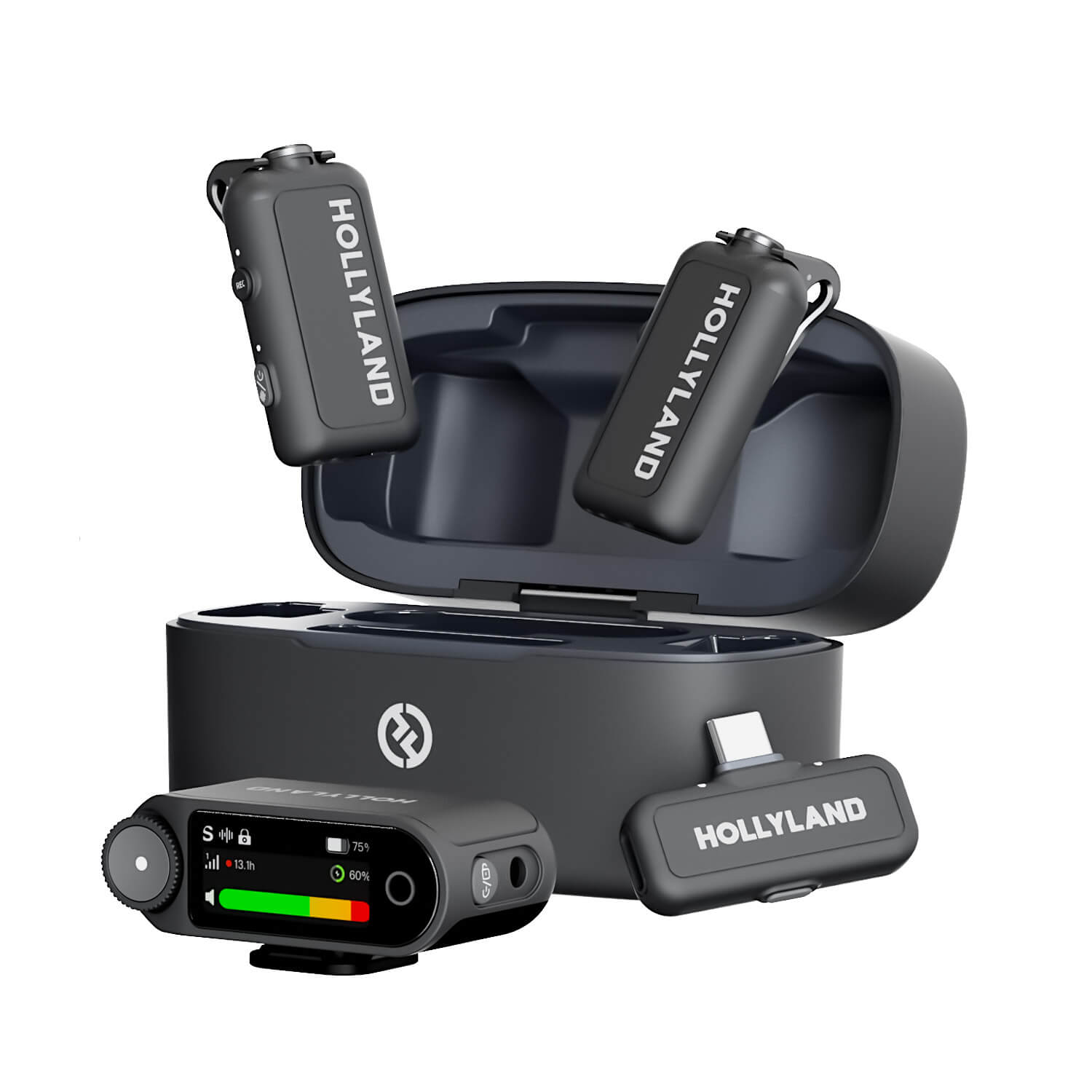
Hollyland LARK MAX 2 - Premium Wireless Microphone System
A premium wireless microphone for videographers, podcasters, and content creators to capture broadcast-quality sound.
Key Features: Wireless Audio Monitoring | 32-bit Float | Timecode
Recommended OBS Recording Settings by Use Case
Use the table below to find your scenario and copy the settings directly into OBS. These values represent the best balance of quality, file size, and system performance for each use case.
| Setting | Gameplay Recording | Screen / Tutorial Recording | Webcam / Talking Head |
|---|---|---|---|
| Encoder | NVENC H.264 or AMF H.264 | x264 (slow preset) or NVENC H.264 | x264 (medium) or NVENC H.264 |
| Rate Control | CQP | CRF | CRF |
| CRF / CQP Value | CQP 18–20 | CRF 20–23 | CRF 23–26 |
| Resolution | 1920×1080 or 2560×1440 | Match monitor native | 1920×1080 |
| Frame Rate | 60 fps | 30 fps | 30 fps |
| Audio Bitrate | 320 kbps | 192–320 kbps | 192–320 kbps |
| Container | MKV (remux to MP4 after) | MKV (remux to MP4 after) | MKV (remux to MP4 after) |
Gameplay Recording: Hardware encoding is critical here because the CPU is already handling the game. CQP 18–20 on NVENC produces near-lossless quality with minimal system impact. Record at 60fps to capture fast motion cleanly and retain the option to create slow-motion clips later.
Screen and Tutorial Recording: Screen content has less complex motion than games, so x264 at a slow preset can often run without impacting performance. CRF 20–23 keeps files manageable without visible quality loss. Dropping to 30fps halves file size and is imperceptible for cursor-heavy tutorial content.
Webcam and Talking-Head Recording: The least demanding scenario for the encoder. CRF 23–26 still looks excellent for talking-head footage and keeps files compact. If only capturing a webcam with no screen content, 30fps is sufficient and the CPU and GPU loads are minimal.
Advanced Settings Worth Knowing
These settings live in Settings > Advanced and within the encoder-specific options in Advanced Output Mode. They are not required for a good recording, but each one has a real-world quality or workflow impact.
- Process Priority: Setting OBS process priority to Above Normal or High (Windows) tells the operating system to allocate CPU resources to OBS before background tasks. This is useful on systems running browsers, Discord, game launchers, and other applications simultaneously. Configure it under Settings > Advanced > Process Priority.

- Color Format: The default NV12 is correct for standard dynamic range content and has universal compatibility with all editing software. If you are recording HDR content or working in a color-managed editorial pipeline, switch to P010 and enable 10-bit color depth in the encoder settings. Most users should leave this at NV12.
- Color Space: Use Rec. 709 for all standard 1080p and 1440p content. Switch to Rec. 2020 only if recording HDR footage for an HDR-capable delivery platform. Using the wrong color space profile will produce washed-out or oversaturated output when the file is opened in an editor.
- Replay Buffer: Found in Settings > Output, the Replay Buffer continuously holds the last N seconds of footage in RAM without writing a permanent file. Press a hotkey after a highlight moment to save just that clip. This is the OBS equivalent of NVIDIA ShadowPlay and is especially useful for capturing gameplay moments without recording entire sessions.
Troubleshooting Common OBS Recording Problems
If something is already wrong with your recordings, find your symptom and apply the fix.
- Recording appears blurry or soft Root Cause: Bitrate is too low or rate control is set to CBR with an insufficient target value. Fix: Switch to CRF (x264) or CQP (NVENC/AMF) and set the value to 18–22. In Simple mode, change Recording Quality to “Indistinguishable Quality, Large File Size.”
- Output file is unmanageably large Root Cause: Using a near-lossless setting unnecessarily, or recording at 4K/60fps without a size-efficient codec. Fix: Switch to H.265/HEVC (NVENC or AMF) and raise CQP slightly to 22–24. Reducing frame rate to 30fps also cuts file size roughly in half when motion permits.
- Dropped frames or stuttering during recording Root Cause: Software encoding (x264) is consuming too much CPU while a game or heavy application is running simultaneously. Fix: Switch to hardware encoding (NVENC or AMF). If already using hardware encoding, lower the encoder preset to P3 or P4 (NVENC) or reduce output resolution.
- Audio is out of sync with video Root Cause: Sample rate mismatch between OBS and the audio interface or microphone driver. This is common when OBS is set to 44.1 kHz but the device outputs at 48 kHz. Fix: Set OBS sample rate to 48 kHz under Settings > Audio > Sample Rate and confirm the same rate is set for all input and output devices in Windows Sound settings or macOS Audio MIDI Setup.
FAQ
What is the best bitrate for OBS recording at 1080p 60fps?
Using CRF 18–20 (x264) or CQP 18–20 (NVENC) is the recommended approach because quality-based encoding automatically adjusts data allocation to scene complexity. If your workflow requires a fixed bitrate, use CBR at 40,000–80,000 kbps (40–80 Mbps) for 1080p 60fps. That range produces visually transparent recordings across most encoder and content types.
Should I use hardware or software encoding in OBS?
Hardware encoding (NVENC for NVIDIA, AMF for AMD) is the right choice for almost everyone. It offloads compression to a dedicated chip, which keeps CPU usage low and prevents performance drops in games or applications running alongside OBS. Reserve x264 software encoding for systems without a dedicated GPU, or for scenarios where cross-platform file compatibility is the top priority.
Is MKV or MP4 better for OBS recording?
Record in MKV. If OBS crashes or your system shuts down mid-session, the MKV file remains recoverable up to the point of interruption. An MP4 file written directly during recording will be unreadable after a crash because its index is only written at the end. After recording, use OBS’s built-in File > Remux Recordings to convert to MP4 with no re-encoding and no quality loss.
Does recording in OBS reduce quality compared to what is on screen?
With CRF or CQP set to a value of 18–22, quality loss is essentially imperceptible on consumer displays. Recordings only look noticeably worse than the screen when bitrate is too low, rate control is set aggressively, or an incorrect encoder preset is applied. High-quality OBS settings reproduce what you see on screen without visible degradation.
What is the best OBS resolution for recording YouTube videos?
Record at 1920×1080 for standard uploads, which is the most widely supported resolution and keeps files manageable. Record at 2560×1440 or 3840×2160 if you have native high-resolution content and want to take advantage of YouTube’s higher-bitrate encodes available for 1440p and 4K uploads. Always match your base canvas resolution to your monitor’s native resolution.
Conclusion
Three settings determine the majority of your recording quality: encoder choice (use hardware encoding unless you have a specific reason not to), rate control mode (CRF or CQP rather than CBR), and audio bitrate (320 kbps for local recordings). Open OBS, find your scenario in the use-case table above, apply those settings, and record a 60-second test clip to verify quality before committing to a full session. For related configuration guidance, see the companion guides on best OBS settings for streaming and how to reduce OBS file sizes.


