



































.png)
 简体中文
简体中文 
OBS Studio records audio in AAC by default. AAC is a lossy codec, meaning audio data is permanently discarded on every recording, even at high bitrates like 320 kbps. If you plan to edit, mix, or re-export your recordings, that quality loss compounds at every stage. This guide walks through configuring OBS to capture truly lossless audio by utilizing uncompressed PCM audio streams embedded within an MKV or MOV container, using the Hollyland LARK MAX 2 wireless microphone system as the source throughout the article.
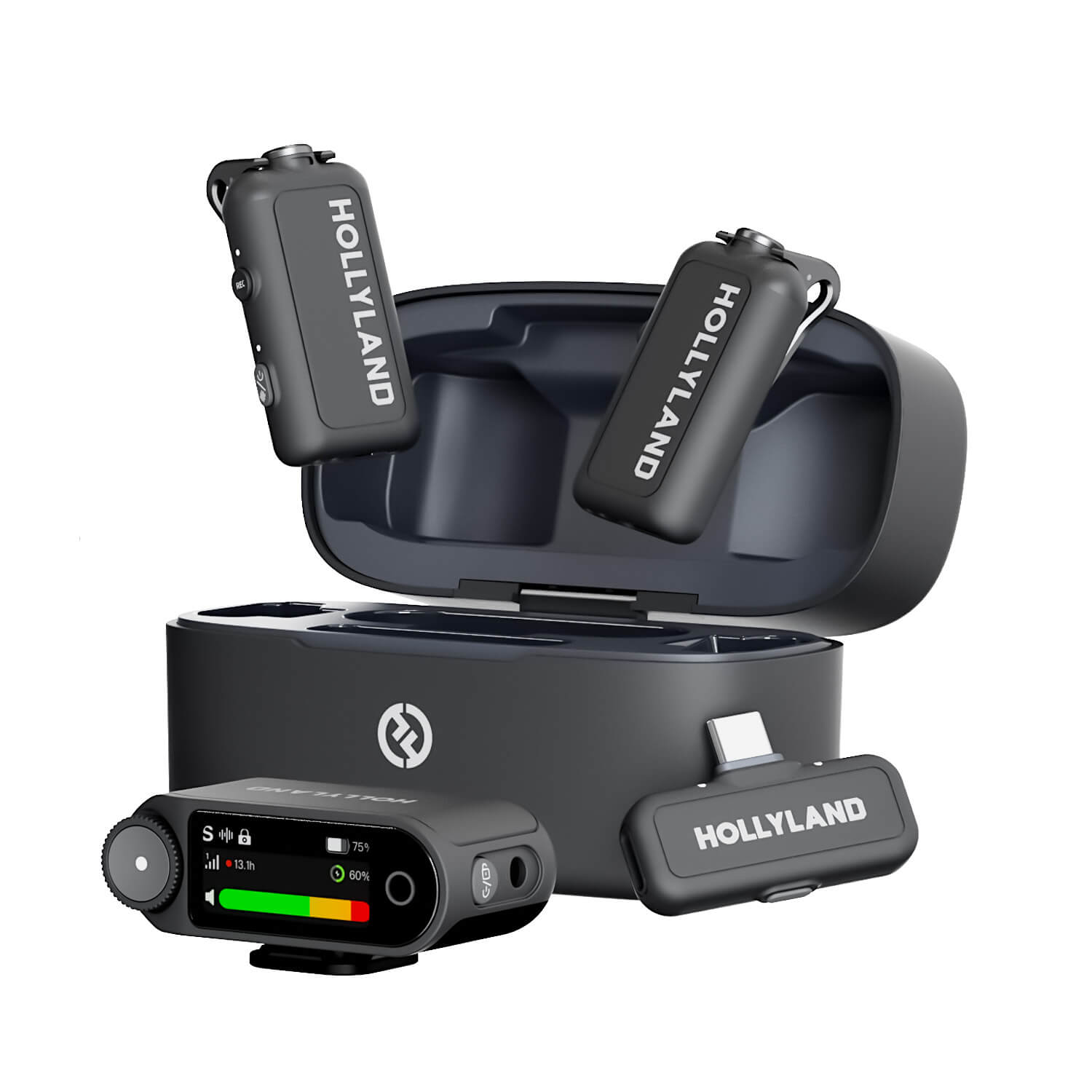
Hollyland LARK MAX 2 - Premium Wireless Microphone System
A premium wireless microphone for videographers, podcasters, and content creators to capture broadcast-quality sound.
Key Features: Wireless Audio Monitoring | 32-bit Float | Timecode
What “Lossless Audio” Really Means in OBS
“Lossless audio” does not mean high bitrate. Many OBS users assume recording at 320 kbps AAC produces near-perfect quality. It does not. AAC, like MP3, discards audio data during encoding. Higher bitrate means less data is discarded, but data is still discarded. A lossless file stores every sample exactly as captured, with no quality removed regardless of how many times you edit or re-export it.

In OBS, lossless output means using PCM (stored in a WAV container) or FLAC. PCM is uncompressed; FLAC is losslessly compressed. Both preserve the full audio signal. This matters most for post-production: if you plan to normalize, EQ, or re-export your audio in a DAW, starting from a lossless source means your edit has full headroom and no generation loss to contend with.
What You Need Before You Start
- OBS Studio (latest stable release; download from obsproject.com)
- Hollyland LARK MAX 2 wireless microphone system, used as the audio source throughout this tutorial; its 48 kHz / 32-bit float output directly aligns with the OBS lossless settings configured below, and its 32-bit Float Internal Recording adds a hardware-level backup layer
- PC running Windows or macOS with an available USB port
- SSD or fast recording drive for sustained lossless file writes

Step 1: Set Up and Connect the Hollyland LARK MAX 2 to Your PC
Setting up the LARK MAX 2 correctly before opening OBS ensures the signal chain is clean, and the sample rate is locked before you touch any software settings.
- Power on the transmitter. Hold the power button on the transmitter for 3 seconds until the LED activates. A blinking blue LED confirms the unit is on.
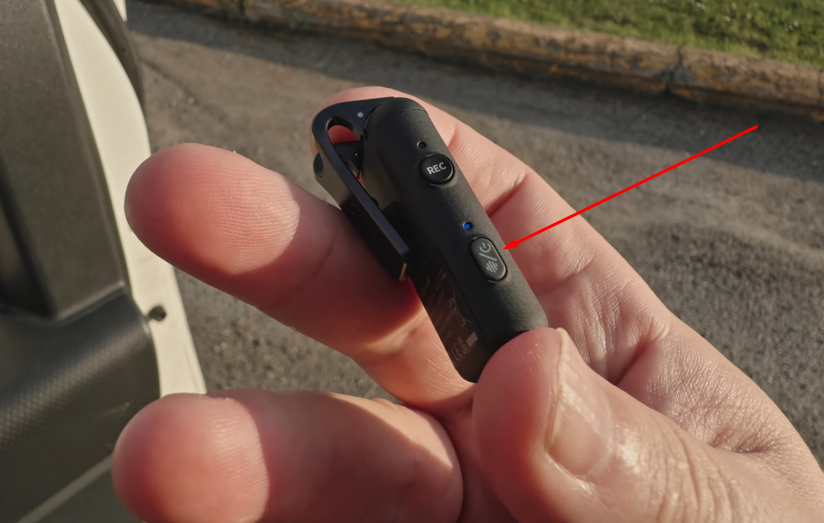
- Power on the receiver. Hold the power button on the receiver for 3 seconds. The receiver LED blinks blue while it searches for the paired transmitter.

- Confirm pairing. When the transmitter and receiver link successfully, the receiver LED transitions from blinking to solid blue, indicating an active wireless connection between both units.
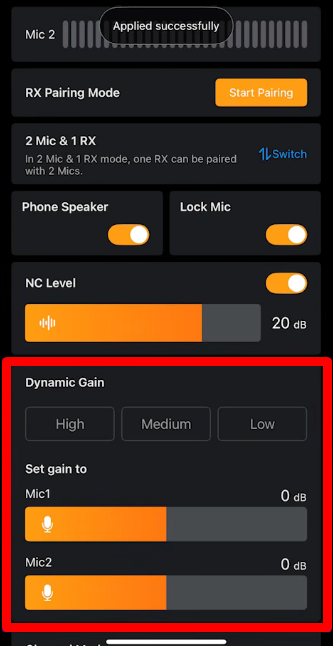
- Set transmitter gain. Open the HollyAudio app and connect it to your LARK MAX 2. Locate the Dynamic Gain section and adjust the gain level for the connected transmitter. Set gain conservatively at this stage to reduce the chance of clipping before levels are calibrated in OBS.
- Check the mute function. Pressing the transmitter power button twice puts the LARK MAX 2 mic system into mute, which silences the transmitter. When muted, the LED state changes to solid red to confirm the mic is off. Mute the transmitter while adjusting gain to prevent sending unwanted noise downstream.

.
- Confirm OS recognition. On Windows, open Control Panel > Sound > Recording tab and confirm the audio interface appears as an active input device. On macOS, open Audio MIDI Setup (Applications > Utilities) and locate the interface. In both cases, set the device sample rate to 48 kHz at the OS level to match the LARK MAX 2’s native output rate and prevent any resampling before the signal reaches OBS.
Verifying Signal Before Opening OBS
Check the incoming audio signal before opening OBS Studio. On Windows, speak into the transmitter and watch the input meter. You can find it under the Recording tab in Sound settings. On macOS, check the meter under the Input tab. You can also open QuickTime Player and select New Audio Recording. This option shows a live stereo input meter while recording. The meter should react to your voice without reaching its highest point. If clipping continues or distortion comes through the earphones, lower transmitter gain first. Then continue with the OBS setup.
Step 2 — Configure OBS Audio Input Settings
With the LARK MAX 2 connected and the OS recognizing the interface, open OBS and configure the audio input to match the hardware.
- Open OBS Settings. Click the Settings button in the Controls panel at the bottom right of the main OBS window.

- Go to the Audio tab > General. Set Sample Rate to 48000 Hz. This must match the LARK MAX 2’s native 48 kHz output. A mismatch here degrades audio quality even if the output codec is lossless. Set Channels to Stereo.

- Click OK to apply, then return to the main OBS window.
- Add an Audio Input Capture source. In the Sources panel, click the “+” button and select Audio Input Capture. Name the source (for example, “LARK MAX 2”) and click OK.
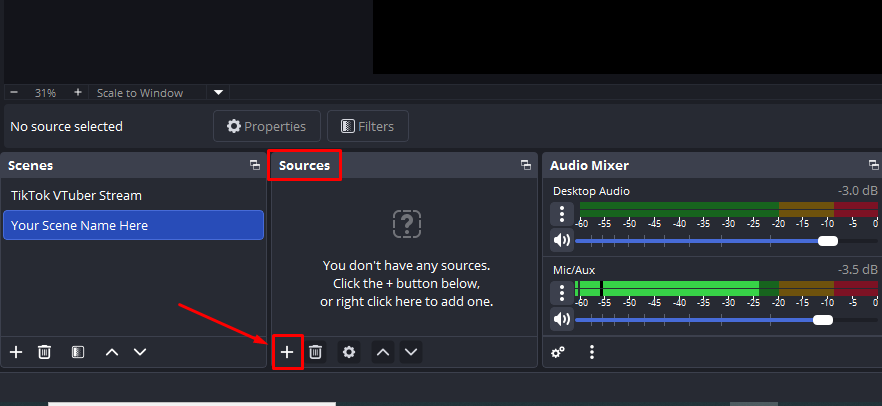

- Select the correct device. In the device properties dropdown, select your USB audio interface, the device to which the LARK MAX 2 receiver is connected. Click OK.
- Check levels in the Audio Mixer. Speak into the transmitter at your normal recording volume. The meter in the OBS Audio Mixer should peak between -18 dBFS and -12 dBFS. This range provides a clean, audible signal with enough headroom to avoid clipping. Adjust transmitter gain as needed until the meter stays consistently in this range.
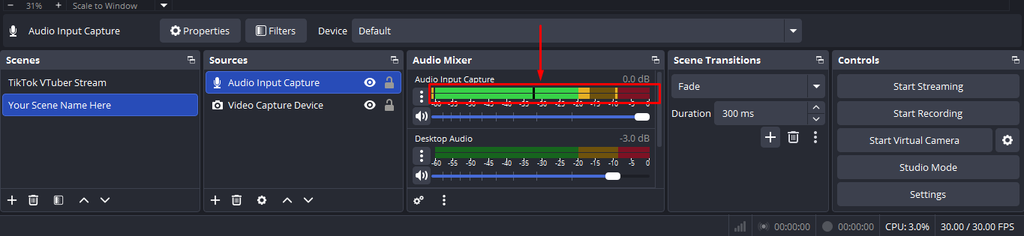
Step 3: Configure OBS Output for Lossless Audio Recording
This is the core configuration step. OBS does not include a simple “lossless audio” toggle.
- Open OBS Settings > Output tab.
- Set Output Mode to Custom Output (FFmpeg) using the dropdown at the top of the Output settings panel.
- Click the Recording sub-tab.
- Set the Container Format. Enter wav for a standalone audio file. Use matroska (MKV) if you need a combined audio-and-video container with a lossless audio track.
- Set the Audio Encoder. In the Audio Encoder field, enter one of the following:
- pcm_s16le for 16-bit PCM: CD-quality lossless audio, smaller file sizes, suitable for most recording needs.
- pcm_f32le for 32-bit float PCM: maximum dynamic headroom, matches the LARK MAX 2’s internal recording spec, recommended if you plan aggressive post-processing in a DAW.
- Set the Audio Bitrate to 320 kbps or a higher value. Avoid keeping the default bitrate setting. The default setting may cause errors during PCM muxing.
- Set your file path. Confirm the file extension matches your container format (.wav for WAV, .mkv for Matroska).
- Click OK, return to the main OBS window, and click Start Recording for a 10-second test clip.
Step 4: Verify the Lossless Output File
After your test recording, confirm the output actually contains lossless audio before committing to any important session.
- Record a 10-second test clip. Start and stop a recording in OBS with the LARK MAX 2 transmitter active.
- On Windows: Right-click the output file > Properties > Details tab. The audio codec field should read PCM, not AAC or MP3. Bit depth should show 16-bit for pcm_s16le or 32-bit float for pcm_f32le.
- On macOS: Open the file in QuickTime Player and press Cmd+I for Movie Inspector. The audio track information should identify the format as PCM.
- Use MediaInfo for the most reliable verification. MediaInfo (mediaarea.net/en/MediaInfo) is a free, cross-platform tool that displays full codec details. Open the file, switch to Tree view, and expand the Audio track. Confirm: Format = PCM, Bit depth = 16 or 32, Sampling rate = 48000 Hz.
- Check the expected file size. A WAV file at 48 kHz / 32-bit float produces approximately 11 MB per minute per channel. Stereo comes to roughly 23 MB per minute. If your file is significantly smaller than this, the output is likely still AAC-encoded.
The LARK MAX 2’s Internal 32-Bit Float Recording as a Backup
The Hollyland LARK MAX 2 includes 32-bit Float Internal Recording in the transmitter for up to 10 hours. This feature stores a complete, independent audio recording directly to onboard storage as soon as the unit is powered on, with no separate activation required. It operates entirely outside OBS, which means if OBS crashes, a settings error corrupts your output file, or PC storage fails mid-session, the transmitter’s recording continues unaffected.
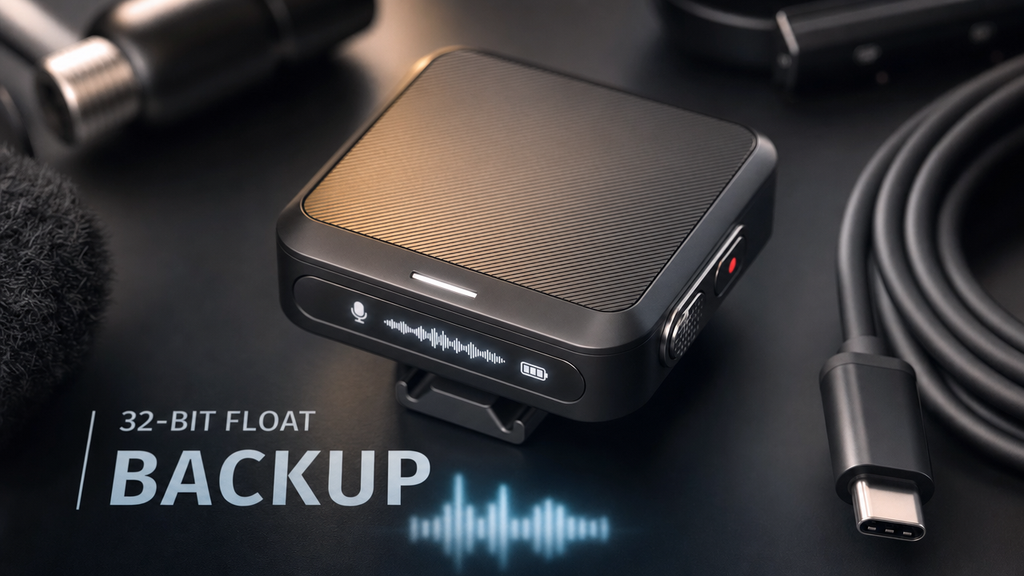
This is not a substitute for the lossless OBS workflow configured above. It is a professional redundancy layer. OBS saves the lossless PCM recording for post-production work. Whereas the LARK MAX 2 transmitter keeps a complete 32-bit Float backup. Retrieve this internal recording through the transmitter’s USB-C port.
Troubleshooting Common Issues
| Problem | Likely Cause | Fix |
|---|---|---|
| OBS does not detect the microphone or audio interface | Device not recognized at OS level or sample rate conflict | Confirm the interface appears in Windows Sound Settings or macOS Audio MIDI Setup; verify sample rate is set to 48 kHz at OS level; close and reopen OBS |
| Output file contains AAC despite WAV format selection | OBS build defaulting to AAC inside WAV wrapper | Switch to Custom FFmpeg output path and enter pcm_s16le explicitly in the Audio Encoder field |
| Lossless files are unexpectedly large | PCM is uncompressed by design | Use pcm_s16le (16-bit) for smaller files; store recordings on an external SSD |
| Audio distorts or produces static during recording | Sample rate mismatch between LARK MAX 2 output and OBS | Set OSaudio device sample rate AND OBS Settings > Audio both to 48000 Hz; a mismatch at either point causes resampling artifacts |
| Audio and video drift out of sync | Interface latency or buffer size issue | Enable audio sync offset in OBS Advanced Audio settings by right-clicking the source in the mixer; reduce buffer size in the interface driver settings |
Frequently Asked Questions
Does OBS support FLAC recording natively?
Yes. OBS Studio supports FLAC recording through its standard settings. In the Output settings, choose Simple or Advanced recording mode. Then select FLAC from the Audio Encoder dropdown menu. There is no need to configure the Custom FFmpeg output option. FLAC compresses audio files without removing any audio data. It can reduce file sizes by about 50% to 60%. This makes FLAC useful when available storage space is limited.
What is the best audio format for OBS recordings intended for editing?
Use pcm_f32le (32-bit float PCM) if you plan significant post-processing such as normalization, noise reduction, or heavy EQ in a DAW. The floating-point headroom prevents clipping during processing. Use pcm_s16le (16-bit PCM) if storage is limited and your recordings are relatively clean at capture. Both are fully lossless.
Will recording lossless audio increase CPU usage in OBS?
Minimally. PCM encoding requires almost no computation compared to video encoding. The primary resource consideration is disk write speed rather than CPU load. Use an SSD or a dedicated recording drive to sustain continuous lossless writes without dropped frames or audio buffer issues during longer sessions.
Can I record lossless audio and stream simultaneously in OBS?
Yes. OBS manages recording and streaming as separate output processes. Each process has its own settings and controls. For reliable multi-track audio, select Advanced under Output Mode. In the Streaming tab, keep Audio Encoder set to AAC on Track 1. This helps meet the audio requirements of streaming platforms. In the Recording tab, leave Type set to Standard. Then choose FLAC, ALAC, or another suitable audio format. You can also set recorded tracks to 320 kbps. Send the stream mix through Track 1 for streaming. Keep clean, separate audio on Tracks 2 through 6. Both output processes run independently without affecting each other.
Conclusion
Lossless recording in OBS keeps your audio intact during post-production. It preserves every detail while avoiding metallic distortion and muddiness from compression. The setup mainly involves selecting PCM recording under OBS output settings. Pairing this with the Hollyland LARK MAX 2 adds another layer of protection. Its 32-bit Float audio and onboard backup recording provide a huge dynamic range. If unexpected volume peaks cause clipping in OBS, the backup recording can preserve the original audio. You can then lower the gain during editing and recover clean, clear sound.


