.png)
 简体中文

If your webcam video looks stretched, squeezed, or shows black bars, the aspect ratio may be the problem. This guide explains four ways to correct or change your webcam’s video ratio. You can adjust settings in its companion app or crop the video in OBS Studio or Zoom. The examples use the Hollyland Lyra, but these methods apply to most modern USB webcams.
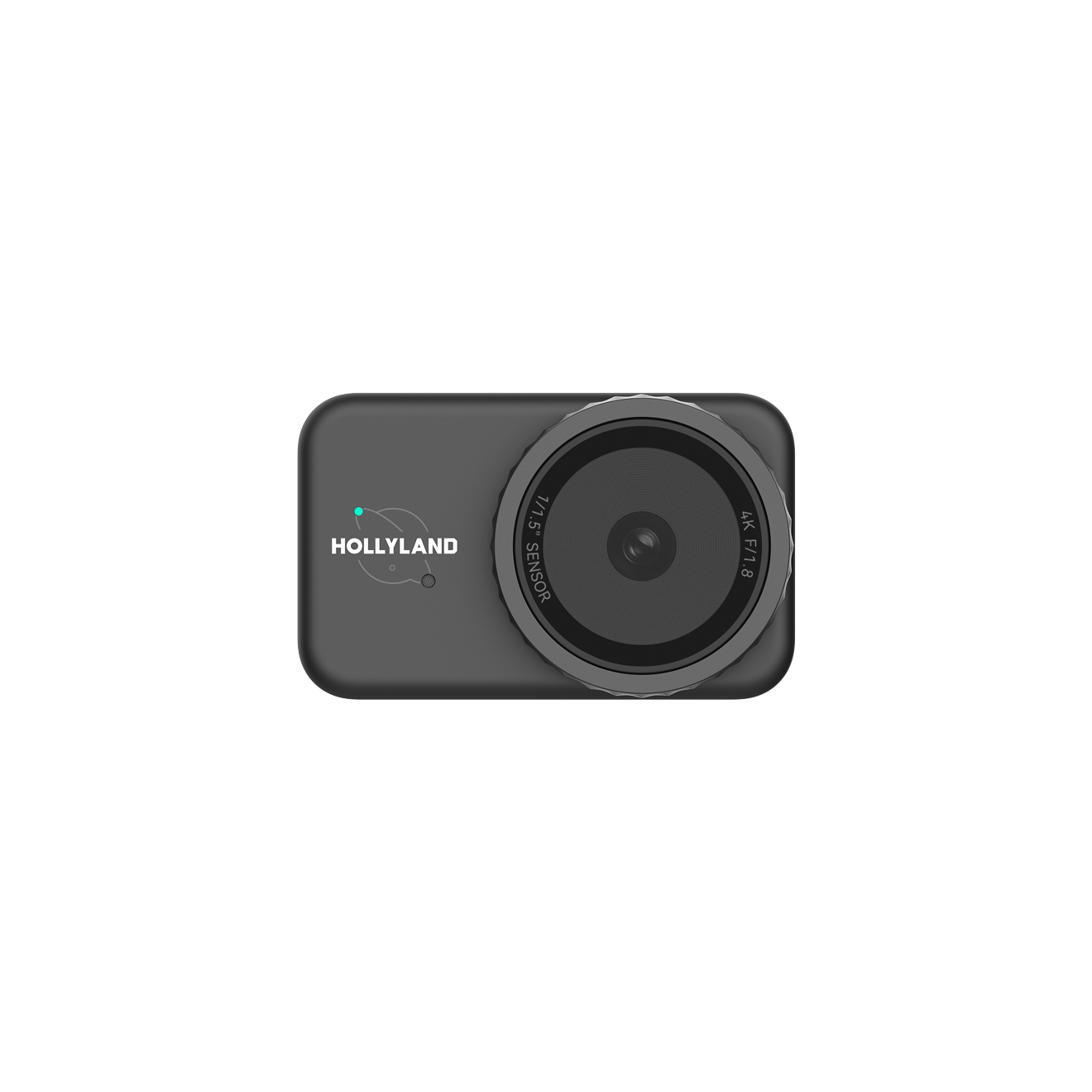
Hollyland Lyra - 4K AI Webcam
A flagship 4K AI webcam featuring a large 1/1.5″ CMOS sensor, smart auto-framing, and studio-grade 48 kHz/24-bit audio for effortless streaming and conferencing.
Key Features: 1/1.5″ CMOS & 4K30 | AI Tracking & Auto Framing | 48 kHz/24-bit Audio

What Is Webcam Aspect Ratio and When Should You Change It?
Aspect ratio describes the width-to-height relationship of a video frame, expressed as two numbers separated by a colon. A 1920×1080 frame and a 3840×2160 frame are both 16:9 because the width is always 1.78 times the height. Change one dimension without adjusting the other, and the image stretches or compresses.

The main difference is whether the change comes from hardware or software. Many older webcams only output 16:9 video, as their firmware sets the available resolutions. Newer webcams for content creators offer more options. For example, the Hollyland Lyra has magnetic mounts on both sides. You can turn the camera sideways to capture native 9:16 video without losing resolution. If your webcam cannot rotate physically, software such as OBS or streaming apps can crop or reframe its original 16:9 video before sending it to the next destination.
Three common reasons to change webcam aspect ratio:
- A video call looks squished or letterboxed, and you need to restore the correct 16:9 framing.
- You are creating content for a platform that requires a specific format, such as 1:1 for Instagram or 9:16 for TikTok.
- Your OBS canvas is set to a non-16:9 ratio, and the webcam source needs to match.
| Ratio | Typical Use | Common Resolutions |
|---|---|---|
| 16:9 | Video calls, streaming, YouTube | 3840×2160, 1920×1080, 1280×720 |
| 4:3 | Legacy apps, older conferencing defaults | 1440×1080, 1024×768, 640×480 |
| 1:1 | Instagram posts, square social clips | 1080×1080 |
| 9:16 | TikTok, Reels, vertical streaming | 608×1080, 1080×1920 |
Method 1: Change Output Format via the Webcam Companion App (Hollyland Lyra + HollyStudio)
The companion app is the right first stop because it controls the resolution the webcam sends to the operating system. That resolution sets the original aspect ratio sent to OBS, Zoom, and Teams. Setting it correctly helps prevent video distortion in these apps.
Note: All Lyra native output formats are 16:9. HollyStudio does not include a 4:3, 1:1, or 9:16 output mode. If you need a non-16:9 ratio, complete this method first to confirm your baseline output, then proceed to Method 2 (OBS Studio).
- Attach the Lyra to your setup. Mount the Lyra on a monitor edge or tripod using the integrated clip. Connect the USB-C cable from the Lyra to a USB port on your computer. USB 3.0 is recommended for 4K output.


- Confirm the connection. Watch the LED indicator on the Lyra. A solid blue light confirms the device is recognized by the OS. No driver installation is required. The Lyra is UVC plug-and-play and appears immediately as a standard camera source.

- Open HollyStudio. Launch the HollyStudio desktop application on Windows or Mac. Confirm the Lyra appears as the connected device in the app header.
- Go to the Resolution menu above the preview screen.. Choose the output that matches your target use case:
- 3840×2160 at 30 fps — 4K UHD, best for high-quality streaming or recording where bandwidth allows
- 1920×1080 at 30 or 60 fps — standard 1080p, the most common choice for video calls and streaming
- 1280×720 at 30 or 60 fps — 720p, useful in bandwidth-limited environments
- All three are 16:9.

- Adjust Digital Zoom via the Focal Length Slider for tighter framing. Go to the Image Control page > Advanced, and locate the Focal Length slider in HollyStudio. Adjust the slider to digitally zoom in or zoom out. This slider ranges from 1x (full field of view) to 4x (tightly cropped center). Increasing digital zoom fills the 16:9 frame with a closer view of the subject without changing the output aspect ratio.

- Enable AI Tracking and Smart Auto Framing if needed. Find the frame icon at the top of the preview screen in the HollyStudio app and select it. Once clicked, the frame icon will show a padlock icon inside.

Click the gear icon under the preview screen to access Settings. From the left menu, choose Camera Settings. Now, switch Face Priority Focus on and close the window.


Next, go to the FOV page.
Under the Smart Framing section, deselect None and click the image tile beside None to enable auto framing.

Once HollyStudio is configured, any application that opens the Lyra will receive the selected resolution. Zoom, OBS, and Teams will each see that clean 16:9 feed as their starting point.
Method 2: Change Webcam Aspect Ratio in OBS Studio
OBS Studio is the most flexible solution for changing your effective output ratio. It lets you crop a 16:9 Lyra feed to any target ratio, such as 4:3, 1:1, or 9:16, by adjusting the canvas dimensions and applying a Crop/Pad filter to the source. That cropped output can then be delivered to any application via OBS Virtual Camera.
- Add the Lyra as a source. In OBS, click the “+” button in the Sources panel and select Video Capture Device. Name the source and click OK. In the device dropdown, select Hollyland Lyra. Click the Resolution/FPS Type dropdown menu and choose Custom. Set the resolution to match your HollyStudio selection — for example, 1920×1080 — to prevent OBS from scaling the feed incorrectly. Click OK.


- Set the base canvas to your target ratio. Go to OBS → Settings → Video. In the Base (Canvas) Resolution field, enter the dimensions that match your target aspect ratio:
- 1080×1080 for 1:1 (square)
- 1440×1080 for 4:3
- 608×1080 for 9:16 (vertical)
- Set the Output (Scaled) Resolution to the same value, or scale it down as needed for your platform.

- Apply a Crop/Pad filter to the Lyra source. Right-click the Lyra source in the Sources list and select Filters. Click the “+” button and choose Crop/Pad. Enter the crop values from the reference table below to trim the 16:9 feed down to your target shape.


- Fit the cropped source to the canvas. After applying the crop filter, right-click the source in the preview window and select Transform → Fit to Screen. This scales the cropped region to fill the new canvas without adding black bars.

- Start Virtual Camera to send the output to other apps. Click Start Virtual Camera in the OBS Controls panel. In Zoom, Teams, or any other application, select OBS Virtual Camera as the camera source. It will receive your cropped, correctly-ratioed feed.

Pro Tip: If you plan to crop heavily — for example, to a 9:16 format from a 1080p source — set HollyStudio to output at 4K (3840×2160) first. The higher-resolution source gives OBS more pixels to work with after cropping, keeping the final image noticeably sharper. The Lyra’s 50MP, 1/1.5” CMOS sensor makes this a practical option rather than a theoretical one.
OBS Crop Values Reference Table for a 1920×1080 Lyra Source
Use the values below directly in the OBS Crop/Pad filter dialog. All values crop symmetrically from the left and right edges, preserving the full vertical height of the frame.
| Target Ratio | Crop Left (px) | Crop Right (px) | Crop Top (px) | Crop Bottom (px) | Resulting Resolution |
|---|---|---|---|---|---|
| 4:3 | 240 | 240 | 0 | 0 | 1440×1080 |
| 1:1 | 420 | 420 | 0 | 0 | 1080×1080 |
| 9:16 | 656 | 656 | 0 | 0 | 608×1080 |
Method 3: Adjust Webcam Aspect Ratio in Zoom and Other Conferencing Apps
Zoom defaults to 4:3 when HD mode is disabled. This is the most common reason a webcam feed appears squished or pillarboxed in a video call: the app is requesting a low-resolution, 4:3-shaped feed from a webcam that outputs 16:9 natively. Enabling HD forces Zoom to request a proper 16:9 resolution from the Lyra.
Steps for Zoom:
- Open Zoom, click your profile photo to open the menu, and select Settings → Video & effects.

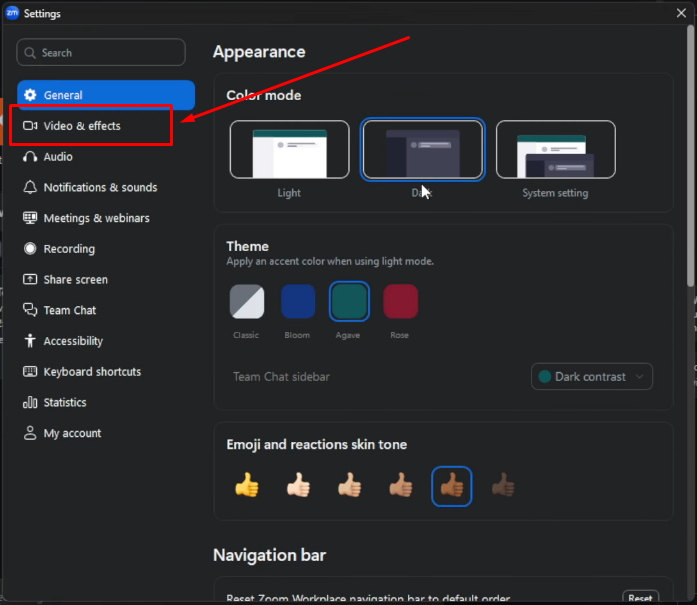
- In the Camera dropdown at the top of the panel, confirm Hollyland Lyra is selected as the active camera source.

- Toggle on the HD video option. This signals Zoom to request a 16:9 HD stream (1280×720 minimum; 1920×1080 if your connection allows) instead of falling back to a 4:3 low-resolution format.

- If the video preview still shows an incorrect ratio, look for an Original ratio toggle in the in-call video tile menu and switch to 16:9 to match Lyra’s native output and eliminate pillarboxing.
Microsoft Teams:
Teams does not expose a direct aspect ratio or resolution control in its settings panel. The most reliable fix is to use OBS Virtual Camera (see Method 2) as the camera source in Teams, which gives you full control over the output ratio before Teams receives the feed.
Google Meet:
Google Meet adjusts video framing based on the camera’s reported resolution. Select the Hollyland Lyra in Meet’s camera settings first. Then set HollyStudio to 1920×1080 or 1280×720 widescreen output. These resolutions provide the correct base for a 16:9 display. Google Meet defaults to a lower 360p resolution. Open its in-call video settings and change both resolution options manually. Set “Send resolution” and “Receive resolution” to 720p or 1080p. This helps maintain a clear, uncropped 16:9 video layout.
Method 4: Change Resolution in the Windows Camera App
The Windows Camera app lets you change resolution settings. This can affect the camera’s default output ratio and framing. These changes may also affect Zoom, OBS, and Microsoft Teams. The Hollyland Lyra appears automatically as a UVC device in Windows with no driver installation required and will show up immediately in the camera source selector.
- Open the Windows Camera app from the Start menu.
- Click the Settings (gear) icon in the upper-left corner.
- Select Video quality from the settings list.
- Choose a resolution. Options labeled 16:9 (such as 1920×1080) produce a widescreen frame; any 4:3 option produces a squarer frame.
- Close settings. Windows Camera now uses the selected resolution and ratio.
Why Your Webcam Video Looks Stretched or Cropped: Quick Fixes
If your video still looks wrong after following the steps above, one of these causes is almost certainly responsible:

- Cause: OBS source resolution does not match HollyStudio output.
Fix: Open the Lyra Video Capture Device source in OBS and select Properties. Verify the resolution is set to the same value active in HollyStudio — for example, 1920×1080 in both places. A mismatch forces OBS to scale the feed, which distorts the proportions. - Cause: Zoom is displaying black bars (pillarboxing) around the Lyra feed.
Fix: Confirm HollyStudio is outputting 1920×1080 or 1280×720 rather than a non-standard resolution. Then open Zoom Video Settings and verify the HD video option is enabled. Both conditions must be true at the same time. - Cause: AI Tracking and Smart Auto Framing are producing an unevenly cropped appearance.
Fix: In HollyStudio, temporarily disable AI Tracking and Smart Auto Framing and set the Focal Length slider (digital zoom) to 1x. Confirm the full 16:9 frame looks correct at baseline. If it does, re-enable Auto Framing and allow it to re-calibrate from that full-frame starting point. - Cause: The OBS canvas ratio does not match the webcam source ratio.
Fix: If the Lyra source appears stretched to fill the OBS canvas, confirm the Crop/Pad filter values are applied before fitting the source to screen. Fitting an uncropped 16:9 source to a 1:1 or 9:16 canvas will always stretch it.
FAQs
What aspect ratio do most webcams use by default?
Most modern webcams, including the Hollyland Lyra, output natively in 16:9. This matches the standard widescreen format used by streaming platforms, video conferencing apps, and most monitors. Older or budget-oriented webcams may default to 4:3 at lower resolutions, which can make the image look squished in apps that expect a 16:9 feed.
Can I switch my webcam from 16:9 to 4:3 at the hardware level?
Only if the webcam’s firmware or companion app includes a dedicated 4:3 output mode. The Hollyland Lyra outputs exclusively in 16:9 resolutions and does not include a hardware-level 4:3 mode. Any 4:3 output must be created by cropping the 16:9 feed in software, for example using the OBS Crop/Pad filter with a 1440×1080 canvas setting.
Does changing the resolution change the aspect ratio?
Changing resolution does not change aspect ratio if proportions stay the same. Resolution counts horizontal and vertical pixels, such as 1920×1080 or 1280×720. Aspect ratio describes image width compared to height, such as 16:9 or 4:3. Both listed resolutions use 16:9, so only image detail changes. Switching from 21:9 to 16:9 or 4:3 changes proportions. Mismatched ratios can stretch or squeeze images, or create black bars.
How do I make my webcam output square (1:1) for Instagram or TikTok clips?
Apply OBS’s Crop/Pad filter to your webcam source. Under Settings > Video, set the canvas to 1080×1080 for square video. For vertical video, choose 1080×1920 instead. Adjust crop values to center your camera feed. Alternatively, hold Alt on Windows or Option on Mac. Drag the preview’s edges to crop visually. Click Start Virtual Camera in the control panel. Select “OBS Virtual Camera” in your recording or streaming app. Hollyland Lyra owners can mount the webcam sideways for native portrait recording.
Why does my webcam look different in Zoom than in OBS?
Zoom and OBS request webcam video separately. Zoom may switch to lower resolution or 4:3 when HD is disabled. OBS follows the settings in its Video Capture Device properties. Enable HD in Zoom to reduce differences between both views. Set OBS to output the same resolution and aspect ratio. Use HollyStudio to keep exposure, focus, and color profiles consistent across both apps.
Conclusion
Start by setting your preferred webcam resolution in HollyStudio. For regular 16:9 calls, enabling Zoom HD often fixes distortion. Square, 4:3, and vertical videos may need extra adjustments. Apply OBS’s Crop/Pad filter to get your desired proportions. With the right settings, your webcam can match each recording or video call’s needs.