.png)
 简体中文
简体中文 
You nailed the shot. Good lighting, steady framing, a compelling subject. Then you play it back, and the audio is a mess — wind noise, room echo, or a voice that sounds like it was recorded inside a tin can.
This is one of the most common frustrations for phone videographers, and it has nothing to do with your camera skills. It has everything to do with your microphone.
The built-in mic on your phone is designed for phone calls. It sits on the edge of a device that might be mounted on a tripod three meters away from your subject. The results are predictably disappointing.
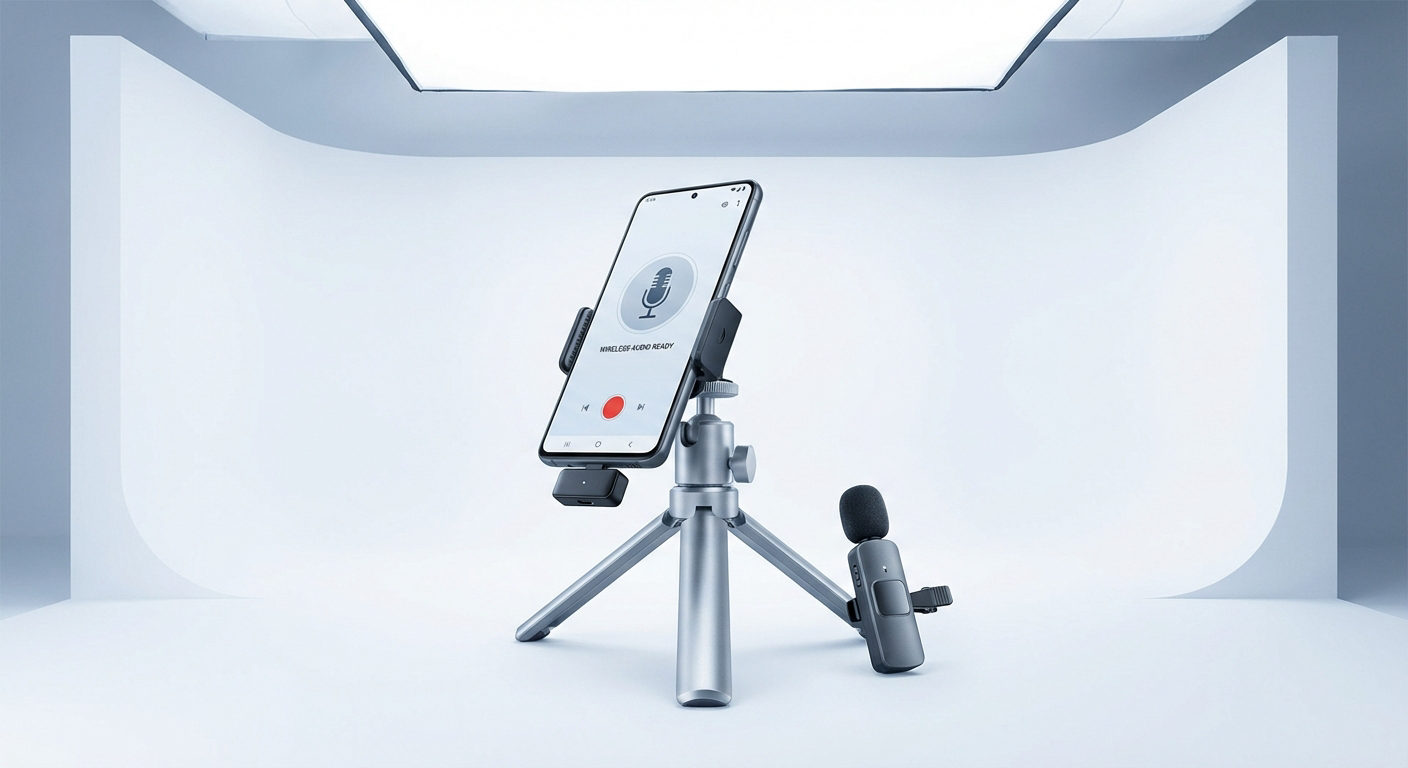
A wireless microphone fixes this. It puts the mic where it belongs — close to the speaker — while keeping your phone wherever it needs to be. No cables running across the floor. No talent tethered to the camera. Just clean, consistent audio captured at the source.
This guide walks you through exactly how to connect a wireless microphone to your phone, configure it for your environment, and build habits that will improve your audio on every shoot going forward. Whether you’re a solo content creator, a journalist, or someone who just wants their interview footage to sound as good as it looks — the process is simpler than you might think, and the difference is immediate.
Understanding How Wireless Mics Connect to Phones
Before touching any buttons, it helps to understand what you’re actually connecting.
A wireless microphone system has two main components: a transmitter (TX), which is worn by the speaker and captures audio, and a receiver (RX), which plugs into your phone and receives the audio signal wirelessly.
The connection between the RX and your phone typically comes in two forms:
- USB-C Receiver: Plugs directly into your phone’s USB-C port. No Bluetooth, no Wi-Fi, no app required to get basic audio working. It’s recognized as an audio input device automatically. This is the cleanest and most reliable option for modern Android phones and iPhones (with a Lightning-to-USB-C adapter if needed).
- 3.5mm Receiver: Connects via the headphone jack or a TRRS adapter. More common on older phones and some cameras. Still works well, though you’ll need to check whether your phone’s jack supports audio input or output only.
Before you start, run through this quick checklist:
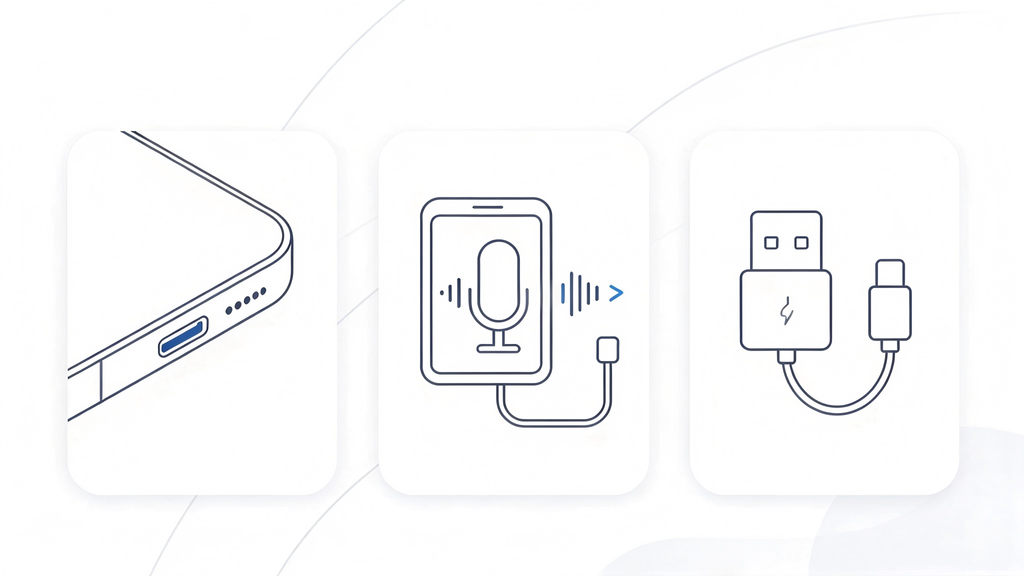
- Does your phone have a USB-C port?
- Does your recording app allow external audio input?
- Do you need any adapter?
Getting this right upfront saves you ten minutes of confused troubleshooting later.
Step-by-Step: How to Connect a Wireless Mic to Your Phone
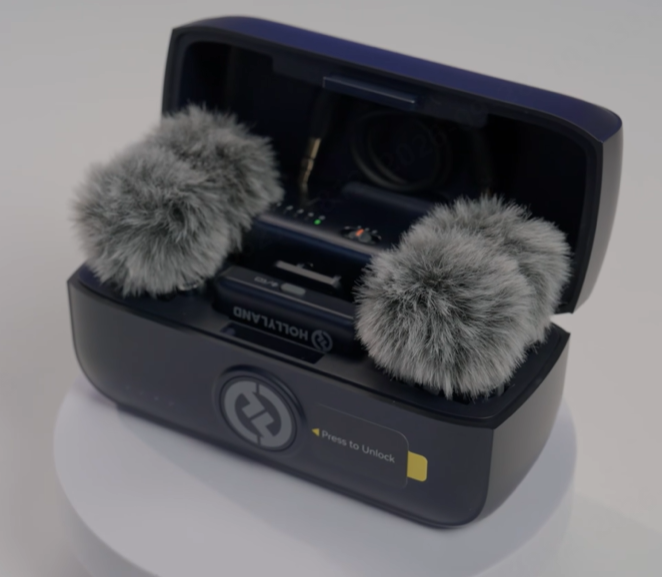
The steps below apply to most plug-and-play wireless mic systems. We’ll reference the Hollyland LARK M3 as a working example throughout — it uses a USB-C receiver that connects directly to your phone, which makes it a practical illustration of the process. If you’re using a different system, the core steps remain the same; just check your device’s manual for the specific button behaviors.
A quick check before you start:
- Make sure both your TX and RX are charged
- Confirm your TX and RX are already paired — most systems come pre-paired out of the box, so you may not need to do anything extra
- If you have multiple receiver types in your kit, make sure you’re picking up the right one — the USB-C RX for your phone, not the camera receiver
Once you’re good on all three, you’re ready to go.
Step 1: Power On the Transmitter
Press and hold the TX’s multi-function button for 3 seconds. The indicator light tells you everything you need to know:
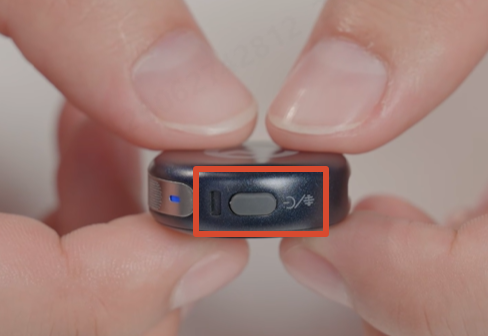
- Slow flashing blue — powered on, searching for a connection
- Fast flashing blue — actively in pairing mode
- Solid blue — connected and ready
If the light doesn’t come on at all, the TX likely needs charging.
Step 2: Plug the Receiver Into Your Phone
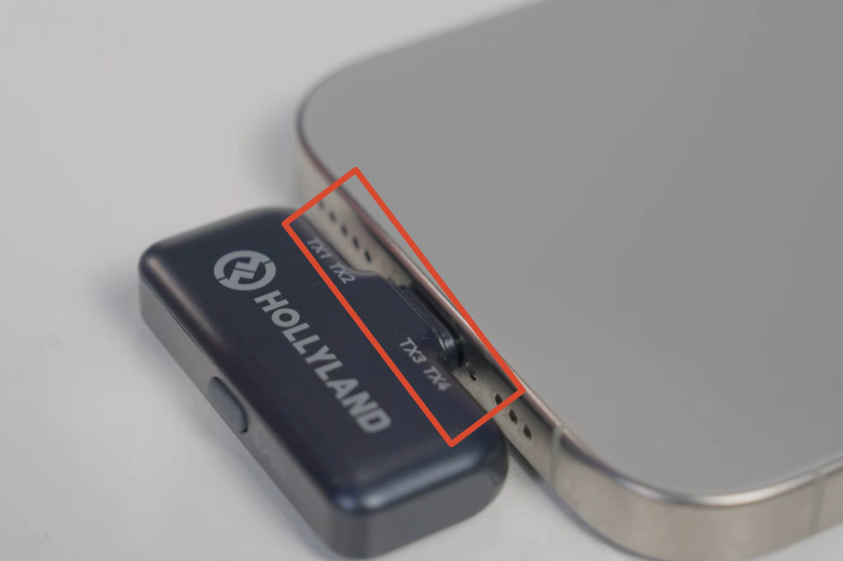
Take the USB-C RX and insert it directly into your phone’s USB-C port. The receiver draws power from your phone, so there’s no need to charge it separately during use.
One practical detail worth noting: the LARK M3’s USB-C RX has a passthrough charging port, meaning your phone can continue charging while the mic is in use. This matters a lot during longer shoots where battery life is a concern.
Step 3: Confirm the Connection
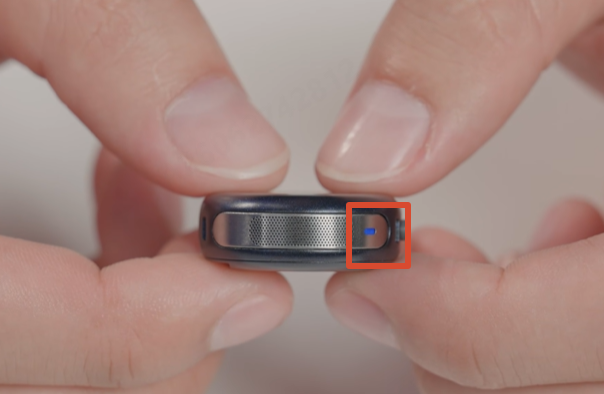
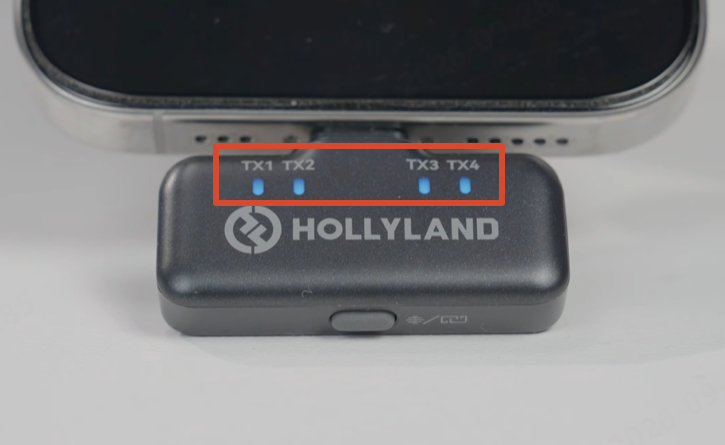
Both the TX and RX should now show a solid blue light. Open your camera app or any recording app and check the audio input — you should see the meter responding to sound.
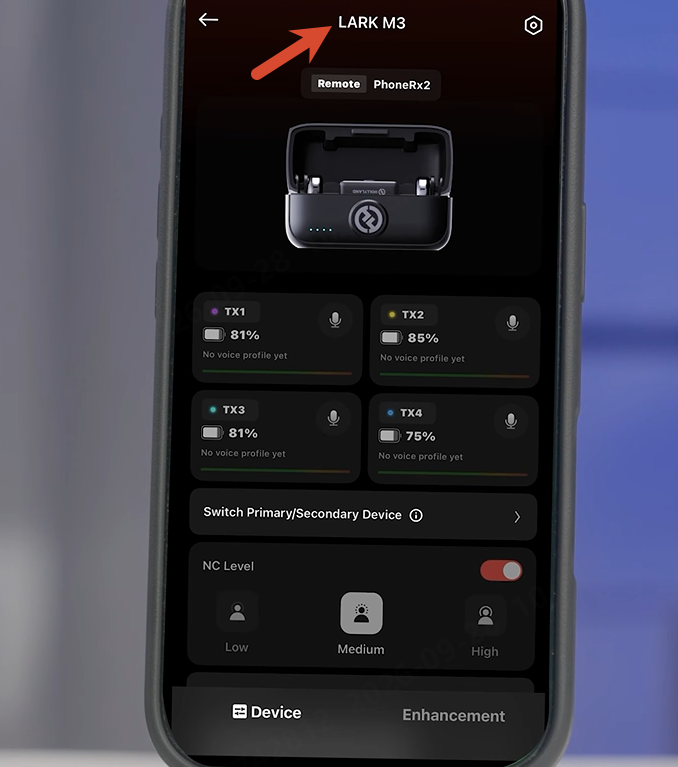
Do a quick test: clap once or speak directly into the TX. If the meter spikes, you’re connected and receiving audio. If nothing happens, check that your app is set to use the external microphone input rather than the built-in mic.
Step 4: Position the Transmitter
Clip the TX to your subject’s collar, lapel, or shirt front — ideally around 15 to 20 cm below the chin. This placement gives you a clean, consistent voice pickup without breathing noise or handling interference.
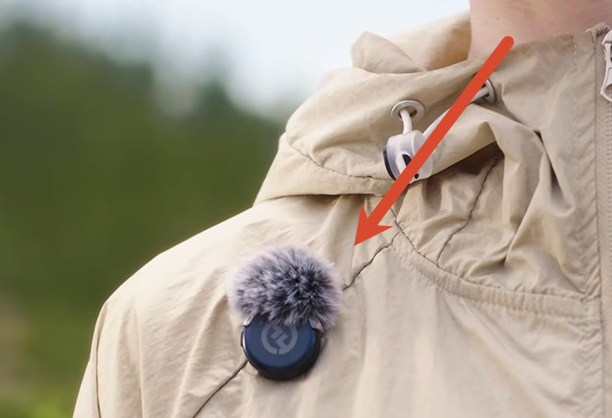
TX weight matters more than most people realize. A heavy transmitter pulls at fabric, causes rustling, and is uncomfortable to wear for long sessions. At just 9 grams, the LARK M3 TX sits flat against clothing without deforming it — a small detail that makes a real difference in everyday use.
If you’re shooting outdoors, attach the furry windshield before clipping the TX to clothing. Wind noise at even moderate speeds can overwhelm an unprotected mic capsule.
Step 5: Set Your Gain Level
Before you record anything important, do a level check. Speak at normal volume and watch the audio meter in your recording app. You want peaks in the upper third of the meter — loud enough to be clear, quiet enough to avoid clipping.
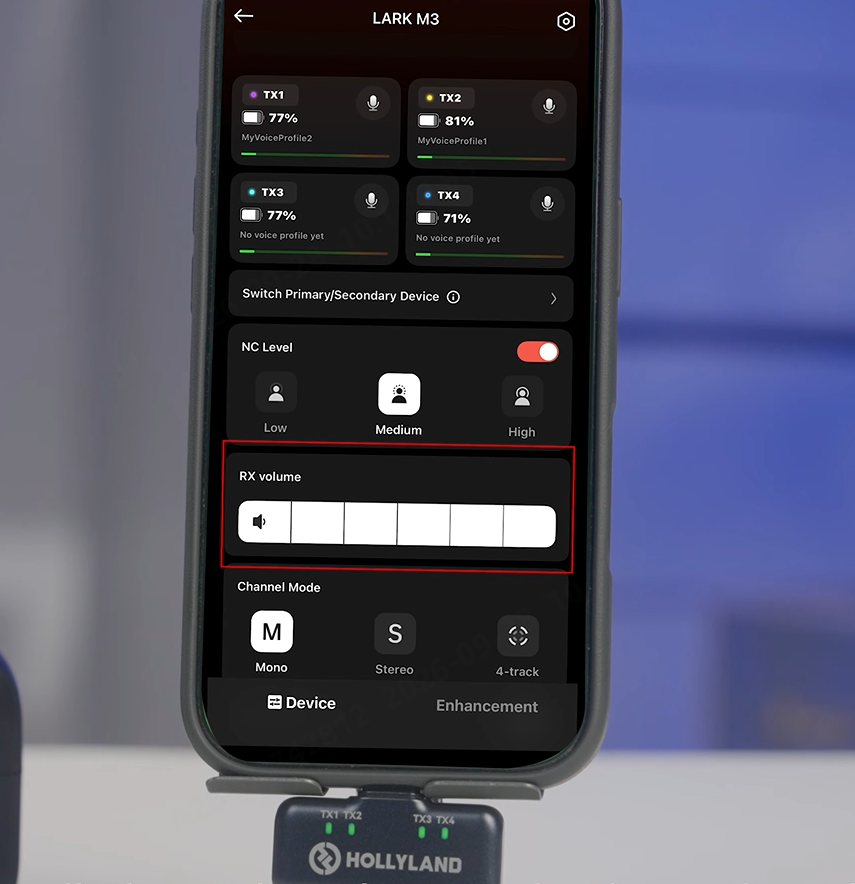
The LARK M3 offers 6-level gain adjustment on the USB-C RX via the companion app. If you’re using the Camera RX instead, there’s a 3-level gain slider on the unit itself, or you can adjust it through the app. Start conservatively and increase only if the signal is too quiet.
Improving Your Audio After Connecting
Getting connected is just the beginning. These adjustments will meaningfully improve your final audio quality.
Use Noise Cancellation Thoughtfully
Most modern wireless mics offer some form of noise reduction. On the LARK M3, a single press of the TX’s multi-function button toggles noise cancellation on or off. When active, the indicator light turns solid green.
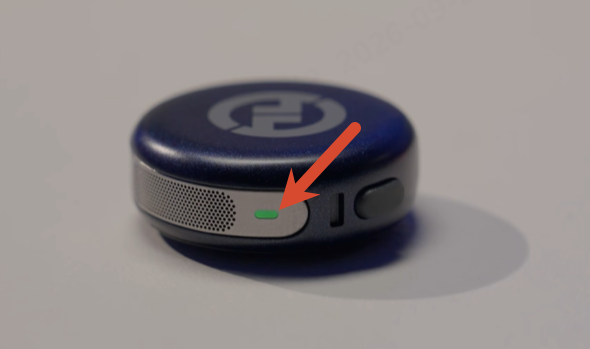
The system offers three NC levels — 10 dB, 15 dB, and 20 dB — adjustable through the app. A practical approach: start at 10 dB and increase only if the environment demands it. Heavy noise cancellation can sometimes soften the natural warmth of a voice, so use only as much as you actually need.
Try App-Based Voice Enhancement — But Don’t Rely on It
The Hollyland app includes a One-Tap Vocal Enhancement feature that automatically applies a polish to your recorded voice — suppressing sibilance and evening out frequencies. It’s a useful starting point, especially if you’re recording quickly and don’t have time to fine-tune manually.
The app also lets you build a custom voice profile with adjustable bass, mid, and treble settings, which can be saved and reused across sessions. Each TX can carry a different preset, which is handy when recording multiple speakers with different vocal qualities.
That said, no software enhancement replaces good mic placement. Get the TX close to the speaker first. Treat the vocal enhancement as a finishing touch, not a rescue tool.
Control Your Environment First
This is the most overlooked part of mobile audio. Before you hit record, take 30 seconds to assess your surroundings:
- Position the speaker away from air conditioning vents or fans
- Move away from crowds or high-traffic areas if possible
- Use a windshield when recording outside — always
No microphone, regardless of price, eliminates the noise you could have simply avoided.
Multi-Mic Setups: Connecting More Than One TX
If you regularly record interviews, group discussions, or multi-camera shoots, you’ll want to understand how multi-TX setups work.

The LARK M3 supports up to 4 TX and 4 RX units simultaneously — a significant capability for a system in this category. When multiple receivers are connected at the same time, the system establishes a Primary/Secondary RX hierarchy.
The Primary RX has full control: it can enable or disable TX mute, adjust noise cancellation, control voice tuning, and manage indicator settings across all connected TX units.
The Secondary RX has view-only access to those settings. This is a deliberate design choice — in a multi-camera shoot, you don’t want a second camera operator accidentally muting a transmitter or changing the noise cancellation level mid-interview.
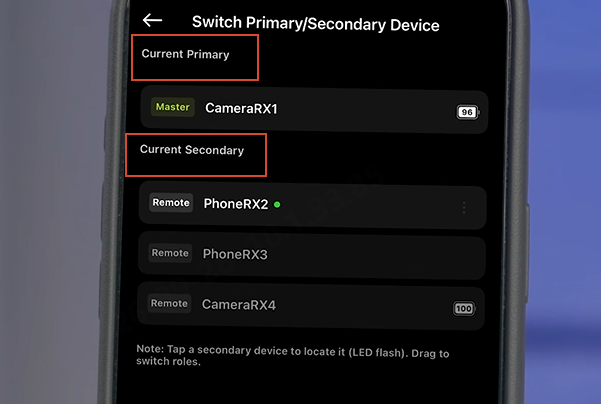
You can switch which RX is Primary either manually (by disconnecting secondary units and reconnecting them) or through the app’s Switch Primary/Secondary Device menu.
For a practical two-person interview on a phone: clip one TX to each speaker, plug the USB-C RX into your phone, and use the Primary RX to manage both mics from a single point of control. Clean, simple, and reliable.
Common Problems and How to Fix Them
| Problem | Likely Cause | Fix |
| No audio detected by phone | App using built-in mic | Switch input source in app settings |
| Voice sounds distant or thin | TX positioned too far from mouth | Move TX to 15–20 cm below chin |
| Too much background noise | NC not enabled | Single-press TX button; check indicator turns green |
| TX won’t connect | Devices need re-pairing | With TX off, hold button for 6 seconds to enter pairing mode |
| Audio cuts in and out | Distance or RF interference | Reduce distance between TX and RX; avoid crowded wireless environments |
| Phone battery draining fast | RX drawing power | Use a receiver with a passthrough charging port |
What to Look for When Choosing a Wireless Mic for Your Phone
If you’re still deciding on a system, here are the specs that actually matter for phone recording:
- Connection type: USB-C is the most reliable for modern phones — no adapters, no latency issues
- Range: For most filming scenarios, 50–100m is sufficient; 300m gives you room for unpredictable situations
- Battery life: Look for at least 6–8 hours on the TX; a charging case that extends total battery life is a significant practical advantage
- TX weight: Anything over 20g will cause fabric noise and discomfort during longer wears
- Audio resolution: 48 kHz / 32-bit Float recording gives you the most flexibility in post-production
- Multi-TX support: Essential for interviews; nice to have for solo creators who occasionally film with others
Conclusion
Connecting a wireless microphone to your phone is genuinely straightforward once you understand your components. Power on the TX, plug in the RX, confirm the connection, position the mic correctly, and set your gain. That’s the whole process.
The bigger gains come from what you do after connecting — thoughtful mic placement, appropriate noise cancellation settings, and basic environmental awareness. These habits, more than any specification on a spec sheet, are what separate mediocre mobile audio from something that actually sounds professional.
Bad audio is one of the fastest ways to lose a viewer’s attention. The good news is it’s also one of the most preventable problems in mobile video production — and now you have everything you need to fix it.
Ready to Upgrade Your Mobile Audio?
If you’re still recording with your phone’s built-in mic, today is a good day to change that.
The Hollyland LARK M3 connects directly to your phone via USB-C, supports up to 4 transmitters for multi-person shoots, and weighs just 9g — so your talent barely knows it’s there.