.png)
 简体中文

YouTube Live is one of the most popular streaming channels for games and other media-related content. YouTube works like TikTok and Twitch, although it has more benefits than them. The amazing benefit is that your streaming video stays permanent on the channel for later viewing. But getting the setup right is the main deal. To enjoy a seamless Elden Ring game stream on YouTube, the stream key needs to be configured correctly. Also, the encoder has to match YouTube’s recommendations, and the audio must be clean enough for viewers’ hearings. This guide walks through every step to set your Elden Ring game stream right. Get started here and now.
What You Need to Stream Games on YouTube
Before walking through the step-by-step guide on how to stream on YouTube, these are the essentials you must have on your desk to have your way in without stress.
- A personal computer with a graphics card.
- OBS Studio installed on your computer.
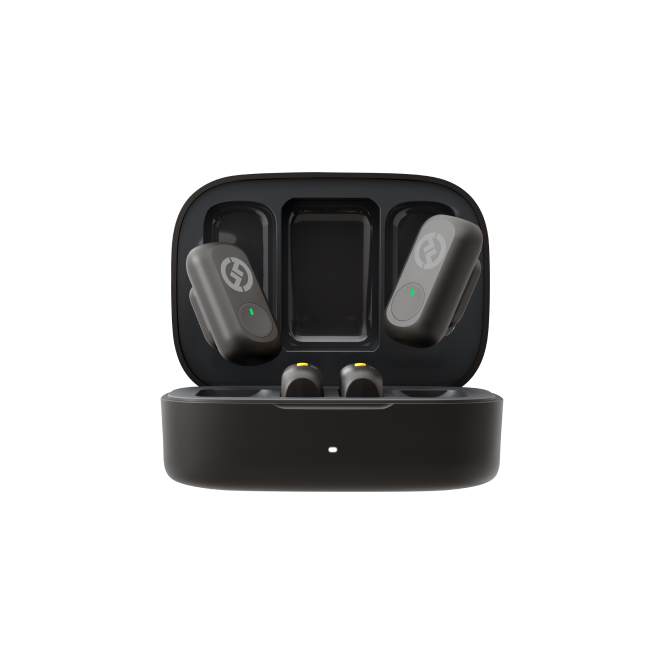
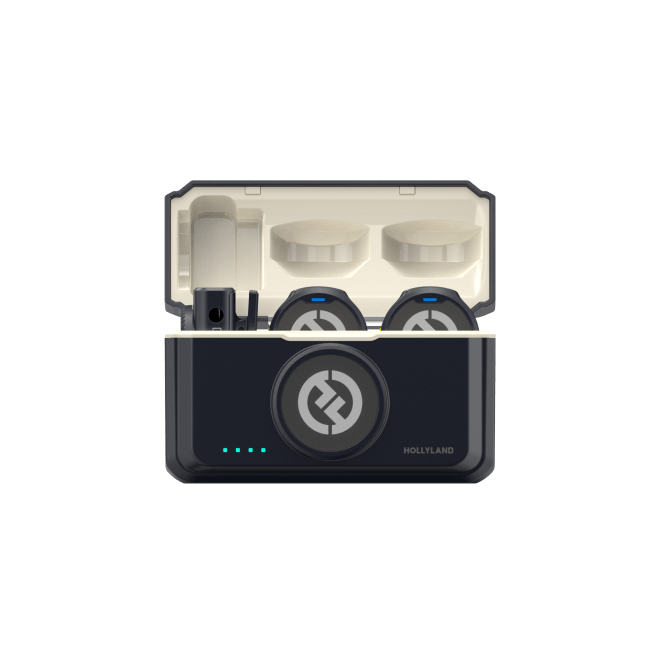
- Hollyland LARK M3 wireless microphone.
- A YouTube account & channel with livestream access.
- A stable connection.
These are the major things needed for your game streaming. Once you have them ready, you can now start taking steps to go live and showcase your gaming expertise to viewers. Note that uninteresting game streaming bores viewers, and it is to the disadvantage of the streamer.

Step 1: Confirm: Does Your Channel Have Access to Broadcast?
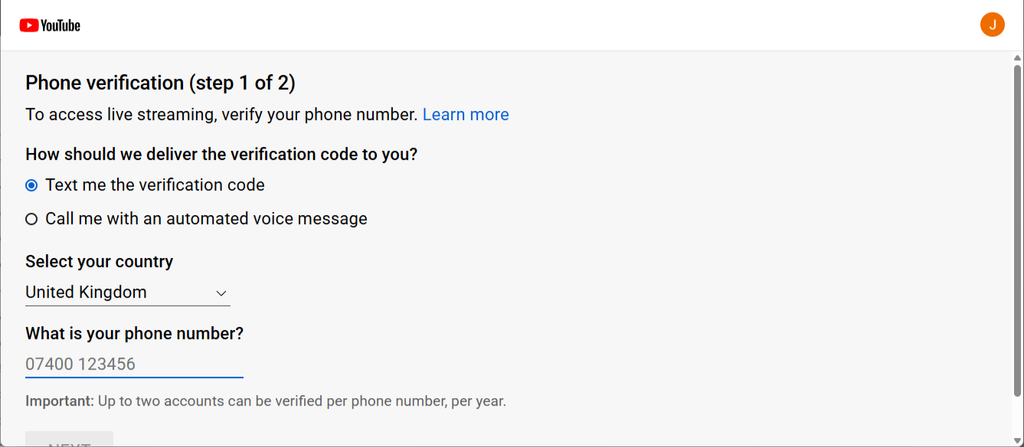
The very first thing to start with is knowing whether YouTube will let you go live at all. You must have a Google account that is tied to a YouTube channel using a verified phone number. Also, you must have a record with no live-streaming restrictions in the last 90 days.

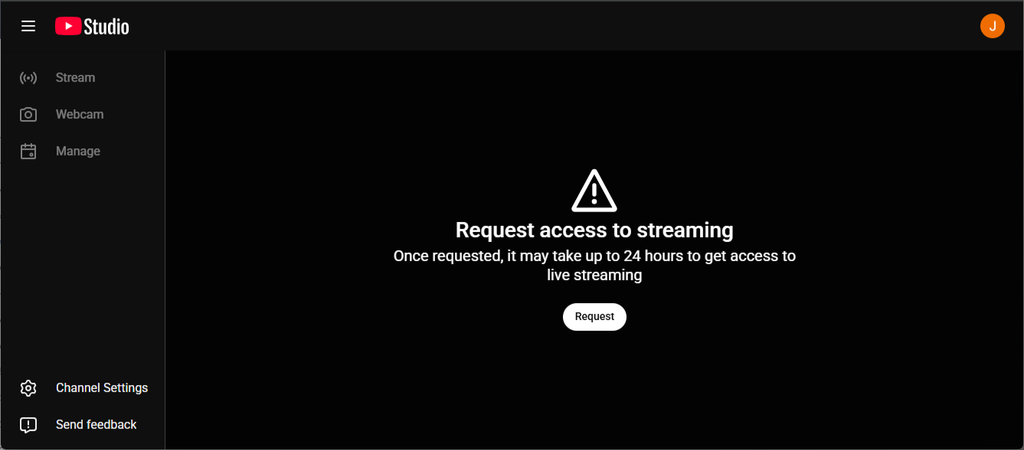
Note that it can take up to a day before YouTube can approve a first-time request. Avoid this delay by verifying your account at least a day before your proposed stream day.

Sign in to YouTube, use the ‘Create’ button, and then ‘Go Live.’ If you are moved to a live dashboard, that means you are cleared. However, if you are being asked to verify your number, do not hesitate. Once you are in your live dashboard, your Stream URL and Stream Key will be provided when it is time.
Step 2: Connect OBS to YouTube’s Recommended Video Format
Launch OBS and go to Settings > Video. YouTube’s sweet spot for game streaming is 1080p at 60 frames per second. So set your Base (Canvas) Resolution and Output (Scaled) Resolution both to 1920×1080, and FPS to 60. Leave it at a 60 frame rate and not 30, as it gives a better view of your Elden Ring’s parry windows and roll timing.

There is a caveat, though. If your upload speed is below 10 Mbps, reduce the Output Resolution to 1280×720. YouTube publishes a bitrate range of 4–12 Mbps for 1080p60 H.264, but no viewer appreciates a very clean visual that buffers every second. To avoid this, run your Elden Ring stream at a 15 Mbps upload, with 1080p60 output resolution.
Step 3: Choose the Right Encoder and Bitrate Setup
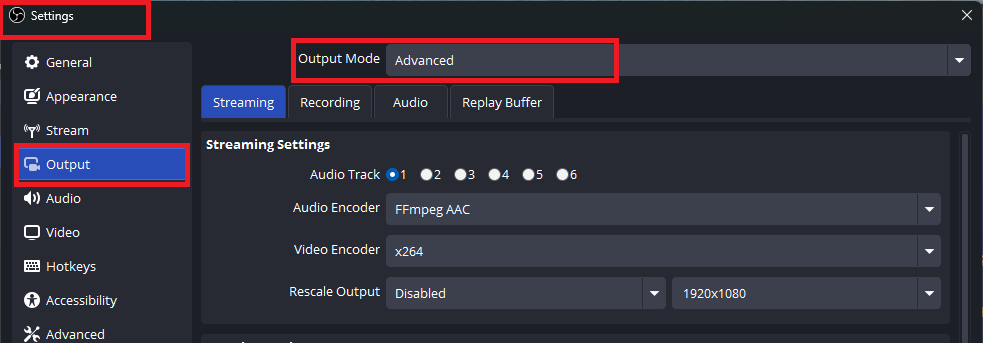
Head to Settings > Output, change Output Mode to Advanced, and open the Streaming tab. Choose NVENC H.264 if your computer has an NVIDIA GPU. Elden Ring leans hard on the processor, and handing video compression to the graphics card keeps frame drops out of the equation.
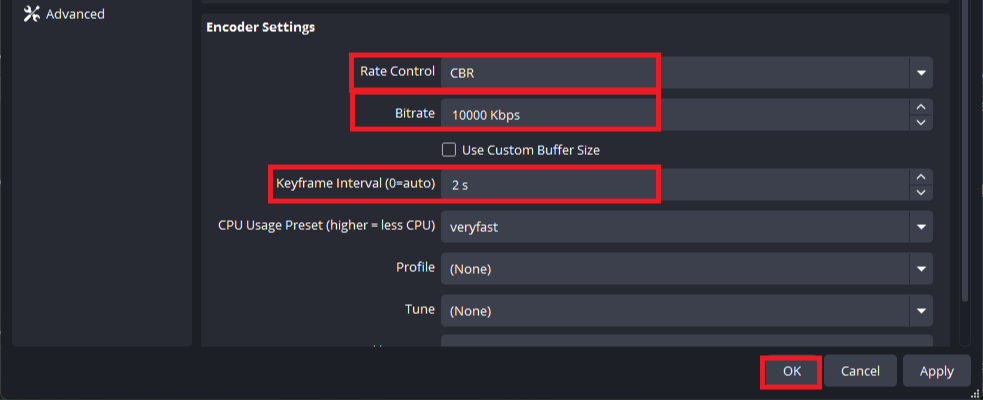
Set Rate Control to CBR and Bitrate to 10000 Kbps. YouTube accepts bitrates up to 12000 Kbps for 1080p60 H.264, and 10000 gives you clean image quality without pushing your upload to its limit. Leave the Keyframe Interval at 2 seconds. Because YouTube recommends this exact value, changing it might cause playback problems.
Step 4: Connect OBS to YouTube with Your Stream Key
Next, open OBS Studio and click on Stream under the Settings tab. Pick YouTube – RTMP from the service list.
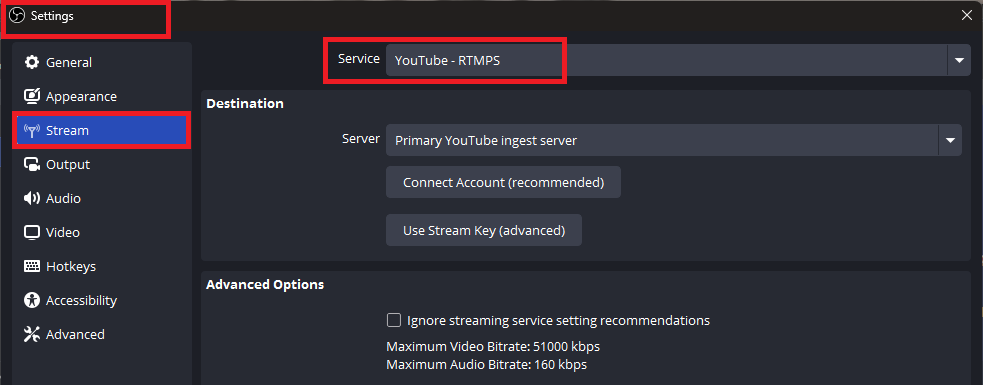
Two paths forward: click ‘Connect Account’ and authorize OBS through the browser pop-up, or paste the key from YouTube Studio by hand. The account route, however, is worth taking because OBS stores the credentials, so you will not need a new key again. Hit ‘Apply,’ then ‘OK.’
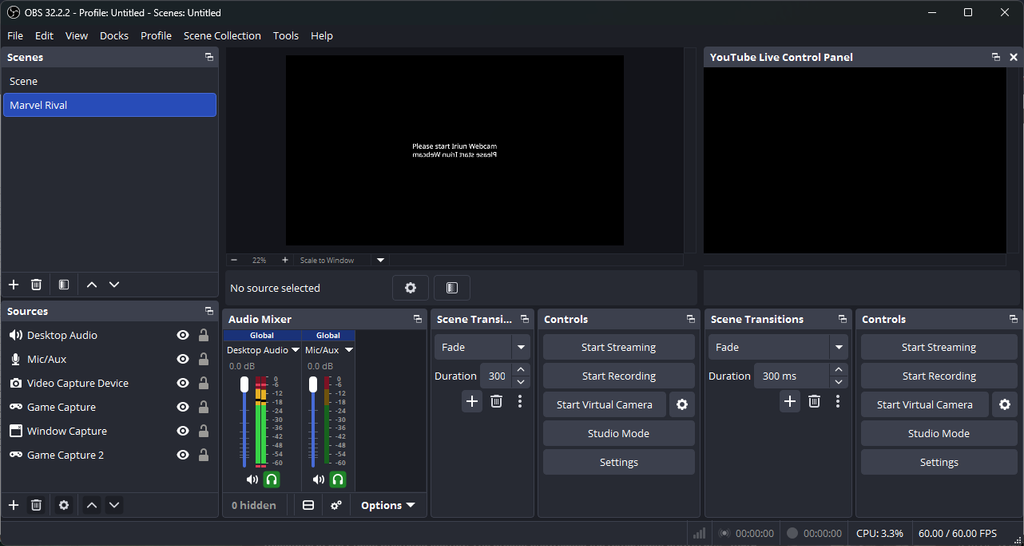
Do not start streaming yet, as the scene and microphone have not been updated.
Step 5: Assemble the Scene: Game Window Plus Facecam
Use the “Scenes” panel right down in the bottom-left corner of OBS to set up the game stream view. First off, you have to rename the default scene to “Elden Ring.”
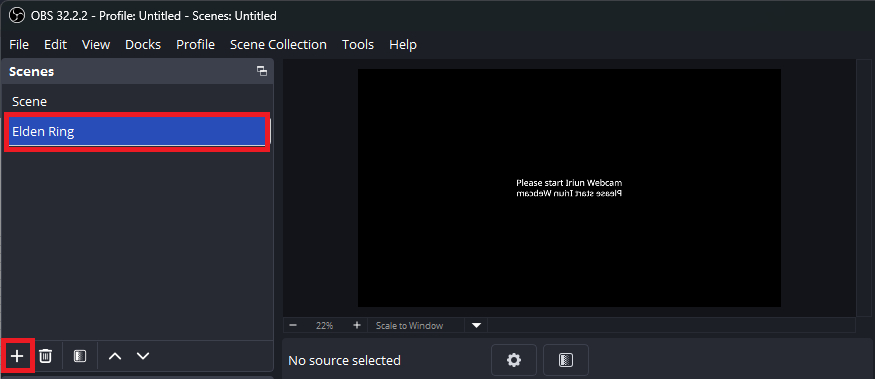
Move on to the “Sources” part and click +. Pick Game Capture, name it “Elden Ring,” and set “Mode” to “Capture specific window” before selecting the game from the dropdown. The lands between should now fill the preview.

Click + again for Video Capture Device and choose your webcam. Shrink the feed into the bottom-right corner, then right-click the source and lock it so a mouse drag doesn’t ruin your layout. Overlay frames, if you use them, go in as ‘Image sources’ layered above the game.
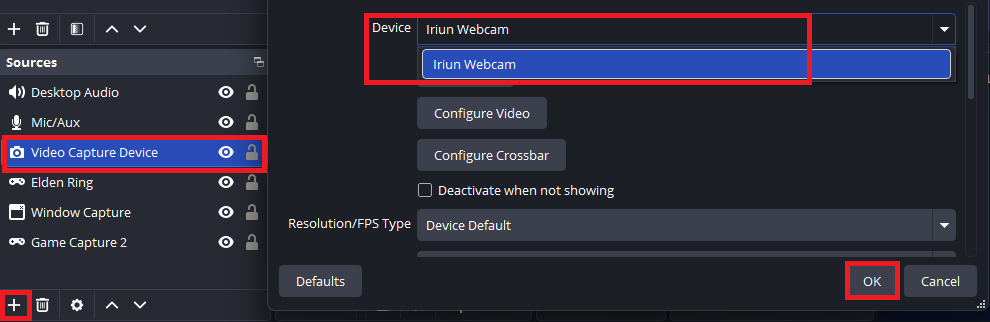
Elden Ring has a dark and moody look. Keeping your facecam in a position where viewers can see your face helps them catch your attention when a Crucible Knight hits you for attacking recklessly. These reactions are exactly the main thing that makes the stream much more entertaining.
Why Hollyland LARK M3 Microphone Fits Your Audio
Many people often watch YouTube on their televisions or listen with earbuds, so it is easy for them to notice bad audio. A laptop’s built-in microphone often picks up unwanted sounds, such as the computer fan, keyboard typing, and echoes from the room. The Hollyland LARK M3 helps to solve these problems.
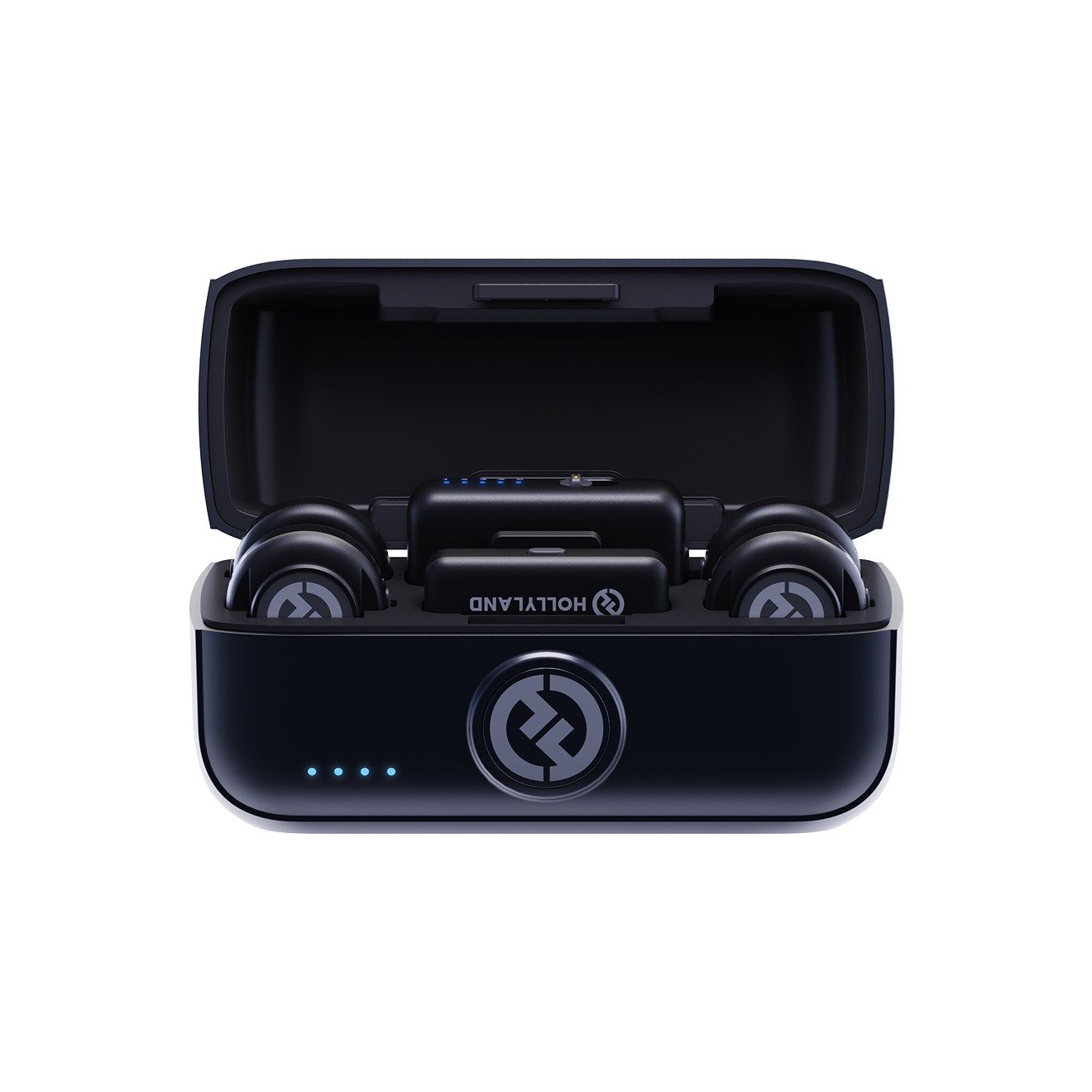
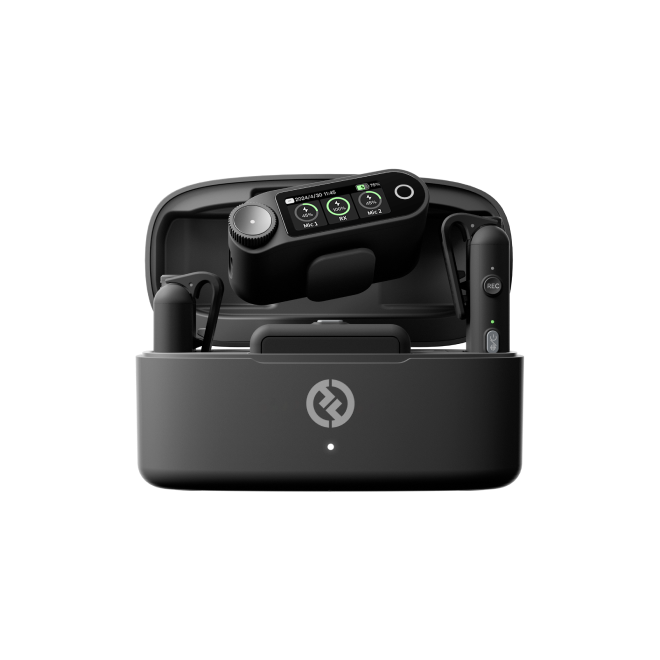
Hollyland LARK M3 - 32-Bit Float Mini Microphone
An ultra-compact 9g wireless microphone system featuring 32-bit float recording and 4-channel scalability for professional, zero-distortion sound.
Key Features: 32-Bit Float Recording | Up to 4 TX & 4 RX | 300m Range
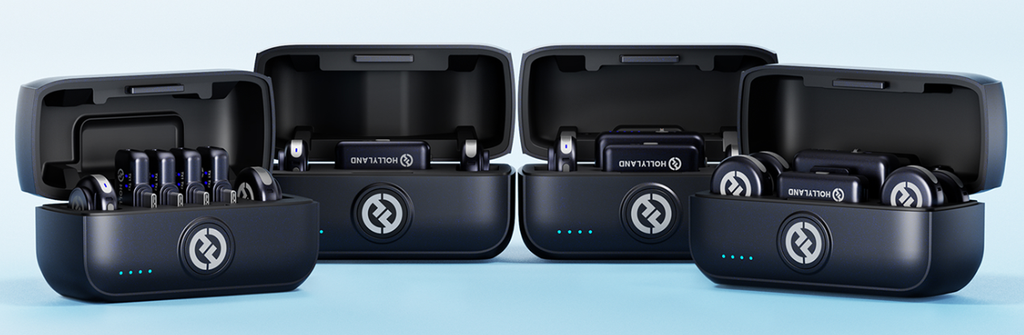
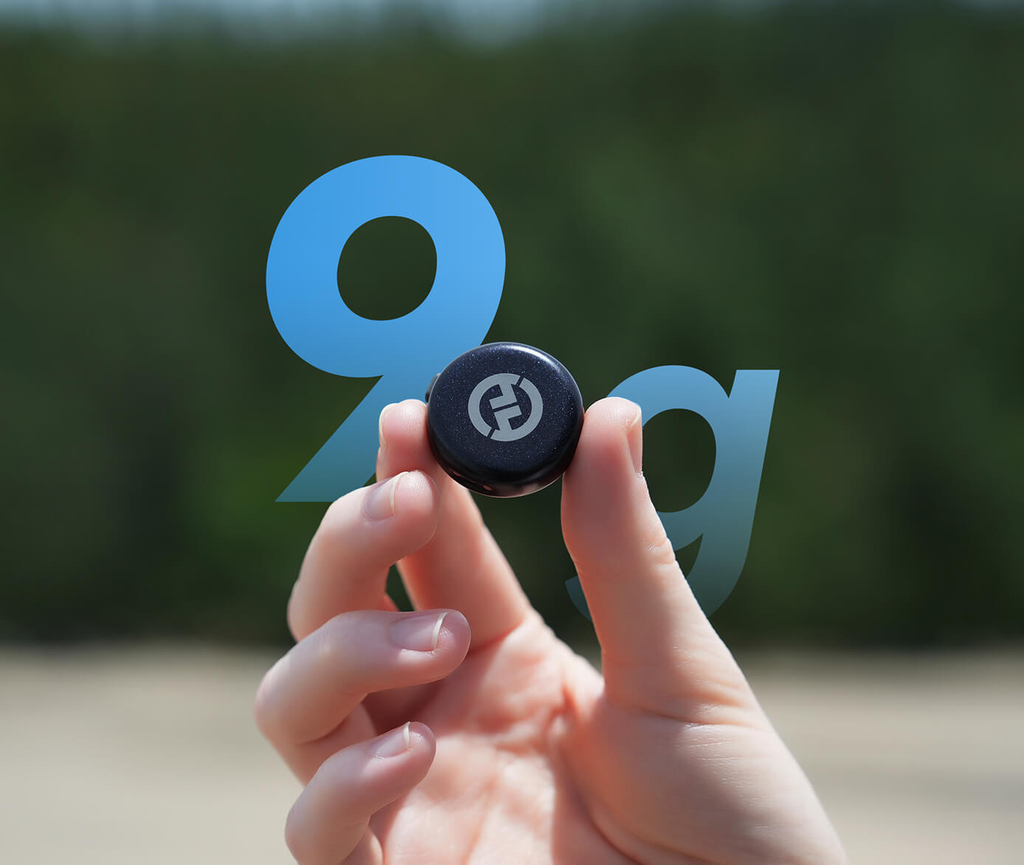
Hollyland LARK M3 microphone comes with a 9-gram transmitter that is clipped to your collar. It captures and records audio at 48 kHz with 32-bit float technology. It also has a 70 dB signal-to-noise ratio, which can handle loud sounds up to 125 dB. This means your voice is less likely to sound distorted when you shout during an intense gaming moment. Its lightweight design also makes it comfortable to wear, even during a long-hour gaming session.
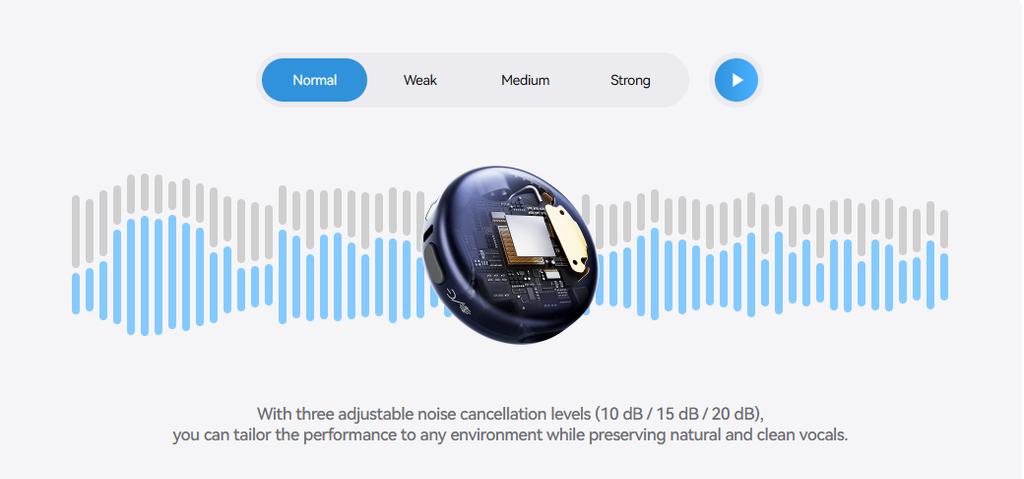
The Hollyland LARK M3 has AI noise cancellation with three levels: 10 dB, 15 dB, and 20 dB. Start with the lowest level and increase it only if background noise like your laptop’s fan and sounds from outside are still noticeable. Strong noise cancellation can make your voice sound unnatural, especially when the music in Elden Ring gets louder.
How to Connect LARK M3 to OBS
Connect the Hollyland LARK M3 receiver to your laptop with a USB-C cable. Open OBS Studio and go to ‘Settings,’ then ‘Audio.’ Select “Wireless Microphone” as your Mic/Auxillliary audio input. Speak at your normal volume and watch the Mic/Aux meter. If the bars barely move, open the settings for the microphone source, select ‘Filters,’ and add a Gain filter. Increase the gain by 3–5 dB at a time until your voice level stays between -12 dB and -6 dB. This helps your voice sound clear without being too quiet or too loud.
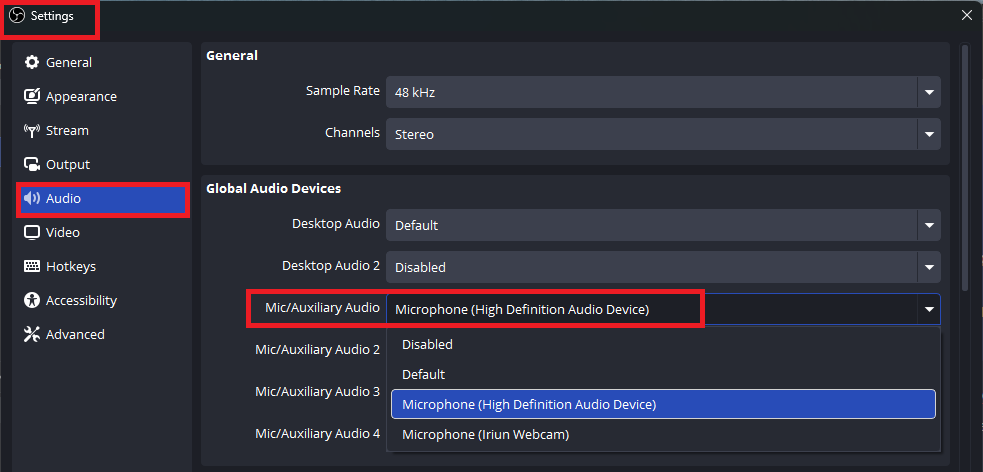
Clip the LARK M3 on, plug in the receiver, and watch the audio meter move into the yellow area. Your voice should sound clear above the game’s background music without being drowned out by the sound.
Keep the Game Quiet Enough to Hear Yourself
At the bottom of OBS, the Audio Mixer has separate volume controls for Desktop Audio and Mic/Aux. Since Elden Ring has loud background music, especially during boss fights, play for about a minute and watch the Desktop Audio meter. If it reaches the red area, lower the volume until the highest levels stay between -15 and -10 dB.
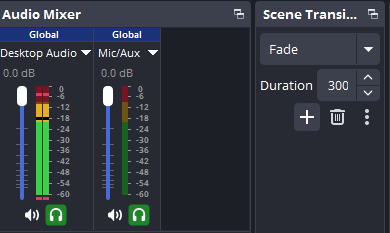
Your voice should be slightly louder than the game’s sound. Speak while playing and adjust the Mic/Aux slider or Gain filter until viewers can hear you clearly. If you cannot hear yourself over the soundtrack, that means your viewers will also struggle to hear you.
Record First, Broadcast Second
Press Start Recording and play Elden Ring for about two minutes while talking as you play. Stop, then play the file back on headphones to confirm if:
- Your voice is clear and loud enough compared to the game.
- The video plays smoothly without freezing.
- The facecam is clear and in the right position.
If the recording looks and sounds good, you can move on to a private test stream. Open YouTube Studio and create a live stream. Set its visibility to Private. Copy the stream key into OBS and start streaming. Open the stream on your phone and listen through the phone speaker. This helps you check how your stream may sound to your audience. If your voice is clear and the video plays smoothly, you are ready for a public broadcast.
Go Live and Monitor Your Stream
After the private test, create a new Elden Ring live stream in YouTube Studio and set its visibility to public. Start streaming from OBS and keep watch of its flow. Instead of watching your stream on the same computer you are using to play, open it on your phone. Keep the OBS Stats window open by going to View > Docks > Stats. This helps you monitor your stream’s performance.

If dropped frames rise above 1%, it means that your connection is strained. Moreover, if you see an Encoder Overload warning, it means that your computer is struggling to process your video. Try lowering the resolution to 720p or, rather, reduce the bitrate.
Once everything is working properly, your viewers should be able to see your gameplay. Your computer shows the game, they see your facecam in the corner, and also hear your commentary clearly through the Hollyland LARK M3. Keep an eye on the OBS Studio Stats window to check for dropped frames and other performance problems while you play.
Conclusion
Good sound and smooth video are what keep viewers interested in your YouTube live stream. The Hollyland LARK M3 helps you capture your voice clearly without relying on your laptop’s built-in microphone. Combine it with the right OBS settings and test your setup before going live. This can help you avoid common problems with poor audio, lagging video, and dropped frames. Your first Elden Ring broadcast does not have to be perfect. It only needs to be steady with clear voice audio, smooth video, and a stable stream. Test your setup properly, make any necessary adjustments, and you will find it easier to prepare for future broadcasts.