


































.png)
 简体中文
简体中文 
So you want to do karaoke at home — but the idea of buying a bulky karaoke machine, running cables across the living room, or spending hundreds on equipment you’ll only use occasionally doesn’t exactly appeal. The good news: you almost certainly already own most of what you need. A screen, a phone, and a decent internet connection get you most of the way there.
But here’s where most home karaoke attempts actually fall apart. The challenge isn’t just finding a microphone — it’s combining your voice with the backing track, controlling the balance between the two in real time, and shaping your vocal sound to suit different songs, all without building a complicated audio system that takes longer to set up than the party itself. Plug a microphone directly into a Bluetooth speaker while music plays from a separate phone, and the two audio sources compete rather than blend. You end up cranking one to hear it over the other, and the whole thing sounds like a rehearsal that went wrong.
That gap — between singing along at home and actually sounding good doing it — is what this guide addresses. We’ll walk through how to do karaoke at home from scratch: choosing songs, displaying lyrics, connecting your gear, balancing the mix, and customizing your vocal sound for different songs. Where audio equipment is needed, we’ll use the Hollyland MELO P1, a wireless music creation system that brings together a handheld wireless microphone, a compact Smart Audio Mixer, and a vocal preset library — handling the microphone, mixing, and vocal customization in one integrated kit so you can focus on singing rather than troubleshooting cables.

Hollyland MELO P1 - All-in-One Wireless Audio Studio
A revolutionary all-in-one wireless studio system combining handheld vocal capture, smart DSP mixing, and zero-latency monitoring in a single portable case.
Key Features: All-in-One Wireless Studio | 32-Bit Float Recording | 40 Hours Total Battery
What Do You Actually Need for Home Karaoke?

Before buying anything, take stock of what you already own. A complete home karaoke setup has five elements:
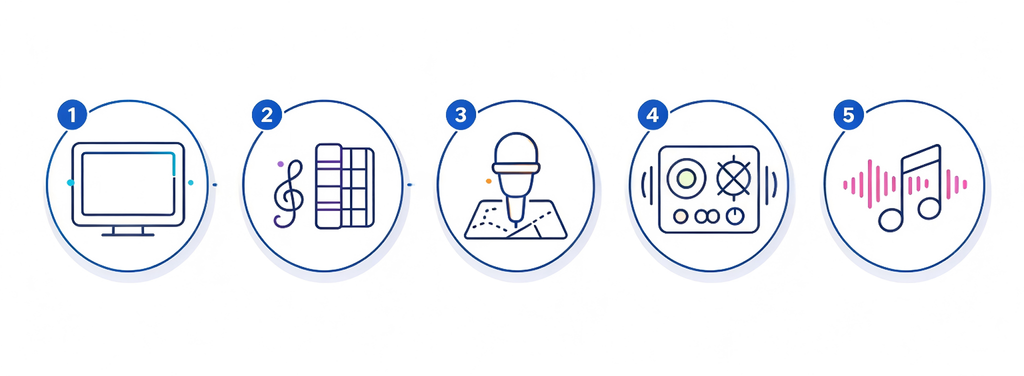
- A screen for lyrics — any TV, laptop, tablet, or smartphone works
- Karaoke tracks — free on YouTube; also available through apps like KaraFun or Smule
- A microphone — the single biggest upgrade to the experience
- Audio output — a Bluetooth speaker, soundbar, wired speaker, or headphones
- A way to mix vocals with the music in real time — the gap most budget setups never fill
The first four items are things most households already own in some form. The fifth is where things get complicated — and expensive — if you approach it the wrong way. A traditional standalone mixer costs money, adds desk clutter, and requires its own learning curve. Buying a dedicated karaoke machine bundles screen, player, speaker, and microphone into one unit, which only makes sense if you own none of those things separately.
The more practical approach for most people is an integrated system that handles wireless microphone transmission and real-time audio mixing together, connects to the phone and speakers you already own, and doesn’t require additional components to get a balanced, good-sounding result. That’s the role the MELO P1 plays in this setup — not as a replacement for everything you own, but as the piece that connects and controls it all.
What Is the Hollyland MELO P1?
The MELO P1 is a wireless music creation system designed for singers, streamers, and creators. For home karaoke, three components are central to how it works:
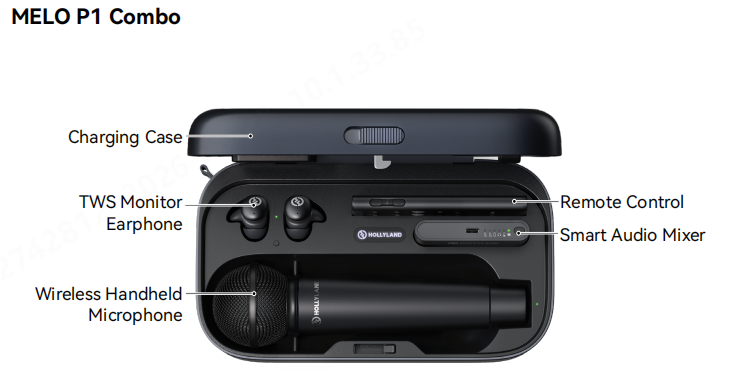
- Wireless Handheld Microphone — transmits your voice wirelessly to the Smart Audio Mixer, with a replaceable capsule (dynamic or condenser) and built-in noise cancellation, so you can move freely without managing a cable
- Smart Audio Mixer — a compact hub that receives the wireless microphone signal, accepts a Bluetooth backing track from your phone, blends the two in real time, and outputs the combined audio to whatever speakers or headphones you connect
- HollyAudio App — used to set and balance channel volumes, browse and apply vocal presets, and fine-tune your sound to suit different songs and singing styles
All components in the MELO P1 Combo ship pre-paired inside a charging case. When you take them out, they automatically reconnect — no manual pairing, no setup ritual before every session.
The practical effect for home karaoke is this: instead of your voice and the backing track playing from two separate, unrelated sources, the Smart Audio Mixer receives both signals, blends them at the level you choose, and sends a single, balanced output to your speakers. You control the mix from your phone. One system replaces what would otherwise require a microphone, a wired audio interface, a standalone mixer, and additional cables.
Step-by-Step: How to Set Up Karaoke at Home
Step 1 — Choose Your Songs and Display the Lyrics
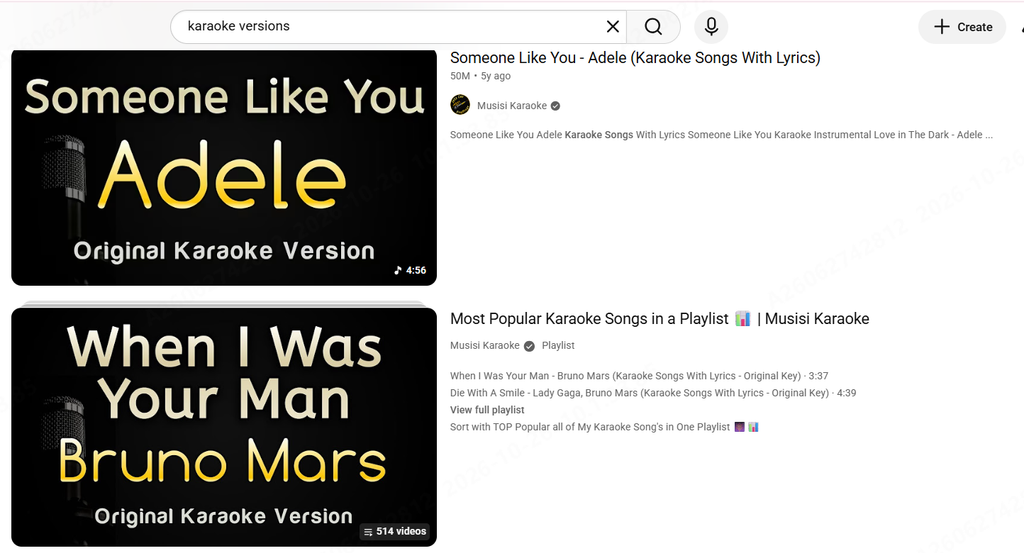
Open YouTube on your phone, tablet, or laptop and search for the song title followed by “karaoke.” Most popular songs have free karaoke versions with on-screen lyrics. Dedicated apps like KaraFun offer larger catalogues with scrolling lyrics if you want a more structured experience.
For a group session, mirror your phone or laptop display to a TV using Chromecast, Apple AirPlay, or an HDMI cable. This makes the lyrics large enough for the whole room to follow. Queue three to five songs before you start — stopping to search mid-session breaks the momentum quickly.
Step 2 — Connect the MELO P1 to Your Setup
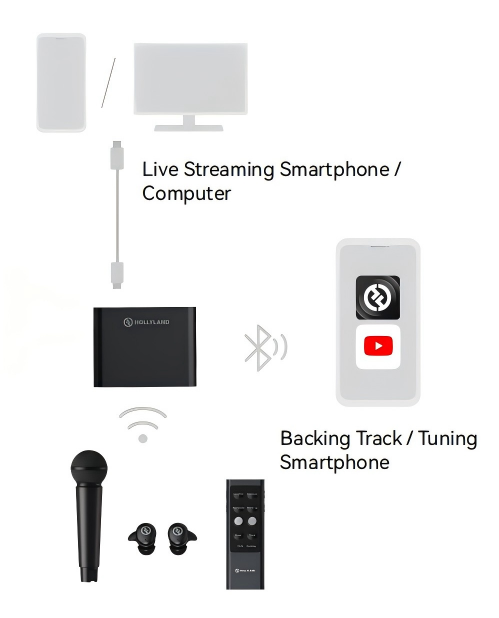
Remove the MELO P1 from its charging case. The microphone, Smart Audio Mixer, and TWS monitoring earphones (Combo version) reconnect automatically. Watch the indicator lights: a solid light confirms a successful connection; a flashing light means the device is still establishing the link.
Connect the Smart Audio Mixer to your playback device. Use the included USB-C to USB-C data cable to connect the Smart Audio Mixer’s top USB-C port to the phone or computer running your karaoke app. This routes the mixed audio output — your voice and the backing track, already blended — back to your device.
Stream the backing track wirelessly. On a second phone, or on the same phone if it supports simultaneous wired and Bluetooth connections, go to Bluetooth settings, find “MELO P1,” and connect. Once paired, audio from your karaoke app routes through the Smart Audio Mixer alongside the microphone signal, where the two are combined before reaching your speakers. Android users can also tap the back of the Smart Audio Mixer using NFC for a faster initial connection.
Route audio to your speakers or headphones. Connect wired speakers or headphones to the 3.5mm jack on the side of the Smart Audio Mixer using a standard 3.5mm audio cable. Open the HollyAudio App, go to More Settings, and set the “3.5mm Jack Input/Output Settings” to Output. Your blended audio — voice and music together — will now play through the connected speakers.
Quick tip: Keep the Hollyland logo on the Smart Audio Mixer facing upward or toward the person holding the microphone. This position maintains the strongest wireless signal between the mixer and the mic.
Step 3 — Balance Your Vocal and Backing Track Volumes
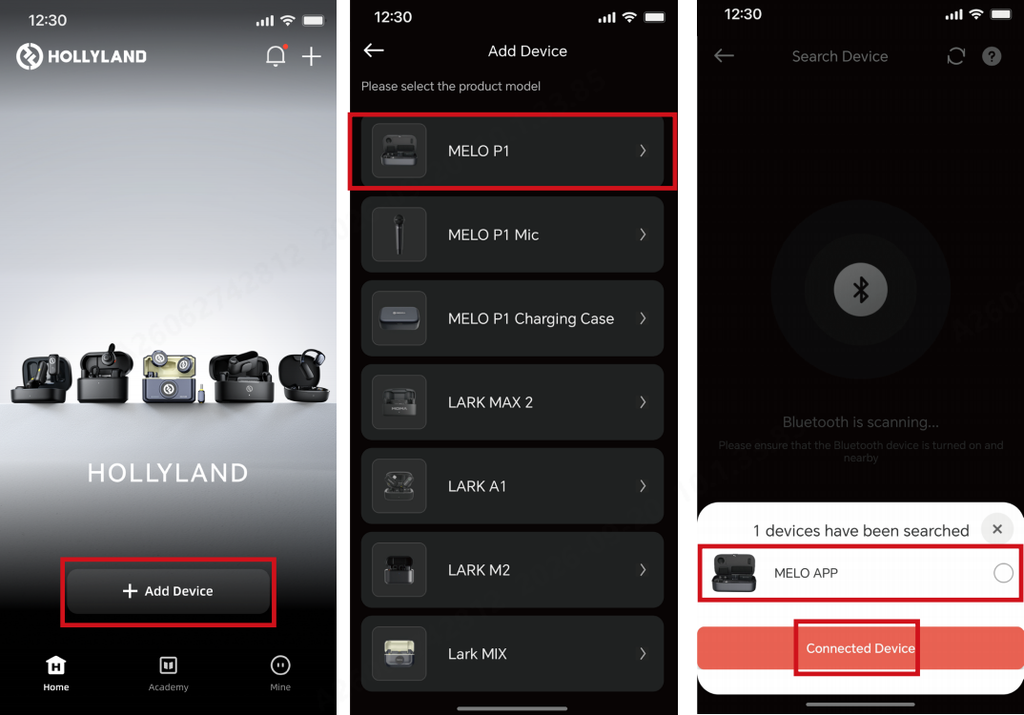
Open the HollyAudio App (iOS 12.0 and later, Android 8.0 and later) and connect it to the Smart Audio Mixer via the Bluetooth channel named “MELO APP.”
In the Volume section, you’ll see individual sliders for the microphone (Mic 1), backing track (BGM), monitoring output, and USB output. This is where the mixing actually happens — and getting this balance right is the difference between a voice that sits naturally inside the music and one that fights against it.
Keep the vocal volume slightly higher than the backing track so the voice leads the mix without sounding detached from it. As a starting reference for indoor use with a condenser capsule: set Mic 1 to around 10–12 and BGM to around 13. These aren’t fixed values — adjust based on how close you hold the microphone, how loud your speakers are, and the dynamics of the specific song.
If the backing track is drowning out your voice, lower the BGM slider before raising the microphone level. Increasing both simultaneously tends to push the overall level into distortion or feedback rather than improving the balance.
Step 4 — Pick a Vocal Preset for Your Song
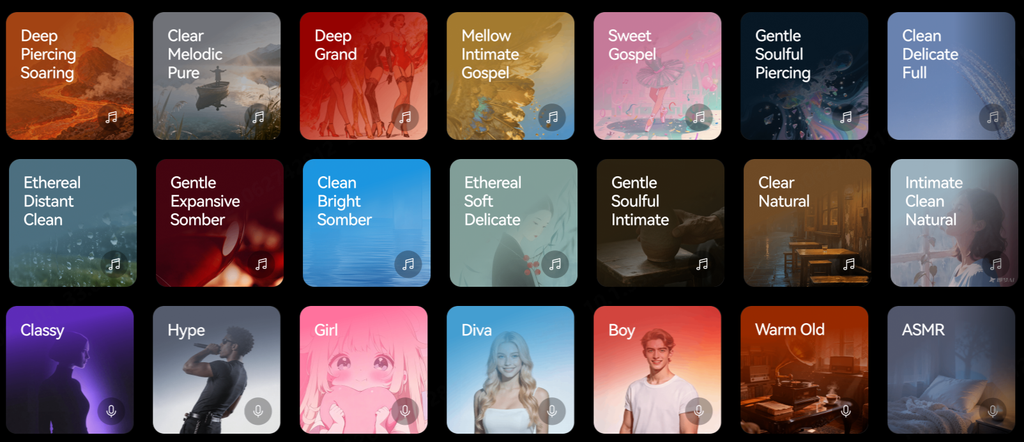
Standard karaoke microphones give you one fixed sound regardless of what you’re singing. The MELO P1 approaches this differently: the HollyAudio App includes a library of professionally tuned vocal presets organized by genre and style — Pop, Ballad, and more — each applying a different combination of reverb, EQ, and compression to shape how your voice sits in the mix.
The practical challenge is choosing without spending the whole evening experimenting. The Record for Preview feature solves this. Tap “Start Recording” in the app, sing a short phrase from the chorus — just ten or fifteen seconds — and tap done. The app loops that recording through your earphones while you browse presets in real time. You hear exactly how each one changes your voice against the backing track, without singing the same line repeatedly. When a preset sounds right, save it to My Presets for instant recall.
Matching Presets to the Songs You’re Singing
Preset choice matters more than most beginners expect. The right setting can make a quiet song feel intimate and emotionally direct; the wrong one can make the same performance sound like it’s being broadcast from an empty sports arena. Here are three practical examples.
Billie Eilish — “What Was I Made For?”

This song is quiet, inward, and emotionally restrained. The vocal sits close to the listener rather than filling a large space, and that nearness is part of what makes it affecting. Record a short preview clip of the opening verse — keep the delivery soft and conversational, the way the song is actually sung. Then browse the Ballad category and try presets labeled Gentle or Delicate as starting points. These tend to apply minimal reverb, keeping the voice feeling close rather than distant.
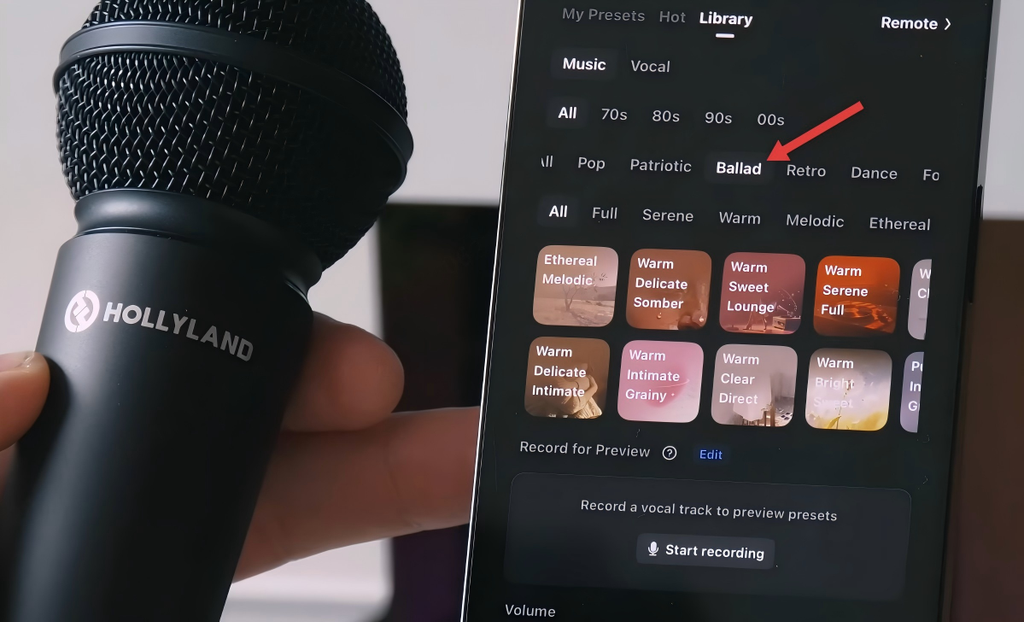
As you loop the preview, listen for whether the preset adds warmth without pushing the voice away. If a preset makes the vocal sound spacious or theatrical, it’s fighting the song’s mood. Pull back the Reverb slider in the Tuning section until the voice feels present again. These are experiments — the goal is to find what fits your voice and this song’s atmosphere, not to match a studio recording.
Billie Eilish — “bad guy”

The opposite approach: dry, direct, and deliberately stripped of reverb. The original production keeps the vocal extremely close and flat, letting the beat carry the energy. Record a preview phrase from the verse — deadpan, unhurried — and browse the Pop category. Look for presets that leave the voice sounding immediate rather than spacious. A Pop preset’s compression will help the vocal cut through the beat cleanly without requiring you to project loudly.
If a preset sounds too polished or adds a reverb tail that doesn’t suit the track’s dry character, open the Tuning section and reduce the Reverb slider. The Mid/Presence parameter can also be adjusted slightly to bring the vocal forward if it sounds recessed. Small moves make a noticeable difference here.
Adele — “Someone Like You”

This is a song built around emotional fullness and dynamic range — the quiet verse building to a powerful chorus. Record your preview clip from the chorus, where your voice will be at its most projected, so you’re previewing the preset under the conditions where it needs to perform most. Browse the Ballad category and try presets labeled Warm as a starting point.
The song benefits from medium reverb: enough to give the voice a sense of space and weight, but not so much that the emotional directness of the lyric gets blurred. As you listen to the looped preview, pay attention to whether the reverb feels like it’s supporting the vocal or swallowing it. If the voice starts to feel distant, pull the Reverb slider back a little. If it sounds too thin or dry for the song’s scale, try adding a small amount of Low/Bass to thicken the tone.
A note on expectations: These are suggested starting points, not guaranteed results. Your voice, your room acoustics, and your speakers will all influence how a preset sounds in practice. The Record for Preview feature exists precisely so you can test and compare before committing — use it.
How to Keep the Setup Affordable
The most common mistake in home karaoke is spending money on equipment that duplicates something you already own. A dedicated karaoke machine makes sense if you own no screen, no speaker, and no microphone. For most households, that’s not the situation.
The practical approach is to identify what’s actually missing and fill only that gap. In most cases, the screen is covered by a TV or laptop. The speakers are covered by a soundbar, a Bluetooth speaker, or a set of wired monitors. Streaming karaoke tracks is free on YouTube. The gaps are the microphone and the real-time mixing capability — and those are the two things worth spending on.
What makes the MELO P1 a cost-efficient choice for this purpose isn’t that it’s inexpensive in isolation; it’s that it replaces several components that would otherwise need to be purchased and connected separately. Without an integrated system, a home karaoke setup that sounds genuinely good typically requires a wired microphone, a USB audio interface to connect it to a computer, a separate software or hardware mixer to blend the mic with the backing track, and cables to tie it all together. Each of those components adds cost, complexity, and one more thing to troubleshoot when something doesn’t work.
The MELO P1 consolidates the wireless microphone, the audio interface function, and the real-time mixing into a single kit. The Bluetooth backing track connection means the phone playing your karaoke tracks connects wirelessly — no splitter adapters needed. The preset library handles vocal processing without a third-party app. And for a group session, the Smart Audio Mixer supports two simultaneous wireless microphones, so a second singer can join without requiring a separate mixing system.
The result is a setup with fewer components, fewer cables, and fewer decisions to make before anyone can start singing.
Before You Start: A Quick Pre-Session Checklist
- Karaoke tracks queued and lyrics visible on screen
- Smart Audio Mixer connected to playback device via USB-C
- Backing track phone connected to MELO P1 via Bluetooth
- Speakers or headphones connected via 3.5mm jack, set to Output in the app
- Mic and BGM volumes balanced in HollyAudio App
- Vocal preset selected and saved to My Presets
- Test run: sing 30 seconds of the first song and adjust levels if needed
Frequently Asked Questions
Do I need a TV, or can I use just a phone for the lyrics?
A phone screen works well for solo sessions. For a group, casting the display to a TV via Chromecast, Apple AirPlay, or an HDMI adapter makes lyrics large enough for everyone to follow without crowding around a small screen.
What’s the difference between the MELO P1 Combo and the MELO P1 Solo for home karaoke?
The Combo includes TWS wireless monitoring earphones and a Bluetooth remote control in addition to the microphone, Smart Audio Mixer, and charging case. For karaoke, the earphones let you hear the precise vocal-to-music blend in real time — useful for staying in pitch, especially when singing softly. The Solo version includes the microphone and Smart Audio Mixer; monitoring is done through wired headphones or connected speakers.
Can two people sing a duet using the MELO P1?
Yes. The Smart Audio Mixer supports two simultaneous wireless microphones. A second MELO P1 microphone can be connected to the same mixer, and both vocal tracks are independently adjustable for volume in the HollyAudio App — no separate mixing system required.
Does the MELO P1 work with any karaoke app?
The MELO P1 connects to your phone or computer as an audio interface. As long as your karaoke app routes audio through the device’s standard audio system — which most do — it will work. The backing track plays through the Bluetooth connection to the Smart Audio Mixer, and your voice goes through the wireless microphone. Both are blended by the mixer before reaching your speakers.
Final Thoughts
Home karaoke doesn’t need to be complicated or expensive. The screen, the speakers, and the streaming tracks are already in most homes. The Hollyland MELO P1 fills the part of the setup that’s genuinely hard to improvise: combining your voice with the music at the right balance, adding a vocal sound that suits what you’re singing, and doing all of it wirelessly without a tangle of cables and adapters between you and the song.
Set up takes under ten minutes once you’ve done it once. After that, the only thing left to figure out is the song list.
Ready to build your home karaoke setup? Explore the Hollyland MELO P1 and find the configuration that fits your space.