



































.png)
 简体中文
简体中文 
You press play on your new video, but hear nothing. Before blaming your iPhone microphone, check a few common causes. Silent recordings often come from software settings or blocked microphone ports. Denied microphone permission can also cause this problem. Most of these issues take only minutes to fix. This guide covers confirmed fixes from easiest to more involved. Follow each step until your iPhone records clear audio again.

Why Your iPhone Records Video With No Sound
Most silent video problems on iPhone trace back to one of six root causes. Use the table below to match your symptom to the most likely cause, then jump directly to the relevant fix instead of working through every step.
| Root Cause | Typical Symptom | Jump to Fix |
|---|---|---|
| Ring/Silent switch engaged | Third-party apps record silent video; native Camera is usually unaffected | Fix 1 |
| Microphone permission denied | Camera app records video with no audio track and no warning | Fix 2 |
| In-app mute toggle active | Only specific apps produce silent footage | Fix 3 |
| Blocked or dirty microphone | Muffled or absent audio; speakerphone still works | Fix 4 |
| iOS software bug | Issue appeared after a recent update; all apps affected | Fix 5 |
| Hardware damage | No audio in Voice Memos, calls, or any recording app | Fix 5, then Apple Support |
Work through each fix in order. After each step, open Voice Memos, record a short clip, and play it back to confirm whether audio has returned before moving on.
Fix 1: Check the Ring/Silent Switch First
The Ring/Silent switch is one of the most frequently misunderstood causes of silent video recordings. Here is how it affects your iPhone.

How the switch actually behaves:
- Apple’s native Camera app records audio even when the Ring/Silent switch is in silent mode. Flipping to silent only disables the shutter sound.
- Many third-party camera apps treat the mute state as a global audio signal and suppress the audio track entirely when the switch shows silent.
Steps to check and correct:
- Look at the left side of your iPhone, just above the volume buttons.
- If you see a narrow orange stripe on the switch, the device is in silent mode.
- Flip the switch toward the front face of the phone until the orange stripe disappears.
- Open the camera app you were using when the problem occurred.
- Record a short test clip and play it back immediately.
Pro Tip: If you use a third-party filmmaking or vlogging app, make checking the Ring/Silent switch part of your pre-shoot routine. Several popular apps interpret it as a hard mute regardless of in-app audio settings.
Fix 2: Grant Microphone Access to the Camera App
When the Camera app is denied microphone access, iOS lets it record video silently with no alert or indicator. The result is a perfectly framed file with no audio track attached.
Steps to restore microphone permission:
- Open the Settings app.
- Scroll down and tap Privacy & Security.
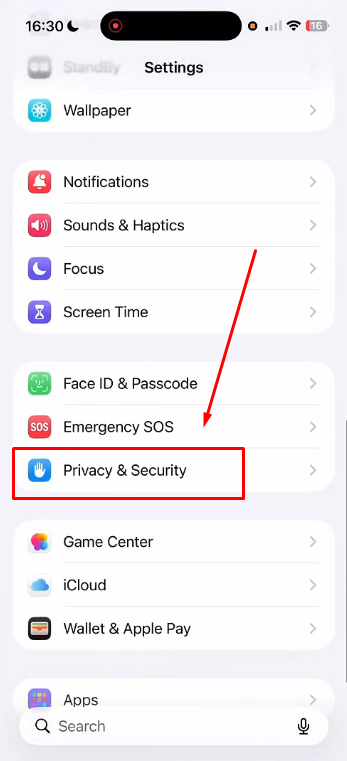
- Tap Microphone.
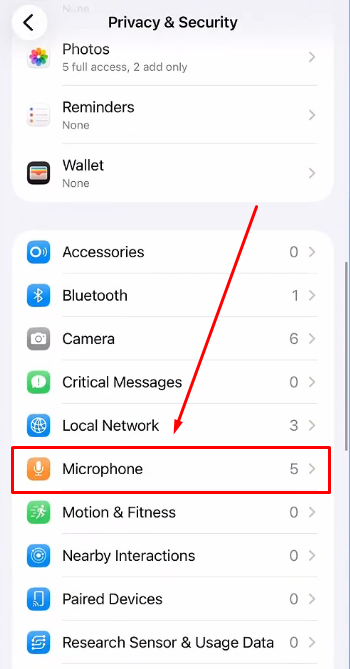
- Locate Camera in the app list and confirm its toggle is switched on (green).
- If the toggle was off, enable it, return to the Camera app, and record a test clip.
Screenshot callout: Navigate to Settings > Privacy & Security > Microphone. The Camera toggle should appear green. A grey toggle means the app has been silently recording with no audio since permission was denied.
Note for third-party app users: Each camera app maintains its own microphone permission toggle completely independently. If you use Filmic Pro, CapCut, or any other recording app, scroll through the same Microphone list and confirm that app’s toggle is also enabled. A single denied permission during the app’s initial installation is the most common reason third-party apps produce silent footage consistently.
Fix 3: Check In-App Audio and Mute Settings
Several apps have their own microphone controls that override system-level settings. A mute toggle active inside an app will suppress audio even when your iPhone permissions are fully enabled.
Apple’s native Camera app does not carry a separate mute control for video recording. If microphone permission is granted and the hardware is working, it records audio automatically. The exception is Screen Recording in Control Center, which uses its own independent toggle covered in the FAQ section below.
Third-party and social media apps are a more frequent source of this problem. Check each app’s in-app mic control before recording:
- Instagram: A microphone icon appears on the Reels and Stories recording screen. A slash through the icon means audio is muted for that session. Tap it to toggle audio on.
- Snapchat: The mic icon sits in the bottom-left corner of the camera screen. Tap it to switch between record and mute states.
- TikTok: Inside the video recording screen, the right-side options panel includes a microphone toggle. Verify it shows active before recording.
- Filmic Pro: Audio meters are visible in the recording interface. If there is no meter movement when you speak, check the app’s audio settings to confirm the audio track is enabled.
If you recorded inside any of these apps and received silent footage, confirm the in-app control before escalating to a system-level fix.
Fix 4 — Inspect and Clean the iPhone Microphone
Your iPhone has three microphones, and knowing which one handles video recording is essential for diagnosing a physical obstruction.

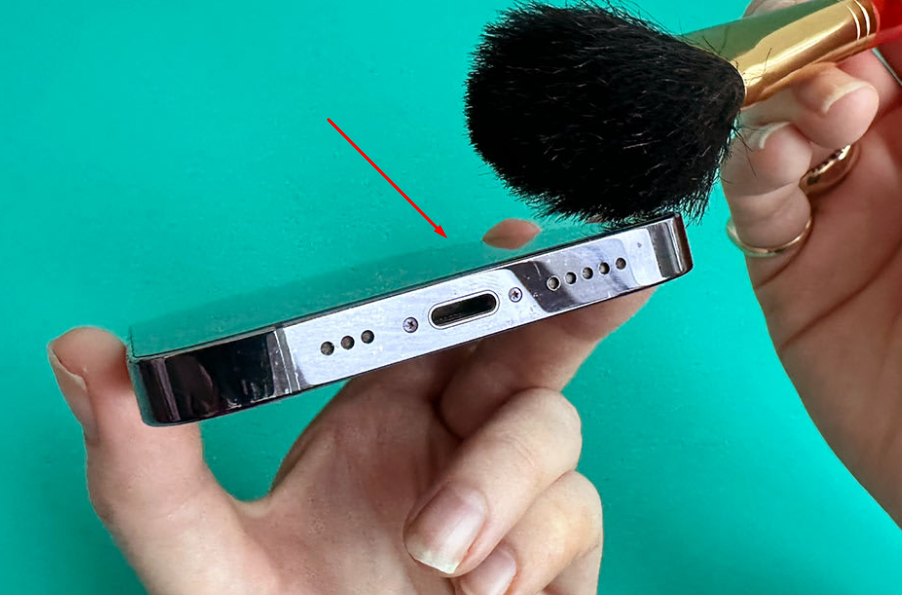
- The bottom microphone (located next to the Lightning or USB-C port) is the primary audio input during rear-camera video recording.
- The rear microphone (located near the rear camera module) captures environment audio as a secondary source during video.
- The front microphone (at the top edge of the device) is used mainly for FaceTime and front-facing camera recordings.
Lint, debris, and tight phone cases commonly cause partial or complete audio loss from the bottom microphone port.
Steps to inspect and clean:
- Remove your phone case completely.
- Hold the iPhone with the bottom port facing a direct light source and look for compacted lint or debris inside the microphone grille.

- If blockage is visible, use a clean, dry, soft-bristled brush (a new toothbrush is a good substitute) to sweep debris out gently. Do not use compressed air, cotton swabs, or any liquid cleaner.
- Also check the small microphone pinhole near the rear camera module for obstructions.
- Re-attach the Camera app, test, and record a short clip.
Quick hardware verification: Open the Voice Memos app, record a 10-second clip, and play it back. If Voice Memos captures clean, clear audio, your microphone hardware is intact, and the problem is software or settings-related. If Voice Memos also captures no audio, the microphone may be physically damaged, and Fix 5 becomes the priority.
Fix 5: Restart Your iPhone and Update iOS
A restart clears audio session conflicts that can lock the microphone in a non-recording state. An iOS update addresses deeper software bugs that a restart alone cannot resolve.
Restart Your iPhone
Face ID models (iPhone X and later, including iPhone 17, no Home button):
1. Press and hold the Side button and either Volume button simultaneously until the power-off slider appears.
2. Drag the slider and wait 30 seconds for the device to shut down fully.
3. Press and hold the Side button until the Apple logo appears.
Note: Use this restart method under normal circumstances. If your iPhone 17 or any other buttonless model is frozen, you will need to Force Restart it.
To force restart:
1. Quickly press the Volume Up button.
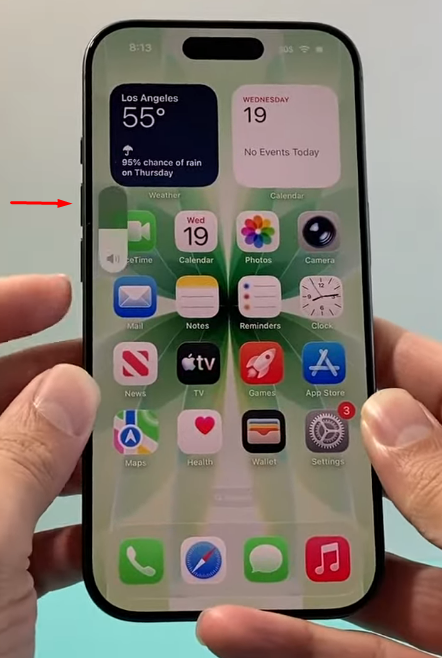
2. Quickly press the Volume Down button.
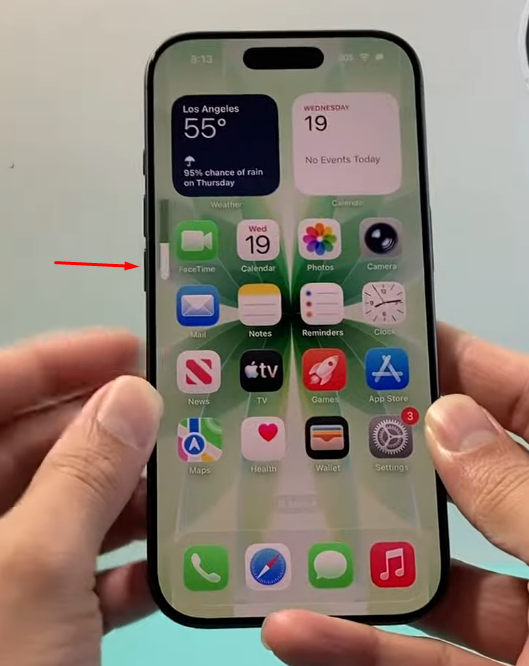
3. Press and hold the Side button. Do not release it even when the Power Off slider appears. Once the Apple logo appears, release the button.
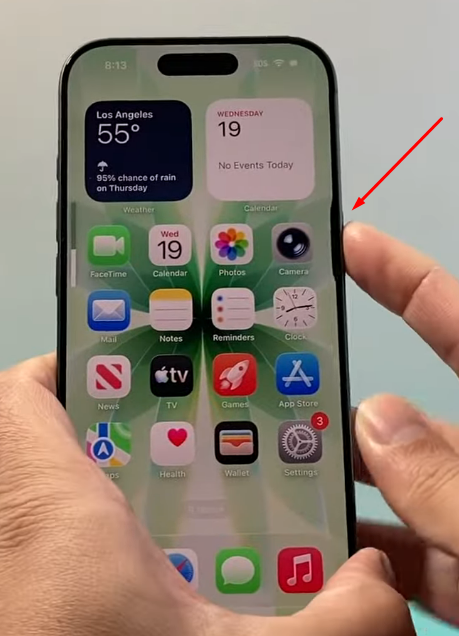
Touch ID models with a Home button (iPhone SE, iPhone 8, and earlier):
1. Press and hold the Side or Top button until the power-off slider appears.
2. Drag the slider and wait 30 seconds.
3. Press and hold the Side or Top button to restart.
After restarting, open the Camera app and record a test clip before proceeding to the update step.
Update iOS
- Open Settings > General > Software Update.

- If an update is available, tap Update Now.

- Allow the device to complete the update and restart.
- Record a test clip once the device is back online.
Note: Some iOS versions shipped with documented microphone session bugs that were patched in later point releases. If your audio issue appeared immediately after installing a system update, checking for a follow-up patch is one of the fastest possible resolutions.
Fix 6: Use an External Wireless Microphone to Bypass the Built-In Mic
If fixes 1 through 5 have not resolved the problem, or if your Voice Memos test in Fix 4 returned silence, the built-in microphone may have physical damage. The fastest way to continue recording without downtime is to bypass the internal mic entirely with an external wireless microphone.
The Hollyland LARK A1 is designed for exactly this situation. It ships with both a Lightning receiver (for iPhone 14 and earlier) and a USB-C receiver (for iPhone 15 and later), and requires zero Bluetooth pairing. iOS recognizes it as an audio input device as soon as you plug in the receiver.

Hollyland LARK A1 - Affordable Wireless Microphone
A perfect starter mic for creators on a budget. It’s simple to use and features effective noise cancellation.
Key Features: 48kHz/24-bit | 3-Level Noise Cancellation | 54-Hour Battery
Setup steps:
- Remove any phone case blocking access to the Lightning or USB-C port.
- Select the correct LARK A1 receiver for your model: Lightning for iPhone 14 and earlier, USB-C for iPhone 15 and later (iPhone 17).

- Plug the receiver into the port. No app installation or pairing sequence is required.

- Press and hold the transmitter power button until the LED turns solid blue. Solid white confirms the unit is powered on and pre-paired with its receiver directly from the factory.

- Clip the transmitter to a collar, lapel, or shirt pocket. The LARK A1 operates at up to 200 meters in line-of-sight conditions.
- Open the Camera app. iOS automatically routes audio input to the connected receiver. The camera interface does not change, but the active audio source has shifted to the external transmitter.

- To reduce background noise, press the power button once on the transmitter to activate noise cancellation. The LED color will turn solid green.

- To set noise cancellation levels (Low, Medium, High), download the HollyAudio app and connect LARK A1. Locate the NC Level option and choose your level.

- To temporarily silence the transmitter without stopping the recording, press the power button twice to mute the TX. The LED stays red while muted.

- Record a short test clip and confirm clean audio in playback.
For creators who need greater range: The Hollyland LARK M2 offers the same plug-and-play USB-C receiver compatibility with iPhone 15 and later, weighs just 9 grams, and supports up to 40 hours of transmitter battery life. It is a practical upgrade for run-and-gun scenarios where the subject moves frequently or shoots at a distance from the camera.
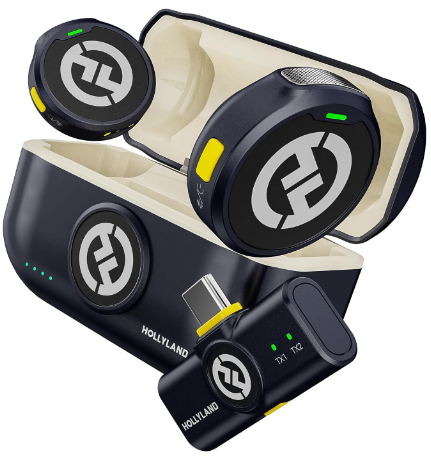
Hollyland LARK M2 - Mini Lavalier Microphone
An incredibly lightweight and compact wireless button microphone that captures high-fidelity audio.
Key Features: 9g Button Size | 48 kHz/24-bit | 40 Hours Battery
Fix 7: Reset All Settings as a Last Software Resort
If no fix above has worked and your Voice Memos test confirms the microphone hardware is functional, a corrupted privacy permission state may be preventing audio access at the system level. Resetting all settings forces iOS to rebuild those permission records from scratch.
Before You Do This: Reset All Settings does not delete photos, apps, messages, or personal data. It does reset Wi-Fi passwords, Bluetooth pairings, notification preferences, privacy permissions, and display configurations. Take screenshots of any key settings you want to restore afterward.
Steps:
- Open Settings > General > Transfer or Reset iPhone.
- Tap Reset.
- Select Reset All Settings (not “Erase All Content and Settings”).
- Enter your passcode when prompted and confirm the action.
- After the device restarts, go to Settings > Privacy & Security > Microphone and re-grant the Camera app permission.
- Record a test clip and check for audio in playback.
If audio is still missing after this step, the issue is almost certainly hardware-related and requires professional service.
FAQ
Q: Why does my iPhone video have no sound when I play it back on a different device?
The video file was recorded with no audio track. Confirm this by playing the clip in the iPhone’s native Photos app first. If audio is missing there too, the mic didn’t capture sound during the original recording. You can’t repair the file after the fact. Apply the fixes above and re-record.
Q: My screen recording has no sound. Is this the same issue as video recording?
No. Screen recording uses a separate microphone toggle that operates independently from Camera app permissions. Open Control Center, long-press the screen recording button, and switch the Microphone Audio toggle to on in the overlay menu before you start. This setting resets between sessions and must be manually enabled each time.
Q: Does the Hollyland LARK A1 work directly with the iPhone Camera app?
Yes. Plug the matching receiver into the iPhone port, and the device recognizes it immediately as an audio input with no additional setup. No app download, Bluetooth pairing, or in-app audio setting change is required. Open the Camera app and start recording; iOS routes audio automatically to the connected LARK A1 transmitter.
Q: My iPhone microphone works during phone calls but not in video recording. Why?
Phone calls and the Camera app use separate audio routing paths within iOS, and each app can hold or lose microphone permission independently. The Camera app may have had its permission revoked while the Phone app retains its own. Go to Settings > Privacy & Security > Microphone > Camera and confirm the toggle is on. This is the most likely fix for this specific symptom.
Conclusion
Start with the Ring/Silent switch before checking other settings. Next, check permissions and settings inside the app. Then, inspect the physical microphone openings for possible blockages. After that, restart your iPhone and check for iOS updates. If nothing helps, reset all settings on your iPhone. If every fix fails, the microphone may have physical damage. Contact Apple Support or book a Genius Bar appointment. In the meantime, the Hollyland LARK A1 gives you reliable, plug-and-play audio on any iPhone while you wait for service.


