.png)
 简体中文
简体中文 
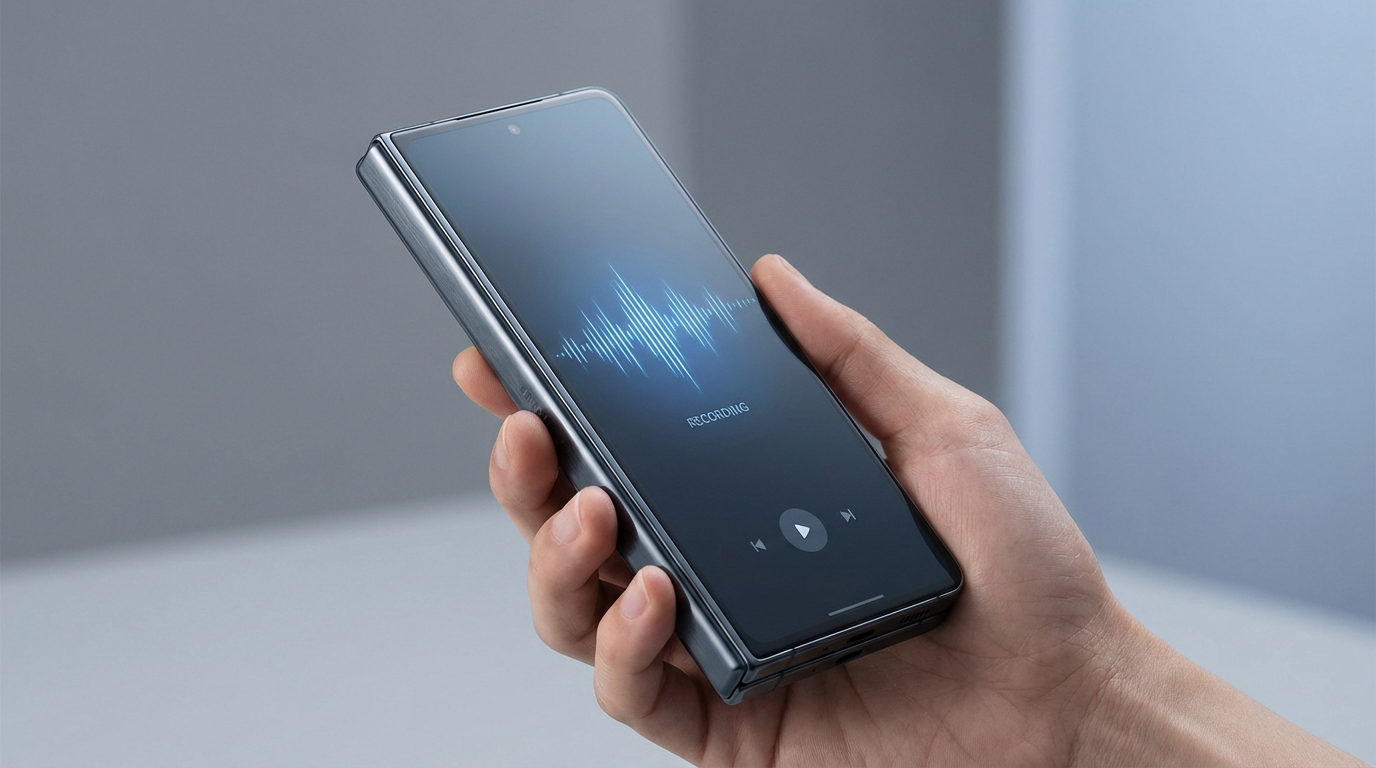
Samsung Galaxy phones include a capable voice recording app built directly into One UI. Whether you need to capture a lecture, run an interview, or transcribe a meeting on the go, the Samsung Voice Recorder app handles it without downloading anything extra. This guide walks you through finding the app, using every recording mode, managing your files, and connecting a wireless microphone when built-in audio quality is not enough.

Where to Find the Voice Recording App on Samsung
The Samsung Voice Recorder app comes pre-installed on Galaxy S, A, and Z series devices running One UI. If you have never opened it, here is where to look in the latest Samsung Galaxy S26:
- Swipe down on your home screen to open the app drawer, then type “Voice Recorder” in the search bar at the top. The app icon appears immediately.
- Check the Samsung folder in the app drawer. On many One UI builds, Samsung’s native apps are grouped here alongside Calculator, Clock, Smart Switch, Health, and similar tools.


How to Record Voice on Samsung — Step by Step
Once the Samsung Voice Recorder app is open, the full recording workflow works as follows:
- Tap the large red circle (record button with microphone icon) at the bottom center of the screen. Recording begins immediately.

- Watch the waveform display that appears above the controls. Active movement confirms the microphone is picking up sound. A flat, motionless line means the mic is not detecting audio. Check for a phone case blocking the microphone or reposition the phone closer to the source.

- Use the pause button (two vertical bars) to pause mid-recording without ending the file. Tap the red button again to resume. This is useful during long interviews when you need a break without splitting the recording into separate files.

- Tap the stop button (square icon) to end the recording session.

- Name your file in the save prompt that appears. Samsung Voice Recorder generates a default name using the date and time; replace it with something descriptive before confirming, and click Save.

- Access your recording immediately in the app’s list view, displayed in reverse chronological order directly below the record button.
Note: The waveform is your fastest quality check. Strong, varied movement means the mic is capturing well. A consistently thin or flat waveform during active speech means you need to close the distance or remove a case that is covering the microphone array.
Samsung Voice Recorder Modes: Which One Should You Use?
The Samsung Voice Recorder app offers three recording modes, each suited to a different scenario. Tap the mode label near the top of the recording screen to switch between them before you start.
| Mode | Best Use Case | Key Limitation |
|---|---|---|
| Standard | Voice memos, lectures, ambient capture | Picks up all surrounding noise |
| Interview | Two-person conversations, Q&A sessions | Phone must be held between both speakers |
Standard mode is the default and covers the widest range of everyday tasks. The microphone captures everything in the room, making it suitable for solo memos, classroom lectures, and general ambient recording.
Interview mode activates a dual-direction pickup pattern, using both the top and bottom microphones on the Galaxy chassis to capture audio from opposite sides of the phone. Place the device flat on a table between two people. This mode is built specifically for face-to-face conversations and short Q&A sessions.
How to change Voice Recorder modes?
- Open the Voice Recorder app.
- Tap the menu icon (three vertical lines) in the top-left corner of the interface.

- Select the Settings icon in the top-right corner.

- Tap Recording mode and select from the Standard and Interview modes.


How to Find, Manage, and Share Your Samsung Voice Recordings
Samsung Voice Recorder saves files in two places you can access directly from the phone.
To access recordings inside the app:
1. Open Samsung Voice Recorder.
2. Scroll through the list on the main screen. All recordings appear here with their file name, date, and duration.
3. Long-press any recording to reveal options including rename, delete, share, and edit.
To access recordings through My Files:
1. Open the My Files app.
2. Navigate to Internal Storage, then open the Recordings folder.
3. All voice recordings are stored here as M4A files.
Management and sharing options:
- Rename: Long-press the recording in the app and tap Rename.
- Trim or edit: Tap the three-dot menu on any recording and select Edit to use the in-app trim tool.
- Share: Tap the share icon to send the file via Messages, email, Google Drive, KakaoTalk, or any app listed in the One UI share sheet.
- File format: Recordings are saved as M4A by default, which plays back on desktop and mobile platforms without conversion.
Tips for Better Voice Recording Quality on Samsung
Before reaching for an external microphone, a few technique and environment adjustments can meaningfully improve what the built-in mic delivers:

- Record in a small, furnished room. Soft furnishings and carpet absorb echo. Hard-floored open spaces create reverb that muddies the recording.
- Keep the phone within 30 to 50 cm of the speaker. Distance is the single largest factor in clarity. The further the source, the thinner and noisier the audio becomes.
- Remove your phone case. Some cases partially cover the microphone cutouts on the Galaxy body. Check case alignment before every session.
- Enable Airplane Mode for long recordings. Cellular and Wi-Fi radio signals can introduce faint buzzing interference, most noticeable during quiet pauses between speech.
- Keep the phone still during capture. Handling noise from fingers rubbing the body registers on the mic. Set the phone on a flat surface or hold it only by the very edge.
- Orient the primary mic toward the sound source. On most Galaxy models, the primary microphone sits at the bottom edge. Angling it toward the speaker improves signal in Standard mode.
How to Use a Wireless Microphone with Samsung Voice Recorder (Hollyland LARK A1)
Even with good technique, the built-in microphone has a hard ceiling. If you are recording at a distance, in a noisy environment, or producing professional interview audio, an external microphone makes a meaningful difference.
The Hollyland LARK A1 is a compact wireless microphone system with a USB-C receiver that connects directly to Samsung Galaxy phones. One UI recognizes it as an audio input immediately, so you can continue using the Samsung Voice Recorder app with no driver installation, no settings changes, and no additional software required.

Hollyland LARK A1 - Affordable Wireless Microphone
A perfect starter mic for creators on a budget. It’s simple to use and features effective noise cancellation.
Key Features: 48kHz/24-bit | 3-Level Noise Cancellation | 54-Hour Battery
Here is how to set it up:
- Confirm you have the USB-C variant of the LARK A1 receiver. Samsung Galaxy phones use USB-C. The Lightning variant is designed for older iPhones and will not fit.
- Insert the LARK A1 USB-C receiver into the phone’s USB-C port. Samsung One UI detects the device automatically and routes it as the active audio input. You may see a brief “Use USB for Audio” prompt on screen; confirm it to proceed.
- Power on the LARK A1 transmitter by pressing and holding its single power button for 3 seconds. Watch the indicator light on the transmitter and receiver. A steady blue light confirms an active paired connection. A blinking light means the transmitter is still searching.


- Set your noise cancellation level. Press the power button once to activate the noise cancellation feature on the transmitter. The transmitter’s indicator will turn solid green.

Then, download and open the HollyAudio app. Go to NC Level and select a noise-canceling mode, such as Low, Medium, or High. Use Low in quiet rooms, Medium in light background noise like an office, and High in louder spaces such as outdoor venues or busy public areas.

- Clip the transmitter to the speaker’s collar or lapel, with the microphone capsule facing upward and free of fabric folds that could muffle the pickup.
- Open Samsung Voice Recorder and tap record. Watch the waveform on screen — it should respond dynamically to audio at the transmitter’s position rather than at the phone’s location. Active waveform movement confirms the LARK A1 is the recognized input source.

- Move the phone to a stable surface or out of frame. The transmitter handles all audio capture, so the phone’s physical position no longer affects recording quality.
Pro Tip: If the waveform in Samsung Voice Recorder does not react to speech at the transmitter after setup, unplug and re-insert the USB-C receiver with the app already open. One UI re-routes audio input on reconnection, and the waveform should respond correctly within seconds.
FAQs
Does Samsung have a built-in voice recorder?
Yes. Samsung Voice Recorder comes pre-installed on Galaxy S, A, and Z series devices running One UI. It supports standard voice memos, interview-style capture, and live transcription without any third-party app. If it was removed, you can reinstall it for free from the Galaxy Store or Google Play Store.
Where are Samsung voice recordings saved?
Recordings are stored in two accessible locations: the app’s built-in list view inside Samsung Voice Recorder, and My Files → Internal Storage → Recordings. All files are saved in M4A format. You can access, rename, share, or delete them from either location.
Can I record voice on Samsung without any app?
The pre-installed Samsung Voice Recorder handles all standard use cases without requiring a third-party download. The app covers voice memos, interviews, and live transcription. Most Samsung users don’t need an extra app for everyday voice recording tasks.
Why does my Samsung voice recording sound muffled?
The most common causes are a phone case partially blocking the microphone array, too much distance between the phone and the sound source, or a noisy recording environment. Removing the case, getting closer, and choosing a smaller carpeted room can help. For distance recording or high-noise environments, an external mic like the Hollyland LARK A1 resolves the problem directly.
Can I use a wireless microphone with Samsung Voice Recorder?
Yes. A plug-and-play USB-C wireless receiver such as the Hollyland LARK A1 USB-C variant is recognized automatically by Samsung One UI as the audio input. No additional drivers or app changes are required. You record entirely within the Samsung Voice Recorder app while the wireless transmitter captures audio from a distance.
Conclusion
Samsung Voice Recorder is a reliable, built-in solution for everyday memos, interviews, and quick transcription on any Galaxy device. When the built-in microphone falls short for distance recording, noisy settings, or professional content, the Hollyland LARK A1 connects via USB-C and extends the app’s capability without changing your recording workflow at all. Visit the Hollyland LARK A1 product page for full specifications.