


































.png)
 简体中文
简体中文 
Want to livestream games on Facebook but don’t know where to start? This guide breaks down everything you need to know, from checking your PC requirements and choosing the right streaming software to configuring your audio and going live. Whether you’re a beginner launching your first Minecraft stream or an experienced creator looking to make your Facebook gaming setup better, you’ll find practical tips and step-by-step instructions to help you stream. Let’s get you started!
6 Things You Need Before We Begin
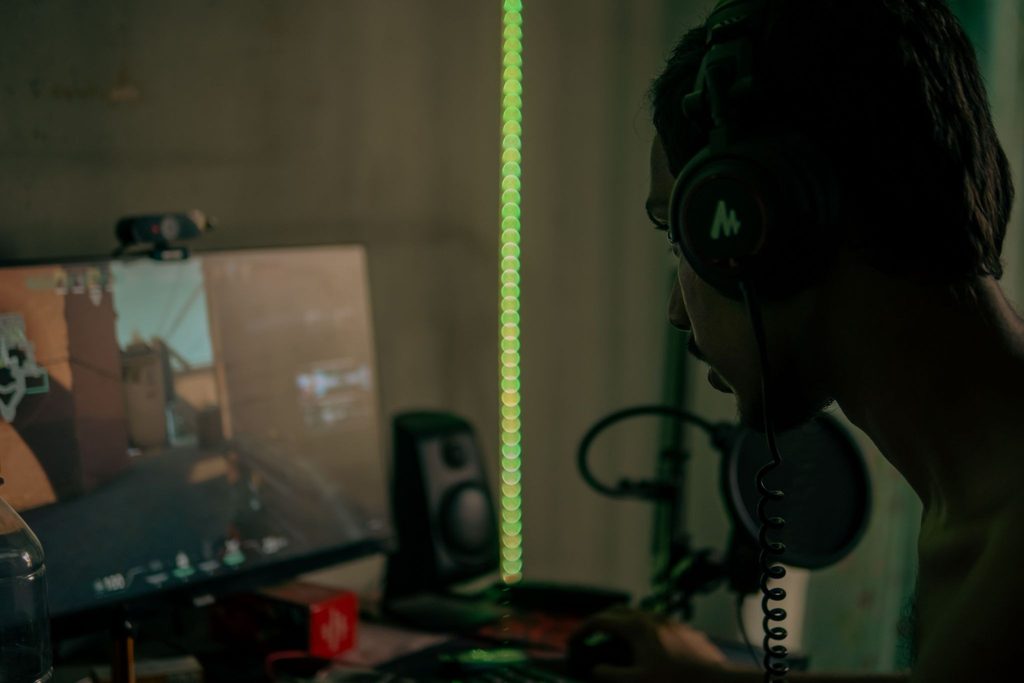
- A Suitable PC:
First things first, you need to make sure your computer meets some hardware requirements so that you can stream games smoothly on Facebook.
| Component | Minimum Specs | Recommended Specs |
| Processor(CPU) | Intel Core i5 (10th/12th Gen) or AMD Ryzen 5 | Intel Core i7 (13th Gen+) or AMD Ryzen 7 |
| Graphics card (GPU) | Nvidia GTX 1660 Super / RTX 3050 | Nvidia RTX 4070 or better |
| Memory (RAM) | 16 GB DDR4 | 32 GB DDR5 |
| Storage | 512 GB SSD | 1 TB or 2 TB NVMe SSD |
Note for Console Owners: If you already own a console like PlayStation, you do not need an expensive, high-end gaming PC to stream on Facebook. You can use a budget-friendly or mid-tier office PC instead. Just buy an external capture card like an Elgato HD60 X to send your console’s video feed into the PC. This would allow your streaming software to broadcast the gameplay without overloading the computer.
- A Streaming Software
When it comes to Facebook, there is a range of streaming software with numerous features you can choose from. However, for game streaming, we would recommend desktop software like OBS Studio, Streamlabs Desktop, and XSplit Broadcaster. Check the table below to see what makes them different.
| Software | Cost | Beginner-friendliness | Impact on PC Performance | Facebook Integration |
| OBS Studio | $0; Every single feature is available at no cost. | Lowest; you have to manually create overlays and other creator tools | Lightest; Uses the lightest computer resources and that significantly improves | Manual; you have to copy and paste your Facebook Stream key. |
| Streamlabs Desktop | Free to stream, but premium overlays and multistreaming cost $19/month | Highest; You can install themes with one click and also get built-in alerts and overlays. | Moderate to heavy; this uses more processing power, and some themes could cause lag. | Automatic; This has a built-in Facebook login that handles the RTMP setup. So no need to copy a stream key. |
| Xsplit Broadcaster | Free to stream, although the software’s watermarks would appear. But to access full features, you need to pay $15/month or a one-time payment of $200 | Moderate; This had a professional, wizard-guided interface. Good for users who dislike OBS layouts | Moderate; It can be launched only on Windows Systems. Also, it uses more resources than OBS. | Hybrid; You can choose a direct Facebook login option and a manual custom RTMP setup window. |
- A Game to Stream
The best place to look for games to stream on Facebook is none other than Steam. It is the largest digital marketplace for PC games and has every single game from AAA hits to indie games. Other platforms include:
- Epic Games Store
- Xbox App for Windows
- GOG.com
- Audio Equipment
No one likes to watch a livestream that has audio distortion or background hiss. While standard gaming headsets pick up heavy breathing and muffled tones, a dedicated microphone setup like the Hollyland LARK M3 would give your stream that professional feel.

Hollyland LARK M3 - 32-Bit Float Mini Microphone
An ultra-compact 9g wireless microphone system featuring 32-bit float recording and 4-channel scalability for professional, zero-distortion sound.
Key Features: 32-Bit Float Recording | Up to 4 TX & 4 RX | 300m Range
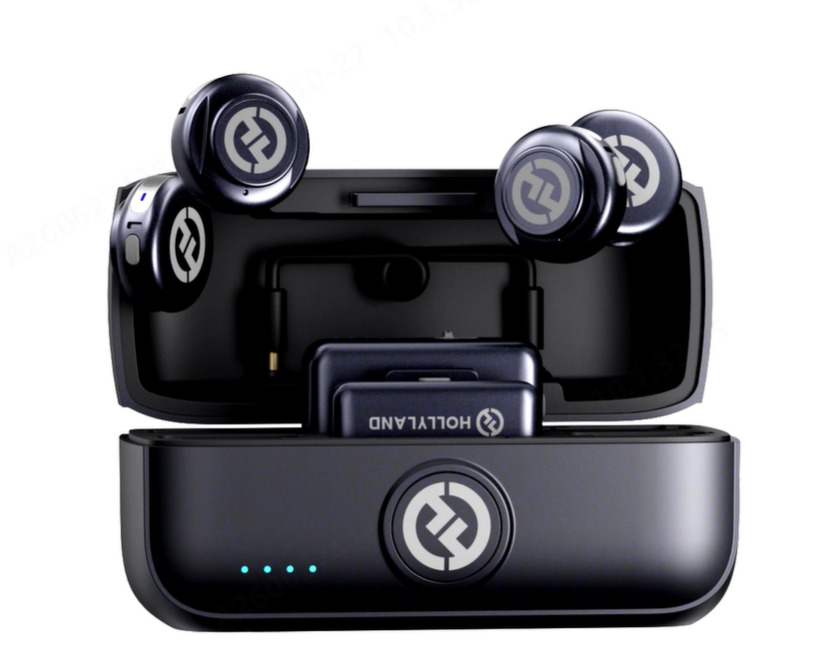
The LARK M3 is a premium and very compact wireless microphone that records in crystal-clear 48 kHz/32-bit Float. Its receiver even allows you to connect up to four wireless microphones at the same time. That way, you can co-host.
- An Eligible Facebook Account
Having a suitable pc and being able to play games doesn’t automatically mean you can open a Facebook account and start creating. To be eligible to livestream video games on Facebook Gaming, your account and page must meet these important requirements set by Meta:
- Account Age: Your Facebook account must be at least 60 days old.
- Follower Count: Your Facebook Page or profile in professional mode must have at least 100 followers.
- Page Type / Access: You need to set up a Gaming Video Creator Page or convert an existing Page and have proper Facebook access or task access to create content on it.
To monetise your streams via Facebook Stars and fan subscriptions, you can join the Level Up Program, which has additional activity rules:
- Stream gaming content for at least 4 hours total across the previous 14 days.
- Stream on at least 2 different days within those 14 days.
- Keep your Page active for at least 14 days and ensure the admin is 18 years or older.
- A Stable Internet Connection
Network failure while live streaming can be very frustrating for you, the streamer, and your audience. Here are a few things that can help you have a smoother run with your network during your stream:
- Avoid Wifi if possible and use an Ethernet cable instead.
- Make sure you have a dedicated upload speed of at least 8-15 Mbps.
- Don’t set your streaming software bitrate to use 100% of your internet’s max upload capacity. Otherwise, if someone else connects, your stream would freeze. Instead, keep your stream bitrate at half or two-thirds of your total upload speed.
Eleven Steps to Start Game Streaming on Facebook
Step 1: Launch Your Streaming Software
In this guide, let’s assume OBS Studio is your streaming software.
- Go to obsproject.com in your web browser.
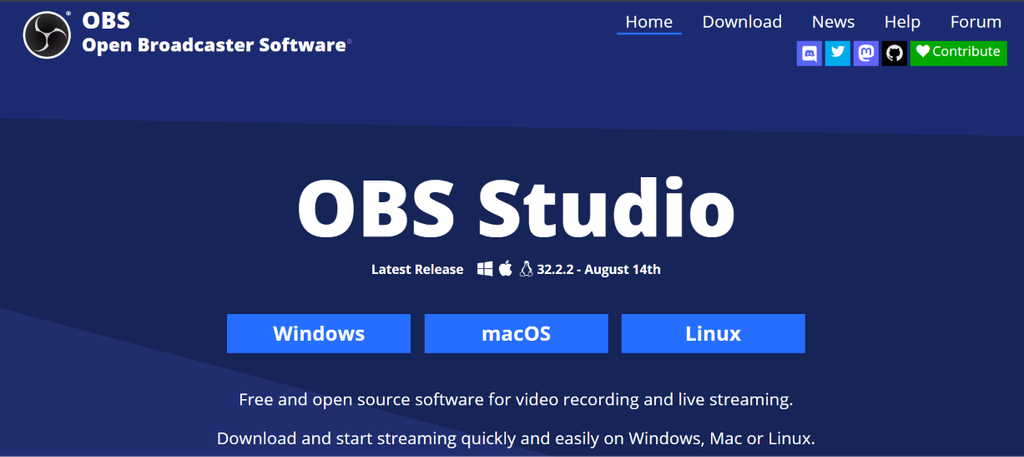
- Choose to download the one that better fits your OS.
- Once downloaded, click on it at the bottom or corner of your browser window to open it.
- A wizard will pop up to help you with installation. Follow the prompts on your screen, click “Next” and “Install” until the setup finishes.
- Once it is done, double-click the app icon to open the program.
Step 2: Launch The Game You Chose
After you buy the game you want to stream from Steam or other platforms, you need to launch it. For this guide, we will be using Minecraft as an example.
- After buying Minecraft, find the Minecraft Launcher icon on your computer screen or in your applications menu and double-click it to open it.
- Click the big green Play button inside the launcher to start the actual game.
- Once Minecraft opens to its main menu, press the Esc (Escape) key on your keyboard to pause it.
- Press the Alt key and the Tab key at the same time on your keyboard to switch back to your desktop window so you can see OBS Studio again.
Step 3: Create A Scene
Now go back to OBS Studio and check the left panel for a box called Scenes. This is a folder that holds your game view and your camera.
- Look at the very bottom of that specific box and click the + (plus) sign.
- A box will pop up asking for a name; type in Minecraft Stream and click OK.

Step 4: Add Sources
The next step would be to add what you want your viewers to see into the Scene you created.
- Look at the Sources box, which is located directly under the Scenes box.
- Click the + (plus) sign at the bottom of the Sources box.
- Select Game Capture from the list that pops up, type the word Minecraft in the name box, and click OK.
- A settings window will open; look for the dropdown menu next to Mode and change it to Capture specific window.

- Look at the dropdown menu directly below that named Window, click it, select [Minecraft], and click OK (you will now see your game appear in the big black OBS screen).
- If you have a webcam, click the + sign in the Sources box again, select Video Capture Device, click OK, select your webcam from the list, and click OK.

Step 5: Configure Your Audio
Now that you are sure the audience can see you, make sure your viewers can hear you and the game effects.
- If you are using the Hollyland Lark M3 wireless microphone, it comes with a receiver that you would plug into an open USB port on your computer.
- Once that is done, take the small Lark M3 microphone clip, turn it on by holding its power button, and clip it onto your shirt near your collar.
- Then look at the bottom-middle section of OBS for a section called Audio Mixer, where you will see jumping volume bars.
- Find the volume bar labeled Mic/Aux, and check to the right for a dropdown list.

- Select Lark M3 from the options, and click OK.
- Talk into your microphone; if the green bar bounces into the yellow area when you speak, your microphone is working perfectly.
Step 6: Configure Your Streaming Quality
We need to make sure that your video will not freeze during your stream.
- Click the Settings button located in the bottom-right corner of the OBS screen called Controls.
- Click Output on the left menu sidebar, change the Output Mode at the very top to Simple, and type 4000 into the Video Bitrate box.

- Click Video on the left menu sidebar.
- Change the Output (Scaled) Resolution box to 1280×720 and change the Common FPS Values box to 30.

- Click Apply and then click OK at the bottom to save your settings.
Step 7: Test Your Streaming Software Environment
Now we need to check that everything is alright on OBS before you go live.
- Click the button that says Start Recording on the bottom-right side of OBS.

- Click back into your Minecraft game, unpause it, and run around or break a few blocks for 30 seconds while talking out loud into your Lark M3 microphone.
- Go back to OBS and click Stop Recording.
- Check for “File” in the very top-left corner of OBS and select Show Recordings to find your test video. Watch it to ensure your Minecraft game looks smooth and your voice is easy to hear.
Step 8: Open Facebook Live Producer
Now we can open Facebook.
- Open your internet browser again, type facebook.com into the top address bar, and press Enter.
- Type in the email and password of your eligible Facebook account to log in if you aren’t already.
- Next, click the first icon beside the “What’s on your mind?” box. That should be “Live Video”. Click it.

- The next page will be the Live Video Producer; click “Set up Live Video”.
Step 9: Connect Your Streaming Software To Facebook
- Look at the middle of the Facebook webpage under “Select a video source” and click on Streaming Software, since we are using OBS.
- Look lower down the page for a section called Stream Key and click the gray Copy button next to the long line of hidden dots.

- Switch back to the OBS window, click Settings in the bottom-right corner, and click the Stream tab on the left.
- Change the Service dropdown menu to Facebook Live, click inside the Stream Key blank box, and paste your key there.
- Click OK and the Start Streaming button on the bottom right of OBS.
Step 10: Preview Your Livestream on Facebook Live Producer
- Go back to your Facebook internet browser window.
- Look at the bottom-right corner of the screen; you should see a small video box showing your live Minecraft game and hearing your Lark M3 voice.
- Look at the left side of the Facebook page and click inside the box that says What’s your live video about?
- Type in a title like “My First Minecraft Stream!” and a short description.
- Click the box that says Tag a game, type in Minecraft, and select it from the official list that pops up so Facebook shows your stream to other Minecraft fans.
Step 11: Go Live
- Look at the bottom-left corner of the Facebook webpage to make sure that the large Go Live button has lit up and turned bright blue.
- Click that blue Go Live button; you are now officially broadcasting live to Facebook!
Conclusion
Now you know that livestreaming games on Facebook doesn’t have to be complicated. By following the eleven steps in this guide, you’ll know how to configure your stream, test your setup, and go live using Minecraft as an example. You can now focus on giving your audience an enjoyable experience.