


































.png)
 简体中文
简体中文 
Game streaming is not just about setting up a computer and hitting the “start” button. There are processes that need to be followed adequately, especially when using a streaming app. First, you need to be sure your computer can handle the work. Secondly, your viewers must be able to see the game clearly, and most importantly, hear you without straining. If you are considering setting up Open Broadcaster Software (OBS) as your streaming app, this guide will walk you through every step. You will be shown how to set up your very first Minecraft stream and also get clean audio using Hollyland’s LARK series. Get your laptop ready with an NVIDIA graphics card, a webcam, and your Hollyland LARK A2 wireless microphone.

Hollyland LARK A2 - Clip-on Microphone
An ultra-light 8.5g wireless microphone engineered for effortless mobile recording, featuring smart AI noise cancellation and studio-grade sound.
Key Features: 8.5g Clip & Go | AI Noise Cancellation | 42 Hours Battery
First, Check If Your Computer Can Handle OBS Studio
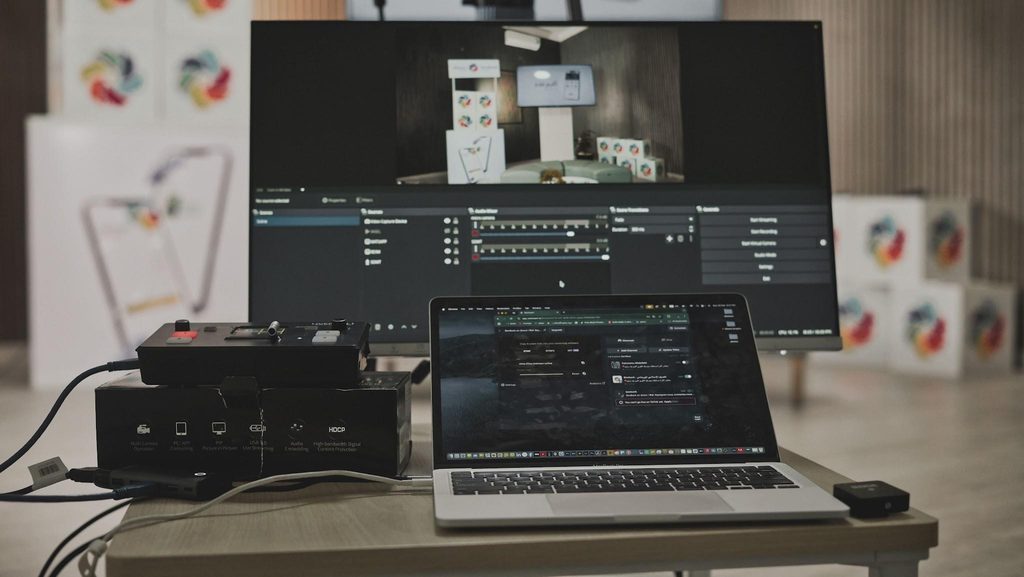
Before downloading, you need to check the capacity of your computer’s hardware. OBS Studio runs on Windows, macOS, and Linux. So, to enjoy a basic 1080p stream at 30 frames per second, you should have at least an 8th-generation Intel Core i5, or an AMD Ryzen 5 2600, 16GB of RAM, and an NVIDIA graphics card. The graphics card matters a lot because that is what handles the video compression for you. It is what keeps your game running smoothly while OBS works in the background.
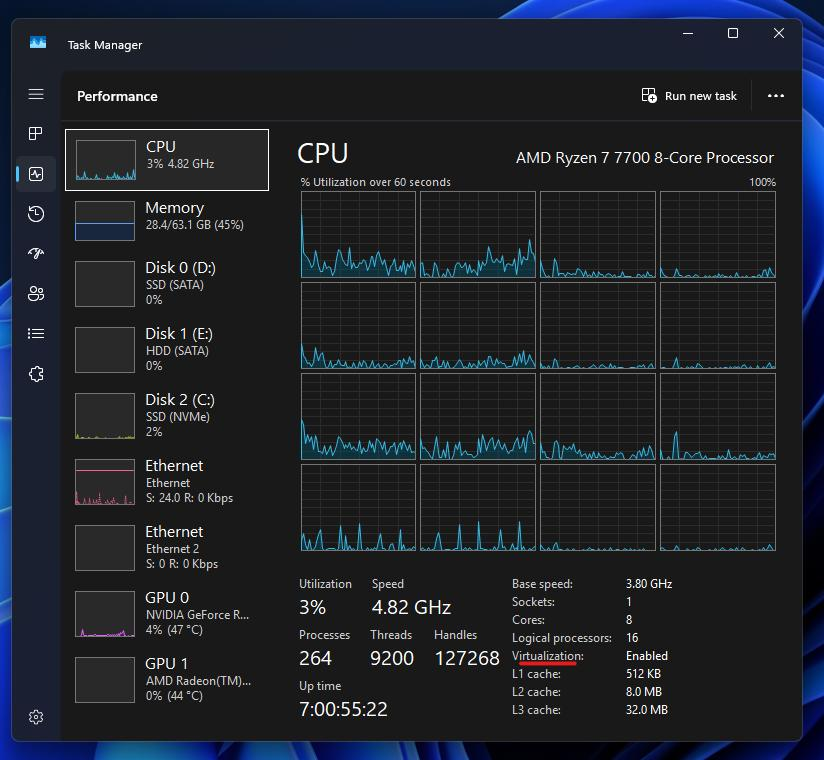
For your Minecraft stream, Minecraft Java works perfectly on Windows on its own. But adding OBS Studio will increase workload and slow down workflow. If your laptop meets the specifications above, you are good to go. You need upload speed more than the download speed. Aim for at least 5 Mbps of upload bandwidth for a 720p60 stream, or 6 Mbps if you want to try 1080p60. Run the speed test before you continue.
How to Install OBS Studio


Use the official website obsproject.com to download OBS Studio. Once it is installed, open the app and click on “Tools” in the top menu. Then click the “Auto-Configuration Wizard” which checks your computer and the internet speed. You can suggest settings that will not overwhelm your system and accept its recommendations. The auto-configuration wizard is what gives a safe starting point while you fine-tune later.

Select “optimize for streaming” when the wizard asks what you plan to do. For your Minecraft setup, it will likely suggest an output resolution based on your hardware. You can accept it and adjust later.

Set Your Video Resolution Preference
Video resolution matters a lot when it comes to Minecraft gaming. Your camera setup must be smooth and appealing to your viewers. Go to “Settings” on OBS Studio and click on “Video”. You will see two resolution boxes. The first box, Base (Canvas) Resolution, should match your monitor. If your monitor is 1920×1080, set it to that. This is the size of the workspace where OBS arranges everything you want to show.

The second box, Output (Scaled) Resolution, is what puts you live to your viewers. If your internet or computer cannot handle a full 1080p stream, change it to 1280×720 for a better stream. Running on a 1080p stream that freezes might uninterest viewers.

Below that, set the FPS (frames per second) to 60 if your PC handles the auto-configuration wizard without warnings. But if the wizard suggested 30, keep it at that for your first stream. It puts less strain on your computer that way. So, setting your Base Resolution to 1920×1080 and Output Resolution to 1280×720 only means one thing: OBS captures your full desktop, but shares your Minecraft game stream at a lower resolution, be it on Twitch or YouTube.

Choose the Right Encoder and Bitrate
Open “Settings,” then “Output,” and switch the output mode to “Advanced.” Under the streaming tab, you will find the Encoder dropdown.

If your PC has an NVIDIA GTX 1650 graphics card, select NVENC H.264. But if it is an AMD card, choose AMD HW H.264. These graphics cards do the heavy lifting for your PC processor so as to run the Minecraft game smoothly.

Also, you need to set the rate control to CBR (Constant Bitrate). Twitch and most other platforms expect this setting. For Bitrate, you can use 6000 Kbps for Twitch at 1080p and 60 frames per second. YouTube handles higher numbers from 8000 to 12000 Kbps, if your upload speed allows it. However, for 720p output, set the bitrate to 4500Kbps to have a stable image and not push your upload speed too high. Just leave the keyframe interval at 2 seconds, unchanged, as changing it could cause playback problems on the platform’s end.
Build Your Game Scenes, Camera, and Overlays

After launching Minecraft, lock into the OBS world to load. The OBS window has a Scenes box in the bottom left and a Sources box next to it. These boxes are where you stack sources on top of each other to create what viewers see.

Click the + button under ‘Sources,’ choose ‘Game Capture,’ and rename it “Minecraft.” Set Mode to “Capture specific window” and select the Minecraft window from the dropdown.
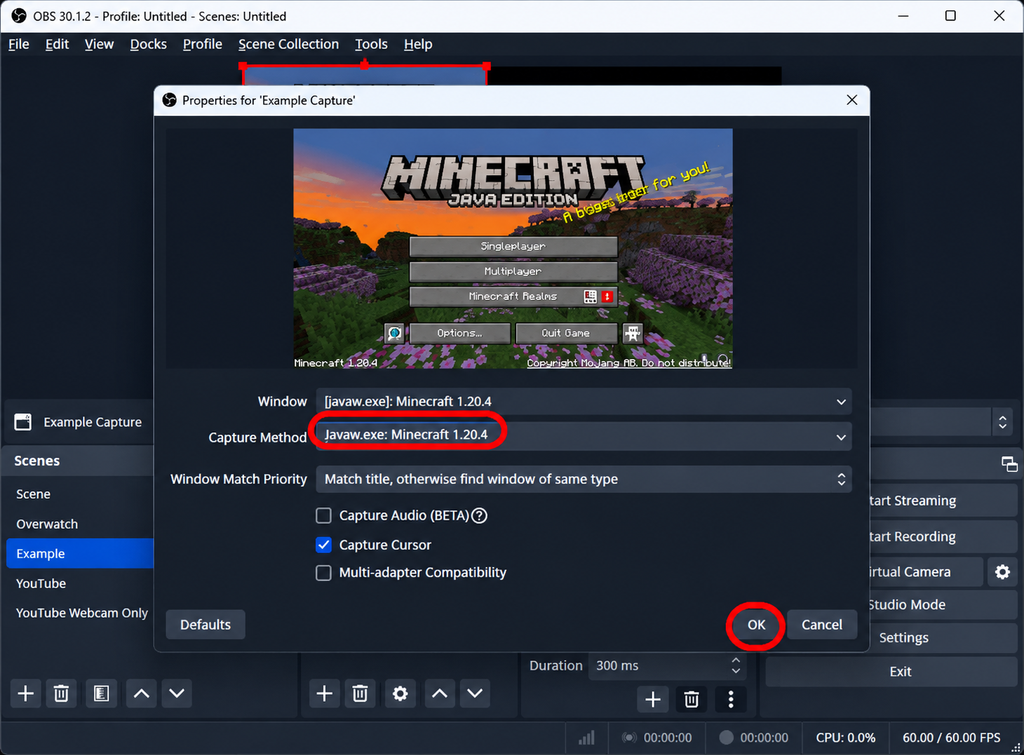
For Java Edition, it usually appears as “javaw.exe [Minecraft*].” Click OK, and you are already in your Minecraft world.
Next, add your webcam by clicking + and choosing Video Capture Device. Drag and resize it in the preview window in a small, square-like shape as you deem it fit. Once it looks right, right-click the webcam source to lock it.
If you have overlay images, a frame, or a banner with your stream name, add them as Image sources and drag them to the top of the screen.

Set Your Audio Levels Correctly
Before launching your Minecraft game properly, look at the Audio Mixer at the bottom of the OBS window. You should see separate sliders for your game as Desktop Audio and your microphone.

The colored bars next to each slider show how loud that sound is. Green means quiet, yellow is good, and red means the sound is too loud and will distort. Your game audio should peak in the yellow zone, roughly between -20 and -10 dB. Set your Hollyland LARK A2 microphone properly so viewers can hear you over explosions and music. Speak in your normal streaming voice and watch the meter. If it barely moves, you need more volume. If it hits red, you need less.
Why Hollyland LARK A2 Microphone Fits Your Audio Capture
Make no mistake of spending all your budget on the computer and use the laptop’s built-in microphone. Viewers can overlook average video quality, but they will leave if the audio is echoing or muffled and there is noise everywhere.

Hollyland’s wireless clip-on LARK A2 microphone system is designed for creators and gamers who want clean voice capture without a messy desk of cables. The LARK A2 is a great choice for a solo streamer. Its transmitter weighs only 8.5 grams and clips onto your collar, so you can move freely. It records at 48 kHz and 24-bit, which captures the natural texture of your voice, and it has a signal-to-noise ratio (SNR) of at least 6 dB. This means that it keeps your commentary away from any background sound. It also handles sudden loud moments at a pressure level of 120 dB when you get excited over a win without distortion.

For your Minecraft stream, clip the LARK A2 transmitter to your shirt collar. The wireless design gives no room for cable drags across your desk. The microphone has AI noise cancellation that reduces humming from any angle, especially from your laptop fans.
How to Connect the Hollyland LARK A2 system to OBS
Plug the LARK A2 receiver into your computer’s USB-C port. Open Settings in OBS, and go to Audio. Under Mic/Auxiliary Audio, select “wireless microphone” to connect to the Hollyland receiver. Speak to the microphone and watch the meter in the Audio Mixer. If the yellow bars only reach about a quarter of the way up, use the ‘Filters’ section and click + to add a Gain filter. Raise it by 3 to 5 dB at a time until your voice sits comfortably in the yellow zone. Meanwhile, avoid pushing the main volume slider to maximum. Using a Gain filter keeps more headroom and sounds cleaner.


If you turn on Hollyland’s AI noise cancellation, start with the lowest setting. Higher levels can make your voice sound processed or robotic, and you should only increase it if there is persistent background noise that the lower setting cannot handle.
Test Before You Go Live
What you shouldn’t do at your first test is to click “Start Streaming”. Instead, click on “Start Recording” to be sure it works perfectly. Play your Minecraft game for about two minutes. Chop a tree, walk through a cave, and jump into water. Talk through while at this, and then stop the recording. Open the video file on your computer and watch it with headphones.
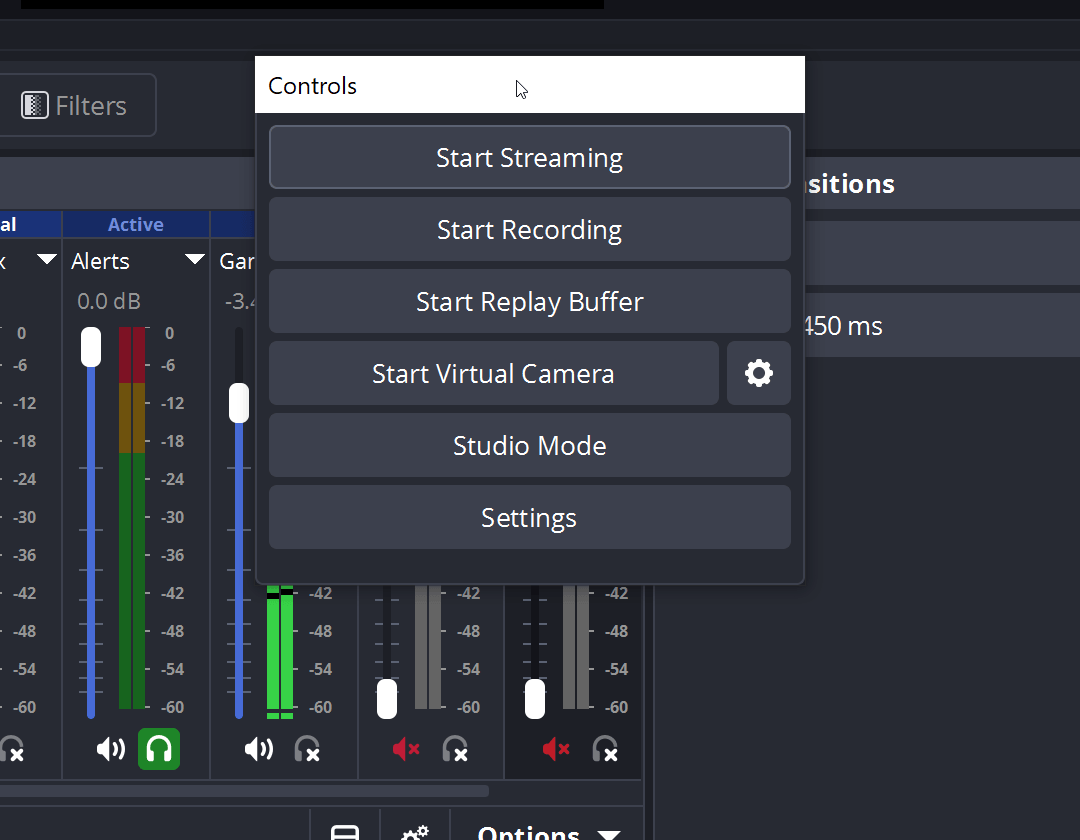
Check if your voice is clear and at a good volume compared to the game. Also check if the game footage is smooth or stutters. You can also confirm if the webcam is in focus and in the right spot. All of these matter not only because it is a local recording, but because it helps in discovering later issues. Any problems you notice are either caused by OBS settings or your computer. Fix those problems before you involve the network.

Once the recording already looks and sounds good, connect your streaming account. In Settings, go to Stream and choose your platform from the service dropdown. Connect your account and log in through the window to authorize OBS and start streaming properly. You can set it to private or unlisted on the platform, if possible, to watch it on your phone. Also, check that the audio is audible on a small phone speaker and that the video is not lagging. Keep an eye on the OBS Stats window. If “Dropped Frames” stays at 0%, your connection is stable.
Go Live and Stay Stable on Streams
When your test stream passes, you are ready. Click Start Streaming. Do not watch your own stream on the same computer, because it creates an echo and wastes resources. Use your phone or a tablet to check the stream from a viewer’s perspective.
Keep the Stats window visible during your first few streams. If you see dropped frames climbing, your internet is struggling. If you see encoder overload, your computer settings are too high, and you should lower the output resolution or FPS. A stable 720p stream is better than a 1080p stream that stutters.
Remember the Audio Rule
Viewers tolerate a game visual on average viewpoints, but they do not tolerate an inaudible streamer who sounds far away or buried under game noise. Using a clip-on Hollyland LARK A2 to your shirt and connected to OBS gets rid of the audio problems before they start. Set it up carefully to capture most of your moments while streaming, for both yourself and your viewers.
Conclusion
Setting up OBS for Minecraft game streaming is easy once you follow due process. You have to first confirm your computer hardware and upload speed can take on the load for streaming. Establish a safe starting point with the auto-configuration wizard. Let the wizard set the baseline. You can later adjust the resolution, frame rate, encoder, and bitrate as you want. Build your scene so that your viewers can check and relate well to your screen time. You must never treat audio as an afterthought, but as a priority. And most importantly, always test with a local recording before going public.