.png)
 简体中文
简体中文 
If you tried to drag an audio recording from your iPhone, Zoom meeting, or voice memo into Audacity, you likely hit a brick wall. You aren’t alone—learning how to open and edit M4A files in Audacity is one of the most common hurdles for new creators.
This isn’t because your file is corrupted or because Audacity is broken; it is strictly a licensing issue.
Audacity is free, open-source software. The M4A container typically uses the Advanced Audio Coding (AAC) codec, which is a proprietary format. Because of patent and licensing restrictions, Audacity cannot legally include the native ability to decode these files in its default installation.
Instead of your waveform appearing, you are greeted with this specific error message:
“Audacity cannot open this type of file. You need to convert it to a supported audio format, such as WAV or AIFF.”
Depending on your version, it may also suggest installing the FFmpeg library.
How to Fix It
You have two ways to solve this problem:
- The Permanent Fix (Recommended): Install the FFmpeg library. This is a free add-on that “teaches” Audacity how to read and write M4A files directly. Once installed, you can simply drag and drop these files in the future.
- The Quick Fix: Convert the file to WAV using a third-party tool. This is best if you are on a work computer where you cannot install new software or plugins.
Method 1: Installing FFmpeg (The Permanent Fix)
This is the preferred solution for most users. By installing the FFmpeg library, you enable Audacity to read M4A, AAC, and AC3 files. You only have to do this once; afterwards, you can drag and drop M4A files directly into your timeline just like any other audio file.

Follow these steps to set it up.
Step 1: Check Your Audacity Preferences
Before downloading anything, check if Audacity can already locate the library or if it is completely missing.
- Open Audacity.
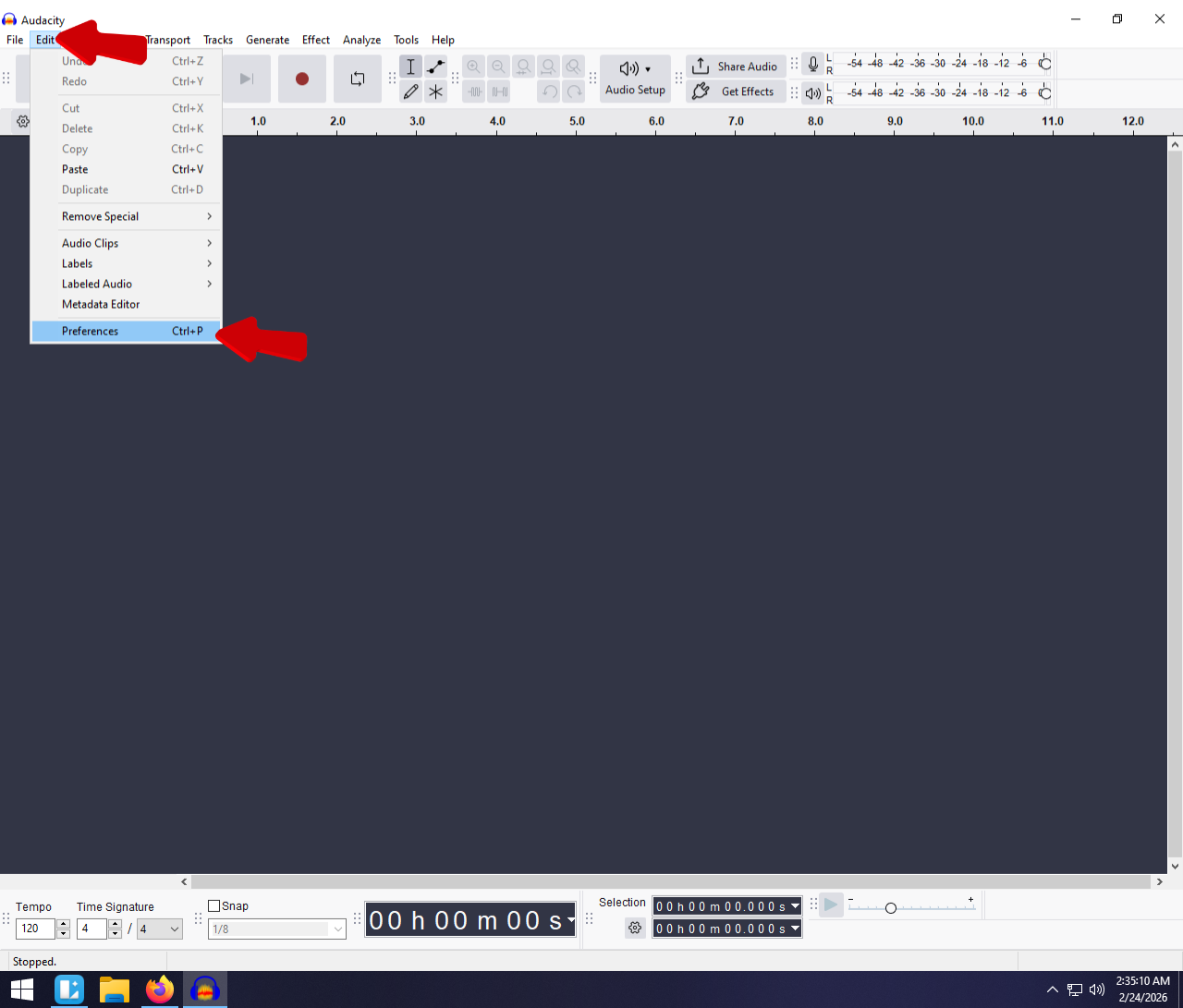
- Navigate to the Preferences menu:
- Windows: Click Edit > Preferences.

- Mac: Click Audacity > Preferences.
- In the sidebar, select Libraries.
- Look at the “FFmpeg Import/Export Library” section. If the “FFmpeg Library Version” says not found, you need to install it.

Step 2: Download the Official Installer
Audacity cannot bundle FFmpeg due to copyright laws, so you must download it separately.
- In the Libraries menu you just opened, click the Download button next to “FFmpeg Library.”
- This will open the official Audacity support page in your web browser.
- Warning: Do not download FFmpeg from random third-party software sites. Stick to the links provided by AudacityTeam.org to ensure the file is safe and compatible.

Step 3: Installation for Windows
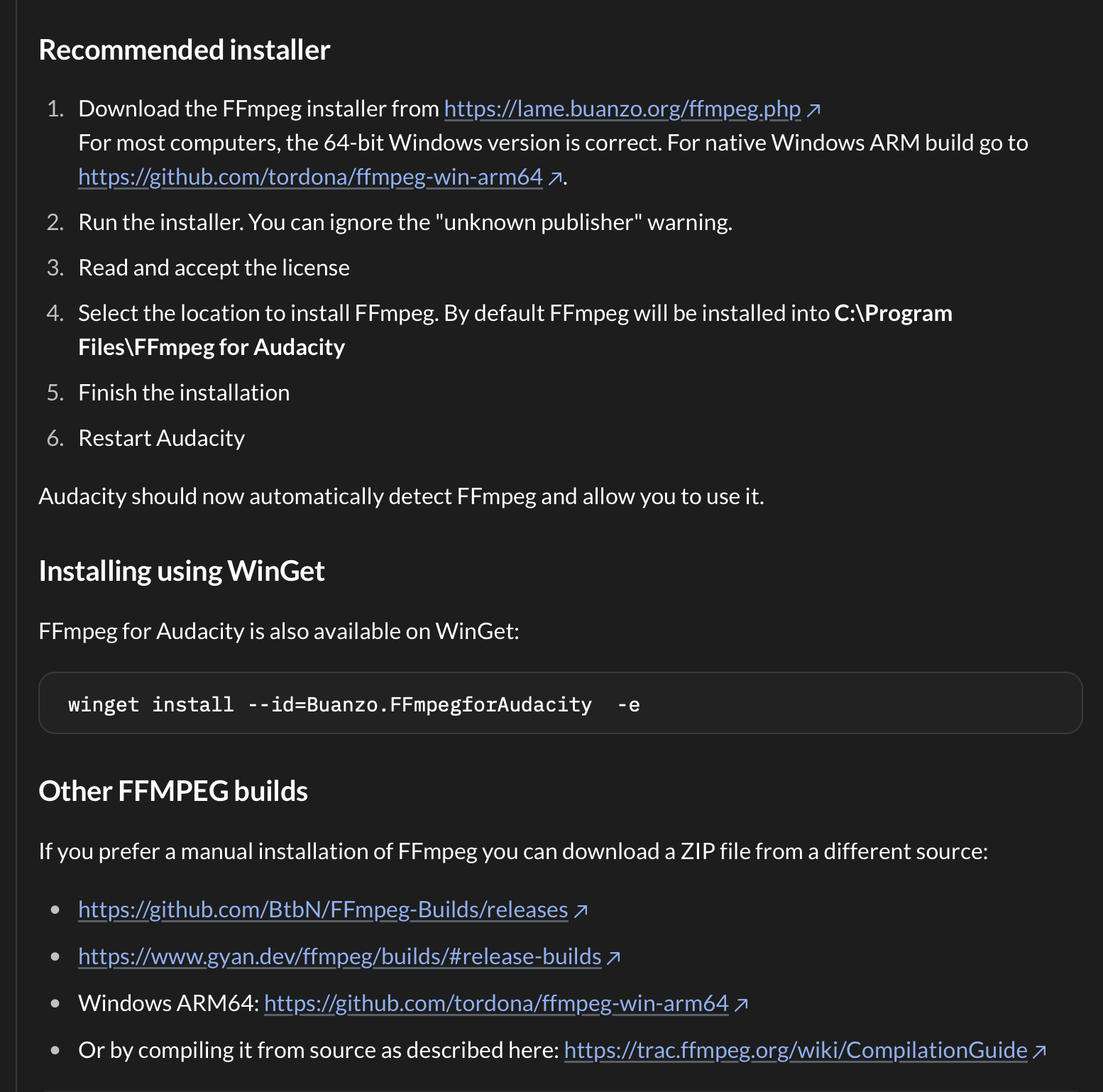
- On the download page, locate the recommended installer (usually named FFmpeg_v2.2.2_for_Audacity_on_Windows_64bit.exe or similar).

- Run the .exe file once it finishes downloading.

- Follow the setup wizard prompts. Do not change the default installation destination (usually C:\Program Files\FFmpeg for Audacity). Keeping the default location ensures Audacity can find the file automatically.


- Click Finish.

Step 4: Installation for Mac
- On the download page, download the .pkg installer file relevant to your OS version.
- Note: Most modern Macs require the 64-bit installer.
- Open the downloaded .pkg file.
- Follow the on-screen instructions to install the package. It will place the necessary libraries in /Library/Application Support/audacity/libs/.
- If you receive a security warning, you may need to go to System Settings > Privacy & Security and allow the installer to run.
Step 5: Restart and Verify
Audacity will not recognize the new library until you restart the application.
- Close Audacity completely and open it again.
- Go back to Preferences > Libraries.

- You should now see a version number (e.g., F(55.33.100)) instead of “not found.”

- The Final Test: Drag your M4A file into the timeline. It should now import instantly without any error messages.
Method 2: Convert M4A to WAV (The Quick Fix)
If you cannot install the FFmpeg library—perhaps you are using a restricted work computer or simply don’t want to mess with system files—the alternative is to convert the M4A file before importing it into Audacity.
This method requires an extra step outside of Audacity, but it is foolproof.
Why Convert to WAV?
You might be tempted to convert your M4A to MP3, but you should convert to WAV.
- Lossless Quality: WAV is an uncompressed format. Converting M4A to WAV preserves exactly what is currently in the file. Converting to MP3 adds a second layer of compression, permanently degrading your audio quality.
- Universal Compatibility: Every version of Audacity, on every operating system, can open a WAV file without additional plugins.
Option A: Use a Reputable Online Converter
If you have a fast internet connection and standard file sizes, this is the quickest method. We recommend CloudConvert because it allows you to adjust audio settings and generally produces clean results.
- Go to the CloudConvert website.


- Upload your .m4a file.
- Select WAV as the output format.
- Click Convert and download the resulting file.

- Drag the new WAV file directly into Audacity.
⚠️ Privacy Warning: Be careful when using free online converters for sensitive audio. If your recording involves confidential business meetings, legal interviews, or unreleased music, use Option B below to keep the file on your local machine.
Option B: Use iTunes or Apple Music (Windows & Mac)
If you already have iTunes (Windows) or the Music app (Mac) installed, you can use a built-in feature to convert files locally without uploading them to the cloud.
How to set it up:
- Open iTunes/Music.
- Go to Edit > Preferences (Windows) or Music > Settings (Mac).
- Click the Files tab and select Import Settings.
- Change the “Import Using” dropdown to WAV Encoder.
- Click OK to save settings.
How to convert the file:
- Drag your M4A file into your iTunes/Music library.
- Highlight the file in the library.
- Go to File > Convert > Create WAV Version.
- A new file will appear instantly. Right-click it and select Show in Windows Explorer (or Show in Finder) to locate your new WAV file for Audacity.
Pro Tip: Improving Your Source Audio Workflow
Troubleshooting file formats and installing FFmpeg libraries is a necessary evil when working with existing audio. However, constantly converting M4A files adds significant friction to your creative process.
M4A is a compressed format. While it saves space on your iPhone or voice recorder, it discards audio data. When you edit these files in Audacity, you are working with “lossy” audio, which leaves you less room to fix background noise or equalization without introducing digital artifacts.
The most effective way to speed up your post-production workflow isn’t just fixing the software—it’s upgrading the source.
The Advantage of “Edit-Ready” Audio
For creators looking to bypass the headache of file conversion and compression, the Hollyland LARK MAX 2 offers a professional alternative. Rather than relying on a smartphone microphone that defaults to compressed formats, this wireless microphone system is designed to capture studio-grade audio that is immediately ready for Audacity.

Hollyland LARK MAX 2 - Premium Wireless Microphone System
A premium wireless microphone for videographers, podcasters, and content creators to capture broadcast-quality sound.
Key Features: Wireless Audio Monitoring | 32-bit Float | Timecode
Why 32-bit Float Recording Matters
The standout feature for Audacity users is the 32-bit Float Recording.
When you record on a standard device (16-bit or 24-bit), if a speaker laughs too loudly or screams, the audio “clips.” The waveform hits the ceiling, creating harsh distortion that cannot be fixed, no matter how skilled you are with Audacity’s repair tools.
32-bit Float changes the rules:
- Infinite Headroom: It captures such a massive dynamic range that it is mathematically impossible to clip the audio during normal recording.
- Worry-Free Editing: If you import a LARK MAX 2 file into Audacity and the waveform looks like a solid block of noise, you can simply apply the Amplify effect (setting it to a negative value), and the clean, undistorted audio is perfectly restored.
This feature acts as an ultimate safety net, ensuring you never lose a great take to bad levels or unexpected volume spikes.
Monitor Before You Import
Bad audio isn’t just about file formats; it’s about interference and levels. The LARK MAX 2 allows for Wireless Audio Monitoring via OWS earphones. This lets you catch issues—like wind noise or clothing rustle—in real-time, rather than discovering them after you’ve already imported the file into your computer.
By capturing higher-quality data at the source, you spend less time fighting file errors and more time editing your content.
Troubleshooting Common Import Errors
If you have installed FFmpeg or converted your file and Audacity still refuses to cooperate, don’t panic. Most persistent errors stem from a disconnected library path or a specific file issue. Here is how to diagnose and fix the most common edge cases.
“FFmpeg Library Not Found”
Sometimes, even after running the installer, Audacity doesn’t automatically link to the new library. You may see an error stating the library is missing or not found. You need to manually point Audacity to the correct file.
- Open Audacity and go to Edit > Preferences (Windows) or Audacity > Settings (Mac).
- Select Libraries from the sidebar.
- Click the Locate… button next to “FFmpeg Library.”
- Browse for the specific file:
- Windows: Look for avformat-55.dll (usually in C:\Program Files\Audacity or C:\Program Files (x86)\Audacity).
- Mac: Look for libavformat.dylib (usually in /Library/Application Support/audacity/libs).
- Select the file, click Open, then OK, and restart Audacity.
Corrupted M4A Files
If FFmpeg is installed correctly but a specific M4A file still triggers an error, the audio file itself might be damaged. This often happens if a recording device ran out of battery mid-session or if a file transfer was interrupted.
To test this:
- Try playing the file in a robust media player like VLC Media Player.
- If VLC cannot play it, the file header is likely corrupted.
- The Fix: Sometimes, running a corrupted file through an online converter (like CloudConvert) can “repair” the header and output a playable WAV file. If that fails, the audio data may be lost.
Audacity Version Conflicts
Audacity has undergone significant updates regarding how it handles 32-bit vs. 64-bit architecture. If you are running an outdated version of Audacity (older than 3.0) but installed a modern 64-bit FFmpeg library, they will not talk to each other.
- Check your version by clicking Help > About Audacity.
- If you are not on the latest version, uninstall Audacity completely and download the newest release from the official website. The latest versions represent a massive leap forward in stability and codec compatibility.
Frequently Asked Questions (FAQ)
Is M4A better than MP3 for Audacity editing?
Generally, yes. M4A (specifically the AAC codec) provides better audio quality than MP3 at the same file size. It captures a broader frequency range and has fewer compression artifacts. However, once you import a file into Audacity, the software converts it into a raw, uncompressed format for editing. Therefore, while M4A is a superior source format, the actual editing performance within Audacity is identical for both.
Does installing FFmpeg cost money?
No, FFmpeg is completely free. It is open-source software. If you find a website asking you to pay for the FFmpeg installer or a “Pro” version of the library for Audacity, you are likely on a scam site. Always download the installer directly from the links provided in the official Audacity documentation or settings menu.
Can I export as M4A from Audacity?
Yes, but only if you have installed the FFmpeg library. By default, Audacity exports to WAV, OGG, and MP3. Once you install FFmpeg (the same library required to open M4A files), a new option labeled “M4A (AAC) Files (FFmpeg)” will appear in the File > Export Audio dropdown menu.
Conclusion
Getting the “Audacity cannot open this type of file” error is a rite of passage for new editors, but it doesn’t have to stop your workflow. While converting files to WAV works in a pinch, taking the time to install the FFmpeg library is the best long-term strategy. It enables native M4A editing and saves you from juggling file converters every time you import a voice memo or Zoom recording.
Once your software workflow is fixed, it’s worth looking at your hardware source. If you are constantly fighting against compression artifacts, hiss, or clipping from standard phone recordings, the issue isn’t Audacity—it’s the microphone.
For creators ready to graduate from smartphone audio, check out the Hollyland LARK MAX 2. Its 32-bit Float Recording technology captures such a wide dynamic range that your audio will never distort, even if the volume spikes unexpectedly. This eliminates the need for desperate rescue missions in post-production.
Now that your environment is set up, drag that M4A file into the timeline, check your levels, and start editing.