



































.png)
 简体中文
简体中文 
How to Remove Static from Audio: 4 Proven Methods That Actually Work
Static can ruin a recording that sounds great. You might hear a hiss, an electrical hum, or noise behind your voice. Finding the cause first makes fixing the problem much easier. This guide covers the most effective software solutions, hardware root-cause fixes, and prevention strategies to help you stop fighting static at every step of your workflow.

What Causes Static in Audio?
Finding the source makes it easier to pick the right solution. The fix could involve software, equipment, or better recording habits. Static usually comes from one of these five common sources:
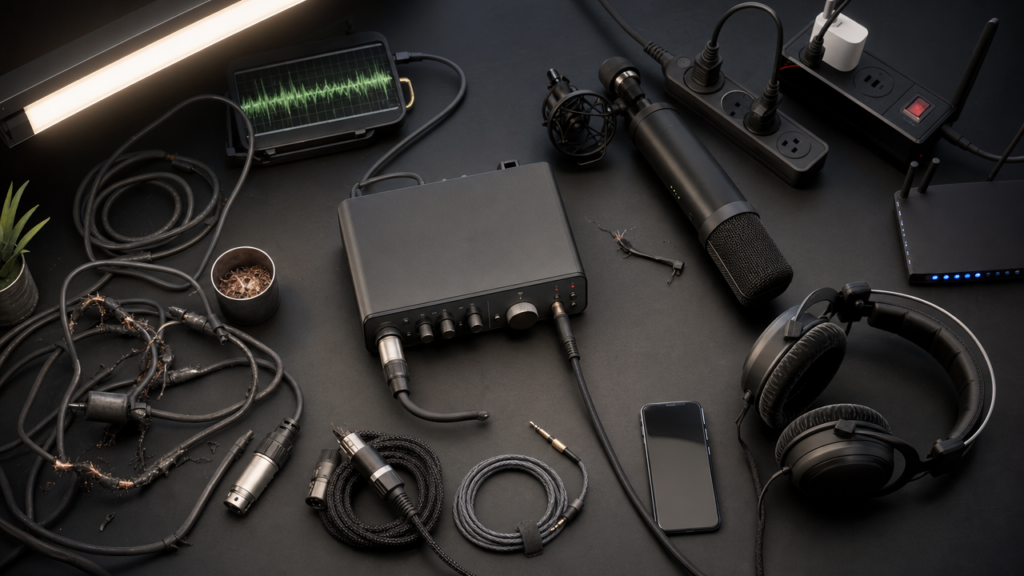
- Ground loops and electrical interference: When two connected devices share an unequal ground potential, a 60 Hz (or 50 Hz) hum is introduced into the signal chain.
- Unshielded or damaged cables: Budget and worn-out cables pick up radio frequency interference from nearby electronics and power sources.
- Low-quality preamps or audio interfaces: Inexpensive preamps add their own noise floor, which surfaces as constant background hiss in every recording.
- Excessive input gain: Pushing gain too high amplifies noise alongside your signal, making static significantly harder to remove in post.
- Environmental interference: Wi-Fi routers, fluorescent lighting, HVAC systems, and nearby phones can all introduce broadband noise into open condenser microphones.
How to Remove Static from Audio in Audacity (Free)
Audacity has a simple tool that helps reduce unwanted background noise. It first checks the noise in a small sample. After that, it removes similar noise across the full recording. Follow these steps:
- Open your audio file in Audacity via File > Open, or drag it directly into the window.

- Find a section of pure noise. Locate a moment in the recording where only the static is present, such as the second before you started speaking or a pause between sentences.
- Select that noise-only region. Click and drag to highlight just that section.

- Capture the noise profile. Go to Effect > Noise Removal and Repair > Noise Reduction and click Get Noise Profile. Audacity analyzes the selected region and stores its characteristics.

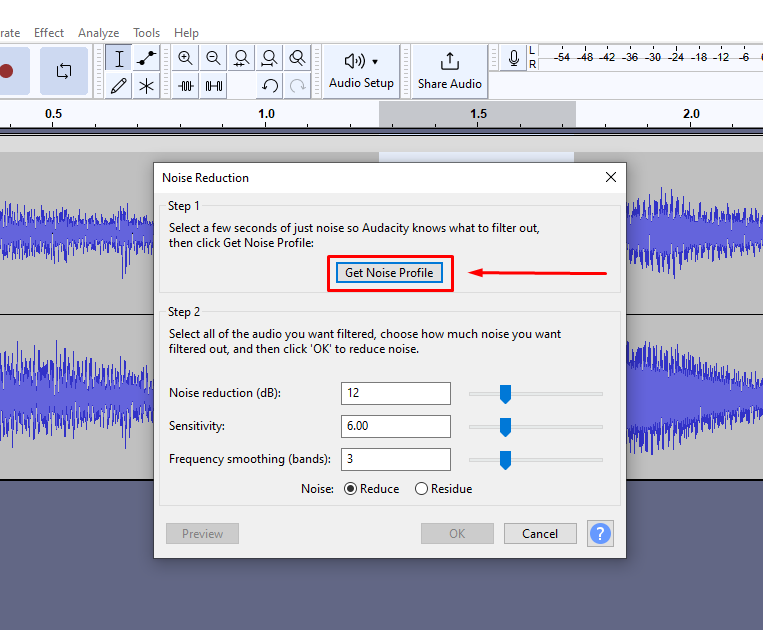
- Select the entire clip. Press Ctrl+A (Windows) or Cmd+A (Mac).
- Open Noise Reduction again. Return to Effect > Noise Removal and Repair > Noise Reduction.
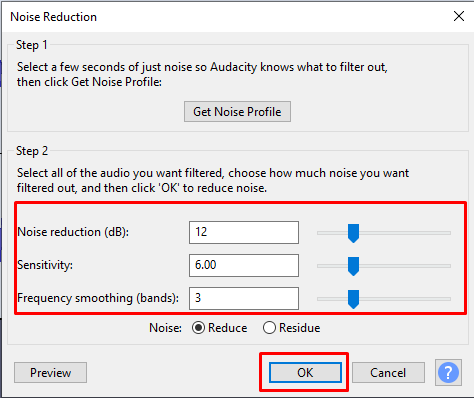
- Adjust your settings using the table in the section below as a starting point.
- Click OK and listen to the result. Press Ctrl+Z to undo if anything sounds unnatural, then lower the values and reapply.
Note: Always save a backup copy of your original file before processing. Audacity’s Noise Reduction is a destructive process, and keeping an unedited version gives you a safety net if the result needs reworking.
Recommended Noise Reduction Settings in Audacity
Start conservatively to protect the natural tone of your audio. Increase values only if static remains clearly audible after the first pass.
| Setting | Conservative (Voice) | Moderate | Aggressive |
|---|---|---|---|
| Noise Reduction (dB) | 6–9 dB | 12–15 dB | 18–24 dB |
| Sensitivity | 3–4 | 5–6 | 8–10 |
| Frequency Smoothing | 3 | 3–4 | 5–6 |
For most voice recordings, begin at 9 dB / Sensitivity 4 / Frequency Smoothing 3. Listen carefully, and increase only if needed.
Signs You’ve Over-Processed the Audio
Removing too much noise can make your audio sound even worse. Keep an eye out for these three common signs:
- Metallic or robotic texture on sustained vocals or any held notes in music
- Dulled high frequencies where consonants like “s” and “t” sound muffled or smeared
- Warbling or watery artifacts during quiet passages or pauses
If any of these appear, undo the last step, reduce the Noise Reduction (dB) value by 3–6 dB, and reapply.
How to Remove Static in Adobe Audition
Adobe Audition offers three dedicated tools for static removal. The main workflow uses Noise Reduction (process), while Adaptive Noise Reduction and DeHum each address a specific scenario.
Main workflow using Noise Reduction (process):
- Open your clip in the Waveform Editor view, not the Multitrack view.
- Select a noise-only region, a section where only background static is audible.

- Go to Effects > Noise Reduction / Restoration > Capture Noise Print (or press Shift+P) to store the noise profile.
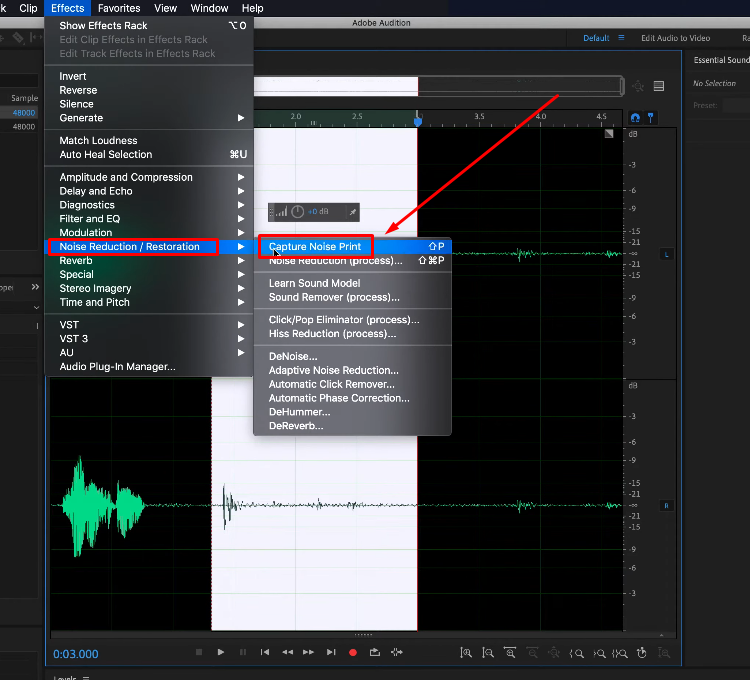
- Select the full clip with Ctrl+A (Windows) or Cmd+A (Mac).
- Go to Effects > Noise Reduction / Restoration > Noise Reduction (process).

- Set Noise Reduction to between 40 and 60 percent as a starting point. Lower percentages preserve more of the natural tone.
- Enable Output Noise Only to hear what the software will remove. If you can hear parts of your voice, lower the noise reduction amount.
- Click Apply and review the result.
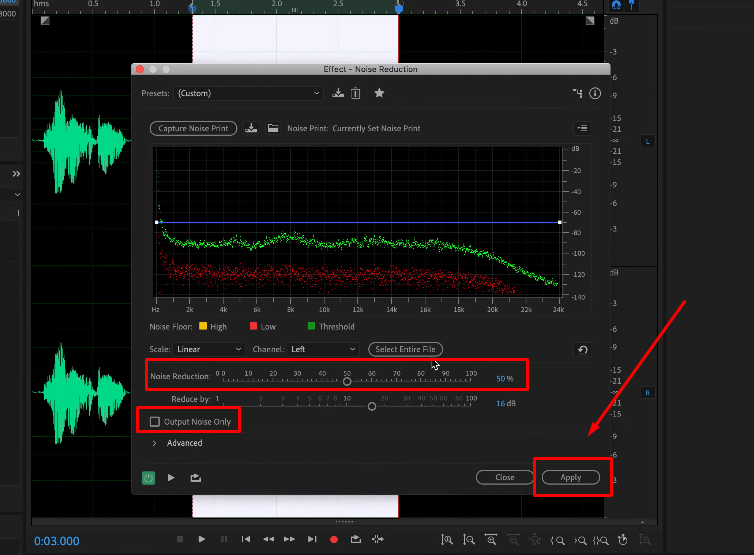
Adaptive Noise Reduction (Effects > Noise Reduction / Restoration > Adaptive Noise Reduction) is the better choice when you don’t have a clean noise-only sample. It analyzes and adapts in real time across the clip, making it effective for recordings where background noise levels shift throughout.
DeHum (Open Effects > Filter and Equalization > DeHummer) to remove electrical hum from your recording. Select 60 Hz in North America or 50 Hz in most other regions. Match the setting to your local power frequency. Turn on harmonic reduction to reduce the extra tones linked to the hum. If your recording also has background hiss, reduce that noise first. Then run DeHummer as the next step.
How to Remove Static with iZotope RX
When Audacity or Audition can’t fully resolve severe or complex static without degrading your audio, iZotope RX is the professional-grade answer. It is widely used in broadcast, film post-production, and podcast mastering because it handles difficult noise problems with far fewer artifacts than DAW-native tools.
Two modules are the most useful for static removal:
- Open your file in RX directly, or route it via the RX Connect plug-in from your DAW.
- For voice recordings with general hiss: Use Dialogue De-noise. It is designed specifically for speech, processes in real time, and delivers natural-sounding results. Adjust the threshold until noise reduction engages without affecting the vocal tone.
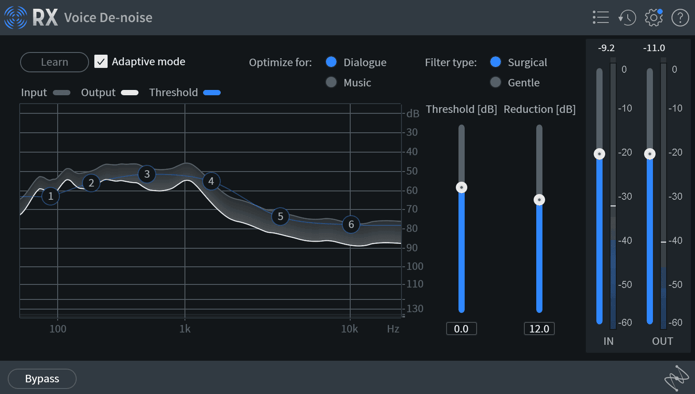
- For broadband static or complex noise profiles: Use Spectral De-noise. Learn a noise profile from a quiet section of the clip, then apply it across the full recording. Spectral De-noise lets you target specific frequency ranges for precise, controlled reduction.

- Preview and refine, then render the output or send it back to your DAW via RX Connect.
iZotope RX Elements, the entry-level tier, includes both modules and represents a significant step up from any DAW-native option for recordings where quality is the priority.
Quick Fixes in Other Software
Already editing in one of these applications? Each has a workable built-in option for tackling mild to moderate static without switching tools.
DaVinci Resolve (Fairlight): On the Fairlight page, select your audio clip and go to Effects > Noise Reduction. Resolve’s noise reduction is capable and non-destructive, making it a practical choice for video editors who want to handle static without exporting audio to a separate application.
Final Cut Pro: Select your clip and open the Audio inspector. Enable Noise Removal and use the percentage slider to control reduction strength. It is not as accurate as dedicated audio software. Still, it removes light static without leaving your editing timeline.
Adobe Podcast Enhance (podcast.adobe.com/enhance): This free browser tool uses AI to remove background noise from speech. Upload your audio file and wait a few seconds. Then download the cleaned recording. You can also adjust the cleanup level with a simple slider. It is a quick option for reducing static in voice recordings.
Hardware Fixes That Stop Static at the Root
If every recording has static, the problem is likely with your equipment. These hardware fixes deal with the source instead of removing the noise after recording.

- Use a ground loop isolator or direct box: A ground loop isolator placed between your audio interface and any connected monitor, computer, or mixer breaks the unequal ground connection that causes 60/50 Hz hum. These devices are inexpensive and typically solve the problem immediately.
- Replace unshielded cables with balanced connections: Unbalanced cables, such as standard TS instrument cables, are susceptible to RFI pickup over longer runs. Switching to balanced XLR or TRS connections rejects interference at the input stage and eliminates one of the most common and overlooked noise sources.
- Upgrade your preamp or audio interface: A low-quality interface with a high noise floor generates hiss that post-processing cannot cleanly remove. Moving to a mid-range interface with a better preamp stage dramatically lowers the noise floor before any recording begins.
- Optimize your gain staging: Set your input level so signal peaks land between -12 dBFS and -6 dBFS. Recording too quietly forces a gain boost in post that raises the noise floor with it. A healthy input level is your most effective noise control before any plugin is even opened.
How to Prevent Static Before You Hit Record
The cleanest recorded audio requires the least post-processing. A few consistent habits at the recording stage reduce static before it ever becomes a problem to solve.

- Gain stage from the start: Set your input level so peaks land between -12 dBFS and -6 dBFS, and monitor with headphones during the session to catch any interference as it happens.
- Choose your recording environment deliberately: Wi-Fi routers, air conditioning units, power strips, and fluorescent lighting all contribute to background noise. Moving away from these sources or recording in a treated space makes a measurable difference in your noise floor.
- Use a microphone with built-in noise rejection: A mic that filters interference on input means less static reaches the recording in the first place. The Hollyland LARK MAX 2 handles this with AI Noise Cancellation that rejects environmental noise at the source, and its 48 kHz / 32-bit Float internal recording captures a wide dynamic range so you can set conservative gain without sacrificing signal quality. For beginners recording directly to a smartphone, the Hollyland LARK A1 offers 3-level Intelligent Noise Cancellation with a straightforward plug-and-play USB-C / Lightning connection, requiring no audio interface or extra setup for consistently clean results from the first take.
- Record a room tone sample: Capture 10 to 15 seconds of silence at the start of every session. This gives you a ready-made noise profile for Audacity or Audition if any post-processing becomes necessary.
Frequently Asked Questions
Can I remove static from audio for free?
Yes. Audacity is completely free and handles most common static problems using its Noise Reduction effect. Adobe Podcast Enhance is also free and works directly in a browser with no software installation. Upload your file, process it automatically, and download the result in seconds. Both are practical starting points before investing in paid tools.
Why does my audio have static even with a good microphone?
A quality microphone does not prevent static caused by ground loops, worn cables, or a noisy preamp or audio interface. Your microphone records clean audio, but noise added later still ends up in the recording. Check your cables, interface, and ground connections before assuming the microphone itself is the source of the problem.
Does removing static reduce audio quality?
It can, when settings are pushed too aggressively. Using excessive noise reduction can make voices sound metallic or distorted. In many cases, those changes are more distracting than the original static. Start with lower settings and reduce the noise in small steps. Listen to the noise preview before applying the effect. This helps keep your audio sounding more natural.
What is the best software to remove static from audio?
Audacity is the best free option and handles most common use cases well. Adobe Audition offers more precise control and fits naturally into the Adobe ecosystem. For professional-grade restoration where audio quality is important and static is severe or complex, iZotope RX is the industry standard, used across broadcast and post-production.
Can static be completely removed from a recording?
Light or moderate static can often be reduced until it is no longer noticeable. Heavy static is much harder to remove, especially when it overlaps with your voice. Trying to remove all of it can also affect the original audio. Stopping static during recording is usually a better option than fixing it later.
Conclusion
Knowing what caused the static helps you choose the right solution. Pick a tool that matches your recording and noise level. Audacity is a solid free choice for basic cleanup. Adobe Audition gives more editing control for difficult recordings. iZotope RX is a strong option for professional audio repair. Make small changes and check each result carefully. Save an untouched copy before editing your recording. If static appears every time, inspect your recording equipment. Fixing the source is better than relying only on software.h


Subscribe us
to get the latest news!


