.png)
 简体中文
简体中文 
Nothing ruins a podcast or voiceover faster than the sound of a computer fan buzzing in the background. Even with a great microphone, “silence” is rarely truly silent.
If you are struggling with hiss, room tone, or awkward breathing sounds between sentences, you don’t need a new studio. You likely just need to learn how to use the Noise Gate effect in Audacity.
This tool cleans up your tracks by silencing the quiet parts while keeping your voice loud and clear. Here is how to master it.
What is a Noise Gate and Why Do You Need It?
Before diving into settings like “Attack” and “Decay,” it helps to visualize what this tool actually does.
Think of a Noise Gate as a bouncer for your audio.
This bouncer has a strict rule: “You must be this loud to get through.”
- When you speak: Your voice is loud, so the bouncer (the Gate) opens the door and lets the sound pass through clearly.
- When you stop speaking: The background noise—like your air conditioner—is quiet. The bouncer sees this low-volume signal and slams the door shut, blocking the sound entirely.
Technically, a Noise Gate is a volume controller. It monitors your audio and mutes anything that falls below a specific volume limit (called the Threshold). It ensures that when you aren’t talking, your recording is dead silent rather than filled with low-level static.
Noise Reduction vs. Noise Gate: What’s the Difference?
Many beginners mistake the Noise Gate for Noise Reduction, but they do two very different jobs.
- Noise Reduction is a Filter. It finds a specific sound (like a hum) and tries to scrub it out of the entire track—including the parts where you are speaking.
- Noise Gate is an On/Off Switch. It doesn’t touch the quality of your voice. It simply turns the volume to zero during the gaps between your words.
Key Settings Explained: Threshold, Attack, and Decay
When you open the Noise Gate plugin, you are greeted with several sliders. If you leave these at their default positions, your audio might sound robotic or choppy.
To get a natural sound, you need to understand exactly what each control does. Here is a quick reference guide:
| Setting | Definition | Practical Function |
|---|---|---|
| Threshold | The volume level (dB) required to open the gate. | The Trigger: Anything quieter than this gets silenced. Anything louder gets through. |
| Attack | How quickly the gate opens once sound hits the threshold. | The Reflex: A fast attack ensures the first letter of your word isn’t cut off. |
| Decay (Release) | How slowly the gate closes after the sound drops. | The Fade: A slower decay prevents the ends of your words from being chopped off abruptly. |
| Level Reduction | How much volume is removed when the gate is closed. | The Silence: Determines if the background noise is muted completely (-100dB) or just lowered (-20dB). |
The “Goldilocks” Zone
- Threshold: This is your most critical setting. Set it just above your room’s natural noise floor (the sound of silence in your room) but well below your quietest whisper.
- Attack: For speech, you want this fast (10ms or less) so the “H” in “Hello” isn’t swallowed.
- Decay: You want this moderate (100ms to 250ms). If the gate slams shut instantly, it sounds unnatural. Let the voice fade out slightly before the silence takes over.
Method 1: Applying the Standard Noise Gate (Step-by-Step)
This is the classic method. It is “destructive editing,” meaning the effect is applied directly to the waveform. Once you save and close the project, you cannot tweak these settings later, so always use the Preview button first.
- Select Your Audio Track
Click the Select button on the track header or press Ctrl + A (Cmd + A on Mac) to highlight the entire recording.

- Open the Plugin
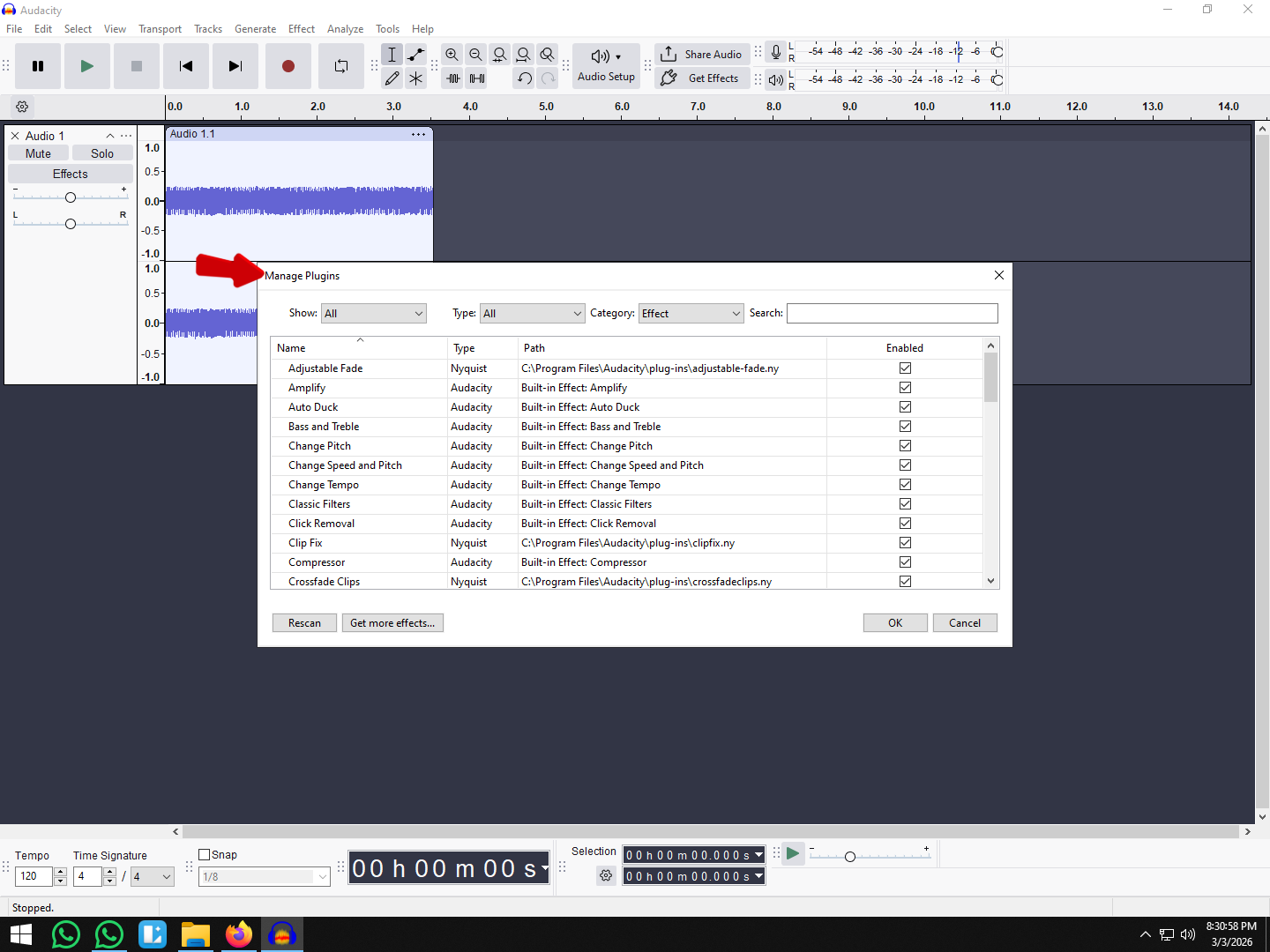
Go to Effect > Noise Removal and Repair > Noise Gate.
(Note: Older versions of Audacity may list this simply under “Effect > Noise Gate”.)

- Select Function: “Gate”
Ensure the Select Function dropdown is set to Gate.
- Warning: Do not select “Duck.” Ducking is used to lower background music when a voice speaks, which is the opposite of what you want here.
- Set the Threshold
This depends on your specific recording. Play a “silent” section of your audio and watch the playback meter.
- Rule of Thumb: If your room noise hovers around -45 dB, set your Threshold to -40 dB.

- Adjust Attack and Decay
If you aren’t sure what settings to use, start with these “safe” numbers to avoid choppy audio:
- Attack: 10ms (Fast enough to catch the start of words).
- Hold: 50ms (Keeps the gate open briefly after you stop speaking).
- Decay: 100ms (Slowly fades to silence).
- Level Reduction: -100 dB (Makes the silence completely silent).
- Preview and Apply
Click Preview. Listen to the beginnings and ends of your sentences. If the first letter of a word is missing, lower your Threshold. Once it sounds natural, click Apply.

Method 2: Using Real-Time Effects (Non-Destructive)
If you have Audacity 3.2 or later, this is the better workflow. Unlike the “Classic” method, Real-Time Effects are non-destructive.
Think of this like an Instagram filter: you can apply it, change the intensity, or remove it entirely without ever damaging the original file. This allows you to tweak your settings while the audio plays.
- Open the Effects Sidebar
Press the Effects button (usually on the left side of the track panel). - Add the Effect
Click the blue Add Effect button. Go to Audacity > Noise Gate. - Loop Your Audio
Highlight a section of your track that includes both silence and speech. Press Shift + Space to loop playback. - Adjust in Real-Time
Click “Noise Gate” in the sidebar to open the graph. Move the Threshold slider as the audio plays.
- Too Low: You still hear the hiss.
- Too High: Your voice cuts out.
- Just Right: The silence is dead quiet, but your voice sounds natural.
Once you are happy, just close the window. You don’t need to hit “Apply.”
Common Pitfalls: Why Your Audio Sounds “Choppy”
A poorly tuned noise gate is often more distracting than the background noise itself. Here is how to fix the three most common problems.
1. The Start of Words is Cut Off
The Symptom: You say “Hello,” but the recording plays back “…ello.”
The Fix: Lower the Attack Time. Set this between 1ms and 10ms. The gate needs to open faster the moment you start speaking.
2. The Ends of Words Sound “Robotic”
The Symptom: Your voice sounds dry, as if someone mutes the mic the exact millisecond you stop speaking.
The Fix: Increase the Decay Time. Move it to 150ms or 200ms. You want a gentle fade-out, not a hard stop.
3. The Gate Opens for Random Clicks
The Symptom: During the silent sections, you hear short bursts of static or breathing (“gate chatter”).
The Fix: Raise the Threshold. Your gate is too sensitive. Move the threshold up (e.g., from -45dB to -35dB) so that small sounds like mouse clicks aren’t loud enough to trigger the gate.
Pro Tip: Prevention is Better Than Cure
While the Noise Gate is a vital tool, it is ultimately a “repair” tool. It covers up imperfections, but it doesn’t fix the root cause. Relying too heavily on software processing can make your voice sound thin or processed.
The best way to manage background noise is to not record it in the first place.
If you find yourself constantly fighting with Threshold sliders, the issue might be your hardware. Professional wireless systems like the Hollyland LARK MAX 2 solve this problem at the source.

Hollyland LARK MAX 2 - Premium Wireless Microphone System
A premium wireless microphone for videographers, podcasters, and content creators to capture broadcast-quality sound.
Key Features: Wireless Audio Monitoring | 32-bit Float | Timecode
- Professional ENC (Environmental Noise Cancellation): Unlike software plugins, the LARK MAX 2 uses hardware algorithms to identify and suppress traffic or fan noise in real-time.
- 32-bit Float Recording: This captures a massive dynamic range, meaning your audio retains perfect detail whether you are whispering or shouting.
By upgrading your input source, you often remove the need for a Noise Gate entirely, saving you hours of editing time.
Frequently Asked Questions (FAQ)
What is the best threshold for a noise gate in Audacity?
There is no single “magic number,” but for most home studios, -30dB to -40dB is a good starting point. To find your number, watch your playback meter when you aren’t talking. If the room noise hits -45dB, set your Threshold to -40dB.
Should I use Noise Reduction or Noise Gate first?
Use Noise Reduction first. This “cleans” the profile of the audio and lowers the overall noise floor. This makes it easier for the Noise Gate to distinguish between your voice and the silence, resulting in a smoother edit.
Is the Audacity Noise Gate free?
Yes. It is a built-in plugin included with every download of Audacity. You can find it under Effect > Noise Removal and Repair.
Conclusion
Mastering the Noise Gate in Audacity is the fastest way to bridge the gap between amateur recordings and professional-grade audio. By silencing the “dead air” between your words, you remove the distractions that drive listeners away.
Remember, this is a precision tool. Take the time to tune your Threshold and Decay so the effect is invisible to the listener. And if you want to speed up your workflow even more, consider capturing cleaner audio at the source with gear like the Hollyland LARK MAX 2. Whether you fix it in post or fix it in prep, the goal is the same: crystal-clear audio that puts your message front and center.