.png)
 简体中文

A wireless lavalier mic that refuses to pair can stop a shoot before it starts. The good news is that most pairing failures come down to a short list of fixable causes, and you rarely need to contact support or replace anything. Try these three fixes below in order, and you will resolve the problem in most cases within a few minutes.

Why Your Wireless Lavalier Mic Won’t Pair
Before trying any fixes, first understand where the problem begins. Six common causes can keep your wireless lavalier system from pairing.

- Insufficient power or low battery on either the transmitter (TX) or receiver (RX), preventing the handshake from completing
- TX not actively in pairing mode — the unit is on, but it is not broadcasting a pairing signal
- Stale pairing memory locked to a previous RX unit, blocking a new connection
- RF interference on the 2.4GHz band from nearby Wi-Fi routers or other wireless devices
- Firmware version mismatch between TX and RX after one unit was updated independently
- Host-device input misconfiguration — the TX and RX are paired, but the camera or phone does not recognize the RX output
On the Hollyland LARK MAX 2, the TX LED gives you the first diagnostic cue. A blue flashing indicator indicates an unpaired or searching state, while a solid blue light confirms an active connection. If you see anything other than a solid LED after powering both units on, the system is not paired.
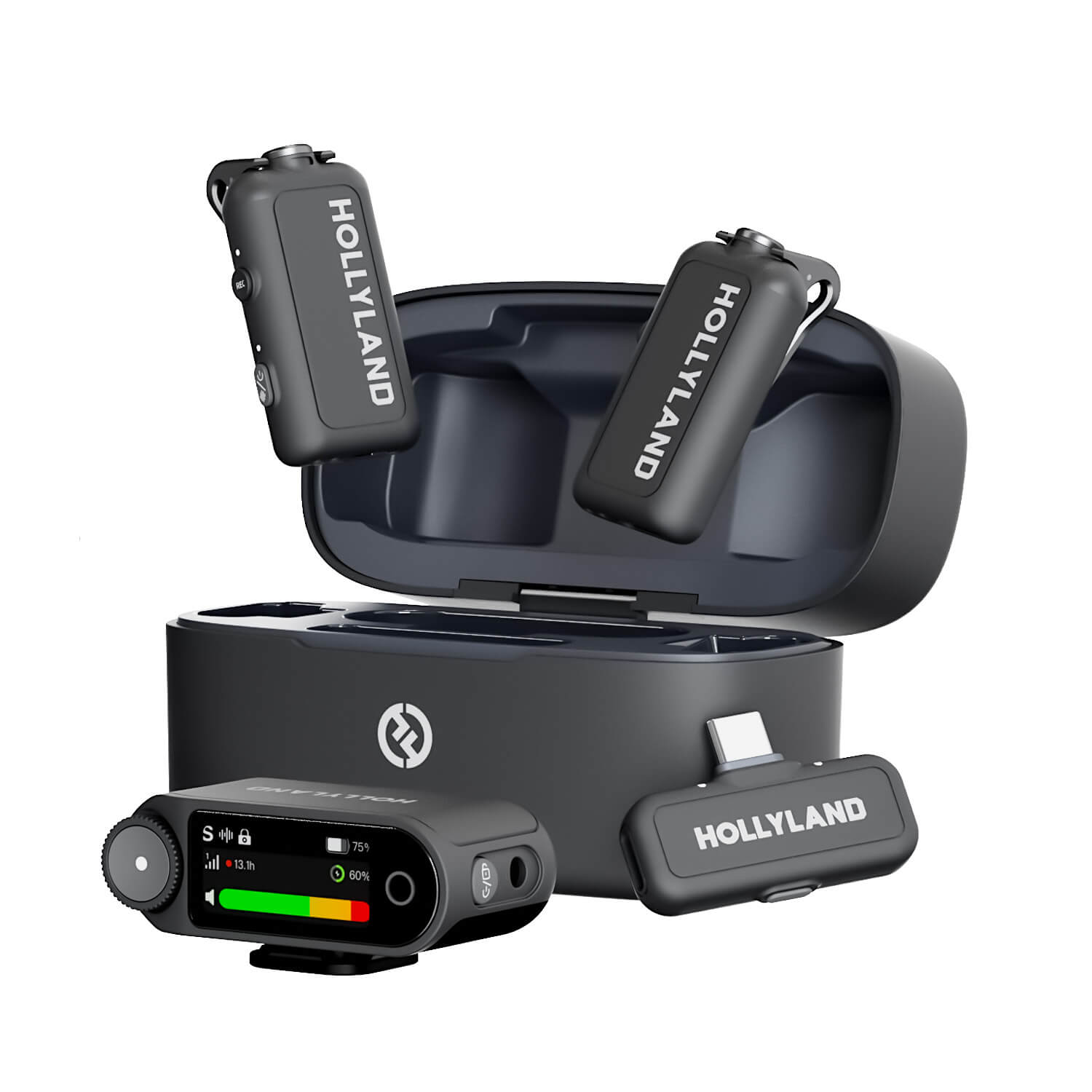
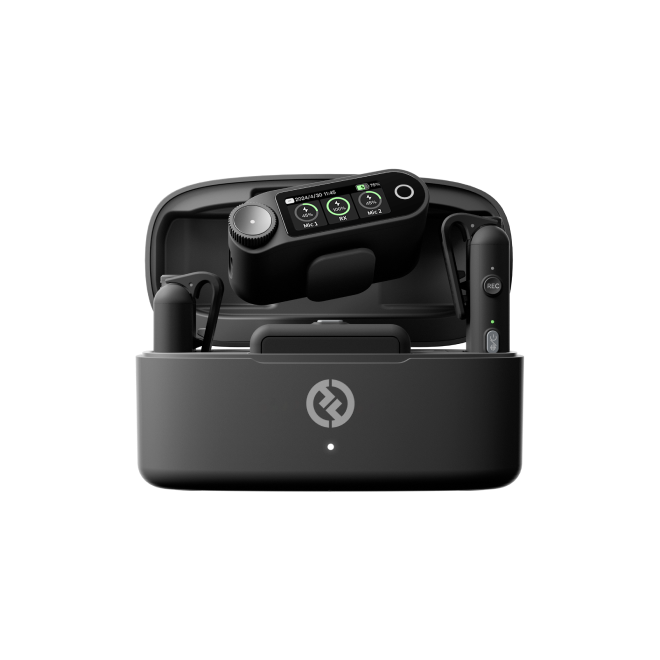
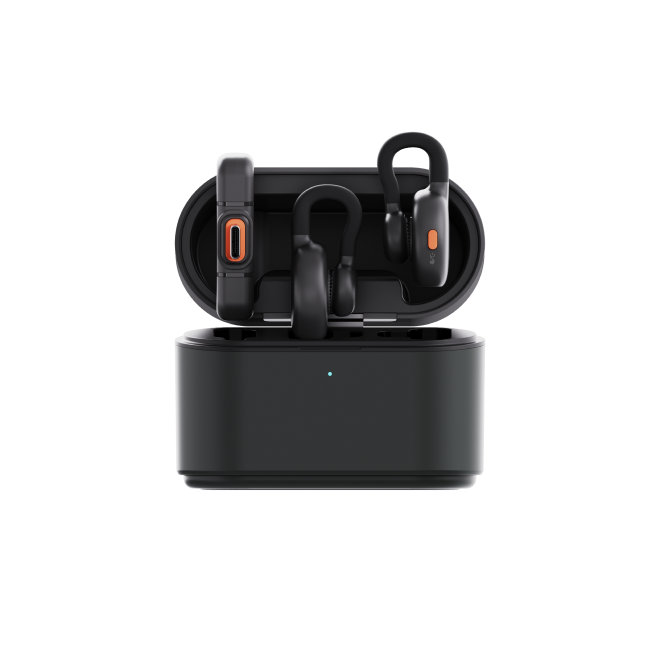
Hollyland LARK MAX 2 - Premium Wireless Microphone System
A premium wireless microphone for videographers, podcasters, and content creators to capture broadcast-quality sound.
Key Features: Wireless Audio Monitoring | 32-bit Float | Timecode
Quick Checklist Before You Start
Give this table a quick peek before fixing anything. Each check takes seconds, kicking out little problems causing the issue.
| Condition | What to Confirm |
|---|---|
| Both units are powered on | TX and RX LEDs are lit and solid |
| Battery is above minimum threshold | LED is not showing a low-battery warning color or pattern |
| Units are within 0.5–1 m of each other | Move TX and RX close together before attempting to pair |
| RX is not locked to a different TX | If previously used with another TX, a reset may be needed |
| Firmware is current on both units | Check via the HollyAudio app |
| Charging case is fully open and units fully removed | LARK M2 units must be completely out of the case to enter pairing state |
Note: On the LARK MAX 2, a TX or RX still docked in the charging case will display a charging LED color rather than the active idle blink. Do not attempt to pair until both units show the active idle LED state. For the LARK M2, the case indicator light should confirm the units are fully charged before removal.
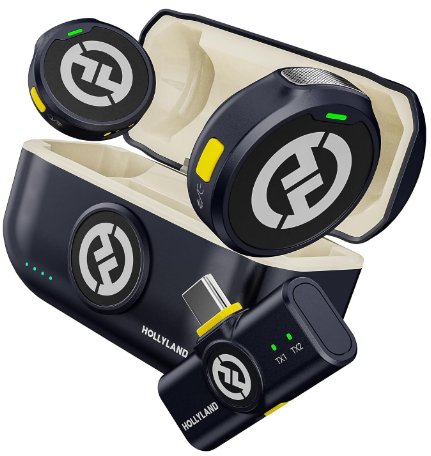
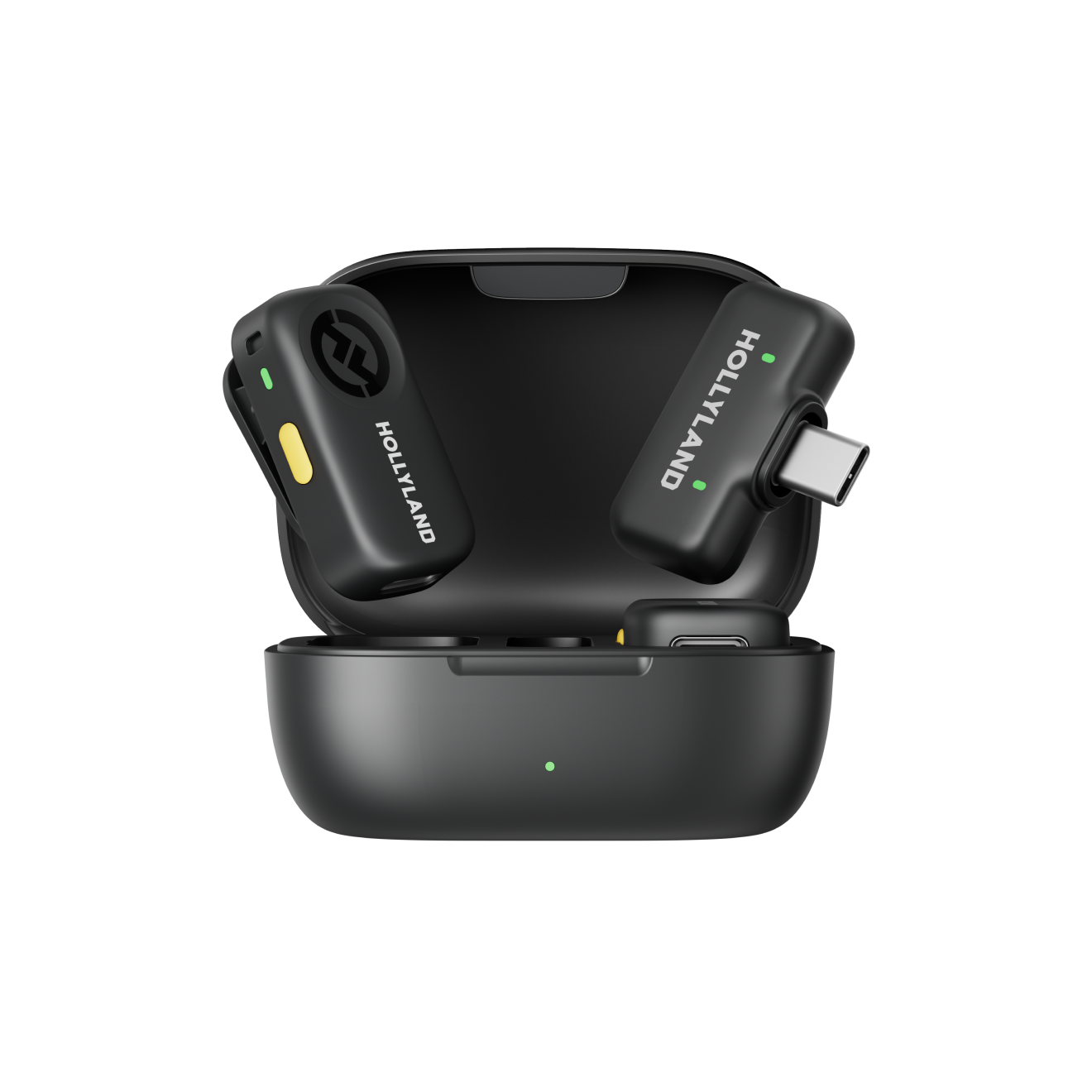
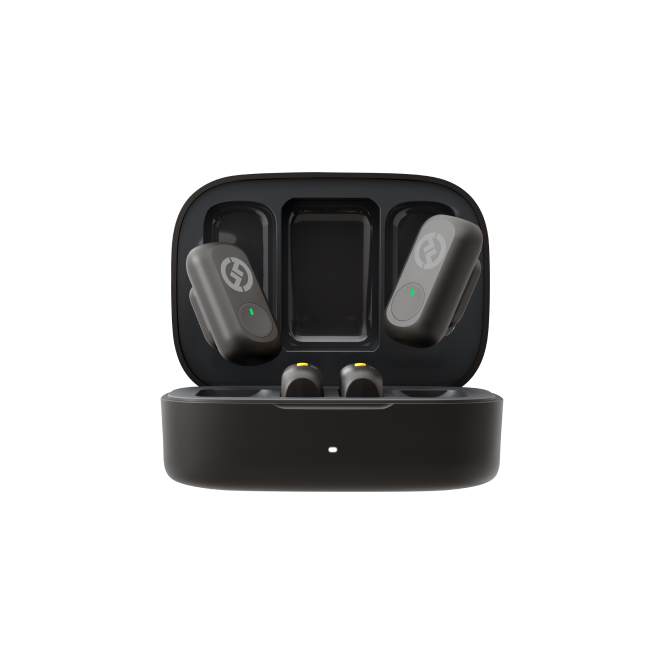
Hollyland LARK M2 - Mini Lavalier Microphone
An incredibly lightweight and compact wireless button microphone that captures high-fidelity audio.
Key Features: 9g Button Size | 48 kHz/24-bit | 40 Hours Battery
Fix 1: Charge Both Units Fully and Power Cycle Them
Low battery can quietly ruin your pairing attempts. Your TX or RX might power on with 10-15% charge. But that charge may not provide enough voltage stability. Without stable power, the pairing handshake may never finish. If the LED lights up, don’t celebrate just yet. Recharge everything properly before attempting the pairing process again.

- Power off both units completely. Do not just plug them in while running. A full power-off before charging ensures a clean boot state. To do that, press and hold the power/multifunction button on the LARK MAX 2’s TX for 3 seconds. And unplug the USB-C RX from the phone to turn it off.

- Place both units into their respective charging sources. On the LARK MAX 2, connect both TX and RX via their USB-C ports or dock them in the charging case. The LED will show a charging-in-progress pattern (typically a pulsing or cycling blink).

- Wait until the charge-complete LED state appears. On the LARK MAX 2, the LED shifts to a solid color or turns off to indicate a full charge. Do not pull units early.
Note: For Hollyland LARK M2, seat both TX units fully in the charging case and watch the case LED. The case indicator will change state when units reach full charge. Leave them until the case confirms completion.
- Remove units from the charger and power on fresh. On the LARK MAX 2, docking and re-removing from the charging case forces a clean power cycle. Power the RX on first, then the TX.
- Open the HollyAudio app and check the battery status screen for both TX and RX to confirm they are at or near 100% before attempting to pair.
- Attempt pairing. If the LED still does not reach a solid “connected” state, move to Fix 2.
Fix 2: Manually Put the Transmitter and Receiver into Pairing Mode
If the LARK MAX 2 transmitter is not connected to the USB-C phone receiver, follow this pairing sequence:
- Turn off the transmitter before starting. If it is currently on, hold the power/multifunction button for 3 seconds until it powers down.
- Keep the transmitter off and press its power/multifunction button for 6 seconds to enter pairing mode.
- Confirm that the LED indicator flashes blue. This means the TX is waiting to connect to the receiver (RX).
- Insert the LARK MAX 2 USB-C RX into your smartphone’s USB-C port to activate pairing mode on the RX.

- Hold the phone receiver’s pairing/noise cancellation button for 3 seconds to activate pairing.

- Once the devices connect, the LED indicators on both the TX and RX will show a solid blue light.


Fix 3: Verify Host Device Input Recognition
Before assuming the TX-RX pairing is broken, confirm which problem you actually have. If the LARK MAX 2 RX LED shows a solid “connected” state (steady blue light), the TX and RX are paired. What you are experiencing is a separate issue: the host device (camera or smartphone) is not recognizing the RX output.

- Check the 3.5mm output connection type for the camera. The LARK MAX 2 Camera RX connects to a DSLR/Camera via a 3.5mm jack. Cameras typically require a TRS cable..

- On a smartphone, confirm the OS has recognized the external mic input. Some phones require you to select the external microphone as the input source in a recording app.
- Check the RX gain. You don’t need to leave the LARK MAX 2 camera receiver (Camera RX) to adjust microphone gain. The required controls are available through its main settings menu.
- Start by pressing down the physical control knob/dial on the camera RX. This opens up the main options.

- Turn the dial to locate Mic Settings on the OLED touchscreen. Once visible, tap the option to proceed.

- Find and select Mic Gain to reveal both available configuration choices:
- Auto: Automatically adjusts microphone sensitivity and input levels dynamically in real time.
- Custom: Set individual gain intensity values manually for each transmitter connected to the receiver.
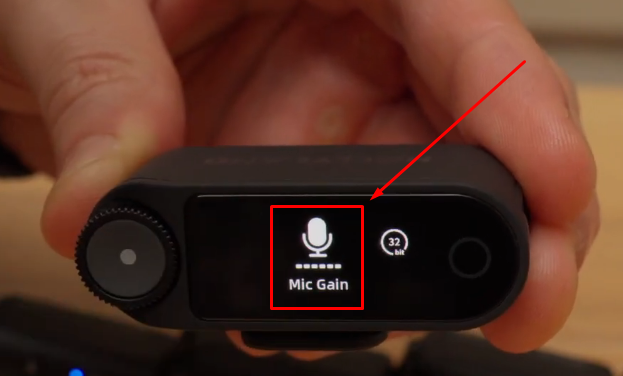

- Record a short test clip and review the waveform to confirm audio is passing through before continuing your session.
When All Fixes Fail: Hardware Faults and Support
If you have completed all three fixes and the system still will not pair, the cause is likely hardware-level rather than configuration. Signs to look for:

- TX LED never activates at all, regardless of battery or power state
- RX detects no TX signal after a full reset, re-pair attempt, and channel change on a clear frequency
- Visible corrosion, bent pins, or physical damage on the charging connectors
- Charging case contacts not making consistent contact with the unit’s charging pads
If the LARK MAX 2 TX is non-functional but was recording internally, note that its 32-bit float internal recording stores audio directly to the TX’s onboard storage. Your recorded audio may still be recoverable even if the RX cannot pair. Connect the TX directly through its USB-C port. Then access the stored audio files directly.
For warranty claims and defect reports on LARK MAX 2 and LARK M2 units, visit Hollyland’s official support page to initiate a service request.
FAQs
Why does my wireless lavalier mic pair but then immediately disconnect?
Intermittent disconnects after pairing usually point to one of three causes: the TX and RX moving out of reliable range, RF interference spiking after the initial handshake, or a battery dropping below the threshold needed to maintain the connection during use. Keep units within the rated operating range, avoid dense Wi-Fi environments, and ensure both units are fully charged before recording.
How do I know if my wireless lav mic is in pairing mode vs. just powered on?
Check the LED to identify the transmitter’s current status. When powered on but disconnected, the blue LED flashes slowly. To start pairing, first switch off the transmitter completely. Then hold its power button for 6 seconds. Release it when the blue LED starts flashing rapidly. After pairing, the LED turns solid blue. It turns solid green when noise cancellation is active. Check your LARK MAX 2 Quick Guide for additional LED colors and blinking patterns.
Can I pair two transmitters to one receiver at the same time?
Most basic wireless receivers connect with only one transmitter. Setups with multiple microphones need receivers supporting several connections. For example, the LARK MAX 2 and LARK M3 support four transmitters. A single receiver can connect with all four simultaneously. The LARK M3 also supports four receivers alongside four transmitters. Its 2.4 GHz adaptive frequency hopping technology prevents conflicts between wireless channels. Also, the HollyAudio app manages device connections and audio settings.
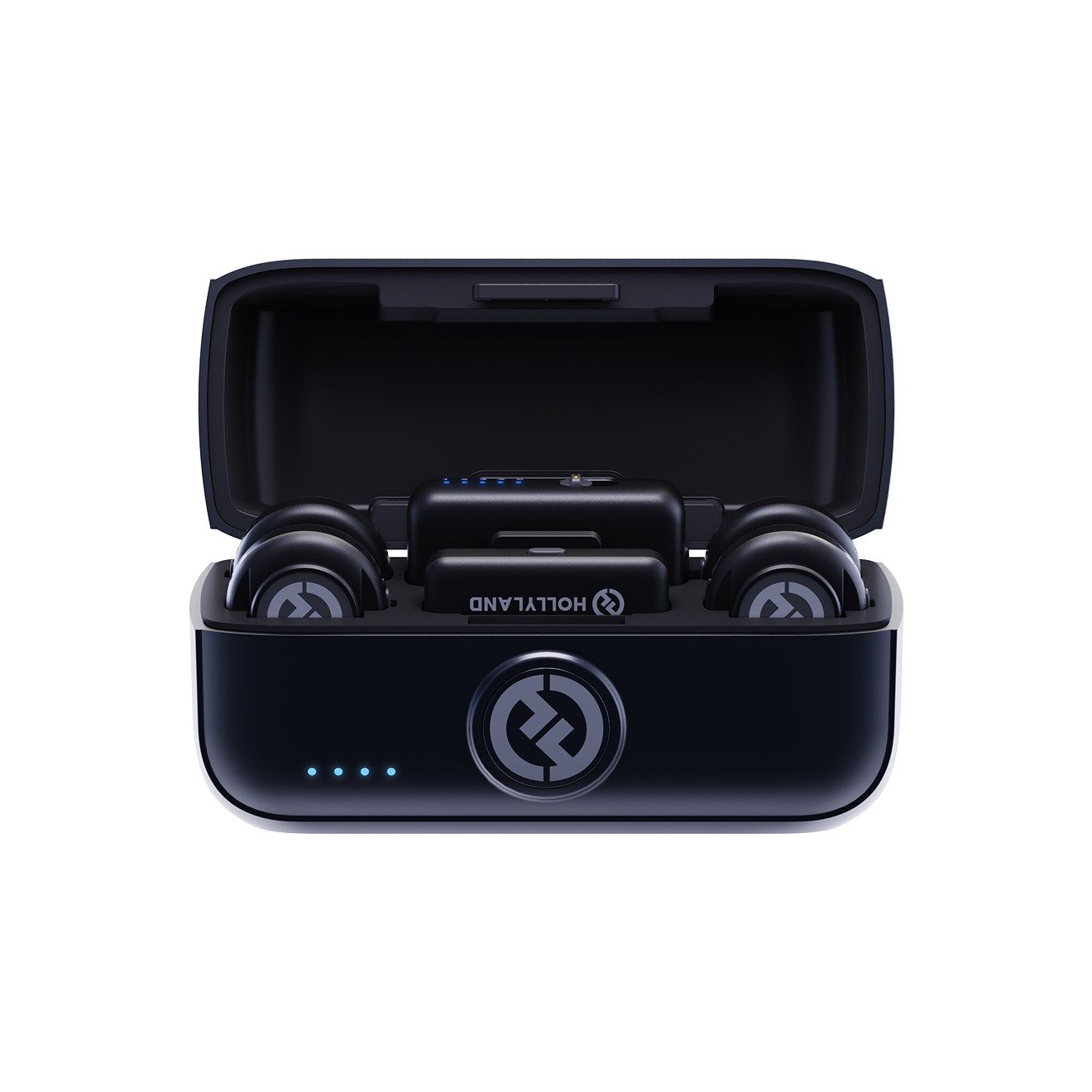
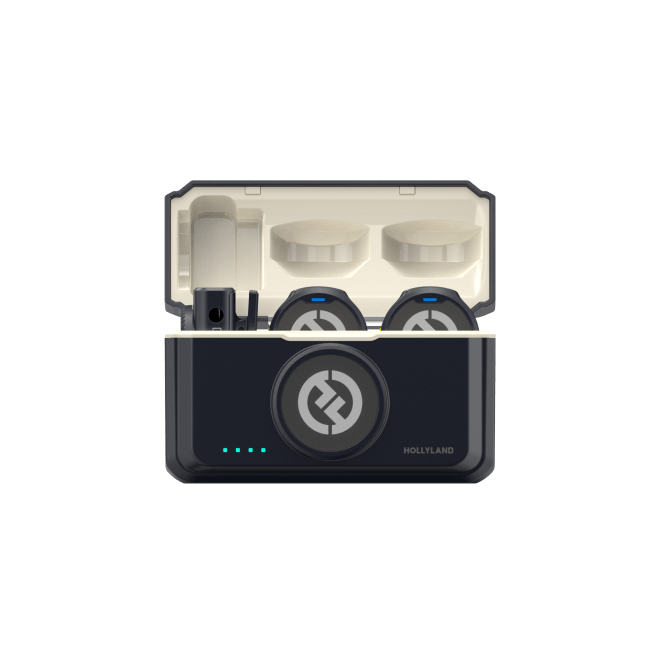
Hollyland LARK M3 - 32-Bit Float Mini Microphone
An ultra-compact 9g wireless microphone system featuring 32-bit float recording and 4-channel scalability for professional, zero-distortion sound.
Key Features: 32-Bit Float Recording | Up to 4 TX & 4 RX | 300m Range
Does a factory reset delete any saved recordings?
On the LARK MAX 2, a factory reset clears pairing memory and device settings but does not erase audio files stored in the TX’s internal 32-bit float recording storage. Your recordings remain accessible via USB-C after the reset. Always confirm this with the current firmware release notes, as behavior can vary across versions.
Conclusion
Lots of users face pairing problems with their wireless mics. But if you look closely, you will find that the main causes are usually related to the wireless connection. Therefore, checking battery levels, LED signals, and transmitter compatibility helps identify common causes. These steps can save time before considering more complicated problems. The Hollyland LARK MAX 2 also provides clear status indicators during pairing. By checking each possible reason carefully, you can restore connections and get back to recording without unnecessary frustration.