.png)
 简体中文
简体中文 
Whether you are a podcaster trying to squeeze a segment into a specific time slot or a musician layering a backing track, knowing how to change BPM and tempo in Audacity is an essential skill.
But there is a catch. If you click the wrong button, your deep, professional voiceover might suddenly sound like a squeaky chipmunk.
In this guide, we will break down the critical difference between changing Tempo (speed without pitch shift) and changing Speed (the vinyl effect), so you can manipulate time without ruining your audio quality.
Tempo vs. Speed in Audacity: What’s the Difference?
Before you hit edit, you need to understand the difference between Tempo and Speed. While we use these words interchangeably in conversation, Audacity treats them as two totally different tools. Choosing the wrong one is the main reason users end up with audio that sounds robotic or distorted.
Here is the breakdown:
- Change Tempo: This changes the duration (BPM) of the audio without affecting the pitch. Audacity uses algorithms to slice the audio and reassemble it closer together (faster) or further apart (slower). Use this to shorten a podcast intro or match a song’s beat to a video without changing the musical key.
- Change Speed: This links pitch and time together, acting like a vinyl record or cassette tape. If you speed it up, the pitch gets higher. If you slow it down, the pitch drops. This is a cleaner edit with fewer digital artifacts, but it will change how voices and instruments sound.
Quick Comparison: Which Effect Do You Need?
Use this table to decide which tool fits your project:
| Effect Name | Pitch Outcome | Best Use Case |
|---|---|---|
| Change Tempo | Unchanged. The Key remains the same. | • Syncing a song to a specific BPM.• Shortening a voiceover to fit a time limit.• Speeding up a podcast for faster listening. |
| Change Speed | Altered. Pitch rises (faster) or falls (slower). | • Creating “Chipmunk” or “Demon” voice effects.• Simulating a “Tape Stop” or vinyl spin-up.• Fixing a recording made at the wrong sample rate. |
Method 1: How to Change BPM Without Changing Pitch (The Standard Way)
For most users, this is the tool you want. Whether you are shortening a podcast intro or speeding up a dragging voiceover, the Change Tempo effect alters the speed while keeping the pitch (the “key”) locked.
This ensures your narrator doesn’t sound like a cartoon character, and your vocalist doesn’t sound like a slowed-down robot.
Step-by-Step: Using the Change Tempo Effect
- Select your audio: Highlight the section you want to change, or press Ctrl + A (Mac: Cmd + A) to select the entire track.

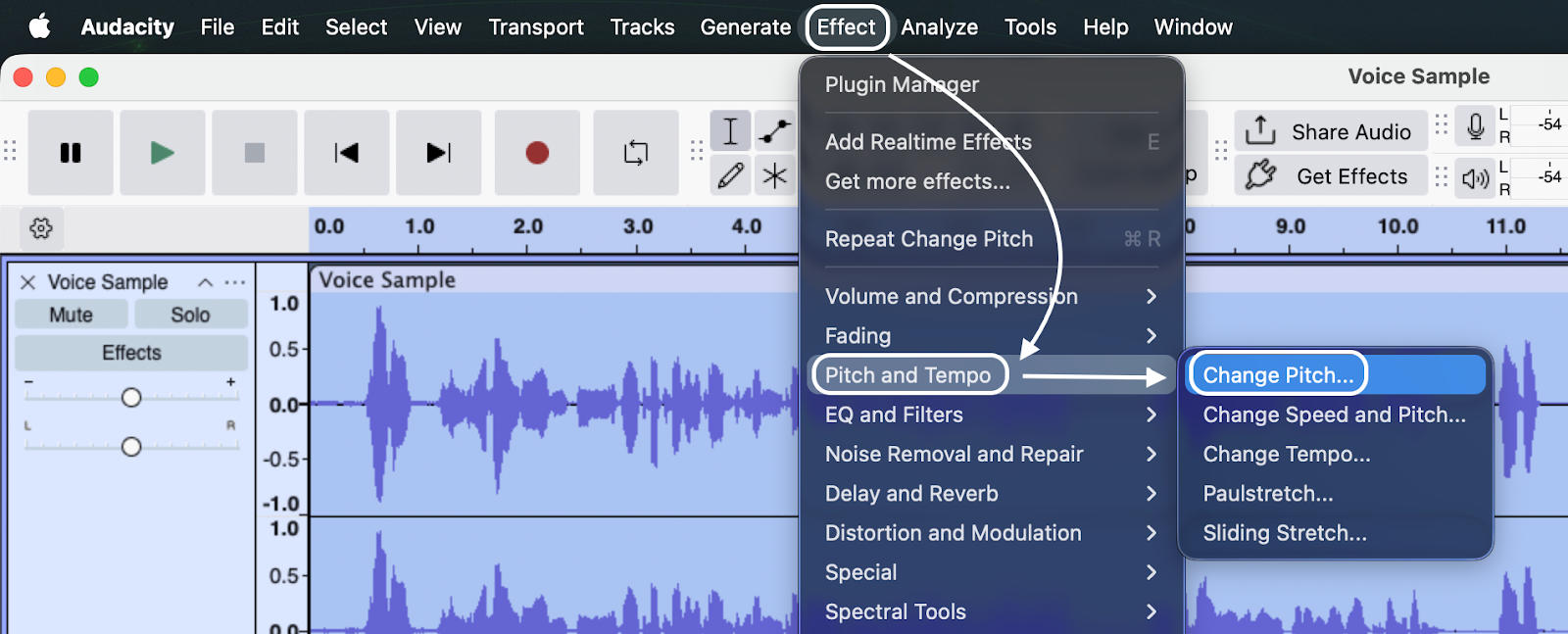
- Open the Effect: Go to the top menu and select Effect > Pitch and Tempo > Change Tempo.

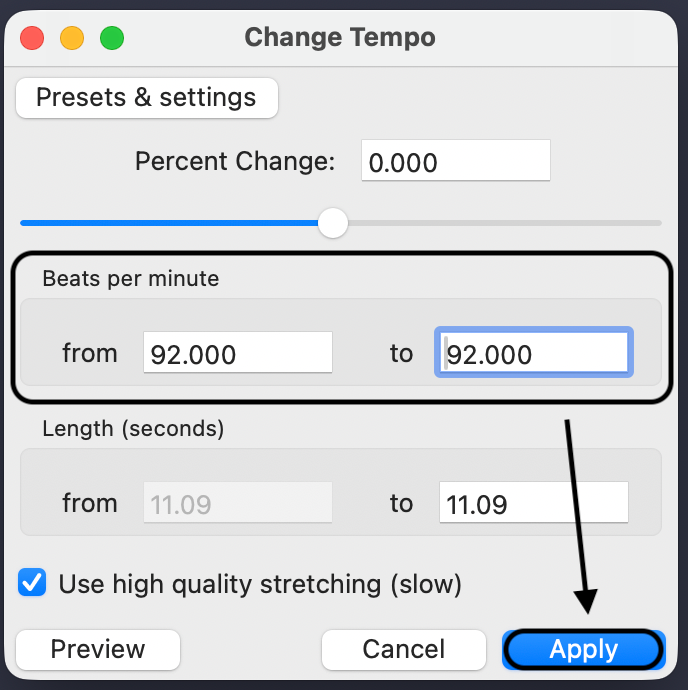
- Input your settings: You have three ways to tell Audacity how to change the speed:
- By BPM: If you know the exact tempo (e.g., slowing from 120 BPM to 110 BPM), enter the numbers in the “from” and “to” boxes.
- By Percentage: This is best for voiceovers. Move the slider or type a number. Entering -10% makes it slower; 10% makes it faster.
- By Target Length: If you need a 35-second ad to fit a 30-second slot, type 30.00 into the “Length (seconds)” box.

Pro Tip: What if I don’t know the original BPM?
Most voice recordings don’t have BPM metadata. If the “From” BPM box is empty or looks wrong, do not guess.
Instead, ignore the BPM fields and use the Percent Change slider. If you absolutely need to know the BPM of a music track, run Analyze > Rhythm and Meter > Beat Finder first. This places labels on the beats, helping you calculate the tempo manually.
Method 2: How to Change Speed and Pitch Together
While “Change Tempo” keeps your audio in key, sometimes you want the pitch to change. This is known as the Varispeed effect. Think of a vinyl record spinning faster: the song speeds up, and the voices get higher.
This method is perfect for creative sound design, like “Chipmunk” voices (speeding up) or “Darth Vader” slow-motion effects (slowing down). It often sounds cleaner than time-stretching because the software isn’t breaking the waveform apart—it’s just playing it at a different rate.
Step-by-Step: Using the Change Speed Effect
- Select Your Audio: Highlight the track or section you want to alter.


- Adjust the Parameters: Choose how to input your changes:
- Speed Multiplier: 2.0 makes the audio twice as fast (one octave higher). 0.5 makes it half as fast (one octave lower).
- Percent Change: Drag the slider right to speed up or left to slow down.
- Standard Vinyl RPM: If you digitized a vinyl record at the wrong speed (e.g., recorded a 33 RPM record at 45 RPM), select the values here to instantly fix it.
- Preview and Apply: Click Preview to hear the pitch shift. If you like it, click Apply.

Best Use Cases for “Change Speed”
Use this method primarily for:
- Sound Effects (SFX): Laser sounds, engine noises, or creature vocals.
- Tape Stops: Simulating a cassette player losing power.
- Fitting Voiceovers: If a disclaimer is 32 seconds and needs to be 30, a tiny “Change Speed” adjustment (1-3%) is often less noticeable than “Change Tempo,” provided the slight pitch increase doesn’t make the speaker sound unnatural.
Method 3: Using Time Tracks for Variable Tempo Changes
The previous methods apply a single, fixed speed change to the whole clip. But if you want the audio to gradually speed up (accelerate) or slow down (decelerate), you need a Time Track.
This helps create dynamic effects, like a “tape stop” (slowing to a halt) or a dramatic build-up in a podcast intro.
Why Use Time Tracks?
Time Tracks are non-destructive. When you use the “Change Tempo” effect, Audacity physically alters the file. A Time Track sits above your audio like an adjustment layer.
- Reversible: You can delete the Time Track later, and your audio returns to normal.
- Editable: You can tweak the speed curves endlessly without ruining the audio quality.
How to Create a Speed Ramp

- Add the Time Track: Go to Tracks > Add New > Time Track. A new track with a percentage ruler will appear at the bottom.

- Adjust the Range (Important): By default, the Time Track only changes speed between 90% and 110%. For bigger effects:


- Select the Envelope Tool: Click the Envelope Tool icon in the toolbar (two dots connected by a line) or press F2.
- Draw Your Curve:


Note: The Time Track affects all audio tracks in the project. If you only want to change one track, you must mute the others or export that track solo first.
Pro Tips for Clean Audio Editing (Avoiding Artifacts)
One of the biggest frustrations with changing tempo is the “robotic” or “metallic” sound that often follows. This happens because time-stretching is destructive—the software chops up your audio and tries to glue it back together.
To keep your audio sounding natural, follow these two rules.
1. The 20% Rule: Don’t Stretch Too Far
Audacity’s algorithms are powerful, but they aren’t magic. Try to avoid changing the tempo by more than 20% to 30% in either direction.
- Slowing Down (> -20%): If you go too slow, Audacity has to “invent” audio data to fill the gaps, resulting in a stuttering, hollow sound.
- Speeding Up (> +30%): If you go too fast, too many samples are deleted, making the audio choppy.
If you need a 50% change, try doing it in two smaller passes rather than one giant leap.
2. Source Quality Matters (“Garbage In, Garbage Out”)
The format of your original file dictates how well it handles editing. Slowing down a low-quality MP3 is a recipe for disaster because the file is already compressed. When you stretch it, you are just magnifying the missing data.
For professional results, start with high-fidelity source audio.
Pro Tip: Use 32-bit Float Recording
If you plan on heavily editing or time-stretching your voiceovers, your recording gear is just as important as the software.
Using a microphone system like the Hollyland LARK MAX 2 gives you a massive advantage because it supports 32-bit Float recording. Unlike standard 16-bit audio, 32-bit Float captures a huge amount of data headroom.

Hollyland LARK MAX 2 - Premium Wireless Microphone System
A premium wireless microphone for videographers, podcasters, and content creators to capture broadcast-quality sound.
Key Features: Wireless Audio Monitoring | 32-bit Float | Timecode
Think of it like editing a RAW photo versus a JPEG. Because the LARK MAX 2 captures significantly more data points per second, Audacity has more “material” to work with when you stretch the tempo. This allows you to slow down your commentary in post-production with far fewer digital artifacts and zero robotic distortion.
Troubleshooting Common BPM Issues
If your results don’t sound right, you are likely hitting one of these common pitfalls.
Why Does My Audio Sound Metallic?
If your voiceover sounds robotic or has a strange echo, you are hearing digital artifacts.
When you use Change Tempo, Audacity chops the audio into micro-segments and overlaps them.
- The Cause: You likely stretched the audio too far (more than 20-30%).
- The Fix: Apply the change in two smaller passes (e.g., two passes of -10% instead of one pass of -20%). Or, if pitch doesn’t matter, use Change Speed instead, as it is cleaner.
The Length Didn’t Change Enough
You calculated a percentage, but the final file isn’t the exact length you needed. This happens because BPM calculations can include decimals that Audacity might round off.
- The Fix: Don’t rely on the “Percent Change” slider. Instead, inside the Change Tempo box, look at the “Length (seconds)” section. Manually type your desired duration into the “To” box. Audacity will calculate the exact BPM change required to hit that target.
My Tracks Are Out of Sync
A common disaster for podcasters is changing the tempo of a guest’s voice, only to find it no longer aligns with the host.
- The Cause: You only highlighted one track.
- The Fix: Always edit globally. Press Ctrl + A to select all tracks before applying Change Tempo. This keeps the conversation aligned, even if the overall pace changes.
Frequently Asked Questions (FAQ)
How do I find the BPM of a song in Audacity?
Audacity has a Beat Finder tool (Analyze > Rhythm and Meter > Beat Finder), but it can be hit-or-miss. A faster, more accurate method is to listen to your track and use a free “Tap Tempo” website to tap along to the beat. Once you have that number, you can enter it into Audacity.
Can I change the BPM of just one section of a song?
Yes. Use the Selection Tool to highlight only the verse or phrase you want to change, then apply the effect. Just remember: if you slow a section down, it gets longer, pushing the rest of the audio forward. If you speed it up, it gets shorter, creating a gap of silence.
Does changing tempo affect audio quality?
Yes. Changing tempo without changing pitch forces the software to delete or invent audio data. Minor adjustments (±10%) are usually unnoticeable, but aggressive changes will make the audio sound “warbly.” Always listen to the preview before applying.
Conclusion
Controlling the flow of your audio gives you power over the energy of your project. Whether you are syncing a voiceover to a video intro or creating a “tape stop” effect for a music mix, knowing which tool to use is half the battle.
Remember the golden rule:
- Use Change Tempo to keep the original pitch (podcasts, music covers).
- Use Change Speed for the vinyl effect (sound design, SFX).
Don’t stop at static changes. Experiment with Time Tracks to create dynamic speed ramps that evolve over time. Audio editing is as much about creativity as it is about technical skill—so load up your tracks and start shaping your sound.