.png)
 简体中文
简体中文 
Watching TikTok Live on your phone is simple. But what if you are sitting at your desk and want a bigger screen? The good news is you can join a TikTok Live on your PC without much trouble. The desktop experience is just a bit different from mobile. This guide shows you two easy ways to do it. You can use your browser or the desktop app. Both options let you start watching live streams on your computer in just a few minutes.

Can You Watch TikTok Live on a PC?
Yes, you can watch TikTok Live on a PC using either a web browser or the TikTok for Windows desktop app. Once you know where to look, though, joining a live stream works smoothly and gives you all the basic viewing and interaction features.
What You Need Before You Start
Before jumping in, make sure you have the following:
- A modern web browser (Chrome, Firefox, Edge, or Safari) or a Windows PC capable of running the TikTok desktop app
- A TikTok account — you must be logged in to access live streams; guest or logged-out users are typically blocked from viewing Live content
- A stable internet connection to avoid buffering or stream interruptions
- The TikTok for Windows app (optional) — available for free on the Microsoft Store if you prefer the native app experience
How to Join a TikTok Live on PC Using a Web Browser?
Using a browser is the fastest way to watch TikTok Live on a PC — no downloads required. Here’s exactly how to do it.
Step-by-Step Instructions
- Open your web browser and go to tiktok.com.
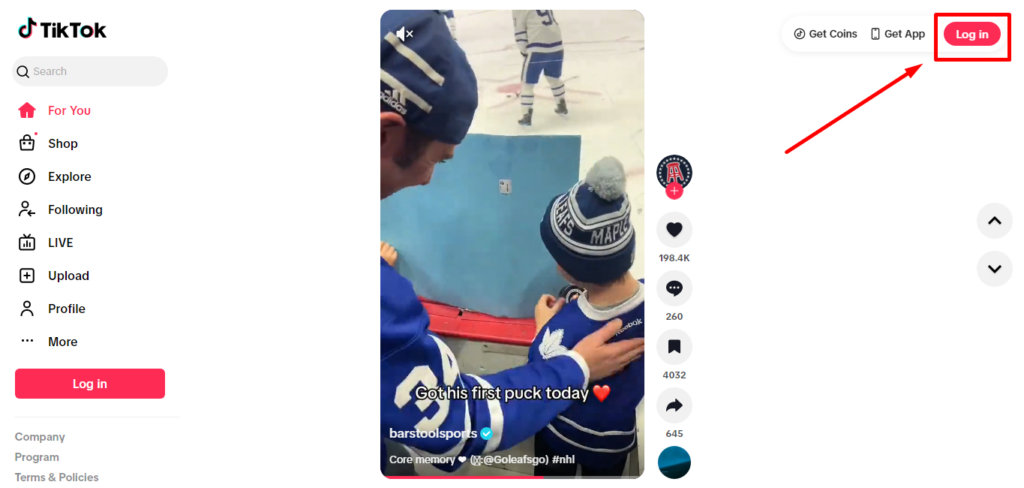
- Log in to your TikTok account. If you don’t have one, create a free account before continuing.
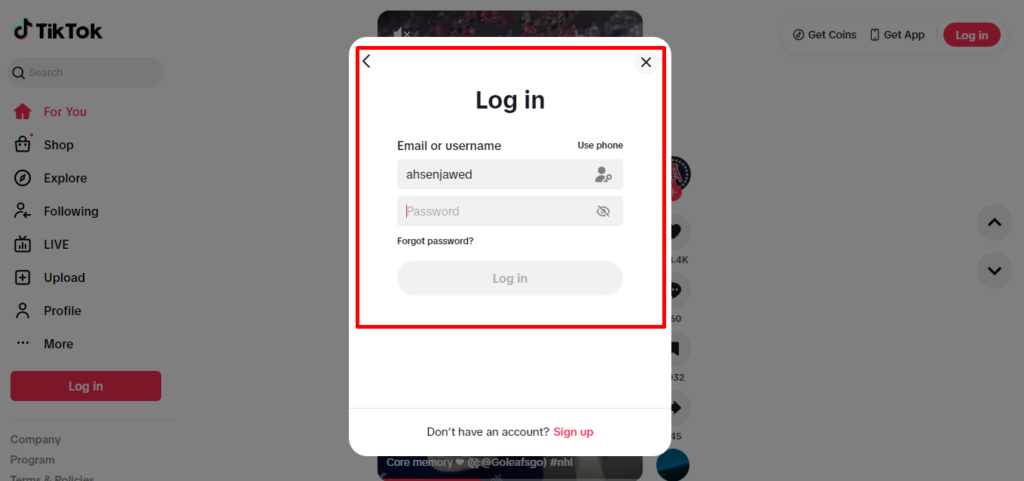
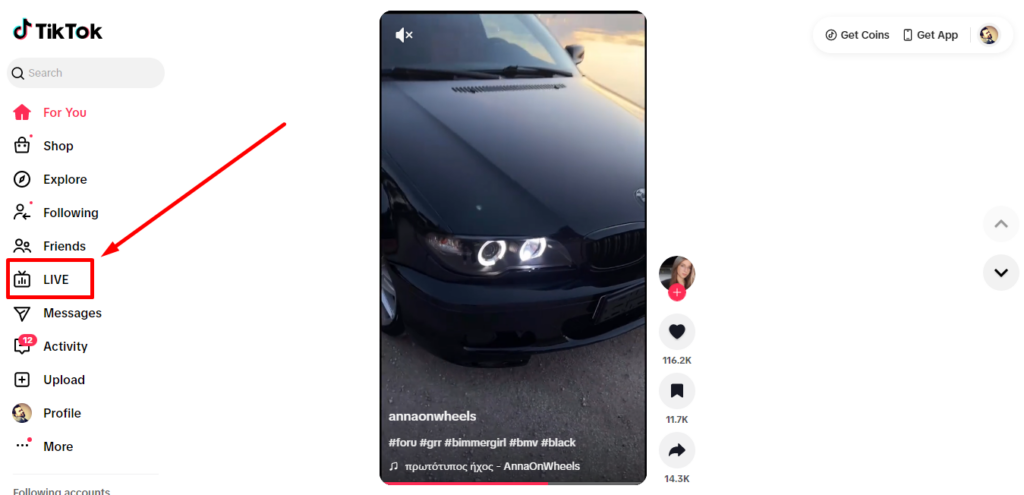
- Once logged in, you’ll land on the For You page, which displays a feed of videos and, occasionally, active live streams.
- Scroll through the feed and look for thumbnails marked with a red “LIVE” badge in the top-left corner — these are currently active streams. Or, click on the “LIVE” option in the left-side menu to view all the live streams.
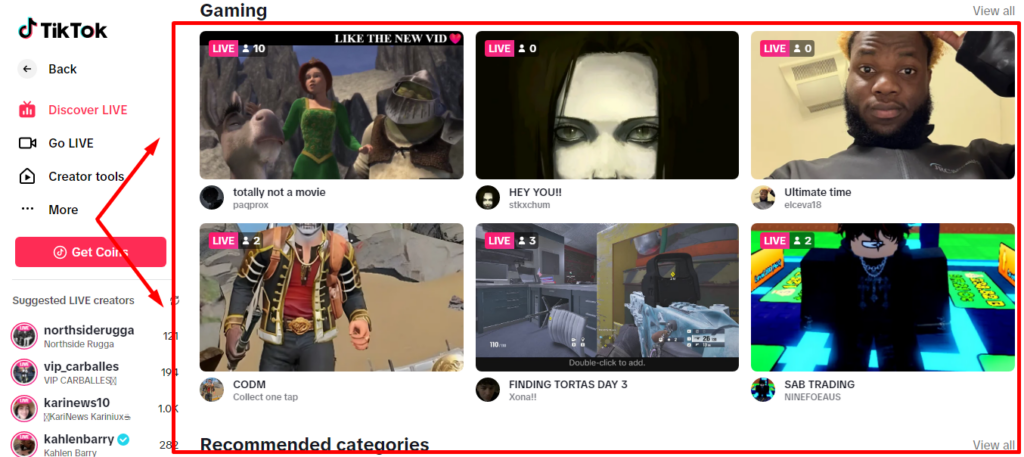
- Click any LIVE-badged thumbnail to enter the live stream.
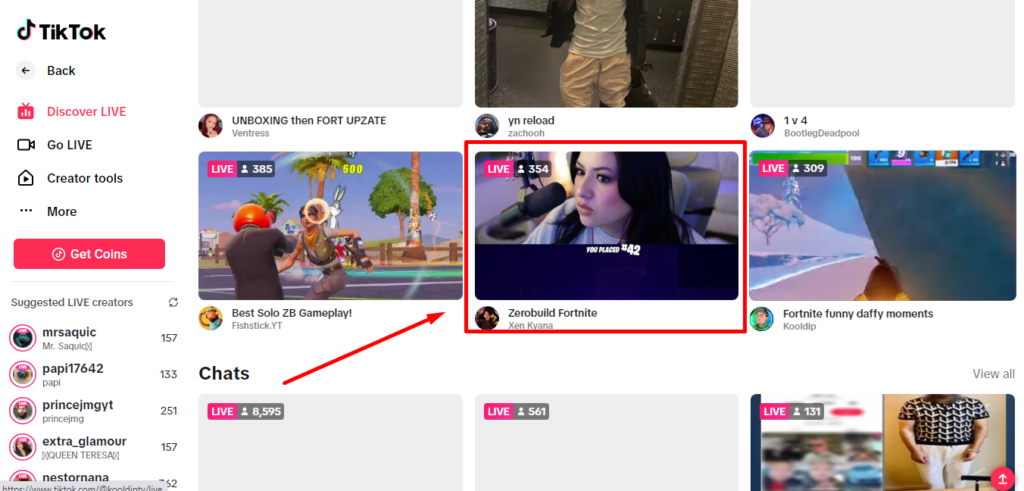

- Once inside, you can type a comment in the comment box at the bottom of the stream or tap the gift icon to send virtual gifts, just as you would on mobile.
How to Find Live Streams on TikTok Web?
The biggest hurdle on desktop is that TikTok’s website has no dedicated Live tab. Live streams appear inline within your For You feed when the algorithm surfaces them — but that’s not always reliable if you’re looking for something specific.
The most direct approach is to search for a creator you know is live. Type their username into the search bar, navigate to their profile, and if they’re currently streaming, their profile will show an active live session that you can click directly to join. Following creators you watch regularly also increases the chance their live streams appear in your feed.
Pro Tip: If you follow a creator who goes live frequently, check their profile at their usual stream time rather than waiting for the algorithm to surface it in your feed.
How to Join a TikTok Live on PC Using the TikTok Desktop App
The TikTok for Windows app offers a more consistent experience than the browser, with navigation that’s closer to what you’d find on mobile — including better visibility of live content.
Download and Set Up TikTok for Windows
- Open the Microsoft Store on your Windows PC (search “Microsoft Store” in the Start menu if needed).
- In the Store’s search bar, type “TikTok” and select the official TikTok app from the results.
- Click Get or Install and wait for the download to complete.
- Once installed, open the app and log in with your existing TikTok account credentials. The same account you use on mobile works here.
Finding and Joining a Live in the Desktop App
- After logging in, look for the LIVE tab in the left-hand navigation panel.
- Click the LIVE tab to browse a feed of currently active streams sorted for you.
- Click any stream thumbnail to enter it.
- To join a specific creator’s live, use the Search icon, type their username, go to their profile, and click the active live session shown at the top of their page.
- Inside the stream, use the comment bar and gift button to interact — functionality is the same as mobile.
Troubleshooting Common Issues
If something’s not working as expected, here are the most common problems and quick fixes:
- Live stream won’t load or keeps buffering → Check your internet connection and refresh the page or restart the app. Closing other bandwidth-heavy tabs or apps can also help.
- Can’t find any live streams in the feed → Live content availability varies by region and time of day. Try searching for a specific creator’s profile directly rather than relying on the feed.
- Getting blocked or redirected to log in → TikTok requires an active login to view Live content. Make sure you’re signed in before trying to access any stream.
- No audio on the stream → Check both your browser or app volume and your system volume. Also, look for a mute icon within the stream player itself and click it to unmute.
FAQs
Q: Do I need a TikTok account to watch a TikTok Live on PC?
Yes, TikTok requires you to be logged in to view live streams, whether you’re using a web browser or the desktop app. Logged-out users are typically blocked from accessing Live content entirely. Creating a TikTok account is free and only takes a few minutes if you don’t already have one.
Q: Can I comment or send gifts during a TikTok Live on PC?
Yes. When you’re logged in(via browser or the desktop app), you can type comments and send virtual gifts just as you would on the mobile app. The comment box and gift button appear directly within the live stream view, and your interactions are visible to the streamer and other viewers in real time.
Q: Can I go live on TikTok from my PC?
Going live on TikTok from a PC requires a different app called TikTok LIVE Studio with distinct eligibility requirements. It typically requires third-party streaming software such as OBS connected via RTMP. That process involves account eligibility thresholds and setup steps well beyond watching a live stream, and it’s covered separately in a dedicated going-live guide.
Q: Is TikTok for Windows the same as the mobile app?
It’s similar but not identical. The desktop app offers a closer-to-mobile experience than the browser version, including a LIVE tab for easier discovery, but some features may differ slightly or appear in different locations. For most viewers, the core functionality of watching, commenting, and sending gifts works the same way.
Conclusion
Both methods work reliably: the browser is the fastest option with zero setup required, while the TikTok for Windows app gives you a smoother, more consistent experience. If you just want to jump into a stream right now, open tiktok.com, log in, and search for a creator you know is live. For a better long-term setup, the desktop app is worth the quick install.