




























.png)
 简体中文
简体中文 
Joining someone’s TikTok Live as a guest is one of the fastest ways to collaborate, grow your audience, and show up on streams even if you can’t host your own live yet. The process is simple once you know where to look. But the buttons aren’t obvious, and the two different methods (requesting yourself vs. receiving a host invite) trip up a lot of creators. And this guide clears that confusion. So let’s get started!
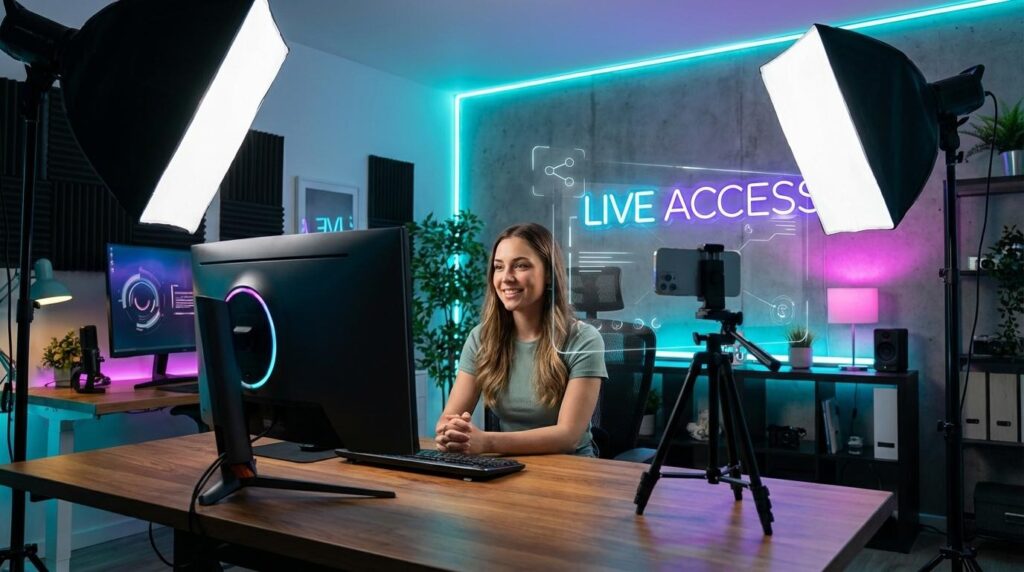
What “Going Live as a Guest” on TikTok Actually Means?
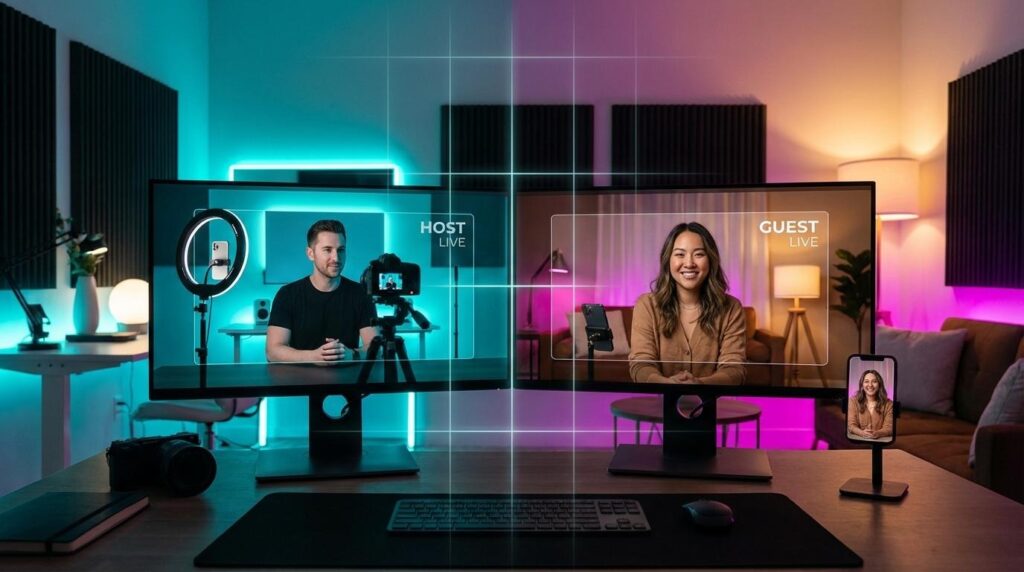
TikTok’s Multi-Guest feature lets a viewer or collaborator join an existing live stream via their own camera and microphone. It is not the same as starting your own independent live. So basically, you are joining someone else’s stream, not broadcasting your own. You appear alongside the host in a split-screen or grid layout, visible to everyone watching.
Requirements to Join a TikTok Live as a Guest
Before the guest feature becomes available to you, your account needs to check a few boxes:
- Age: You must be at least 16 years old. Users must be 18+ to send or receive gifts during a live session.
- Account standing: Your account must have no active violations or recent policy strikes.
- App version: You need the latest version of the TikTok app installed on your device. Outdated versions frequently hide or break the guest feature.
- Follower count: Guests generally face no minimum follower requirement — that threshold (typically 1,000 followers) applies only to hosting your own live, not appearing as a guest.
- Device: The guest live feature is only available on the TikTok mobile app (iOS or Android).
Meeting all of these is the fastest way to rule out eligibility as the reason the feature isn’t showing up for you.
Method 1 — How to Request to Join a TikTok Live as a Guest? (Viewer-Initiated)
This is the most common scenario: you’re watching a live stream and want to jump in yourself, without waiting for the host to reach out first.
Step-by-Step Instructions
- Open TikTok and navigate to the host’s live stream.
- Tap the “request” icon in the bottom toolbar — it looks like a two-person symbol
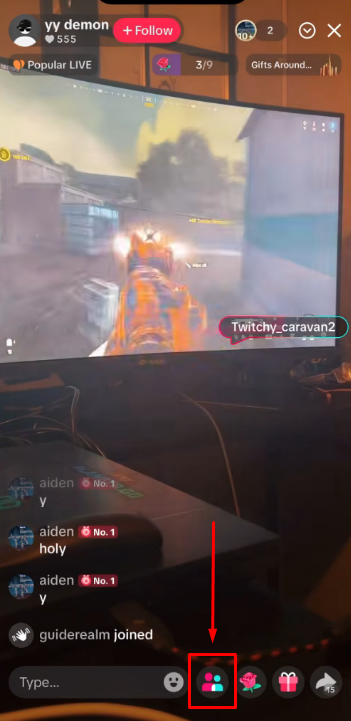
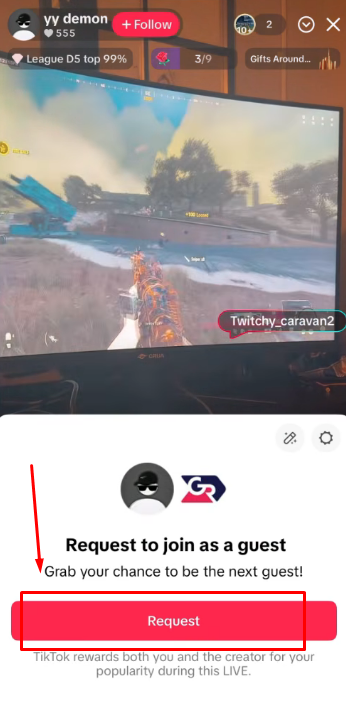
- Confirm your request. The host receives an in-app notification that you want to join.
- Wait for approval. Once the host accepts, your device’s camera and microphone activate automatically, and you appear on the stream.
- Tap “End” when you’re ready to leave the guest session.
Note: If the request icon isn’t visible in the toolbar, the host has likely disabled guest requests for that session, or the live has already reached its maximum number of guests. There’s nothing wrong with your account — it’s a host-side setting.
Method 2 — How to Join When a Host Invites You Directly?
Planned collaborations usually run through the host-initiated invite flow. If someone has told you, “I’ll add you when I go live,” this is the method you’ll follow.
Step-by-Step Instructions
- Enable TikTok notifications on your phone before the live starts so the invite doesn’t slip by unnoticed.
- The host goes live and selects your username from their viewer list or follower list inside the live controls.
- You receive an in-app invite notification — it appears as a pop-up prompt while TikTok is open.
- Tap “Accept” within the time window. Your camera and microphone go live immediately.
- Tap “Leave” when your collaboration segment ends.
Pro Tip: Coordinate with the host via TikTok DM before they go live. Agree on a rough start time and make sure you’re already watching the stream when they send the invite — the acceptance window is short and easy to miss if you’re not paying attention.
Quick Tips to Look and Sound Better as a TikTok Live Guest
A grainy, echoey guest appearance reflects on both you and the host. Run through this checklist before you accept any invite:
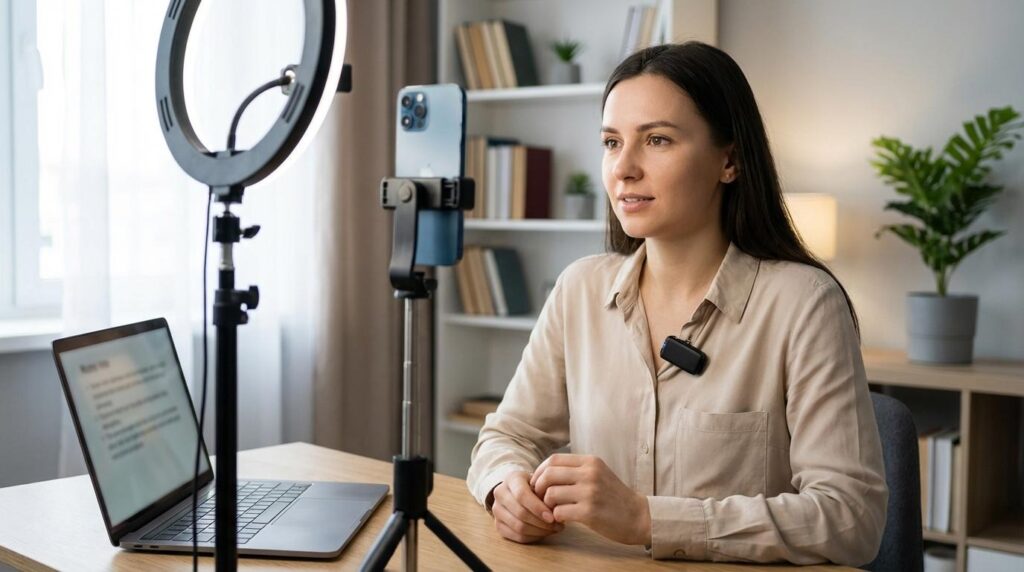
- Lighting: Face a window or position a ring light in front of you — never behind you. Backlighting makes you appear as a silhouette.
- Connection: Use Wi-Fi over cellular whenever possible. Weak cellular signal causes video freezing and audio cuts that you often can’t detect on your end.
- Camera angle: Prop your phone at eye level using a stand or stack of books. An upward angle is unflattering and distracting for viewers.
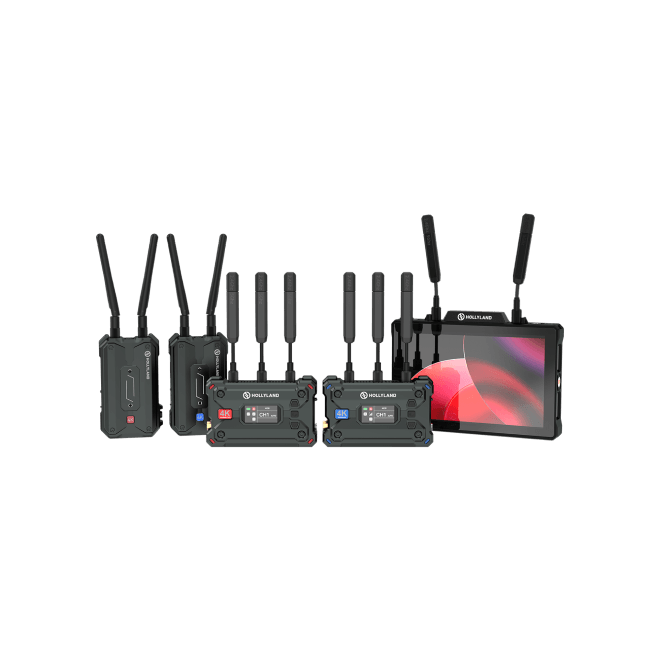
- Audio: Your phone’s built-in microphone picks up room noise, echo, and handling vibration. A compact wireless mic — like the Hollyland LARK M2 (9g, button-sized, up to 40 hours of battery life) — clips on discreetly and delivers clean, broadcast-quality audio without you holding anything, which makes it genuinely practical for unscripted live sessions.
- Background apps: Close everything running in the background before going on. Extra apps compete for memory and can cause your stream to lag or crash mid-appearance.
Troubleshooting — Why You Can’t Access the Guest Feature?
If the feature isn’t working as expected, one of these is almost always the cause:
- Request button is missing: The host has disabled guest requests, or the live is already at capacity (maximum 5 simultaneous guests). Try again in a different live or ask the host to enable requests.
- Feature appears greyed out: Your app may need an update, or your account has a restriction active. Update the app first, then check your account status in TikTok settings.
- Invite expired before you could accept: The acceptance window is brief. Coordinate timing with your host in advance and have the app open with notifications enabled.
- Camera or mic not activating: TikTok doesn’t have permission to access your camera or microphone. Go to your phone settings → Apps → TikTok → Permissions and enable both.
Frequently Asked Questions
How many guests can join a TikTok live at once?
While the official site doesn’t specifically share a number, it clarifies that “limited number of guests” can join the multi-stream. But generally, it is seen that up to 5 simultaneous guests can be in a single multi-guest live session. If the live has already reached that limit, the request button will not be visible to other viewers trying to join.
Will the host see your full screen or just your face?
Guests appear in a split-screen or grid view alongside the host. Your front-facing camera feed is broadcast to all viewers watching the live — not a full-screen view, but clearly visible to everyone in the stream.
What if the request button doesn’t appear?
The host may have turned off guest requests, the live may already have the maximum number of guests, or your account may not meet eligibility requirements. Start by updating the TikTok app and checking your account status under Settings. If those are both fine, the limitation is on the host’s end.
Conclusion
Getting live access on TikTok as a guest comes down to two processes— request to join yourself via the two-person icon, or wait for the host’s direct invite — and the main requirement is account standing, and your follower count. Before your next collaboration, send the host a DM to sync on timing so you’re ready the moment the invite arrives.