



































.png)
 简体中文
简体中文 
Poor mic audio in OBS is one of the most common frustrations for streamers and content creators. You may hear background hiss throughout your recordings or streams. Sometimes, your volume suddenly jumps between sentences. Other times, your voice may sound weak and hollow. The good news is that OBS has tools for these issues. This guide covers the right filters and their proper order. You’ll also learn settings that keep your voice clean. The goal is clear audio without making it sound overprocessed.
Why Your Mic Sounds Bad in OBS And What’s Actually Fixable
Most mic problems in OBS trace back to one of three root causes:

- Bad source signal: Poor mic placement, a low-quality capsule, or excessive room reflection before audio even enters OBS
- Incorrect input level: A signal that is too quiet or too hot degrades everything downstream, including filter performance
- Missing or misconfigured filters: OBS applies no audio processing by default, so background noise and uneven volume are left completely untouched
Software filters are powerful corrective tools, but they process what they receive. A fundamentally broken or noisy source signal will hit the ceiling of what any filter can do. This guide focuses on fixing the fixable.
Before You Touch Filters: Two Settings to Check First
Getting these two things right before adding any filters will prevent a class of problems that no amount of processing can correct later.
1. Match Your Sample Rate Everywhere
OBS, Windows Sound settings, and your microphone must all run at the same sample rate. For example, Windows may set your mic to 44.1 kHz. Meanwhile, OBS may run at 48 kHz instead. This mismatch can cause resampling artifacts in your audio. Those artifacts add degradation that filters cannot remove.
How to check and fix it:
- Right-click the speaker icon in your Windows taskbar and open Sound Settings.

- Select your microphone, click Device Properties, then Additional Device Properties, and open the Advanced tab. Set the format to 48000 Hz (Studio Quality).

- In OBS, go to File > Settings > Audio > General and set Sample Rate to 48 kHz.

Note: If you use an audio interface with ASIO drivers, also set the sample rate in the interface’s control panel. All three locations must match.
2. Set Your Input Level Before Any Processing
Gain staging means setting your microphone input so that your voice peaks at roughly –12 to –6 dBFS during normal speech. Watch the Audio Mixer bar in OBS while you talk at your typical streaming volume.
- If the bar barely moves, your signal is too quiet. Noise filters will amplify background noise right alongside your voice.
- If the bar consistently hits red, you are clipping. Compressors and gates cannot fix a signal that is already distorted at the source.
Adjust input volume using the slider in the OBS Audio Mixer or through your mic’s hardware gain control, such as an audio interface dial or the onboard volume knob on USB mics. Get this right before opening the Filters panel.
How to Add Audio Filters in OBS (Quick Setup)
Adding filters in OBS takes four steps:
- Locate your microphone source in the Audio Mixer at the bottom of the OBS window.
- Click the three vertical dots next to the mic source and select Filters, or right-click the source in the Sources panel and choose Filters.

- In the Filters window, click the “+” button in the lower-left corner and choose a filter type from the dropdown menu.

- Drag filters up or down in the list to reorder them. OBS processes filters top to bottom, so sequence significantly affects the result. The correct order is covered in the next section.
The OBS Audio Filter Chain: The Right Order and Settings
OBS processes audio filters in the exact order they appear in the filter list. If you apply a compressor before a noise gate, for example, the compressor amplifies background noise that the gate then struggles to close on. The correct order feeds each stage the cleanest possible signal from the previous one.

Recommended filter chain order: Gain > Noise Gate > Noise Suppression > Compressor > EQ
1. Gain: Correct Your Input Level First
The Gain filter is a software-level volume adjustment. Use it when you cannot change hardware gain, which is common with USB microphones that have limited or fixed input controls.
Set the Gain value so that your OBS Audio Mixer bar peaks between –12 and –6 dBFS during normal speech. This is your calibration point for every filter that follows. If your input level is off here, the noise gate will have trouble separating your voice from background noise, and the compressor will either compress silence or miss your actual peaks.

2. Noise Gate: Silence the Mic When You’re Not Speaking
A noise gate acts as a switch. When your audio drops below a set threshold, between words, during pauses, or while you are listening, it closes the mic entirely. This eliminates the continuous bleed of keyboard clicks, fan hum, and room ambience that accumulates across a long session.
| Setting | Starting Value |
|---|---|
| Close Threshold | –60 to –50 dBFS |
| Open Threshold | –30 to –26 dBFS |
| Attack Time | 5–25 ms |
| Hold Time | 50–200 ms |
| Release Time | 150–400 ms |
The Open Threshold is the most important value to calibrate. If it is set too high, the gate will clip quiet speech. If it is too low, background noise will keep it permanently open. Test by recording a 30-second clip that includes both natural pauses and normal speech, then listen back on headphones.

Note: Attack controls how fast the gate opens when you start speaking. Keep it below 25 ms to avoid chopping the beginning of words. Release controls the fade-out after the Hold period expires; a longer release sounds more natural than an abrupt cutoff.
3. Noise Suppression: Reduce Continuous Background Noise
Where a noise gate handles silence between words, noise suppression targets the low-level continuous noise that exists even while you are speaking, such as HVAC hiss, fan noise, and room hum that sits underneath your voice.
OBS offers two built-in methods:
- RNNoise: An AI-based neural network model that identifies and removes noise in real time. It handles varied and strong background noise better than Speex and is the recommended default for most streamers. The CPU overhead is modest on any modern machine.
- Speex: A lighter, algorithm-based option better suited for mild, consistent hiss or low-spec machines where CPU resources are limited.
Use RNNoise as your default. If your voice sounds robotic or hollow, lower the suppression strength. You can also switch to Speex instead. Do not combine both noise reduction methods. Using Speex with RNNoise adds unnecessary processing and artifacts. It also does not improve noise removal.

Note: Noise suppression and a noise gate solve different problems and complement each other when both are present. Suppression reduces noise while you speak; the gate silences the mic during pauses.
4. Compressor: Even Out Your Volume Automatically
A compressor reduces loud peaks and raises the overall perceived level, so your volume stays consistent whether you are leaning forward to make a point or sitting back during a quiet moment. For streams and recordings, this is the difference between audio that is exhausting to follow and audio that sounds polished and controlled.
| Setting | Starting Value |
|---|---|
| Ratio | 3:1 to 4:1 |
| Threshold | –20 to –18 dBFS |
| Attack | 3–6 ms |
| Release | 100–200 ms |
| Output Gain | +3 to +6 dB |
The Output Gain setting compensates for the level reduction that compression creates, restoring your output to a healthy target loudness. The Ratio sets how aggressively peaks are reduced: 3:1 to 4:1 is moderate and transparent for most voices.

Note: Over-compression sounds like a pulsing or breathing effect on your voice, often called pumping. If you hear it, raise the threshold slightly or reduce the ratio. Compression should feel like consistency, not a processing artifact.
5. EQ (3-Band EQ or VST): Shape the Tone of Your Voice
EQ is the final stage because it shapes the tonal character of a signal that has already been cleaned and leveled. OBS’s native 3-Band EQ handles the most important voice adjustments:
- Low band (cut below ~80 Hz): Roll off low-end rumble caused by desk vibration, handling noise, and HVAC. Most voice content below 80 Hz adds mud rather than warmth.
- Mid band (cut around 2–4 kHz if harsh): This region is where nasality and harshness live. A gentle 2–3 dB cut takes the edge off a bright condenser or a close-miked dynamic.
- High band (slight boost at 5–8 kHz): A small boost here adds air and presence, making speech clearer and more defined, particularly through consumer earbuds or laptop speakers.

For more precise control, the free VST plugin ReaEQ (part of Reaper’s ReaPlugs package) offers full parametric EQ and can be loaded through OBS’s VST filter slot. Start with the native 3-Band EQ and add a VST only if you identify a specific tonal problem the built-in tool cannot address cleanly.

Recommended Starting Settings by Mic Type
The filter chain above applies universally, but the optimal values depend on your microphone type. Use this table as a starting point and adjust based on your room environment.
| Mic Type | Noise Gate Open Threshold | Suppression Method | Compressor Ratio | EQ Priority |
|---|---|---|---|---|
| USB Condenser (Blue Yeti, HyperX QuadCast) | –28 to –26 dBFS | RNNoise | 3:1 | Cut below 80 Hz; tame harshness around 3 kHz |
| Large-Diaphragm Condenser XLR (AT2020, Rode NT1) | –30 to –28 dBFS | RNNoise | 3:1 | Roll off below 100 Hz; add presence at 6–8 kHz |
| Dynamic XLR (SM7B, MV7) | –26 to –22 dBFS | RNNoise or Speex | 4:1 | Boost presence at 5–8 kHz; dynamics often need more high-end lift |
Dynamic mics produce a lower output signal by nature, which is why they benefit from a slightly higher compressor ratio and often require more Gain filter correction than condensers. Condenser mics are more sensitive and may need the noise gate threshold adjusted more carefully to avoid false triggers in untreated rooms.
When OBS Filters Reach Their Limit: Fixing the Source
Software filters are corrective tools, not a substitute for clean source audio. Heavy and changing background noise can cause filter artifacts. An air conditioner may turn on and off repeatedly. Traffic outside your window can also create changing noise. Even a properly configured filter chain may struggle. The gate may misfire on consonants, the suppression may introduce a robotic quality, and the compressor may pump noticeably on noisy passages. These are signs the problem is upstream of OBS.

Three practical improvements address the source directly:
- Mic placement: Position the mic 3–6 inches from your mouth, slightly off-axis to reduce plosives. Closer proximity gives the gate a stronger voice signal to work with relative to background noise.
- Basic acoustic treatment: Heavy curtains, bookshelves, a rug under your desk, or a dedicated acoustic panel behind your monitor all reduce room reflection at low cost.
- Hardware quality: A microphone that captures a cleaner signal requires far less corrective filtering in the first place.
For OBS streamers and creators who have fully optimized their filter chain but are still fighting a difficult recording environment, dedicated broadcast hardware can provide a meaningful source-level improvement. The Hollyland LARK MAX 2, for example, records at 48 kHz / 32-bit float with built-in AI Noise Cancellation and includes low-latency OWS wireless audio monitoring earphones. The signal arriving in OBS is already clean and consistent, so the filter chain you built works as intended rather than spending itself compensating for a compromised input.
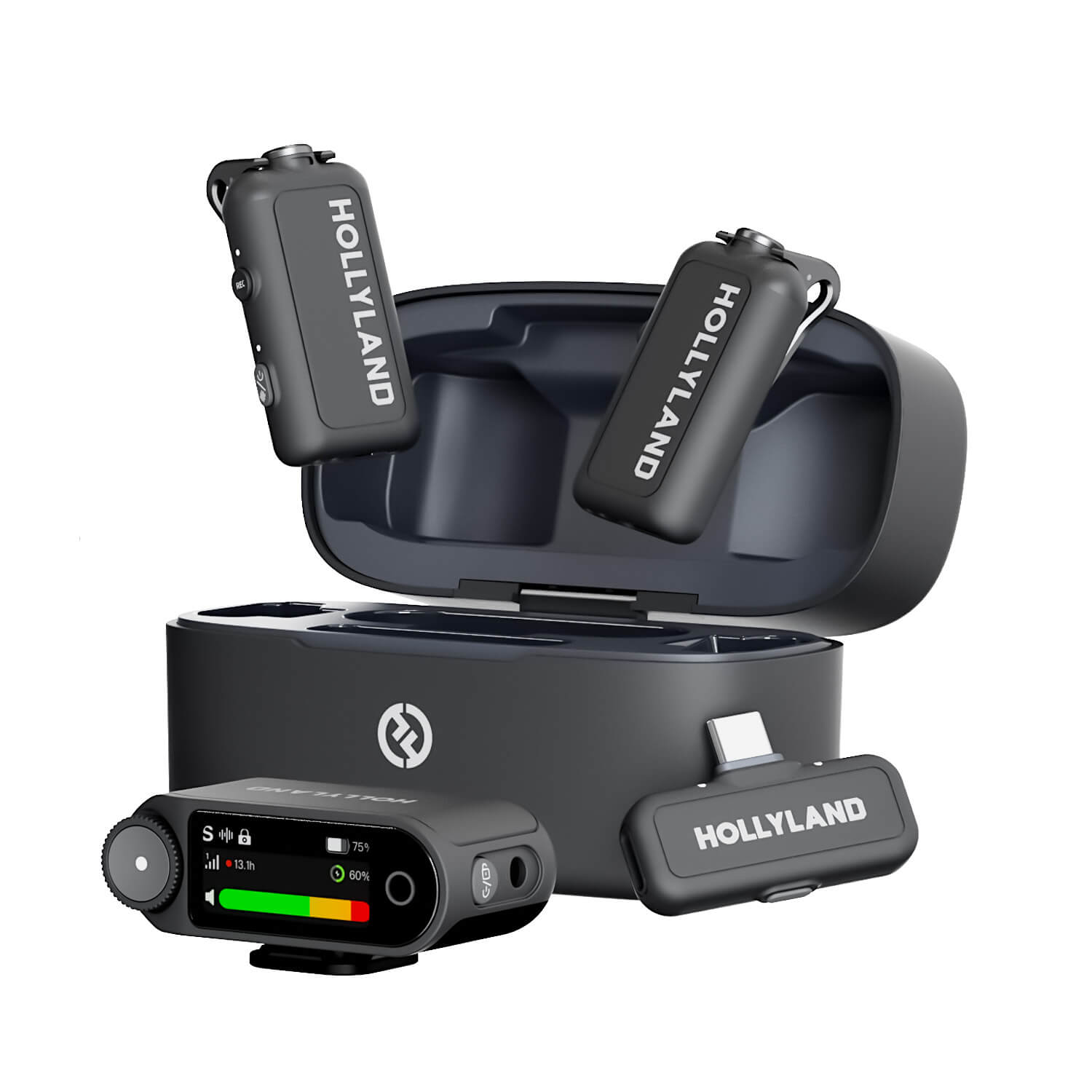
Hollyland LARK MAX 2 - Premium Wireless Microphone System
A premium wireless microphone for videographers, podcasters, and content creators to capture broadcast-quality sound.
Key Features: Wireless Audio Monitoring | 32-bit Float | Timecode
Frequently Asked Questions
Q: What is the best filter order in OBS for mic audio?
The recommended order is Gain, Noise Gate, Noise Suppression, Compressor, then EQ (3-band equalizer). This sequence ensures each filter operates on the cleanest possible signal from the previous stage. Setting gain first gives every downstream filter the correct signal level to reference, and placing EQ last shapes a tone that has already been cleaned and leveled.
Q: Why does my voice sound robotic after adding noise suppression?
The suppression strength is likely too aggressive, or you are running multiple suppression methods at the same time. Use RNNoise alone at its default setting and reduce the intensity if artifacts appear. Stacking Speex and RNNoise simultaneously multiplies artifact risk without meaningfully improving noise removal.
Q: Should I use RNNoise or Speex in OBS?
RNNoise is a good default choice for most OBS users. Its AI-based processing can reduce steady room noise naturally. Since it runs in real time, it suits mild background noise best. Loud rooms may cause it to distort your voice. Speex can be useful on older, lower-spec computers. It requires less CPU power when system resources are limited. Both options can reduce mild, steady hiss in quiet rooms. Severe or changing noise may need stronger noise reduction tools. For example, NVIDIA Noise Removal or external tools are possible options.
Q: My mic sounds fine in Windows but bad in OBS – what’s wrong?
Check your sample rate first. Open Windows Sound settings, find your mic’s Advanced tab under Device Properties, and confirm that OBS Audio Settings all show the same rate, either all 48 kHz or all 44.1 kHz. Also disable Windows audio enhancements on the mic device, as these process the signal before it reaches OBS and can conflict with your filter chain.
Q: Do I need VST plugins, or are OBS’s built-in filters enough?
OBS built-in filters can solve most voice problems during recording. VST plugins such as ReaEQ offer more precise equalization when you need it. Still, you do not have to install them. Start with OBS filters and test your recordings first. Adjust the settings until your voice sounds clear and balanced. Add a VST plugin only for a specific unresolved issue. This is useful when the 3-Band EQ cannot correct it cleanly.
Conclusion
Better mic audio in OBS starts with the right filter sequence. Begin with Gain, followed by Noise Gate and Noise Suppression. Add Compressor and EQ after those initial adjustments. Moderate settings usually produce cleaner results than aggressive processing. Many common mic problems can be corrected with this setup. Before recording, make a 60-second test inside OBS. Listen through headphones and check the recording carefully. Change one setting at a time based on what you hear. This approach makes each adjustment easier to evaluate.


