.png)
 简体中文
简体中文 
Your iPhone can record much more than quick voice notes. The real question is which recording method suits your needs. Voice Memos grabs ideas quickly without making things complicated. GarageBand takes things further with controls resembling a mixer. Add an external microphone, and things get even more serious. Your iPhone can then become a studio-grade recording setup. This guide explains four methods with clear steps for each. By the end, you can choose your approach confidently. Then, you can start recording right away.

Before You Start: One iPhone Setting You Must Check
Before opening any recording app, confirm that microphone access is enabled. Without it, apps either fail silently or save an empty file.
- Go to Settings → Privacy & Security → Microphone and toggle on every app you plan to use for recording.

- Run a quick storage check at Settings → General → iPhone Storage — a full device stops recordings mid-session without warning.
If your iPhone is on Silent mode, that does not affect audio capture. But enabling Do Not Disturb before a session prevents notification sounds from interrupting a take.
Method 1: Record Audio on iPhone Using Voice Memos (Built-In, Zero Setup)
Voice Memos comes ready on every iPhone, so no setup is needed. Open it with one tap, then start recording immediately. Your recordings also sync automatically through iCloud across Apple devices. They can appear on your Mac and iPad within seconds. It handles voice notes, interviews, lectures, and random ideas easily. You won’t need to change a single setting either.
To find Voice Memos, swipe down from your Home Screen. Spotlight Search will appear, letting you search for the app. Type Voice Memos there, and you’re ready to go.
Step-by-Step: Recording with Voice Memos
- Open Voice Memos. Tap the app icon.

- Tap the large red button at the bottom of the screen to start recording. A live waveform animates across the display to confirm the microphone is picking up sound.

- Pause if needed. Tap the red button again during a session to pause without ending it. This is useful between interview questions or when you need a quiet moment. Tap it again to resume.

- Stop the recording. Tap the Stop button (red square) to end the session. The file saves automatically to your library.y.
- Rename the clip. iOS names recordings by timestamp or location by default. Tap the title in the list and type a descriptive name so you can locate it later.

- Share the file. Tap the recording you want to share and expand it. Then, tap More Actions or the Share button. The More Actions menu has the three-dot ellipsis icon. From there, choose AirDrop, Messages, Mail, or another app..


Enable Lossless Quality Before Long Sessions
By default, Voice Memos saves in a compressed format. For anything you plan to edit or archive, switch to lossless audio before you start:
- Go to Settings → Apps → Voice Memos → Audio Quality and select Lossless.
The files are saved as ALAC (.m4a) with a higher bitrate. Their sizes also increase noticeably, so check storage first. You’ll want enough space before starting a long recording session.
Note: iCloud sync is active by default when you are signed in with an Apple ID. Recordings appear in Voice Memos on your Mac and iPad automatically after you finish a take.
Method 2: Use GarageBand for More Control Over Your Recording
GarageBand is the next stop when Voice Memos feels too basic. You can check input levels before you even record anything. It also lets you record across multiple tracks. Plus, if you need a specific format for podcasts or videos, GarageBand gives you more control over the export.
- Open GarageBand, then tap the + icon for a new project.
- Choose Audio Recorder from the available track type options. This opens the microphone interface instead of the instrument panel.

- In Studio view, choose a Voice preset for spoken audio. This preset applies a recording chain designed around spoken audio.
- Now, watch the input level meter while speaking normally. Keep an eye on the meter as your voice plays. Aim for yellow levels without letting anything reach red. Tap the red record button above to start recording.
- When you are done, tap the navigation arrow in the top left. This takes you back into the My Songs browser.
- Touch and hold your project thumbnail, then select Share.
- Next, tap Song to continue with your export.
- Choose Low, Medium, High, or Highest audio quality. GarageBand automatically compresses these settings into portable M4A files.
- Tap Share in the top right corner afterward. Then, choose Save to Files and select your location.
Method 3: Third-Party Recording Apps Worth Using
Built-in apps cover the majority of recording needs. A few third-party options add specific features that are worth knowing about:

- Voice Record Pro: Supports WAV, MP3, and AAC formats, folder-based organization, and recording over Bluetooth. Useful for users who manage large archives of recordings.
- Otter.ai: Records audio and generates a live, searchable transcript at the same time. A strong option for journalists, students, and anyone who needs a written record alongside the audio file.
- Rev Voice Recorder: Clean interface with direct access to professional human transcription. Suited for legal or medical professionals who require accuracy beyond what automated tools provide.
None of these apps replace a hardware upgrade for audio quality. If clean, noise-free sound is the goal, the next method will make a more noticeable difference than any app switch.
Method 4: How to Record Audio on iPhone with an External Microphone (Best Quality)
The iPhone’s built-in microphone sits at the bottom edge of the phone and captures sound from all directions equally. That means it also picks up room reflections, handling noise, and background hum with equal faithfulness. Apple’s Automatic Gain Control (AGC) adjusts the input level automatically, which prevents clipping but also compresses dynamics and can make voices sound flat and processed.

An external microphone solves all three problems. A directional lapel mic positioned close to the speaker’s mouth captures voice cleanly, rejects off-axis noise, and delivers a stronger signal that AGC does not need to fight.
The Hollyland LARK A1 is the simplest version of this upgrade available for iPhone. It is a wireless lavalier system: a transmitter clips to clothing, and a small receiver dongle plugs directly into your iPhone’s port. iOS recognizes it instantly with no app to download, no Bluetooth pairing, and no audio routing changes in settings.

Hollyland LARK A1 - Affordable Wireless Microphone
A perfect starter mic for creators on a budget. It’s simple to use and features effective noise cancellation.
Key Features: 48kHz/24-bit | 3-Level Noise Cancellation | 54-Hour Battery
What You’ll Need: Understanding Receiver and Transmitter
The LARK A1 is a two-piece system:
- Transmitter: The clip-on body worn by the speaker. The microphone capsule lives here. Clip it to a lapel or collar roughly 6 to 8 inches below the speaker’s mouth.
- Receiver: A compact dongle that plugs directly into your iPhone’s port. It passes the wireless audio signal from the transmitter into any recording app without additional configuration.
Choosing the right receiver for your iPhone:
| iPhone Model | Port | LARK A1 Receiver to Use |
|---|---|---|
| iPhone 15 and later | USB-C | USB-C dongle receiver |
| iPhone 14 and earlier | Lightning | Lightning dongle receiver |
The package includes the transmitter(s), the matching receiver dongle, and a charging case. Transmitters seat into the case and charge via USB-C.
Step-by-Step: Recording with the Hollyland LARK A1 on iPhone
- Power on the transmitter. Press and hold the power button on the transmitter for 3 seconds until the LED activates. It flashes during boot and shows solid blue when the unit is ready.

- Confirm pairing. The LARK A1 ships pre-paired from the factory. When stored together in the charging case, the transmitter and receiver re-pair automatically at startup. Both LEDs showing solid blue confirm the link is established.

- Plug the receiver into your iPhone. Connect the dongle to your USB-C or Lightning port depending on your model. iOS registers the external audio input immediately with no confirmation prompt required.

- Set your noise cancellation level. The LARK A1 includes 3-Level Intelligent Noise Cancellation. Press the power button once to activate or deactivate noise cancellation. When enabled, the TX and RX indicator lights will turn solid green.

To apply 3-level intelligent noise cancellation, open the HollyAudio app and connect LARK A1. Look for the NC Level option in the app. Tap on Low, Medium, or High.

Low for moderate filtering in light background noise.
Medium and High for aggressive filtering in louder environments.
- Clip the transmitter to clothing. Attach it to a lapel, collar, or shirt placket using the built-in clip. Position the capsule 6 to 8 inches below the mouth, facing outward. Keep fabric away from the capsule to prevent rustle noise.

- Open Voice Memos or the Camera app. iOS routes audio from the LARK A1 receiver automatically. No input selection is required in the app.
- Monitor input level (optional). Open GarageBand and create an Audio Recorder track. The input meter will respond visibly to sound captured by the transmitter — a reliable pre-recording confidence check.
- Begin recording. Tap the red button in Voice Memos. The waveform should move actively with your voice. A flat line means the receiver is not fully seated in the port; remove and reinsert it until the waveform responds.
- Use the mute button if needed. Double-click the power button on the transmitter to mute the TX. The LED changes color to red to give the speaker clear visual confirmation of the muted state.

- Charge after use. Seat the transmitter back into the charging case. The case charges via USB-C, and a charging LED on the case confirms active power delivery. The case holds enough charge for multiple full transmitter cycles before it needs a wall connection.
For Vloggers and Creators: Go Wireless with the Hollyland LARK M2
The LARK A1’s receiver connects to the phone via a short cable, which works well for stationary interviews and desk setups. For vlogging, travel content, or outdoor interviews where movement is constant, removing that last cable connection makes a meaningful difference to how freely you can operate.
The Hollyland LARK M2 is designed for exactly that scenario. At 9 grams and roughly button-sized, it is one of the smallest wireless lavalier transmitters available, and it connects to an iPhone via the same USB-C or Lightning plug-and-play receiver as the LARK A1. The recording workflow is identical; only the freedom of movement changes.
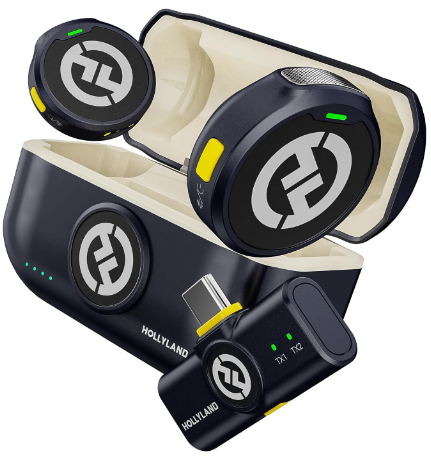
Hollyland LARK M2 - Mini Lavalier Microphone
An incredibly lightweight and compact wireless button microphone that captures high-fidelity audio.
Key Features: 9g Button Size | 48 kHz/24-bit | 40 Hours Battery
Key specs for creators evaluating the upgrade:
- Transmitter weight: 9g
- Total system battery life: 40 hours (transmitters plus charging case combined)
- Wireless link: Proprietary 2.4 GHz connection for low-latency audio
- Receiver options: USB-C or Lightning dongle
- LARK M2S variant: 7g with a titanium clip-on design for sports and high-movement production
The 40-hour system battery means you charge once and cover several full production days without interruption.
5 Tips to Improve Any iPhone Audio Recording
These apply regardless of which method you use. Small adjustments make a measurable and often immediate difference.

- Get the microphone closer to the source: Whether you are using the iPhone directly or a clip-on transmitter, aim for 6 to 12 inches between the mic and the speaker’s mouth. Distance multiplies room noise and weakens the direct signal faster than almost any other variable you can control.
- Record in the quietest space available: Close windows and switch off fans, air conditioning units, and anything with a continuous hum. Your ears filter these sounds naturally in real life, but a microphone captures them faithfully. Once recorded into a file, constant background noise is nearly impossible to remove cleanly.
- Enable Lossless quality in Voice Memos before long sessions: Navigate to Settings → Apps → Voice Memos → Audio Quality → Lossless before recording anything you plan to edit or keep. The file size increase is significant, but you will recover far more usable audio detail if something needs to be corrected later.
- Set the phone down or use a stand: Holding the iPhone during recording introduces handling noise every time your grip shifts. A desk stand, a small tripod, or even a folded jacket placed under the phone eliminates this entirely at zero cost.
- Do a 10-second test and listen back through headphones: Record a short clip, plug in earbuds, and listen before the real take. Headphones reveal low-level hum, clothing rustle, or mic positioning problems that the iPhone’s built-in speaker masks at its small size. Fix issues before you start, not after.
Frequently Asked Questions
Can I record audio on my iPhone without an app?
Not entirely, as some app must handle the recording process. But Voice Memos comes pre-installed on every iPhone, so no download is required. Open it from the Home Screen or Spotlight Search, tap the red button, and you are recording. No account, subscription, or setup of any kind is needed before your first recording.
Why does my iPhone recording sound muffled or distant?
The built-in mic picks up sound from all directions equally, including room reflections and background noise. Distance between the phone and the speaker significantly weakens the direct voice signal. Moving the iPhone closer to your mouth or clipping a lapel mic such as the Hollyland LARK A1 near your collar typically resolves both problems at once.
How do I record audio and video at the same time on iPhone?
Open the Camera app and select Video mode. The iPhone uses the built-in microphone by default. If a plug-in wireless external mic like the LARK A1 is connected to the port before you open Camera, iOS routes audio from that device automatically. No setting change inside the Camera app is required.
Does an external microphone work with iPhone Voice Memos?
Yes. Microphones that connect via Lightning or USB-C are recognized by iOS as the active audio input immediately upon connection. Voice Memos reads from whichever input is plugged in at the time. Connect the LARK A1 receiver before opening the app, and it records from the external mic without any additional configuration.
What is the best format to save iPhone audio recordings?
Pick Lossless (ALAC) if you’ll edit or archive the file. This keeps the full audio data preserved inside your recording. Need something smaller for emails or messaging apps? Go with Compressed (AAC/M4A) instead for easier sharing. You can switch between both options anytime in Settings > Apps > Voice Memos > Audio Quality.
How do I record a phone call on iPhone?
Call recording involves significant legal complexity. Laws vary by state and country, and Apple does not provide a native call recording feature because of these restrictions. If you need this capability, research the requirements in your specific jurisdiction before using any third-party solution. This topic falls outside the scope of standard audio recording and warrants separate research.
Conclusion
Every recording need covered here has a solution already within reach. Voice Memos handles quick captures with zero setup, GarageBand adds control when you need it, and a plug-in external microphone delivers a quality jump that no app setting alone can match. For anyone ready to make that hardware upgrade, the Hollyland LARK A1 is the most friction-free starting point available: plug it into your port, clip it to your collar, and record. When you are ready for full wireless freedom, the Hollyland LARK M2 is the natural next step for creators who are always on the move.