.png)
 简体中文
简体中文 
Recording a podcast no longer requires a professional studio or a sound engineer. With the right microphone, a prepared recording space, and a reliable workflow, you can produce broadcast-quality audio from any furnished room. This guide walks through every stage of the process, from building your gear list and setting up your microphone to recording, editing, and publishing your first episode. Follow each section in order, and you will have a complete, publishable file at the end.

What You Need to Record a Podcast
Before you press record, you need five core things:
- A microphone
- A monitoring solution
- Recording software
- A computer
- And some basic acoustic management
The table below maps each category to a specific recommendation so you can decide quickly and move straight to setup.
| Equipment Category | Purpose | Recommendation + Key Specs |
|---|---|---|
| Microphone (Home / Studio) | Captures your voice cleanly for seated or desktop recording sessions | Hollyland LARK MAX 2, a wireless lavalier with 48 kHz / 32-bit Float internal recording, AI Noise Cancellation, and dual-transmitter support for two-person interviews |
| Microphone (Compact / Travel) | Lightweight wireless option for on-the-go or mobile podcast recording | Hollyland LARK M2, an ultra-compact wireless lavalier compatible with smartphones and cameras |
| Microphone (Budget / Smartphone) | Entry-level plug-and-play option for smartphone-based recording | Hollyland LARK A1, a wireless lavalier for iOS and Android with no additional hardware required |
| Monitoring Headphones (specifically for audio interfaces) | Lets you hear your audio in real time to catch problems before they reach the final file | Closed-back headphones (e.g., Sony MDR-7506); |
| Recording Software (DAW) | Records, edits, and exports your audio files | Audacity (free), GarageBand (free, Mac), Adobe Audition (subscription), Descript (AI-assisted editing) |
| Acoustic Treatment | Reduces room echo and ambient background noise before it reaches the microphone | Rugs, curtains, bookshelves, and soft furnishings; no permanent installation required |
The Hollyland LARK MAX 2 is the primary microphone used throughout this guide. The LARK M2 and the LARK A1 appear as alternatives for mobile and budget scenarios, respectively. Software setup and acoustic treatment are addressed in the following sections.
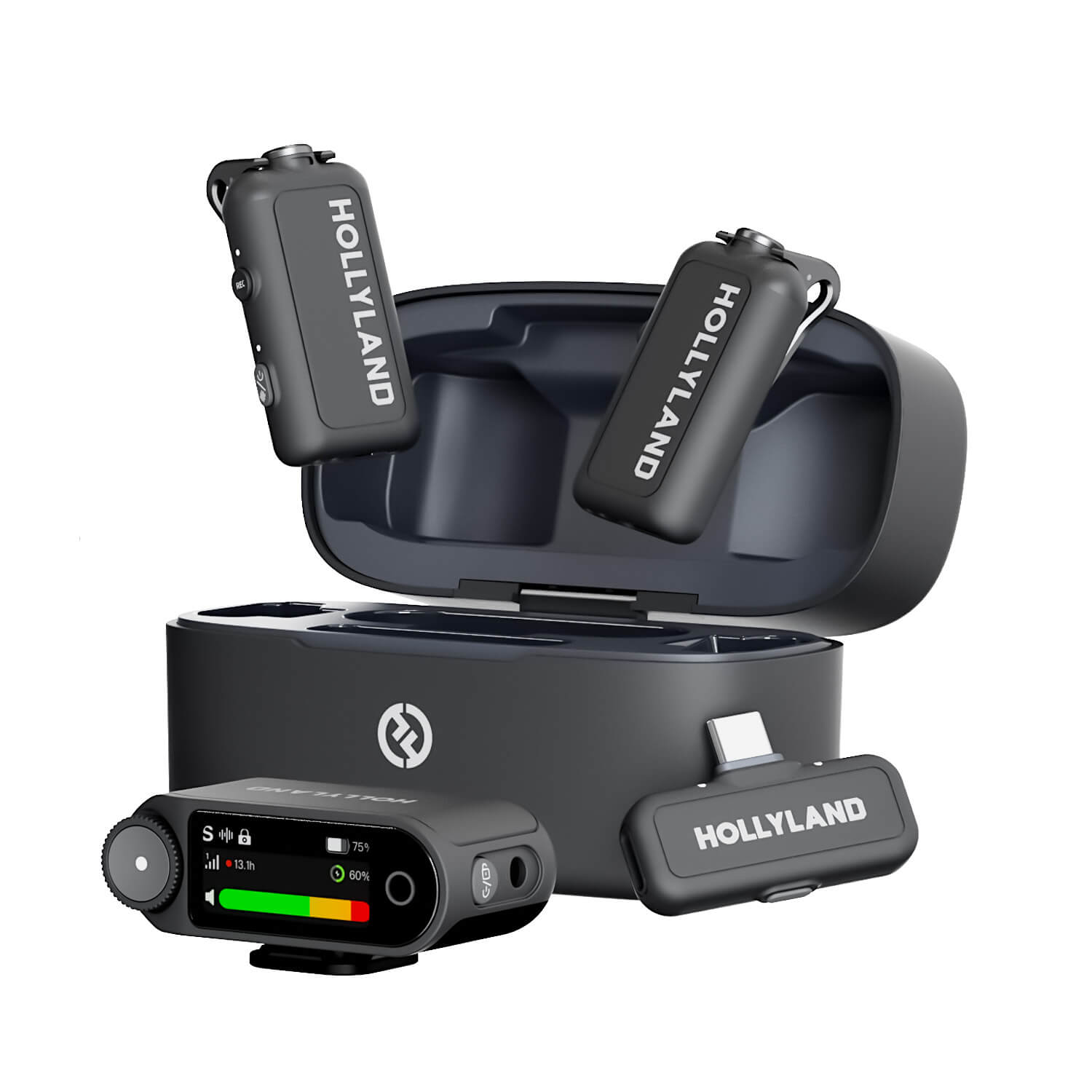
Hollyland LARK MAX 2 - Premium Wireless Microphone System
A premium wireless microphone for videographers, podcasters, and content creators to capture broadcast-quality sound.
Key Features: Wireless Audio Monitoring | 32-bit Float | Timecode
How to Set Up Your Recording Space
Your recording environment affects audio quality almost as much as your microphone choice. You do not need a purpose-built studio, but a few targeted adjustments will meaningfully reduce echo and background noise before you press record.

- Choose a smaller, furnished room: Rooms with carpet, bookshelves, curtains, and upholstered furniture absorb sound reflections far better than large, bare spaces. A furnished home office or bedroom consistently outperforms an empty living room or kitchen.
- Add soft materials to hard, reflective surfaces: If the room sounds hollow when you clap, hang a thick curtain across a bare wall, lay a rug on a hard floor, or drape a moving blanket over any highly reflective surface before recording.
- Eliminate mechanical noise at the source: Turn off fans, air conditioning units, and any appliances within earshot before you record. These produce a steady low-frequency hum that is difficult to remove cleanly in post-production.
- Choose an interior room over one facing a street: Exterior sounds from traffic, airplanes, and neighbors are unpredictable and harder to filter than constant mechanical noise.
- Use a clothing closet as a last resort: Recording inside a wardrobe full of hanging clothes is an effective improvised vocal booth for short sessions and requires no additional setup.
- Factor in AI Noise Cancellation. The LARK MAX 2 processes noise directly on the transmitter before the signal reaches any cable, receiver, or recording software. This substantially reduces your dependence on acoustic treatment compared to recording with a large-diaphragm condenser microphone, where room conditions have a much larger impact on the final sound.
How to Set Up Your Podcast Microphone (Hollyland LARK MAX 2)
This section explains every step of preparing the LARK MAX 2 for your first recording session, from charging the case through to a confirmed clean signal in your DAW. Each subsection below represents a discrete action in the setup sequence.
Charge the Transmitters and Receiver Case
- Seat both transmitters into the receiver/charging case. Align each transmitter with its designated slot and press down until the contact pins on the base engage with the case’s charging terminals. Both transmitter slots should be fully occupied.

- Connect the included USB-C cable to the charging port on the case. Plug the other end into a USB-A wall adapter or a powered USB hub.
- Check the LED charging indicator. During active charging, the LED on the case displays a solid or pulsing amber or red light, confirming that charge is in progress.
- Wait for the full-charge state. When both transmitters are fully charged, the LED shifts to a solid green or turns off entirely. Consult the LARK MAX 2 quick-start guide for the exact LED pattern for your firmware version.
- Allow approximately 1.5 to 2 hours for a complete first charge. The case stores additional charge cycles and serves as a portable power bank for the transmitters in the field.
Note: Charge both transmitters fully before your first session. This ensures the battery level indicator is properly calibrated and that LED states are accurate from the start.
Power On and Confirm Auto-Pairing
The LARK MAX 2 is designed to pair automatically the moment transmitters are removed from the case. Manual pairing is only needed if the auto-pair sequence fails.
- Remove Transmitter 1 from the charging case.
- Press and hold the power button on the transmitter side for approximately three seconds until the LED activates.

- Observe the LED pairing status. A solid blue LED (color varies by firmware) confirms the transmitter is powered on and has successfully auto-paired with the receiver. A blinking LED means the unit is still searching for the receiver.

- Repeat for Transmitter 2 if you are preparing for a two-person interview session.
- Check the Camera receiver unit for channel confirmation. The receiver’s display or LED array should show both input channels as active. On receivers with a screen, a live signal strength indicator will appear for each paired transmitter channel.

- If a transmitter LED continues blinking without pairing: Return it to the case for ten seconds, remove it again, and allow the auto-pair sequence to restart. For a manual re-pair, hold the pairing button on both the receiver and the transmitter for six seconds each until both LEDs flash and then stabilize.
Clip and Position the Transmitter
Correct microphone placement is one of the highest-impact decisions in lavalier recording, and it takes less than a minute to get right.
Position the transmitter at the center of the chest, 6 to 8 inches below the chin. At this placement, the onboard capsule captures a full, natural-sounding voice without the bass buildup that occurs when the mic is placed too close to the mouth, and without the thin, distant quality that results from placing it too low on the torso.
Avoid positioning the clip near lapel jewelry, zippers, or stiff synthetic fabrics. Contact between these materials and the transmitter body creates handling noise that the microphone picks up clearly. If you are wearing a button-down shirt, thread the transmitter cable under the placket before clipping to the outer layer to minimize fabric rustle.


For desk-based podcast recording, clip the transmitter to the front of your shirt at the same chest-center position while seated. Unlike a fixed-mount condenser or dynamic microphone that demands you stay close to a stand, a lavalier maintains consistent distance from your mouth as you lean back, turn your head, or gesture, so no posture adjustment is required during the session.
Enable AI Noise Cancellation
The LARK MAX 2 processes AI Noise Cancellation directly on the transmitter before the signal reaches any downstream device.
- Locate the AI Noise Cancellation button on the transmitter face. The power button on the transmitter also acts as a switch to turn on or turn off noise cancellation. Press the power button once to activate noise cancellation. The LED indicator will turn steady green.

- Adjust noise cancellation depth. Open the HollyAudio app on your phone and connect it to your LARK MAX 2. Look for the NC Level option and use it to increase or decrease noise cancellation intensity from 5dB to 25dB.

Set Gain and Activate 32-bit Float Internal Recording
Gain controls how loud the input signal is when it enters your recording software. Setting it correctly prevents clipping, the digital distortion that occurs when a signal exceeds the maximum recordable level.
- Locate the gain control on the receiver unit.
- Press the Control Knob on the Camera RX to enter the menu.

- Rotate the knob to the Mic Settings option and press the knob to enter it.

- Rotate the knob to locate the Mic Gain option.

- Set gain to a moderate starting position (approximately the midpoint of the available range) and speak at your natural recording volume — the slightly projected, animated tone you would use to address a small group.

- Watch the signal level indicator on the receiver. During normal speech, the meter should show consistent activity in the green to yellow range, with peaks that occasionally approach but do not reach the red zone. If the meter stays in the red, reduce gain. If it barely registers movement, increase it.

- Activate 32-bit Float internal recording on the transmitter.
- Press and hold the recording button on the transmitter until its LED turns red.

- The internal recording is set to 32-bit Float by default, though 24-bit is also available. Therefore, to confirm 32-bit Float is selected, open the HollyAudio app after connecting LARK MAX 2.
- Scroll to the Bit-Depth section, select the Internal Recording option, and choose 32-bit Float.

This format preserves your voice’s full dynamic range without clipping or distortion when input levels change. Internal audio can record for up to 10 hours at 48kHz / 32-bit Float.
What Is 32-bit Float Recording? Standard digital recording clips permanently when the signal exceeds 0 dB, and that distortion cannot be repaired in any editing software. 32-bit Float recording stores audio with a far wider dynamic range, preserving the full signal data even in segments that would ordinarily clip. If your primary DAW track has a clipped peak, retrieve the LARK MAX 2 transmitter’s internal backup file, and that same moment will be clean and fully usable. For beginners, this means a gain setting error does not destroy a take.
- To access the internal recording after your session: Connect the transmitter via USB-C and access the internal storage as a removable drive. Files are stored as WAV and can be imported directly into your DAW project.

How to Configure Your Recording Software
You do not need DAW expertise to configure recording software for podcast use. The steps below walk through setting up Audacity with the LARK MAX 2 as the audio input. Audacity is used as the reference because it is free, runs on Windows, Mac, and Linux, and has the lowest barrier to entry for first-time podcasters.
Software options at a glance:
| Software | Platform | Best For | Cost |
|---|---|---|---|
| Audacity | Windows, Mac, Linux | Beginners; simple multi-track recording and editing | Free |
| GarageBand | Mac only | Mac users who want a polished interface with built-in plugins | Free |
| Adobe Audition | Windows, Mac | Professional workflow; advanced noise repair and mixing | Subscription |
| Descript | Windows, Mac | AI-powered editing; edit audio by editing a text transcript | Free tier + paid plans |
Setup steps:
- Connect the LARK MAX 2 receiver to your computer via USB-C. The receiver registers as a USB audio device in your operating system within a few seconds of connecting.
- Open your system audio settings and confirm the receiver is listed as an input device.
- macOS: Open System Settings, select Sound, and click the Input tab. Locate the LARK MAX 2 receiver in the device list and select it.
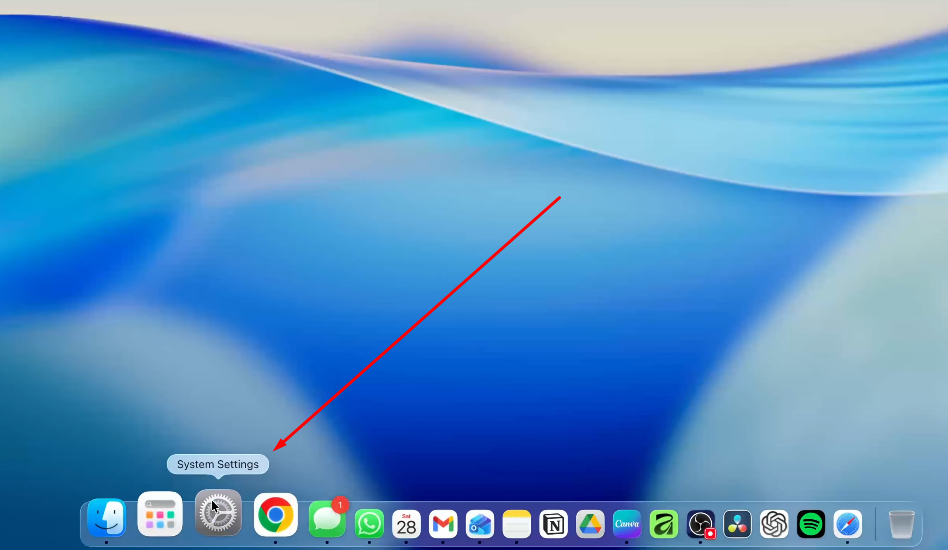

- Windows: Go to Settings, then System, then Sound. Under the Input section, open the dropdown and select the LARK MAX 2 receiver.


- Open Audacity. Navigate to Audio Setup in the toolbar (or the Device Toolbar in older Audacity versions).

- Set the Input Device to the LARK MAX 2 receiver from the audio input dropdown.
- Set the project sample rate to 48 kHz. This matches the LARK MAX 2 receiver’s native output and avoids sample-rate conversion artifacts. The sample rate setting appears in the Audio Setup menu or in the lower-left corner of the Audacity project window.

- Arm a new audio track and record a 10-second test clip. Speak at your natural recording volume.
- Inspect the resulting waveform. A healthy recording shows consistent, well-rounded peaks of roughly uniform amplitude. A clipped recording looks distinctly different: the tops and bottoms of the waveform are sliced flat rather than curved. If you see flat-topped peaks, reduce gain on the receiver unit and record another test.
- ]
Note: If the test clip shows clipping, the LARK MAX 2’s 32-bit Float onboard recording has already captured a clean backup of that audio. Correct the gain and re-run the test before the main session regardless — it saves editing time later.
How to Record Your Podcast
With the LARK MAX 2 configured and your software input confirmed, you are ready to record. Run through this checklist before any session, regardless of format:

- LARK MAX 2 transmitter LED confirms paired and ready
- AI Noise Cancellation enabled at the appropriate level for your environment
- Software input device set to the LARK MAX 2 receiver at 48 kHz
- 10-second test recording passed with no clipping and consistent waveform amplitude
- 32-bit Float internal recording active on the transmitter
Recording a Solo Podcast Episode
- Click Record in your DAW. In Audacity, press the red circle button in the transport toolbar. The waveform will begin building in real time as you speak.

- Speak naturally into the transmitter at the same volume and energy you used during your test recording. A conversational, slightly animated tone produces the most listener-friendly result.
- Double-press the power button on the LARK MAX 2 transmitter to mute. Rather than stopping the recording in your DAW every time you need to consult notes or take a break, press the mute button on the transmitter. The DAW track continues running, and the timeline keeps advancing, but your voice is silenced. This keeps the session continuous and reduces the number of cut points needed in the edit.
- Identify the muted state by the LED. When the transmitter is muted, the LED indicator will turn red (not the REC indicator; that’s a dedicated indicator for the 32-bit Float internal recording function).

- Stop the recording in your DAW when you have finished all episode content.
- Save the project file immediately. In Audacity, go to File and select Save Project. Do not wait until after editing to save the raw session for the first time.
Recording an In-Person Two-Person Interview
The LARK MAX 2’s dual-transmitter design is built for this exact format. Both transmitters pair to the same receiver simultaneously, giving each speaker a dedicated microphone without any extra hardware.
- Clip Transmitter 1 onto the host at the chest-center position described in the microphone setup section above.
- Clip Transmitter 2 onto the guest. Power it on and confirm the LED shows the paired state.
- Check the receiver to confirm both channels are active. Two live signal level indicators should be visible on the receiver display. If only one channel is showing activity, power cycle the non-responsive transmitter.
- Adjust relative gain if the two voices register at significantly different levels. If the guest speaks noticeably more quietly than the host, increase the per-channel gain for Transmitter 2 until both voices appear at a comparable level in the signal meter.
- Arm your DAW track and run a short two-voice test. Confirm both voices appear in the waveform. Depending on your LARK MAX 2 receiver model and the connection type used, the signal may arrive as a mono mix of both channels or as a stereo/dual-channel output with each speaker on a separate track. Verify the output mode and configure your DAW tracks accordingly.
- Remind your guest to speak to their own transmitter rather than leaning toward a central shared mic. Each person speaking naturally at a normal distance from their own lavalier keeps both channels balanced and minimizes handling noise.
Note: If your receiver outputs each speaker to a separate channel, you can edit each voice independently in post-production, removing coughs or adjusting volume for one person without affecting the other track. This is the preferred configuration for interview-format podcasts.
Recording a Remote Podcast with a Guest
Recording a remote guest requires one additional tool in the workflow, but the audio quality principle remains the same: each participant records a clean local track rather than relying on internet-compressed call audio.
Remote recording tool options:
| Tool | Audio Quality | Local Track Recording | Cost |
|---|---|---|---|
| Riverside | High (lossless local track per participant) | Yes | Free tier + paid plans |
| Zencastr | High (lossless local track per participant) | Yes | Free tier + paid plans |
| Zoom | Moderate (internet-compressed mixed output) | No | Free + paid plans |
- Set the LARK MAX 2 receiver as your system audio input before opening any remote recording software. Follow the macOS or Windows steps from the software configuration section above.
- Open Riverside (formerly Riverside.fm) (or your chosen platform) and create a new recording session. When prompted to select a microphone, choose the LARK MAX 2 receiver from the input device dropdown.

- Confirm your audio level is live by checking the input meter inside the platform before inviting your guest.
- Invite your guest and advise them to use a wired headset or a dedicated USB microphone. Their local track quality directly affects the final episode.
- Record the session. Riverside and Zencastr record a separate, high-quality local file for each participant. Even if the guest’s internet connection degrades mid-session, their local file and your local file are both recorded at full quality throughout. Zoom records the compressed mixed call output and retains any connection artifacts in the result.
How to Edit and Export Your Podcast Recording
Editing a podcast does not require mastery of a complex DAW. The checklist below covers the decisions that matter most for producing a clean, distribution-ready file.
Editing checklist:
- Remove dead air and long pauses. Listen through the recording and cut any silence longer than two to three seconds, extended filler-word sequences, and obvious false starts. In Audacity, highlight the unwanted region with the Selection tool and press Delete.
- Apply Noise Reduction if background noise is still audible. In Audacity: highlight a brief section of clean room tone between words, go to Effect → Noise Removal and Repair → Noise Reduction → Get Noise Profile, then select the full track and run Noise Reduction. Next, return to Effect → Noise Removal and Repair → Noise Reduction, and click OK. Because the LARK MAX 2’s AI Noise Cancellation processes noise at the source, the post-production pass is typically minimal.

- Normalize track loudness to -16 LUFS. Apple Podcasts and Spotify target approximately -16 LUFS (stereo) or -19 LUFS (mono) for playback. Matching this target in your export ensures your episode volume is consistent with other shows in both directories. In Audacity, use Effect → Loudness Normalization and enter the appropriate target value.
- Add intro and outro music as separate tracks. Import music files as additional Audacity tracks and position them at the start and end of the episode. Set music volume approximately 18 to 20 dB below your voice level and apply fade-in and fade-out effects to transition cleanly.
- Repair any clipped segments using the 32-bit Float backup recording. If the primary DAW track contains clipped peaks in any section, access the transmitter’s internal storage via USB-C data connection, import the backup WAV into your project, align it with the original timeline, and replace the clipped region with the clean backup audio.
- Export the finished edit using the settings in the table below.
Export settings:
| Format | Bit Rate / Settings | Use Case | Notes |
|---|---|---|---|
| MP3 | 128 kbps mono | Standard podcast delivery | Accepted by all major hosting platforms; smallest file size |
| MP3 | 192 kbps stereo | Music-heavy shows or quality-focused delivery | Marginally larger file; better for episodes with prominent music beds |
| WAV | 48 kHz / 24-bit | Archival master file | Save this alongside your project file and never delete the master |
| AAC | 128 kbps | Alternative to MP3 for modern platforms | Slightly better quality at equal bitrate; supported on all current podcast apps |
How to Publish Your Podcast
Once you have an exported MP3, upload it to a podcast hosting platform. Your host stores the audio file, generates an RSS feed, and distributes your episode to Apple Podcasts, Spotify, and any directory you submit to.

- Create an account on a hosting platform such as Buzzsprout, Spotify for Podcasters, Podbean, or RSS.com.
- Complete your show profile, including the show title, description, and cover artwork.
- Upload your exported MP3 episode file.
- Add the episode title, description, and episode number.
- Publish the episode to generate your RSS feed URL.
- Submit the RSS feed URL to Apple Podcasts Connect and the Spotify for Podcasters dashboard to list your show on both major directories.
Episodes typically appear in both apps within 24 to 72 hours of the initial submission. After that, new episodes sync automatically each time you publish.
Frequently Asked Questions
Can I record a podcast using just my phone?
Yes. A smartphone can produce a usable podcast episode, especially when paired with a wireless lavalier like the Hollyland LARK A1, which connects directly to iOS and Android devices without additional hardware. Audio quality will be lower than a computer-and-DAW setup, but it is a practical way to test your concept and format before committing to a full equipment purchase.

Hollyland LARK A1 - Affordable Wireless Microphone
A perfect starter mic for creators on a budget. It’s simple to use and features effective noise cancellation.
Key Features: 48kHz/24-bit | 3-Level Noise Cancellation | 54-Hour Battery
Do I need an audio interface to record a podcast?
It depends on the mic type. For XLR mics, you will need an audio interface. For wireless clip-on microphones, you may not. For example, the LARK MAX 2 receiver connects to your computer via USB-C and appears directly as an audio input device in your operating system, bypassing the need for a separate audio interface.
What is the difference between a USB microphone and a wireless lavalier for podcasting?
A USB microphone mounts on a desk or boom arm and stays within cable range of your computer. A wireless lavalier clips to your clothing and maintains a consistent mic-to-mouth distance regardless of head movement or body position. Wireless lavaliers like the LARK MAX 2 also support two-speaker setups from a single receiver with no cables required between participants.
How do I record a podcast with a remote guest?
Use a dedicated remote recording platform such as Riverside.fm or Zencastr. Both platforms record a separate local audio file for each participant, preserving full audio quality even when the internet connection fluctuates. Before opening the platform, set the LARK MAX 2 receiver as your active system audio input, then select it as the microphone inside the session settings.
What sample rate and bit depth should I use for podcast recording?
Record at 48 kHz to match the LARK MAX 2 receiver’s native output and avoid sample-rate conversion artifacts. For bit depth, 24-bit is the standard for DAW recording sessions. The LARK MAX 2 transmitter’s internal backup uses 32-bit Float for a wider dynamic range specifically to protect against clipping. Final distribution files exported as MP3 or AAC use 16-bit, which is standard and sufficient.
How do I reduce background noise in my podcast without expensive acoustic treatment?
Enable the LARK MAX 2’s AI Noise Cancellation and adjust the NC Levels via the HollyAudio app. This handles most common home-office noise sources at the transmitter before the signal reaches your software. Supplement this by recording in a furnished room, turning off fans and HVAC units, and applying a light Noise Reduction pass in Audacity during post-production. This combination produces clean results without any permanent acoustic installation.
Do I need to edit my podcast before publishing?
A minimal edit is strongly recommended. At minimum, trim silence from the beginning and end of the file, remove obvious errors or long pauses, and normalize loudness to -16 LUFS before exporting. A well-configured setup with AI Noise Cancellation reduces how much noise cleanup you need in post, but even a short editing pass significantly improves the listener experience.
Conclusion
Recording a podcast follows a clear, repeatable sequence. Prepare your recording space, set up the LARK MAX 2, configure your software input, execute the recording format that fits your show, edit the file to distribution standards, and upload it to your hosting platform. Professional-quality audio does not require a studio. It requires the right microphone, a prepared environment, and a consistent process.