



































.png)
 简体中文
简体中文 
Getting your first recording into Ableton Live is straightforward once you understand the routing logic. Whether you are capturing vocals, a live instrument, or a MIDI keyboard performance, the workflow follows the same core pattern: configure your audio preferences, create the right track type, arm it, and hit record. This guide walks through every step for both audio and MIDI recording, including practical fixes for the most common signal and latency problems.

How to Record in Ableton: Step-by-Step Guide for Audio and MIDI
What You Need Before You Start
Before you open a session, confirming that your gear and software are correctly set up will save you from troubleshooting mid-take. The most common reason beginners fail to get a signal in Ableton is a missing or misconfigured prerequisite, not a problem with Ableton itself.

What You Need Before You Start
Here is what you need:
- Ableton Live (any edition — Intro, Standard, or Suite all support the recording workflow covered in this guide)
- An audio interface (connects your microphone or instrument to your computer and delivers lower latency and better signal quality than a built-in sound card)
- A microphone or instrument for audio recording (condenser mic for vocals, dynamic mic for amplified instruments, or a direct cable into the interface for guitar or bass)
- A MIDI controller for MIDI recording (keyboard, pad controller, or any USB or MIDI-compliant device)
- Correct drivers installed:
- Windows: ASIO drivers, typically provided by your interface manufacturer (ASIO4ALL works as a generic fallback)
- Mac: Core Audio is built into macOS and requires no additional installation
On microphone choice: If you are recording vocals or an acoustic instrument and want a wireless option, the Hollyland LARK MAX 2 is worth considering. It records internally in 32-bit Float directly on the transmitter, which means your audio is captured even if Ableton’s routing is misconfigured during a session. For beginners still learning signal flow, that onboard backup can be a genuinely useful safety net.
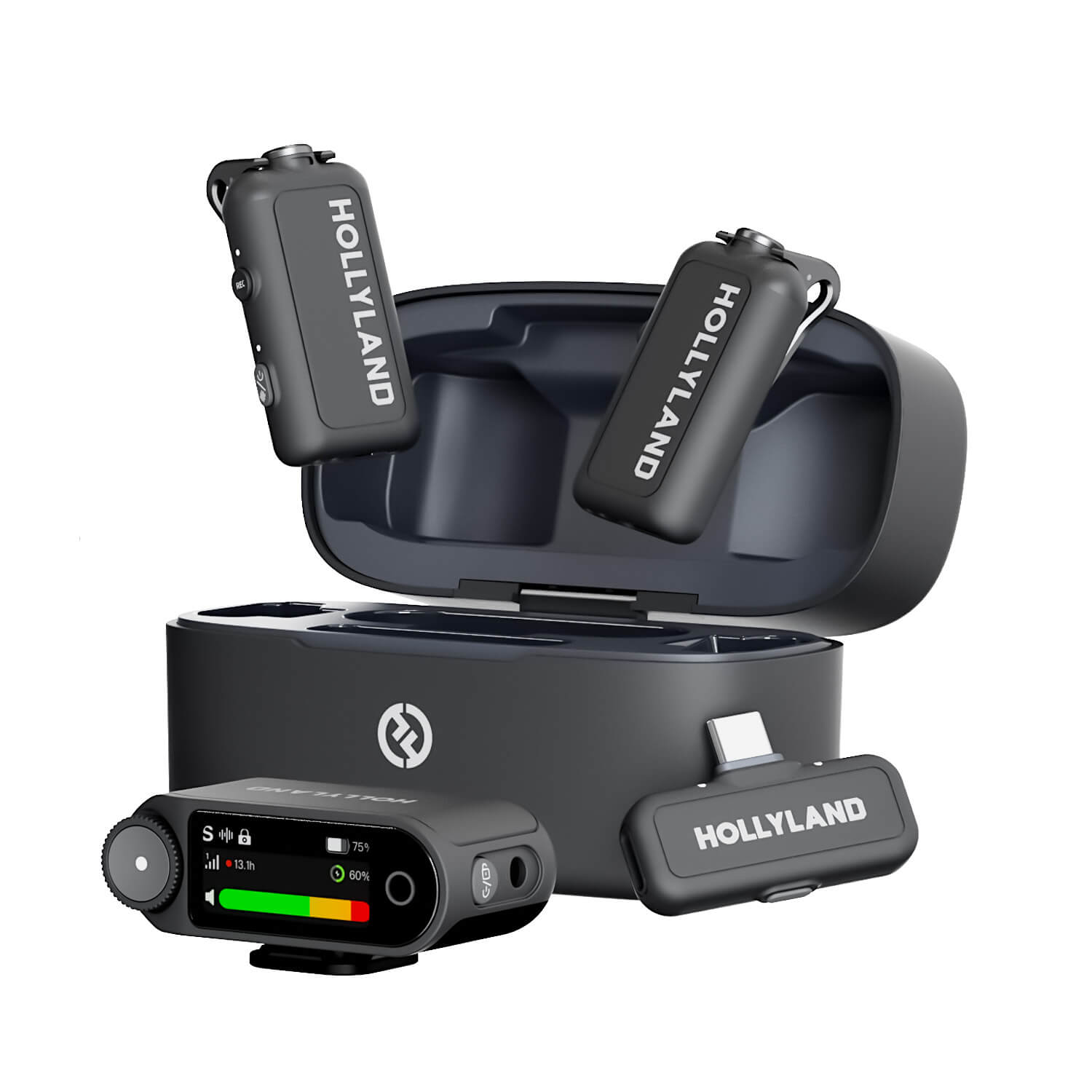
Hollyland LARK MAX 2 - Premium Wireless Microphone System
A premium wireless microphone for videographers, podcasters, and content creators to capture broadcast-quality sound.
Key Features: Wireless Audio Monitoring | 32-bit Float | Timecode
How to Configure Ableton’s Audio Preferences
Skipping this step is the single most common reason no signal appears in a new session. Set this up correctly once and Ableton will retain your settings on every launch.
- Open Ableton Live and go to Preferences. On Mac, press Cmd + ,. On Windows, press Ctrl + ,.
- Click the Audio tab.

- Under Driver Type, select:
- ASIO on Windows, then select your audio interface from the dropdown below
- CoreAudio on Mac, then select your audio interface

- Set Audio Input Device to your audio interface.

- Set Audio Output Device to your audio interface, or to your monitors or headphones if they connect separately.

- Set Sample Rate to 44.1 kHz for music production. Use 48 kHz only if your project must sync to video.

- Set Buffer Size to 128 or 256 samples to start. Lower values reduce monitoring latency; higher values reduce CPU strain.

- Click Test to confirm your interface is responding correctly.

Note: If you hear a delay between playing and hearing your signal back, the buffer size is the first thing to adjust. Start at 128 samples during recording sessions and raise it to 512 or higher during mixing, when real-time monitoring latency is no longer a concern.
How to Record Audio in Ableton
Create and Arm an Audio Track
Every audio recording in Ableton begins with a properly configured track. These steps apply whether you record in Arrangement View or Session View.
- Press Ctrl + T (Windows) or Cmd + T (Mac) to create a new audio track.
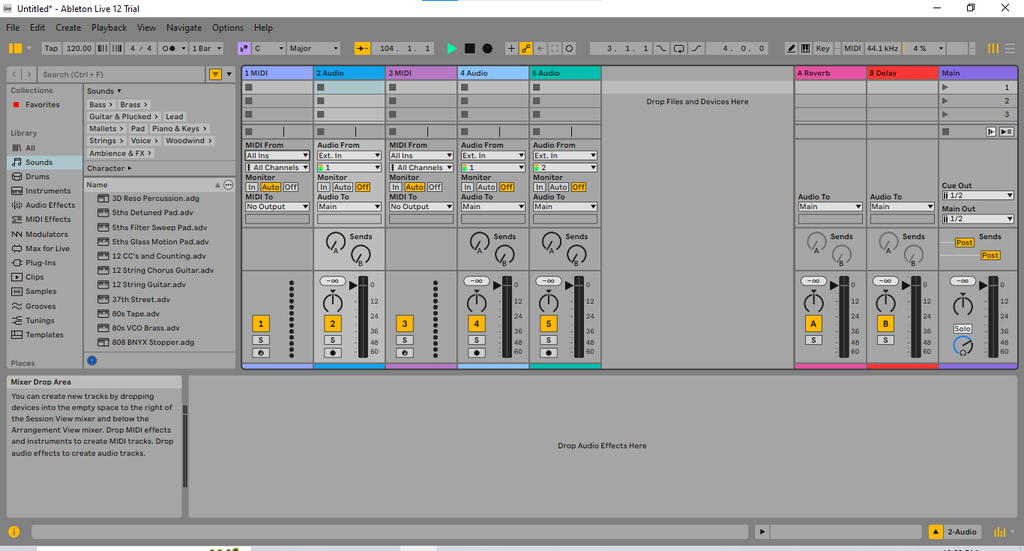
- Reveal the Input/Output section by clicking the I-O button near the top right of the track area.
- Set Audio From to Ext. In.

- Select the correct input channel from the dropdown directly below:
- 1 for a mono source on input 1
- 2 for a mono source on input 2
- 1/2 for a stereo source using both inputs

- Set Monitor to Auto. This ensures you hear your input only when the track is armed, which prevents accidental feedback loops.

- Click the Arm Session Recording button (the circle icon on the track). It will glow red when active.

- Speak or play into your microphone and confirm the input level meter on the track is moving. If it stays flat, recheck steps 3 and 4.
Note: Setting monitoring to In means you always hear the input signal regardless of arm state. Auto is the better default for most recording scenarios because it prevents unintended monitoring from unarmed tracks.
Record in Arrangement View
Arrangement View is Ableton’s linear timeline and is where most beginners record first. It works the way a traditional tape recorder or DAW timeline does — you capture performances left to right along a fixed timeline.
- Switch to Arrangement View by pressing Tab or clicking the Arrangement View button in the top-right corner of the interface.

- Click in the scrub area above the tracks to position the playhead where you want recording to begin.

- Enable the Metronome by clicking the metronome icon in the top toolbar. Click the small arrow beside it to set a Count-In of 1 or 2 bars so you have time to prepare before audio is captured.

- Click the Global Record button in the top toolbar (the hollow circle icon). It will light up red.

- Press Spacebar to begin playback. Recording starts at the playhead or after the count-in.
- Perform your take.
- Press Spacebar to stop. The recorded audio appears as a colored clip on the track.
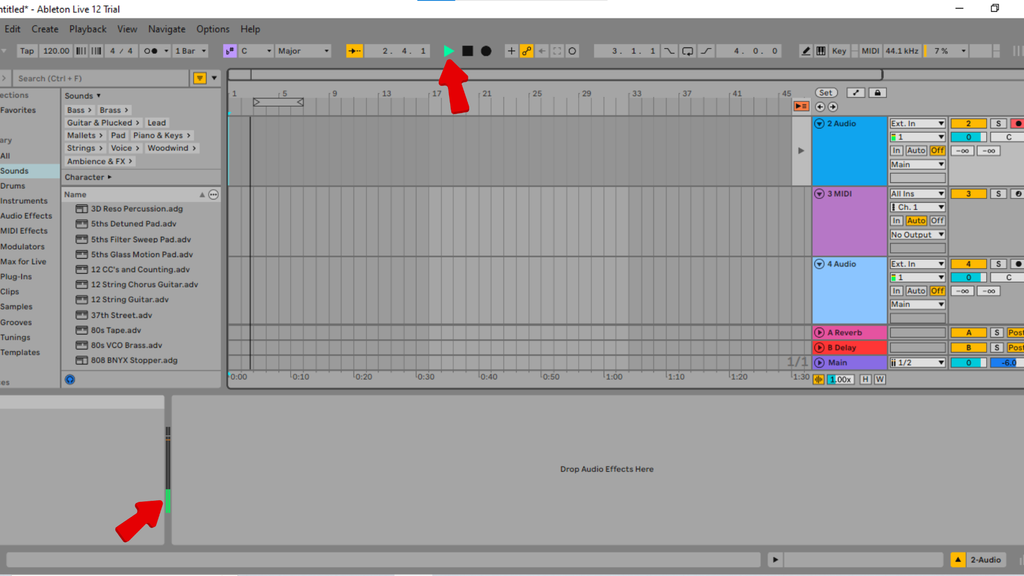
- Press Spacebar again to review the take from the playhead position.
Reviewing multiple takes: If Loop Recording is enabled via the Control Bar, recording over the same section repeatedly stacks each take into a Takes Folder on the track. Right-click the clip region to access individual take lanes and select your preferred performance.
Record in Session View
Session View takes a different approach to recording. Rather than capturing into a timeline, you record into individual clip slots arranged in a grid. This makes it well suited for looping and live performance rather than linear arrangement.
To record in Session View, arm your track using the same steps above, then click the clip record button (the circle icon) inside an empty slot on your track. Press Play on the global transport and start performing. Ableton captures a looping clip in that slot and continues recording until you press Stop or click the slot again.

Session View vs. Arrangement View: Use Session View when you are improvising, sketching loops, or want to audition ideas without committing to a timeline. Use Arrangement View when you are recording a full song structure or need a defined start and end point for your take.
How to Record MIDI in Ableton
Set Up a MIDI Track
MIDI recording captures note and performance data from a controller rather than raw audio. That means every note, velocity, and timing value is editable after the fact, and you can swap the instrument at any time without re-recording.
- Press Ctrl + Shift + T (Windows) or Cmd + Shift + T (Mac) to create a new MIDI track.

- In the Input/Output section, set MIDI From to Ext. In to receive from any connected controller, or select your specific controller by name.
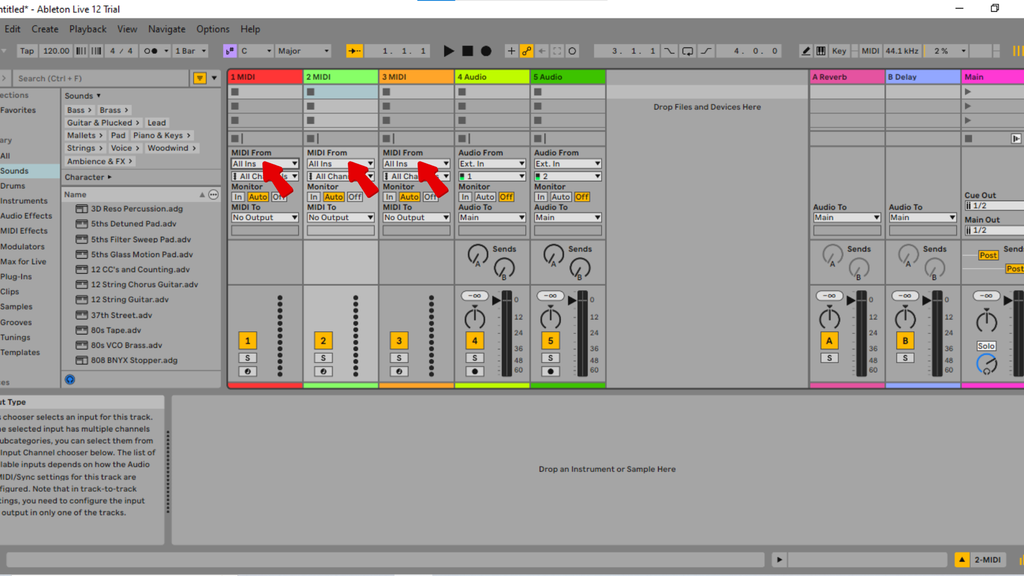
- Set the Channel to All Channels unless you need to isolate a specific MIDI channel from your controller.

- Load an instrument into the track by doing one of the following:
- Drag an Ableton instrument (Operator, Analog, Simpler, etc.) from the browser into the track
- Drag a Drum Rack or kit from your library
- Drop a third-party VST or AU plugin into the instrument slot

- Click the Arm button on the track.

- Press a key or pad on your controller. You should hear the loaded instrument respond. If nothing plays, check that your controller is enabled in Preferences > MIDI with both Track and Remote turned on for the MIDI input.

Record MIDI in Arrangement and Session View
MIDI recording follows the same global transport logic as audio recording.
In Arrangement View:
- Position the playhead at your desired start point.

- Enable the Global Record button in the top toolbar.
- Press Play and perform on your MIDI controller.
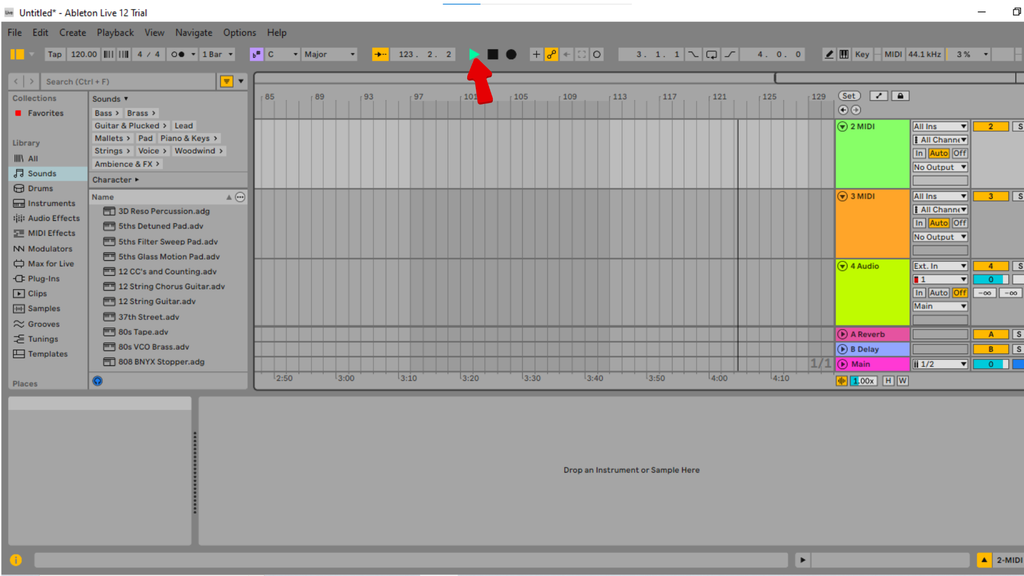
- Press Stop when done. A green MIDI clip appears in the timeline.

- Double-click the clip to open the Piano Roll, where you can view and edit individual notes, timing, and velocity.

In Session View:
Click the clip record button in an empty slot on your MIDI track, press Play, and perform. The clip records and loops continuously, allowing you to layer additional notes on each pass.

MIDI Overdub mode: When overdub is active (toggle the Overdub button in the Control Bar), new notes are layered on top of an existing MIDI clip rather than replacing it. This is useful for building drum patterns or stacking chords one element at a time. Turn it off when you want a clean replacement take.
Note: Because MIDI stores performance data rather than audio, no sound quality is lost when you correct mistakes. Open the Piano Roll after recording to move notes, adjust velocity, or fix timing without re-recording a single note.
Fixing Latency and Monitoring Issues
Most recording problems in Ableton fall into a small number of repeating categories. Here are the most common issues and how to resolve them:
- You hear your input with a noticeable delay: Go to Preferences > Audio and lower the buffer size (try 128 or 64 samples). On Windows, confirm you are using ASIO drivers rather than Windows Audio, which has significantly higher latency.

- You cannot hear anything while recording: Confirm the track is armed (arm button glows red) and monitoring is set to Auto or In. Check that the correct input channel is selected in the track’s I-O section. Verify the Master volume fader is not at zero.

- Recorded audio lands off the beat: Go to Preferences > Audio and enable Delay Compensation. Ableton will automatically offset tracks to account for plugin and buffer latency so recordings align with the grid.

- You want zero-latency monitoring without touching buffer size: Enable direct monitoring on your audio interface using its hardware monitor switch. This sends the input signal straight to your headphones without passing through Ableton’s software, eliminating DAW-side latency entirely.
- MIDI notes are not registering: Check Preferences > MIDI and confirm your controller appears in the list with the Track column enabled for its MIDI Input.

Tips for Better Recordings in Ableton
Once you have a working signal flow, these practices will make a noticeable difference in the quality and consistency of your recordings:

Tips for Better Recordings in Ableton
- Check gain staging before every take. Watch the input meter on your audio track and adjust the gain knob on your audio interface until signal peaks sit consistently between -18 dBFS and -12 dBFS. This leaves headroom for transients and eliminates the risk of clipping.
- Use the Metronome and Count-In for every first take. Click the metronome icon in the Control Bar and assign a 1 or 2-bar count-in. This eliminates the common mistake of missing the opening beat of a recording.

- Use Punch In/Out to fix specific sections. Activate Punch In and Punch Out markers in Arrangement View to limit recording to a defined range. You can re-record a single phrase without touching the rest of the take.

- Save your working setup as a default template. Once your audio preferences, track routing, and monitoring are configured correctly, go to File > Save Live Set as Default Set. Every new session will open ready to record.

- Maintain a consistent distance from your microphone. For vocals, 6 to 12 inches from a cardioid condenser produces a controlled, even sound. Use a pop filter to reduce plosives on consonants like P and B.
FAQ
Q: Why can’t I hear my audio input in Ableton?
Check that the track is armed, monitoring is set to “Auto” or “In,” and the correct input channel is selected in both Preferences > Audio and the track’s Input/Output routing section. Confirm your audio interface driver is active and selected as the driver type. On Windows, reinstalling the ASIO driver for your interface often resolves the issue immediately.
Q: Can I record in Ableton without an audio interface?
Yes. Select a USB microphone or your computer’s built-in microphone as the input device under Preferences > Audio. Set the driver to CoreAudio on Mac or WASAPI on Windows. Audio interfaces deliver better latency performance and recording quality, but built-in options are functional for basic recording and early practice.
Q: How do I record vocals in Ableton?
Create an audio track, set the input to match the channel your microphone is connected to on your interface, arm the track, and set monitoring to Auto. Adjust your interface’s preamp gain until peaks register at -18 to -12 dBFS, then record in Arrangement View with the Metronome and Count-In enabled for accurate timing from the first beat.
Q: What’s the difference between recording in Session View vs. Arrangement View?
Arrangement View records linearly along a timeline, making it best for full song structures and defined takes. Session View records into individual clip slots for looping and non-linear experimentation. Most producers use Session View to sketch ideas and Arrangement View to finalize song structure once the core parts are decided.
Q: How do I record multiple tracks at the same time in Ableton?
Hold Ctrl (Windows) or Cmd (Mac) and click the Arm button on each track you want to record simultaneously. Confirm your audio interface has enough physical inputs for each source. All armed tracks will record in parallel when you press the global Record button followed by Play.
Conclusion
Recording in Ableton comes down to three consistent steps: configure your audio preferences correctly, create and arm the right track type, and use the global Record button to capture your performance. Once that foundation is solid, the next logical steps are editing and comping your takes, using Ableton’s Warp engine to correct timing, and building effects chains on recorded tracks.
Related guides to explore next: – How to Edit Audio in Ableton – Best Ableton Settings for Beginners – How to Set Up an Audio Interface with Ableton


