.png)
 简体中文
简体中文 
BandLab is a free, browser- and app-based DAW that lets you record vocals, live instruments, MIDI, and beats from virtually any device. Whether you’re on an iPhone, Android, or a desktop browser, the recording workflow follows the same core logic. This guide walks you through every step, from creating your first project to laying down your first take, with tips for improving recording quality along the way.

How to Record on BandLab: Step-by-Step Guide for Beginners
What You Need Before You Start
Before you open BandLab, have the following ready:

What You Need Before You Start
- A compatible device: BandLab works on iOS (iPhone/iPad), Android, and any modern desktop browser. Chrome is recommended for the web version.
- A free BandLab account: Sign up at bandlab.com or through the mobile app. No payment is required.
- Headphones: Essential for monitoring your recording without creating microphone feedback.
- A stable internet connection: BandLab saves your projects to the cloud in real time.
- An optional external microphone: The built-in phone mic will work, but an external mic noticeably improves quality. See the microphone setup section below for details.
How to Create a New Project in BandLab
Creating a project is the required first step before any recording can happen. The process is nearly identical on mobile and web.
- Open the BandLab app or go to bandlab.com in your browser.
- Click the + Create button in the top-right corner of the BandLab homepage.
- Click New Project.
- Choose the type of project you want to create. After making your selection, BandLab will open the recording workspace. You can rename the project later.
- The Studio Editor opens. This is BandLab’s main workspace where you can add tracks, record audio, import media, and edit your project.
Note: If you select “Beat” at step 3, you’ll land in the Beat Maker grid instead of the Mix Editor. You can always add regular audio tracks to a Beat project later, so this choice is not permanent.
How to Record Audio in BandLab (Vocals and Live Instruments)
This is the core recording workflow in BandLab. Follow these steps in order to capture a clean take. The most commonly missed step is arming the track, so pay close attention to step 5.
Recording on the BandLab Mobile App (iOS and Android)
- Tap + Add Track.
- Tap Voice/Audio.
- If this is your first time recording, BandLab will request microphone access. Tap Allow.
- Tap the Metronome icon if you want a click track to help you stay on tempo while recording.

- Tap the Record (Red ●) button in the bottom toolbar to start recording.
- Perform your part, then tap the stop button (square icon) to end the take.
- A waveform clip appears on your track. Tap it to preview the recording.

Pro Tip: Plug in headphones before you record. Monitoring through phone speakers while the mic is open will cause the microphone to pick up playback audio, creating an echo or a feedback loop in your take.
Recording on BandLab Web (Browser)
- Open BandLab in Google Chrome for the best compatibility and full feature access.

- In the Mix Editor, click the “+” Create button to add a track and select “Audio Track.”

- The browser will display a permissions popup asking to access your microphone. Click “Allow.” If you accidentally click “Block,” open Chrome’s site settings for bandlab.com, reset the microphone permission to “Allow,” and reload the page.

- In the track’s input settings panel, click the input device dropdown and select the correct microphone. External USB microphones will appear here once connected.

- Speak into your microphone and confirm that the Input Level indicator responds to your voice. Make sure the microphone is receiving a signal before you start recording.
- Toggle the metronome from the top toolbar if you want a click track.
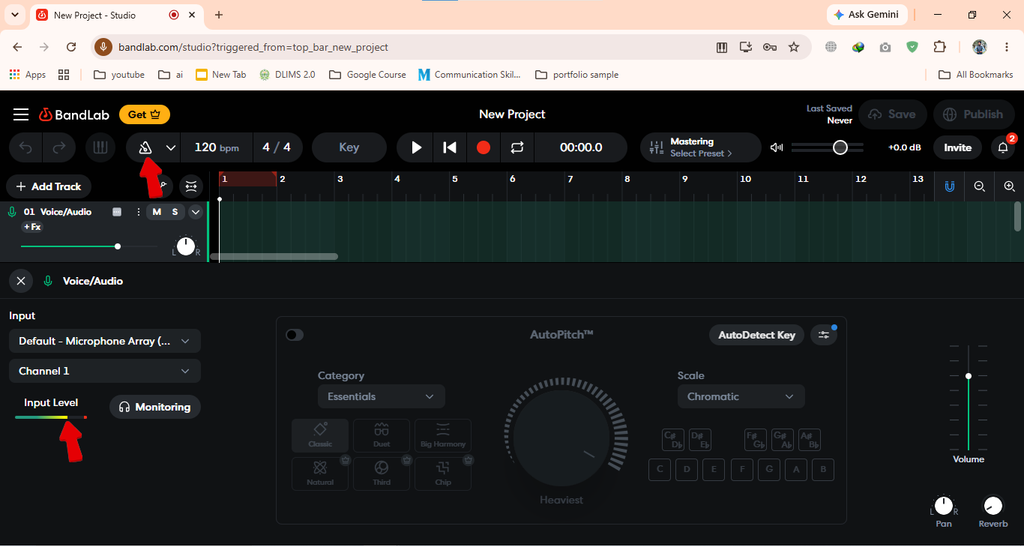
- Click the main record button in the transport bar to begin.

- Click stop when you’re finished. The recorded clip appears in the timeline.

Note: Some virtual instruments and BandLab-exclusive plug-ins are not available in the web version. If a feature appears greyed out on the browser, try the mobile app or check BandLab’s platform comparison in their help documentation.
How to Set Up Your Microphone for Better Recording Quality
The built-in microphone on a smartphone is designed for phone calls, not music recording. It picks up background noise easily, has limited frequency response, and is sensitive to distance and handling noise. For vocals or acoustic instruments, this often translates to thin, noisy recordings.

How to Set Up Your Microphone for Better Recording Quality
Here is how to get the most out of any microphone:
- Select your input source correctly: Go to the audio track settings in BandLab and confirm the input is set to your intended microphone before recording starts.
- Gain stage carefully: Watch the level meter during a test. If it clips into the red, reduce gain. If the signal barely moves, increase it. Aim for peaks around -12 dB to -6 dB.
- Use headphones for monitoring: This prevents audio bleed from speakers back into the microphone, which causes echo and phase problems in the recording.
- Minimize room noise: Record in the quietest space available, away from fans, air conditioning, and street traffic.
For mobile creators who want a practical upgrade without complicated setup, the Hollyland LARK A1 connects directly to an iPhone via Lightning or to Android and other devices via USB-C, making it fully plug-and-play with BandLab mobile. It features 3-Level Intelligent Noise Cancellation that reduces background noise before the signal even reaches BandLab’s recording chain, which is especially useful in untreated spaces like bedrooms or home offices. Once plugged in, it appears automatically as the input option in BandLab’s track settings with no drivers or interface required.

Hollyland LARK A1 - Affordable Wireless Microphone
A perfect starter mic for creators on a budget. It’s simple to use and features effective noise cancellation.
Key Features: 48kHz/24-bit | 3-Level Noise Cancellation | 54-Hour Battery
For creators who need to record while moving or performing live, the Hollyland LARK M2 is a wireless clip-on microphone worth considering as a next-step upgrade.
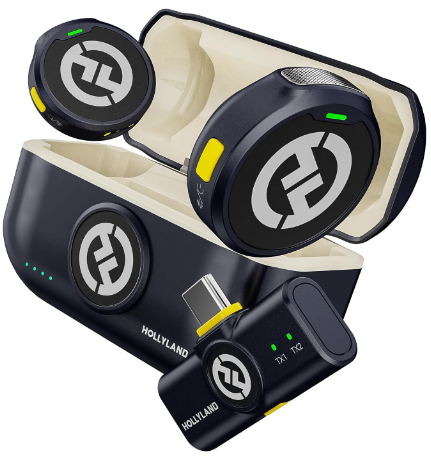
Hollyland LARK M2 - Mini Lavalier Microphone
An incredibly lightweight and compact wireless button microphone that captures high-fidelity audio.
Key Features: 9g Button Size | 48 kHz/24-bit | 40 Hours Battery
How to Record MIDI and Beats in BandLab
BandLab supports two types of non-audio recording: virtual instrument (MIDI) tracks and the Beat Maker. These are different from audio tracks, which use a microphone to capture live sound. MIDI tracks store note information rather than audio, so individual notes can be edited after recording.
To record a MIDI / Virtual Instrument Track:
- In the Studio Editor, click + Add Track.

- Select Instrument.

- Choose a virtual instrument from the library (piano, Brass, Drum Pads, etc.).

- Use the on-screen keyboard (mobile) or a connected MIDI controller to play notes.
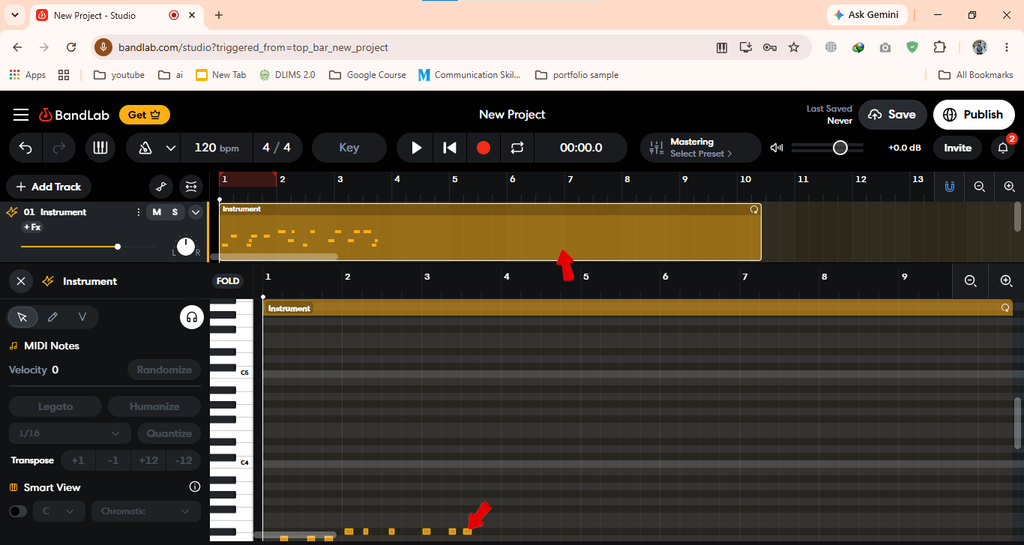
- Click the Red (●) button in the top toolbar to start & Stop recording.

- Double-click the MIDI clip to open the Piano Roll.
To use the Beat Maker:
- Click + Add Track, then select Drum Machine.

- Select a drum kit, such as 808, from the Instrument section.
- Click the squares in the Beat Grid to place drum hits and build your beat pattern one step at a time.

- When you finish, the beat is automatically added to the Timeline as a drum clip, where you can move, edit, duplicate, or delete it.
Editing Your Recording After You Capture It
Once you have a take recorded, BandLab’s Mix Editor includes basic tools to clean it up before you start mixing:
- Trim a clip: Tap or click a clip and drag its edges inward to remove unwanted silence or noise at the start and end.
- Split a clip: Use the split tool to cut a clip at a specific point, making it easy to delete a flubbed section or rearrange parts independently.
- Adjust clip volume: Tap a clip and use the volume slider to raise or lower its level relative to other tracks.
- Re-record a section (punch-in): Move the playhead to the problem area, make sure the track is armed, and press record. BandLab overwrites the audio from the playhead position forward.
- Undo: The undo button in the toolbar lets you step back through recent actions at any point.
For mixing levels, applying effects, and finishing your tracks, see our guide on [how to mix in BandLab].
Quick Troubleshooting: Common Recording Problems
| Problem | Likely Cause | Fix |
|---|---|---|
| No audio is being recorded | Track is not armed | Tap the record-enable button on the track until it turns red, then press record |
| Browser will not access the microphone | Site permissions are blocked | Open Chrome site settings for bandlab.com, set microphone permission to “Allow,” then reload the page |
| Recording has echo or feedback | Speaker playback is entering the mic | Plug in headphones and mute speakers before recording |
| Input level is too low or reads silent | Wrong input source selected | Open track settings and select the correct microphone from the input device dropdown |
| Recording cuts out or sounds choppy | Weak connection or device load | Close background apps, check internet stability, and reduce the number of active tracks |
Frequently Asked Questions
Can you record audio on BandLab for free?
Yes. BandLab is completely free to use for recording. There are no paywalled recording features, no time limits, and no cap on the number of projects or tracks you can create. Your songs are stored in the cloud automatically. Some third-party content packs may carry an optional cost, but the core recording workflow costs nothing.
Does BandLab work with external microphones?
Yes. BandLab supports any microphone that your device recognizes as an audio input. On mobile, 3.5mm TRRS, USB-C, and Lightning microphones connect and appear as input options automatically. On desktop, USB microphones and audio interfaces connected to your computer show up in the input device dropdown inside the track settings panel.
Can you record multiple tracks at the same time in BandLab?
BandLab does not currently support simultaneous multi-track recording from multiple inputs. You can arm and record one track at a time and overdub by layering new tracks on top of existing ones. For true multi-channel simultaneous recording, a dedicated DAW with a multi-input audio interface would be required.
Is BandLab good for recording vocals?
BandLab is a capable starting point for vocal recording, particularly for beginners. It supports real-time input monitoring, includes basic vocal effects, and exports audio cleanly. The main practical limitation is audio engine depth compared to paid DAWs. The single biggest improvement you can make is using an external microphone instead of the built-in phone mic.
What is the difference between an audio track and an instrument track in BandLab?
An audio track captures live sound through a microphone or line input and stores it as a waveform. An instrument track records MIDI data from a virtual instrument or controller, storing note and velocity information rather than actual audio. MIDI note data can be edited individually after recording, while audio tracks are edited as waveform clips.
Start Recording Today
The core BandLab recording workflow comes down to four actions: create a project, add an audio track, arm it, and press record. From there, the built-in editing tools let you tighten your take before you share or mix. Open BandLab now and record your first clip. Once the workflow clicks, everything else follows quickly. When you’re ready to take your tracks further, read our guide on [how to mix in BandLab] to start shaping your sound.