.png)
 简体中文
简体中文 
Riverside.fm has become a go-to platform for podcasters who want studio-quality recordings without a physical studio. Whether you are hosting a solo episode or recording a remote interview, the platform captures audio and video locally on each participant’s device, which means far better quality than a standard video call. This guide covers everything from setting up your account to downloading finished files ready for editing.
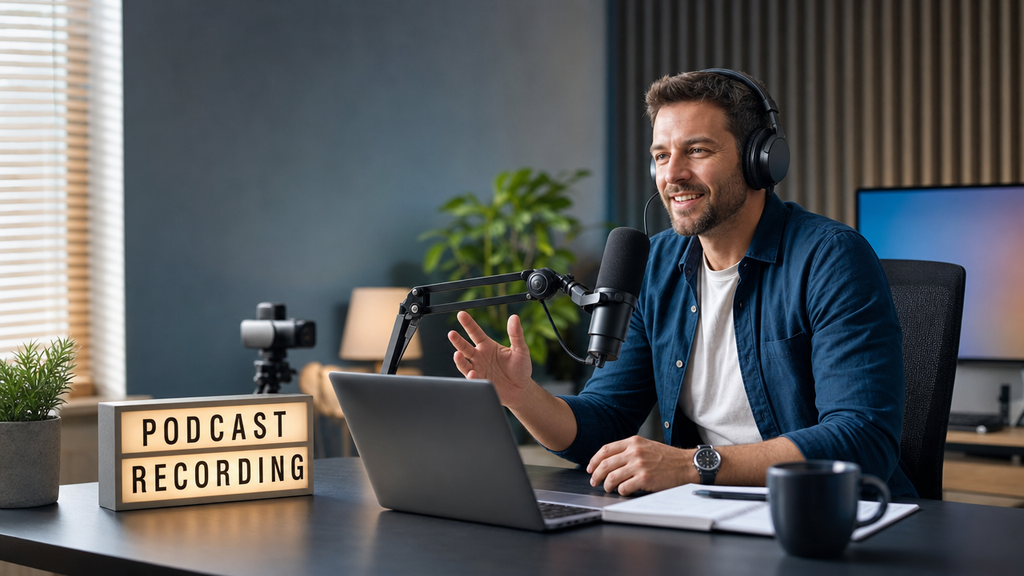
How to Use Riverside.fm for Podcast Recording: Step-by-Step Guide
What Is Riverside.fm and Why Podcasters Use It
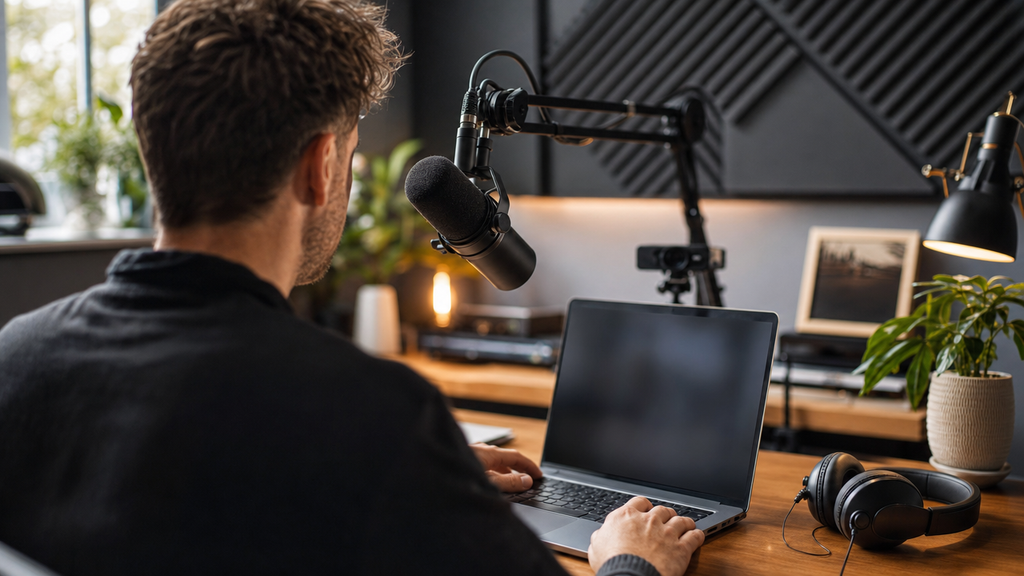
Riverside.fm is a browser-based recording platform built specifically for podcasts and video content. Unlike Zoom or Google Meet, it records audio and video locally on each participant’s device, then progressively uploads those files to the cloud during the session. The result is separate, high-quality audio and video tracks per speaker rather than a single compressed call recording. This architecture solves two of the biggest pain points in remote podcasting: degraded audio from streaming compression, and lost recordings when an internet connection drops mid-session.
What Is Riverside.fm and Why Podcasters Use It
What You Need Before You Start Recording
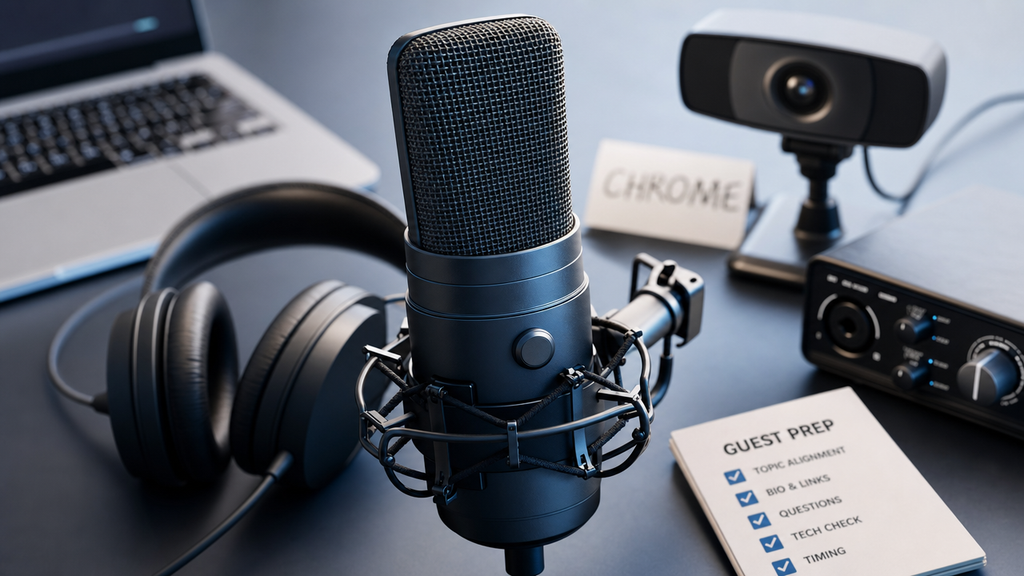
Before you open Riverside.fm for your first session, confirm that the following are in place:
What You Need Before You Start Recording
- Browser: Use Google Chrome for the best experience. Safari has known limitations with Riverside’s local recording features, and Firefox is not officially supported.
- Microphone: A dedicated microphone (USB, XLR via an audio interface, or wireless) produces significantly better audio than a built-in laptop mic.
- Headphones: Wired or wireless headphones are essential. Without them, your microphone picks up audio from your speakers and creates echo on your recorded track.
- Internet connection: A stable upload speed of at least 10 Mbps is recommended for sessions with remote guests.
- Riverside.fm account: Sign up at Riverside.fm. The free plan includes up to 2 hours of recording per month. Paid plans unlock lossless audio and unlimited recording time.
- Guests briefed in advance: If you are recording an interview, send your guest the studio link ahead of time and ask them to test their microphone and browser before the session.
Choosing the Right Microphone for Riverside.fm
Riverside captures audio locally at the highest quality your microphone can deliver, which means your mic sets the ceiling for your final output. USB microphones are the easiest starting point and connect directly to your computer with no extra hardware. XLR microphones offer a higher quality ceiling but require an audio interface. For podcasters who record outside a treated studio or need to move freely, a wireless clip-on microphone is a practical alternative. The Hollyland LARK MAX 2, for instance, records internally at 48 kHz / 32-bit Float with built-in AI Noise Cancellation, which pairs well with Riverside’s lossless local recording workflow in untreated rooms or on-location setups.
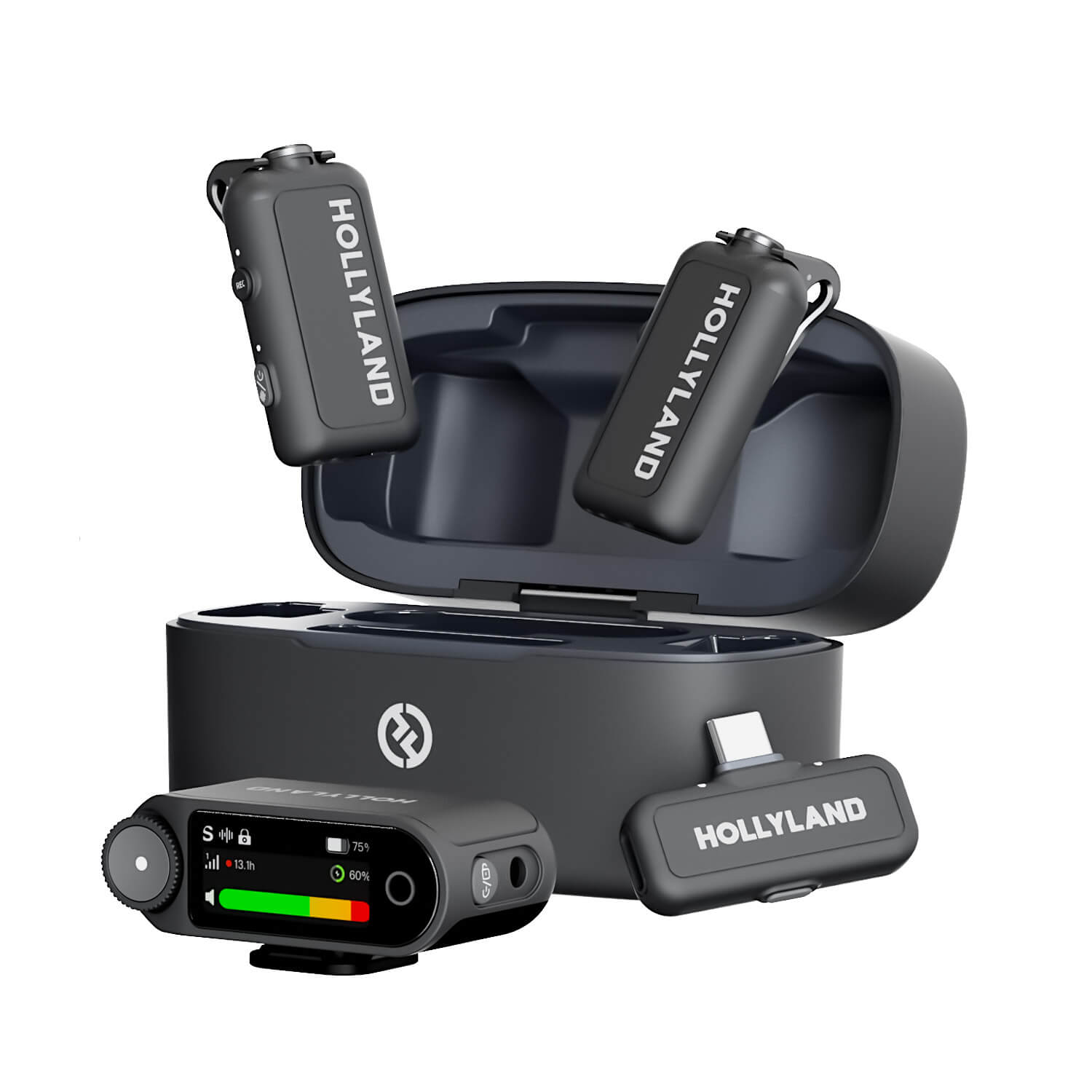
Hollyland LARK MAX 2 - Premium Wireless Microphone System
A premium wireless microphone for videographers, podcasters, and content creators to capture broadcast-quality sound.
Key Features: Wireless Audio Monitoring | 32-bit Float | Timecode
How to Set Up a Riverside.fm Recording Session
Follow these steps each time you create a new recording session:
- Log in to your Riverside account and click Open Studio from your dashboard.

- Name your studio & click Join Studio.

- Open setting & Select Video & audio for a video podcast, or Audio if you only need an audio recording.

- For podcast interviews, enabling video gives you more options in post-production, including short-form video clips.
- Copy the guest invite link generated for your studio. Each studio has a unique link that does not expire unless you regenerate it.
- Share the link with your guest via email, Slack, or any messaging platform. Guests do not need a Riverside.fm account to join.
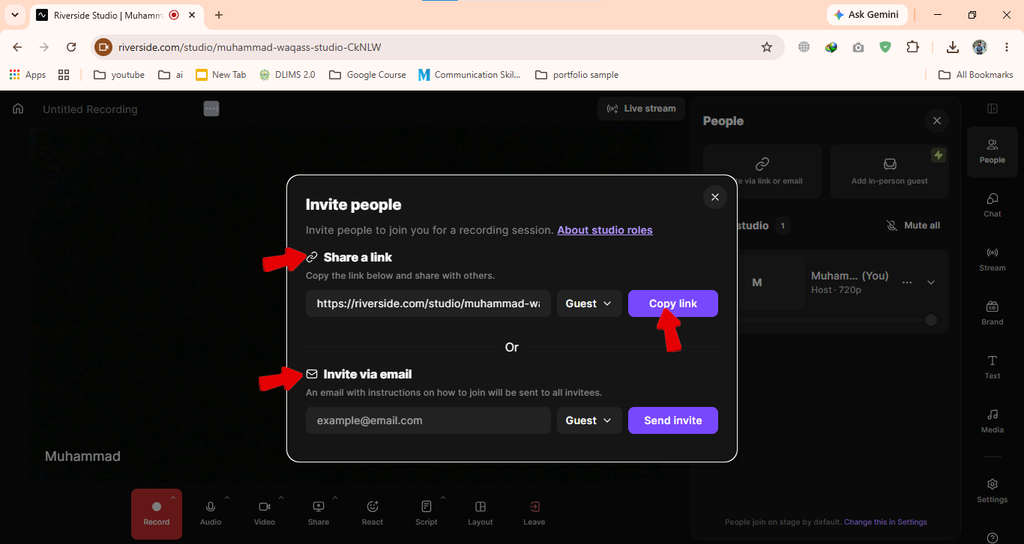
- Run your pre-call audio check. When you enter the studio, Riverside prompts you to select your microphone and camera inputs. Choosing the wrong input is one of the most common causes of poor-sounding recordings, so take a moment to confirm the correct device is selected.
- Start recording when you and your guest are ready. Click the record button in the director controls at the bottom of the screen.

Inviting Guests and Managing Participants
Guests join by clicking the unique studio link and opening it in their browser. No account, app download, or sign-up is required on their end. Riverside asks permission to access their microphone and camera on arrival, which is the most common friction point: guests unfamiliar with browser permissions sometimes dismiss the prompt and then report that their mic is not working.
To reduce this friction, ask guests to check the following before the session:
- Use Google Chrome on a desktop or laptop for the most reliable experience
- Grant microphone and camera permissions when the browser prompts them
- Close any other apps that may already be using the microphone (Zoom, Teams, FaceTime)
- Use headphones to prevent echo appearing on their audio track
From your director view, you can see each participant’s audio level, mute individual speakers, and start or stop the recording independently. Guests arrive in a waiting room until you admit them, giving you time to verify their setup before the session begins.
Recording Your Podcast: In-Session Best Practices
Once the recording is running, these habits protect audio quality and prevent avoidable problems.

Recording Your Podcast: In-Session Best Practices
- Monitor your audio level meter. Your level should stay in the green zone during normal speech. Consistently peaking in the red means your microphone gain is too high, which causes distortion on the locally recorded file that cannot be undone in editing.
- Keep your headphones on throughout the session. Removing them or switching to speakers causes your microphone to pick up your guest’s audio and record it as echo on your track. This is difficult to repair after the fact.
- Keep the Riverside browser tab active. Riverside uses the active browser tab to manage the local recording process. Switching tabs or minimizing the window for extended periods can interrupt recording on some browser versions.
- Enable Studio Sound. Riverside’s Studio Sound toggle applies AI noise suppression in real time, reducing keyboard noise, fan hum, and room reflections. It applies to your own audio only, so remind guests to enable it on their end as well.
- Stay calm if the connection drops. Riverside’s progressive upload feature continuously saves your session to the cloud as you record. If your internet disconnects mid-session, the portion already uploaded is preserved and your local recording file remains intact on your device regardless of connection quality.
- Use director controls to manage the session. As the host, you can mute participants, send a private chat message that does not appear in the recording, and stop and restart the recording if something goes wrong before the main conversation begins.
Downloading and Exporting Your Riverside.fm Recordings
After you end a session, Riverside finishes uploading your files to the cloud. Follow these steps to access and download them:
- Go to your Riverside dashboard and click on the studio where you recorded. Completed sessions appear in a list below the studio settings.
- Wait for processing to complete. Depending on session length and upload speed, processing can take anywhere from a few minutes to around thirty minutes. A progress indicator appears on the recording thumbnail.
- Select the recording you want to download. Riverside displays a preview of the composite (mixed) output and the individual participant tracks.

- Choose your download format. You can download the composite mixed video or separate audio and video files per participant. For podcast production, individual audio tracks are the most useful option.

- Download individual WAV audio files for each speaker. These separate tracks allow you to control each participant’s audio independently in your editing software.
- Download video files if your workflow includes a video version of the episode or short clips. Riverside exports video at up to 4K depending on your plan tier.

- Verify your downloads before closing the session. File sizes should reflect the recording length. An unusually small file may indicate an incomplete upload that still needs time to finish.
Editing After Export
Download the individual WAV tracks and bring them into a DAW such as Audacity, Adobe Audition, or Descript for editing. Each speaker’s track can be adjusted, leveled, and cleaned independently without affecting anyone else’s audio. If you prefer a browser-based option, Riverside’s built-in Magic Editor lets you cut clips and create short-form content directly from the auto-generated transcript without exporting first. For a complete podcast editing workflow, refer to a dedicated audio editing guide.
Tips to Improve Audio Quality on Riverside.fm
Software settings alone will not fix a problematic recording environment. These steps make a noticeable difference before you press record:
Tips to Improve Audio Quality on Riverside.fm
- Record in a small, soft-furnished room. Hard surfaces create echo and reverb that are difficult to remove in post-production. A bedroom, carpeted home office, or walk-in closet typically performs well without any dedicated acoustic treatment.
- Close all background applications before starting your session. Other browsers, video conferencing apps, and media players consume CPU and RAM that Riverside relies on to manage high-quality local recording.
- Use a pop filter or record slightly off-axis. Positioning your microphone directly in front of your mouth causes plosive sounds on “p” and “b” words. A pop filter or angling the mic slightly to one side eliminates most of this.
- Set audio quality to “Best” in advanced studio settings. Riverside’s default setting balances quality and upload demands. Switching to Best increases the local recording bitrate for cleaner audio before any editing takes place.
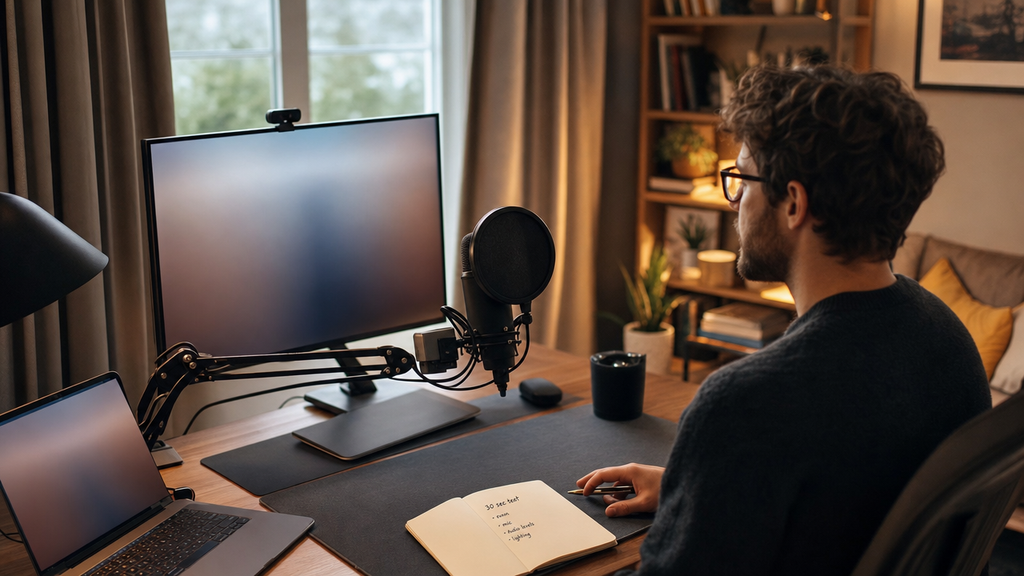
- Record a 30-second test before the full session. Play it back through headphones at normal listening volume. If you can hear room echo, background noise, or level problems, fix them before your guest joins the studio.
Frequently Asked Questions
Is Riverside.fm free for podcast recording?
Yes. The free plan includes up to 2 hours of recording per month at standard quality. Paid plans unlock lossless audio (up to 48 kHz WAV), unlimited recording time, and advanced export options including full-quality separate track downloads. The free tier is a practical way to test the platform and your hardware setup before committing to a subscription.
Can guests join a Riverside.fm session without an account?
Yes. Guests receive a unique studio link and join directly in their browser with no sign-up, account, or software download required. They will need to grant microphone and camera permissions through the browser when prompted. Sending a short prep note in advance significantly reduces technical friction, especially for guests who have not used a browser-based recording tool before.
Does Riverside.fm record locally or in the cloud?
Riverside uses both simultaneously. Each participant’s audio and video is recorded locally on their device for maximum quality, and the files are progressively uploaded to the cloud throughout the session. A dropped connection mid-recording does not result in lost audio. The locally saved file remains intact and uploads automatically once the connection is restored.
Can I record a podcast on Riverside.fm from my phone?
Yes. Riverside offers a mobile app for iOS and Android that supports recording on the go. That said, desktop recording through Google Chrome gives you access to the full feature set, including all quality settings, director controls, and the most reliable local recording performance. Mobile is a solid backup option but is not the recommended primary recording setup.
Why does Riverside.fm record separate audio tracks?
Separate tracks mean each speaker’s audio is saved as its own independent file. If one participant has background noise, inconsistent volume, or an audio problem that develops during the session, you can address that track in post-production without touching anyone else’s audio. This is the feature that most clearly separates Riverside from a standard video call recording and the main reason podcasters choose it for remote interviews.
Your Next Step
The core Riverside.fm workflow is straightforward: configure your studio, verify your hardware inputs, invite your guest, record with local separate tracks enabled, and download the individual audio files when processing is complete. Before your first live guest session, run a short test recording using the free plan with someone who can give you honest feedback on audio quality. Once you’re comfortable with the process, refining your microphone choice and recording environment will take your output to the next level.