.png)
 简体中文
简体中文 
One bitrate choice can quietly create problems long after recording ends. Set it too low, and some of your source quality may be gone for good. Set it too high, and you may fill your storage with unnecessarily large files. Later, you could spend extra time converting those files just to save space. The right setting depends on what you record and how it will be used. It also depends on what happens to the file after recording. This guide explains practical bitrate recommendations for audio and video. You will also learn how to choose the right setting for each situation.

Bitrate, Bit Depth, and Sample Rate: Clearing Up the Terminology
Before the recommendations make sense, you need clear definitions for three terms. They are often used interchangeably, but they describe very different things.
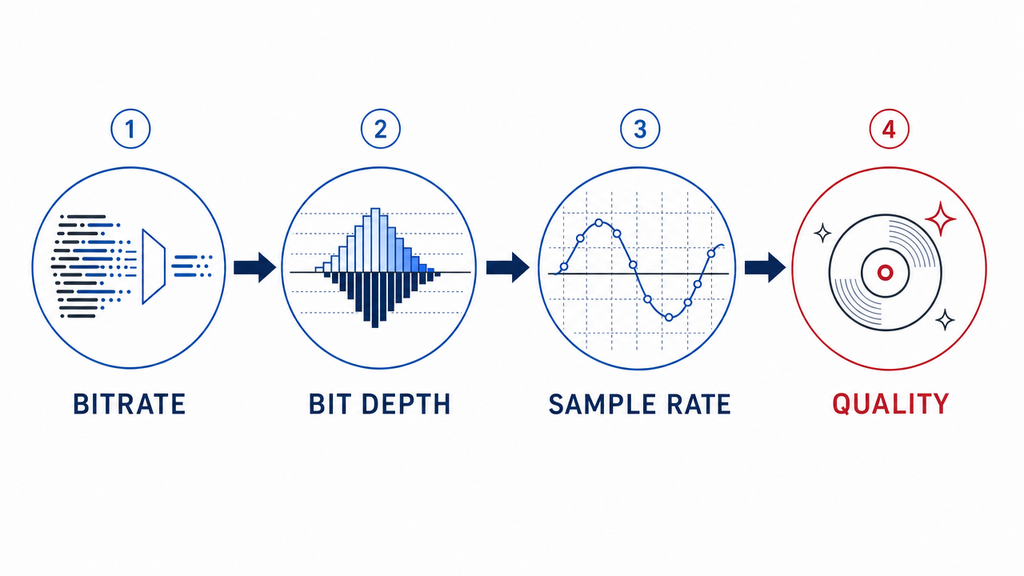
Bitrate (measured in kbps or Mbps) refers to the amount of data processed per second in a compressed audio or video file. Higher bitrate generally preserves more detail. Audio bitrate stays consistent across different file formats. It sets compression limits for formats such as MP3 and AAC. It also sets the basic fidelity level of WAV and FLAC files.
Bit depth refers to how accurately digital samples or pixels are recorded. It is measured in bits, such as 16-bit, 24-bit, and 32-bit. Higher bit depths provide greater dynamic range and editing headroom. They also help reduce noise and distortion during post-production. For audio recording, bit depth and sample rate affect quality. Bitrate, on the other hand, affects data size and transmission needs.
Sample rate (measured in kHz: 44.1 kHz, 48 kHz) describes how many audio samples are captured per second. 44.1 kHz is the standard for music and consumer audio; 48 kHz is the professional standard for video production and broadcast. Matching your sample rate to your delivery context prevents sync drift and processing artifacts downstream.
What Bitrate Should I Record Audio At?
When recording audio, the most important decision is not bitrate in the traditional compressed-file sense. It is bit depth and sample rate. Compressed formats like MP3 involve bitrate as a quality setting, but for raw recording, bit depth determines how much dynamic range and editing flexibility you capture from the start.
16-Bit vs. 24-Bit vs. 32-Bit Float: Which Should You Choose?
16-bit delivers around 96 dB of dynamic range and is the standard for CD audio and consumer playback. It is technically sufficient for final delivery, but it leaves almost no headroom for post-production. If your levels run even slightly hot during recording, you risk clipping with no way to recover. For most professional workflows, 16-bit belongs at the export stage, not the recording stage.
24-bit is the professional recording standard and the right default for any serious workflow. With approximately 144 dB of dynamic range, it gives you substantial room to adjust gain, apply noise reduction, and survive the editing process without introducing noise floor artifacts. If you record voice-over, music, interviews, or production audio for video, 24-bit / 48 kHz is your baseline.
32-bit Float records audio using a different digital approach. Instead of simply increasing the available dynamic range, it uses floating-point data. This format can prevent digital clipping under normal recording conditions. If the microphone and preamp avoid physical overload, peak data stays recoverable. You can then restore peaks above 0 dBFS during post-production. This makes 32-bit Float valuable for field recording situations. It also suits live events where input levels can change suddenly. It helps whenever monitoring levels during recording is not possible.
Wireless microphone systems have made 32-bit Float increasingly accessible. The Hollyland LARK MAX 2, for example, supports native 48 kHz / 32-bit Float internal recording with AI Noise Cancellation. That combination means the recording safety net is built directly into the transmitter. Even if the connected camera or recorder does not support 32-bit Float, the backup internal recording preserves the full dynamic range, which is a meaningful practical advantage in run-and-gun and location production scenarios.
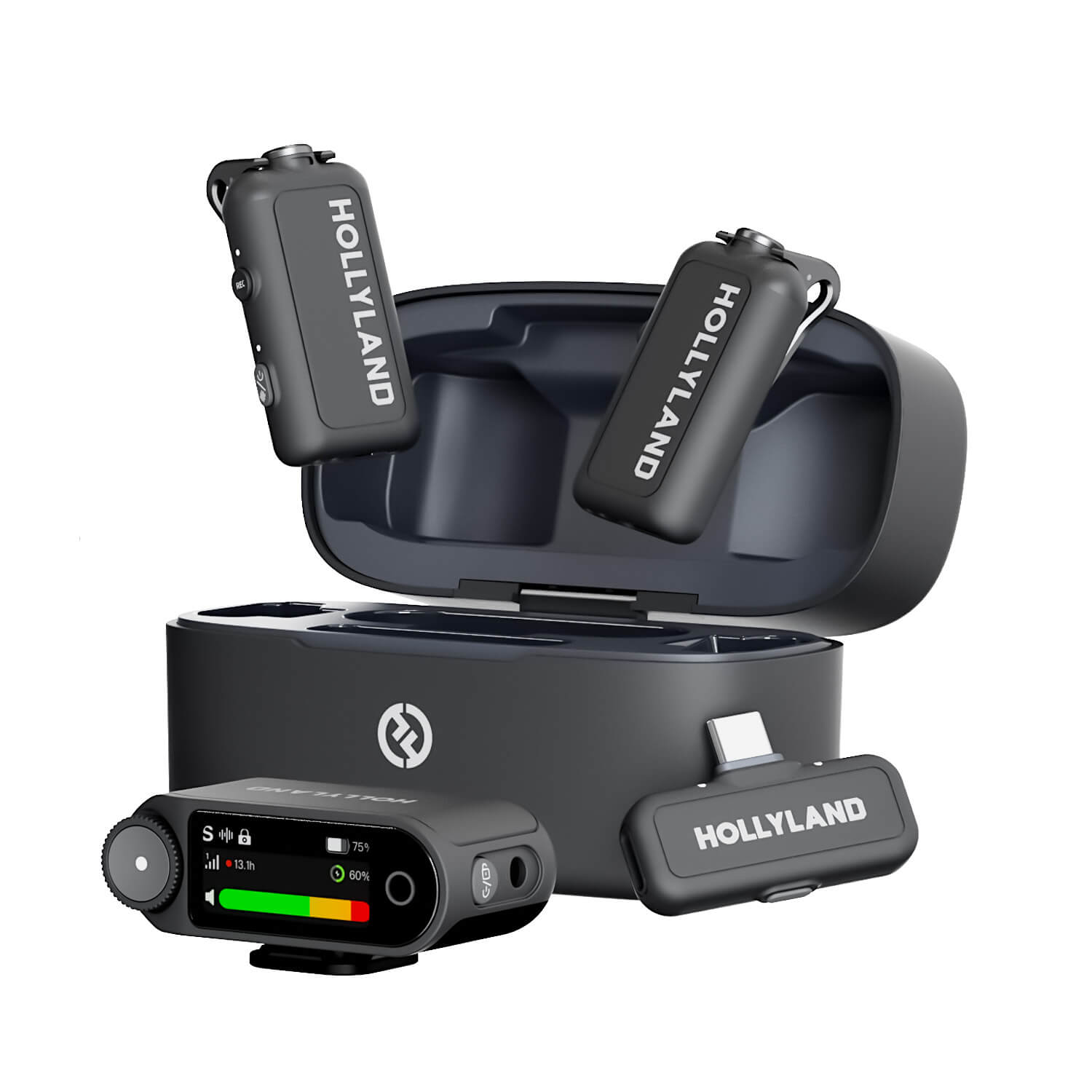
Hollyland LARK MAX 2 - Premium Wireless Microphone System
A premium wireless microphone for videographers, podcasters, and content creators to capture broadcast-quality sound.
Key Features: Wireless Audio Monitoring | 32-bit Float | Timecode
| Bit Depth | Dynamic Range | Ideal Use Case | File Size Impact |
|---|---|---|---|
| 16-bit | ~120 dB (with dither) or 96 dB (undithered) | Final delivery (CD, podcast distribution) | Smallest |
| 24-bit | ~144 dB | All professional recording workflows | Moderate |
| 32-bit Float | Virtually unlimited | Field recording, live events, unpredictable levels | Slightly larger than 24-bit; minimal in practice |
Note: 32-bit Float files are modestly larger than 24-bit WAV files, but the storage cost is negligible relative to the protection they offer in high-stakes recording situations.
Recommended Audio Bitrate Settings by Use Case
| Use Case | Recommended Bit Depth | Sample Rate | Format | Notes |
|---|---|---|---|---|
| Podcast / Voice-Over | 24-bit | 48 kHz | WAV (record); MP3 320 kbps or AAC 256 kbps (export) | Move to compressed formats only at final export |
| Music Production | 24-bit | 44.1 kHz | WAV / AIFF | 48 kHz is acceptable; stay consistent across your session |
| Field / Location Recording | 24-bit or 32-bit Float | 48 kHz | WAV | Use 32-bit Float when gain monitoring is impractical |
| Broadcast / Film Production | 24-bit | 48 kHz | WAV / BWF | Industry standard; many broadcast specs require exactly this |
| Archiving Masters | 24-bit | 48 kHz | WAV / FLAC | Never archive in MP3 or AAC; compressed artifacts are permanent |
| Final Delivery (streaming, podcast hosts) | 16-bit | 44.1 or 48 kHz | MP3 / AAC | This is where compressed formats belong, not in your source files |
What Bitrate Should I Record Video At?
Video bitrate is measured in megabits per second (Mbps) and is directly tied to the codec you use, the resolution you record at, and what you plan to do with the footage afterward.
One distinction that matters here: your recording bitrate (the master file captured to your card or drive) should always exceed your export/delivery bitrate (what you send to YouTube, a client, or a broadcast feed). The extra data in your source file gives your editing software room to work without introducing compression artifacts during rendering.
Video Bitrate by Resolution and Codec
H.264 is the most compatible codec and is widely supported across cameras, editing software, and delivery platforms. H.265 (HEVC) delivers equivalent quality at roughly half the bitrate, which is useful for storage-constrained workflows but more demanding on hardware. ProRes and RAW formats are relevant to professional camera and post-production pipelines where maximum editing latitude is required.
Variable Bitrate (VBR) is generally preferred for recording because it allocates more data to complex scenes and conserves storage during static moments. Constant Bitrate (CBR) is more predictable and appropriate for live streaming output, but less efficient when capturing to file.
| Resolution | Codec | Recommended Recording Bitrate | Recommended Export Bitrate | Use Context |
|---|---|---|---|---|
| 1080p | H.264 | 16–25 Mbps | 8–12 Mbps | General recording, YouTube |
| 1080p | H.265 | 10–16 Mbps | 5–8 Mbps | Storage-efficient recording |
| 4K | H.264 | 50–100 Mbps | 35–45 Mbps | YouTube 4K, prosumer cameras |
| 4K | H.265 | 30–60 Mbps | 20–35 Mbps | Standard prosumer 4K capture, Efficient YouTube 4K uploads |
| 4K | ProRes 422 | 470–750 Mbps | N/A (edit format) | Professional editing, color grading |
| 4K/6K | RAW | Varies by camera | N/A (edit format) | Cinema; maximum post-production latitude |
Recording for YouTube, Editing, and Screen Capture – What Changes?
YouTube compresses every video after it gets uploaded to the platform. A low recording or export bitrate can worsen that compression. The published video may then show noticeable quality loss. Choosing YouTube’s recommended export bitrate can reduce this problem. For 1080p video, the typical range is 8 to 15 Mbps. For 4K, the range is usually 35 to 68 Mbps. The exact 4K bitrate depends on the video’s frame rate. This gives YouTube enough clean data for better final quality.
Editing benefits from higher bit depth and intra-frame codecs. Generous chroma sampling can also improve editing quality. Record footage at your camera’s highest available quality. This matters when color grading or stabilizing your footage. It also helps when adding effects during the editing process. Modern editing software processes effects using lossless 32-bit floating-point data. This reduces quality loss across multiple editing passes. Heavily compressed footage can still reveal problems after export. Blocky artifacts and color banding may become clearly visible.
Screen recordings need sharp visuals for readable text and interface elements. OBS Studio and Camtasia can record these types of content locally. Instead of fixed bitrates, choose quality-based controls like CQP or CRF. For low-motion content, a CQP value around 20 to 22 works. This keeps text sharp while reducing file sizes during static scenes. During motion, bitrate can increase automatically when more detail appears. At 1080p, this can match roughly 10 to 15 Mbps. At 4K, the equivalent range can reach 25 to 50 Mbps.
Four Factors That Should Drive Your Bitrate Decision
Higher is not always better. These four factors help you calibrate to what you actually need rather than defaulting to maximum settings.
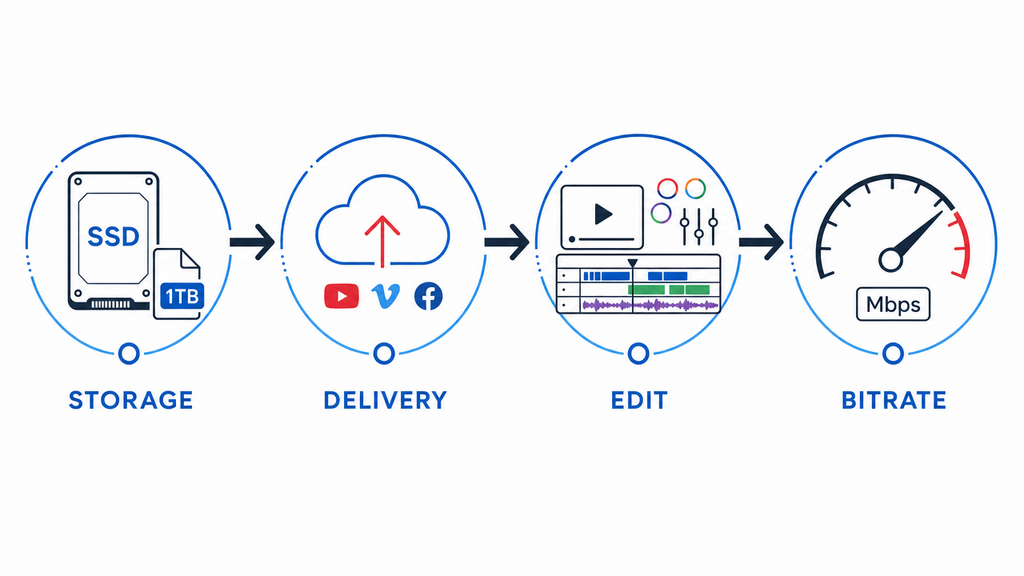
- Storage and file size constraints. A 4K ProRes recording can consume several gigabytes per minute. Before committing to the highest setting, calculate whether your storage, on location and on your editing drive, can accommodate that volume across a full session. 4K H.265 at 60 Mbps often delivers comparable quality to 4K H.264 at 100 Mbps at a fraction of the cost.
- Delivery platform requirements. YouTube, broadcasters, podcast platforms, and hosting services have different standards. Knowing where your file will go helps determine recording settings. During live streaming, stay below the platform’s maximum ingest bitrate. Exceeding that limit can cause rejected streams or dropped frames. For local recording, fixed bitrate settings are usually not ideal. Instead, choose quality-based controls such as CQP or CRF. These settings preserve higher-quality footage for later editing and export.
- Post-production editing headroom. If footage goes straight to delivery without editing, a lower recording bitrate is acceptable. If it will go through color grading, noise reduction, audio mixing, or stabilization, capture at a higher bitrate to preserve quality through each processing step.
- Recording environment and gain predictability. For audio specifically, unpredictable environments, such as crowded venues, outdoor shoots, live interviews, make level management difficult or impossible. This is where 32-bit Float earns its place. When controlled gain cannot be guaranteed, your recording format becomes a risk management decision as much as a quality one.
Common Bitrate Mistakes That Hurt Recording Quality
- Recording directly into a lossy format. Capturing to MP3 or AAC means any editing you do later degrades an already compressed source. Record to WAV or another lossless format and compress only at final export.
- Mismatching sample rates between audio and video. Recording audio at 44.1 kHz while your video project runs at 48 kHz introduces sync drift over long recordings. Set both to 48 kHz from the start.
- Choosing video bitrate without considering the codec. 50 Mbps in H.265 is not equivalent to 50 Mbps in H.264. The codec determines how efficiently those bits are used; bitrate alone does not define quality.
- Confusing streaming bitrate with recording bitrate. Platform output caps apply to your live broadcast, not your local recording file. Record high; stream within platform limits.

FAQs
What bitrate should I record audio at for a podcast?
Record at 24-bit / 48 kHz in WAV format. This gives you a clean, editable source file with full dynamic range intact. Once editing is complete, export to MP3 at 320 kbps or AAC at 256 kbps for distribution. Never record directly into a compressed format; lossy artifacts introduced at capture cannot be removed in post-production.
Is 32-bit float really necessary, or is 24-bit enough?
For controlled recording environments where you can monitor and adjust gain reliably, 24-bit is completely sufficient. 32-bit Float is a safety net for situations where unpredictable input levels make clipping a real risk, such as live events, solo field recording, or run-and-gun production without a sound operator. If your levels are well-managed, you will not hear a difference between the two.
What bitrate should I record video at for YouTube?
For a 1080p editing master, target 15 to 25 Mbps with H.264. This provides extra room for editing and later compression. YouTube recommends at least 8 Mbps for standard 1080p uploads. Newer codecs like H.265 and AV1 need lower bitrates. They can maintain similar visual quality around 10 to 16 Mbps. For 4K video, target 35 to 68 Mbps with H.264. The exact bitrate depends on your video’s frame rate. With H.265, aim for roughly 20 to 45 Mbps instead. Higher source bitrates give YouTube cleaner data during compression. This helps preserve sharp details in the final published video. It also reduces pixelation after YouTube processes your upload.
Does higher bitrate always mean better quality?
No. There is a practical threshold above which additional bitrate produces no perceptible improvement, but file size costs continue to grow. Recording 1080p video at 100 Mbps H.264 is not meaningfully better-looking than 50 Mbps for most content types. Match your bitrate to your actual use case and post-production needs rather than defaulting to the highest available option.
What’s the difference between recording bitrate and streaming bitrate?
Recording bitrate is the data rate of the file you save locally to a drive or card; higher values preserve more quality for editing. Streaming bitrate is the data rate of your live broadcast output, constrained by platform limits and your upload bandwidth. These are independent settings. Recording at high bitrate while broadcasting within platform caps is standard practice in any professional live workflow.
Conclusion
Before recording, choose settings that protect quality later. Start professional audio recordings at 24-bit / 48 kHz. Move to 32-bit Float when gain levels remain uncertain. For video, match bitrate with resolution and codec requirements. Keep recording bitrates above your final delivery targets. This gives editing and compression more room for quality. Good settings also reduce compromises during the final production stages. Pair them with a quality microphone and a clean signal chain. That way, your source audio fully benefits from the chosen bit depth.