



































.png)
 简体中文
简体中文 
Recording audio on a phone does not require extra equipment. The real challenge is choosing the right recording method. Poor app choices can also lead to unwanted noise. This guide explains two simple ways to record audio. The first method relies on your phone’s built-in recorder. It suits quick notes, conversations, and other everyday recordings. The second method involves adding a wireless external microphone. This option suits situations where clearer audio matters more. Each method includes simple instructions from start to finish.

How to Record Sound on Your Phone: Built-In Apps and External Microphone Setup
Two Ways to Record Sound on Your Phone
The right method depends on what you plan to do with the recording.
Native app recording uses the microphone already built into your phone. No extra gear required. It launches in seconds, and it works well for voice memos, meeting notes, and informal reminders.
External wireless microphone recording adds a dedicated mic that clips to your clothing and transmits audio directly to your phone. Setup is fast with the right hardware, and the result is noticeably cleaner audio suited to anything an audience will hear.
| Use Case | Recommended Method |
|---|---|
| Voice memos, quick notes, personal reference | Native app recording |
| Social content, video narration, podcasts, interviews | External wireless microphone |
Method 1: Using Your Phone’s Built-In Voice Recorder
Most smartphones already include an app for recording audio. Android and iPhone menus may look somewhat different. Still, the basic recording process stays nearly identical.
Recording on Android (Voice Recorder / Recorder App)
The default recording app varies by manufacturer. On stock Android (Pixel devices), it is called Recorder. On Samsung devices, it appears as Voice Recorder. Both come pre-installed and are accessible from the app drawer.
- Open the app drawer and search for “Recorder” or “Voice Recorder.” On Samsung, you may also find it inside the Samsung folder.

- Once the app opens, tap the menu button (three vertical lines).
- Select Settings (gear icon), and tap Recording mode.

- Samsung’s Voice Recorder offers Standard and Interview modes. Select Standard for general-purpose use.

- Tap the red record button to begin. Speak clearly toward the phone’s bottom or rear microphone.

- Tap pause to hold temporarily, or the stop button to end the session.

- Name and save the file when prompted. Recordings are stored in .m4a format in your phone’s internal storage, accessible through the Files app under Audio or Recordings.
Note: The Google Recorder app on Pixel devices also generates a live transcript alongside your audio file, which is especially useful for meeting notes and interviews.
Recording on iPhone (Voice Memos)
Voice Memos is Apple’s native recording app, pre-installed on every iPhone running OS 3 or later.
- Open Voice Memos from your home screen or App Library. For faster access, add it to Control Center by going to Settings > Control Center, then swipe down from the top-right corner to open it directly.

- Tap the large red record button at the bottom of the screen to start capturing audio.

- The waveform display confirms the microphone is active. Speak at a consistent distance of roughly 20 to 30 cm for natural vocal clarity.
- Tap the red stop button to end the recording. The file saves automatically.
- To trim the clip, tap the three-dot menu next to the file and select Edit Recording. Drag the yellow handles inward to remove unwanted audio from the beginning or end.
- To share, tap the three-dot menu again and choose Share. Voice Memos exports files in .m4a format, compatible with most platforms.
Why Built-In Phone Microphones Fall Short
Phone microphones are omnidirectional by design, which means they capture sound equally from all directions. That is practical for calls but problematic when you need your voice to stand out.
Common limitations include:
- Background noise pickup: Air conditioning, traffic, keyboard sounds, and ambient chatter all compete with your voice with equal priority.
- Distance sensitivity: When you prop or hold the phone at arm’s length, the mic is too far away to capture vocal detail consistently.
- Gain inconsistency: Automatic gain control can cause volume to spike or drop mid-recording as it adjusts to changing noise levels.
- Room reflections: In spaces with hard walls or tile floors, echo and reverb are baked into the recording before any processing can correct them.
If any of these are affecting your recordings, an external microphone addresses each problem directly.
Method 2: Recording with an External Wireless Microphone (Hollyland LARK A1)
Phone microphones can struggle when recording from farther away. A wireless microphone places its audio pickup near your mouth. The Hollyland LARK A1 provides this type of recording setup. It is a small wireless lavalier system for smartphones. Its plug-and-play design makes it easy to connect. The following steps explain how to record with it.

Hollyland LARK A1 - Affordable Wireless Microphone
A perfect starter mic for creators on a budget. It’s simple to use and features effective noise cancellation.
Key Features: 48kHz/24-bit | 3-Level Noise Cancellation | 54-Hour Battery

What the Hollyland LARK A1 Includes
The LARK A1 ships as a ready-to-use kit with no additional accessories required:
- Transmitter: The wearable body mic unit that clips to clothing and captures your voice
- Receiver: A compact dongle that plugs directly into your phone. Available in USB-C for Android and iPhone 15 or newer, and Lightning for iPhone 14 and earlier
- Charging case: Stores and recharges both units simultaneously, with LED indicators displaying charge status for each
The microphone is designed with plug-and-play convenience. You do not need Bluetooth pairing or additional drivers. There is also no companion app required for operation. Once connected, the receiver appears as a USB audio device. Your phone recognizes it immediately after you plug it in.
Step 1: Connect the Receiver to Your Phone
- Remove the receiver dongle from the charging case. You have the USB-C and Lightning options.

- Insert the receiver into your phone’s charging port. Use the USB-C port for Android devices and iPhone 15 or newer. Use the Lightning receiver for iPhone 14 and earlier.

- Your phone’s operating system detects the receiver automatically and switches audio input to it. No manual toggle in Settings is required on devices running Android 10 or later or iOS 14 or later. The receiver LED illuminates to confirm it is powered and ready.
Note: If a phone case obstructs the port opening, remove it before inserting the receiver to ensure a solid physical connection.
Step 2: Attach and Power On the Transmitter
- Clip the transmitter to your clothing approximately 15 to 20 cm below your chin. A shirt lapel, collar edge, or jacket chest panel works well. Position the microphone capsule facing upward and away from fabric folds to prevent covering it.

- Press and hold the power button for roughly three seconds until the LED activates.
- Read the LED sequence to confirm status:
- Slowly flashing blue light = Disconnected
- Fast flashing blue light = Pairing in process
- Solid blue light = Connected
- If the LED continues flashing for more than ten seconds, verify that the receiver dongle is fully seated in the phone port, then power-cycle the transmitter.
Step 3: Set the Noise Cancellation Level
The LARK A1 features three-level intelligent noise cancellation, controlled by the HollyAudio app.

You can activate noise cancellation by pressing the power/pairing button once on the transmitter. Once noise cancellation is active, the indicator light will turn green.

| Environment | Recommended NC Level |
|---|---|
| Quiet room, home office, indoor studio | Level 1 (low) |
| Moderately noisy indoor space (cafe, classroom, shared workspace) | Level 2 (medium) |
| Outdoor locations, street-level recording, wind exposure | Level 3 (high) |
Pro Tip: Use Level 1 (Low) in controlled indoor environments. Higher NC levels can reduce low-frequency warmth in your voice if applied in spaces that do not require heavy noise suppression. Reserve Level 3 (High) for outdoor or high-ambient-noise situations.
Step 4: Open Your Recording App and Start Recording
With the receiver connected and the transmitter powered on and paired, open your preferred recording app. The LARK A1 becomes the default audio input automatically.
- Open Voice Memos on iOS or Voice Recorder on Android. No input source selection is needed.
- Before pressing record, speak a few words near the transmitter and watch the app’s input level meter. The waveform should respond clearly to your voice. If the meter stays flat, check that the transmitter LED is showing a steady light confirming its active state.
- Tap the record button and speak naturally. Because the transmitter is positioned close to your mouth, you do not need to project or raise your voice.
- Monitor the level meter throughout the recording. The signal should hold consistently in the mid-range. If peaks are clipping into the red, move the transmitter slightly lower on your clothing to reduce the input level.
- Tap stop when finished, then save and name the file as normal.
To record audio for video, open your camera app instead of a voice recorder. As long as the LARK A1 receiver is connected, the camera will automatically route audio through it rather than the built-in mic, making it ideal for vlogs and social clips where synchronized audio and video are captured in a single take.
Tips for Better Sound Quality When Recording on Your Phone
These apply regardless of which recording method you use.

- Keep the mic close. For a lavalier mic, aim for 15 to 20 cm from the mouth. For a phone mic held in hand, stay within 20 to 30 cm and do not obstruct the mic grille.
- Choose softer rooms. Hard walls and bare floors reflect sound and create audible reverb. Recording in soft-furnished rooms, closets, or against padded surfaces reduces this noticeably.
- Enable Airplane Mode before recording. Incoming calls and notifications generate electromagnetic interference that can cause audible buzzing in your audio file.
- Watch for fabric rustle. When using a clip-on transmitter, avoid positioning it under loose layers or near collar seams where movement creates noise. Route any cable under a shirt flap if present.
- Leave headroom in your gain. Pushing input levels to the top of the meter causes clipping distortion that cannot be repaired after recording. Keep peaks in the mid-range with some room to spare.
- Record a short room tone test first. Capture 10 seconds of silence before your actual session starts. This reveals ambient noise levels and helps you decide whether to adjust noise cancellation or reposition.
- Use headphones to monitor. If your app and device support real-time monitoring through headphones, use it. Catching a gain problem or mic obstruction during recording is far easier than trying to fix it in editing afterward.
Choosing the Right Recording Setup for Your Needs
| Use Case | Recommended Setup | Key Reason |
|---|---|---|
| Casual voice memos and meeting notes | Native app (Voice Memos / Voice Recorder) | No setup; sufficient for personal reference |
| Clean speech recording, social media audio, podcast interviews | Hollyland LARK A1 | Plug-and-play wireless lavalier, phone-native connection, three-level noise cancellation |
| Vlogging, travel content, two-speaker interviews | Hollyland LARK M2 | Dual-transmitter system covers two speakers simultaneously |
| Music recording and vocal performance | Hollyland MELO P1 | USB-C condenser optimized for tonal accuracy and dynamic range |
FAQs
Q: Can I record phone calls using these methods?
Native call recording is restricted on iOS and subject to carrier and regional regulations on Android. When using an external mic like the LARK A1, the microphone captures only your voice. It does not pick up the other party’s audio from the earpiece or speaker. Dedicated call recording requires a purpose-built app that complies with your region’s consent laws.
Q: Do I need a special app to use an external microphone with my phone?
No. The LARK A1 registers as a standard plug-and-play USB audio device on both Android and iOS. Voice Memos, Voice Recorder, and all major camera apps detect it automatically as the active audio input as soon as you insert the receiver. No companion app or manual input selection is required.
Q: Why does my phone recording still sound muffled even with the volume turned up?
Muffled audio is almost always a mic placement issue, not a volume problem. If you are using a clip-on transmitter, check that the capsule is not covered by fabric or tucked under a collar. If you are using the phone’s built-in mic, bring the device closer to your mouth and confirm nothing is blocking the mic grille at the bottom or rear of the phone.
Q: Can I use a wireless mic with both Android and iPhone?
Yes. The Hollyland LARK A1 is sold in two receiver configurations. USB-C for Android devices and iPhone 15 or newer, and Lightning for iPhone 14 and earlier. The setup process and audio performance are identical on both platforms once you connect the correct receiver version.
Q: How do I monitor audio levels while recording on my phone?
Most native recording apps display a real-time input level meter or waveform during capture. Watch this indicator to confirm the mic is active and to check for clipping before it becomes a problem. For true real-time earphone monitoring during recording, higher-tier wireless systems such as the Hollyland LARK MAX 2 with OWS wireless earphones support on-ear audio playback in real time.
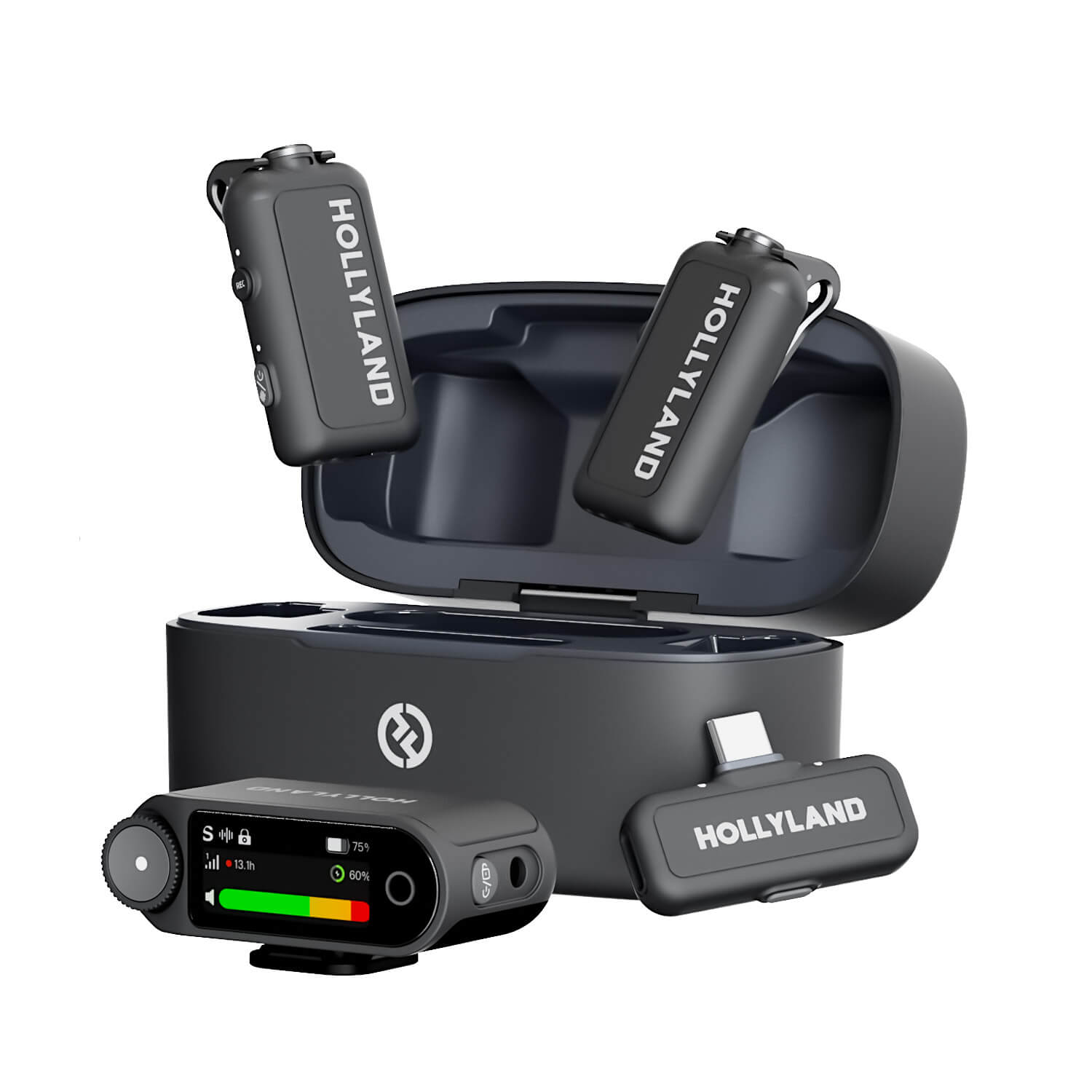
Hollyland LARK MAX 2 - Premium Wireless Microphone System
A premium wireless microphone for videographers, podcasters, and content creators to capture broadcast-quality sound.
Key Features: Wireless Audio Monitoring | 32-bit Float | Timecode
Conclusion
Recording sound on your phone is achievable at two levels: quick and native for everyday personal use, or clean and polished with a plug-and-play wireless mic for anything your audience will hear. The LARK A1 closes the gap between the two without requiring technical setup or additional apps.
Visit the Hollyland LARK A1’s product page to review specifications and purchase options. If you want to compare microphone options before committing, our guide to the best microphones for smartphone video covers the full range of setups for mobile creators.


