.png)
 简体中文
简体中文 
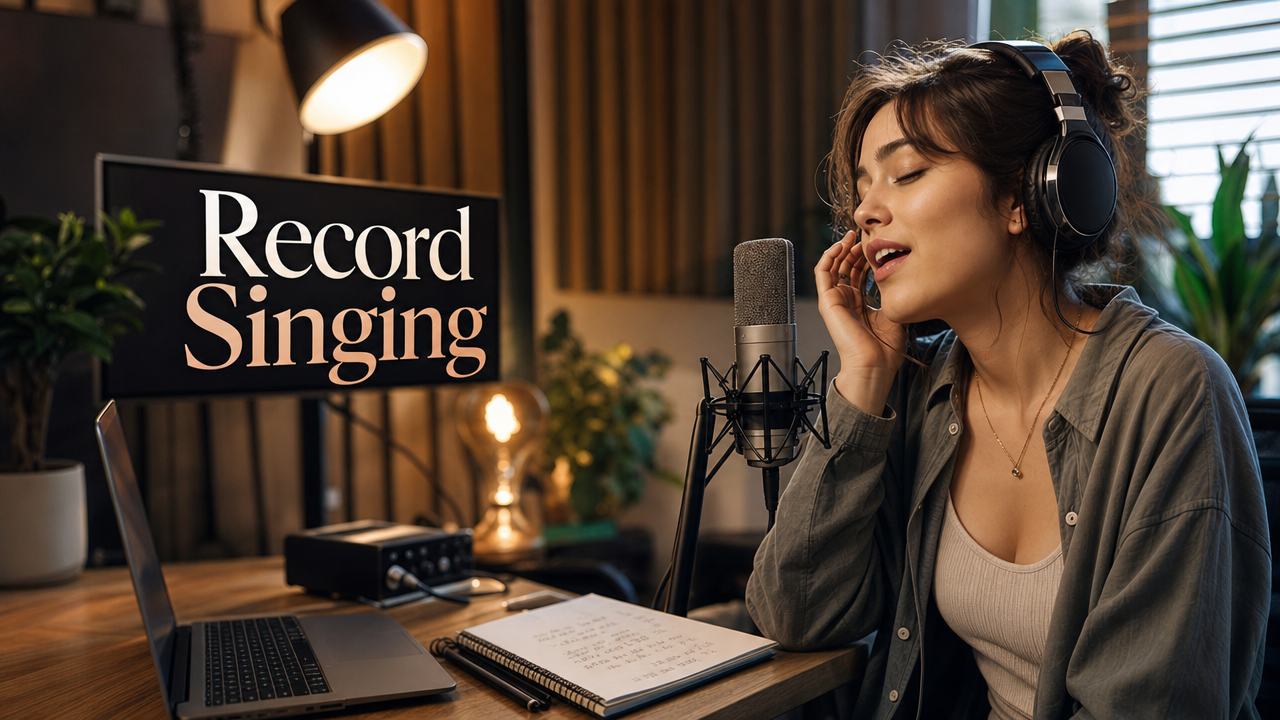
There is a lot happening behind pressing the record button. A great vocal take depends on more than simply having a good microphone. Your room, microphone placement, and signal chain can all affect how the recording sounds. Get these details wrong, and your voice may come out thin, muddy, or full of unwanted echoes.
This guide explains each part of recording vocals in a studio. You will learn about the equipment you need, room acoustics, microphone placement, and signal chain basics. It also covers real-time monitoring and the complete recording process. Along the way, we will demonstrate the workflow using the Hollyland MELO P1.

Hollyland MELO P1 - All-in-One Wireless Audio Studio
A revolutionary all-in-one wireless studio system combining handheld vocal capture, smart DSP mixing, and zero-latency monitoring in a single portable case.
Key Features: All-in-One Wireless Studio | 32-Bit Float Recording | 40 Hours Total Battery

What You Need to Record Voice in a Studio
Before you position a mic or open a DAW session, it helps to understand the five functional layers every studio vocal recording setup requires. Skipping or misunderstanding any one of them is usually the reason a recording comes out disappointing.

The Core Equipment List
- Large-diaphragm condenser microphone: The standard choice for studio vocals. Its large capsule captures the full frequency range of the human voice, from chest resonance to upper-harmonic air, with sensitivity that smaller capsules and dynamic microphones cannot match.
- Preamp: Amplifies the microphone’s weak output signal to a level usable by a recording device. Most standalone audio interfaces include a built-in preamp, but quality varies significantly across the price range.
- Audio interface: Converts the analog signal from your mic and preamp into a digital audio stream your computer can record. It also handles sample rate, bit depth, and typically provides the phantom power (48V) that condenser microphones require.
- Recording software (DAW): The application that receives the digital audio stream and writes it to a file. GarageBand, Logic Pro, Pro Tools, and Reaper are common choices. DAW operation is covered separately in this content cluster.
- Acoustic treatment: Panels, bass traps, and portable reflection filters that reduce or absorb room reflections before they reach the microphone capsule. No signal chain can fix a room that was not treated first.
- Monitoring solution: In-ear monitors or closed-back headphones for hearing yourself while recording. Open speakers cannot be used during tracking without severe bleed into the microphone.
- Pop filter and shock mount: Inexpensive accessories that prevent plosive air bursts from creating distortion and isolate the mic body from vibrations traveling up the stand.
Where the MELO P1 Changes the Setup
With the traditional setup, you need three separate devices first. Each one must be connected and configured before any signal reaches your ears. The Hollyland MELO P1 simplifies this setup by combining everything into one system. It consists of three physical components:
- A 1-inch large-diaphragm condenser microphone body with a 132 dB Max SPL rating, making it capable of handling dynamic vocal performances without internal distortion.
- A 55g dual-DSP smart audio mixer unit that handles preamp gain, noise suppression, dynamics processing, and USB-C digital output in a single compact device.
- Monitoring earbuds that plug directly into the mixer body for zero-latency hardware monitoring.
The MELO P1 also supports 32-bit Float recording and is managed through the HollyAudio App, both of which are explored in detail in the signal chain and workflow sections below.

Setting Up Your Recording Space
Even a high-end microphone cannot hide a bathroom’s sound. The room’s acoustics affect everything captured during recording. A proper acoustic setup provides the base for a clean vocal recording.

Follow these steps in priority order when choosing and treating your recording space:
- Choose the smallest usable room. Smaller rooms produce shorter reflections with less energy. Large parallel-walled rooms create standing waves and flutter echo that are difficult to control after the fact.
- Break up parallel surfaces. Hard, flat, parallel walls reflect sound directly back toward the microphone capsule. Bookshelves, soft furniture, foam panels, and hanging fabric all scatter or absorb those reflections before they cause problems.
- Address corners first. Low-frequency energy accumulates in room corners. Bass traps placed floor-to-ceiling in corners reduce the low-frequency buildup that muddies the lower register of a vocal recording.
- Position the mic away from walls. Recording with the rear of a cardioid microphone facing a hard wall places the room’s strongest reflection point directly into the mic’s rejection zone. Aim for at least three feet of clearance between the capsule and any reflective surface behind the singer.
- Use a portable reflection filter for non-dedicated spaces. A curved absorption panel mounted behind the microphone on a boom arm blocks the most damaging early reflections when you cannot permanently treat the room.
- Clap-test the room before recording. A single sharp hand clap reveals flutter echo immediately. If you hear a rapid, repeating tail, you need more absorption before tracking vocals.
When budget forces trade-offs, prioritize absorption directly behind the microphone capsule over full-room treatment. That single reflection path is the most destructive to vocal clarity.
Choosing and Positioning Your Microphone for Studio Vocals
Why Large-Diaphragm Condensers Are the Studio Standard

Large-diaphragm condenser microphones dominate studio vocal recording for three interconnected reasons.
- First, sensitivity: The large capsule responds to minute variations in air pressure that a dynamic microphone would not register, capturing the texture and breathiness that gives a vocal recording its intimacy.
- Second, frequency response: Large-diaphragm capsules typically extend flat from below 50 Hz to well above 15 kHz, preserving the full harmonic content of the human voice.
- Third, the cardioid polar pattern: By accepting sound from the front and rejecting sound from the rear, the cardioid pattern naturally attenuates room reflections, computer fan noise, and HVAC hum before any electronic processing is applied.
The MELO P1 uses a 1-inch large-diaphragm condenser capsule positioned at the top of the handheld mic body in a cardioid configuration. The front face of that capsule should point directly at the singer’s mouth. Because the rear of a cardioid pattern is its null point, positioning the back of the MELO P1 toward the room’s noisiest surface provides the most natural off-axis rejection without additional processing.
Microphone Placement Rules for Studio Vocals
Placement errors are responsible for more failed vocal recordings than gear quality. Apply these guidelines consistently:
- Working distance: 6 to 12 inches from the capsule. Closer than 6 inches, the proximity effect causes a significant low-frequency buildup that makes the voice sound boomy and unnatural. Further than 12 inches, the direct-to-reflection ratio shifts and the recording sounds like a room rather than a singer.
- Capsule angle: slight upward tilt. Angling the capsule so the singer directs breath slightly downward toward it keeps high-velocity air blasts moving past the diaphragm rather than directly into it.
- Pop filter: 2 to 3 inches from the capsule. A pop filter intercepts the turbulent air that plosive consonants create. Too close to the capsule and it loses effectiveness; too far and the vocalist can move past it.
- Shock mount: always. Mechanical vibrations travel through stands directly to unprotected mic bodies, producing low-frequency thump artifacts on every footstep or desk bump.
- Mouth aligned with the capsule axis. For a cardioid microphone, the strongest and most accurate response is at 0 degrees. Even a 30-degree off-axis angle introduces coloration.
When to Use AI Noise Cancellation
The HollyAudio App includes an AI noise cancellation toggle for the MELO P1. Enable it when recording in environments where ambient noise bleeds into the recording despite correct placement. In an acoustically treated space with controlled background noise, leave it off. AI noise cancellation processes the signal in real time, and in a genuinely quiet room it can alter vocal timbre subtly. Where the room is already doing its job, the natural capsule response is the better choice.

Building the Signal Chain for Studio Vocal Recording
The Traditional Three-Stage Chain
In a typical studio setup, audio passes through three hardware stages. The microphone first creates a low-level balanced analog signal. The preamp then raises that signal to line level while keeping added noise low. Next, the audio interface changes the analog signal into digital audio. It also sets the sample rate and bit depth, provides phantom power, and connects the input to your computer. Every connection can create problems along the way. These may include ground hum from cables, preamp clipping from excessive gain, driver conflicts with the DAW, and USB monitoring latency.
How the MELO P1 Integrates the Chain
The MELO P1’s dual-DSP smart audio mixer replaces the preamp and audio interface in a single unit. The two DSP stages handle noise suppression, dynamics processing, and EQ shaping internally, so the signal arriving at the USB-C output port is already amplified, processed, and digitized. Connect the mixer body to your Mac, PC, or iPad via USB-C and the unit appears immediately as a class-compliant audio input device in macOS Sound Settings, Windows Sound Settings, or any DAW’s I/O menu without additional drivers.
| Component | Traditional Setup | MELO P1 Equivalent |
|---|---|---|
| Microphone | Large-diaphragm condenser (separate purchase) | 1-inch LDC mic body (included) |
| Preamp | Standalone unit or interface preamp | Dual-DSP smart audio mixer (integrated) |
| Audio interface | USB/Thunderbolt interface | USB-C class-compliant output (integrated) |
| Phantom power | Supplied by interface | Supplied internally |
| Monitoring output | Interface headphone jack | Mixer body 3.5mm headphone output |
| Level adjustment | Physical gain knob on interface | Hardware gain knob and HollyAudio App |
Gain Staging and 32-Bit Float Recording
Gain staging is the practice of setting levels at each stage of the chain, so the signal sits well above the noise floor but well below the distortion ceiling. When the MELO P1 is connected to the HollyAudio app, you can enable 32-bit Float audio recording with a simple toggle switch.Healthy gain staging for a vocal input means consistent peaks landing between -18 dBFS and -6 dBFS on both the app meter and the DAW input meter.
Therefore, the MELO P1’s 32-bit Float recording mode adds an important safety layer. In 32-bit Float, the dynamic range of the file extends far beyond any real-world acoustic source. If a vocalist performs louder than expected and the gain is set slightly too high, the digital file retains enough headroom that the peak can be recovered in post-production without audible distortion. For anyone still developing their gain-staging instincts, this is a genuine technical insurance policy rather than a marketing claim.
The mixer body also includes a 3.5mm instrument input, which allows a guitar or keyboard to be connected alongside the vocal microphone, making the MELO P1 a combined vocal and instrument interface in a single-operator session. You can also plug a wired headphone for monitoring audio in this same port.
Step-by-Step: How to Record Your Voice Using the MELO P1
With equipment understood and the signal chain in place, here is the complete workflow from a cold start to a usable recorded take.
- Begin the first-time setup by opening the charging case. Remove the insulation coatings attached to every device. This includes the mic and Smart Audio Mixer.

Place each device back into its correct charging case slot. Close the lid and keep it closed for 5 seconds. Open the case again after that short wait. Remove all the devices from their slots. The Smart Audio Mixer light should flash white slowly. After reconnection, the light should become solid white. This confirms that all units have connected again. The mic and wireless monitoring earphones should also reconnect.


Turn on the remote control using the switch underneath. Look at the matching indicator on the Smart Audio Mixer. It should turn solid white as well. If you have got all the signs, it means the MELO P1 is automatically paired and now ready for use.


How to Manually Pair the Hollyland MELO P1 Mic and Mixer:
For manual pairing, begin by powering off both units. Hold each power button for 3 seconds.
Do this regardless of their current power status. Then hold the power buttons on both devices for 6 seconds. Keep them pressed until the indicator starts flashing. Do not release the buttons before that happens.


Note: The indicator should begin flashing after about 6 seconds. Once rapid flashing appears, release the power button. The device has now entered pairing mode.
How to Manually Pair the Hollyland MELO P1 Wireless Monitoring Earphones:
Place both wireless monitoring earphones back into their case. Check that they are positioned properly in their slots.

Press the function button inside the case 3 times. The nearby indicator light will change to white. This indicator confirms pairing with the Smart Audio Mixer via 2.4GHz wireless monitoring mode.


If the indicator becomes blue, Bluetooth mode is active. In this mode, the earphones can connect to your phone and act as normal earbuds.
- Connect to your computer or iPad via USB-C. Use the included cable to connect the mixer body’s USB-C port to your recording device. Open your DAW or navigate to your system’s sound input settings and confirm that the MELO P1 appears as an available audio input device. Select it as your input source before creating a track.

- Open the HollyAudio App and pair the device. Launch the HollyAudio App on your smartphone and navigate to the Bluetooth pairing flow. Confirm the MELO P1 appears as a detected device and complete the connection. The app home screen will then display gain controls, EQ settings, monitoring volume, preset selection, and the AI noise cancellation toggle.

- Select a vocal preset. In the HollyAudio App preset section, choose the vocal preset that matches your recording context. Studio presets typically apply a gentle EQ curve and light compression suited for a treated room. Radio M or Radio F presets may apply more aggressive noise-gating. Audition each preset with your voice before committing so you understand how each one affects your tone and the overall character of the signal.

- Enable 32-bit Float recording mode. Locate the 32-bit Float toggle in the HollyAudio App settings menu and confirm it is active.
- Verify the recording level in your DAW. Create a new audio track, arm it for recording, and sing or speak at full performance volume. Observe the input meter and adjust the input volume slider in the HollyAudio App until consistent peaks land between -18 dBFS and -6 dBFS. Confirm both the DAW meter and the HollyAudio App level display are reading the same signal.
- Record the take. Arm the track in your DAW, start the recording, and maintain the working distance established during placement setup. After recording, review the waveform in your DAW before moving on. If a peak overloaded the input, the 32-bit Float backup file preserves the full dynamic information and can be used to recover the take in post.
Monitoring Your Vocals in Real Time
Zero-latency monitoring is not a comfort feature. It is a practical requirement for an accurate, confident vocal performance.

When a vocalist hears themselves through a DAW’s software monitoring path, the signal travels from the microphone through the USB connection, into the DAW’s audio engine, through the processing buffer, and back out to the headphone output. At modest buffer sizes, this creates a delay of 5 to 20 milliseconds between mouth movement and sound in the ear. The human auditory system begins perceiving delays above roughly 7 milliseconds as a distinct echo, which causes singers to fight their own timing, undermines pitch accuracy, and breaks performance confidence during takes.
Direct hardware monitoring solves this by routing the microphone signal to the headphone output inside the recording device before it ever reaches the computer. On the MELO P1, while wireless monitoring is entirely possible, you can also plug wired monitoring earbuds into the mixer body’s 3.5mm output, which creates that hardware-level connection. The signal the vocalist hears is the mic signal after the dual-DSP processing stage, delivered directly to the earbuds with no computer round-trip.
Real-time monitoring best practices:
- Set monitoring volume at a comfortable listening level, not maximum. Listening fatigue accumulates during longer sessions and impairs vocal judgment.
- If the HollyAudio App preset includes reverb processing, confirm whether it is applied to the monitor feed only or printed to the recorded file as well. Reverb on the monitor feed supports performance comfort; reverb printed to the recorded track limits post-production flexibility.
- Disable DAW software monitoring on the recording track once hardware monitoring is confirmed active.
- If the vocalist needs to move away from the mixer body during takes, use a headphone extension cable to maintain comfortable distance without pulling tension on the 3.5mm port.
Common Mistakes to Avoid When Recording Voice in a Studio
Even with well-chosen equipment, these errors consistently produce poor results. Review the list before every session.

- Microphone too close (under 6 inches): Proximity effect adds an unnatural low-frequency boost. Fix: maintain 6 to 12 inches of working distance.
- Microphone too far (over 12 inches): Room reflections dominate the direct signal.
Fix: Move closer and add acoustic treatment if reflections remain audible. - No pop filter in place: Plosive consonants create low-frequency distortion that cannot be corrected cleanly in post.
Fix: Mount a pop filter 2 to 3 inches in front of the capsule before every session. - Gain set too high: Analog signal clips before it reaches the digital stage.
Fix: Reduce gain until peaks stay below -6 dBFS. If recording with the MELO P1’s 32-bit Float mode active, accidental input overload will not permanently destroy the take; the recorded file retains enough dynamic information that the waveform can be recovered in post. - Gain set too low: The signal sits near the noise floor, and any processing in post will amplify hiss.
Fix: Raise gain until peaks are consistently above -18 dBFS. - Monitoring through heavy reverb: Artificial reverb in the mix makes it difficult to judge whether real room reflections are bleeding into the take.
Fix: Keep monitoring reverb minimal and use it for performance comfort only, not technical evaluation. - Hard wall directly behind the microphone: A reflective surface immediately behind the capsule creates a short-delay echo that smears transients.
Fix: Add absorption behind the mic or rotate the stand to increase clearance. - AI noise cancellation enabled in a treated room: As noted in the placement section, the HollyAudio App’s Noise Cancellationtoggle is best reserved for genuinely noisy environments. In a well-treated room, engaging it adds signal processing where none is needed and can subtly color the natural timbre of the capsule.
FAQs
What microphone is best for recording voice in a studio?
A large-diaphragm condenser microphone is the studio standard for vocal recording. Its large capsule delivers higher sensitivity and a wider frequency response than a dynamic microphone, capturing the full harmonic detail of the voice. The Hollyland MELO P1 uses a 1-inch large-diaphragm condenser with an integrated dual-DSP smart audio mixer, offering a studio-grade capsule alongside built-in preamp and interface functions in one unit.
Do I need a separate audio interface to record vocals in a studio?
In a traditional setup, yes. The audio interface converts your analog mic signal to digital audio and supplies phantom power. The Hollyland MELO P1 removes that requirement, as its dual-DSP smart audio mixer handles amplification, processing, and conversion internally, then outputs directly to a Mac, PC, or iPad via USB-C as a class-compliant device requiring no additional drivers.
How do I reduce echo and background noise when recording vocals?
Acoustic treatment is the primary solution: absorption panels, corner bass traps, and a reflection filter behind the microphone reduce room echo at the source before it reaches the capsule. For residual background noise that treatment alone cannot eliminate, the AI noise cancellation toggle in the HollyAudio App provides a secondary real-time suppression layer. Treat the room first; use noise cancellation as a backup tool.
What is 32-bit float recording and why does it matter for vocals?
32-bit Float is a digital recording format with such a wide dynamic range that clipping is effectively impossible at the recording stage. If a vocalist unexpectedly performs louder and the input gain is set slightly too high, the file retains full peak information, and the level can be corrected in post without audible distortion. The MELO P1 offers 32-bit Float audio recording, which acts as a safety net against audio clipping.
How far should I stand from the microphone when recording vocals?
Six to twelve inches is the standard working distance for studio vocal recording. Closer than 6 inches, the proximity effect creates an exaggerated low-frequency boost that makes the voice sound boomy. Further than 12 inches and room reflections begin to outweigh the direct vocal signal, producing a distant, roomy quality that no post-processing easily fixes.
Conclusion
Studio vocal recording comes down to five stages applied in order: treat the space, choose and position the right microphone, build a clean signal chain, monitor in real time without latency, and record at 32-bit Float so gain errors can be corrected rather than accepted. Before your first session with the Hollyland MELO P1, explore the HollyAudio App vocal presets to find the EQ and compression profile that suits your voice.