.png)
 简体中文
简体中文 
A webcam problem during a meeting wastes everyone’s time. A quick five-minute check helps prevent these issues before going live. It checks your video, microphone, and the picture quality your equipment supports. This guide covers each step, from system detection to testing a live video call. The Hollyland Lyra serves as the example webcam throughout the process.

Hollyland Lyra - 4K AI Webcam
A flagship 4K AI webcam featuring a large 1/1.5″ CMOS sensor, smart auto-framing, and studio-grade 48 kHz/24-bit audio for effortless streaming and conferencing.
Key Features: 1/1.5″ CMOS & 4K30 | AI Tracking & Auto Framing | 48 kHz/24-bit Audio

Why You Should Test Your Webcam Before Every Call or Stream
Skipping a pre-call test means you might open a meeting with a black screen, broadcast muffled audio while you scramble to diagnose it, or stream a blurry 360p feed when your camera supports 4K. A complete check covering video, audio, and quality takes under five minutes and eliminates all three scenarios before they affect anyone watching.

Step 1: Connect Your Webcam and Confirm Your OS Recognizes It
Before any software test is useful, your operating system needs to register the camera as a connected device. A webcam that is physically connected but not recognized by the OS will produce a black screen or “no camera found” error in every app you open afterward. Getting this foundation right saves time at every step that follows.
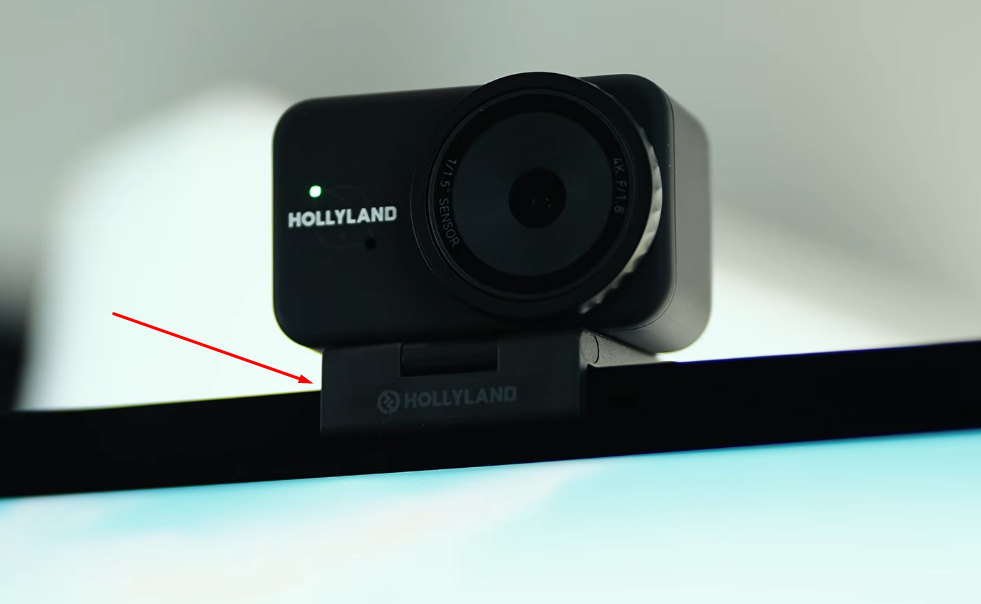
Physical setup (Hollyland Lyra): Attach the Lyra’s clip mount to the center of your monitor bezel and tilt the adjustable base until the lens points straight at eye level. Alternatively, place it flat on your desk surface. Once positioned, connect the included USB-C cable.
On Windows
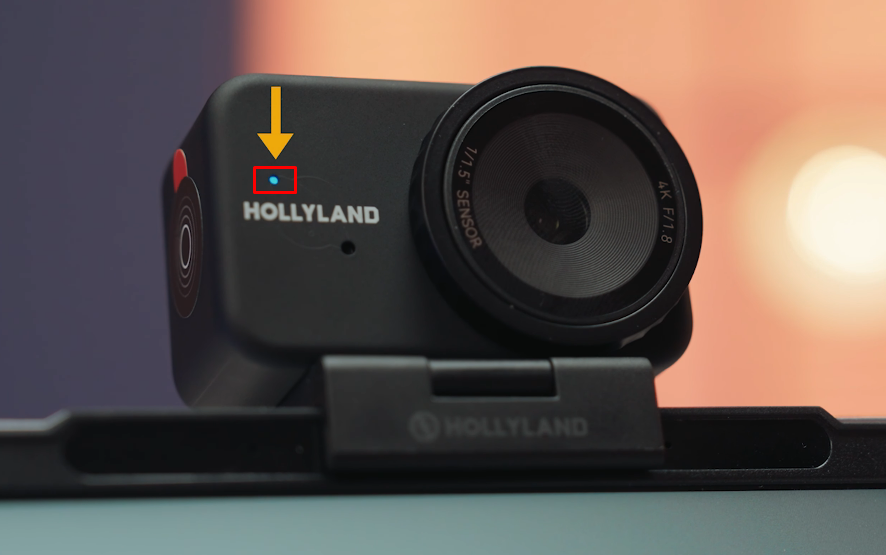
- Plug in the USB-C cable and watch the Lyra’s status LED. A solid blue light means the device is powered and recognized by the host. No light points to a cable or port issue.
- Right-click the Start button and select Device Manager.
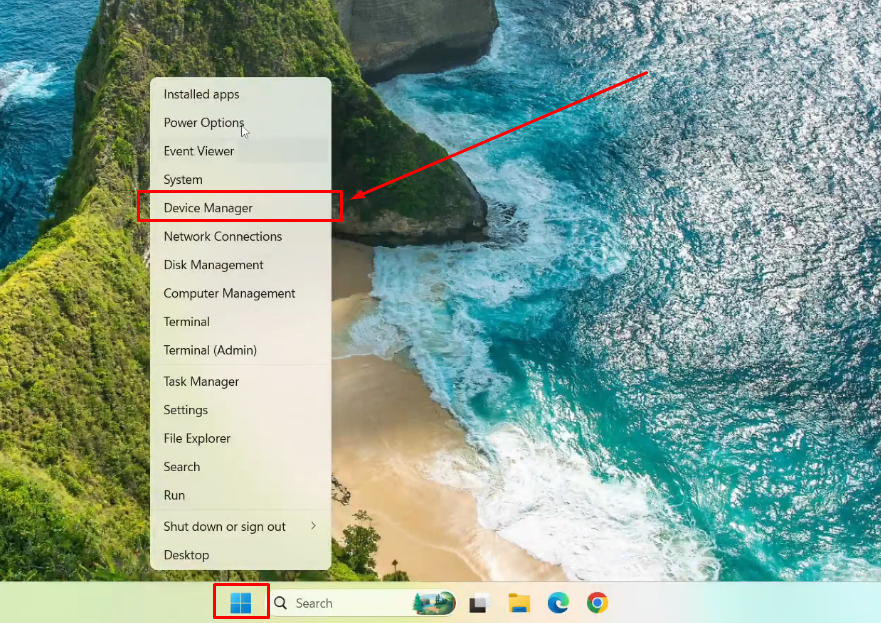
- Expand the Cameras category and confirm “Hollyland Lyra” appears with no yellow exclamation mark beside it.

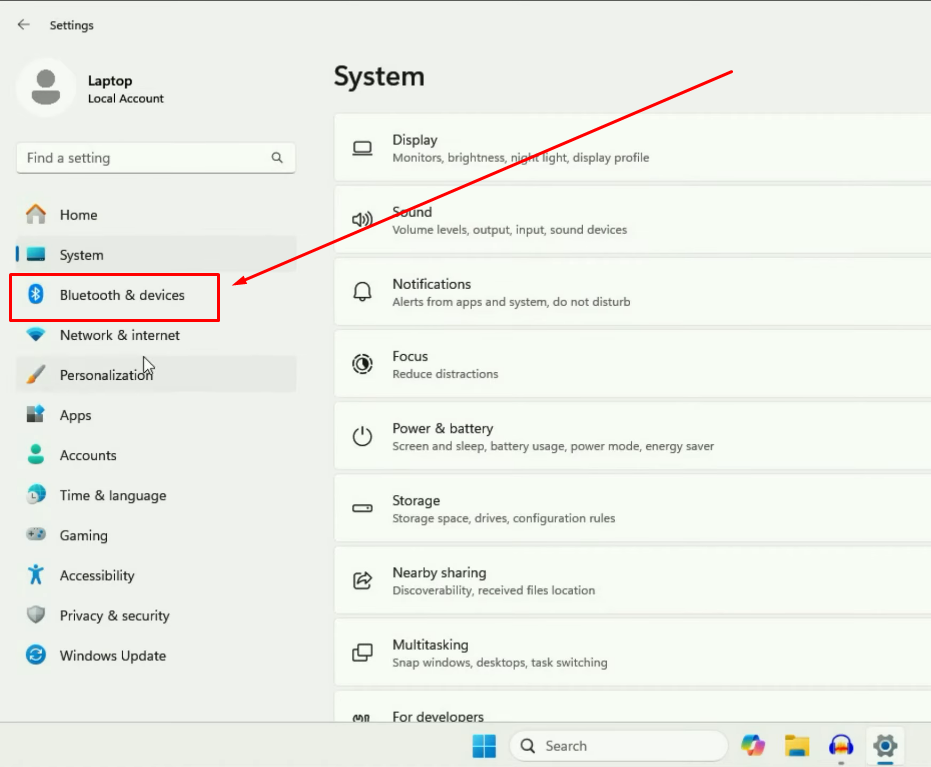
- Open Settings > Bluetooth & devices > Cameras and check that a thumbnail preview appears for the Lyra.

- If the device does not appear, try a different USB port, swap the cable, or check for pending Windows updates.
On Mac
- After connecting, go to System Settings > Privacy & Security > Camera and confirm Hollyland Lyra is listed as a recognized device.
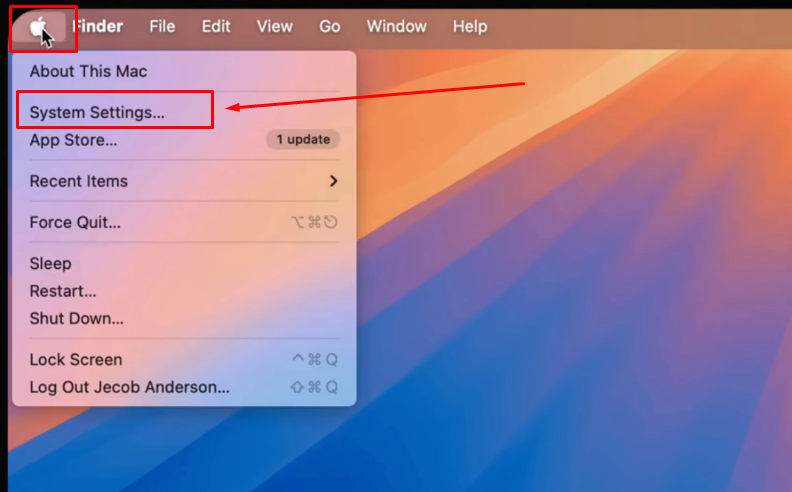
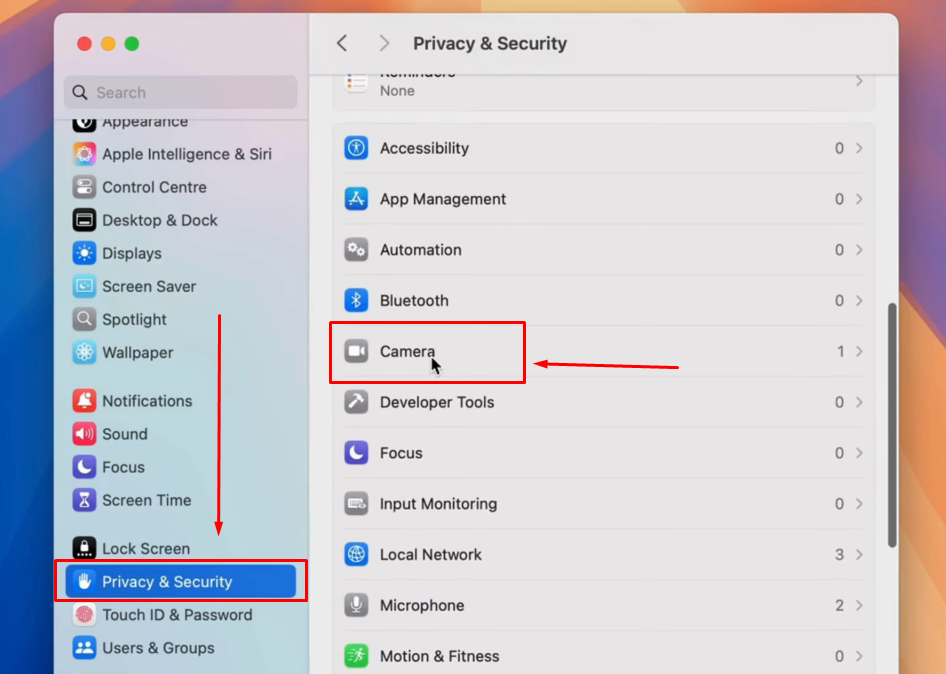
- Navigate to System Settings > Sound > Input and verify the Hollyland Lyra microphone endpoint is also present. Both the audio and video interfaces register simultaneously on a healthy connection.

- If neither entry appears, unplug and reconnect the cable, inspect the port for debris, or try a different port.
Step 2: Run a Quick Browser-Based Webcam Test
A browser-based test is the fastest zero-install verification available. Tools such as webcam.org or webcammictest.com stream your camera feed directly in the browser, report resolution and frame rate, and confirm the correct device is active. You don’t need to create an account or download anything to use these sites.
- Open your browser and go to a free webcam test site such as webcam.org or webcammictest.com.
- Click the Start test or Test My Cam button on the page.

- When the browser displays a camera and microphone permission prompt, click Allow. Without this step, the page cannot access any connected camera.
- Look for the device-selection dropdown. Select “Hollyland Lyra”, not “Integrated Camera” or any other listed entry. The browser accesses the Lyra via its UVC/MJPEG output, which supports up to 3840×2160.
- Confirm that a live image appears with no black screen or error message.
- Check the resolution and frame rate values displayed by the tool. At a typical desk distance of 60-80 cm, the Lyra’s 82° field of view should frame your head and upper chest with visible background on both sides. A noticeably tighter crop suggests the built-in laptop camera may be active instead.
- If the preview shows a black screen despite the LED being lit, check whether Windows Camera or another app is holding exclusive device access. Close competing apps, reload the browser tab, and grant camera permission again.
Note: Browser-based tests apply compression to the preview stream. For a true picture-quality evaluation, use the OS-native method in Step 3 or the companion app controls in Step 4.
Step 3: Test Your Webcam Using a Built-In OS Tool
Native camera apps let you save a test photo or short video clip to disk for offline quality review. Because saved files are lightly compressed or uncompressed compared to a live browser stream, they reveal more about actual image quality. No account or download is required on either platform.
Windows: Windows Camera App
- Open the Windows Camera app from the Start menu. Make sure the Hollyland Lyra is connected via USB and recognized as the active camera.
- Press the shutter button to capture a still photo.
- Open the saved image in the Photos app and zoom to 100%. Inspect edge sharpness and color accuracy. The Lyra’s 50MP sensor and F/1.8 aperture should produce a noticeably more detailed result than a typical built-in laptop camera.
Mac: Photo Booth or QuickTime Player
Photo Booth:
- Launch Photo Booth from the Applications folder.
- In the menu bar, go to Camera and select “Hollyland Lyra”. The live frame should update to reflect the Lyra’s 82° field of view, which appears wider than a standard built-in Mac camera.
- Click the shutter button to take a test shot, then inspect the saved image for sharpness and color accuracy.
QuickTime Player (recommended for a combined audio and video check):
- Open QuickTime Player and select File > New Movie Recording.

- Click the small dropdown chevron beside the red record button.

- Under Camera, select Hollyland Lyra. Under Microphone, also select Hollyland Lyra. Also, check “High” under the Quality section.

- Record 15 seconds of yourself speaking at a normal volume, then stop and play the clip back. This single recording tests both video and audio simultaneously and sets you up well for Step 5.
Step 4: Verify Video Quality: Resolution, Frame Rate, Focus, and Field of View
Seeing a live image in Steps 2 and 3 confirms the camera is functional. This step tells you whether it is performing at the quality level it is capable of. The key questions:
- Is the output actually 4K or 1080p, not an upscaled 720p feed?
- Is motion smooth at 30 or 60 fps?
- Is focus sharp on the subject?
- Does the field of view frame the scene correctly for your use case?
For the Lyra, HollyStudio is the primary tool for this step. Launch the PC or Mac companion app after you connect the camera. The main dashboard shows a live preview panel on the left and a settings column on the right.
Setting Resolution and Frame Rate
- Locate the Resolution / FPS dropdown at the top of the preview screen in HollyStudio.
- Available options include 3840×2160 @ 30fps, 1920×1080 @ 30fps or 60fps, and 1280×720 @ 30fps or 60fps. Select each in turn and confirm the live preview quality visibly changes between settings.
- For video calls and streaming, 1080p at 60fps is the practical benchmark — it balances sharpness and smooth motion while staying within most platform upload limits.
- For recordings where bandwidth is not a constraint, select 4K at 30fps and compare the detail level to the 1080p output side by side.

Checking Focus, Zoom, and Auto-Framing
- Digital zoom: Drag the Focal Length slider on the Image Control page under the Advanced section in the HollyStudio app to zoom from 1x to 4x. At 1x, the full 82° field of view is active. As you increase zoom, assess how much sharpness is retained. The 50MP sensor provides a usable digital zoom range, but quality will gradually soften as you approach 4x.

- AI Tracking and Auto Framing:
- Open the HollyStudio app on your computer.
- At the top of the preview screen, click the frame icon. Once the feature is active, you will see a small padlock icon inside the frame symbol.


- Click the gear icon below the preview screen to enter Settings.

- Open Camera Settings from the left-side menu.
- Turn Face Priority Focus on, then close the Settings window.

- Navigate to the FOV page.
- Find the Smart Framing section, deselect None, and select the image tile next to the None tile.

Step 5: Test the Webcam Microphone
Audio is the step most users skip, then discover the problem mid-call. A webcam can produce a clean video feed alongside a non-functional or incorrectly selected microphone, because the OS treats them as separate devices. Test audio independently before relying on any conferencing app.

- On Windows, go to Settings > System > Sound > Input and select “Hollyland Lyra” from the device dropdown. Speak at a normal volume and watch the blue input level bar respond. It should move clearly and consistently without sitting at maximum (clipping) or barely registering (gain too low or mic not active).
- On Mac, go to System Settings > Sound > Input tab, select Hollyland Lyra, and observe the input level indicator respond to speech.
- Record a playback test: Open Windows Voice Recorder on Windows or go to QuickTime > File > New Audio Recording on Mac. Select Hollyland Lyra as the source and record 15-20 seconds of speech, a pause, and some ambient room noise. Play it back. The Lyra’s 48 kHz/24-bit microphone should sound noticeably fuller and cleaner than a standard laptop microphone.
- Test Noise Cancellation: In HollyStudio, locate the Noise Cancellation toggle in the Audio Settings. Introduce a consistent background noise source such as a fan or air conditioning. Record one clip with Noise Cancellation off and one with it on, then compare playbacks. The noise floor should drop meaningfully in the second clip.

- Bonus audio path: The Lyra includes a built-in receiver for the Hollyland LARK A1 wireless microphone, allowing direct pairing without a separate receiver. If you have a LARK A1 transmitter, pair it and record a short test clip to evaluate this wireless audio path through the same USB pipeline. Here’s how to pair LARK A1 with Hollyland Lyra.
- Open the HollyStudio application on your computer.
- Click the gear icon beneath the preview screen to open the main Settings panel and choose Audio Settings from the left sidebar.
- Scroll down to Bluetooth and enable the toggle switch.

- Click Start Pairing to activate pairing mode on Lyra.

- With the LARK A1 transmitter powered off, hold the power button for 6 seconds. Wait for the blue LED to flash.

- Lyra and the LARK A1 TX will connect automatically. The transmitter LED will become solid blue once paired.

- And when both devices are connected and in use, the LED will turn solid green.

Step 6: Test Your Webcam Inside a Video Conferencing App
The final test confirms your webcam and microphone work correctly inside the apps you will actually use. Passing Steps 1 through 5 does not guarantee success here: a conferencing app may have cached a different camera selection, or it may be holding camera access in the background and blocking the correct device.
- Zoom: Go to Settings > Video & effects > Camera and select “Hollyland Lyra” from the dropdown. The preview panel should update to show the 82° field of view and correct exposure. Enable the “HD” checkbox to allow 1080p output through the UVC pipeline. Click “Test Video” to run Zoom’s built-in camera verification.
- Microsoft Teams: Go to Settings > Devices > Camera and select Hollyland Lyra. The live preview should update within 2-3 seconds. Under “Audio devices,” set Hollyland Lyra as the active microphone. Select “Make a test call” to trigger an automated recording and playback of both video and audio — this is the most thorough single-app test available in any major conferencing platform.
- Google Meet: Click the settings gear, go to Video > Camera, and select Hollyland Lyra. Then go to Audio > Microphone and select Hollyland Lyra. Both the camera preview and microphone level meter are visible within the settings panel before you join any call.
- AI Tracking in conferencing apps: With AI Tracking enabled in HollyStudio before launching Zoom or Teams, move laterally in the frame during the preview check. The auto-framing behavior should follow you without requiring any additional configuration inside the conferencing app itself.
- Virtual background quality check: Apply a virtual background in Zoom or Teams and observe how cleanly the edge detection separates the subject from the background. The Lyra’s 1/1.5” sensor and F/1.8 aperture produce natural background compression that improves subject-edge separation compared to small-sensor webcams.
Use HollyStudio for Advanced Calibration Checks
Once your basic tests pass, HollyStudio offers a layer of fine-tuning controls that moves you from “working” to “looking its best.” This step is optional but particularly valuable for streaming and content creation workflows where visual consistency matters.
Note: Most of the tools below can be found on the HollyStudio app’s Image Control page > Advanced section.
- Exposure: Use the EV compensation slider — drag toward +EV in a dark room or toward -EV when shooting against a bright window. The live preview responds in real time.
- White Balance: Choose from presets including Daylight, Cloudy, Tungsten, and Fluorescent, or keep Auto WB active. Point the Lyra at a white sheet of paper and cycle through presets to observe how color temperature shifts. Lock to the preset that produces the most natural skin tones in your environment.
- Skin Smoothing: Drag the beautification slider from 0 to 100% and observe the live preview. This confirms that the AI Tuning pipeline is active and processing correctly.
- Color profiles: If your current firmware includes color profile presets, toggle between them and confirm the change propagates to the UVC output visible in your conferencing app or browser test tab.
- Privacy shutter: Engage the Lyra’s physical lens cover. The live preview in all open apps should immediately go to black, and the LED should remain on since the device stays powered. Disengage the shutter and confirm the preview restores instantly, verifying the physical privacy control functions correctly without disrupting the USB connection.
What to Do If Your Webcam Test Fails
If any step above produces an unexpected result, the following quick-reference pairs address the five most common failure points.
| Problem | Solution |
|---|---|
| LED is off after connecting | Try a different USB-C cable; try a different USB 3.0 port; test on a second computer to isolate whether the fault is the port or the device. |
| “Hollyland Lyra” does not appear in Device Manager or the OS camera list | Disconnect and reconnect the USB-C cable. On Windows, run Windows Update — the Lyra is UVC plug-and-play, but the Windows UVC camera class driver may have a pending update. On Mac, restart and check System Settings > Privacy & Security > Camera for a new permission prompt. |
| Preview is dark or blurry | Open HollyStudio and increase EV in the Exposure panel. Confirm the physical lens cover is fully retracted. |
| Audio input is not detected | In Windows Sound Settings or Mac System Settings > Sound > Input, confirm Hollyland Lyra is set as the active input device. The OS may default to a different microphone after a reconnect. Also confirm the USB-C port supplies at least 5V/1A, which is the Lyra’s minimum operating power spec. |
| Webcam works in Windows Camera but not in Zoom or Teams | Windows Camera may be holding exclusive device access. Close it fully, then check Task Manager for any background camera processes. Relaunch your conferencing app and reselect Hollyland Lyra from the camera dropdown. |
Frequently Asked Questions
Q1: Can I test my webcam without installing any software?
Yes. A browser-based tool (Step 2 above) requires no installation and runs entirely in your browser. The built-in Windows Camera app and Mac Photo Booth are also zero-install options included with the operating system. Any of these three paths will confirm your webcam works in under two minutes.
Q2: How do I know if my webcam is actually outputting 4K and not upscaled 1080p?
Check the resolution menu in HollyStudio — for the Lyra, a selectable 3840×2160 option confirms native 4K output is active. Check a saved test clip at 100% zoom to inspect details. True 4K footage keeps fine details clear when enlarged. Upscaled footage may look soft when viewed at the same size. Some video calling apps also show live resolution data in diagnostics.
Q3: Why does my webcam look great in the native camera app but blurry in Zoom?
Conferencing apps compress video by default and may cap resolution unless HD mode is explicitly enabled. In Zoom, go to Settings > Video & effects and check “ HD.” Also confirm that Zoom has selected the correct camera source in the same panel, rather than defaulting to an integrated laptop camera.
Q4: How do I test just the webcam microphone without recording video?
Set the webcam as your audio input in OS sound settings, then use Windows Sound Recorder or Mac QuickTime’s audio-only recording mode (File > New Audio Recording). Select the webcam microphone as the source, record a short clip, and play it back to evaluate clarity and noise level.
Q5: What does a healthy webcam LED state look like?
On the Hollyland Lyra, a solid LED after USB-C connection confirms the device is powered and recognized by the host computer. A dark LED with the cable connected indicates a power or port issue. Refer to the Lyra’s LED indicator reference in the product documentation for any blinking patterns that signal firmware or connection errors.
Conclusion
Completing all six checks takes a few minutes. These include system detection, browser testing, video quality, and microphone checks. You will also test the native app and your video calling software. Fix any problems using the quick-reference table above before your next session. If every test passes, you can improve the Lyra’s output further. Adjust exposure, white balance, and AI tracking in HollyStudio. Visit the Hollyland Lyra product page to learn more about its features.