.png)
 简体中文
简体中文 
OBS Studio produces a polished stream, but getting that stream into Discord with working audio is a challenge most guides skip. OBS Virtual Camera sends video to Discord just fine, but audio does not come along for the ride. This guide explains three ways to fix this issue. So let’s check them one by one.
Why OBS Audio Doesn’t Reach Discord by Default
OBS Virtual Camera is a video-only output. When Discord receives it, it gets the picture from OBS but has no access to your OBS audio mix. Discord cannot automatically detect or pull audio from a running OBS session.
This means even when your Audio Mixer in OBS is showing live signal for Desktop Audio and your microphone, none of that sound travels through Virtual Camera. You need a separate audio path to fix it.
There are two main ways to stream OBS to Discord. The first uses an OBS Preview Projector window. The second sends OBS audio through a virtual cable. This cable routes the OBS output to Discord’s microphone input. Both methods are explained below.
What You’ll Need Before You Start
- OBS Studio (latest stable version) from obsproject.com
- Discord desktop app — browser Discord does not support “Share Audio”
- VB-Audio Virtual Cable (Method 2 only) — free from vb-audio.com; requires a system restart after install
- Windows 10 or 11 for Method 1; macOS users will need BlackHole as a substitute for VB-Audio Cable
- A Discord voice channel or Go Live session where you have permission to stream
Method 1: Stream OBS to Discord Using an OBS Preview Projector Window
This method sends your OBS scene to Discord through a projector window. First, you route the needed audio through OBS monitoring. Then, you share the projector window in Discord with audio enabled.
Step 1: Set Up OBS Audio Monitoring
- Open OBS Studio and select File > Settings > Audio.


- Scroll down until you reach the Advanced section.
- Find Monitoring Device and choose an unused audio output. You can select a disconnected monitor or another headset from the dropdown menu.

- Select Apply, then click OK.
Why Unused Audio Output? It helps prevent audio from playing twice or echoing.
Step 2: Set Your Audio Source for Monitoring
- Add your game, browser, or media source to OBS. You can use Application Audio Capture or regular audio capture. To do that, click the “+” button under the Sources section and select Application Audio Capture (BETA) as a source.

- Select “Create new source” and click OK. You can also rename the source, but that’s optional.

- Next, in the Properties window for “Application Audio Capture (Beta),” add your audio source from a game screen, browser, or even an application like VLC by selecting it from the “Window” dropdown menu. And click OK.

- Find the source inside the Audio Mixer panel. Click its three-dot menu and choose Advanced Audio Properties.
- Locate your audio source and set Audio Monitoring to Monitor and Output.
- Click Close when finished.

- Verify the audio by playing the source and viewing it in OBS. Make the audio levels bounce in the Audio Mixer panel for the source (Application Audio Capture).

Step 3: Open Preview Projector (Windowed Projector Preview in Old OBS versions)
- Right-click anywhere inside the main OBS preview area.
- Hover over the Open Preview Projector menu, and select New window.

- OBS will open a separate window showing your current scene.

Step 4: Share the Projector Window in Discord
- Open Discord and join your desired voice channel.
- Click Share Your Screen to open the sharing options.
- Select the Windows tab instead of Applications.
- Choose the OBS Preview Projector window you opened earlier.
- Turn on the Audio option in the sharing prompt.
- Then click Go Live to start streaming.
Method 2: Route OBS Audio to Discord via Virtual Audio Cable
This is the most reliable approach across all Discord scenarios, including Go Live, screen share, and video calls. It also works on macOS when paired with BlackHole. The setup routes OBS audio output through a virtual audio cable so Discord treats it as a microphone input rather than a window capture.
Step 1: Install VB-Audio Virtual Cable
Download the free installer from vb-audio.com. Run it as administrator, then restart your computer. After restarting, open Windows Sound settings and confirm that two new devices appear: CABLE Input (VB-Audio Virtual Cable) in playback and CABLE Output (VB-Audio Virtual Cable) in recording. If they are missing, re-run the installer as administrator.

Step 2: Set OBS Audio Monitoring Device to Virtual Cable
Open OBS and navigate to Settings > Audio. Scroll to the Advanced section. Change the Monitoring Device from “Default” to CABLE Input (VB-Audio Virtual Cable). Click OK. This tells OBS where to send any audio it monitors.
Step 3: Set Each Audio Source to “Monitor and Output” in OBS
In the OBS Audio Mixer, right-click a source such as Desktop Audio and select Advanced Audio Properties. In the Audio Monitoring column, change the dropdown from “Monitor Off” to Monitor and Output. Repeat this for every source you want Discord listeners to hear, typically Desktop Audio and Mic/Aux.
Note: “Monitor Only” sends audio to the virtual cable but removes it from your OBS recording and local stream output. Always select “Monitor and Output” to keep audio in both places simultaneously.
Step 4: Select Virtual Cable as Input Device in Discord
Open Discord and go to User Settings > Voice & Video. Under Input Device (Microphone’s dropdown menu), select CABLE Output (VB-Audio Virtual Cable). Discord will now receive everything OBS is monitoring as a live microphone feed.


Step 5: Disable Discord Noise Suppression
Discord’s noise suppression (Krisp or RNNoise) analyzes incoming audio and removes anything classified as non-speech, which includes game sounds, music, and desktop audio. Go to Voice & Video settings and set Noise Suppression to “None.” Also disable Echo Cancellation and Automatic Gain Control if game audio sounds clipped or distorted.


Step 6: Run a Sound Test
In Discord’s Voice & Video settings, click “Mic Test” under the microphone section. Play audio through OBS, such as a game, a video, or music, and watch the level bar in Discord’s test panel. You should see it respond to all audio sources. Confirm your microphone, game audio, and desktop audio all pass through together before inviting anyone to listen.
Method 3: Use OBS Virtual Camera in a Discord Video Call
This approach works best for one-on-one calls or small group sessions where you want Discord participants to see a composed OBS scene rather than a raw window capture. The practical difference from screen share is framing: Virtual Camera lets you display custom overlays, scene transitions, and multiple camera layouts as your video feed inside a call.
- In OBS, click the Start Virtual Camera option at the bottom-right corner of the interface.

- Open or join a Discord video call (not a Go Live broadcast in a voice channel).
- In the call, click the video camera icon to turn on your camera.
- Click the small arrow next to the camera icon and select OBS Virtual Camera from the dropdown list.
- For audio, pair this with either Method 1 or Method 2. Virtual Camera carries no audio on its own.
Use this method when you want a crafted visual scene in a conversation rather than a server-wide broadcast. For Go Live or large-channel streaming, Method 1 or Method 2 alone is the more appropriate path.
Method Comparison — Which Approach Should You Use?
| Method | Setup Difficulty | Audio Reliability | Works on Mac | Best For |
|---|---|---|---|---|
| Screen Share + Share Audio | Easy | Moderate | No | Quick, one-off streams |
| Virtual Audio Cable | Moderate | High | Yes (with BlackHole) | Regular Discord streaming, video calls |
| Virtual Camera + Video Call | Easy (video) / Moderate (audio) | Depends on paired method | Partial | Small group calls with camera framing |
Troubleshooting: Discord Not Picking Up OBS Audio
- “Share Audio” toggle is missing or greyed out. Make sure you share an Application Window or Browser Tab. Sharing the entire screen can limit audio sharing. When using Discord in a browser, audio sharing mainly supports Chrome or Edge tabs. It may not reliably capture sound from desktop apps. For full support, switch to the Discord desktop app.
- Listeners see video but hear nothing. If OBS sends audio through a virtual cable, check Advanced Audio Properties. Set the needed source to Monitor and Output. If Desktop Audio is also captured, check these settings carefully. Enable Monitor and Output only for the needed source. This helps prevent an unwanted echo loop.
- Audio cuts in and out during the stream. Discord’s Voice Activity detection is muting the signal between speech bursts, cutting off continuous game audio. Switch Discord to Push-to-Talk mode or drag the Voice Activity sensitivity slider to its minimum value.
- Discord noise suppression is filtering out game audio. Krisp and RNNoise classify non-speech sounds as background noise. Disable Noise Suppression entirely in Discord Voice & Video settings whenever you route OBS audio through a virtual cable.
Getting Cleaner Voice Audio Before It Enters OBS
Even with perfect audio routing, your voice can still sound rough. A laptop mic may pick up room noise and handling sounds. Those noises then reach your Discord stream along with your voice. That is where a better mic can make a difference. The Hollyland LARK MAX 2 gives you a cleaner signal before OBS receives it. It records at 48 kHz with 32-bit Float recording. Its built-in AI Noise Cancellation also reduces unwanted background noise. This means less cleanup is needed inside OBS for clearer vocals.
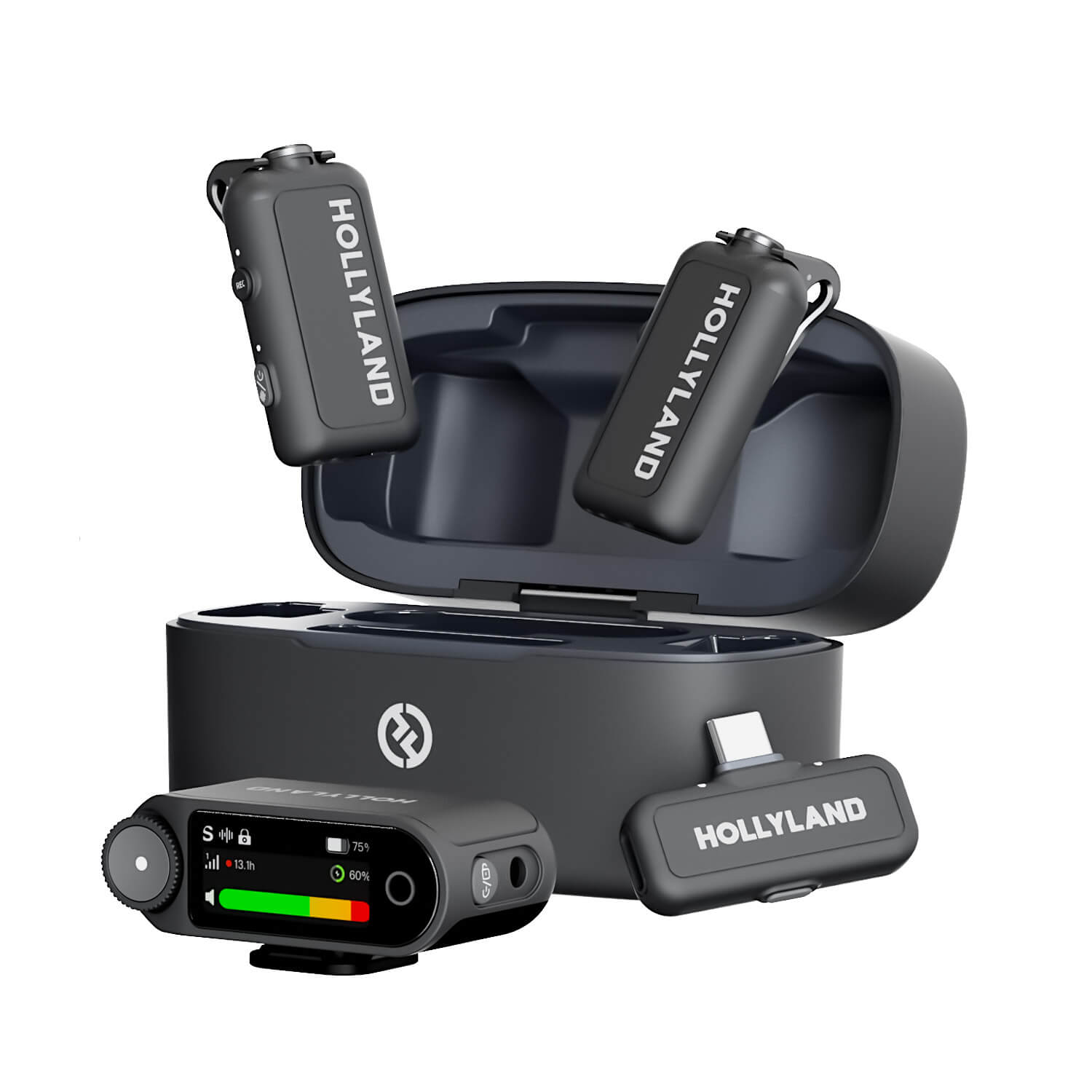
Hollyland LARK MAX 2 - Premium Wireless Microphone System
A premium wireless microphone for videographers, podcasters, and content creators to capture broadcast-quality sound.
Key Features: Wireless Audio Monitoring | 32-bit Float | Timecode

FAQs
Q: Does OBS Virtual Camera carry audio into Discord?
No. OBS Virtual Camera is a video-only output. Audio must be routed separately, either using Discord’s “Share Audio” toggle during screen share (Windows only) or a virtual audio cable such as VB-Audio that routes OBS output into Discord’s microphone input. Video and audio require two independent solutions.
Q: Will Discord’s noise suppression ruin my game audio?
Yes, if you route game or desktop audio through Discord’s microphone input. Discord’s AI noise suppression treats continuous non-speech sound as background noise and removes it. Disable Noise Suppression, Echo Cancellation, and Automatic Gain Control in Discord Voice & Video settings any time you use Method 2.
Q: Can I stream OBS to a Discord Go Live without sharing my whole desktop?
To keep your desktop private, right-click the OBS preview. Select Preview Projector from the menu. Open Discord and join your voice channel. Then click Share Your Screen. Under Applications, select the Preview Projector window. Avoid selecting your entire display. For audio, open OBS Settings and select Audio. Set the Advanced Monitoring Device to your virtual audio cable. Then open Advanced Audio Properties in OBS. Set your chosen audio sources to Monitor and Output. In Discord, select the same virtual cable as the Input Device. Your other desktop content stays private during the stream.
Conclusion
For a fast Windows-only setup, Method 1 (OBS Preview Projector Window) gets OBS into Discord in a couple of minutes. For consistent results across platforms and streaming scenarios, Method 2 with VB-Audio Cable is the more dependable choice. Either way, run a quick level check in the OBS Audio Mixer before going live to make sure no single source is drowning out the others.