.png)
 简体中文
简体中文 
Windows 11 supports a wide range of audio devices, but each connection type follows a slightly different setup path. Whether you’re plugging in a USB headset, pairing Bluetooth earbuds, or connecting a wireless microphone receiver, this guide walks you through every method, from simplest to most hands-on. Follow the method that matches your device, and you’ll have audio working in minutes.
What Counts as a “Sound Device” in Windows 11
Windows 11 treats any device that plays or captures audio as a sound device. Here’s a quick reference:
| Input Devices | Output Devices |
|---|---|
| Microphones | Speakers |
| Headsets (mic side) | Headphones |
| USB audio interfaces | Soundbars |
| Wireless mic USB receivers | Bluetooth earbuds |
Connections fall into two categories: wired (USB or 3.5mm jack) and wireless (Bluetooth or USB dongle devices). The setup method depends on the type you’re using.
Method 1: Add a Wired Sound Device (USB or 3.5mm)
Wired devices are the easiest to add. Windows 11 uses plug-and-play to detect them automatically the moment you connect them.
Note: If you connect a wireless microphone through its USB receiver, Windows 11 recognizes it the same way. For example, the Hollyland LARK M2 has a compact USB dongle. This dongle functions as a standard audio interface. You do not need any extra software for setup.
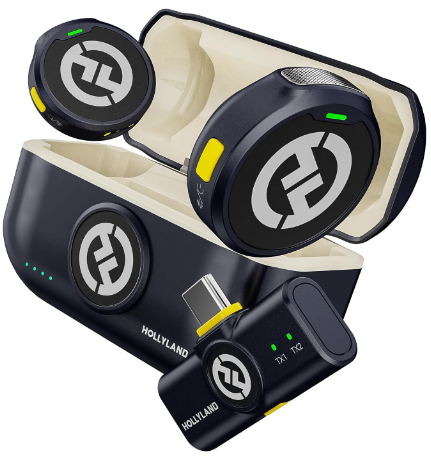
Hollyland LARK M2 - Mini Lavalier Microphone
An incredibly lightweight and compact wireless button microphone that captures high-fidelity audio.
Key Features: 9g Button Size | 48 kHz/24-bit | 40 Hours Battery
- Plug the device into your PC’s USB port or 3.5mm audio jack.
- Wait 5 to 10 seconds for Windows 11 to finish installing the device.
- Open Settings from the Start menu.

- Go to System > Sound.

- Under Output, look for your device in the “Choose where to play sound” list.
- Under Input, look for your device in the “Choose a device for speaking or recording” list.

- If the device appears in either list, it’s connected and ready to configure.
Confirm the Device Appears in Sound Settings
Once plugged in, verify the device is visible and active before moving on.
- Open Settings > System > Sound.
- Under Output, click the dropdown labeled “Choose where to play sound” and look for your device by name.

- Under Input, open the “Choose a device for speaking or recording” dropdown and confirm your microphone or headset is listed.
- Click the arrow/chevron icon next to your device name to open its properties page.

- Use the Volume slider to test output level, or click Start test under Input to confirm the microphone is picking up sound.

- If the device is listed and responding, it’s installed correctly. Move to the default-setting section if it still isn’t producing audio.
Method 2: Add a Bluetooth Sound Device
Bluetooth headsets, earbuds, and speakers require a pairing step before Windows 11 can use them as audio devices.
- Put your Bluetooth device into pairing mode. (Consult your device’s manual – this usually involves holding the power button until an LED flashes rapidly.)
- On your PC, open Settings > Bluetooth & devices.

- Make sure Bluetooth is toggled On.

- Click Add device.

- Select Bluetooth from the dialog that appears.
- Windows will scan for nearby devices. Click your device name when it appears in the list.

- Follow any on-screen prompts (such as confirming a pairing PIN) to complete the connection.
- After pairing, the device appears as an active audio endpoint. You can find it under Settings > System > Sound. Bluetooth settings are managed under Settings > Bluetooth & devices.
Note: Classic Bluetooth headsets may switch to Hands-Free or Headset mode. This can lower audio quality when the microphone is active. To check available audio profiles, open Settings > Bluetooth & devices. Select your device to view its available options. You can also adjust output settings under Settings > System > Sound.
Set Your Bluetooth Device as Default After Pairing
After pairing, your Bluetooth device may not activate automatically. Use these steps to make it the active device:
- Right-click the volume icon in the system tray (bottom-right corner of the taskbar).
- Select Sound settings.
- Under Output, select your Bluetooth device from the listed options. Click its radio button or device card to choose it.
- Click the arrow beside your Bluetooth device to open its options. Find the “Set as default sound device” dropdown. Then select “Use as default for audio.”
- Under Input, select the Bluetooth headset’s microphone if applicable.
- Audio routes through your Bluetooth device immediately. No restart is needed.
Method 3: Manually Add a Device via Sound Settings
If Windows 11 didn’t detect your device automatically, it may be disabled or hidden from the standard device list. This method surfaces devices that plug-and-play missed.
- Open Settings > System > Sound.
- Scroll down and click More sound settings to open the legacy Sound control panel.

- Click the Playback tab for output devices, or the Recording tab for input devices.

- Right-click anywhere in the empty white area of the device list.
- Select Show Disabled Devices.
- Select Show Disconnected Devices.
- If your device appears with a grey icon, right-click it and choose Enable.
- Click OK to save and close the panel.
Your device should now appear in the main Sound Settings list.
Method 4: Use Device Manager to Install or Update the Driver
Use this method when your device doesn’t appear even after trying Methods 1 through 3. A missing or outdated driver is the most common cause of a device going completely unrecognized.
- Right-click the Start button and select Device Manager.

- Expand the Sound, video and game controllers category.

- Look for your device. A yellow warning triangle means the driver has a problem.
- Right-click the device and select Update driver.
- Select “Search automatically for drivers” to check your computer for drivers. This option only searches files stored on your PC.
- If Windows says the best driver is already installed, check Windows Update. Select “Search for updated drivers on Windows Update” to open Settings. Then go to Advanced options > Optional updates > Driver updates. From there, you can download available manufacturer drivers online.
- If the device does not appear in Device Manager, open the Action menu. Select “Scan for hardware changes” to check connected devices again.
- Restart your PC after installing any driver updates. This allows Windows to apply the changes.
How to Set Any Sound Device as the Default in Windows 11
Adding a device and making it the active device are two separate steps. Windows 11 doesn’t always switch to a newly added device automatically, so you may need to set it as the default manually.
To set the default output device (speakers or headphones):
- Open Settings > System > Sound.
- Under Output, click the “Choose where to play sound” dropdown.
- Select your device from the list to make it the active output.
- For a quicker option, click the volume icon on the taskbar. In Quick Settings, select the sound output icon beside the volume slider. Then choose your device from the available options.
To set the default input device (microphone):
- Open Settings > System > Sound.
- Under Input, click the “Choose a device for speaking or recording” dropdown.
- Select your microphone from the list.
- Click on the device name to open its detail panel and confirm the input volume level is above zero.
Both changes take effect immediately without a restart.
Sound Device Still Not Showing Up? Try These Fixes
If your device still isn’t appearing after all four methods, work through these three focused fixes in order.
- Run the Windows Audio Troubleshooter. Go to Settings > System > Troubleshoot. Find “Playing Audio” or “Recording Audio” and click Run. Windows will automatically diagnose common issues, including stopped audio services and driver conflicts, and attempt to repair them.
- Check Windows Update for optional driver packages. Open Settings > Windows Update and click Check for updates. Then go to Advanced options > Optional updates. Manufacturer driver updates often appear here and will not install automatically unless you select them manually.
- Restart the Windows Audio service. Press Windows + R, type services.msc, and press Enter. Find Windows Audio, then right-click it and select Properties. Set Startup type to Automatic, then click Start or Restart. Repeat these steps for Windows Audio Endpoint Builder. Make sure its Startup type is also Automatic. Then restart the service. This can fix audio services that stopped responding without errors. It also keeps them running after your PC restarts.
FAQs
Q: Why can’t Windows 11 find my sound device after I plug it in?
The most common cause is a missing or incompatible driver. Start by running the Windows Audio Troubleshooter under Settings > System > Troubleshoot > Other troubleshooters, then open Device Manager and check for a yellow warning icon under “Sound, video and game controllers.” That icon identifies the exact driver problem to address.
Q: How do I add a microphone as a sound device in Windows 11?
Follow Method 1 if your microphone connects via USB or 3.5mm, or Method 2 if it connects via Bluetooth. After connecting, open Settings > System > Sound > Input and select your microphone from the dropdown list. If it appears but isn’t capturing audio, click the device name and confirm it’s set as the default input.
Q: Can I add multiple sound devices and switch between them?
Yes. Windows 11 supports multiple audio devices installed at the same time. To switch the active output, click the volume icon in the system tray and select a different device from the playback menu. To switch the active input, go to Settings > System > Sound > Input and choose from the available devices.
Q: How do I add a wireless microphone to Windows 11?
Wireless microphones that use a USB receiver (such as the Hollyland LARK M2 or LARK MAX 2) are treated as standard USB audio devices by Windows 11. Plug the receiver into any USB port and follow Method 1. No drivers or companion apps are required. Bluetooth-based wireless microphones follow Method 2 instead.
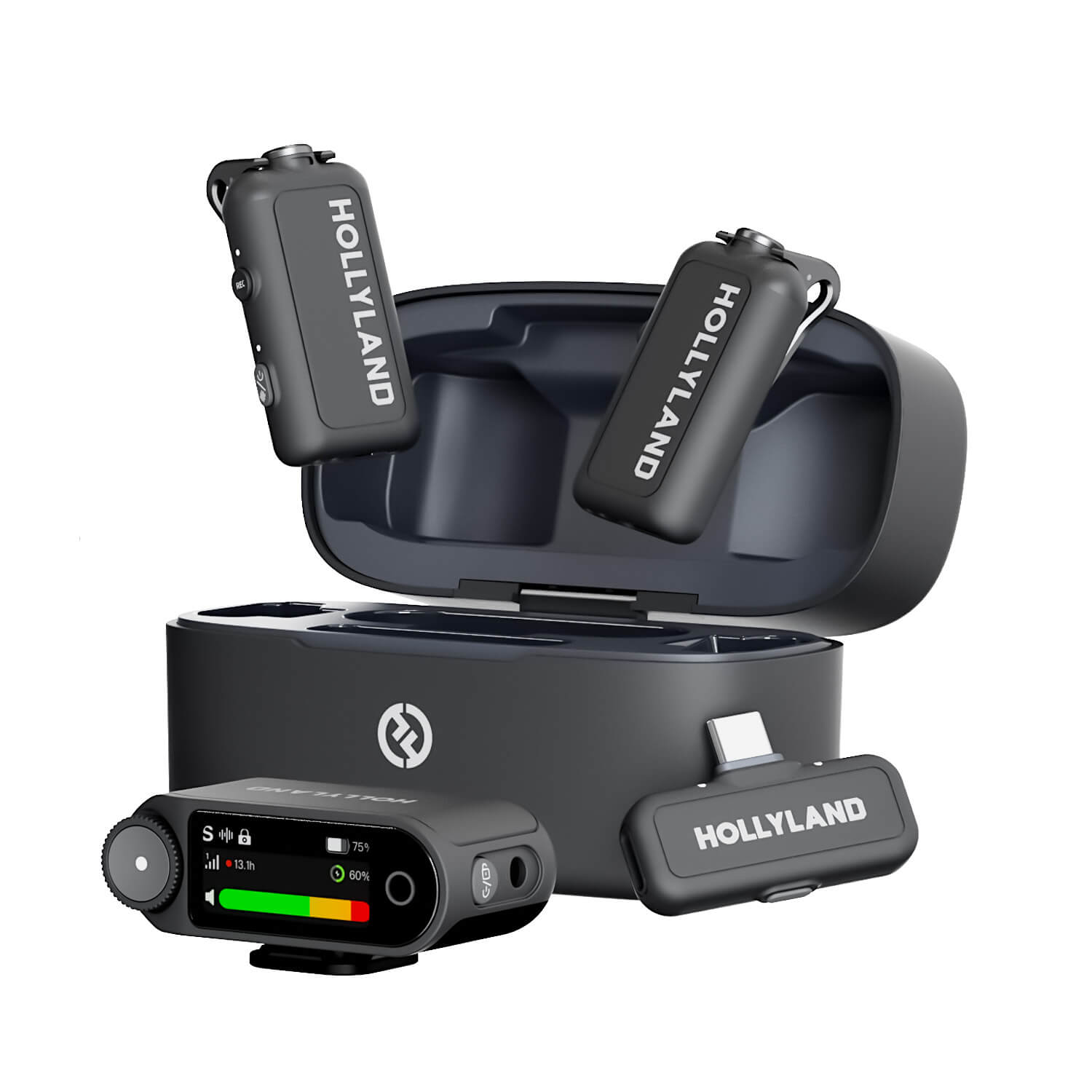
Hollyland LARK MAX 2 - Premium Wireless Microphone System
A premium wireless microphone for videographers, podcasters, and content creators to capture broadcast-quality sound.
Key Features: Wireless Audio Monitoring | 32-bit Float | Timecode
Conclusion
The correct method depends on how your device connects. Wired devices should follow Method 1. Bluetooth devices should follow Method 2. If Windows misses the device, try Methods 3 or 4. If the device appears but stays silent, set it as default. Follow each method in order to find the right solution. This helps avoid unnecessary troubleshooting steps along the way.
Next, check the audio settings if sound seems distorted or thin. Right-click your device in the legacy Sound control panel. Select Properties > Advanced to open the advanced audio settings. Adjust the sample rate and bit depth to match. Use the specifications listed for your connected audio device.