


































.png)
 简体中文
简体中文 
You just wrapped a 45-minute interview. The conversation was sharp, the insights were valuable — and now it’s sitting on your phone as an audio file. What happens next determines whether those ideas become something useful or get lost in a folder you’ll never open again.
Transcription is the process of converting spoken audio into written text. Done well, it makes your content searchable, quotable, and far easier to work with. Done poorly — or skipped entirely — it leaves ideas inaccessible.
This guide walks you through the complete transcription workflow: how to record a conversation clearly, how to choose between manual and AI transcription, how to convert audio to text, and how to proofread your transcript into something publication-ready. Whether you’re a journalist, student, podcaster, or researcher, these steps give you a reliable process to follow every time.
What Does It Mean to Transcribe a Conversation?
Before diving into steps, it helps to understand what you’re actually producing.
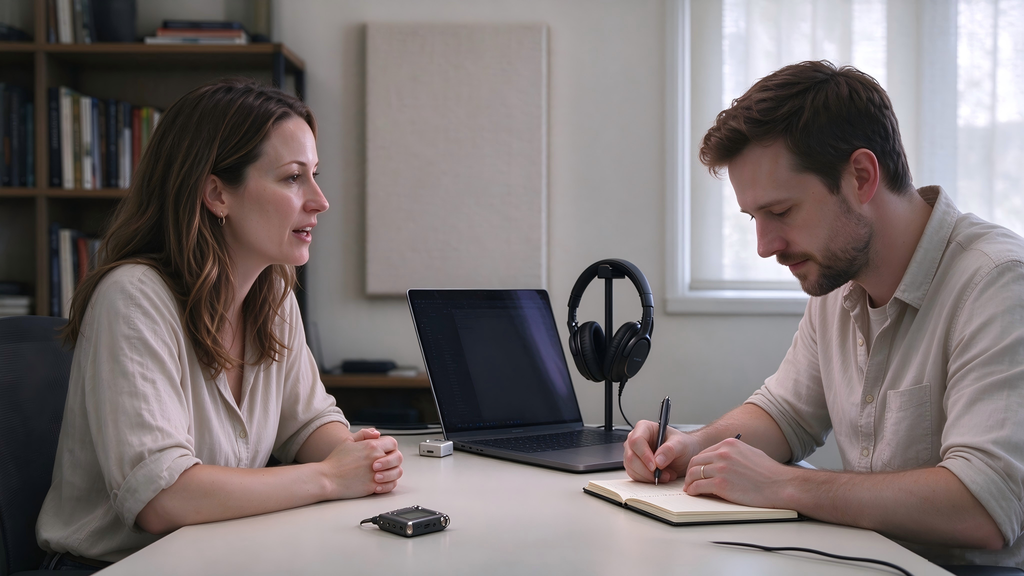
Transcription converts spoken words from an audio or video recording into written text. There are two main styles:
- Verbatim transcription captures every word exactly as spoken — including filler words (um, uh, like), false starts, pauses, and interruptions. This is standard for legal proceedings, qualitative research, and any context where the precise record matters.
- Clean transcription (also called intelligent verbatim) removes fillers and false starts, and lightly edits for readability while preserving the speaker’s meaning. This is more common for journalism, podcast show notes, and business use.
Most transcripts also use speaker labels to identify who said what — essential for interviews and multi-person conversations. You’ll see these formatted as INTERVIEWER [00:01:24]: or simply Speaker 1: depending on the context.
Knowing which style you need before you start saves significant editing time later.
The Transcription Workflow at a Glance
The full process breaks down into four connected stages:
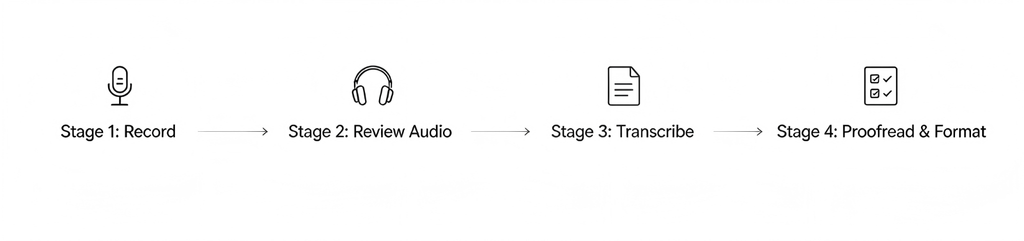
The most important thing to understand upfront: Stage 1 directly affects every stage that follows. The quality of your recording determines how accurately any transcription method — human or AI — can interpret what was said. A cleaner recording means fewer corrections, less guesswork, and a faster path to a finished transcript.
Stage 1: Record Your Conversation Clearly
Why Audio Quality Comes First
Transcription tools, whether human or AI, can only work with what they’re given. Background noise, room echo, muffled voices, and inconsistent volume levels all force the transcriber to guess. The principle is straightforward: garbage in, garbage out.
Common recording problems that hurt transcription quality include:
- Excessive background noise (traffic, HVAC systems, ambient crowd noise)
- Room echo from hard, reflective surfaces
- The microphone placed too far from the speaker
- Overlapping voices without clear pauses between speakers
- Audio that clips (too loud) or drops out (too quiet)
Addressing these at the recording stage costs very little time. Correcting them during proofreading costs a great deal.
Choosing the Right Microphone
Your device’s built-in microphone is convenient — but it picks up everything in the room equally. For interviews and face-to-face conversations, a clip-on microphone placed close to the speaker captures their voice directly while naturally reducing what’s happening in the background.
Wireless clip-on systems take this further by removing the cable constraint, which matters when your subject is moving, seated across a table, or uncomfortable with restrictive equipment.
The Hollyland LARK A2: Built for Clear Speech Capture
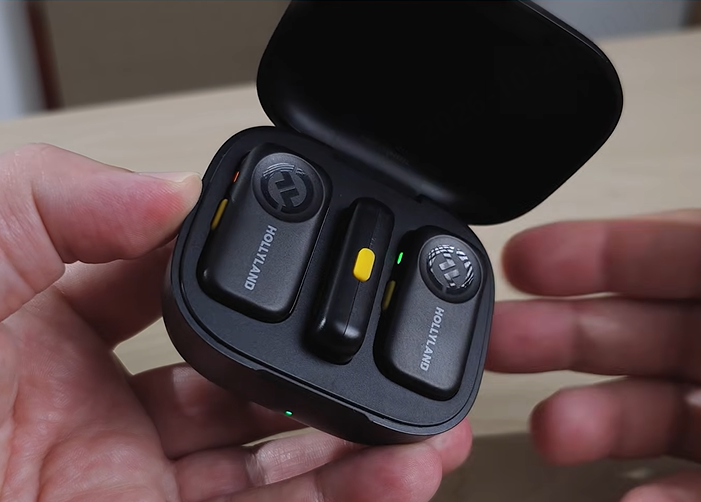
The Hollyland LARK A2 is a compact wireless clip-on microphone system designed for exactly this use case — interviews, on-location recordings, and conversations where clean speech capture is the priority.

Hollyland LARK A2 - Clip-on Microphone
An ultra-light 8.5g wireless microphone engineered for effortless mobile recording, featuring smart AI noise cancellation and studio-grade sound.
Key Features: 8.5g Clip & Go | AI Noise Cancellation | 42 Hours Battery
It consists of a small transmitter worn by the speaker and a receiver connected to your recording device (smartphone, camera, or audio recorder). Setup takes under a minute, and it’s lightweight enough that most speakers forget they’re wearing it.
Two features make it particularly well-suited for transcription-focused recording:

Intelligent Noise Cancellation operates at three levels — Weak (~10 dB), Medium (~15 dB), and Strong (~20 dB) — selectable based on your environment. In a quiet room, Weak mode provides light background cleanup. In a busy café or outdoor setting, Strong mode aggressively reduces ambient noise without processing the voice unnaturally. The system also offers six-level volume adjustment, which helps you dial in consistent input levels and avoid the two most common audio problems: recordings that are too quiet to hear clearly, or too loud and distorted.
Intelligent Voice Beautification offers three presets — Balance, Bright, and Low — that shape the tonal character of the recorded voice. For transcription purposes, Balance mode is the recommended choice: it preserves natural vocal clarity while softening harsh sibilance (the sharp “s” and “sh” sounds that can distort on-mic), which makes speech easier for both AI tools and human listeners to parse accurately.
One important note: The LARK A2 captures and delivers clean audio — it does not transcribe. You’ll still need a separate transcription tool, covered in Stage 3. Think of the microphone as the foundation; transcription software builds on top of it.
Basic LARK A2 setup for an interview:
- Clip the transmitter to the speaker’s lapel, approximately 15–20 cm below the chin
- Connect the receiver to your recording device
- Select your noise cancellation level based on the environment
- Set Voice Beautification to Balanced
- Record a 10–15 second test clip and play it back before the conversation starts
General Recording Tips
Regardless of which microphone you use, these habits improve transcription quality:

- Placement matters: Keep the mic within 15–20 cm of the speaker’s mouth. Secure the clip to prevent clothing rustle, which reads as constant interference in a transcript.
- Choose your environment deliberately: Soft furnishings (rugs, curtains, upholstered furniture) absorb echo. Avoid tiled rooms, stairwells, and outdoor spaces with unpredictable wind.
- Brief your speakers: Ask participants to speak one at a time and pause naturally between exchanges. This creates cleaner speaker separation, which AI diarisation tools depend on.
- Use a quality file format: Record in WAV or high-bitrate MP3 when possible. Heavily compressed audio strips sonic detail that speech-recognition systems use to distinguish similar-sounding words.
- Name your files clearly: A filename like 2026-10-20_interview_JaneDoe_product-launch.wav saves real time when you’re working with multiple recordings.
Stage 2: Review Your Audio Before You Transcribe
This step is easy to skip and consistently worth doing.
Before you commit to transcribing, listen through your recording — or at least sample it at a few points. You’re looking for:
- Sections where a speaker is difficult to understand
- Timestamps where background noise spikes
- Moments where speakers overlap significantly
- Unexpected audio problems (gaps, distortion, level drops)
Keep a simple timestamp log as you listen. Even a basic text file works:
00:04:32 — loud traffic noise, speech unclear for ~8 seconds
00:17:15 — speakers overlap, difficult to separate
00:31:44 — [Guest] moves away from mic, volume drops
This log becomes your proofreading checklist later. Knowing where the problems are before you start means you won’t be hunting for them mid-transcription.
It’s also the right moment to decide which transcription method suits this particular recording — the decision covered next.
Stage 3: Choose Your Transcription Method
Method A: Manual Transcription
Best suited for: Legal records, academic research, medical documentation, or any recording where accuracy is non-negotiable and audio quality is imperfect.
What you need: An audio player with speed control (VLC is free; oTranscribe is a free, browser-based tool built specifically for this) and a word processor.
Steps:
- Open your audio file in your chosen player. In oTranscribe, you can control playback with keyboard shortcuts without switching windows.
- Set playback speed to 75–80% — slow enough to catch every word without constant pausing.
- Begin typing, adding speaker labels at each change: [INTERVIEWER] or [GUEST NAME], followed by their words.
- Use a consistent notation for anything you can’t make out: [inaudible 00:03:15]. Never guess and present it as fact.
- Work in 5–10 minute segments. Manual transcription is cognitively demanding; shorter sessions maintain accuracy better than marathon attempts.
- Save your file frequently.
Realistic time expectation: Manual transcription typically takes 4–6 times the audio duration for an average typist. A 45-minute interview will take 3–4 hours. Budget accordingly.
Method B: AI Transcription
Best suited for: Longer recordings, faster turnaround needs, and situations where a strong first draft with some errors is acceptable before proofreading.
Popular tools include Otter.ai, Descript, Notta, Rev, and the open-source Whisper model. Free tiers are available on most platforms, though they typically cap monthly usage or limit export formats.
Steps:
- Export your audio file from your recording device in a supported format — MP3, WAV, and M4A are accepted by most platforms.
- Create an account on your chosen tool and locate the upload or import function.
- Upload your file. If the platform supports it, enable speaker diarisation — the feature that automatically labels different speakers in the transcript.
- Select the correct language before processing begins.
- Allow the tool to process. Processing time varies: most platforms handle a 45-minute file in 3–5 minutes.
- Download or copy the generated transcript. Common export formats include .docx, .txt, and .srt (for captions).
- Proceed directly to Stage 4 — AI transcripts always require proofreading.
A note on AI accuracy: AI transcription tools have improved considerably, but they don’t eliminate errors — they redistribute them. You’ll see fewer missed words in clear conversational speech and more errors around proper nouns, technical terms, accents, and overlapping voices. Think of AI output as a first draft, not a finished document.
Which Method Is Right for You?
| Factor | Manual | AI |
| Speed | 4–6× audio duration | Minutes |
| Accuracy | High (human judgment applied throughout) | Good — varies with audio quality |
| Cost | Free (your time) | Free tiers available; paid plans for full features |
| Best for | High-stakes, legally sensitive, poor audio quality | Interviews, podcasts, meetings, first drafts |
| Proofreading required? | Less — errors caught in real time | Always |
Many professionals use a hybrid approach: AI for the first draft, manual review for the final pass.
Stage 4: Proofread and Format Your Transcript
Proofreading for Accuracy
The most important rule: proofread while listening to the audio, not just reading the text. Silent proofreading misses errors that are obvious the moment you hear the original.
Start with the flagged timestamps from your Stage 2 log — these are your known problem areas. Then work through the full transcript, listening to each section.
Common errors to look for:
- Homophones: there/their/they’re, right/write, to/too/two — these read correctly but mean something different
- Proper nouns: Names of people, organisations, places, and products are frequently wrong. A tool might transcribe “LARK A2” as “lark a too” or a person’s name as a common word it sounds like
- Technical terms: Industry jargon, acronyms, and specialised vocabulary are the most reliable sources of AI error
- Speaker label mistakes: AI diarisation can mis-assign lines when voices are similar in tone or when speakers briefly talk over each other
Flag unresolvable sections clearly — [inaudible 00:03:15] — rather than guessing. In professional or academic contexts, invented content is worse than an acknowledged gap.
Formatting for Readability
Once accuracy is confirmed, shape the document for its intended audience:
- Add a header with the recording date, participant names, topic, and total duration
- Apply your chosen style consistently throughout: verbatim or clean
- For clean transcripts, remove filler words and false starts — unless the verbatim record is specifically required
- Add paragraph breaks at natural topic shifts to improve readability; a wall of continuous text is harder to reference
- Format speaker labels consistently: SPEAKER NAME [TIMESTAMP]: on its own line, followed by the spoken text
- Export in the format your workflow requires: .docx for further editing, .pdf for sharing, .txt or .srt for caption-based workflows
Frequently Asked Questions
Can I transcribe a conversation for free?
Yes. Otter.ai offers a free tier with a monthly minute limit; oTranscribe is a completely free browser-based tool for manual transcription; and OpenAI’s Whisper is free and open-source for those comfortable with a basic technical setup. Free tiers typically cap usage volume or limit export options — assess your needs before committing to a paid plan.
Is AI transcription accurate enough to use without proofreading?
Not reliably. AI tools produce strong first drafts for clear conversational audio, but they make consistent errors on proper nouns, technical vocabulary, accents, and overlapping speech. For any professional, academic, or published use, proofreading against the original audio is a required step, not an optional one.
Do I need technical experience to transcribe a conversation?
No. Manual transcription requires only a word processor and an audio player — both free. AI tools are designed for non-technical users and follow an upload-and-wait workflow. The most demanding skill in the entire process is attentive proofreading, which requires careful listening, not technical knowledge.
Can I transcribe a phone or video call recording?
Yes, with adjusted expectations. Call recordings are typically lower quality than dedicated microphone recordings — compressed audio, potential echo, and uneven volume between participants are common. Export the call audio as a file and follow the same workflow described in this guide. Expect to correct more AI errors than you would with higher-quality source audio. Using a headset or external microphone during the call, when possible, makes a meaningful difference.
Conclusion
Transcription is a four-stage process: record clearly, review what you’ve captured, convert it to text, and proofread into a finished document. Each stage builds on the one before it, which is why audio quality at the recording stage has a greater impact on the final result than any transcription tool you choose.
Whether you transcribe manually for precision or use an AI tool for speed — or combine both — the workflow in this guide gives you a reliable foundation. Start with a clean recording, know your problem timestamps before you begin, choose the method that fits your accuracy and time requirements, and always proofread against the original audio.
Get the recording right, and everything else becomes easier.
Take the First Step Before You Hit Record
If you’re regularly transcribing interviews or conversations, the quality of your source audio is the single most controllable variable in your workflow. The Hollyland LARK A2 wireless microphone is designed to give you that control — capturing clear, noise-reduced speech wherever the conversation happens.
Already using the LARK A2 in your recording workflow? Share how it fits into your process in the comments below.


