



































.png)
 简体中文
简体中文 
Replaying a full lecture recording just to find one key concept wastes time you do not have. AI transcription tools can convert a one-hour recording into structured, searchable notes in under five minutes, but the quality of those notes depends on more than picking the right app. The workflow matters, and so does the audio you start with. This guide covers the best tools, a concrete step-by-step process, and practical ways to improve the output at every stage.
How to Convert Lecture Recordings to Notes: Best AI Tools and Step-by-Step Workflow
Why Lecture Recording to Notes Is Worth Doing Right
Raw AI transcripts are not finished study material. Without a reliable workflow, you end up with a wall of unformatted text that still requires significant cleanup before it is useful. Getting the process right from the start means spending minutes reviewing structured notes instead of hours rewinding audio and reformatting output by hand.
Start With Clean Audio — It Determines Transcription Accuracy
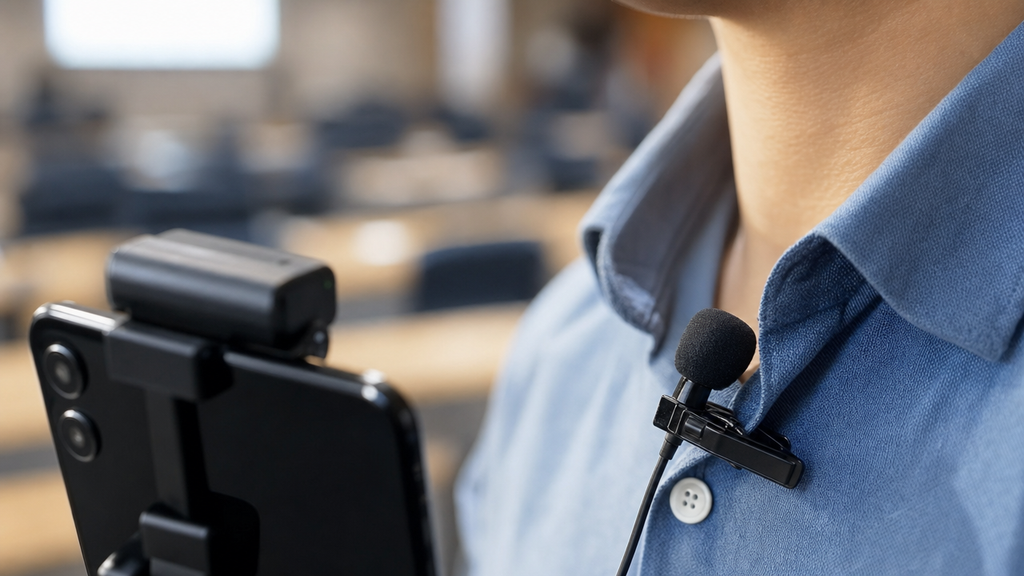
No AI tool can recover a muffled, noisy recording. Transcription accuracy drops sharply when source audio contains background noise, overlapping voices, or too much distance between the microphone and the speaker. Fixing this before you record is far easier than correcting a degraded transcript afterward.
Start With Clean Audio — It Determines Transcription Accuracy
Practical tips for better source audio:
- Position your mic close to the speaker. Most phone microphones perform reliably at one to three feet. Beyond six feet, clarity degrades enough to affect transcription output meaningfully.
- Choose a quieter seat. Avoid spots near doors, HVAC vents, or high-traffic corridors. Even a modest reduction in ambient noise pushes accuracy noticeably higher.
- Use a clip-on microphone for important recordings. A plug-and-play option like the Hollyland LARK A1 connects directly to your phone via USB-C or Lightning and captures clean, close-in audio that consistently reaches the 90%+ accuracy range in AI transcription tools.
- Run a 30-second test recording before the lecture starts. Play it back through headphones to catch echo, static, or low volume while you still have time to reposition.
Best AI Tools to Convert Lecture Recordings to Notes
The five tools below cover the most practical use cases for students, with meaningful differences in cost, accuracy, and output format.
| Tool | Best For | Free Tier | Output Format | Accuracy Note |
|---|---|---|---|---|
| Otter.ai | Real-time and uploaded audio | Yes (300 min/month) | Timestamped transcript and auto-summary | Strong for clear speech; struggles with heavy accents |
| OpenAI Whisper | High-accuracy offline transcription | Yes (open-source) | Plain text or SRT | Among the highest accuracy available, including technical terms |
| Descript | Video lecture recordings | Yes (1 hour/month) | Editable transcript synced to video | Excellent for MP4 files; visual interface speeds up review |
| Notion AI | Users already working in Notion | Requires Notion paid plan | Notion page with headings and bullets | Best used post-transcription for AI-powered restructuring |
| Microsoft Copilot / Word Transcribe | Microsoft 365 users | Included with M365 subscription | Word document with speaker labels | Reliable for Teams and Zoom recordings; familiar to most students |
Otter.ai is the most accessible starting point for students. The free tier covers 300 minutes per month, enough for five to six full lectures, and the automatic summary feature extracts key points without any extra prompting. It handles both uploaded files and live recording, making it flexible across different lecture setups.
OpenAI Whisper leads on raw transcription accuracy, particularly for technical subject matter where other tools trip on subject-specific jargon and acronyms. It is fully open-source and runs locally, which removes file size limits and subscription costs. The drawback is that it requires some comfort with command-line tools or a Whisper-powered front-end wrapper like Whisper.cpp.
Descript is the strongest choice when your file is a video recording. Its transcript editor lets you click on any word to jump directly to that moment in the video, which makes reviewing and correcting the raw output significantly faster than scanning plain text.
Step-by-Step Workflow: From Recording to Structured Notes
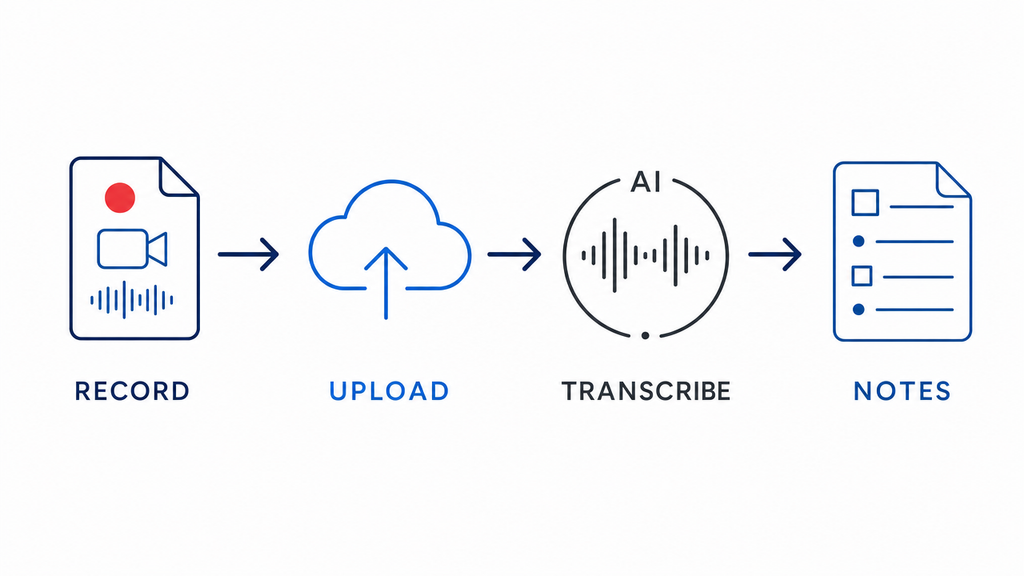
This process works across all the tools listed above. Follow the steps in order for the cleanest output with the least manual correction.
Step-by-Step Workflow: From Recording to Structured Notes
Step 1: Export or Locate Your Recording
Find the audio or video file you need to convert. Most AI transcription tools accept MP3, MP4, M4A, WAV, and WebM. If your lecture was a Zoom or Teams session, open the recording settings and export it as MP4 or audio-only M4A. Phone recordings are typically stored as M4A or WAV in your voice memo app or camera roll. Confirm the format before uploading to avoid processing errors or failed uploads.

Step 2: Upload to Your Chosen AI Tool
Most tools offer drag-and-drop upload or a direct file browser. Otter.ai and Descript both support cloud sync from Google Drive or Dropbox, which removes the download-and-reupload step if your recordings are already stored there. For Whisper-based tools, you will typically place the file in a local folder and reference it via terminal or a web front end. Processing time for a one-hour recording is usually two to five minutes on a standard internet connection.


Step 3: Run Transcription and Review the Raw Output
Read through the raw transcript before doing anything else. Look specifically for three things:
- Speaker label errors – confirm labels are correctly assigned when multiple people were speaking

- Timestamp gaps or jumps – use timestamps to flag moments that sound uncertain so you can return to the audio quickly
- Technical term failures – proper nouns, subject-specific vocabulary, and acronyms are the most frequent transcription errors

Correcting at this stage prevents errors from carrying through into your summary.
Step 4: Use AI Summarization to Extract Key Points
With a clean transcript, either use the tool’s built-in summarization or paste the text into an AI assistant. The key is writing a specific prompt rather than asking for a generic summary. Two examples that work well:
- “List the three main arguments covered in this transcript, then list any definitions that were introduced.”
- “Summarize this transcript as bullet points organized by topic. Flag any action items, deadlines, or formulas mentioned.”

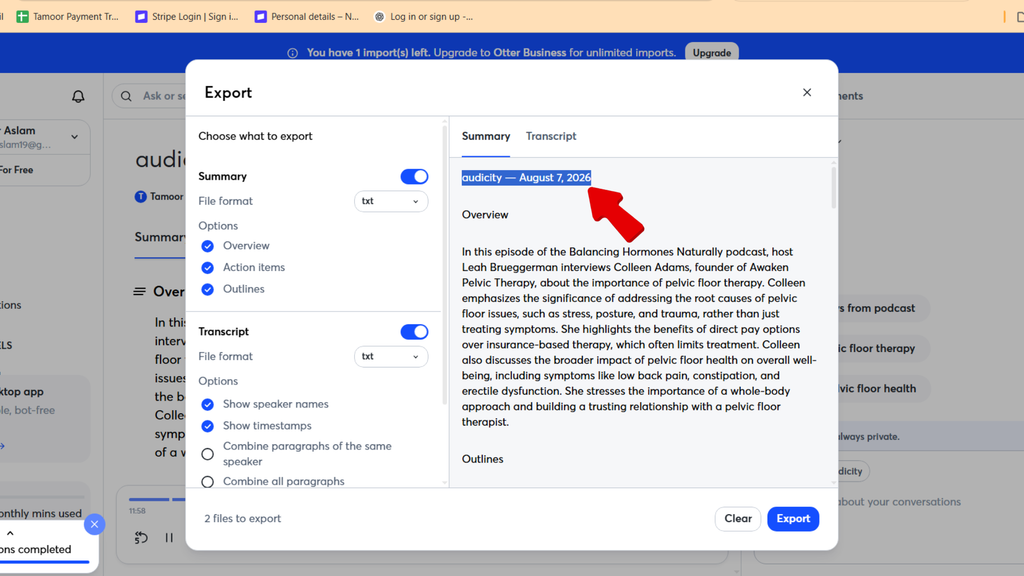
Otter.ai produces an auto-summary without any prompting. For Notion AI, paste the transcript into a Notion page and run the “Ask AI” command with a structured prompt like the ones above.
Step 5: Structure the Notes
A good AI summary is still a starting point, not a finished product. Spend five to ten minutes shaping the output into a format that will actually hold up during review:
- Add a top-level heading with the lecture date, course name, and topic
- Group related points under subheadings such as Key Concepts, Definitions, and Open Questions
- Convert dense prose paragraphs into bullet points

- Bold or highlight anything the lecturer emphasized or repeated

This final step transforms AI output into personal study material. It is also where the notes become meaningfully yours.
Tips to Get Better Notes From Any Tool
These adjustments apply across all tools and recording formats:
- Use timestamps to flag uncertain sections rather than correcting everything immediately. Work through the high-priority sections first during your review pass.

- Break recordings longer than 45 minutes into 20–30 minute segments before uploading. Shorter files process faster and produce more coherent summaries. Audacity is a free option for splitting audio files.
- Write a specific output prompt, not a generic one. Ask for the exact format you need: definitions, argument structure, key dates, formulas, or discussion questions. Vague instructions produce vague results.

- Export to your note-taking app immediately after cleanup. Move finished notes to Notion, Obsidian, or Google Docs before the context fades, and file them under the correct course folder right away.

Free vs. Paid: Which Option Is Right for You?
| Criteria | Free Options | Paid Options |
|---|---|---|
| Monthly usage limit | 300 min (Otter.ai); unlimited (Whisper) | Typically unlimited |
| Output formatting | Basic text and summary | Structured templates and richer exports |
| Collaboration features | Limited or none | Shared workspaces, team editing |
| Export formats | TXT, DOCX | PDF, SRT, custom templates |
Free tiers are genuinely enough for most students. Otter.ai’s free plan covers roughly five to six one-hour lectures per month, and Whisper has no usage ceiling at all. Paid plans make practical sense only if you are recording multiple lectures daily, working through dissertation research across dozens of audio files, or need team collaboration features. Start with a free option and upgrade only after you have consistently hit the limits.
Frequently Asked Questions
Can I convert a lecture recording to notes for free?
Yes. Otter.ai offers a free tier with 300 transcription minutes per month. OpenAI Whisper is fully open-source and free with no usage cap. Microsoft Word’s built-in transcription is included with any Microsoft 365 subscription. All three produce reliable output when source audio is reasonably clear, making paid tools unnecessary for most students starting out.
How accurate is AI transcription for lecture recordings?
For clear audio recorded in a low-noise environment, accuracy typically falls between 85% and 95%. Technical terminology, strong accents, and background noise all reduce that range. Reviewing the raw transcript and correcting errors before running the summarization step significantly improves the quality of the final notes you end up with.
What file formats do transcription tools accept?
Most tools accept MP3, MP4, M4A, WAV, and WebM. Zoom and Teams recordings should be exported as MP4 or audio-only M4A before uploading. If your file is in an unsupported format, a free tool like FFmpeg or Handbrake can convert it in under a minute without any quality loss.
How long does it take to transcribe a one-hour lecture?
Most AI tools process a one-hour audio file in two to five minutes. Generating a structured summary with key points adds roughly one to two minutes on top of that. Including a quick review and correction pass, you can have clean, organized notes from a full lecture in under ten minutes total.
Start Using This Workflow Today
The best lecture recording to notes workflow comes down to three things: clean source audio, the right AI tool for your situation, and a structured cleanup step that turns raw output into material you can actually study from. Start with Otter.ai’s free plan on your next lecture and compare its auto-summary against what you would have written by hand. Once you see the gap, add the tips in this guide one step at a time until the process becomes routine.


