.png)
 简体中文
简体中文 
Whether you’re a journalist capturing an interview, a student recording a study session, or a content creator documenting a conversation, your iPhone is already a capable recording device. The challenge is knowing which method to use — and how to get audio that’s actually clear enough to be useful.
This guide covers three practical approaches: recording in-person conversations with the built-in Voice Memos app, capturing standard phone calls using Apple’s native recording feature, and upgrading your audio quality with the Hollyland LARK A2 wireless microphone. By the end, you’ll know exactly which method fits your situation.

Hollyland LARK A2 - Clip-on Microphone
An ultra-light 8.5g wireless microphone engineered for effortless mobile recording, featuring smart AI noise cancellation and studio-grade sound.
Key Features: 8.5g Clip & Go | AI Noise Cancellation | 42 Hours Battery
Before You Record: Know the Legal and Consent Basics
Before hitting record, take a moment to understand the rules. Recording laws vary significantly depending on where you are. In the United States, some states only require one person in the conversation to consent to recording (one-party consent), while others require every participant to agree (all-party consent). Laws in other countries differ further still.
The safest and most respectful approach is to always tell the other person before you start recording. For formal interviews or professional use, consider stating consent on the recording itself — something as simple as “Just to confirm, we both agree this conversation is being recorded” creates a clear verbal record.
Note: This article is for informational purposes only and does not constitute legal advice. Always verify the recording laws in your specific location before proceeding.
Method 1: Record In-Person Conversations with Voice Memos
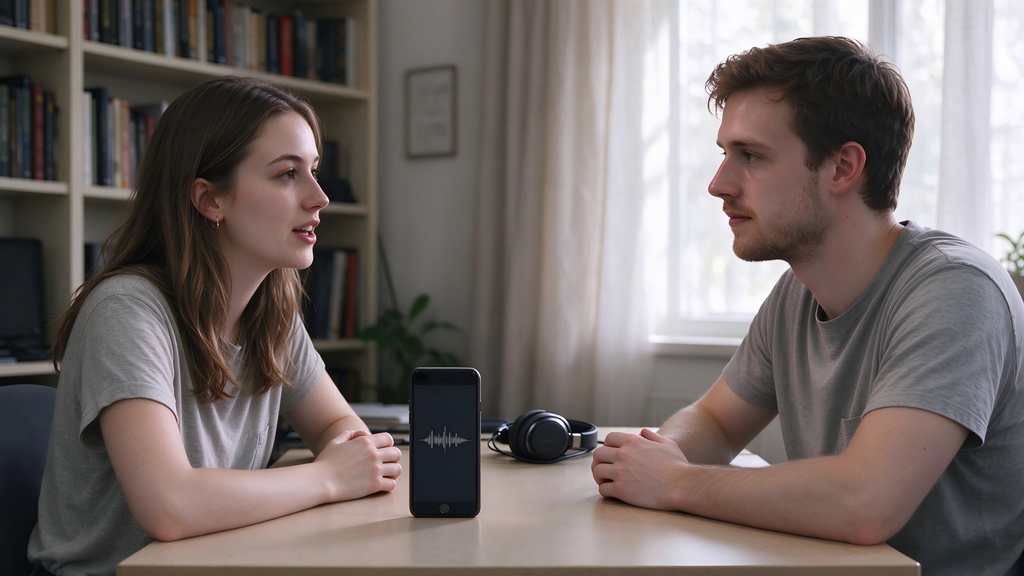
For quick, everyday recordings, you don’t need any extra equipment. Apple’s Voice Memos app comes pre-installed on every iPhone and is genuinely straightforward to use.
How to Use the Voice Memos App
- Open the Voice Memos app. If you can’t find it, swipe down from the home screen and type “Voice Memos” in the Spotlight search bar.
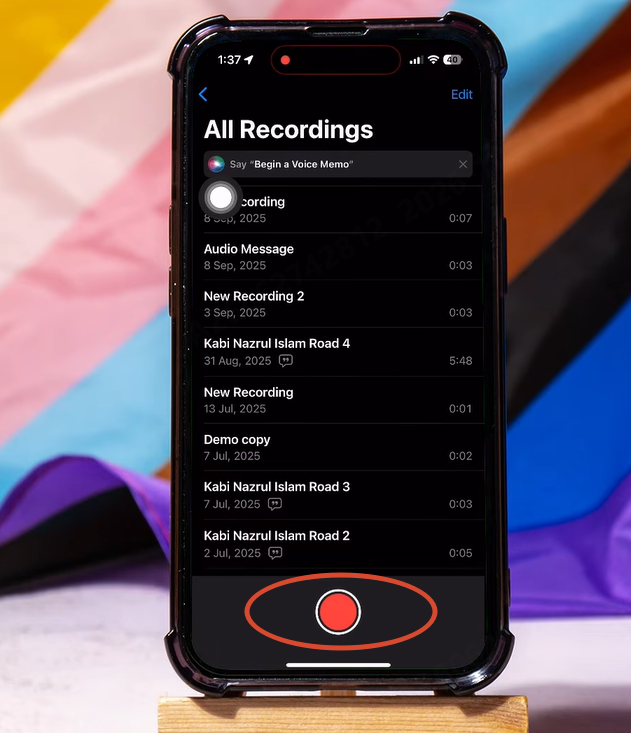
- Tap the large red Record button at the bottom of the screen to start recording.
- If you need to pause mid-conversation, tap the Pause button. Tap the red button again to resume.
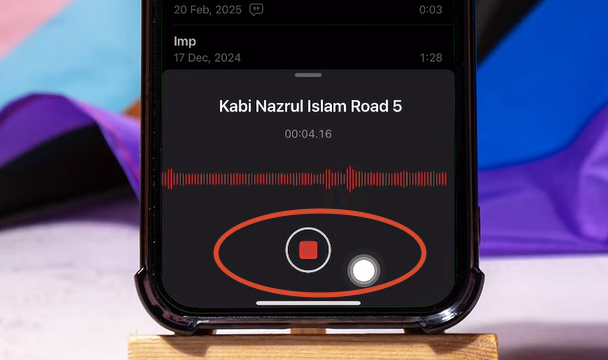
- When you’re done, tap Done. The recording saves automatically, named by your current location or the date and time.
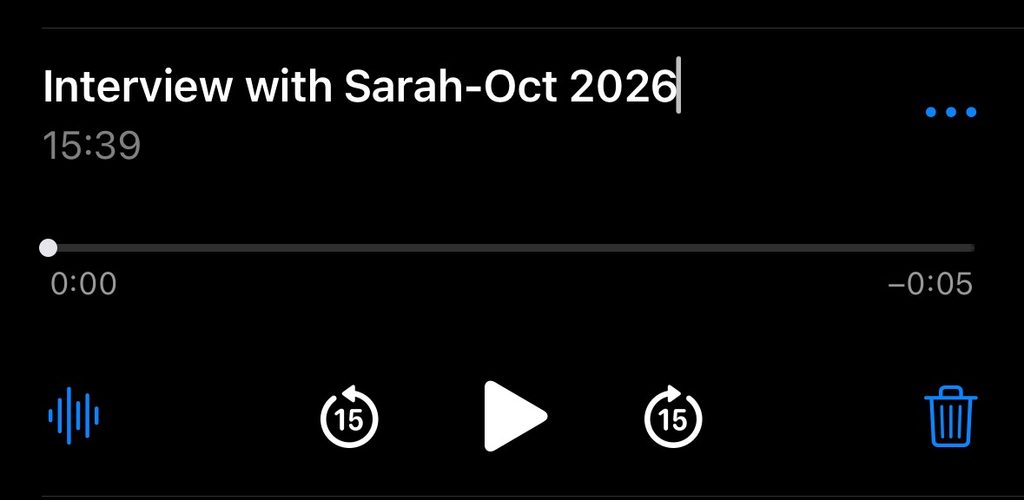
- To rename it, tap the title and type something descriptive — for example, “Interview with Sarah – Oct 2026.”
- To share or export, tap the three-dot menu next to any recording and choose from AirDrop, Messages, Mail, or other options.
That’s all it takes for a basic recording. It works reliably, and the files are easy to find and share.
Tips for Better Audio Quality with Voice Memos
The Voice Memos app is only as good as your iPhone’s built-in microphone, so placement matters:
- Put the phone between speakers. If you’re recording a two-way conversation, place your iPhone face-up on a flat surface between you and the other person rather than in your pocket or bag.
- Point the mic toward the speaker. The primary microphone sits at the bottom of the iPhone. Orient that end toward whoever is talking.
- Minimize background noise. Close doors and windows, turn off fans or air conditioning, and move away from busy areas when possible.
- Check your storage first. Long recordings can take up significant space. Go to Settings > General > iPhone Storage and make sure you have room before an important session.
One honest limitation: the iPhone’s built-in mic begins to struggle once a speaker is more than three to four feet away. For anything where audio clarity is critical — an interview, a podcast segment, a documentary clip — you’ll want a dedicated microphone. More on that shortly.
Method 2: Record a Phone Call on iPhone
Recording a phone call has historically been one of the trickier things to do on an iPhone. Apple addressed this directly with iOS 18, which introduced a native call recording feature for standard carrier calls.
How to Use Apple’s Built-In Call Recording (iOS 18+)
- Start or answer a phone call as you normally would.
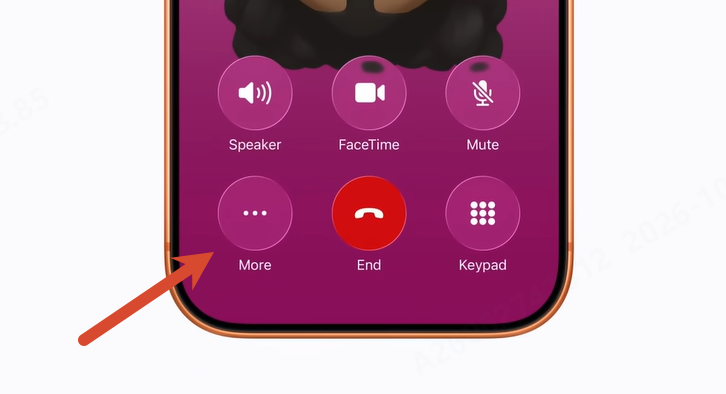
- Once the call is connected, look for the more button — a circle icon — on the in-call screen.
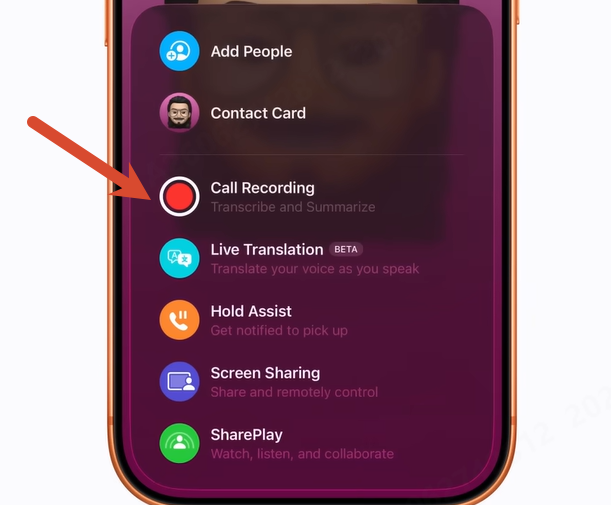
- Tap it to begin recording.
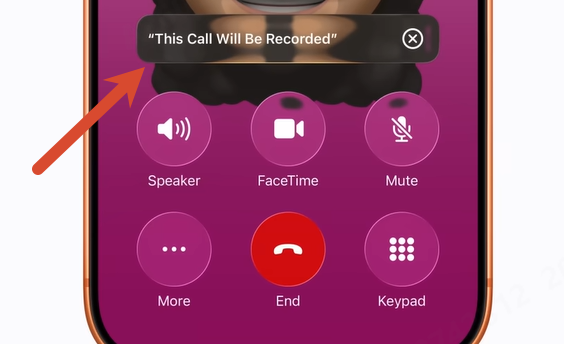
- iOS will automatically play an audio announcement to everyone on the call: “This call will be recorded.” This notification is built into the system and cannot be disabled — which is intentional, as it serves as a built-in consent mechanism.
- To stop recording, tap the record button again.
- The recording saves directly to your Voice Memos app, where you can play it back, rename it, or share it just like any other voice memo.
Limitations and Troubleshooting
This feature works well within its scope, but there are a few things to be aware of:
- Regional availability: Due to local wiretapping and privacy laws, the call recording button may not appear in certain countries, including some European Union member states. If you don’t see the button, the feature is likely restricted in your region.
- Carrier calls only: Apple’s built-in recording works exclusively with standard phone calls routed through your carrier. It does not work with FaceTime, WhatsApp, Zoom, Google Meet, or any other VoIP or internet-based call.
- iOS version requirement: You’ll need iOS 18 or later. Go to Settings > General > Software Update to check your current version.
If you need to record a VoIP call and the built-in feature doesn’t cover it, iPhone’s Screen Recording function (accessible from Control Center) can capture system audio as a workaround — though you should still confirm consent from all parties before doing so.
Method 3: Record In-Person Conversations with the Hollyland LARK A2
For interviews, field reporting, or any situation where audio quality genuinely matters, the iPhone’s built-in mic has clear limits. It picks up everything in the room indiscriminately, loses clarity with distance, and has no way to separate one speaker from another.
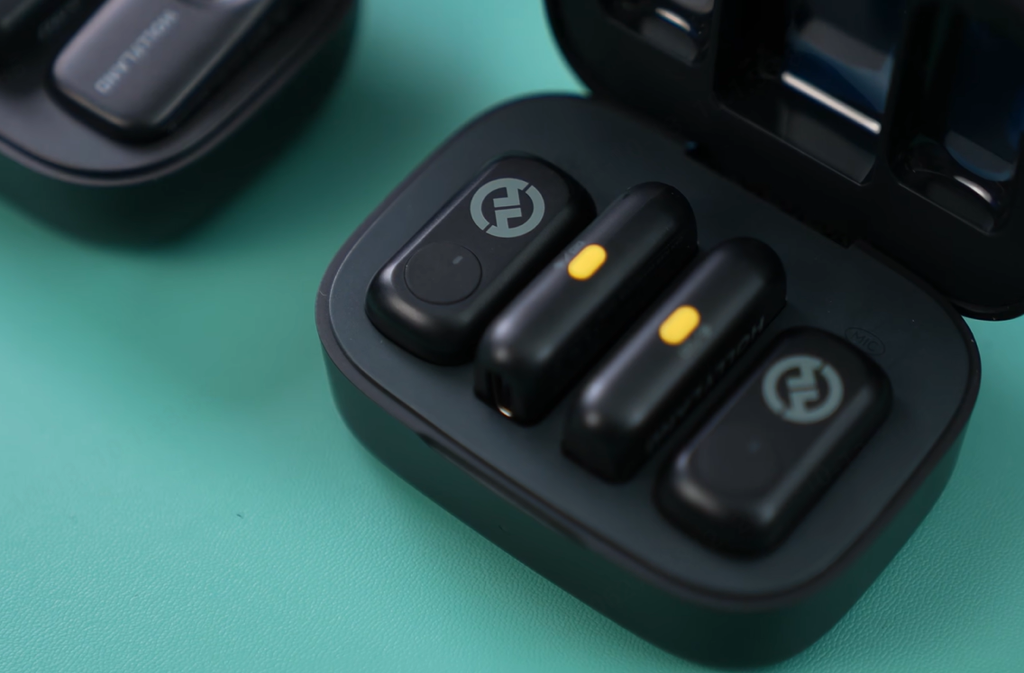
The Hollyland LARK A2 is a compact wireless clip-on microphone system that solves these problems without complexity. It connects directly to your iPhone’s USB-C port — no Bluetooth setup, no companion app, no configuration menus. You plug it in, clip on the mics, and record.
Here’s how to set it up from scratch.
Step 1: Connect the USB-C Receiver to Your iPhone
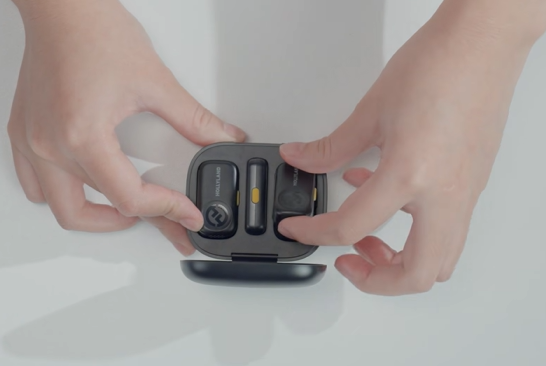
Take the USB-C receiver out of the charging case and plug it into the USB-C port at the bottom of your iPhone. That’s the only physical connection you need to make.
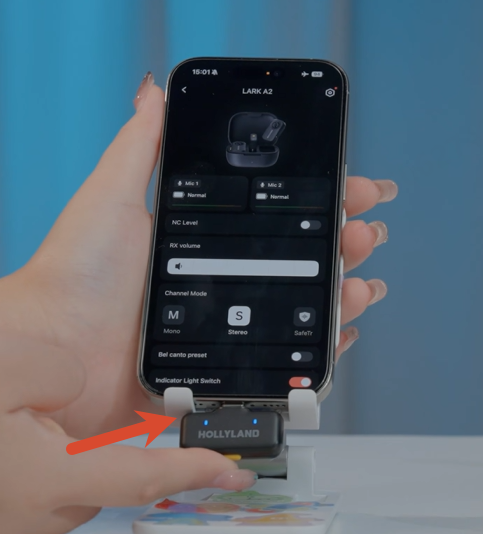
Watch the receiver’s LED indicator to confirm the connection status:
| LED Status | Meaning |
| Slow Blue Flash | Disconnected |
| Fast Blue Flash | Pairing mode |
| Solid Blue | Connected |
| Solid Green | Noise cancellation on |
| Solid Red | Muted |
You’re looking for Solid Blue before moving on.
iPhone compatibility note: The LARK A2 requires a USB-C port, which is standard on iPhone 15 and later. If you’re using an older model with a Lightning connector, you’ll need an Apple Lightning-to-USB-C adapter. Test it before your recording session to make sure audio passes through correctly.
Step 2: Power On and Pair the Microphones
Remove Mic 1 and Mic 2 from the charging case. That’s it — both microphones will power on automatically and connect to the receiver without any button presses. Within a few seconds, the LEDs on both mics should turn Solid Blue, confirming they’re connected and ready.
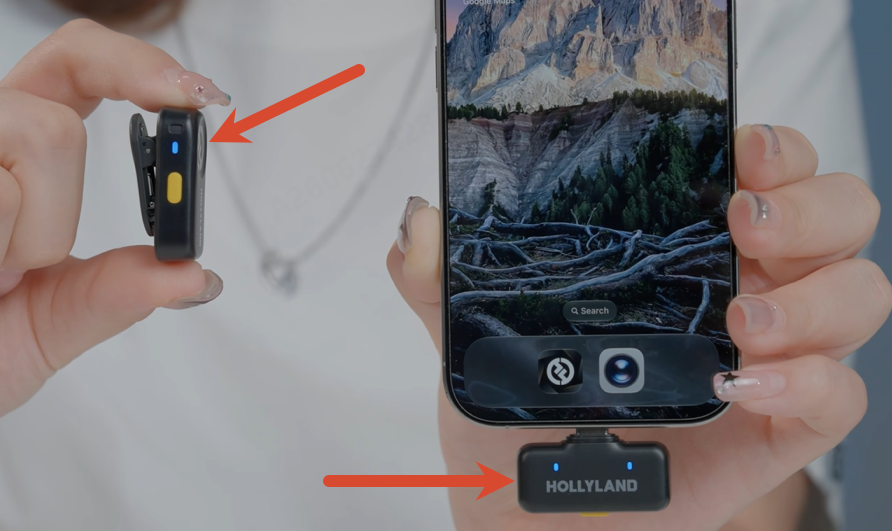
If the automatic connection doesn’t work, here’s how to pair manually:
- With the receiver already plugged into your iPhone, press and hold the receiver’s button for 3 seconds. The LED will flash rapidly, indicating it’s in pairing mode.
- With the microphone powered off, press and hold the mic’s button for 6 seconds to put it into pairing mode as well.
- Once both devices are searching, they’ll find each other and connect automatically.
The LARK A2 Duo comes factory pre-paired, so manual pairing should rarely be necessary — but it’s good to know in case you ever need it.
Step 3: Clip On and Position the Microphones
Where you place the mic has a direct impact on how your recording sounds. Follow these guidelines for clean, consistent audio:
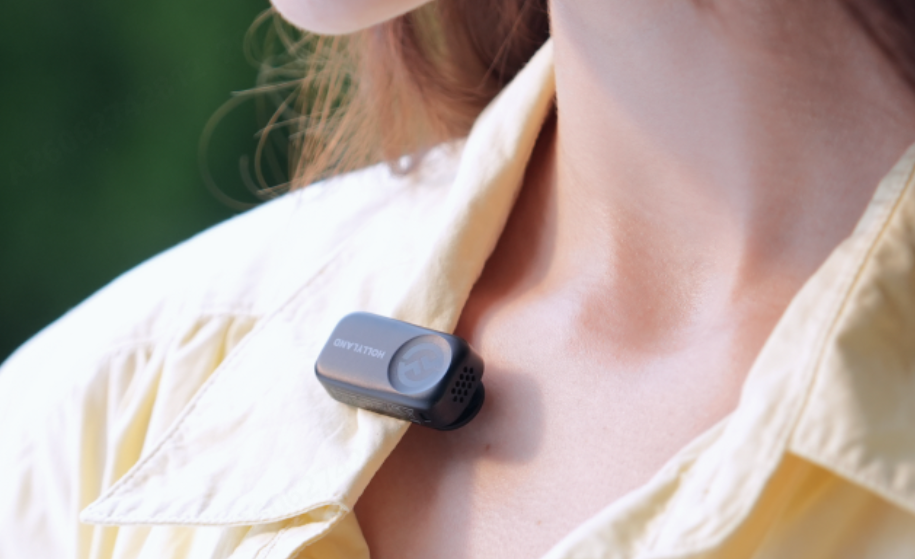
- Placement: Clip the mic to the upper chest, roughly 6 to 8 inches (15–20 cm) below the chin. This keeps it close enough to the mouth for a clear signal without picking up breathing noise.
- Orientation: Make sure the mic capsule — the small circular opening — faces upward, not pressed against fabric.
- Avoid these spots: Don’t clip the mic under a collar, tie, scarf, or jacket lapel. Fabric rubbing directly against the capsule creates distracting noise that’s difficult to remove in post.
- For outdoor recording: If you’re recording in a windy environment, snap the included furry windshield onto the mic capsule before clipping it on. Press the windshield’s open base over the top of the capsule until it seats firmly in place.
- In a two-person setup: The mics are color-coded for easy identification. Mic 1 has a yellow indicator; Mic 2 has a purple indicator. As a practical convention, clip Mic 1 on the interviewer and Mic 2 on the subject.
Step 4: Do a Quick Test Recording in Voice Memos
Before you start the real thing, run a short test to confirm everything is working as expected.
- Open Voice Memos on your iPhone. Because the LARK A2 receiver is plugged in, your iPhone will automatically route audio input through it — no settings change needed.
- Tap Record and speak at a normal conversational volume for about 15 seconds. Have the other person speak too if they’re present.
- Tap Done, then play the recording back.
You’re listening for: clear, natural-sounding voice, no distortion, and minimal background noise. If anything sounds off, here’s a quick checklist:
- No audio at all: Check that the receiver LED shows Solid Blue, not flashing. Unplug and re-insert the receiver if needed.
- Muffled or quiet audio: Re-check mic placement. The capsule may be covered by fabric, or the mic may have been clipped too low on the body.
- Too much background noise: Single-tap either mic button to activate noise cancellation (the LED will turn green). This is especially useful in cafés, offices, or outdoor environments.
- Accidentally muted: If you see a Solid Red LED on a mic, it’s been muted. Double-tap the mic button to unmute it.
Once the playback sounds clean, you’re ready to record for real.
Which Method Is Right for You?
Still unsure which approach to use? This quick reference covers the most common scenarios:
| Situation | Best Method |
| Casual voice memo or personal reminder | Voice Memos (built-in mic) |
| Recording a standard phone call | iOS 18 built-in call recording |
| In-person interview or face-to-face conversation | LARK A2 + Voice Memos |
| Outdoor recording in windy conditions | LARK A2 + furry windshield |
| Recording a WhatsApp, Zoom, or FaceTime call | Screen Recording (check consent laws first) |
Frequently Asked Questions
Does the Hollyland LARK A2 work with older iPhones that have a Lightning port?
The LARK A2’s receiver uses a USB-C connector, so it plugs natively into iPhone 15 and later. For older Lightning-port iPhones, you can use an Apple Lightning-to-USB-C adapter. Just make sure to test it ahead of time — audio passthrough can vary depending on adapter quality, so using Apple’s official adapter is the safer choice.
Can I record a WhatsApp or FaceTime call with these methods?
Apple’s built-in call recording only covers standard carrier calls — it won’t capture VoIP calls through WhatsApp, FaceTime, Zoom, or similar apps. For those, your best option on iPhone is Screen Recording with system audio enabled via Control Center. Keep in mind that consent requirements still apply, and some apps’ terms of service explicitly prohibit recording.
Why is my LARK A2 recording quiet or muffled even though it’s connected?
Start by checking the mic LED — Solid Blue means connected, Solid Red means muted, and a slow flash means it’s not connected at all. If the connection looks fine, the most common culprit is mic placement: make sure the capsule is facing upward and isn’t pressed against clothing. If you’re in a loud environment, try enabling noise cancellation with a single tap on the mic button.
How long can I record, and where do the files go?
Voice Memos recordings are only limited by your available iPhone storage, so you can record for hours if needed. Files save locally on your device and sync automatically to iCloud if you have iCloud Drive enabled — which also makes them accessible on your Mac or iPad. Before any long recording session, it’s worth checking your available storage under Settings > General > iPhone Storage to avoid running out mid-conversation.
Conclusion
Recording a conversation on your iPhone doesn’t have to be complicated. For quick, informal recordings, the Voice Memos app and your iPhone’s built-in microphone are more than adequate. For phone calls, iOS 18’s native recording feature takes care of the job cleanly and transparently. And when audio quality genuinely matters — an interview, a reported story, a piece of content you’re putting your name on — a wireless mic like the Hollyland LARK A2 closes the gap between “good enough” and “actually professional.”
Whatever method you choose, the most important step comes before you press record: make sure everyone in the conversation knows it’s happening.
Ready to take your recordings to the next level?