.png)
 简体中文
简体中文 
If you are struggling to upload a massive podcast episode or email a voiceover track, learning how to export audio with a lower bitrate in Audacity is the fastest way to get the job done.
Why Lower Your Audio Bitrate? (The Size vs. Quality Trade-off)
Bitrate, measured in kilobits per second (kbps), dictates exactly how much audio data is processed every single second. By stripping away unnecessary audio data, you drastically reduce the overall file footprint. This makes it much easier to bypass email attachment limits, meet strict podcast hosting requirements, or embed audio directly onto a website without slowing down page load speeds.
However, reducing file size always comes at the cost of audio fidelity. Here is the standard size versus quality trade-off you can expect:
- High Bitrate (320 kbps): Studio-level quality with zero noticeable compression, resulting in a massive file size.
- Medium Bitrate (128-192 kbps): Standard audio quality that balances solid sound fidelity with a highly manageable file size.
- Low Bitrate (64-96 kbps): Voice-only quality that introduces noticeable compression artifacts, but produces a tiny file size perfect for strict upload limits.
Step-by-Step: How to Lower Bitrate in Audacity
If you are using Audacity version 3.4 or newer, the old “Export as MP3” sub-menus no longer exist. You now control all audio compression settings from a single, unified export dialog.
Follow these exact steps to lower your audio bitrate and instantly reduce your file size:
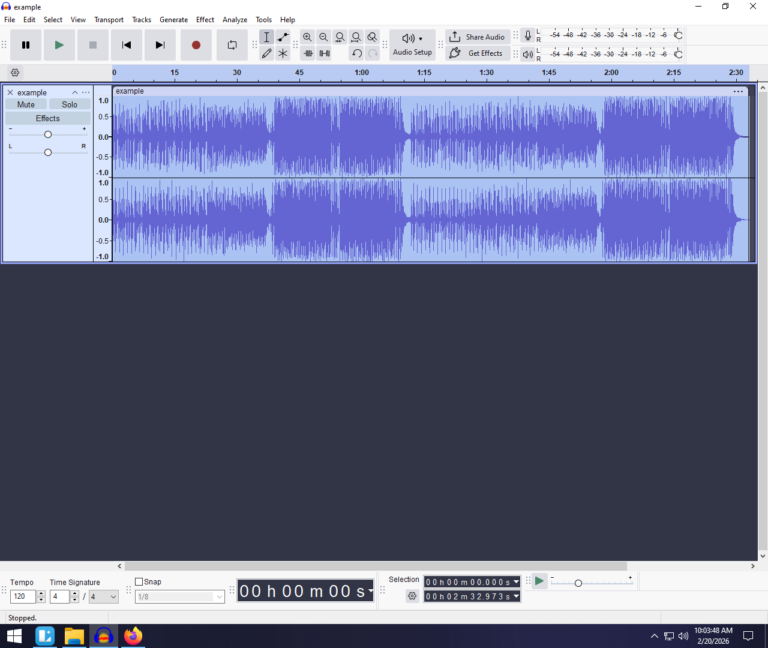
- Open your finished project in Audacity.
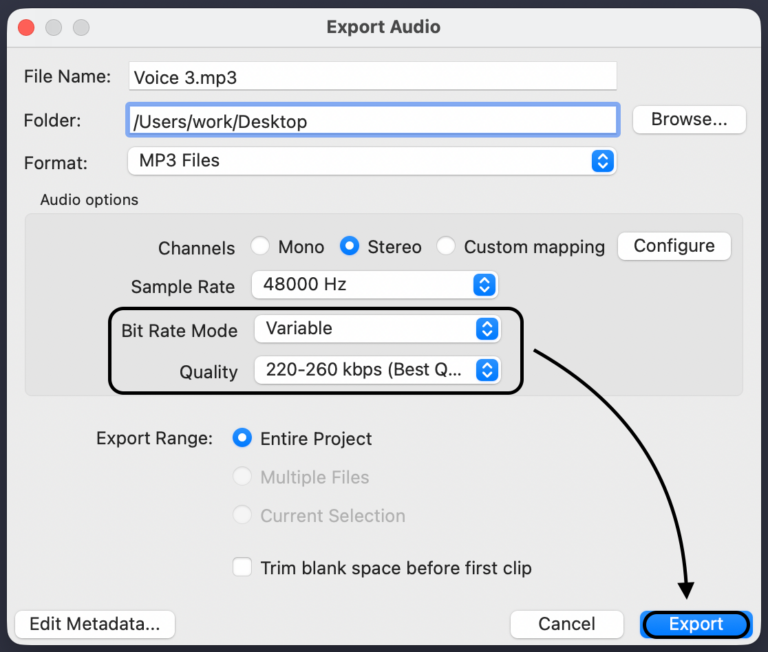
- Navigate to File > Export Audio

- In the Export window, set the Format to MP3 (or alternative formats like Ogg/M4A).
- Locate the Audio Options section directly below the file name.
- Change the Bitrate Mode to Constant (CBR) or Variable (VBR).
- Select a lower kbps value from the Quality dropdown (e.g., change from 320 kbps to 128 kbps).

- Click Export to save your newly compressed audio file.
Variable (VBR) vs. Constant (CBR) Bitrate: Which is Better?
When you open Audacity’s Export Audio menu, you must choose between Constant Bitrate (CBR) and Variable Bitrate (VBR). Understanding the difference ensures you get the smallest possible file size without accidentally ruining your audio quality.
Constant Bitrate (CBR) locks your audio into one specific data rate for the entire track. If you select 128 kbps, Audacity processes 128 kilobits of data every single second. It uses the exact same amount of data during a complex musical intro as it does during a completely silent pause.
Variable Bitrate (VBR) is a smart compression method. It dynamically adjusts the data rate based on what is happening in the recording. It lowers the bitrate to save space during silent pauses, and automatically raises it to capture full detail when the audio gets loud or complex.
Use the table below to determine which setting is right for your specific project:
| Format | How it Works | Best For | File Size Impact |
|---|---|---|---|
| Constant Bitrate (CBR) | Locks the bitrate at a single, unchanging kbps value from start to finish. | Strict podcast hosts, audiobook platforms (like ACX), and older media players. | Larger (consumes data even during dead silence). |
| Variable Bitrate (VBR) | Dynamically raises and lowers kbps depending on the complexity of the audio. | Optimal quality-to-size ratio, general web uploads, and spoken word with natural pauses. | Smaller (saves significant space during quiet moments). |
The Verdict: For most modern web uploads, voiceovers, and personal sharing, VBR is the superior choice because it gives you the best audio quality at the smallest file size. However, if you are submitting a podcast to a strict distributor or an audiobook platform with rigid technical requirements, stick to CBR to guarantee zero playback errors.
3 Alternative Ways to Reduce Audio File Size in Audacity
While dropping your kbps is the fastest way to compress an audio file, it isn’t your only option. If you need to meet strict upload limits without heavily degrading your sound quality, try combining these three techniques.
Method 1: Convert Stereo to Mono
Stereo audio contains two separate channels of data (left and right). If you are recording a standard podcast, voiceover, or audiobook, you usually don’t need a stereo file. Converting your track to mono instantly halves the required data while maintaining the exact same perceived quality for human speech. To do this in Audacity, highlight your audio track and navigate to Tracks > Mix > Mix Stereo down to Mono.

Method 2: Lower the Project Sample Rate
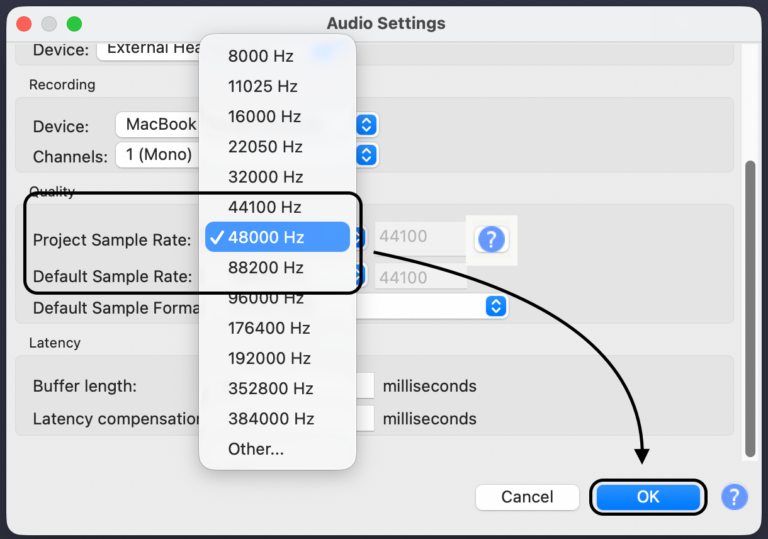
Your sample rate (measured in Hz) determines how many audio “snapshots” your software takes per second. The industry standard for high-quality digital audio is 44100Hz, but standard speech sounds perfectly fine at exactly half that rate. Change the Project Rate (Hz) from 44100Hz to 22050Hz before exporting. This is an excellent, advanced trick to significantly reduce file size for voice-only recordings.

Method 3: Use a More Efficient Format
MP3 is the most universally accepted audio format, but it relies on older, less efficient compression technology. Modern open-source formats can deliver much clearer audio at significantly smaller file sizes. Instead of MP3, try selecting Ogg Vorbis or Opus from the Format dropdown in the Export Audio menu. Both formats handle aggressive compression beautifully. This means you can drop your bitrate incredibly low without introducing the harsh, robotic artifacts common in highly compressed MP3s.

Pro Tip: The “Garbage In, Garbage Out” Rule of Audio Compression
Lowering your audio bitrate intentionally removes data to reduce the overall file size. Because there is less data available to mask imperfections, any existing background hiss, room echo, or microphone distortion will be heavily amplified during the compression process.
You simply cannot get away with compressing bad audio. If you lower the bitrate on a noisy recording, you will introduce harsh, robotic-sounding digital artifacts that ruin the listening experience.
To ensure your compressed audio still sounds professional at lower bitrates, you must start with a pristine source. Using a flagship microphone like the Hollyland LARK MAX 2 guarantees Studio Quality (48kHz/24-bit audio with professional ENC) before you even touch Audacity.

Hollyland LARK MAX 2 - Premium Wireless Microphone System
A premium wireless microphone for videographers, podcasters, and content creators to capture broadcast-quality sound.
Key Features: Wireless Audio Monitoring | 32-bit Float | Timecode
Its Environmental Noise Cancellation (ENC) strips away unwanted room hum and background noise at the source. Furthermore, because the LARK MAX 2 features 32-bit Float Recording, your audio will never clip or distort—even if your subject yells unexpectedly.
Capturing your audio with premium hardware gives you the perfect, clean master file. This ensures that when you finally use Audacity to compress your audio down to a lower bitrate for the web, the end result remains crisp, clear, and professional.
Recommended Bitrate Cheat Sheet
Choosing the exact bitrate is a balancing act between file size and audio quality. Drop the bitrate too low, and your audio will start to sound metallic or underwater. Push it too high, and you are wasting storage space for no noticeable benefit.
Use these industry-standard benchmarks to select the perfect kbps value before you hit export in Audacity:
- Music / High-Fidelity: 256 kbps – 320 kbps
Essential for complex audio, full-band recordings, or mastering music tracks. Going below 256 kbps on music will strip away high-end frequencies and muddy the bass.
- Standard Podcasts (Stereo): 128 kbps – 192 kbps
The sweet spot for most spoken-word content featuring intro music, sound effects, or multiple hosts. Major directories like Apple Podcasts and Spotify recommend this range for optimal streaming without aggressive buffering.
- Voiceover / Audiobooks (Mono): 64 kbps – 96 kbps
Perfect for solo voice recordings mixed down to a single mono track. This range delivers crystal-clear speech at a fraction of the file size, making it ideal for web embedding or emailing draft files.
- Phone Call Quality: 32 kbps
Reserved for extreme file size reduction where audio fidelity is not a priority. Expect noticeable audio artifacts, background swishing, and a distinct “telephone” sound.
Frequently Asked Questions (FAQ)
Does lowering the bitrate reduce volume?
No, lowering the bitrate does not affect the actual volume (amplitude) of your audio. Instead, it reduces the audio resolution by discarding high frequencies and fine details. Your track will sound just as loud, but it may sound slightly muffled or less crisp if you compress it too heavily.
Why is my Audacity MP3 file still so large?
If your file size hasn’t shrunk, double-check your export settings. You may have accidentally exported the file as a lossless WAV instead of an MP3. Alternatively, your project’s sample rate might be set unnecessarily high (e.g., 48000Hz instead of 44100Hz). Ensure your format is set to MP3 and verify that your Quality dropdown is actively set to a lower kbps value than your source file.
What is the lowest bitrate for acceptable voice audio?
For spoken-word content like podcasts, audiobooks, or solo voiceovers, 64 kbps in Mono is generally the lowest you can go before the audio degrades into robotic, underwater-sounding artifacts. If you are exporting a standard stereo track, aim for a minimum of 96 kbps to 128 kbps to maintain clear, professional vocal quality.
Conclusion & Next Steps
Lowering the bitrate using Audacity’s unified Export Audio menu is the fastest, most effective way to shrink your file sizes for podcast hosting, email, or web delivery. By adjusting your kbps settings and switching to mono when appropriate, you can drastically reduce file size without sacrificing vocal clarity.
Before you hit export, always save a high-quality WAV backup of your master project. You can always compress a large file down, but you can never restore lost data once a file is permanently exported at a low bitrate.
Remember, software compression amplifies underlying audio issues like background hiss or distortion. To guarantee a professional sound, upgrade your recording setup with the Hollyland LARK MAX 2. Its 32-bit float recording and professional ENC (Environmental Noise Cancellation) ensure you capture pristine, distortion-free audio right from the start—giving you the perfect, clean master file to safely compress for the web.
Ready to master your production workflow? Explore more Hollyland tutorials to improve your audio editing and content creation skills.