.png)
 简体中文
简体中文 
A dark webcam can ruin even the best video call. The good news is that your camera may be perfectly fine. Most dark images come from simple problems you can correct. So, hold off on buying another webcam just yet. These seven fixes start with the quickest things to check. We then move toward drivers and possible hardware problems. Most people solve the issue within the first three steps. No complicated settings hunt is usually needed either.
Why Your Webcam Looks Dark (Start Here)
Before trying any fixes, take a few seconds to find the likely cause. Then, go straight to the section that matches your problem.

Why Your Webcam Looks Dark (Start Here)
- Insufficient front-facing light — The most common cause by far. Your room may feel bright to you, but your camera sensor needs light aimed at your face, not behind you. Jump to Fix 1
- Bright background or window behind you — A bright light source behind you causes auto-exposure to meter for the whole scene, darkening your face. Jump to Fix 4
- Exposure or brightness set too low in software — Auto-exposure can lock onto a low value, or a slider may have been dragged down accidentally. Jump to Fix 3 or Fix 6
- Lens cover or obstruction — A privacy shutter, protective film, or partial mount block can cause a partially or fully dark image. Jump to Fix 2
- Driver or app misconfiguration — A recent Windows update or app reinstall can reset camera exposure behavior. Jump to Fix 5
Fix 1: Add or Reposition Your Lighting
Poor lighting in front of your face causes many dark webcam images. Small camera sensors need enough light on your face. Most indoor spaces do not provide enough light naturally. That leaves the camera struggling to expose your face properly.

Follow these steps before adjusting any software settings:
- Turn to face a natural light source. If there is a window in your room, sit facing it so daylight falls on your face. Never sit with a window behind you.
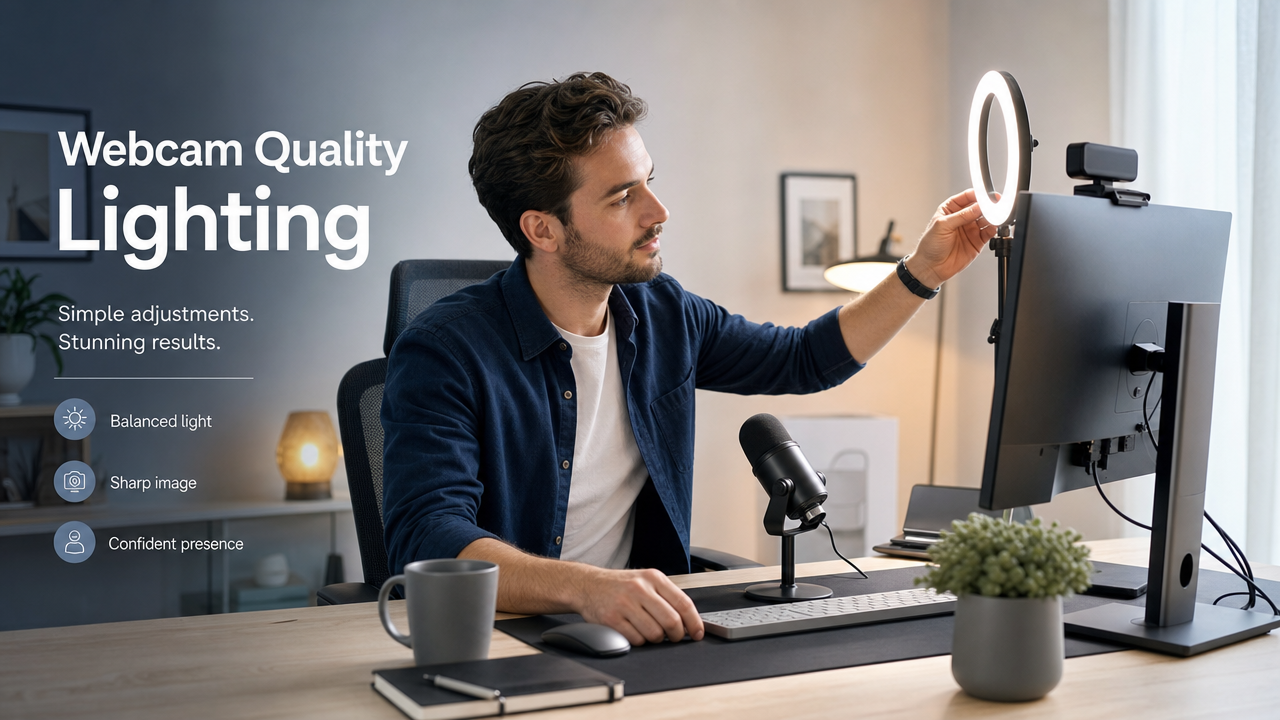
- Place a lamp or ring light at eye level, directly in front of you. The light source should be roughly level with your face and aimed toward you, not at the ceiling or wall.
- Avoid relying on overhead lighting alone. Overhead-only light creates downward shadows on the face that read as dark on camera even when the room feels bright.
- Test immediately. Open your camera app, Zoom, or OBS preview and check the result before making any software changes. If the image is now properly exposed, you are done.
This fix costs nothing and resolves the problem instantly for a large proportion of users.
Note: The Hollyland Lyra’s F/1.8 aperture and 1/1.5” CMOS sensor gather significantly more light per frame than the smaller sensors found in typical budget webcams, which meaningfully lowers the minimum lighting threshold for a well-exposed image. Even so, positioning still matters — the Lyra’s hardware advantages compress the problem, not eliminate it entirely.
Fix 2: Check for a Lens Cover or Obstruction
Before adjusting any settings, do a quick physical check:
- Privacy shutter: If your webcam has a sliding privacy cover, confirm it is fully open and not partially blocking the lens.
- Protective film: New webcams often ship with a thin plastic film over the lens. Peel it off if it is still in place.
- Monitor bezel or mount: If the camera is clipped to a monitor or seated in a mount, confirm the housing is not creeping into the camera’s field of view.
- Smudges or dust: A foggy or dirty lens diffuses incoming light and reduces apparent brightness. Wipe the lens gently with a microfiber cloth.
This easy-to-overlook step can sometimes be the whole cause.
Fix 3: Manually Adjust Exposure and Brightness in Your OS
OS-level camera controls sit beneath app settings and can override them. If exposure is locked low at the system level, no amount of adjusting Zoom or OBS will fully correct the image.
Windows 11 / 10:
- Open the Camera app from the Start menu.
- Click the Settings gear icon in the top-left corner to adjust your general app preferences.
.
- Alternatively, go to Settings → Bluetooth & devices → Cameras, select your webcam, and look for the Basic settings section for brightness and contrast.


macOS:
- macOS does not offer a manual exposure slider for webcams. FaceTime adjusts the image automatically without manual exposure controls.
- For manual UVC controls, install Webcam Settings or Manual Camera from the Mac App Store. These apps can adjust brightness, exposure, and white balance on compatible cameras. Hand Mirror only provides a quick menu bar preview. It does not offer detailed camera controls.
- To check your camera connection, open System Information. Hold Option while clicking the Apple menu. Check the USB or Camera section for your webcam. If it does not appear, macOS has not recognized it. Check the connection before investigating possible hardware problems.
Fix 4: Fix the Backlight Problem
A bright window behind you can create a tricky problem. Your camera sees the bright background and lowers the exposure. Your face then appears much darker than expected. This happens because your face gets less light overall. The brighter background makes the camera reduce the exposure. As a result, your face can look severely underexposed.

Fix it in this order:
- Close or cover the window behind you. Blinds or curtains behind the subject immediately reduce the auto-exposure trigger.
- Reposition so you face the light source. Moving your desk or chair so the window or lamp is in front of you rather than behind you is the most effective single change you can make.
- Enable exposure lock or face-priority metering in your app. Some apps (Zoom, for example) have an “Adjust for low light” option that effectively shifts metering priority toward the subject’s face.
- Raise the EV (exposure value) manually. In your OS camera settings or app exposure controls, increase the EV by one or two stops to compensate for the bright background pulling exposure down.
Fix 5: Update or Reinstall the Webcam Driver
Driver problems are a less common cause of a dark image, but they do occur — typically after a Windows update resets camera driver behavior, or after a system reinstall loads a generic driver that lacks proper exposure defaults.
Windows:
- Press Windows + X and open Device Manager.
- Expand the Cameras category and right-click your webcam.

- Select Update Driver → Search automatically for drivers and allow Windows to check for updates.
- If an update does not help, right-click the camera again and choose Uninstall Device. Check the box to delete the driver software if prompted, then restart your computer. Windows will reinstall a clean driver on reboot.
macOS:
- Open System Settings → General → Software Update and install any pending updates.
- Most UVC webcams are driverless on macOS. The OS handles them natively. If the camera is recognized in System Information but produces a dark image, the driver is almost certainly not the cause.
When driver reinstall is not the answer: UVC-compliant webcams operate plug-and-play and rarely produce dark images due to driver failures alone. If reinstalling the driver changes nothing, return to lighting (Fix 1), backlight management (Fix 4), or in-app settings (Fix 6).
Note for Lyra users: The Lyra connects via USB-C and operates as a standard UVC device on both Windows and macOS with no proprietary driver required. If the image is dark immediately after first connection, the cause is almost certainly exposure settings rather than a driver issue. Check the LED indicator on the Lyra. A solid light means the camera is powered and recognized. If the LED is off, reseat the USB-C cable or try a different USB port before troubleshooting anything else.
Fix 6: Adjust Brightness Inside Your Video App
Video conferencing and recording apps apply their own camera settings layer on top of the OS. These per-app settings can override system-level exposure and are often the last place people look.
Zoom:
- Open Zoom → Settings → Video & effects.


- Under the camera preview, click Camera settings if available.
- Enable “Adjust for low light.”

OBS Studio:
- Right-click Video Capture Device in the Sources panel.
- Select Properties, then scroll down to Configure Video. This opens your camera’s hardware control window.

- Open the Camera Control tab and find Exposure. Turn off Auto, then adjust the slider.

- Moving left can reduce lag during camera movement. Moving right adds light but may cause motion blur.
- For more brightness, open the Video Proc Amp tab.
- Adjust Brightness or Gain until the image looks balanced.
- Click Apply, then OK to save your changes.
Note for Lyra users in Zoom or OBS: If the in-app sliders feel limited or inconsistent, HollyStudio provides more precise exposure, white balance, and AI Tuning controls at the driver level. Changes made in HollyStudio apply globally across all apps simultaneously, so you will not need to re-adjust settings each time you switch between Zoom, Teams, and OBS.
Fix 7 — How to Fix a Dark Image on the Hollyland Lyra
Dark webcam images can be annoying, especially during evening calls. Hollyland Lyra gives you a stronger starting point here. Its 1/1.5-inch CMOS sensor gathers more available light. The F/1.8 aperture also helps brighten darker scenes. So, you may not need extra lights nearby. Most Lyra dark image problems can be fixed in HollyStudio. Just follow the steps below, one at a time.
- Check the LED indicator. With the Lyra connected via USB-C, confirm the LED indicator is solid (active and powered). A dark or unlit LED means the camera is not receiving power. Try a different USB port or a different cable before proceeding with any software steps.

- Open HollyStudio. Launch the HollyStudio companion app on Windows or macOS. The Lyra should appear as a recognized device in the app’s device panel. If it does not appear, disconnect and reconnect the USB-C cable, then relaunch the app.
- Locate the Exposure (EV) control. Navigate to the Image Control page of HollyStudio. Find the Exposure or EV slider. Confirm it is not set to its minimum value. Drag it upward to increase overall brightness and check the live preview.

- Correct white balance. A color-cast or cool-toned dark image often improves noticeably when white balance is corrected. In HollyStudio, select the White Balance slider and adjust it..

- Activate AI Tracking and Smart Auto Framing. HollyStudio gives Lyra a digital cameraman for video calls. AI Tracking and Smart Auto Framing work together here. They keep you centered while you move around naturally. They also keep your face looking sharp during movement. No physical gimbal or constant manual adjustments are needed.
- At the top of the preview screen, click the frame icon. Once enabled, a padlock symbol will appear inside the frame icon.


- Click Settings (gear icon) below the preview screen.

- Then, select Camera Settings from the menu on the left.
- Enable Face Priority Focus and close the Settings window.

- Navigate to the FOV page.
- Find Smart Framing, deselect None, and click on the auto framing tile next to it.

- Confirm your resolution and frame rate output. In HollyStudio or your video app’s device settings, verify the output is set to a supported format. The Lyra outputs 4K at 30 fps and 1080p at 30 or 60 fps. In bandwidth-constrained environments or on slower USB connections, switching from 4K to 1080p at 30 fps can produce a cleaner, better-exposed frame because the sensor allocates more processing resources per frame at lower output resolutions.

When a Dark Webcam Image Points to a Hardware Fault
If you have worked through every fix above and the image remains dark, a failing sensor may be the cause. Look for these signs:

- The image is dark regardless of all software adjustments across multiple apps
- Darkness is patchy, localized, or unevenly distributed across the frame
- The problem appeared immediately after the camera was physically dropped or impacted
- The OS detects the camera, and it shows up in Device Manager or System Information, but every app produces a near-black frame
Next steps: Connect the camera to a second computer and test it in at least two different apps. If it produces a dark image consistently across all environments and devices, the sensor is likely degraded or damaged. Contact the manufacturer to check warranty coverage or pursue a replacement.
Frequently Asked Questions
Q: Why is my webcam dark even when my room is well lit?
The most common culprit is backlighting. A bright window or light source behind you causes auto-exposure to meter for the entire scene, dimming your face even when the room feels bright. The fix is to reposition so light faces you directly, or to manually lock exposure at a higher EV value in your OS camera settings or video app.
Q: How do I increase webcam brightness in Zoom?
Open Zoom, go to Settings, then Video & effects, and locate the Camera section. Enable “Adjust for low light” and switch to Manual mode. A brightness slider will appear. Drag it to the right until the preview looks correctly exposed. If the slider is absent, update Zoom to the latest version.
Q: Why does my webcam look dark in OBS but fine in other apps?
If your webcam looks dark in OBS but fine elsewhere, another app may have changed its driver settings. OBS may also be forcing a frame rate that needs more light. To fix it, right-click Video Capture Device under Sources. Select Properties, then click Configure Video. Open Camera Control and turn off Auto beside Exposure. Move the slider right, or try -5 or -6. Keep adjusting until the image looks bright and smooth. If needed, open Video Proc Amp and adjust Brightness or Gain. Click Apply, then OK.
Q: I have tried every fix and the image is still dark. Is my webcam broken?
If the image remains dark after lighting, software, driver, and app adjustments across multiple computers, the sensor is likely degraded or damaged. Webcams with very small sensors also reach a hard performance ceiling in low-light conditions that no software can overcome. Upgrading to a camera with a larger sensor and wider aperture, such as a 1/1.5” CMOS at F/1.8, typically resolves persistent dark-image issues at the hardware level.
Conclusion
Start with the room and camera before changing software settings. Check the lighting, remove backlighting, and clear the lens. Next, check exposure controls in your operating system. Then review the settings inside your camera app. After that, check the webcam drivers for possible issues. Hardware should be the final thing to investigate. Most dark webcam problems disappear within the first three fixes. If software changes fail, the sensor and aperture may limit brightness. Hollyland Lyra combines a 1/1.5-inch CMOS sensor with F/1.8 aperture. Its AI Tuning also helps improve image quality in darker scenes.