.png)
 简体中文
简体中文 
Grainy webcam video is one of the most common complaints from remote workers, streamers, and online educators. In most cases, you can fix it without buying new hardware. The problem almost always traces back to one of a handful of causes: insufficient light, incorrect settings, or a signal that gets compressed before it reaches your audience. Work through the seven fixes below in order, and you will identify and resolve the source of your grain before your next call or recording session.
What Actually Makes a Webcam Look Grainy?
Webcam grain comes from two main mechanisms. When light levels drop, your camera boosts the image signal. This boost, called gain or ISO, also increases image noise. The result is the speckled, murky look known as grain. Second, low output resolution or heavy compression reduces the number of pixels used to represent detail, making fine edges look broken or blurry. Small sensors are structurally disadvantaged because they have less surface area to capture photons, requiring more amplification in dim conditions.
Use this quick reference to identify your likely cause before reading on:
| Symptom | Likely Cause |
|---|---|
| Grain in all lighting conditions | Low resolution or heavy compression |
| Grain worsens at night or in dim rooms | Auto-gain boosting from low light |
| Soft, hazy look regardless of lighting | Dirty or smudged lens |
| Grain appears only during video calls | App-level compression |
| Grain started after a software update | Driver or firmware issue |
Fix 1: Improve Your Lighting Setup
Adding light is the single highest-return fix for grainy video. When there is enough light in a scene, the camera can expose correctly without boosting gain, and lower gain means less noise. Every other fix in this article works better once you resolve the lighting problem first.

- Add a key light at face level. Position a desk lamp, softbox, or ring light directly in front of you at roughly eye height. This ensures your face is the brightest part of the frame, giving the camera’s auto-exposure algorithm what it needs to hold gain low.
- Face any natural light source. If you work near a window, sit facing it rather than with it behind you. Backlight – light coming from behind you – forces the camera to expose for the bright background, which darkens your face and triggers aggressive gain boosting.
- Avoid mixing color temperatures. Combining warm incandescent bulbs with cool daylight creates color-noise flickering that looks like grain and confuses auto white balance. Use matched bulbs, or switch your camera to a fixed white balance setting.
- Raise overall ambient brightness. Even a second lamp pointed at the ceiling can lift the scene enough to push auto-gain into a cleaner range.
- Use diffused, soft light. Soft light from a softbox or bounced off the wall wraps evenly around the face, reducing harsh shadows the camera can misread as dark areas that need more gain.
Why this works: Your webcam’s auto-exposure system is constantly working to produce a correctly exposed image. When light is plentiful, it reaches that target with little or no gain amplification. When light is scarce, it raises gain to compensate – and every increment of gain adds visible noise to the output. More physical light directly lowers gain; lower gain directly lowers noise.
Note: Software brightness tools in Zoom, Teams, or OBS do not reduce grain. They brighten an already-noisy signal, which typically makes grain more visible rather than less. Physical light is the only solution that removes noise at the source.
Fix 2: Set the Correct Resolution and Frame Rate
Many webcams default to 720p or lower inside video apps, even when the hardware can output 1080p or 4K. Fewer pixels means less detail and more visible compression artifacts, both of which look like grain. Confirm that your resolution is actually set to the maximum your camera supports.
In Zoom:
- Go to Settings → Video & effects.
- Check the HD video checkbox. If your account supports it, also enable Full HD (1080p).
In Microsoft Teams:
- Go to Settings → Devices → Camera.
- The preview shows current quality. Teams manages resolution automatically but will cap output when bandwidth is low – see Fix 7 for that layer.
In OBS Studio:
- Open your webcam source properties.
- Set Resolution to the camera’s native maximum and match FPS to your scene output (typically 30 or 60).
Important distinction: There are two separate resolution settings that are often confused. The first is the resolution your webcam outputs to the OS. The second is the resolution your application streams to other participants. Both need to be maximized for the cleanest result. Fixing only one will leave grain on the other side.
Note: 1080p at 60fps requires USB 3.0 bandwidth. On a USB 2.0 port, limit your frame rate to 30fps or reduce to 720p60 to avoid a compressed, degraded signal.
Fix 3: Manually Control Exposure and Gain
Auto-exposure algorithms work well in controlled conditions, but in mixed or dim lighting they frequently over-boost gain – and that is the direct mechanical cause of digital noise. Taking manual control of exposure eliminates that feedback loop.
- Access manual exposure controls.
- In OBS: Right-click on the Video Capture Source under the Sources section, and select Properties.
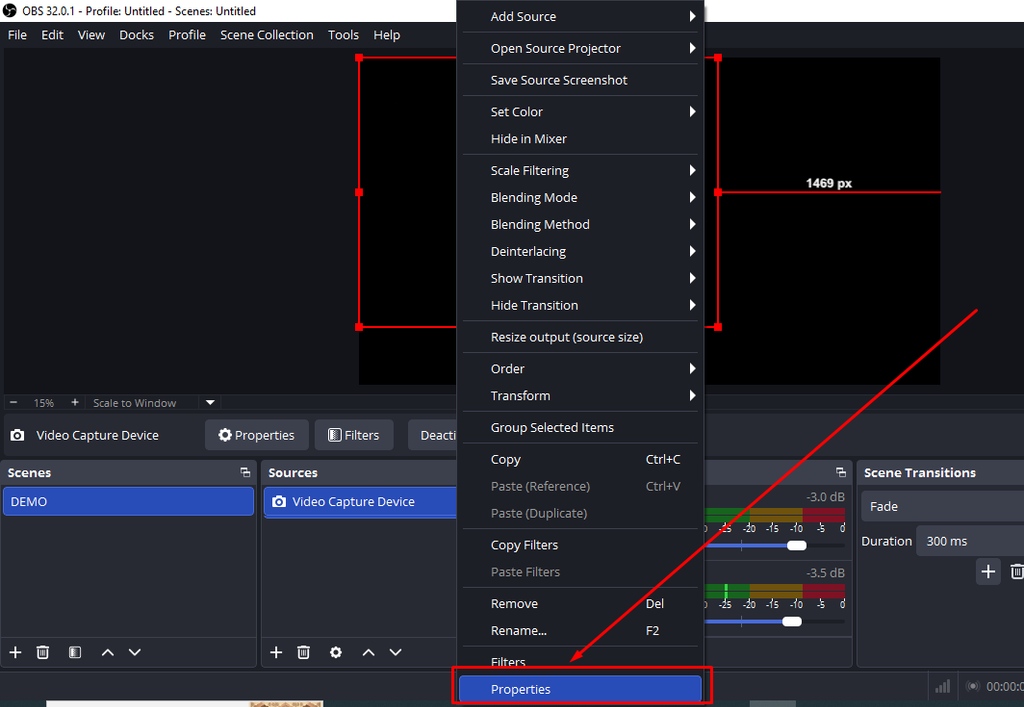
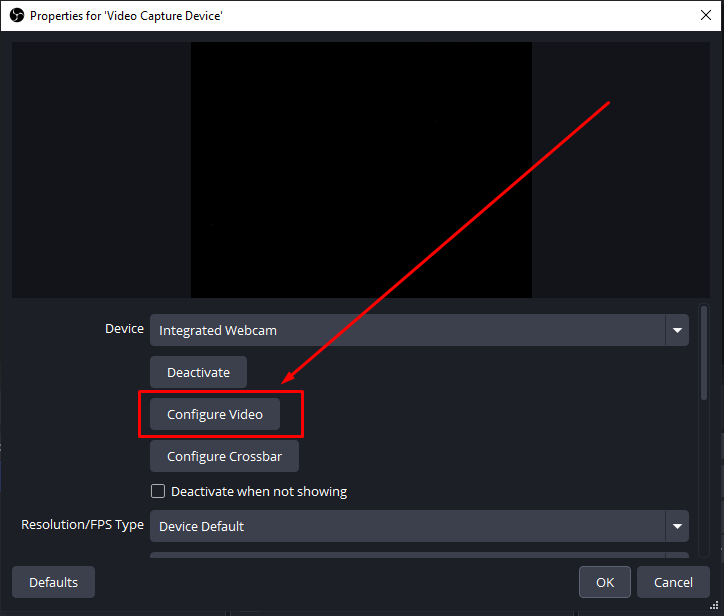
When the Properties dialog opens up, click the Configure Video button.
Go to the Camera Control tab and uncheck Auto on Exposure. Then manually adjust the Exposure slider.

- Lower gain, then compensate with light. The goal is to reduce gain as far as possible while keeping the subject correctly exposed. The only way to maintain brightness while lowering gain is to add physical light. This is why lighting and exposure are solved together.
- Set a fixed white balance. Auto white balance adjusts color temperature continuously based on the scene, producing a color-noise flicker under changing or mixed light. Lock white balance to a fixed value matched to your dominant light source:
- Daylight or window light: 5600K
- Standard LED office lighting: 4000K to 4500K
- Tungsten or warm incandescent: 3200K
- Avoid digital brightness compensation. Boosting brightness in camera properties amplifies the noise floor along with the signal. This makes grain worse, not better.
- Test with a fixed shutter speed. Set shutter speed to 1/60s (or 1/50s in 50Hz regions to avoid flicker), then adjust gain until the image is as clean as possible. Then bring in lighting to achieve correct exposure at that gain level.
Fix 4: Clean the Webcam Lens
A smudged lens scatters incoming light and creates a soft, hazy look that closely resembles sensor grain. No software adjustment will resolve this. Before diagnosing a hardware or driver issue, clean the lens.

- Use a clean microfiber cloth lightly dampened with 70% isopropyl alcohol.
- Wipe from the center of the lens outward in small circular motions.
- Do not use paper towels, tissues, or breath condensation. They all leave residue or micro-scratches.
- Clip-on webcams accumulate oils from frequent repositioning; wipe the lens before each use if you handle the camera regularly.
Fix 5: Update Webcam Drivers and Firmware
Outdated drivers can limit the resolution and frame rate options available to the OS, and they can introduce image-processing bugs that appear as noise or color artifacts.
On Windows:
- Open Device Manager and expand Cameras or Imaging Devices.

- Right-click your webcam and select Update driver → Search automatically for drivers.
- If Windows finds nothing, visit the manufacturer’s support page and download the latest driver manually.
- If an update does not help, try Uninstall device followed by reconnecting the camera. A clean reinstall often resolves corrupted driver states.
Firmware updates:
Check the manufacturer’s downloads page for a standalone firmware update utility. Firmware updates differ from driver updates. They update the software running inside the camera hardware itself and can fix image processing issues that no OS-level driver change can address.
Note: UVC-compliant webcams often rely on a generic Windows or macOS driver. In that case, run OS-level cumulative updates rather than searching for a dedicated webcam driver.
Fix 6: Check Your USB Port and Connection
High-resolution video output demands bandwidth. Connecting your camera to a USB 2.0 port or a congested hub can force it into a lower-quality compressed output mode.

- Identify USB 3.0 ports by the blue plastic inside the connector or the “SS” (SuperSpeed) label beside the port.
- Connect directly to a motherboard or laptop port, not through a USB hub.
- Test with a different cable. USB-C cables vary in quality; a damaged or underpowered cable can cause signal degradation.
- Disconnect other high-bandwidth USB devices from the same controller if you are using a shared hub.
Fix 7: Adjust In-App Video Compression Settings
Even a clean, high-resolution camera signal can look grainy after an application applies its own compression layer. Video conferencing apps prioritize bandwidth over quality by default.
Zoom:
- Open Zoom, click on your profile icon, and select Settings > Video & effects.


- Check the HD video toggle and, if supported by your account, the Full HD box.

Microsoft Teams:
- Teams automatically adjusts bitrate based on available bandwidth. If your connection is throttled, Teams will drop both resolution and bitrate, which looks like grain.
- Close other bandwidth-heavy applications during calls to free up throughput.
OBS Studio:
- In Settings → Output, raise the video Bitrate to at least 6,000–8,000 kbps for clean 1080p.

- Use a hardware encoder (NVENC or AMF) rather than the software x264 encoder to reduce CPU overhead and prevent dropped frames.
Note: Application compression is additive on top of any camera-level compression. Even if you resolve the camera-side issues, a low app bitrate will reintroduce visible noise. Both layers need to be addressed.
Fixing Grain on the Hollyland Lyra Webcam
If you have a Hollyland Lyra, you already have a strong hardware advantage. Its 1/1.5-inch CMOS sensor is larger than most webcam sensors. Many consumer webcams use smaller 1/2.8-inch or 1/3-inch sensors instead. A larger sensor gives each pixel more room to gather light. That can mean less image noise when your room gets dim.
The Lyra’s F/1.8 aperture adds another advantage in low light. Its wider opening lets more light reach the sensor. This reduces how much the camera needs to boost gain for proper exposure. So, if your webcam looks grainy at night, Lyra gives you a better starting point.
But wait! Having an expensive webcam doesn’t mean it can fix every grainy image. The software settings still need to be adjusted correctly. That is where HollyStudio comes in for Lyra owners. The steps below show how to find the cause and reduce grain.
Step 1: Confirm the USB-C Connection and Port Type
Connect the Lyra’s USB-C cable directly to a USB 3.0 port on your computer. USB 3.0 ports are identified by a blue plastic tab inside the port or an “SS” label printed beside it.
Once connected, confirm the Lyra is recognized at full capability:
- Windows: Open Device Manager, expand Imaging Devices, and confirm the Lyra appears. Under System Information, verify it is registered on a USB 3.0 bus.
- Mac: Go to Apple Menu → System Settings → General → About→ System Report → USB and confirm the Lyra is listed under the USB 3.0 or USB 3.1 controller.
For conferencing app compatibility at 4K, the Lyra outputs via UVC MJPEG format, which is available over both USB 2.0 and USB 3.0. For uncompressed 1080p output (UVC NV12), USB 3.0 is required. Use USB 3.0 where possible to ensure the full range of output formats is available.
Step 2: Set Resolution and Frame Rate in HollyStudio
Open the HollyStudio app and navigate to the Resolution dropdown in the top-right corner of the preview screen.
- Select 3840×2160 at 30fps for 4K output, or 1920×1080 at 60fps for smooth full-HD output.
- If you are using a conferencing app and need 4K, confirm the output format is set to UVC MJPEG.
- Avoid frame rates below 30fps. Lower frame rates under-sample motion and introduce temporal noise artifacts, where moving subjects leave smeared, noisy trails in the frame.

Step 3 – Adjust Exposure and White Balance Manually
In HollyStudio, locate the Exposure (EV) and White Balance sliders on the Image Control Page, under the Advanced section, and adjust them one by one.
- Reduce the gain value incrementally while adding physical light to maintain correct exposure.
- Switch the White Balance control from Auto to a fixed color temperature: use 5600K for daylight or window light, or 3200K for tungsten and warm indoor light.

Step 4: Check AI Tracking & Smart Auto Framing and Digital Zoom Level
Two additional settings can worsen perceived grain if left at unoptimized values:
- Digital zoom: Confirm the zoom control is set to 1x. Digital zoom through the Focal Length slider on the HollyStudio’s Image Control page works by cropping the sensor output and upscaling the result. Any noise present in the original image is amplified in direct proportion to the zoom level. Grain will visibly worsen above 1x.

- AI Tracking: If AI Tracking or Smart Auto Framing is enabled in a dim environment, continuous reframing as you move can compound noise. Disable it if you remain stationary during the session.
FAQs
Why does my webcam look grainy on Zoom but fine in other apps?
Zoom applies its own compression layer on top of your camera’s output, and its HD mode is not enabled by default. Go to Settings → Video & effects and toggle on the HD video option. Even with HD enabled, Zoom reduces bitrate on congested connections. The camera feed may look clean in a local preview app while appearing grainy after Zoom’s encoding pass.
Does low light always cause webcam grain?
Yes, in nearly every case. When a scene is too dark, the camera boosts its gain or ISO to produce a visible image, and that amplification also amplifies electrical noise from the sensor. More physical light is always the most effective fix because it removes the need for gain amplification at the source rather than treating the visible symptom.
Why is my webcam grainy at night but clear during the day?
Natural daylight provides far more light than indoor artificial lighting. During the day, your camera exposes correctly without raising gain. At night, even bright indoor lighting is typically insufficient, so auto-gain increases significantly and sensor noise becomes visible. Adding a dedicated desk-level key light closes this gap for evening or low-light setups.
Can I fix webcam grain in OBS without changing hardware?
Yes, partially. OBS supports video filter chains including LUT corrections, color correction, and noise suppression that can reduce the appearance of grain. Raising output bitrate also reduces codec-added noise. But OBS filters process an already-noisy signal. They cannot fully compensate for inadequate light or a physically small sensor. They are a useful complement, not a substitute for fixing the source.
Will a higher-megapixel webcam always produce less grain?
No. Sensor size and aperture matter far more than megapixel count. A 50MP sensor on a large 1/1.5-inch chip captures significantly more light per pixel than a 12MP sensor on a 1/3.6-inch chip. Packing more megapixels onto a smaller sensor can increase noise because each pixel becomes smaller and less sensitive to incoming light.
Conclusion
Fix lighting first, because it causes grain in most webcam cases. If grain persists after improving your light setup, check resolution settings and exposure controls, then clean the lens, update drivers, and verify your USB connection. Most grain problems are environmental or software-level and do not require new hardware. If you own a Hollyland Lyra, revisit the dedicated walkthrough above for a step-by-step fix using the camera’s HollyStudio controls.