.png)
 简体中文
简体中文 
A blurry webcam can hurt your first impression during important calls. It can affect job interviews, client presentations, or live streams. The cause may be simple, but finding it can take time. Several different problems can make your webcam look blurry. Trying the wrong fix can waste your time. This guide ranks eight fixes by how likely they are. Start with the quickest options and find the right solution faster.
Why Webcams Go Blurry: Know the Cause Before You Fix It
Webcam blur falls into one of five categories. Use the table below to match your symptom to the most likely cause, then jump directly to that fix rather than working through every step.
| What You See | Most Likely Cause | Go to Fix |
|---|---|---|
| Hazy or milky image in every app | Dirty or smudged lens | Fix 1 |
| Image looks out of focus, subject unclear | AF locked on background, or MF misconfigured | Fix 2 |
| Image is clear but low-detail or pixelated | Resolution set too low in the app | Fix 3 |
| Grainy, noisy, or motion-blurred in dim light | Insufficient lighting | Fix 4 |
| Sudden blur after a Windows update | Corrupted or outdated driver | Fix 5 |
| Blur in Zoom or Teams, but sharp in Camera app | App-level filter or resolution cap | Fix 6 |
| Blur only at 4K or high-resolution output | USB port bandwidth insufficient | Fix 7 |
If none of these match your exact symptom, start at Fix 1 and work forward. Physical causes are faster to rule out than software ones.
Fix 1: Clean the Webcam Lens
Fingerprints and skin oil are the single most overlooked cause of persistent, hard-to-explain blur. Oil can build up on the lens surface as time goes by. It scatters light before reaching the camera sensor. This can create a hazy or slightly cloudy image. No software setting can fix this type of blur.
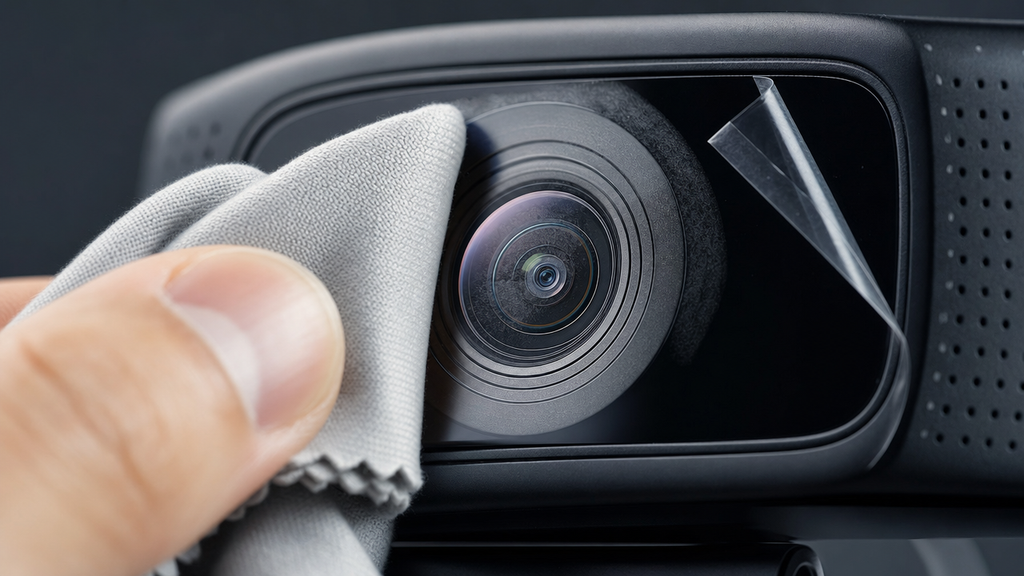
Follow these steps to clean the lens safely:
- Use a dry microfiber cloth. Wipe in gentle circular motions. Microfiber lifts oil without scratching the optic or leaving lint behind. Do not use paper towels, tissues, or a shirt sleeve. All of these can scratch the plastic lens coating or deposit more debris onto the surface.
- Check for a factory protective film. Many new webcams ship with a thin clear film over the lens. If you never removed it, that film is the source of your blur. Look for a peel-away layer around the lens housing and remove it completely.
- Avoid cleaning fluids. Spray cleaners, alcohol wipes, and glass cleaners can leave residue on plastic lenses or damage anti-reflective coatings. A dry microfiber cloth safely removes most lens smudges without risk.
- Avoid directing compressed air straight at the lens. It can push dust into the housing gap around the lens rather than clearing it away.
After cleaning, open your camera preview and check whether the image improved. If it did not change, continue to Fix 2.
Fix 2: Adjust or Reset Focus
Auto-focus (AF) systems are convenient, but they can lock onto the wall behind you instead of your face. Manual focus (MF) settings can slip when an app resets camera properties on launch. In both cases, the result is a soft, unfocused image. Cleaning the lens or changing resolution will not fix it.
Enable or Re-lock Auto-Focus
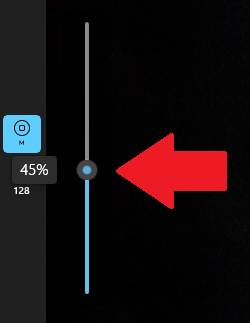
- Windows Camera app: Open the Windows Camera app and click the Settings gear icon. Under Camera settings, turn on “Show advanced controls for photos and videos.” Return to the main camera preview and select the Focus icon. You will find it on the sidebar. Move the slider to the bottom to switch back to Auto.
- OBS: Right-click your Video Capture Device in the Sources panel. Go to Properties, then click the Configure Video button. This opens the driver panel.
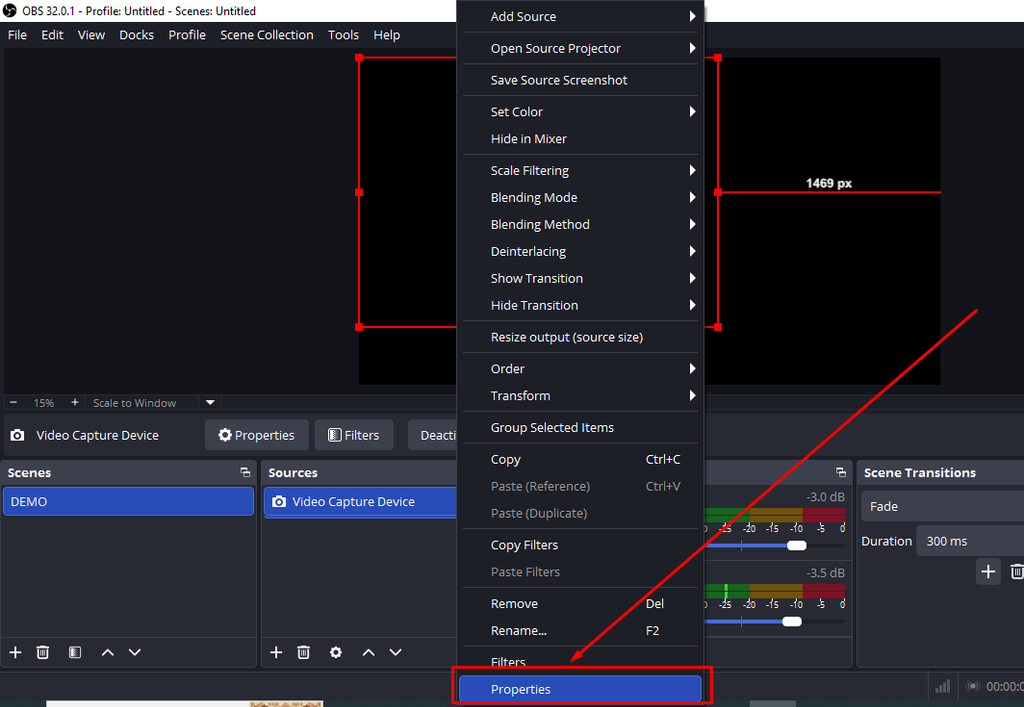

Navigate to the Camera Control tab and find Focus. Check the box under the Auto column.

Note: The Focus option appears for external webcams only.
- Force a fresh AF lock: Cover the lens with your hand for two to three seconds, then uncover it. This interrupts the current focus lock and triggers a new focus cycle. Alternatively, lean slightly closer to the camera and then return to your normal position to prompt a re-lock.
Set Manual Focus for a Fixed Desk Setup
Manual focus is useful when your camera is mounted in a fixed position on a monitor arm or tripod, and your distance from the lens stays consistent throughout the day.
- In Windows Camera, open Camera Properties and drag the Focus slider off Auto to a fixed value.
- Adjust the slider slowly while watching the live preview until the image reaches peak sharpness at your normal seating distance.
- Note the exact slider value. Many apps reset camera properties on launch, so recording the correct number means you can restore it in seconds rather than re-dialing from scratch.
- In OBS, the same slider is accessible under Video Capture Device → Properties → Configure Video → Focus.
Pro Tip: If AF keeps hunting and losing your face, place a high-contrast object (such as a printed page of text) at your normal seating position while setting MF. Use that as your focus reference, then remove it once the slider value is locked.
Fix 3: Set the Correct Resolution in Your Software
A webcam set to 480p or 720p can look blurry for one simple reason. It lacks enough pixels to show fine details clearly on larger screens. This is different from an actual focus problem. Still, both can produce a similar blurry image. You can fix this through settings instead of changing hardware.
- Windows Camera app: Open Settings by clicking the gear icon. Scroll down to Photo settings or Video settings. Select the Photo quality or Video quality dropdown. Choose the highest resolution your webcam supports, usually 1080p or higher.

- Zoom: Go to Settings → Video and effects. Under the Camera section, look for the HD video toggle and enable it.

- OBS: Right-click your Video Capture Device in the Sources panel → Properties → Select “Custom” from the Resolution/FPS Type, and set the Resolution dropdown to the camera’s native output (for example, 1920×1080 or 3840×2160). Match the frame rate to what your camera actually supports at that resolution.

Note: If you cannot find the exact Resolution value, try typing it manually. If you cannot type it, OBS is not receiving the feed you are trying to input.
Fix 4: Improve Your Lighting
Poor lighting causes more perceived blur than most users expect. In a dim environment, the sensor extends exposure time to collect enough light, which introduces motion blur from even small head movements. The sensor also raises gain to compensate, adding noise that the camera then softens with noise reduction. Both paths produce a blurry output, and neither focus adjustment nor resolution changes will correct them.

The fix is environmental:
- Place a light source in front of you at eye level. A ring light, a desk lamp aimed at your face, or a window in front of you (not behind you) gives the sensor enough light to use fast exposure times and low gain.
- Eliminate strong backlighting. A bright window directly behind you creates a silhouette effect. The camera exposes for the window and underexposes your face. Close the blinds behind you, or reposition your desk so the light source is in front.
- Avoid mixing light color temperatures. Warm tungsten light from a lamp combined with cool daylight from a window creates color shifts that the white balance algorithm struggles to resolve, producing a visually muddy image.
Even a repositioned desk lamp aimed at your face can make a significant difference before you spend money on a dedicated ring light.
Fix 5: Update or Reinstall Webcam Drivers
Corrupt or outdated drivers can affect how the camera processes images. Sharpening, white balance, and compression can all be affected. These problems may make the final image appear blurry. This fix matters most when blur suddenly appears after an update. It also applies after installing a new app.
On Windows:
- Press Windows + X and open Device Manager.
- Expand the Imaging Devices / Cameras section.
- Right-click your webcam and select Update Driver → Search automatically for drivers.
- If no update is found, right-click again and select Uninstall Device. Check the “Delete the driver software for this device” box if it appears.
- Unplug the webcam, wait 10 seconds, then plug it back in. Windows will reinstall a clean driver automatically.
- Restart the computer and test the camera in your preferred app.
On macOS:
On macOS, most webcams need no separate driver installation. You can check recognition through your Mac’s System Information. Press Command + Space, then search for System Information. Another option is Apple menu > System Settings > General > About. Scroll down there and select System Report. Next, open Hardware → USB from the sidebar. Find your webcam and check its reported connection speed. It should match the speed listed in its specifications. Common examples include USB 3.0, SuperSpeed, and High-Speed. If missing, test another cable with the webcam. Also connect it directly to your Mac without a hub.
Fix 6: Check Video Conferencing App and OBS Settings
Each application adds its own processing layer on top of the OS camera feed, and that layer can introduce blur even when the camera is outputting a perfectly sharp image. Check these settings before assuming the problem is hardware.
- Zoom: Open Settings and find Video & effects under Camera or Appearance. Turn off Touch up my appearance in that section. This setting softens skin texture and can reduce video sharpness. Next, check the separate Video filters or Studio effects tabs. Make sure no extra overlays or effects are turned on.

- OBS: Right-click your Video Capture Device in the Sources panel → Filters. Look for any blur, sharpness, or LUT filters applied to the source. Remove them one at a time to isolate any that are degrading the image.


- Google Meet and Microsoft Teams: Meet and Teams have no granular in-app camera controls. If Meet looks blurry but other apps look sharp, return to Fix 3 and confirm the OS-level resolution is correctly configured.
Fix 7: Switch to a USB 3.0 Port
USB 2.0 offers around 480 Mbps of available bandwidth. High-resolution video can require much more bandwidth. This is especially true when the camera sends 4K MJPEG video. Limited bandwidth may cause several problems during transmission. The camera or capture software may lower the video resolution. You may also notice dropped frames, stuttering, or transmission errors.
- USB 3.0 ports often have a blue tab inside. Some ports also carry an “SS” or “SuperSpeed” label.
- If every port looks similar, check Device Manager instead. Open Universal Serial Bus controllers and find USB 3.0 controllers.
- For high-resolution webcams, avoid connecting through USB hubs. Connect the camera directly to your computer instead..
Fixing a Blurry Image on the Hollyland Lyra
The Lyra is built around a 1/1.5” CMOS sensor, an F/1.8 aperture, and 50 MP effective resolution. Persistent blur on this camera almost always points to a misconfigured setting rather than a hardware limitation. The following steps cover the four most common Lyra-specific causes.
Check the Focus Mode in HollyStudio Pro
- HollyStudio does not have a separate manual focus panel for Lyra 4K. There is also no standalone option for switching focus manually. You can still redirect the automatic PDAF system whenever needed. Simply click or tap the area you want focused. Do this directly within the app’s live video preview.
- Activate face-priority focus so the AF system locks onto your face rather than background objects. If you are sharing the frame with a cluttered background or multiple people, use tap-to-focus to direct the lock to the correct subject explicitly.

- Check the Digital Zoom control via the Focal Length slider on the Image Control page and under the Advanced section, and confirm it is set to 1x. Values of 2x to 4x apply a digital crop to the sensor output and reduce the effective resolution of the stream, which makes the image appear softer. If you need to reframe, adjust the physical camera position instead.

- If AI Tracking and Smart Auto Framing is enabled, confirm your subject stays centered in the frame. When the subject drifts toward the edge, the AF lock zone can shift and cause momentary softness. Smart Auto Framing recenters the subject and restores the primary AF zone. To enable AI Tracking and Smart Auto Framing:
- Click the frame icon that appears on the top panel of the preview screen. It has a padlock icon.

- Then, click the gear icon below the preview screen to open Settings.

- From the left panel menu, select the Camera Settings tab and enable Face Priority Focus (if you haven’t already).
- Now, go to the FOV page.
- Check the Smart Framing section and select the auto framing option (portrait image tile) and deselect None.

Verify Resolution and Frame Rate Output
- In HollyStudio, locate the resolution dropdown menu. It is in the top-right corner of the preview screen.
- Click to open the dropdown and choose your desired resolution.

- For maximum sharpness, select 3840×2160 (4K) at 30 fps in MJPEG format. This resolution requires a USB 3.0 connection to function correctly — refer to Fix 7 if you have not confirmed your port type.
- If a USB 3.0 port is not available, select 1920×1080 at 60 fps as the fallback. This resolution delivers a sharp, detailed image on any current conferencing platform.
- Confirm you are adjusting the UVC output path. This is the stream that Zoom, Teams, and OBS receive. The Record mode path controls internal capture only and does not affect what conferencing apps see.
- Zoom limits meeting video to 720p on standard HD plans. This can happen even when Lyra sends higher-resolution video. Full 1080p video requires higher-tier Business or Enterprise accounts. Zoom also requires backend activation for that quality level. If HollyStudio is set to 4K, check your Zoom account settings. First, ask the account administrator to enable Meeting-HD Video Quality. Find this option under Media Settings in the Zoom web portal. Then open the Zoom desktop app Settings > Video and effects > Video / Camera (depending on the version), and enable HD video.

Confirm USB-C Connection and LED Indicator State
- Use a USB 3.0-rated USB-C cable and connect directly to a USB 3.0 port (blue tab or “SS” marking) on your computer. This cable and port pairing is required for 4K MJPEG throughput.
- On Windows, the Lyra should appear automatically in Device Manager under Cameras / Imaging Devices with no driver installation required. On macOS, confirm the device appears in System Information under USB.
- Read the LED indicator on the camera. A solid blue LED confirms a normal, active connection. A rapidly flashing LED signals that a connection handshake is in progress or that USB bandwidth is insufficient. No LED or a red indicator means the device is not recognized by the host.
- If the LED signals a fault: disconnect the cable, wait 10 seconds, and reconnect to a confirmed USB 3.0 port. Reopen HollyStudio to re-establish the control link.
Fine-Tune Exposure and White Balance
- In HollyStudio, open the Image Control page > Advanced section.
- Adjust the EV (exposure value) slider. In dim environments, raise the EV incrementally. Underexposure forces the camera to apply noise reduction, which softens fine detail. Avoid pushing EV so high that highlights clip, as overexposure also destroys edge sharpness.

- Cycle through the white balance presets (Indoor, Outdoor, Auto) to match your ambient light source. A mismatched white balance creates a color cast that the eye interprets as visual softness, even when focus and exposure are otherwise correct.

- Check the Skin Smoothing control. If it is set to a high value, it is intentionally softening skin texture and reducing overall perceived sharpness of your face. Reduce it or set it to zero when maximum clarity is the priority. Here’s how to check:
- Open HollyStudio on your computer.
- Select Beautify Page from the menu toolbar on the right side.

- Switch on Beautify and choose Custom.

- Adjust Skin Whitening using its dedicated slider.

- After the skin smoothing looks natural, click Add New Template and save these adjustments as a preset in “My Templates.”


When to Replace Your Webcam
If all seven fixes have been applied and the image remains blurry across every app and every USB port, the problem is most likely physical damage to the optics rather than a setting.

Signs that replacement is the correct decision:
- Blur is consistent across all apps and all ports with no variation between them
- The lens visibly appears scratched, crazed, or fogged from the inside (coating failure or internal condensation)
- Cleaning produces no improvement whatsoever
- The autofocus motor makes grinding or clicking sounds without achieving a stable focus lock
When selecting a replacement, prioritize a larger sensor size (1/2” or bigger for better low-light sharpness), native optical autofocus rather than digital, and confirmed 1080p or 4K output at the USB standard your computer supports.
Frequently Asked Questions
Why is my webcam blurry on Zoom but sharp in the Windows Camera app?
Zoom applies its own resolution cap and may have “Touch up my appearance” enabled, which intentionally softens the image. Disable it under Settings → Video & effects. Also confirm Zoom’s camera quality is set to HD, since it does not enable HD by default on all account types. If Teams or Meet shows the same blur, check the OS-level resolution setting covered in Fix 3.
Can a blurry webcam be fixed without spending any money?
Yes, in most cases. Lens cleaning, focus reset, resolution adjustment, driver reinstall, and lighting changes all cost nothing. Replacement is only necessary when physical lens damage is confirmed. A scratched or internally fogged optic that no software fix can address. Most blur complaints are resolved before reaching that point.
Why does my webcam look blurry at night?
In low light, the sensor needs a longer exposure and higher gain, which can cause motion blur and activate noise reduction, making the image look softer. Adding a front-facing light source, even a repositioned desk lamp, gives the sensor enough light to use faster exposure times and produce a sharper result.
How do I fix a blurry webcam on Windows 11?
Open the Windows Camera app, go to Settings → Camera Properties, and adjust focus and resolution there. Then open Device Manager → Imaging Devices or Cameras and check for driver updates on your webcam. The fix sequence is identical to Windows 10. Windows 11 also includes a built-in camera troubleshooter under Settings → Bluetooth and devices → Cameras.
Does increasing resolution always fix blur?
No. Higher resolution fixes blur caused specifically by a low-resolution output setting. It will not fix blur from a dirty lens, a misfocused camera, or poor lighting. Those causes require the physical and focus fixes in Fix 1 and Fix 2 before any resolution change will make a meaningful difference.
Conclusion
Try the fixes one by one, starting with lens cleaning, followed by checking focus, confirming resolution, improving lighting, and updating drivers. Physical issues are responsible for most blur reports and usually take only a few minutes to correct. Software-related problems can take more time to identify, but they do not require any extra cost. If the image still looks soft in every app and through every port after trying all the fixes, the lens optic may be the limiting factor, making replacement the next practical option.
If you want to avoid common blur issues, the Hollyland Lyra combines a 1/1.5” CMOS sensor and phase detection autofocus with HollyStudio controls for focus, exposure, and resolution, giving you control over both hardware and software factors from one platform.