.png)
 简体中文
简体中文 
Your webcam feed looks orange under your desk lamp or icy blue under office fluorescents. The fix is white balance, but finding the control is the real challenge. Depending on your setup, the setting lives in a companion app, your operating system, your video call software, or your streaming tool. This guide covers all four methods so you can locate the right control and lock in accurate, consistent color for every call or stream.
What Is White Balance on a Webcam — and Why Does It Matter?
White balance is your camera’s way of deciding what “neutral white” looks like under your current light source. Different light sources emit light at different color temperatures, measured in Kelvin (K). A warm tungsten bulb sits around 2700K, producing a yellow-orange cast. Daylight lands near 5600K, while cool office fluorescents push past 6500K toward blue.

When white balance is off, a white wall looks yellow or blue, and skin tones shift to unnaturally orange or sickly cool. Correcting it tells the camera how to compensate, so colors read accurately, and you look professional on screen.
Auto White Balance vs. Manual White Balance: Which Should You Use?
Auto white balance (AWB) continuously analyzes the scene and adjusts color temperature in real time. It works well when lighting is stable, but it can drift visibly when a cloud passes a window or a lamp switches on behind you. That mid-call color shift is one of the most common webcam frustrations.
Manual white balance locks a specific Kelvin value, delivering consistent color regardless of minor lighting changes. The trade-off is a one-time setup to dial in the right number.
| Mode | Best For | Stability | Setup Effort | Risk |
|---|---|---|---|---|
| Auto (AWB) | Casual calls, unpredictable lighting | Low | None | Color drift mid-call |
| Manual | Recording, streaming, stable meetings | High | One-time adjustment | Wrong value if light source changes |
For recording and streaming, manual is the better choice. For quick calls where you’re not controlling lighting, AWB is acceptable as long as your light source stays consistent throughout.
Method 1: Adjust White Balance via Webcam Companion Software (Most Precise)
A companion app gives you direct, camera-level control over white balance. Changes made here apply to the camera feed itself, so the corrected image flows into every app simultaneously, whether that’s Zoom, Teams, OBS, or a browser tab. The walkthrough below uses the Hollyland Lyra and its HollyStudio companion app, which includes a dedicated Color Correction panel with both manual and AI-assisted white balance tools.
Step 1: Connect the Hollyland Lyra to Your Computer
- Plug the Lyra’s USB-C cable into a USB 3.0 port on your computer. A USB 3.0 connection unlocks the full image quality pipeline, including 4K output. Avoid routing through a USB 2.0 hub if possible.


- Check the LED indicator on the Lyra’s front face. When it illuminates, the camera is powered and recognized by your system.

- On Windows, you should see a notification that a new camera device has been detected. You can confirm recognition in Device Manager under “Cameras” or “Imaging Devices.”

On macOS, it appears in System Information under USB.
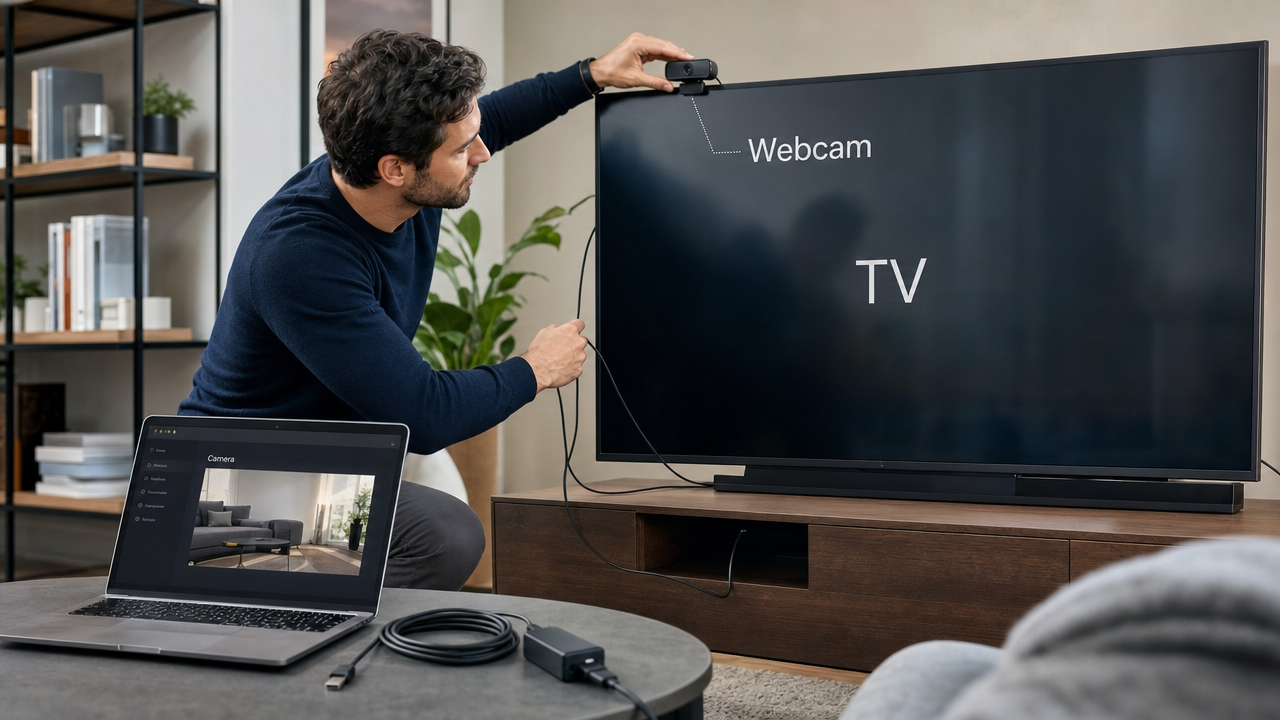
- Position the Lyra on your monitor edge using the clip mount, aimed at your face under your primary light source. Getting your shooting angle right before adjusting white balance ensures that the Kelvin value you set reflects your actual conditions.
Step 2 — Open HollyStudio and Access the Color Settings Panel
- Launch HollyStudio on your computer. If you haven’t installed it yet, download it from Hollyland’s official site.

- On the main dashboard, locate the Image Control panel. This is typically accessible via a dedicated tab or icon in the sidebar.
- Confirm that the live preview window is showing your Lyra’s feed before making any changes. Adjusting white balance without a live preview means you can’t evaluate the result in real time.
Step 3: Switch from Auto to Manual White Balance
- Inside the Color Image page > Advanced section, find the White Balance control. It will show a mode toggle with the Auto option.
- Switch the mode from Auto to Manual. To do that, simple deselect Auto by clicking on it once.

- A color temperature slider will become active. Use the reference table below as a starting point, then drag the slider while watching the live preview.
- Aim for a result where a white surface in your frame looks genuinely white, not yellow or blue, and your skin tone looks natural.
Step 4: Use Custom Color Correct Options
After setting White Balance, you control warmth, coolness, and tint globally. Yet it cannot fix isolated color problems. HollyStudio’s Color Picker samples a specific color for targeted correction. Custom Color Correction then provides dedicated controls for hue, saturation, and exposure, letting you refine skin tones or distracting colors.
- Open the Image Control option from the right-side menu.
- Scroll down to Custom, select Color from the available options, and click the Color Correct button with the dropper icon.

- Select specific colors in your webcam visuals with the color picker tool and make the needed adjustments.

- Tweak settings such as Hue, Saturation, and Exposure.

Method 2: Adjust White Balance Through Windows Camera Properties
Windows Camera properties don’t offer a dedicated White Balance slider. But you can tweak other parameters, such as brightness and sharpness to get the nearest desired results.
- Open the Start menu and go to Settings.

- Navigate to Bluetooth and Devices, then select Cameras.


- Under “Connected cameras,” select your webcam.
- Open the Basic settings area to find image adjustment controls. You can adjust Brightness, Contrast, Saturation, and Sharpness there.
- Move each slider while checking the live camera preview. Stop once the picture looks balanced and natural. These changes apply instantly and save automatically as defaults.

- Close Settings. The adjustment takes effect immediately.
Method 3: Adjust White Balance in Video Conferencing Software
Video call apps apply a software-level color adjustment on top of whatever the camera is already sending. Precision here is limited compared to a companion app, but this approach works for quick corrections when you’re already inside a meeting and don’t want to open a separate tool.
Zoom
- Open Zoom, click the profile icon to open the menu, and select Settings.

- Select the Video & effects tab.

- In Camera settings, turn on HD if it is currently disabled.

- Under Appearance, enable Adjust for low light directly. Change its setting from Auto to Manual. A slider then appears for exposure and brightness control.
- You can also adjust filters, Portrait lighting, and Touch up my appearance. Zoom only provides luminance and skin smoothing adjustments here. There is no dedicated white balance or Kelvin control. Make the available adjustments, then close the settings panel.

For precise white balance correction, Zoom is best used as a minor touch-up layer on top of a companion app adjustment. Relying on Zoom alone will leave accuracy on the table.
Microsoft Teams
- Open Microsoft Teams, click the three-dot menu (Settings and more), and select Settings.

- Select the Devices tab.

- Find Video settings and turn on Adjust brightness. You can also enable Soft focus for smoother images.
- Adjust any available sliders as needed, then close Settings.
Note: Teams does not provide a manual white balance slider. For strong color casts, correct them through webcam software, such as HollyStudio for Lyra. Windows camera settings can also adjust the webcam feed. Then Teams receives the corrected video during your call.
Method 4: Adjust White Balance in OBS Studio
OBS Studio does not include a white balance slider at the source level, but the Color Correction effect filter includes a Hue Shift control that serves the same purpose. This method is well-suited for streamers and recorders who want to fine-tune their camera’s color appearance inside their production pipeline.
- Open OBS Studio and find your camera in the Sources panel. If it isn’t added yet, click the + button, select Video Capture Device, and choose your camera from the device list. The Hollyland Lyra will appear by its device name after plug-and-play recognition.


- Right-click your camera source in the Sources panel.
- Select Filters from the context menu.

- In the Filters window, click the + button under the Effect Filters section.

- Select Color Correction from the list and give it a descriptive name.

- In the Color Correction settings, locate the Hue Shift slider.

- Drag the slider left for a warmer (more yellow) result or right for a cooler (more blue) result, while watching the OBS preview.
- Click Close when the image looks correct.
Note: When the Hollyland Lyra is your OBS source, the Color Correction filter acts as a supplemental adjustment layer on top of whatever white balance is already set in HollyStudio. If both are active, establish a neutral baseline in HollyStudio first, then use the OBS filter for any scene-specific fine-tuning.
Troubleshooting: Why Is My Webcam White Balance Still Off?
If you’ve attempted an adjustment and the color still looks wrong, one of these three issues is typically the cause.

- Problem: WB keeps shifting mid-call.
Cause: Auto white balance is still active, or AI Tuning is dynamically overriding your manual Kelvin value.
Fix: Disable AWB in HollyStudio before setting a manual value. Reset white balance to Auto in the app first, then re-establish the manual setting to clear any residual AI Tuning state. - Problem: Image looks correct in the companion app but wrong in Zoom.
Cause: Zoom is applying its own color adjustment layer on top of the corrected camera feed.
Fix: Open Zoom’s Advanced video settings and disable any color enhancement or correction options Zoom is running independently. - Problem: WB slider is greyed out in Windows camera properties.
Cause: The companion app has claimed control of the camera’s image settings, locking out the OS panel.
Fix: Either close the companion app and use Windows properties as the sole control source, or keep the companion app open and use it exclusively. Running both simultaneously causes conflicts.
Note: Also confirm that the Lyra is connected to a USB 3.0 port rather than a USB 2.0 hub. A degraded connection can reduce image processing fidelity, which may compound color accuracy issues and make white balance corrections harder to evaluate reliably in the preview.
FAQs
Can you adjust white balance directly in Zoom?
Zoom’s built-in camera controls are limited and do not include a dedicated White Balance slider. For accurate white balance, adjust it in your webcam’s companion app, such as HollyStudio, before entering the call. Zoom’s video settings work for minor touch-ups but are not a reliable primary control for color temperature correction.
Why does my webcam white balance keep changing automatically?
Auto white balance re-evaluates your scene continuously. When lighting shifts, whether from sunlight moving through the day or a lamp switching on nearby, AWB responds by shifting the color temperature. The fix is to switch to the manual white balance slider, experiment with the slider values, and set the one that matches your primary light source.
Does adjusting white balance in the companion app affect how I look in all software?
Yes. Companion app white balance changes are applied at the camera level, so the corrected feed flows into every application using that camera, including Zoom, Teams, OBS, and browser-based tools. You do not need to repeat the adjustment separately in each app.
Does the Hollyland Lyra support manual white balance?
Yes. The Lyra’s HollyStudio companion app includes an Image Control page where you can toggle between auto and manual white balance modes and adjust the color temperature slider directly. The camera also uses AI AWB for automatic adjustment, which can be disabled when manual control is preferred via the HollyStudio app.
Conclusion
Start with your companion app. For Hollyland Lyra users, HollyStudio provides direct camera-level control with both manual control through the HollyStudio app and self-developed AI-powered Auto White Balance (AWB) built into the camera. Use the OBS Color Correction filter for streaming-specific fine-tuning, and rely on Zoom or Teams settings only as a last resort when nothing else is available.