



































.png)
 简体中文
简体中文 
Saving a live stream is not the same for everyone watching. Creators may want a lasting copy, while viewers may need to save a stream quickly. The best recording option depends on your platform, device, and desired quality. In this guide, you’ll find five practical ways to record live streams. These include OBS Studio, built-in platform archives, and mobile screen recorders.

Two Types of Live Stream Recording (Know Which One You Need)
Before changing settings or installing software, first identify your recording needs. If you are the creator, you are recording your own live broadcast. You may want a saved copy for archiving, future edits, or YouTube uploads. If you are a viewer, you are recording someone else’s stream. This can help save the broadcast before its VOD expires or disappears.

These two scenarios call for different tools. If you are a creator, jump ahead to Method 1 (OBS Studio) or Method 2 (Platform-Native Archive Tools). If you are a viewer saving someone else’s stream, Method 3 (Screen Recording) is your starting point.
Method 1: Record Your Own Live Stream with OBS Studio (Best for Creators)
OBS Studio is the most capable free recording and streaming tool available, and it handles simultaneous broadcasting and local recording without requiring separate software. When your stream ends, you have a full-quality local file regardless of what happens on the platform side.
Here is how to set up local recording in OBS while you stream:
- Open OBS Studio and go to File > Settings.
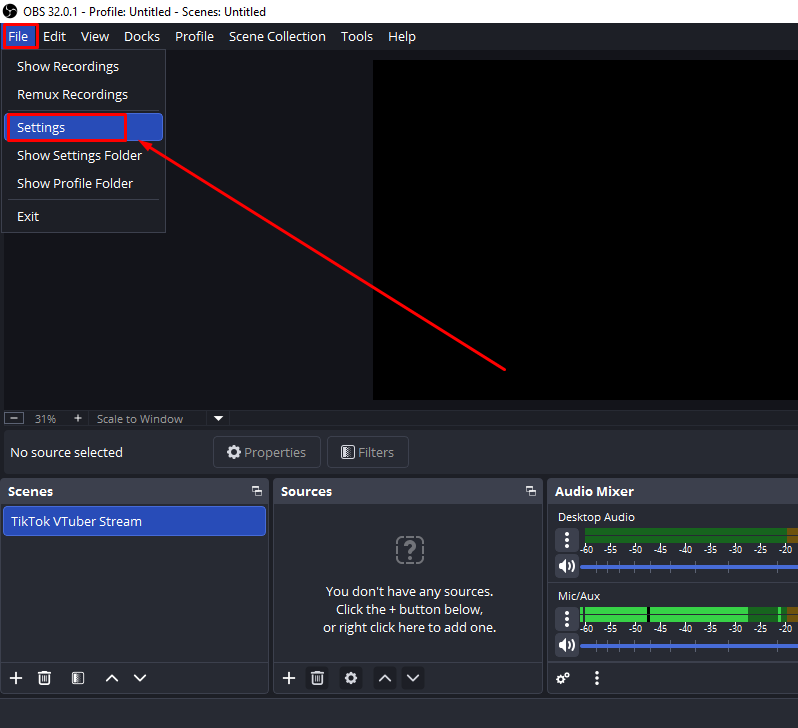
- Set Output > Output Mode to “Advanced” using the dropdown at the top of the Output settings panel.
- Click the “Recording” tab within the Output settings.
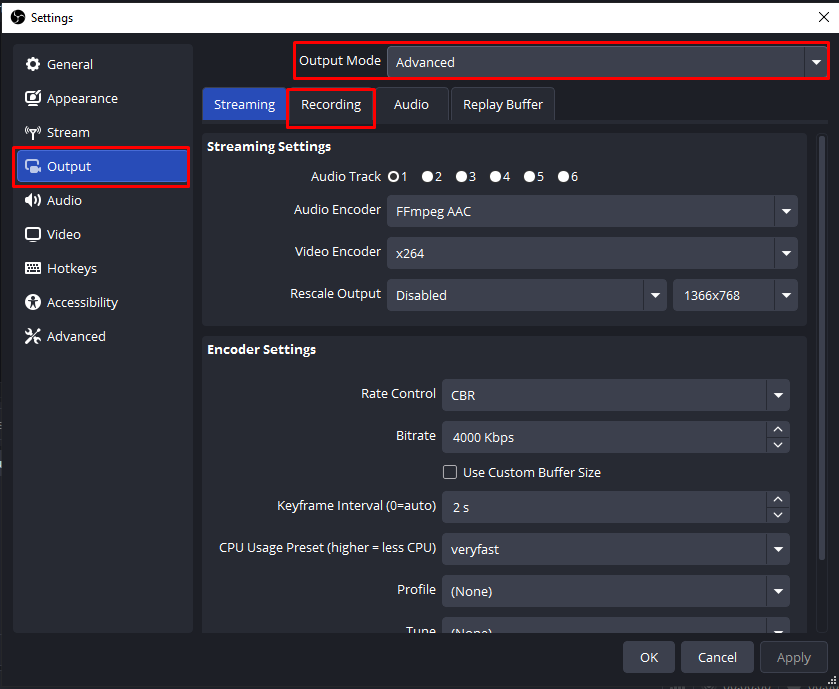
- Choose your video encoder. Choose your recording encoder based on what your system supports. Your recording encoder does not need to match your streaming encoder. Since local recording does not depend on internet bandwidth, newer codecs can save space. AV1 or HEVC can provide high video quality with smaller files. NVIDIA GPUs can use NVENC for hardware-based recording. AMD GPUs can use AMD HW encoding for local recordings. Modern Apple Silicon Macs can use Apple VT HEVC. If your system only supports CPU encoding, x264 is still available. Keep in mind that x264 can raise CPU usage during live sessions. Hardware encoders move much of the encoding work to your GPU. This makes them a good choice for streaming and recording together.
- Set the recording format. Choose MKV rather than MP4 for long sessions. MKV is crash-safe: if OBS or your system crashes mid-stream, the MKV file remains recoverable. MP4 files that close without a proper finishing sequence are often unplayable after a crash. You can remux MKV to MP4 after recording via File > Remux Recordings in OBS with no quality loss.
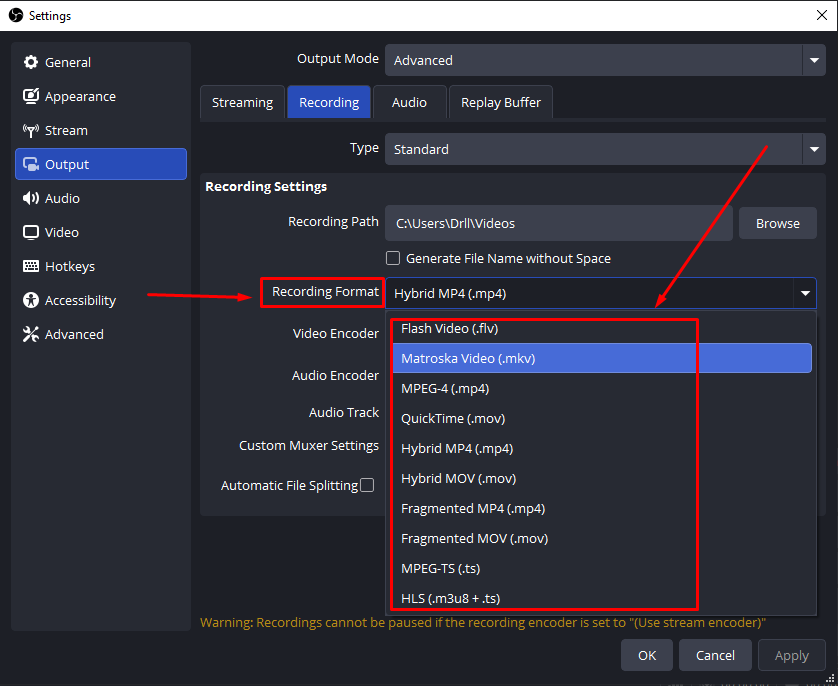
- Set your recording path. Click “Browse” and point OBS to a local drive with sufficient free space. Avoid network drives, as write latency over a network can cause dropped frames or file corruption during longer sessions.
- Start your stream as normal. In the main OBS window, click Start Recording separately from Start Streaming. Both buttons in the Controls panel operate independently, so you can record without going live or go live without recording.
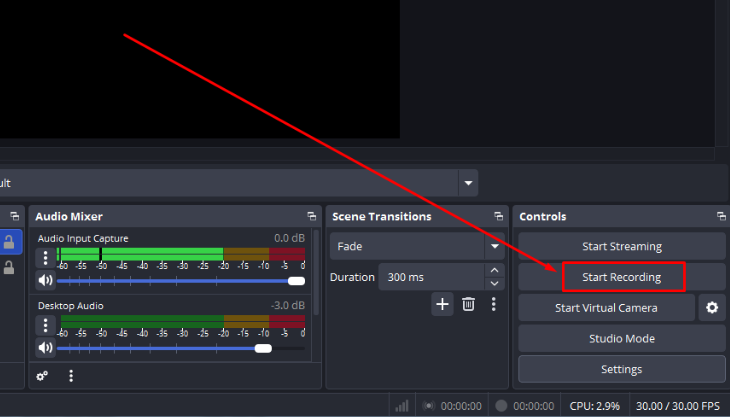
- Stop recording when your broadcast ends by clicking Stop Recording in the Controls panel.
Note: In Advanced Output Mode, your recording bitrate and streaming bitrate are completely separate settings. You can record at a higher bitrate than you stream, preserving archive quality even when upload speed constrains your live output.
Method 2: Use Platform-Native Archive Tools (YouTube, Twitch, Facebook)
If you prefer a hands-off backup that lives on the platform, YouTube, Twitch, and Facebook all offer built-in archive features. These tools require zero extra software but carry important limitations every creator should understand before relying on them exclusively.
YouTube Live
YouTube normally saves your live streams as VODs on your channel. You do not need to turn on another setting for this. This applies when your broadcast lasts less than 12 hours. After the stream ends properly, YouTube processes the recording automatically. It then appears as a regular video under your channel’s Live tab. Processing usually takes a few minutes to several hours. The exact time depends on how long your stream lasted.
Note: YouTube re-encodes VODs after your live stream ends. As a result, archived videos may look slightly softer than the original broadcast. Recording locally with OBS Studio can provide a higher-quality backup.
Twitch
Twitch can save your streams as Past Broadcasts, but you must enable this first. Go to your Stream Settings and turn on “Store past broadcasts.” After enabling it, saved broadcasts stay available for different periods.

- Standard non-Affiliate accounts keep them for 7 days.
- Affiliate accounts keep them for 14 days.
- Partners, Turbo, and Prime accounts keep them for 60 days
- .
To find and manage saved broadcasts:
- Open the Twitch Creator Dashboard and navigate to Content > Video Producer.
- Your past broadcasts appear here with timestamps and durations.
- If you want to keep a broadcast on Twitch, save it as a Highlight. You must do this through Video Producer before the VOD expires.
Note: Highlights do not follow the same automatic expiration timer. Still, your channel has a combined 100-hour storage limit for Highlights. Since Twitch VODs eventually expire and Highlights have storage limits, local recording is safer for long-term archives. Twitch creators should record their streams through OBS Studio at the same time. This gives you a local copy that you can keep for as long as needed.
Facebook Live
Facebook automatically saves completed live videos to the broadcaster’s profile or page. These recordings stay available for 30 days after the stream ends. The video appears in the Videos section or Live tab, along with the broadcaster’s timeline. After 30 days, Facebook permanently removes the live video from its servers. Anyone wanting to keep it longer must download or transfer the recording. Another option is converting the video into a Reel for continued access.
To download your live video:
- Open Meta Business Suite.
- Select “Content” from the main menu.
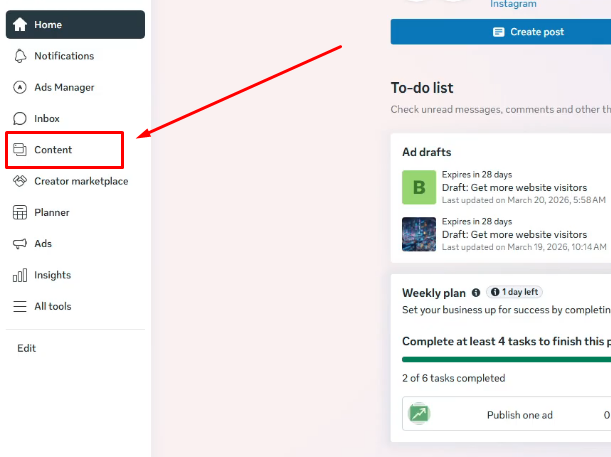
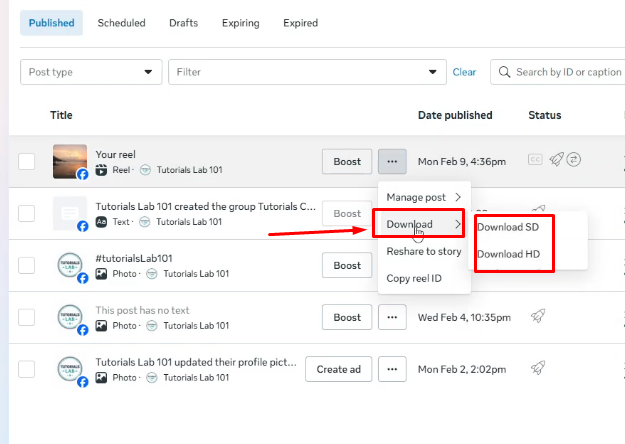
- Find the live video you want to save.
- Click the three-dot “Options” menu beside the video.
- Then choose either “Download SD” or “Download HD.”
Note: Only the original broadcaster can access these archive tools. People with full page control can access them too. Viewers cannot use Facebook’s built-in tools to save another person’s stream.
Method 3: Screen Record a Live Stream as a Viewer
If you are watching a stream and want to capture it, screen recording is your primary option. Every major operating system includes a built-in screen recorder that requires no installation.
Windows
Xbox Game Bar (Windows 10 and 11):
- Press Win + Alt + R to start recording immediately. Game Bar captures the active window from the browser or application you are focused on (except for Windows Desktop, File Explorer, and certain system apps like Notepad).
- Press Win + Alt + R again to stop. The file saves automatically to Videos > Captures as an MP4.
Note: Xbox Game Bar works reliably inside game windows and many applications but may not capture all browser windows depending on your GPU configuration.
Snipping Tool (Windows 11, version 22H2 and later):
- Open Snipping Tool from the Start menu or search for it.

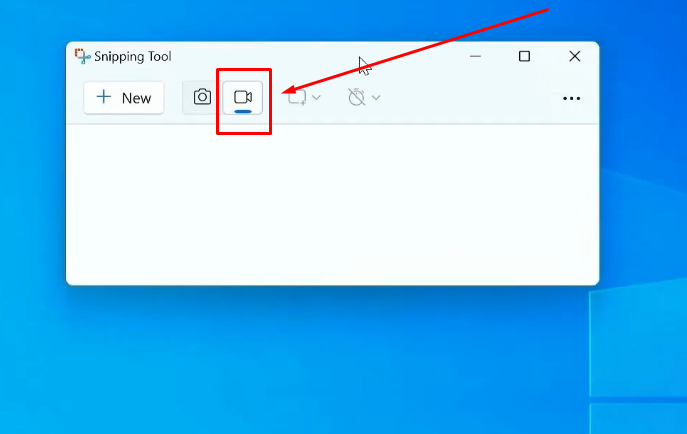
- Click the video camera icon to switch to screen recording mode.
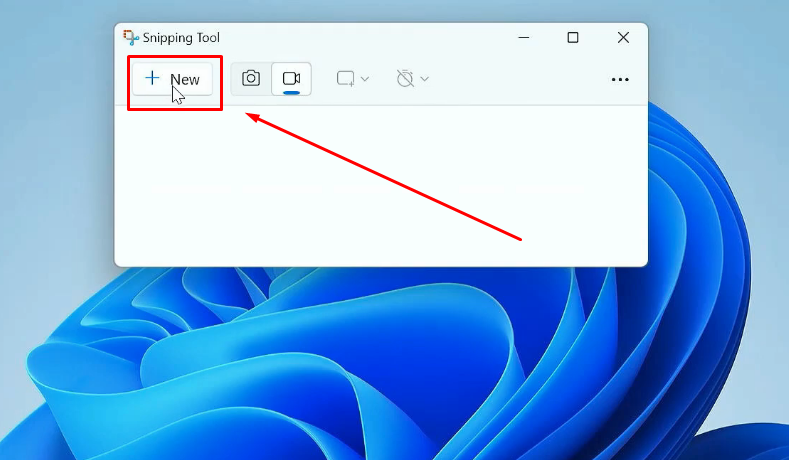
- Click New and select the region of the screen you want to capture.

- Click Start.

macOS
Screenshot Toolbar (macOS Mojave and later):
- Press Shift + Cmd + 5 to open the Screenshot toolbar.
- Choose “Record Entire Screen” or “Record Selected Portion.”

- Click Capture. To stop, click the stop button in the menu bar.
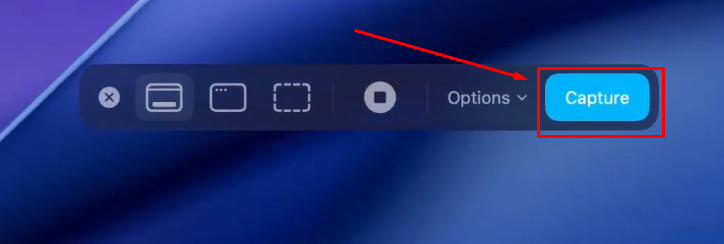
QuickTime Player:
- Open QuickTime Player and go to File > New Screen Recording.

- Click the Options button with a downward arrow beside the record button to select your audio source.
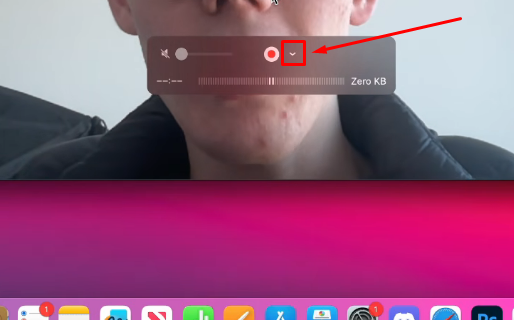
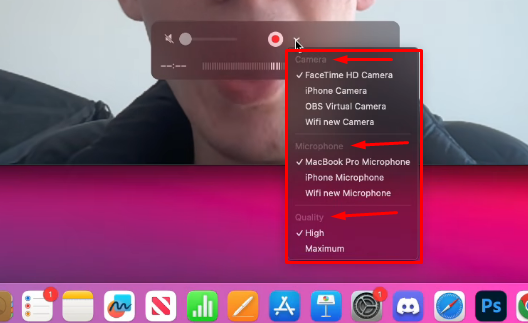
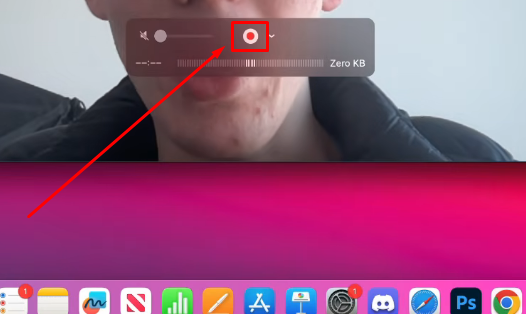
- Click the red record button and begin playback of the stream.
iOS
- Go to Settings > Control Center and add Screen Recording to your active controls if it is not already listed.
- Open Control Center by swiping down from the top-right corner on Face ID devices, or swiping up from the bottom on older models.
- Tap the Screen Record button (a circle inside a circle). Recording starts after a three-second countdown.
- Tap the red status bar at the top of the screen to stop and save the recording.
Android
Most Android phones include a built-in screen recorder in the quick-settings panel.
- Swipe down to open the Quick Settings panel.
- Look for a Screen Record or Screen Recorder tile. If it is not visible, tap the pencil or edit icon to add it to your panel.

- Tap Screen Record, confirm whether to capture audio, and the recording begins.
Note: The location and availability of the screen recorder tile varies by manufacturer. Samsung, Xiaomi, and OnePlus each implement slightly different interfaces and naming conventions.
OBS as a Quality Upgrade
For more control over viewer recordings, OBS is a flexible option. Start by adding a Window Capture source in OBS. Select the browser window where the live stream is playing. This records only that window instead of your entire screen. Your desktop stays private, while system resource use can also stay lower.

OBS also lets you adjust recording bitrate and quality settings. You can choose a higher bitrate for better image quality. CQP is another option for controlling recording quality.
DRM restriction notice: Netflix, Disney+, Prime Video, and some premium sports streaming services use HDCP and Widevine DRM that actively block screen capture at the operating system level. Your recording may appear as a black screen. This is by design and is not a settings problem this guide can resolve.
Method 4: Third-Party Recording Software (When Built-In Tools Fall Short)
Built-in screen recorders handle most viewer use cases, but certain situations call for dedicated software: recording overnight without supervision, capturing streams longer than an hour with stable audio sync, or needing output options beyond what the OS provides.

- Bandicam (Windows): Low CPU overhead, configurable output bitrate, and a scheduled recording feature that starts capture automatically at a set time. Well-suited for long unattended sessions.
- Camtasia: The strongest choice when you plan to edit the recording immediately after capture. A built-in editing timeline eliminates the need for a separate video editor.
- Streamlabs Desktop: A streamlined alternative to OBS for streamers who want a simpler interface without sacrificing the simultaneous stream and record capability. It uses the OBS recording engine under the hood.
These tools are primarily Windows and macOS applications. Mobile users are better served by the built-in screen recorders covered in Method 3.
How to Get Clean Audio in Your Live Stream Recordings
Recording software captures whatever audio your system sends to it, which means the quality of your archived stream is only as good as your input source. Creators who review their past broadcasts often find that video looks acceptable, but audio carries background hiss, room echo, or the compressed mid-range characteristic of a built-in laptop or webcam microphone.
The starting point is your microphone. Built-in mics were not designed for broadcast use, and no amount of post-processing fully compensates for a poor source. A dedicated microphone connected directly to your PC or mobile device produces a cleaner signal that requires far less cleanup in post.
For creators who want their archived streams to sound broadcast-ready from the start, the Hollyland LARK MAX 2 delivers 48 kHz / 32-bit Float audio with AI Noise Cancellation and low-latency OWS wireless monitoring, so the signal entering your recording software is already broadcast-clean and ready for post-production without additional noise removal passes.
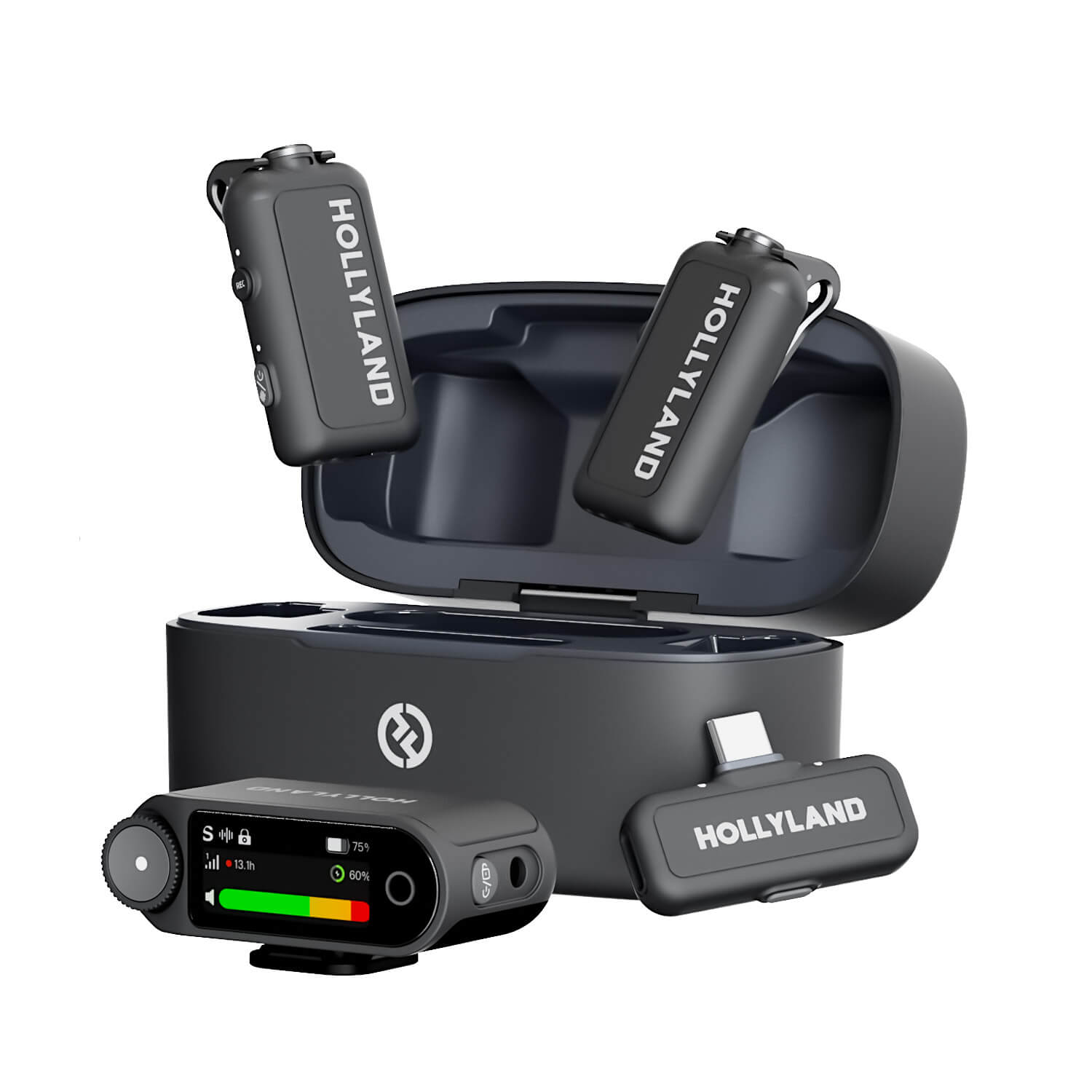
Hollyland LARK MAX 2 - Premium Wireless Microphone System
A premium wireless microphone for videographers, podcasters, and content creators to capture broadcast-quality sound.
Key Features: Wireless Audio Monitoring | 32-bit Float | Timecode
Inside OBS, go to the Audio Mixer, click the gear icon or the three dots next to your microphone source, and open Advanced Audio Properties. From here, you can enable Audio Monitoring to hear your mic signal through headphones before and during the stream, catching gain or noise problems before they are baked into the recording. For long streams, keeping your input level between -12 dB and -6 dB on the OBS meter preserves headroom for louder moments without clipping.
Which Method Should You Use? (Quick Comparison)
Use this table to match your situation to the right method before you start.
| Use Case | Best Method | Cost | Quality | Platform |
|---|---|---|---|---|
| Archive my own stream | OBS Studio | Free | High | PC / Mac |
| Quick platform save | Platform-native tools | Free | Medium | All |
| Save a stream I’m watching | Screen recorder | Free | Medium | PC / Mac / Mobile |
| Scheduled unattended capture | Third-party software | Paid | High | PC / Mac |
| Streamer with audio quality priority | OBS + dedicated mic | Free + mic cost | Highest | PC / Mac |
Common Problems When Recording Live Streams (and How to Fix Them)
Even with the right tools in place, a few recurring issues trip up both new and experienced recorders. Here are the most common failure points and how to resolve each one.

Audio and video fall out of sync on long recordings:
- Lengthy recordings can develop audio and video sync problems. Sample rate mismatches or system strain can cause these issues. Saving directly as MP4 also creates a serious corruption risk. If OBS crashes, you could lose the entire recording.
- For longer sessions, choose MKV under Settings > Output > Recording. You can also choose the newer Fragmented or Hybrid MP4 format. MKV saves the recording gradually throughout the session. This helps protect the file if something goes wrong. If you choose MKV, open Settings > Advanced afterward.
- Turn on “Automatically remux to MP4” in that section. OBS will convert the finished MKV into an MP4 automatically. The conversion does not reduce the recording’s quality.
Video is choppy, or frames are dropping:
While recording, open the OBS Stats window through View > Stats. Check whether encoding lag is causing frames to be skipped. If this happens, raise the CQP value to reduce processing demands. You can also switch from x264 software encoding to hardware encoding. NVIDIA GPUs can use NVENC for this purpose. AMD GPUs can use AMF or AV1 encoding instead. Change these settings under Settings > Output > Recording. Hardware encoding lowers CPU usage while maintaining strong recording quality.
File is not saving after the session ends:
Check the recording path in Settings > Output > Recording. Confirm that OBS has write permission for the destination folder, that the folder actually exists, and that the target drive has available space. Writing to a mapped network drive or an external drive connected through a USB hub can cause write failures; use a directly connected local drive whenever possible.
Screen recording shows a black screen:
This is almost always a DRM restriction on premium content platforms. If the black screen appears on non-DRM content, try switching the Window Capture source method in OBS from “Windows Graphics Capture” to “BitBlt” in the source properties, or fall back to a Display Capture source instead.
Storage fills up before the stream ends:
A useful rule of thumb: at 1 Mbps constant bitrate, one hour of recording uses approximately 450 MB. A four-hour stream recorded at 8 Mbps will consume roughly 14 GB. Calculate your expected file size before going live and point OBS to an external drive with sufficient headroom if your system drive is limited.
FAQs
Q: Is it legal to record a live stream?
Recording for personal use is generally permitted in most jurisdictions, but redistributing, reuploading, or selling the recording without permission likely violates platform terms of service and copyright law. Always check the streamer’s stated licensing policy. Some creators explicitly allow archiving under Creative Commons or similar terms, while others expressly prohibit it.
Q: Can you record a live stream on a phone?
Yes. Both iOS and Android include built-in screen recorders. On iOS, go to Settings > Control Center and add Screen Recording, then trigger it from Control Center. On Android, find the Screen Recorder tile in your quick-settings panel. Availability and tile labeling vary slightly by device manufacturer and Android version.
Q: Will the streamer know if I record their live stream?
No. Screen recording runs on your local device and is not reported to the platform or the broadcaster. Neither Twitch, YouTube, nor any other major platform currently has a mechanism to notify streamers when someone is screen-recording their content.
Q: Does OBS reduce stream quality while recording?
Running a local recording alongside a live stream does increase system load. The practical impact depends on your hardware. Switching to a hardware encoder (NVENC on NVIDIA GPUs, AMF on AMD GPUs) in OBS > Settings > Output offloads encoding to the GPU, allowing simultaneous streaming and recording without significant performance degradation on modern hardware.
Q: What is the best free way to record a live stream?
For creators, OBS Studio records at full quality locally while you stream, making it the best default option. For viewers, your OS built-in screen recorder covers most cases with no setup: Xbox Game Bar on Windows via Win + Alt + R and QuickTime on macOS via Shift + Cmd + 5 both work reliably for standard streams.
Q: Why does my recorded stream video look blurry?
Platform VODs are re-encoded by YouTube, Twitch, and Facebook, often at lower bitrates than the original broadcast, resulting in softer, blockier footage when played back. For the sharpest possible archive, record locally using OBS simultaneously with your stream rather than downloading the platform-hosted VOD after the fact.
Conclusion
OBS Studio gives creators the highest-quality local archive with full control over resolution and bitrate. Platform-native tools on YouTube, Twitch, and Facebook serve as zero-effort backups when you just need something on file. For viewers, your OS screen recorder is the fastest way to capture a stream in progress.


![How to Save Streams on Twitch [Step by Step]](https://www.hollyland.com/wp-content/uploads/2026/02/featured_image_20260226_144836.jpg)

