.png)
 简体中文
简体中文 
A YouTube channel can begin with nothing more than one recording. But that first video can expose problems you never expected. A phone or basic camera may seem enough at first glance. Then you press record and notice something feels off. Maybe the picture looks strange, or the audio sounds unclear.
This guide takes you through the complete recording process. You will cover gear selection, room preparation, camera settings, and microphone connections. It also explains what to check before sending your video online. Follow each step to make your first recordings clean and enjoyable.
What Equipment Do You Need to Record YouTube Videos?
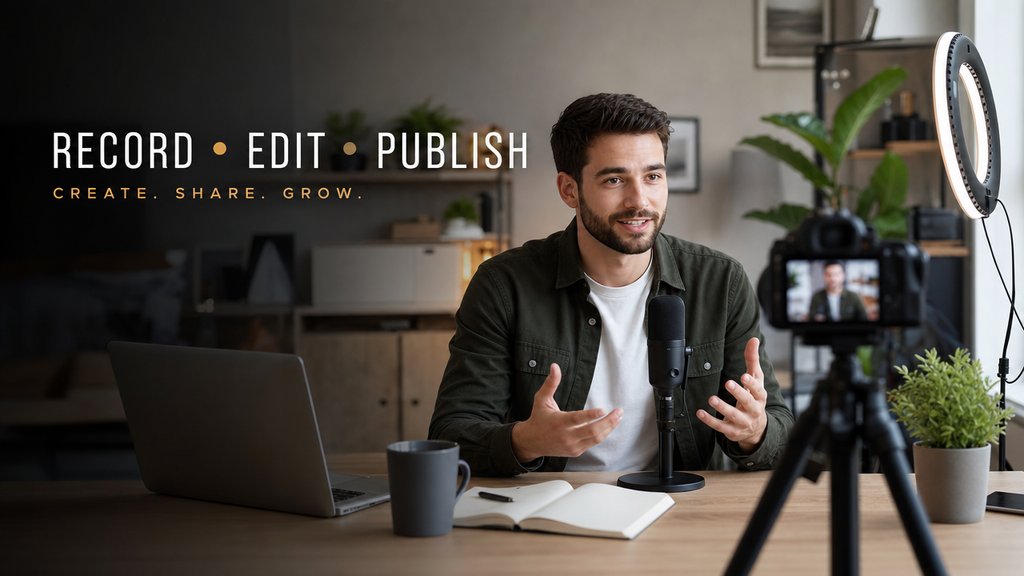
You do not need a professional film kit to start recording. The right gear depends on your content type and budget, but every YouTube recording setup requires the same four categories: a camera, a microphone, a stabilization solution, and a light source. The table below shows practical options at three budget levels so you can build a kit that matches where you are right now.
| Category | Budget | Mid-Range | Pro |
|---|---|---|---|
| Camera | Smartphone (recent iOS or Android) | Entry-level mirrorless (Sony ZV-E10, Canon M50) | Full-frame mirrorless or DSLR (Sony A7 IV, Canon R6 II) |
| Microphone | Hollyland LARK A1 (USB-C or Lightning, plug-and-play, 3-intelligent noise cancellation levels) | Hollyland LARK M2 (9g wireless lapel, 40-hour battery, camera or phone compatible) | Hollyland LARK MAX 2 (48 kHz / 32-bit Float, AI noise cancellation, OWS monitoring) |
| Stabilization | Phone tripod or small desktop stand | Full-height adjustable tripod | Motorized gimbal plus heavy-duty tripod |
| Lighting | Window with natural daylight | LED ring light (12-inch) | Two-light softbox kit with adjustable color temperature |
For Beginners: A modern smartphone paired with a clip-on microphone like the Hollyland LARK A1 will outperform a consumer camera recording on its built-in mic. Better audio closes more of the beginner-quality gap than any camera upgrade will.

Hollyland LARK A1 - Affordable Wireless Microphone
A perfect starter mic for creators on a budget. It’s simple to use and features effective noise cancellation.
Key Features: 48kHz/24-bit | 3-Level Noise Cancellation | 54-Hour Battery
How to Set Up Your Recording Space
A controlled recording space saves time in every session that follows. You do not need a professional studio; you need a consistent, repeatable environment you can recreate in under five minutes.
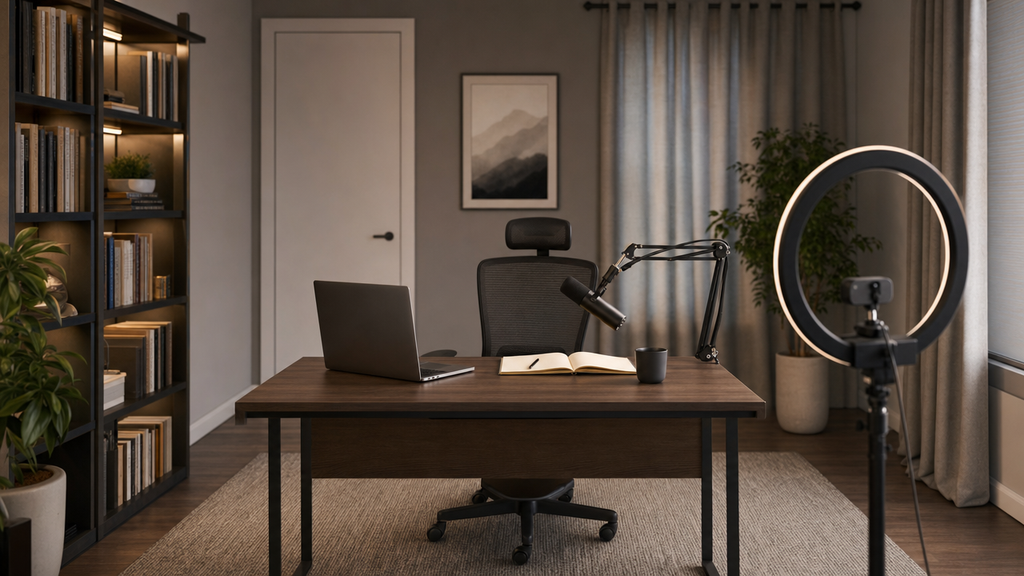
- Choose a quiet room. Select the smallest space that gives you enough camera distance. Smaller rooms with soft furnishings (rugs, curtains, bookshelves full of books) absorb sound naturally and reduce reverb without any additional treatment.
- Seal noise sources before you start. Close windows and doors. Turn off HVAC units, desktop fans, and any appliance that produces a consistent hum. These generate low-frequency noise that microphones capture even when it is inaudible to your ears during recording.
- Choose a clean background. An uncluttered wall reads as professional and neutral. A bookshelf with curated objects adds personality without visual chaos. Avoid backgrounds with open doorways, bright windows directly behind you, or objects you would not want visible on camera.
- Position your light source correctly. Place your primary light in front of you, facing your face. A window works well when you sit facing it. Never record with a bright window directly behind you; this creates silhouette exposure, not flattering exposure.
- Mark your exact position. Once the framing looks right, place a piece of tape on the floor where your chair or feet sit. This lets you recreate the same position in every future session without readjusting the camera.
Pro Tip: If the room sounds echoey when you clap your hands, hang a thick blanket or moving pad on the wall directly behind the camera. This is the cheapest and most effective acoustic treatment available for a beginner home setup.
How to Set Up Your Camera for YouTube Recording
Camera settings intimidate beginners more than they should. A handful of decisions lock in a reliable image; most other settings can stay at their defaults.
- Set your resolution and frame rate: Record at 1080p and 30fps as your starting baseline. This combination works on nearly every camera and phone, exports quickly, and is fully supported across all YouTube playback devices. If your device records 4K without significant battery drain or storage cost, use it for the additional crop flexibility it provides when editing.
- Mount the camera at eye level: A camera positioned at eye level creates natural, comfortable eye contact with the viewer. Anything below eye level points the lens upward and distorts proportions unfavorably. Raise the tripod head or place your phone on a stack of books until the lens center aligns roughly with your eyes when seated.
- Frame using the rule of thirds: Divide the frame mentally into a 3×3 grid. Place your eyes on the upper horizontal line rather than in the center of the frame. Leave a small amount of headroom above your head and keep your body centered horizontally, or shift slightly to one side if you plan to place text on screen.
- Lock autofocus on your face: Most mirrorless cameras and recent smartphones support face-detection autofocus. Enable it, then tap your face in the live view to confirm the system has locked. If the camera pulls focus to the background during playback review, switch to manual focus and lock it on your face before you press record.
- Lock exposure: Auto-exposure adjusts brightness while you move, and the resulting brightness shifts look amateurish on video. On a mirrorless camera, set ISO to 400 to 800 in a reasonably lit room and set shutter speed to double your frame rate (1/60 for 30fps). On a smartphone, tap and hold your face in the live view to lock both focus and exposure simultaneously.
Pro Tip: On iPhone, tap the subject, then tap the sun icon to lock AE/AF. On Android, tap and hold for AE/AF lock. Both methods prevent the camera from readjusting when you shift position.
How to Set Up a Microphone for Clean YouTube Audio
Phone and built-in camera microphones can record decent audio. Their main problem is where they are placed. A camera-mounted mic picks up room echo and handling sounds. It also records noise from the space between you and the camera. Bringing the microphone closer to your mouth fixes most audio issues. You can make this change before editing any footage.
Here is the complete setup process for the Hollyland LARK M2 wireless lapel microphone.
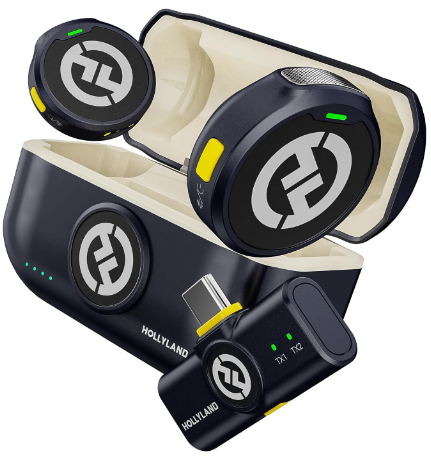
Hollyland LARK M2 - Mini Lavalier Microphone
An incredibly lightweight and compact wireless button microphone that captures high-fidelity audio.
Key Features: 9g Button Size | 48 kHz/24-bit | 40 Hours Battery
Setting Up the Hollyland LARK M2
Step 1: Attach the transmitter to your clothing. Clip the LARK M2 transmitter (a 9g capsule body) to your shirt collar or lapel, approximately 20 cm (about 8 inches) below your chin. Orient the microphone aperture so it faces upward toward your mouth. Press the titanium clip flat against the fabric until the transmitter body sits flush and does not shift when you move.

Step 2: Power on the transmitter. Press the single power button on the side of the transmitter.

The LED transitions from off to solid blue, which confirms the unit is powered on and already paired with its receiver.

The LARK M2 ships factory-paired, so no additional pairing process is required. If the LED flashes rather than holds solid, the transmitter is in active pairing mode. If it is still not paired, hold the power button for 3 seconds to turn off the unit. Next, while in the power-off state, hold and press the power button for 6 seconds to start pairing manually.
Step 3: Connect the receiver to your camera or phone.
- Camera users: Slide the receiver’s 3.5mm TRS plug into the microphone input jack on your camera body. Mount the receiver in the camera’s cold shoe and route the cable cleanly to the mic port. When the receiver LED shows solid blue, it is actively receiving a signal from the transmitter.

- PC / Laptop users: Use the USB-C port on the Camera RX to connect the receiver to your computer. If the transmitter and receiver are paired, the LED indicator will turn solid blue.

- Smartphone users: Plug the USB-C or Lightning version of the receiver directly into your phone’s charging port. The receiver sits flush against the phone body. LED confirmation is identical: solid blue equals active signal.

Step 4: Confirm audio levels. Open the audio meter display in your camera or recording app and speak at your normal recording volume. Watch the meter respond. The LARK M2’s gain is factory-calibrated for speech at standard lapel distance, so no manual gain adjustment is needed at this stage. Confirm that loud passages do not pin the meter at its maximum (this is called clipping). If they do, increase the physical distance between the transmitter and your mouth by a few centimeters.
Recording with a smartphone as your primary camera?
The Hollyland LARK A1 is the fastest path to better phone audio.
- Insert the USB-C or Lightning receiver directly into your phone’s charging port. No pairing step is required; it is fully plug-and-play.

- The receiver LED will turn solid blue once it is paired with the transmitter.

- Toggle on the noise cancellation feature. Press the power / pairing button on the transmitter once to enable noise cancellation. The LED indicator will turn solid green.

- Open the HollyAudio app on your smartphone and connect your LARK A1. Go to the NC Level section and select a noise cancellation level (Low, Medium, or High).

- Open your camera app, confirm the microphone input has switched to the LARK A1, and you are ready to record.
Lighting Tips for YouTube Videos
Good lighting does not require expensive gear. A single well-placed light source will make your footage look significantly more polished than any camera upgrade at the same price point.

- Key light (your main source): Place a ring light in front of you or sit facing a large window. This is the light that illuminates your face. Aim for soft, even brightness without harsh shadows under the nose or chin.
- Fill light (shadow reduction): Add a secondary LED panel or prop a white foam-board reflector on the opposite side of your face from the key light. This softens the shadow the key light creates without overexposing one side.
- Back light (optional separation): A small lamp or LED panel positioned behind you and angled toward the back of your head creates a rim of light that visually separates you from the background. Skip this step if your background is already lighter than your clothing.
For most beginners, a window and a single affordable LED panel are entirely sufficient. Consistent placement session to session matters more than equipment cost.
How to Record Your YouTube Video (The Actual Workflow)
A consistent pre-recording check can prevent common filming problems. You might notice poor audio after recording for 20 minutes. The subject could also move outside the frame during filming. In some cases, a full take gets lost because of technical problems. A quick 30-second check could have spotted these issues first.

- Run a 10-second test recording. Before capturing the full take, press record, say a few sentences at your actual recording volume, then stop and play it back. Review both the audio waveform and the video image carefully. Catch framing and audio problems now, not after a long take.
- Lock frame and focus. Confirm autofocus is tracking your face. If you are using manual focus, check the live view one final time. Walk out of frame briefly and return to confirm the camera does not hunt for focus when you reappear.
- Perform a room silence check. Sit quietly for five seconds before you begin speaking. Listen for any hum, rumble, or rhythmic background noise that appeared since your last check. Appliances cycle on, neighbors arrive home, and traffic patterns change. A five-second listen costs nothing.
- Slate the take verbally. Say “Take one” or announce the section title before you begin delivering content. This creates an audio marker that makes navigation faster when you bring footage into an editing timeline.
- Keep the camera rolling between takes. Rather than stopping and restarting the camera for each attempt, use the LARK M2 transmitter’s mute button to silence audio between takes. Press once to mute (LED shifts to amber), take a breath and reset, then press again to unmute before speaking. All your takes stay in one continuous file, and you eliminate the start-stop noise artifacts that accumulate with repeated camera starts.
- Monitor the audio meter mid-recording. Glance at the level meter every minute or two during a long take. A meter that has gone completely flat indicates the microphone has been muted or disconnected. A meter that stays pinned at the maximum indicates clipping, which will be distorted during playback.
Upgrade for the Pros: If you are using the Hollyland LARK MAX 2, the included OWS (Open-Wearable Stereo) wireless earphones let you hear the live wireless signal in real time while recording. This is the only reliable way to catch subtle audio problems such as shirt rustle, brief signal dropout, or unexpected background noise before they ruin a take.
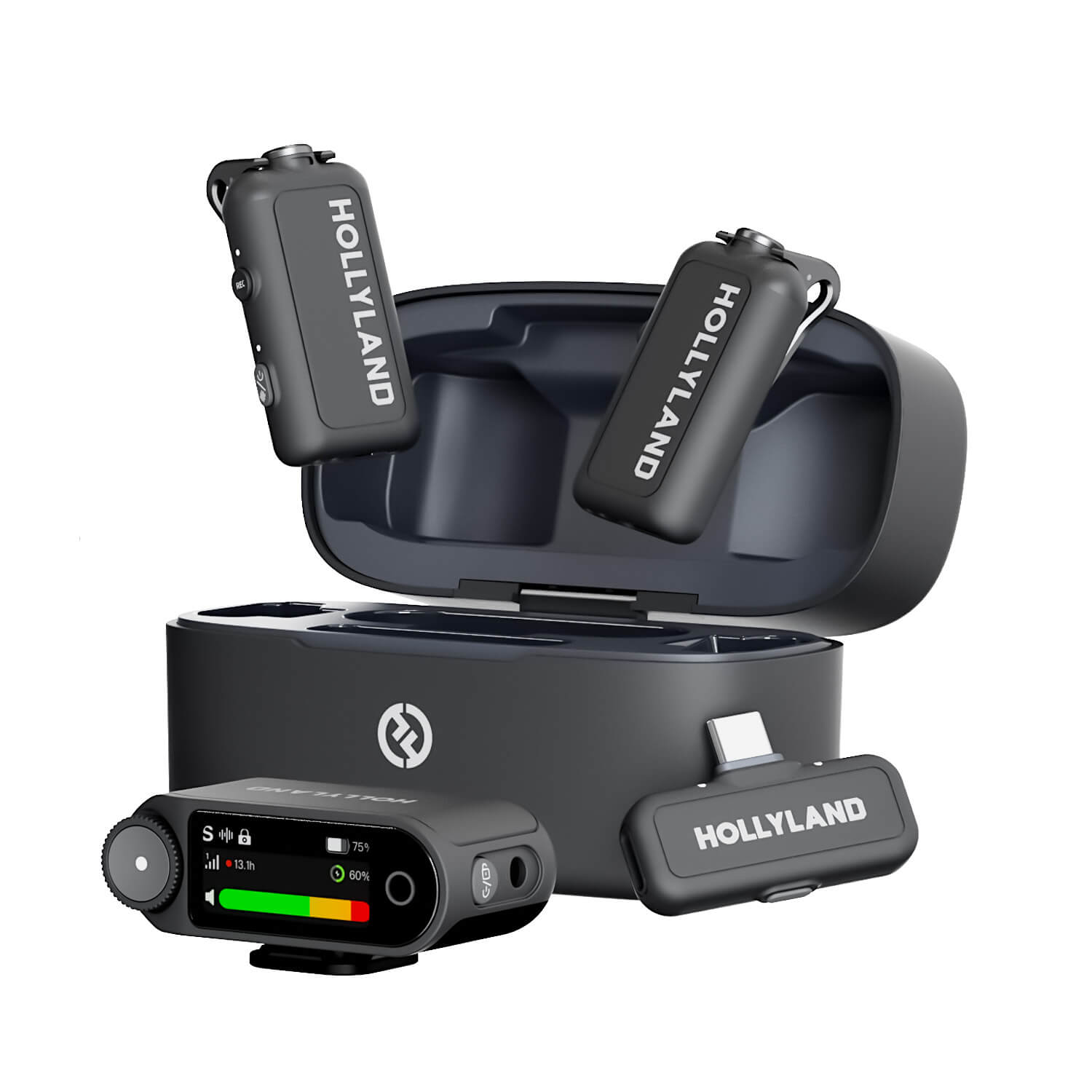
Hollyland LARK MAX 2 - Premium Wireless Microphone System
A premium wireless microphone for videographers, podcasters, and content creators to capture broadcast-quality sound.
Key Features: Wireless Audio Monitoring | 32-bit Float | Timecode
Screen Recording for YouTube (Tutorial and Gaming Videos)
If your content involves software walkthroughs, game captures, or reaction videos, you will record from your screen rather than a camera. The process is slightly different but no more complex.
OBS Studio is the standard free tool for screen recording on Windows, macOS, and Linux. It captures your display, your microphone, and your system audio simultaneously.
Basic OBS setup for YouTube screen recording:
- Add a Display Capture source by clicking the plus (+) icon in the Sources panel and selecting “Display Capture.” Choose your primary monitor from the list.


- Add a microphone input by clicking (+) again and selecting “Audio Input Capture.” Choose your microphone from the dropdown menu.

- Set output format and resolution under Settings > Output. Use MP4 as the file format. Then go to Settings > Video and select 1920×1080 as the base and output resolution, and 60fps for gaming content or 30fps for software tutorials.

- Run a 15-second test clip before your full session to verify audio sync and display capture quality.
Note: When using a Hollyland LARK M2 with a laptop for screen recording, plug the USB-C receiver into your laptop’s port and select it as the microphone input in OBS under Audio Settings > Mic/Auxiliary Device. No driver installation is required.
Pre-Upload Review Checklist
Before you send footage to editing or publish directly, run through this checklist. It takes under three minutes and catches the majority of problems that cause reshoots.
- Audio levels are consistent across all takes, with no sudden volume spikes or silent gaps
- No sustained background noise (hum, air conditioning, traffic) is audible during quiet moments
- The subject stays in frame throughout every take, with no unplanned camera drift or accidental zoom changes
- No accidental mute gaps appear mid-sentence (check by scanning the audio waveform visually in playback)
- No unintended objects, screen notifications, or people appear in the background
- Footage is confirmed at the intended recording resolution (verify in file properties before editing)
- At least one complete, usable take exists for every section of the video
Frequently Asked Questions
Can I record YouTube videos on my phone?
Yes, and many successful channels use nothing else. Open your native camera app, set video mode to 1080p at 30fps, and lock focus and exposure on your face before pressing record. For better audio, attach the Hollyland LARK A1 directly to your phone’s USB-C or Lightning port. It connects without pairing and immediately improves sound quality over the built-in microphone.
What is the best microphone for recording YouTube videos at home?
The right choice depends on your setup. The Hollyland LARK A1 is the simplest option for phone creators. Just plug it in and record. The Hollyland LARK M2 adds wireless flexibility and works with both phones and cameras, making it a strong choice for anyone who moves on camera. The Hollyland LARK MAX 2 delivers 32-bit Float audio and real-time monitoring for creators who need studio-level output.
Do I need special software to record YouTube videos?
Not for camera recording. Your phone’s native camera app or your camera’s internal recording system is all you need. For screen recording (tutorials, gaming, or software demos), OBS Studio is the most widely used free tool available. It captures your screen, microphone, and system audio simultaneously and outputs directly to MP4 format.
What resolution should I record YouTube videos in?
Record at 1080p (1920×1080) as your baseline. It is universally supported, processes quickly, and looks sharp on most screens. If your camera or phone handles 4K without significant battery drain or storage problems, use it. The extra resolution gives you useful flexibility to crop or reframe footage during editing without visible quality loss.
How do I stop my YouTube videos from sounding echoey?
Echo occurs when sound bounces off bare, hard surfaces before reaching the microphone. Record in a smaller room with soft furnishings, and hang a blanket on the wall behind the camera. Most importantly, move the microphone close to your mouth. The Hollyland LARK M2, positioned on the lapel 20 cm below your chin, captures direct voice sound before room reflections reach the capsule.
Conclusion
A good recording routine does not need to become complicated. Prepare the room, adjust the camera, connect the microphone, and test everything first. Once those four steps become familiar, recording becomes much easier. Your footage will also need less fixing when you start editing. Clean original files save time and make the entire process smooth.