.png)
 简体中文
简体中文 
Microsoft Teams restricts recording access to meeting organizers and licensed users, which leaves attendees, guests, and external participants without a built-in option. The good news: you do not need Teams’ permission to capture your own screen. This guide covers five reliable methods for recording any Teams meeting locally, with step-by-step instructions for Windows, Mac, and third-party tools.
How to Record a Teams Meeting Outside of Teams (5 Methods That Work)
Why You Can’t Always Use Teams’ Built-In Recording
Teams’ recording feature sounds simple, but most users run into one of these three blockers quickly:
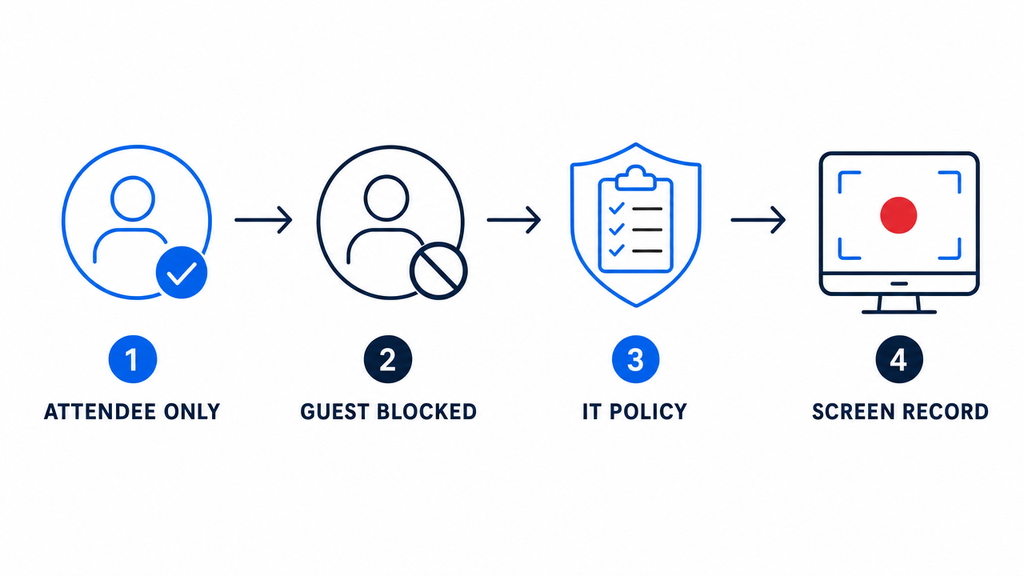
Why You Can’t Always Use Teams’ Built-In Recording
- Attendee-only role: Only meeting organizers and co-organizers can start a recording in most Teams configurations. Regular attendees have no recording button available, regardless of the meeting type.
- Guest or external user status: External participants and guest accounts are blocked from the recording function entirely, regardless of the host’s license tier.
- Organizational policy or cloud-only storage: Some IT departments disable recording outright, or restrict output to SharePoint and OneDrive with no option to save a local copy.
If any of these apply to you, an external screen recorder is the most direct and reliable solution.
Before You Start: What to Check
Run through this checklist before joining the call. A two-minute prep will prevent a silent or blank recording after the meeting ends.
- Select the correct window or display. Most recorders let you choose between a specific application window and full-screen capture. Selecting only the Teams window keeps the recording clean and avoids capturing unrelated content.
- Verify system audio is routed correctly. This is the most common failure point. Confirm your recorder is set to capture system audio so that other participants’ voices are included, not just your microphone.
- Check your microphone source. If you want your own voice captured, confirm the recorder is also pulling from your mic input in addition to system audio.
- Set your output folder in advance. Know where your file will save before you start, especially on work-managed machines with restricted storage paths.
- Review local consent requirements. Recording laws vary by jurisdiction. In many U.S. states and several other countries, you must inform all participants that the call is being recorded. When in doubt, announce it at the start of the meeting.
Method 1 — Xbox Game Bar (Windows, Free, No Install)
Xbox Game Bar is built into Windows 10 and Windows 11. It requires zero downloads and can be running in under a minute.
Steps:
- Open Microsoft Teams and join your meeting.
- Click the Teams window to make it the active, focused application.
- Press Win + G to open the Xbox Game Bar overlay.
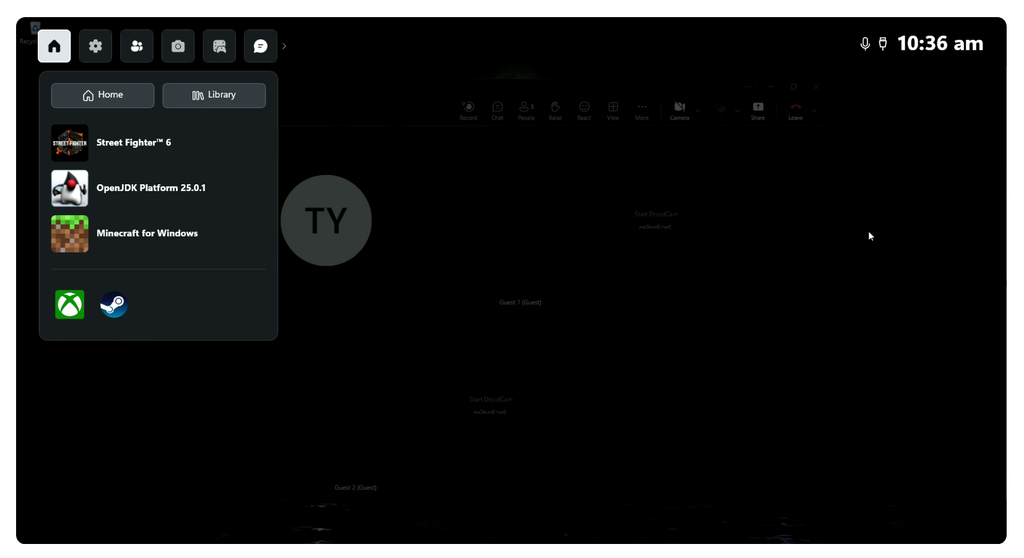
- In the Capture widget, click the Start Recording button (the circle icon), or press Win + Alt + R to begin recording immediately without navigating the overlay.
- A small recording timer will appear at the corner of your screen confirming the capture is active.
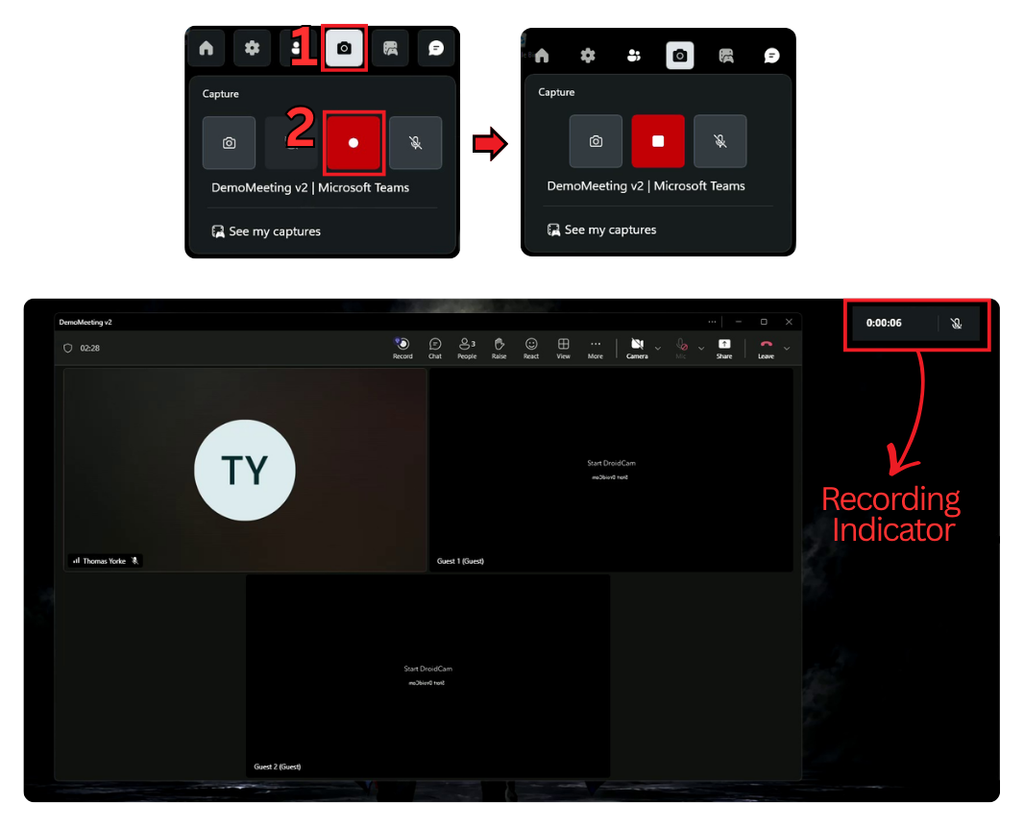
- When the meeting ends, press Win + Alt + R again to stop recording.
- Your file saves automatically to C:[YourName]* as an .mp4** file.
Limitation: Xbox Game Bar captures one application window at a time. If a presenter shares their screen inside Teams and you switch to view that shared content as a full-screen overlay, Game Bar may not follow it accurately. For full-screen or multi-window scenarios, use OBS Studio instead.
Method 2 — QuickTime Player (Mac, Free, Built-In)
Mac users have a capable screen recorder built directly into QuickTime Player. No third-party software is needed for most use cases.
Steps:
- Open QuickTime Player from your Applications folder.
- In the menu bar, click File > New Screen Recording.

- A recording toolbar appears at the bottom of the screen. Click the dropdown arrow next to the record button and select your microphone input.

- Click the Record button. Then click anywhere on screen to record the full display, or drag to select only the Teams window.
- To stop, click the Stop button in the menu bar or press Command + Control + Esc.
- QuickTime opens your recording automatically. Save it via File > Save as a .mov file.
Shortcut alternative: Press Command + Shift + 5 to open macOS’s built-in Screenshot toolbar directly, which provides the same controls without opening QuickTime first.
Note on system audio: QuickTime captures microphone input but does not record system audio natively on macOS. To capture other participants’ voices alongside your mic, install BlackHole (free, open-source at existential.audio). Set it as a virtual audio device and route system audio through it before starting your QuickTime recording. Loopback by Rogue Amoeba is a paid alternative with a friendlier interface.
Method 3 — OBS Studio (Free, Windows/Mac/Linux)
OBS Studio is the most powerful free recording tool available across all major operating systems. It handles multi-source audio, high-resolution output, and custom configurations that simpler tools cannot match.
Steps:
- Download and install OBS Studio from obsproject.com.
- Open OBS. In the Scenes panel at the bottom left, click the + icon to add a new scene. Name it something like “Teams Recording.”
- In the Sources panel, click + and select Window Capture. Choose the Microsoft Teams window from the application dropdown. You might need to use “Windows 10 (1903 and up)” on newer devices.

- Click + in Sources again and select Audio Output Capture. This routes system audio so all meeting participants’ voices are recorded.
- To include your own microphone, click + once more, select Audio Input Capture, and choose your mic device.

- Click Start Recording in the bottom toolbar. OBS begins capturing immediately.
- Click Stop Recording when finished. Your file saves to the path shown in Settings > Output > Recording Path.
Output format note: OBS defaults to .mkv, which provides safer recovery if OBS crashes mid-recording. To save directly as .mp4, go to Settings > Output > Recording Format and change this before you start.
Best for: Users who record meetings regularly and want full control over audio channels, resolution, and output format. OBS also supports scene switching and on-screen labels if you want to add branding or annotations to recorded sessions.
Method 4 — Third-Party Screen Recorders (Loom, Camtasia, Snagit)
If you need automatic cloud sharing, built-in video editing, or a lighter-weight option than OBS, one of these tools may suit your workflow better than a native recorder.
| Tool | Cost | Best For | Key Limitation |
|---|---|---|---|
| Loom | Free (limited) / paid from $12.50/mo | One-off recordings shared instantly via a link | Auto-uploads to cloud; no offline local file in the free tier |
| Camtasia | One-time ~$299 | Training videos or meeting recordings that need editing before sharing | High cost; overkill for basic archiving needs |
| Snagit | One-time ~$62.99 | Short clips, annotated captures, quick team screen shares | Less suited for long recordings; limited audio routing options |
For most remote workers archiving a meeting occasionally, Loom’s free tier is enough. For anyone producing training or onboarding content from recorded calls, Camtasia’s built-in editor makes the investment practical. Snagit fits teams already in the TechSmith ecosystem who want a lightweight companion tool.
Getting Clear Audio in Your External Recording
Audio is almost always the weakest part of an external screen recording. Three fixes cover the most common problems:

Getting Clear Audio in Your External Recording
- Set system audio as a recording source. Without this step, you will only capture your own microphone and end up with silence where other participants were speaking.
- Confirm Teams audio settings before the call. Go to Teams Settings > Devices and verify the correct speaker output is selected so system audio actually plays through your machine during the meeting.
- Use a dedicated microphone for your own voice. Built-in laptop mics pick up background noise and produce noticeably thinner audio. For professionals who regularly record meetings alongside camera footage, a compact wireless mic like the Hollyland LARK M2 (9g, clip-on, 40-hour battery) keeps your voice clean without requiring a desk setup or cable management.
Frequently Asked Questions
Q: Will the meeting host or other participants know I’m recording outside of Teams?
No. External screen recorders run locally on your device and are completely invisible to other meeting participants. Teams has no mechanism to detect or notify anyone that a third-party screen capture tool is active on your machine. The recording remains on your local storage until you choose to share or upload it.
Q: Can I record a Teams meeting as a guest or external user?
Yes. Because you are capturing your own screen rather than triggering Teams’ internal recording function, your guest or external user status makes no difference. Xbox Game Bar, QuickTime, and OBS all work regardless of your Teams role, the host’s license type, or the organization’s internal recording policies.
Q: What file format will my external recording be saved in?
It depends on the tool you use. Xbox Game Bar saves as .mp4, QuickTime saves as .mov, OBS defaults to .mkv but can be configured to output .mp4, and Loom skips local file saving entirely by uploading your recording to the cloud as a shareable link.
Conclusion
For a quick, no-setup capture, Xbox Game Bar on Windows and QuickTime on Mac get the job done without installing anything. OBS Studio is the right choice for recurring recordings or whenever you need full audio and format control. Loom and Camtasia work best when sharing or editing the output matters as much as capturing it. Pick the method that fits your operating system and recording frequency, then run a short two-minute test call before your next real meeting to confirm both the window capture and audio are working as expected.