.png)
 简体中文
简体中文 
Recording your Google Slides presentation with your face visible transforms a static slideshow into an engaging, personal video. Whether you’re creating an async training module, a student lecture, or a quick knowledge-share for your team, a talking-head overlay makes your content easier to follow. This guide covers the built-in Google Slides recorder step by step, two reliable alternatives for users without Workspace access, and practical tips for clean audio and video quality.

How to Record a Presentation on Google Slides with Your Face (2024 Guide)
What You Need Before You Start
Before hitting record, confirm these basics:
- Google account type: The built-in recorder is exclusive to Google Workspace Business Standard, Business Plus, Enterprise, and Education tiers. Personal @gmail.com accounts will not see this option anywhere in the menu.
- Webcam: A built-in laptop camera or an external USB webcam both work.
- Microphone: Built-in laptop mic, USB mic, or a wireless clip-on microphone.
- Browser: Use Google Chrome for full feature compatibility. Other browsers may limit or break recording controls entirely.
Important: If you have a personal Gmail account, skip to the Alternative Methods section below. The built-in recorder will not appear in your Slides menu regardless of any settings you change.
How to Record Google Slides with Your Face Using the Built-In Recorder
This is the fastest native method when your Workspace account supports it. Follow these steps in order:
- Open your presentation in Google Chrome. Log in to your Google Workspace account and open the Slides file you want to record.
- Go to Slideshow > Record. Click Slideshow in the top menu bar, then select Record from the dropdown. A dedicated recording interface opens with your first slide displayed and a webcam preview pane visible.
- Grant camera and microphone permissions. If this is your first time, Chrome will prompt you to allow access to both your webcam and microphone. Click Allow on each prompt. If you previously denied access, update permissions by clicking the lock icon in Chrome’s address bar.
- Position your webcam overlay. A live preview of your face appears as a movable bubble on screen. Use the on-screen controls to choose a corner position (bottom-left, bottom-right, top-left, or top-right) and adjust the size. Place it where it covers the least critical part of your slide content.
- Start the countdown and begin presenting. Click the Record button. A three-second countdown gives you a moment to settle before the recording begins. Advance through your slides using the arrow keys or on-screen navigation while speaking naturally to the camera.
- Stop the recording. When you finish presenting, click the Stop button. The interface will process the file briefly before confirming it is saved.
- Find your recording in Google Drive. The finished MP4 saves automatically to a folder called Slides recordings in your Google Drive. No manual export steps are required.
Note: Slide transitions are captured, but complex entrance and exit animations may not render frame-perfectly in all Workspace tiers. Run a short test recording on your most animation-heavy slide before committing to a full session.
Alternative Methods to Record Google Slides with Your Face
No Workspace access? These two options cover the most common situations.
Use Loom (Recommended for Personal Gmail Users)
Loom’s free Chrome extension is the lowest-friction alternative and works with any Google account.
- Install the Loom Chrome extension from the Chrome Web Store and create a free account.
- Click the Loom icon in your browser toolbar and select Screen + Camera as your recording mode.
- Open your Google Slides presentation and enter full-screen or Presenter View.
- Click Start Recording. Loom captures your screen alongside a face-cam bubble overlaid automatically. Advance slides normally while you speak.

When finished, Loom uploads the video to your dashboard and generates a shareable link instantly. The free tier supports recordings up to 5 minutes; upgrading removes the time limit.
Use OBS Studio + Your Camera App
OBS Studio is free, works on Windows and macOS, and needs no account. It takes a little setup the first time, but it captures your screen and your face in one pass without any window-switching problems.
- Set up your sources in OBS. Add a Display Capture source for your screen and confirm your microphone is picked up under Audio Mixer. Speak at your normal volume and check that the meter moves — silent levels here mean a silent recording.

- Open your camera app and position it. Launch the Camera app on Windows or Photo Booth on macOS, resize the window small, and drag it to a corner of your screen. This window is what puts your face in the recording.
- Open your presentation and place it. Put your Google Slides presentation on the same screen, then adjust both windows so the camera app and the slides do not overlap.

- Start recording. Click Start Recording in OBS. Give yourself a couple of seconds of lead-in before you begin speaking so the file has clean room at the front for trimming later.

- Present as normal. Advance through your slides with the arrow keys while you talk. OBS captures the whole screen, so both the slides and your camera window are recorded together.

- Stop and save. Click Stop Recording in OBS. Your file saves automatically to the output folder set under Settings > Output > Recording Path — open File > Show Recordings to find it.
Note: Because OBS captures the screen as-is, your face sits beside your slides rather than floating over them. That means slightly less room for slide content, but nothing gets covered up.
Tips for Better Audio and Video Quality
Technical ease of recording is only half the equation. These adjustments make a visible difference in the finished video:

Tips for Better Audio and Video Quality
- Lighting: Face a window or ring light directly. Sitting with a bright light source behind you leaves your face underexposed and hard to read on screen.
- Camera height: Position your webcam at eye level. A camera angled upward from a flat desk makes you appear small; prop your laptop on a stand or use a dedicated camera mount.
- Background: Choose a clean, uncluttered wall or a tidy bookshelf. Virtual backgrounds can blur face edges and distract viewers from your slides.
- Slide design: Keep high-contrast text and critical visuals away from the corners where your webcam overlay will sit, so nothing important is obscured.
- Audio: Built-in laptop microphones pick up keyboard clicks, room echo, and background noise from fans or HVAC systems. Recording with a clip-on wireless microphone significantly improves clarity without tethering you to your desk.
For presenters who want cleaner audio without a complicated setup, the Hollyland LARK M2 is a practical option to consider. It weighs just 9 grams, clips onto a collar or lapel, and transmits wirelessly, so there are no cables running across your desk or into frame. With up to 40 hours of battery life, it handles long recording sessions comfortably and keeps your voice isolated from background noise whether you’re seated or standing.
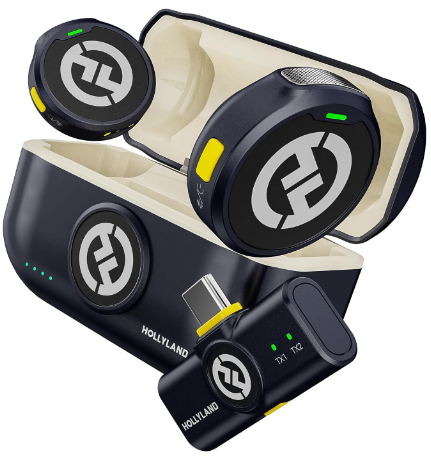
Hollyland LARK M2 - Mini Lavalier Microphone
An incredibly lightweight and compact wireless button microphone that captures high-fidelity audio.
Key Features: 9g Button Size | 48 kHz/24-bit | 40 Hours Battery
How to Save, Download, and Share Your Recording
If you used the built-in Google Slides recorder, your MP4 is already in Google Drive under a folder called Slides recordings. Right-click the file to download it to your device, or click Share to generate a view link for teammates, students, or clients. Google Drive’s built-in video player also supports basic trimming and auto-generated captions without leaving the browser.
If you recorded with Loom, your video appears in your Loom dashboard the moment you stop recording. Copy the share link directly from there, or open the video settings to download the MP4 to your device.
Frequently Asked Questions
Can you record Google Slides with your face for free?
Yes. If you have a qualifying Google Workspace account, the built-in recorder is included at no extra cost. For personal Gmail users, Loom’s free tier supports face-cam screen recording without payment. The free plan limits individual recordings to 5 minutes, which is sufficient for short lessons or product demos.
Why don’t I see the “Record” option in Google Slides?
The built-in recorder is only available on Google Workspace Business Standard, Business Plus, Enterprise, and Education editions. Personal @gmail.com accounts will never see this menu option regardless of settings. Use Loom or your operating system’s built-in screen recorder as an alternative.
Can I add my face to a Google Slides recording after the fact?
Not within Google Slides itself. To add a webcam overlay in post-production, import your slide recording and a separate webcam clip into a free video editor such as CapCut or DaVinci Resolve, then position the face clip as a picture-in-picture layer over the presentation footage.
What format does Google Slides save recordings in?
Google Slides saves recordings as MP4 files using H.264 video encoding. Files are stored automatically in your Google Drive under the Slides recordings folder and can be downloaded or shared via a Drive link without any additional export steps needed.
Does the built-in Google Slides recorder capture slide animations?
Partially. Slide transitions are recorded, but some complex entrance and exit animations may not render frame-perfectly depending on your Workspace tier. Always run a short test recording on your most animation-heavy slide before starting a full session to confirm the output looks correct.
Ready to Record
For Google Workspace users, the built-in Slides recorder is the fastest path to a polished presentation video with your face included. For everyone else, Loom delivers the same result with minimal setup and no subscription required. Once you have your first recording finished, explore related workflows like adding voiceover to Google Slides or optimizing screen recording settings to make every video sharper and more watchable.