.png)
 简体中文
简体中文 
Recording a Google Meet on your laptop takes less than a minute once you know which method applies to your account. The fastest route depends on one thing: whether you have a paid Google Workspace plan or a free Gmail account. This guide walks through every working method for Windows and Mac, so you can capture your meeting regardless of account type.
How to Record Google Meet on Laptop (Built-In + Free Methods)
Before You Start: Does Your Account Support Google Meet Recording?
Google Meet’s built-in recording feature is not available to every user. Google reserves it for paid Google Workspace plans, specifically Business Standard, Business Plus, Enterprise tiers, and certain Google Workspace for Education plans. If you are on a free Gmail account (the one ending in @gmail.com), the Record button will either be absent from the menu entirely or appear greyed out and unclickable when you try to use it.
Knowing this upfront saves you from clicking around during a live meeting and wondering what went wrong. Check the comparison below, then jump to the method that matches your situation.
| Account Type | Built-In Recording | Free Alternatives Available |
|---|---|---|
| Free Gmail (@gmail.com) | Not available | Windows Game Bar, Mac QuickTime, Loom |
| Google Workspace (Business Standard and above) | Available to host and co-hosts | Same free alternatives also work |
Free Gmail user? Skip ahead to Method 2 (Windows) or Method 3 (Mac).
Workspace user? Start with Method 1 for the cleanest, most automated experience.
Method 1 — Use Google Meet’s Built-In Recording Feature (Google Workspace Required)
Google Meet’s native recorder is the most convenient option for Workspace users because the recording is automatically saved to Google Drive and a shareable link is sent to your email when the file is ready. You do not need any additional software or secondary apps.
A note on consent: The moment you start recording, every participant in the meeting receives a notification banner on their screen. Recording without participants’ awareness may also violate privacy laws depending on your region. Always inform attendees before you begin.
Steps to record in Google Meet
- Start or join a Google Meet session on your laptop.
- In the bottom-right corner of the screen, click the Meeting Tools button (the grid icon beside chat and host controls).
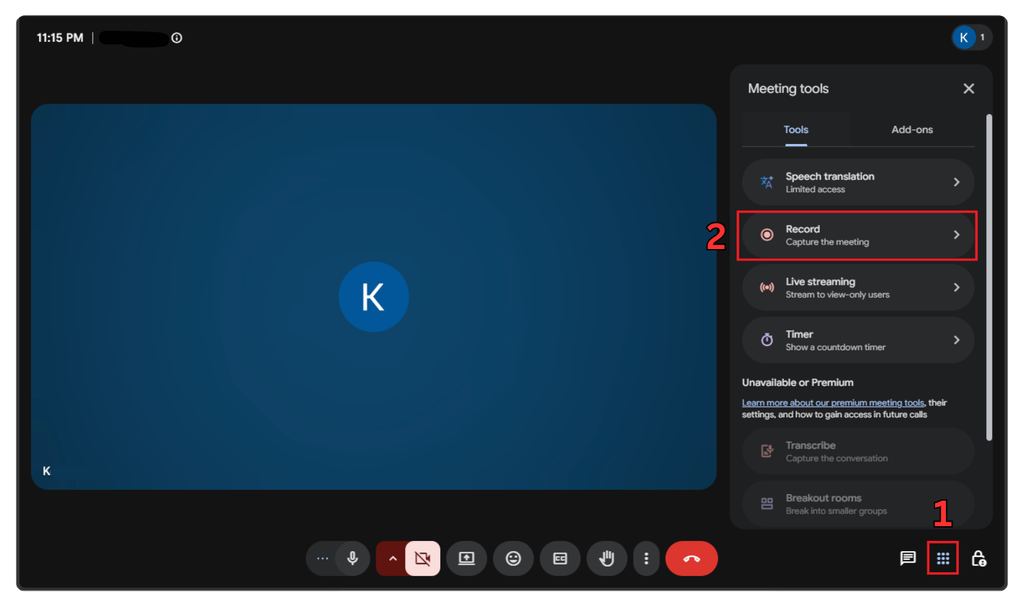
- Click on Record, then confirm the action by selecting Start recording.
- A confirmation prompt will appear. Click Start to confirm.
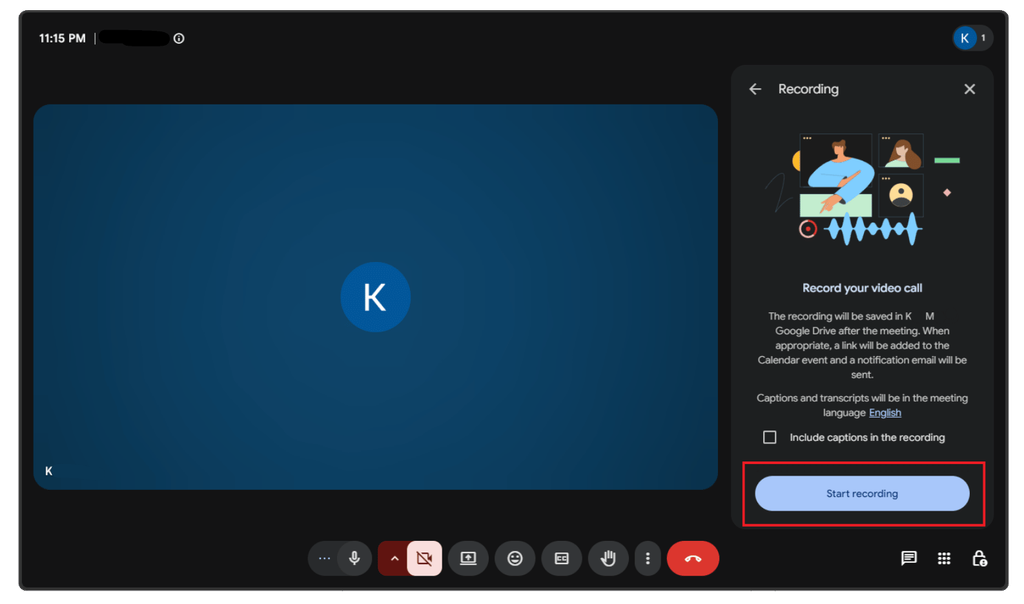
- A red recording indicator appears in the top-left corner of the screen. All participants see a notification banner informing them the meeting is being recorded.
- To stop recording, click “Stop recording” on the right panel, or simply end the meeting and the recording will stop automatically.
Where to Find Your Recording After the Meeting
After the meeting ends, Google Meet processes the recording in the background. The file does not appear immediately. Depending on the length of the meeting, processing can take anywhere from a few minutes to over an hour.
Once processing is complete, the recording is saved to the Meet Recordings folder inside the host’s Google Drive. You will also receive an email with a direct link to the file. If you need to share the recording with colleagues or students, you will need to adjust the sharing permissions on the Drive file directly, as it is only visible to you by default.
Method 2 — Record Google Meet on a Windows Laptop for Free (Xbox Game Bar)
Windows 10 and Windows 11 include a built-in screen recorder called Xbox Game Bar (also referred to as Windows Game Bar). It requires no Workspace subscription, no third-party downloads, and no account login beyond your regular Windows sign-in. It works by capturing whatever is visible on your screen at the time, including a Google Meet session running in any browser or the desktop app.
Important audio note: Game Bar records your microphone by default, but it may not capture meeting audio playing through your speakers unless you configure it first. Before your next meeting, open Game Bar settings and confirm that the audio source is set to record “All audio” in the Capture settings panel. Skipping this step can result in a recording that contains only your own voice.

Steps to record Google Meet with Xbox Game Bar
- Open Google Meet in your browser or the Meet desktop app and join your meeting.
- Press Win + G on your keyboard to open the Xbox Game Bar overlay.

- If a prompt asks whether this window is a game, click Yes. Game Bar works for browsers and regular apps, not just games.
- In the Capture widget (the small panel in the top-left area of the overlay), confirm that audio capture is turned on.
- Click the Start Recording button (the filled circle icon), or use the shortcut Win + Alt + R to start immediately.

- The overlay will minimize. A small recording timer appears in the corner of your screen confirming the capture is active.
- When the meeting is over, press Win + Alt + R again to stop, or reopen the Game Bar and click the stop button.
Recordings save automatically to: This PC → Videos → Captures
Method 3 — Record Google Meet on a Mac Laptop for Free (QuickTime or Screenshot Toolbar)
Mac users have two reliable built-in options: QuickTime Player and the macOS Screenshot toolbar, accessed with a keyboard shortcut. Both are free, require no additional software, and are available on any modern macOS version. QuickTime gives you slightly more control over microphone input selection; the Screenshot toolbar is quicker to access in the middle of a meeting.
A note on system audio: macOS does not capture audio playing through your speakers by default with either method. If you want to record meeting audio in addition to your own microphone, you will need a virtual audio driver such as BlackHole, but that setup is a separate topic beyond this guide. For most recording needs, microphone input is sufficient.
Option A: QuickTime Player
- Open QuickTime Player from your Applications folder or by searching in Spotlight (Command + Space).
- Go to File → New Screen Recording.
- A small recording toolbar appears at the bottom of the screen. Click the dropdown arrow next to the Record button and select your preferred mic source.
- Click Record, then choose to capture the full screen or click and drag to select a specific area.

- Open Google Meet in your browser and join or start your meeting.
- To stop recording, click the Stop button (the square icon) in the menu bar at the top of the screen, or press Command + Control + Esc.
- QuickTime opens the finished recording automatically. Go to File → Save to choose where to store it.
Option B: macOS Screenshot Toolbar (Shift + Cmd + 5)
- Press Shift + Command + 5 to open the Screenshot and Screen Recording toolbar at the bottom of your screen.
- In the toolbar, select Record Entire Screen or Record Selected Portion, depending on your preference.
- Click Record to begin.
- Join or start your Google Meet session in the browser.
- When finished, click the Stop Recording button in the menu bar.
Recordings save to the Desktop by default. You can change the destination folder by clicking Options in the Screenshot toolbar before you start recording.
Method 4 — Use a Browser Extension (Loom — Best Free Alternative for Sharing)
If you want to skip local file management and get a shareable link the moment your recording ends, Loom is worth considering. Its free Chrome extension lets you record your screen and microphone directly from the browser, and it generates a shareable URL automatically when you stop. No file searching or manual uploading required.
Steps to record with Loom
- Install the Loom Chrome extension from the Chrome Web Store and sign in or create a free account.
- Click the Loom icon in your browser toolbar and select Screen + Cam or Screen Only.
- Choose Full Screen or Current Tab as your capture area.
- Click Start Recording and join your Google Meet session.

- When the meeting ends, click the Loom icon in your browser or toolbar to stop. A shareable link is copied to your clipboard automatically.
Loom’s free plan limits recording length and total storage, so it is best suited for shorter sessions where the priority is sharing speed rather than long-term archiving.
Quick Tip — Improve the Audio Quality of Your Recording
Laptop microphones pick up keyboard noise, cooling fan hum, and room echo, all of which are noticeably more distracting in a recording than they are during a live call. If you record meetings regularly for colleagues or students, an external wireless microphone produces a meaningful improvement without any complicated setup. The Hollyland LARK M2 is a 9-gram clip-on wireless mic with up to 40-hour battery life that connects to your laptop via a USB-C or 3.5mm receiver and delivers clean, focused voice audio regardless of which recording method you are using.
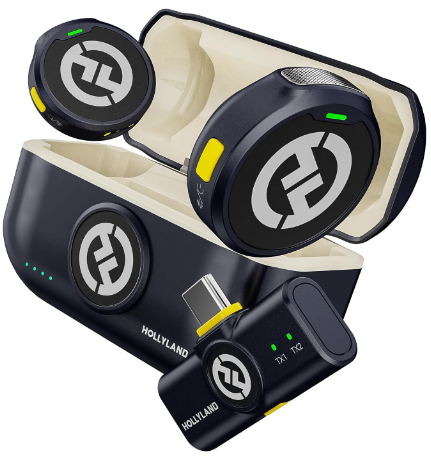
Hollyland LARK M2 - Mini Lavalier Microphone
An incredibly lightweight and compact wireless button microphone that captures high-fidelity audio.
Key Features: 9g Button Size | 48 kHz/24-bit | 40 Hours Battery

Quick Tip — Improve the Audio Quality of Your Recording
FAQ
Can I record a Google Meet if I’m not the host?
On a free Gmail account, no. Recording is unavailable regardless of your role in the meeting. On Google Workspace, participants who are not the host can only start a recording if the host has explicitly enabled recording permissions for others through the Workspace admin settings. By default, only the host and assigned co-hosts can initiate a recording.
Will participants know I’m recording the Google Meet?
Using Google Meet’s built-in recorder, yes. Every participant sees a notification banner as soon as recording starts. With Windows Game Bar, Mac QuickTime, or Loom, there is no in-app notification sent to other participants. That said, recording a conversation without consent may be illegal depending on your location, so informing participants before you record is always the right practice.
Does Google Meet recording capture audio and video?
Google Meet’s native recorder captures both the video feed and all meeting audio automatically, with no extra configuration needed. Screen recorders like Game Bar, QuickTime, or Loom capture whatever appears on your screen plus the audio sources you have configured, which can include your microphone, system audio, or both. Always confirm your audio settings before the meeting starts to avoid a silent recording.
How long can a Google Meet recording be?
Google does not impose a fixed time limit on recordings for Workspace plans. The practical constraints are your Google Drive storage capacity and your account’s meeting duration limits. For screen recorders like Game Bar or QuickTime, the only limit is your laptop’s available disk space. Extended meetings over 90 minutes can produce large video files, so it is worth checking that you have sufficient storage before you begin.
Next Steps
If your account supports it, Google Meet’s built-in recorder is the simplest option: start your meeting, click record, and find the file waiting in Google Drive when you are done. If you are on a free Gmail account, Windows Game Bar or Mac QuickTime will get the job done at no cost. Once your recording workflow is set, explore how to share Google Meet recordings with your team so collaborators can access and review sessions without extra back-and-forth.